
Capsule Radar — Live Flight Radar Desk Gadget
Print Profile(7)



Description
See real aircraft flying around you — live, on a round touch AMOLED. Open-source, and you flash it from your browser.
Overview
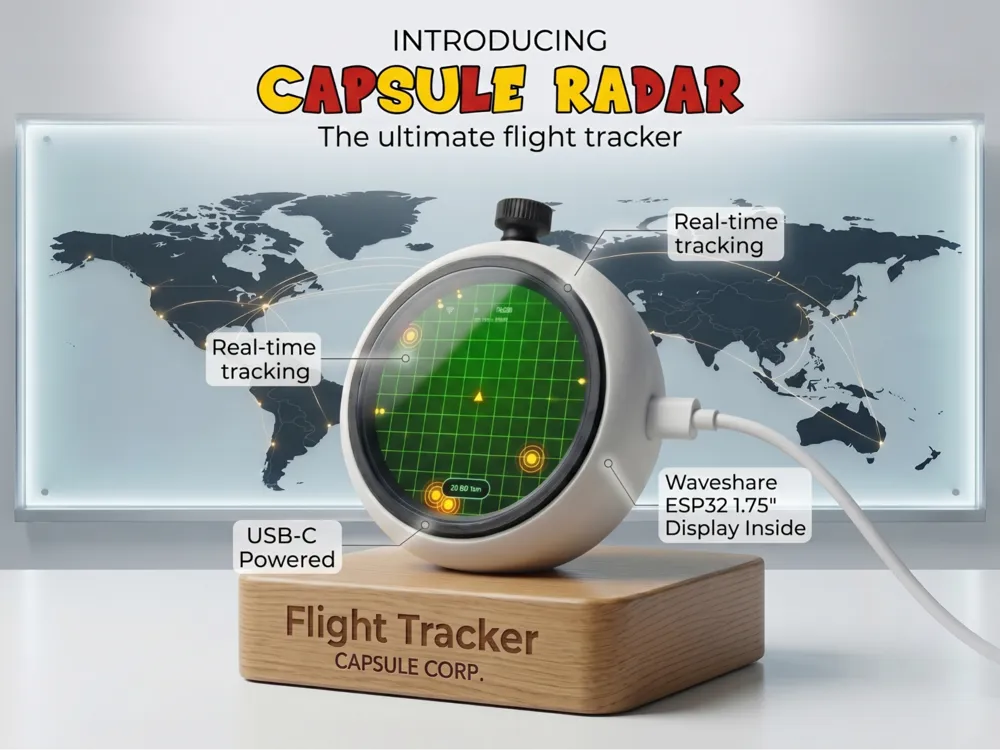
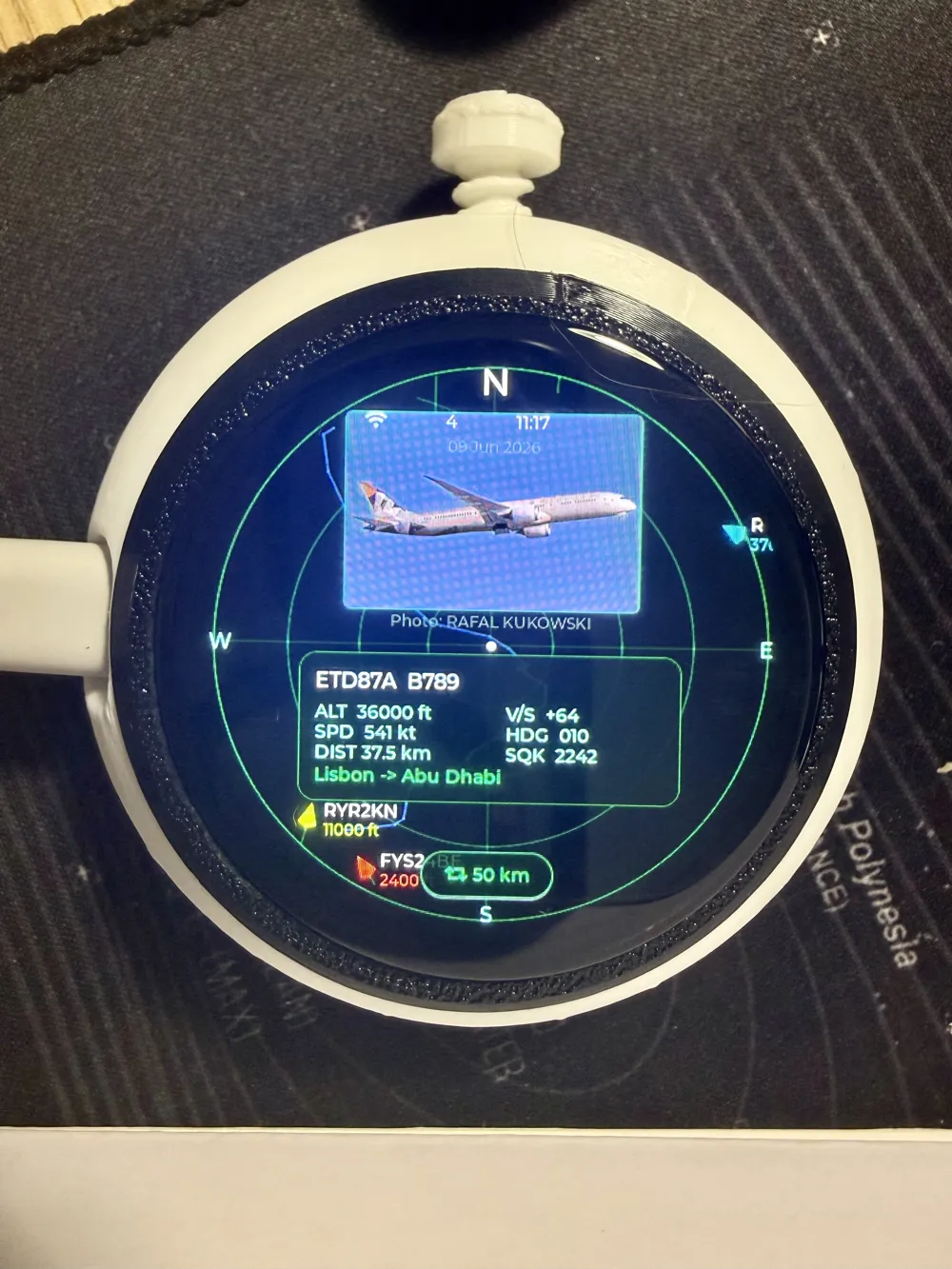
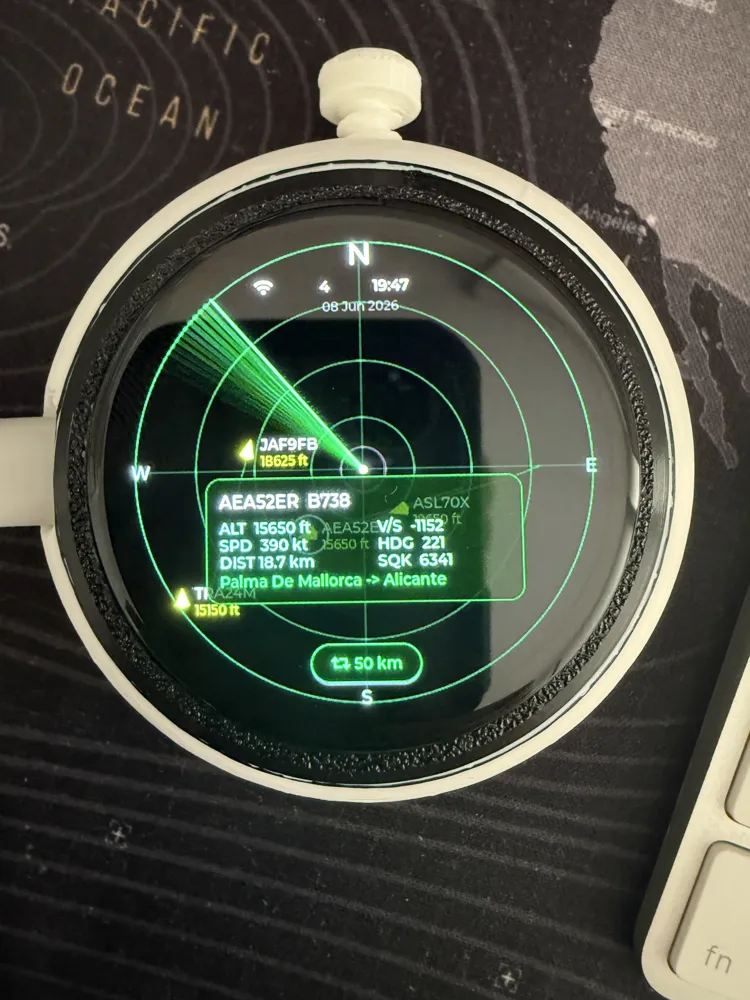
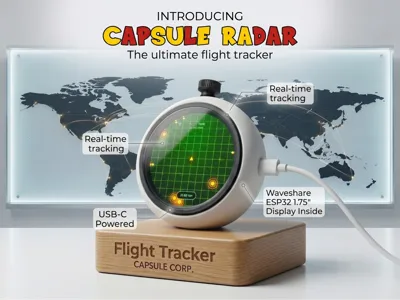
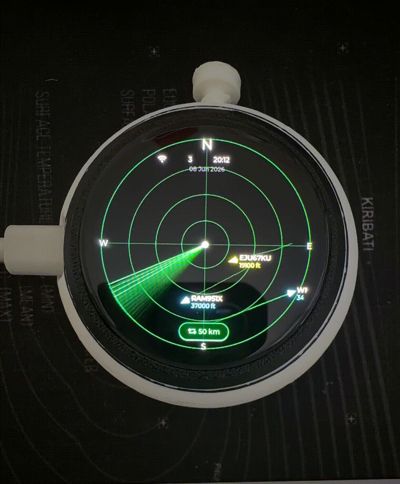
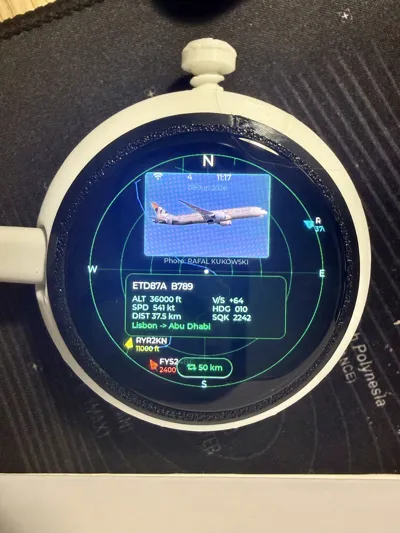
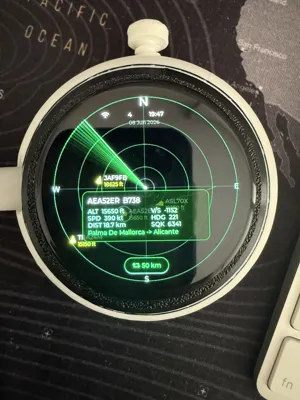

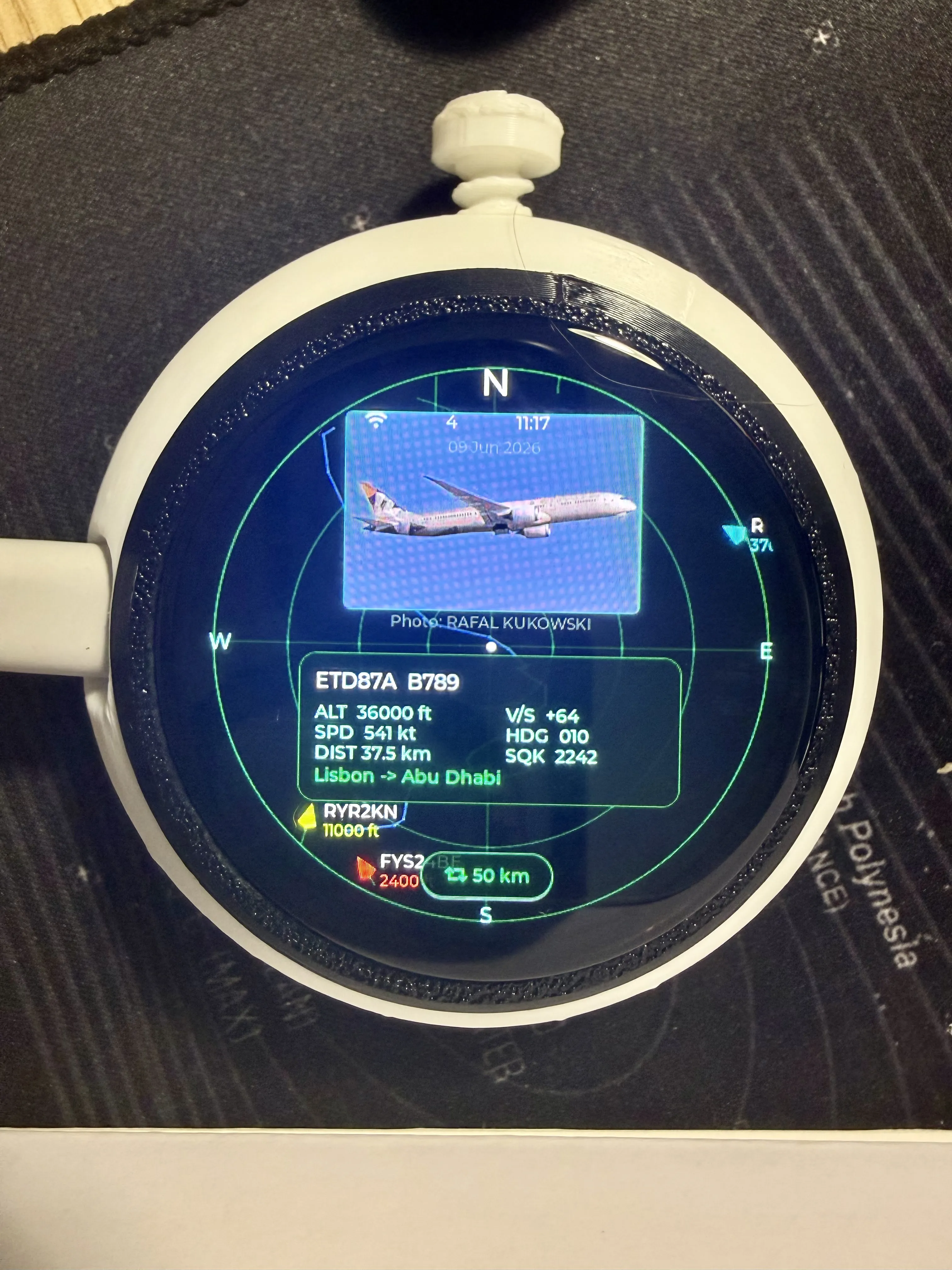
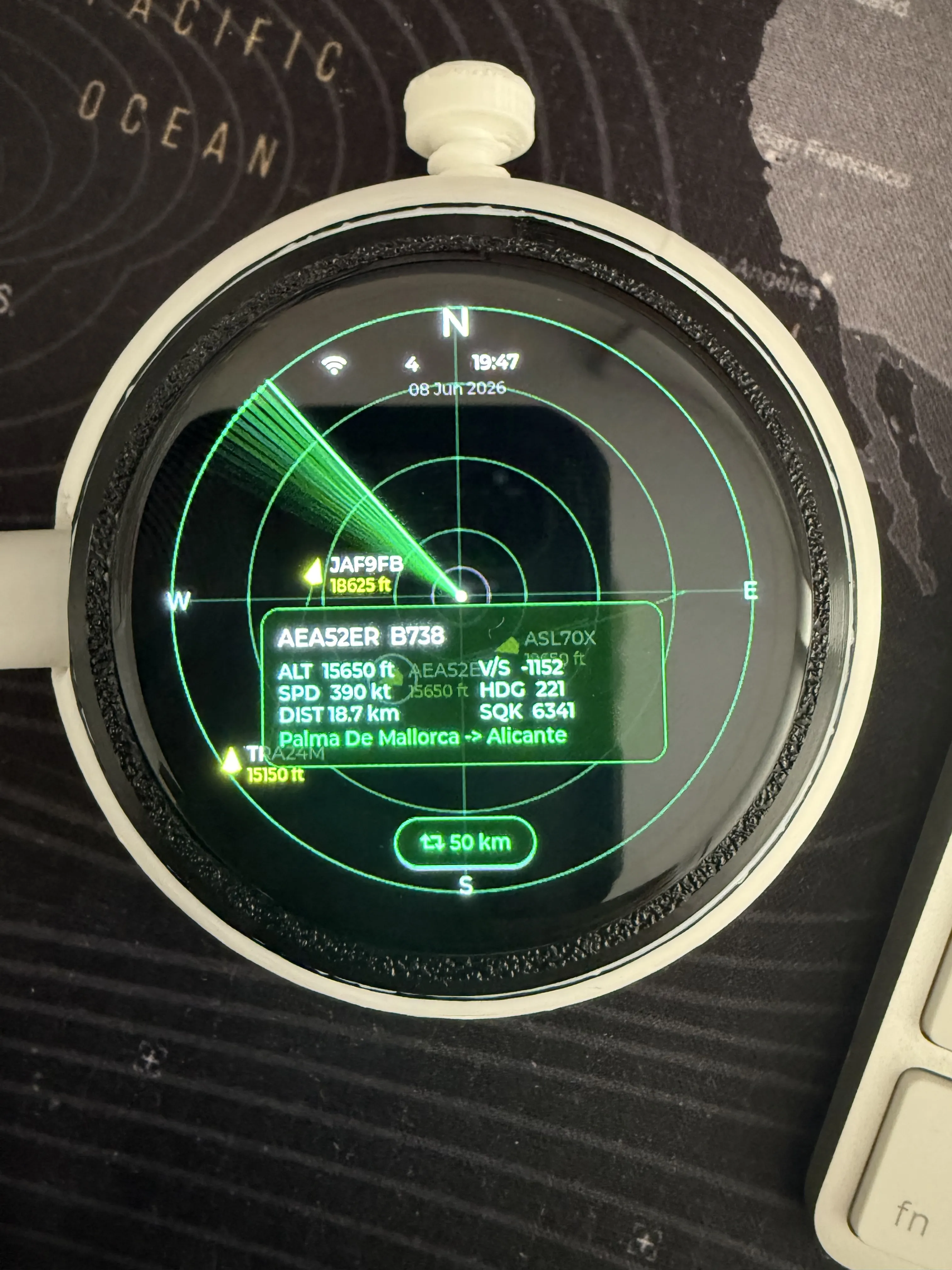
Capsule Radar is a 3D-printed desk gadget that shows live air traffic around your location. It pulls nearby aircraft from a free online ADS-B feed over Wi-Fi and plots them on a glowing round radar scope, rotated by heading and colour-coded by altitude, with an animated sweep and fading trails. Tap any aircraft to see its full details — even where it's flying from and to.
It's a finished, polished build: a capacitive touch UI, four selectable themes, a boot splash, audible alerts, battery and real-time-clock support, idle auto-dim, and a built-in web page to configure everything. No coding required — flash it straight from Chrome or Edge, then enter your Wi-Fi from your phone.
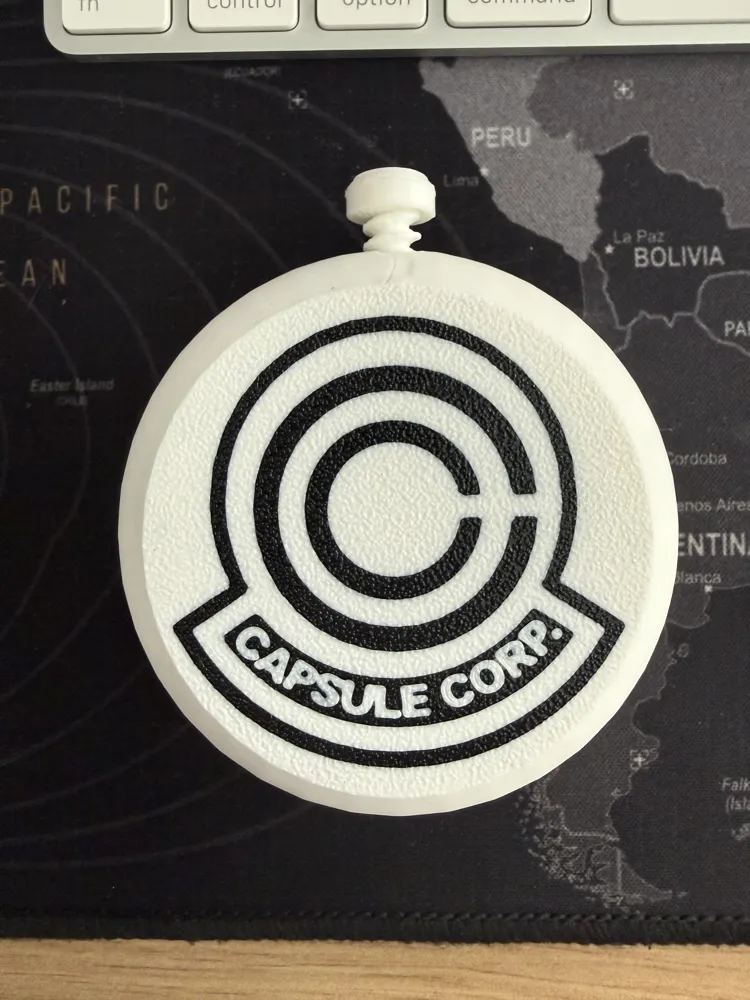
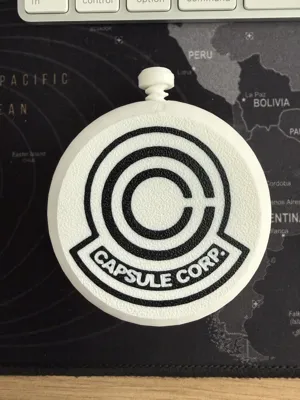
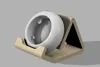
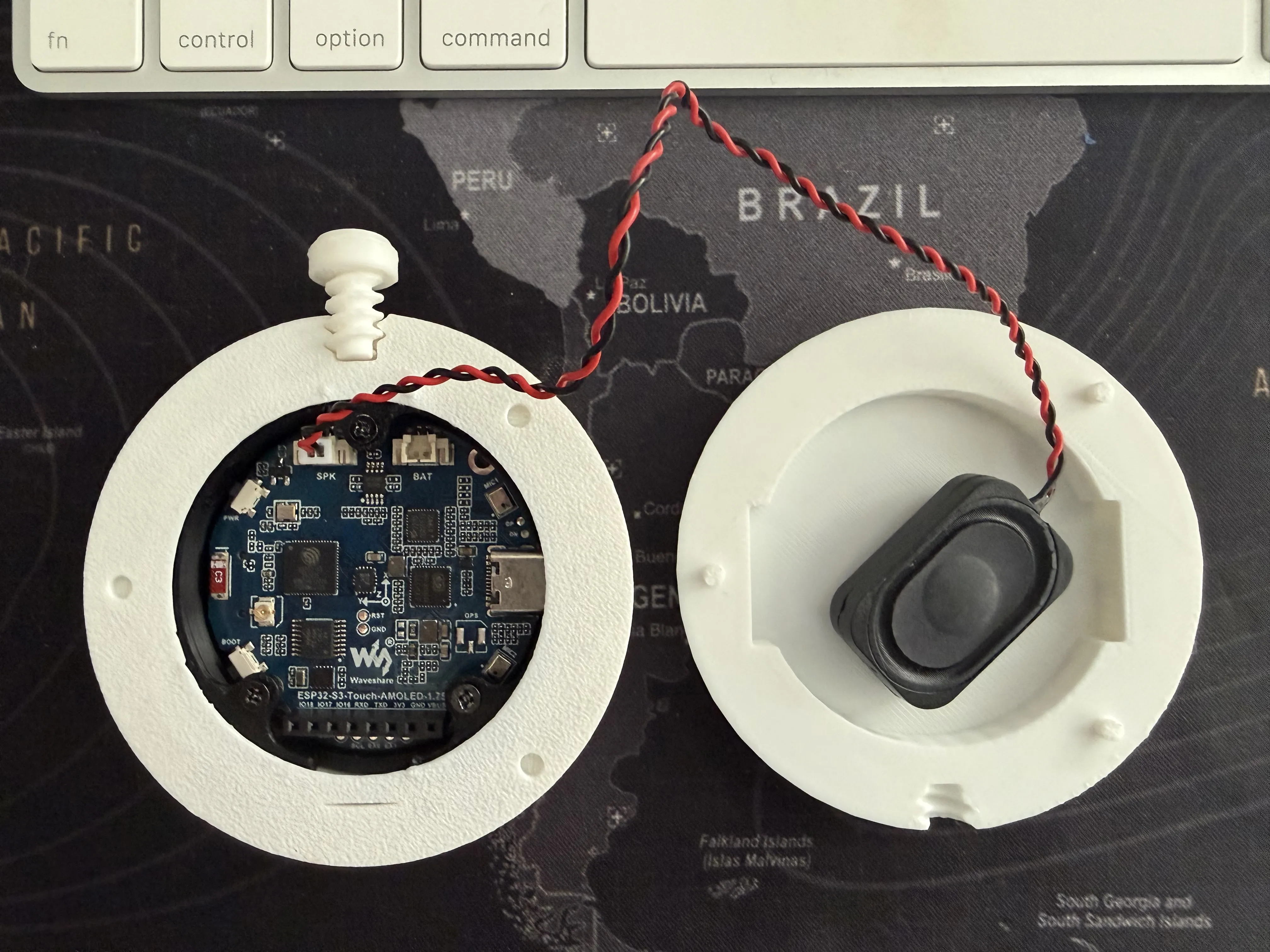
The enclosure is a round "scope-orb / pocket-watch" form factor: a matte shell with a knurled tactile ring, a crown on top, a side USB-C port, an integrated speaker, and an engraved logo. No soldering — the Waveshare board carries all the electronics.
💡 Already have this board? It can do more! The same Waveshare ESP32-S3
AMOLED screen can also become a Pokémon Tamagotchi inside a Pokéballhttps://makerworld.com/es/models/2937822-tamapoke-a-pokemon-pokeball-tamagotchi | 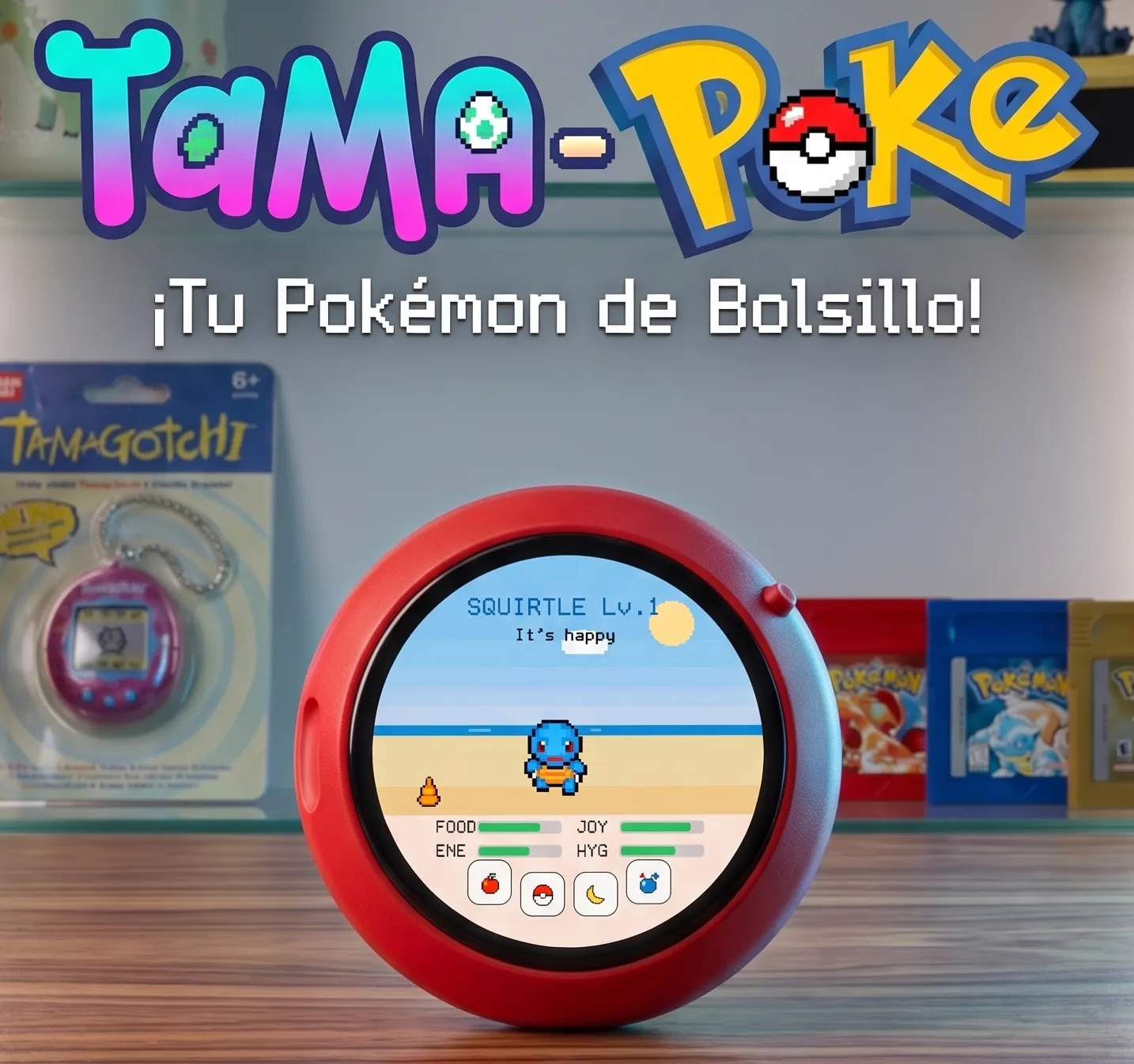 |
AMOLED screen can also become a marine ships radar.https://makerworld.com/es/models/2972002-capsule-radar-marine-live-ais-ship-radar Same screen, a ship's radar | 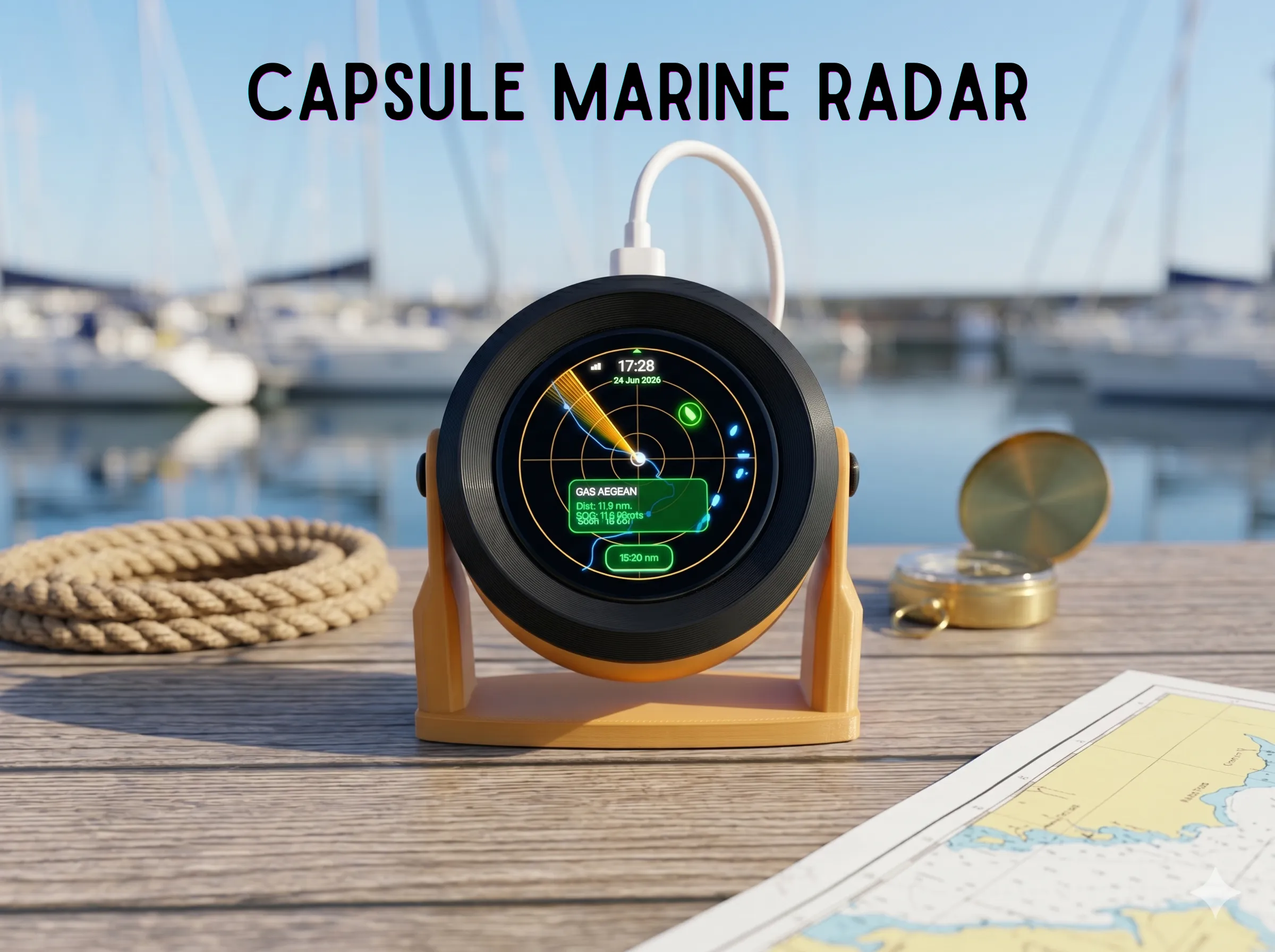 |
Functions (what it does)
Live air traffic
- Real aircraft from a free ADS-B feed (airplanes.live, with adsb.lol as a fallback), refreshed every couple of seconds.


- Aircraft are drawn as glyphs rotated by their heading and colour-coded by altitude, with fading trails and an animated radar sweep.
- Out-of-range traffic appears as edge markers pointing in its direction.
- A memory-safe streaming parser caps the number of aircraft so busy areas never overload the device.
Touch & details
- Tap an aircraft to open a detail card: callsign, type, altitude, vertical speed, ground speed, distance, bearing, squawk, and the origin → destination route (looked up online and cached so the same flight isn't re-queried).
- Swipe between three circular views: Radar, List, and Stats.
- On-screen zoom button cycles the display range (10 / 20 / 30 / 50 / 100 km) and shows the current value.
- Long-press the screen to cycle the visual theme.
Four themes (remembered across reboots)
- Phosphor — classic green-on-black radar scope: rings, sweep, altitude colours.
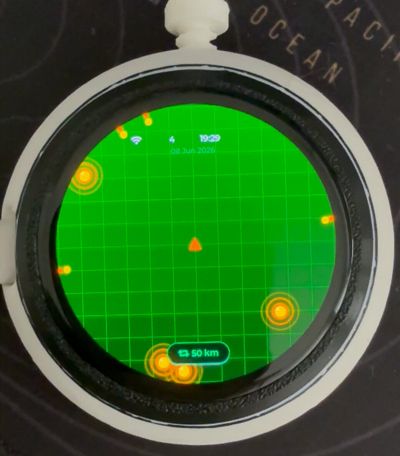

- Capsule / Orb radar — green grid with glowing "ball" blips emitting sonar-style rings and edge arrows for distant traffic.
- Amber CRT — warm amber monochrome scope.
- Military — night-vision green scope.
Status HUD
- Wi-Fi indicator (turns amber if the data feed is failing), in-range aircraft count, clock, battery % (charging bolt; turns red when low), and the date.
Sound (built-in speaker)
- A soft ping when a new aircraft enters range, and an urgent double-beep for emergency / military contacts. Volume, mute and a test button are on the web page.
Power & time
- Battery aware (optional LiPo): on-screen charge %, low-battery warning, and a slower polling rate on battery to save power.
- Real-time clock: keeps the time and date across power loss, so the clock is right even before/without Wi-Fi; it re-syncs from the internet (NTP) when online.
GPS auto-location (optional — "‑G" board variant)
- If you use the GPS version of the board (Waveshare ESP32‑S3‑Touch‑AMOLED‑1.75**‑G**, with an onboard LC76G GNSS + antenna), the radar can set its own centre point — no need to type coordinates. Tick "Use GPS for location" on the web page and a satellite icon appears in the status bar (amber while acquiring, green once it has a fix); the radar then auto‑centres on your real position, with a GPS line on the Stats view too.
The standard (non‑GPS) board works exactly the same — you just enter your location manually, which is also used as the fallback until a fix is acquired.
Tip: plug the antenna into the GPS u.FL connector (the board has a separate one for Wi‑Fi), white patch facing the sky, and allow a few minutes outdoors for the first cold‑start fix.
Smart dimming
- Idle auto-dim after a configurable time with no touch.
- Face-down sleep: flip the device over to turn the screen off (motion sensor).
Configuration & updates
- A built-in web page at http://capsuleradar.local/ to set the centre point (pick it on an interactive map), display range, theme, brightness, sound, idle-dim timeout, reset Wi-Fi, and update the firmware over Wi-Fi.
- All settings persist on the device. First boot opens a Wi-Fi setup hotspot.
What you need (Bill of Materials)
| Qty | Item | Notes |
|---|---|---|
| 1 | Waveshare ESP32-S3-Touch-AMOLED-1.75 | All the electronics in one board: round 466×466 CO5300 AMOLED, capacitive touch, ESP32-S3R8 (8 MB PSRAM / 16 MB flash), motion sensor, real-time clock, power-management/charger, audio codec. Pick the Standard version (no case) or the -G (GPS, also fits). Avoid the "-B" — it comes with a protective case that won't fit; you'd have to remove it. (The separate "1.75C" is a different board — not this one.) |
| 1 | Speaker (small 8 Ω, with the board's JST connector, optional) | For the alert pings. Optional but recommended. |
| 1 | USB-C cable (data) | To flash and power the device. |
| 1 | LiPo battery (3.7 V, JST, optional) | For cordless use; the board charges it from USB-C. |
| — | Printed enclosure | 4 parts, see below. |
| Optional | "‑G" board variant | The same board with an onboard GPS (LC76G) + antenna for automatic location. Not required: the standard board is fully functional; you just set your location on the web page. |
The Waveshare board is the only electronics you need to buy. No soldering.
Installation — flash the firmware
You don't need any toolchain.
Option A — flash from your browser (easiest)
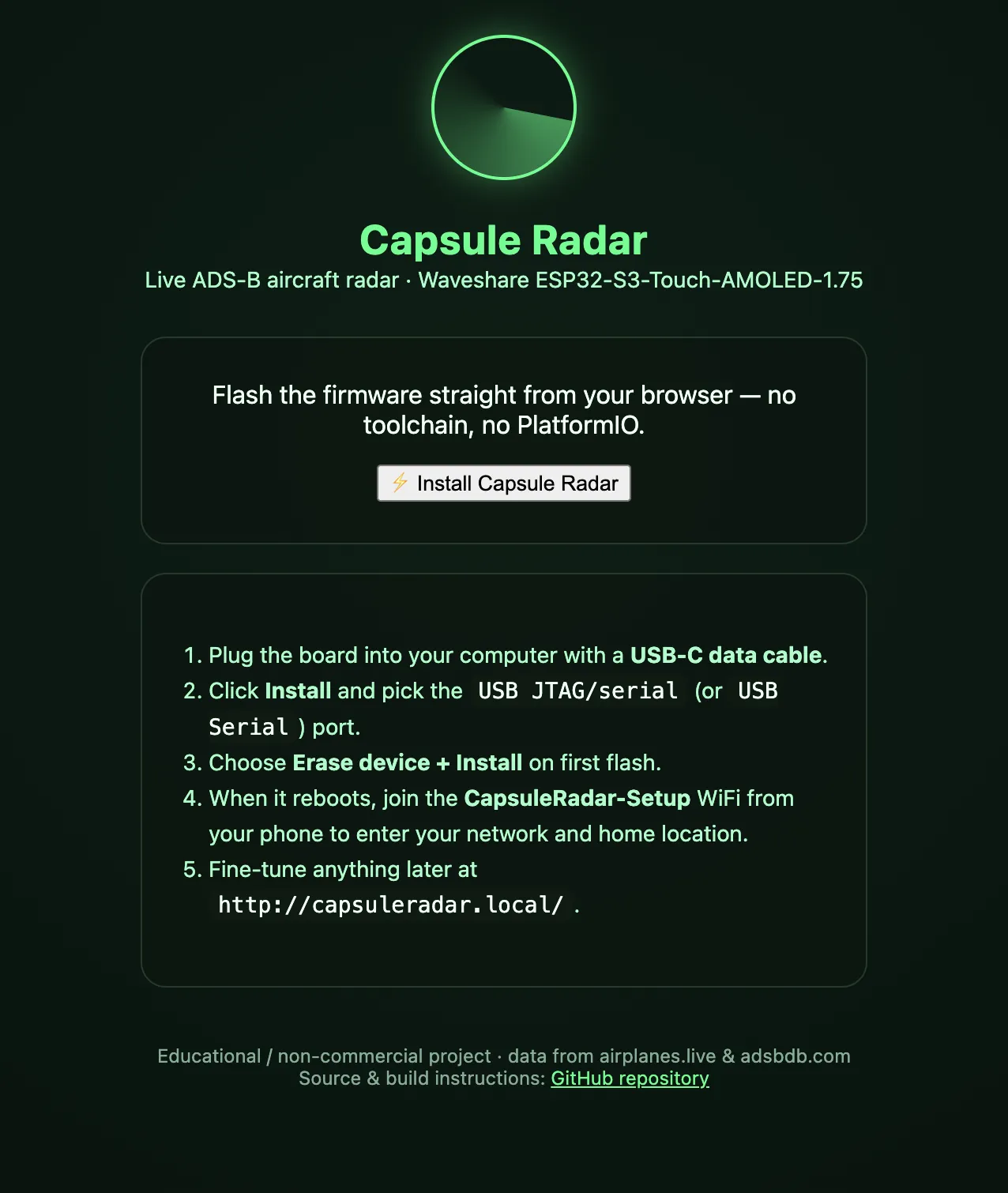
- Open the web flasher: https://socquique.github.io/capsule-radar/ (Chrome or Edge on desktop).
- Plug the board into your computer with a USB-C data cable.
Click Install, choose the serial port, and pick Erase + Install the first time.
Option B — download the binary
Grab CapsuleRadar-esp32s3.bin from the GitHub releases and flash it to offset 0x0:
esptool.py --chip esp32s3 write_flash 0x0 CapsuleRadar-esp32s3.bin
Option C — build from source with PlatformIO:
pio run -e esp32-s3-amoled-175 -t upload
Tip: if the board isn't detected, hold BOOT, tap RESET, then release BOOT, and try again.
First-time setup
- After flashing, power the device. On first boot it creates a Wi-Fi hotspot named CapsuleRadar-Setup.
- Join that hotspot from your phone; a setup page opens. Enter your home Wi-Fi.
- The radar connects and real aircraft appear within seconds.
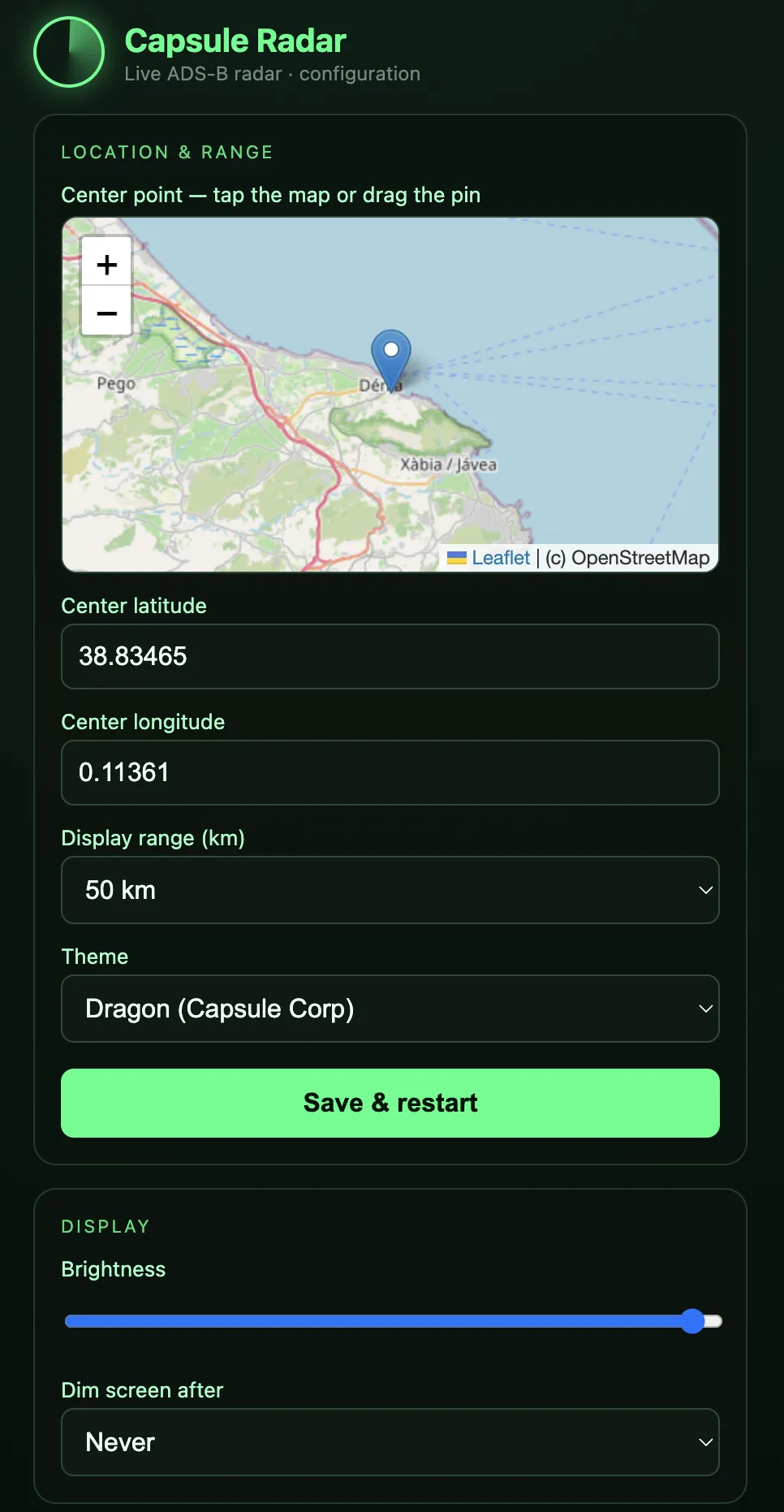
- Open http://capsuleradar.local/ on any device on the same network to fine-tune:
- Centre point — tap the interactive map or drag the pin (or type lat/lon).
- Display range, theme, brightness, sound (volume / mute / test), dim-screen-after timeout.
Reset Wi-Fi to move it to a new network.
Updating over Wi-Fi (no cable)
Once it's running, you can update wirelessly:
- Open http://capsuleradar.local/update (also linked from the config page).
- Upload CapsuleRadar-ota.bin (the app image from the GitHub release — not the merged flash image).
- A progress bar runs and the device reboots into the new firmware.
(Builders can also use PlatformIO: pio run -e esp32-s3-amoled-175-ota -t upload.)
Using it (quick reference)
| Action | Gesture |
|---|---|
| Inspect an aircraft | Tap it → detail card with route |
| Switch view | Swipe left/right (Radar ↔ List ↔ Stats) |
| Change zoom range | Tap the range button (⟳ … km) |
| Change theme | Long-press the screen |
| Turn the screen off | Flip it face-down |
| Find the config page | See the Stats view footer (shows capsuleradar.local + IP) |
Troubleshooting
- No aircraft showing — check Wi-Fi (the HUD Wi-Fi icon is red if disconnected, amber if the feed is failing) and that your centre point is set near you. Quiet areas/times simply have little traffic.
- Can't reach capsuleradar.local — use the IP shown on the Stats view instead.
- No sound — check Volume isn't 0 / Mute is off on the web page, and that the speaker is connected. Use the Test ping button.
- Lost/changed Wi-Fi — open the web page → Reset Wi-Fi, then rejoin CapsuleRadar-Setup.
- GPS not locking — GPS is only on the "‑G" board. Make sure the antenna is on the GPS u.FL connector (not the Wi‑Fi one), with a clear view of the sky; the first cold‑start fix can take several minutes.
License

You may create derivative works based on this object, provided that all such derivative works are published exclusively on the MakerWorld platform and include proper attribution to the original creator. You may not share, upload, host, distribute, or publish this object—or any derivative work of this object—on any other digital platform, marketplace, or distribution channel. Commercial use of this object and any derivative works is strictly prohibited. This includes, but is not limited to, selling, renting, sublicensing, or using the object in any context in which you receive monetary compensation or other financial benefits.


Comment & Rating (271)