
Bambu Monitor – ESP32-C3 + LCD 1.28" Case
Print Profile(1)
Description
Boost Me (for free)
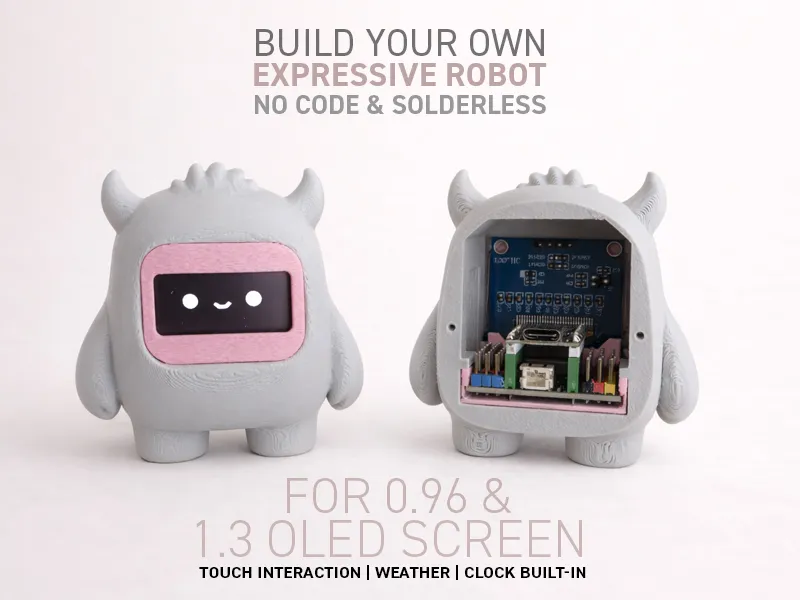
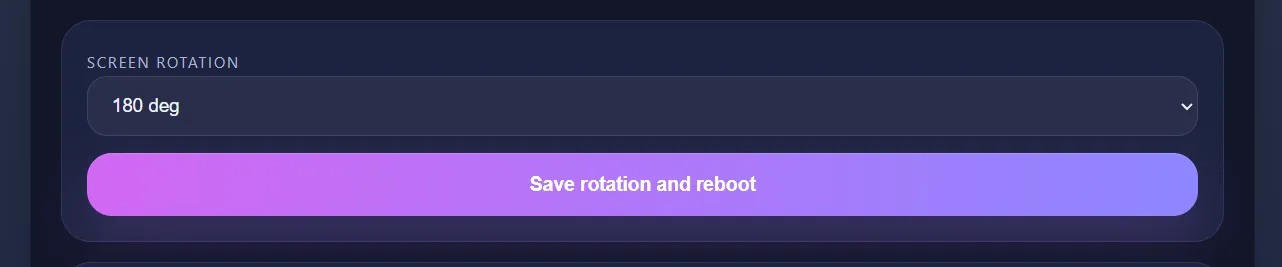
Firmware update — added a screen rotation setting
Available during setup or accessible at buddylab.local after configuration.
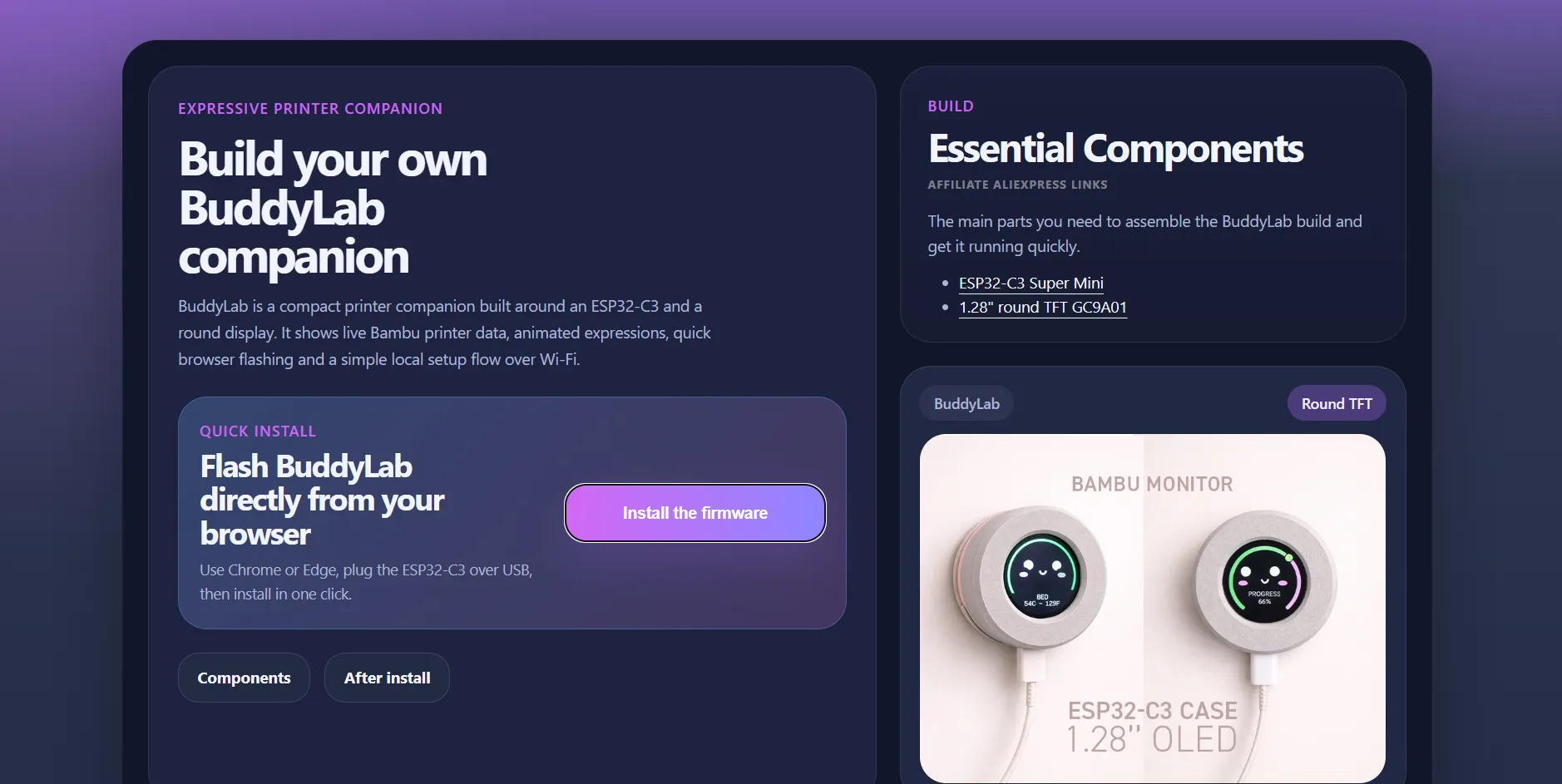
Go to https://leroyd.com/buddylab/ to install the latest update.
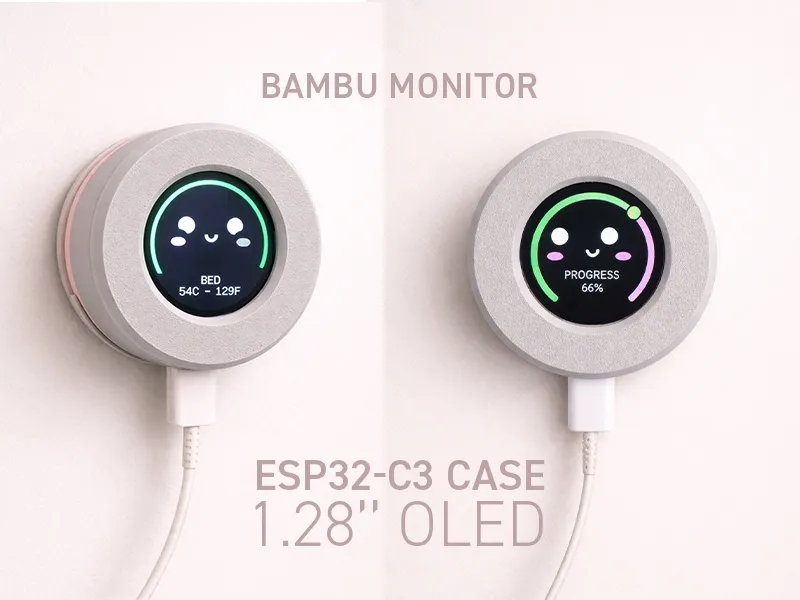
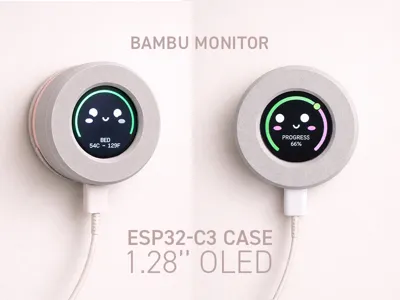
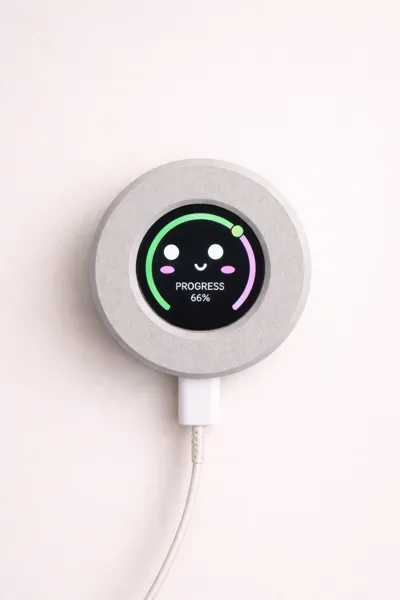
🧊 Bambu Monitor – ESP32-C3 + 1.28" LCD
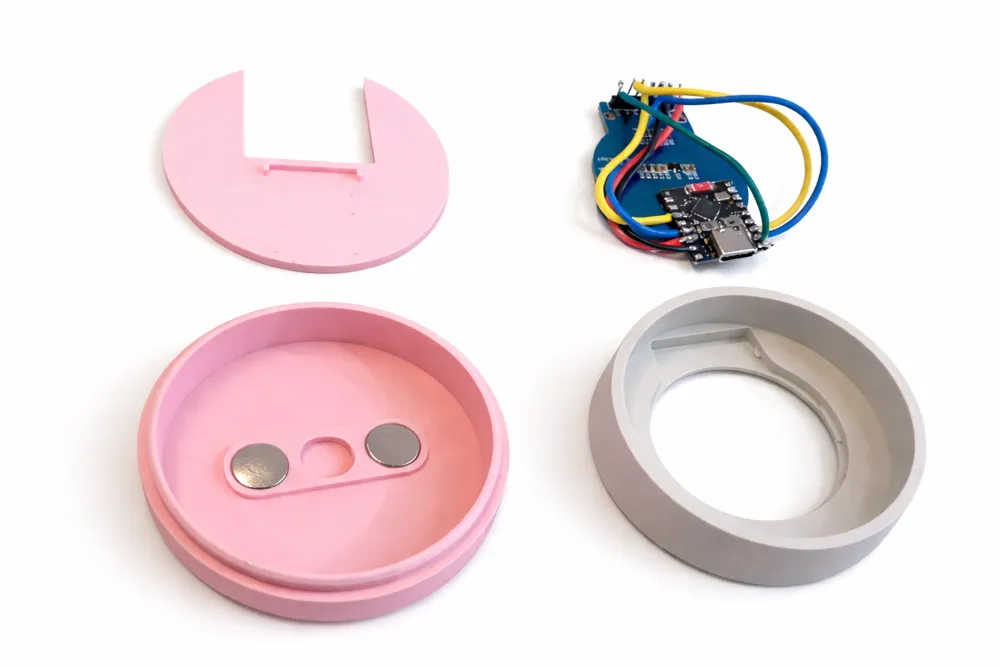
Originally designed as a case for an ESP32-C3 + 1.28" round display (GC9A01),
this project becomes a real-time monitor for Bambu Lab printers thanks to the included firmware.
👉 A clean little device for your desk (or wall) that shows your print status at a glance.
After several tests, it appears that switching the printer back to “online” mode is completely possible. This project was originally built around LAN mode, using MQTT to retrieve data (as I only use the printer in LAN mode at home). For testing purposes, I switched it to online mode, and everything behaved exactly the same.
However, factors like an IP address change or a firmware update (still uncertain at this point) could potentially affect this behavior.
So I can confidently say that this project was designed for LAN mode, but it also works just as well in online mode, with no apparent issues so far.
This project has been tested on a Bambu Lab P1S.
⚙️ Hardware
- ESP32-C3 Super Mini
- 1.28" round display (GC9A01)
- Compact and clean design
- Integrated USB cable routing
- Designed to feel like a finished product, not a rough prototype
🔌 Wiring (ESP32-C3 → GC9A01 1.28")
Connect the display as follows:
- VCC → 3.3V
- GND → GND
- SCK / CLK → GPIO 4
- MOSI / SDA → GPIO 6
- CS → GPIO 7
- DC / A0 → GPIO 2
- RST / RES → GPIO 3
- BL / LED → GPIO 5
Firmware Installation
- Connect the ESP32 to your computer with USB.
- Go to leroyd.com/buddylab/.
- Click Install the firmware.
- Follow the flashing steps and make sure to check the Erase device option if it is available.
Setup After Installation
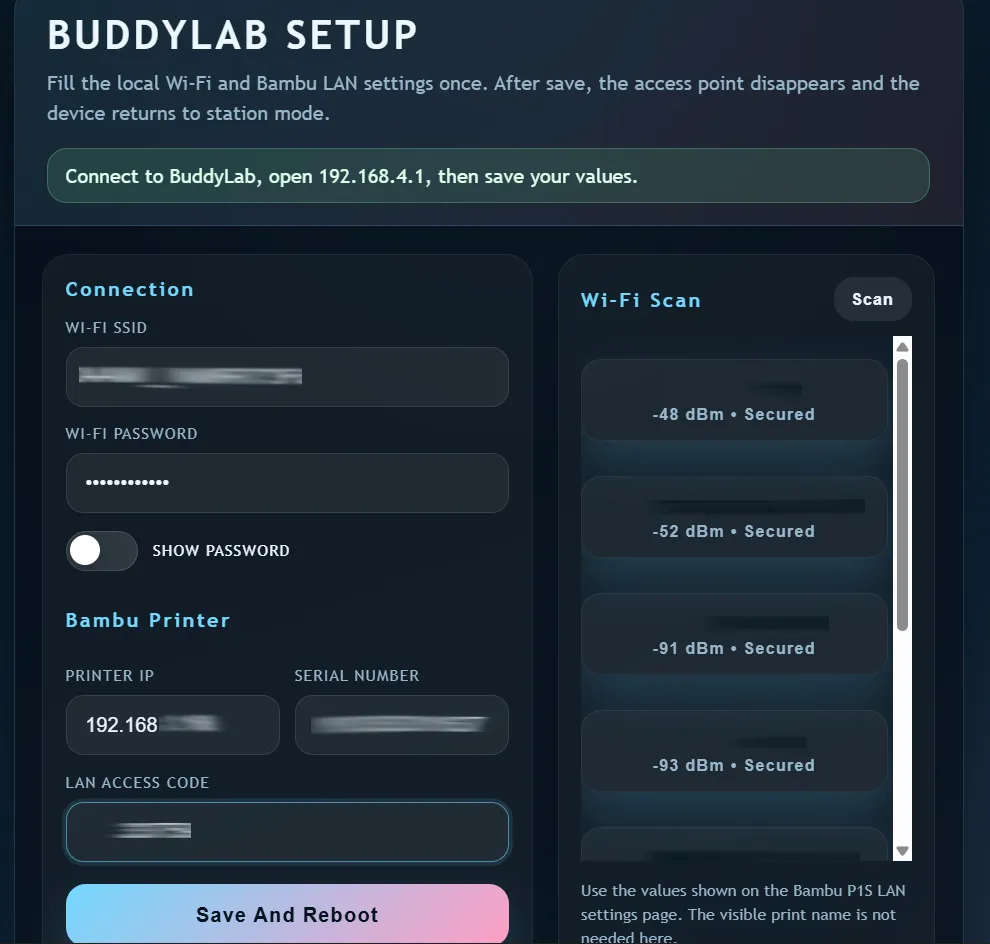
- Once the firmware is installed, connect to the BuddyLab Wi‑Fi access point.
No password is required. - Open the setup page. (URL:192.168.4.1)
- Enter the following information:
- printer IP
- printer SN / serial number
- pairing code / LAN access code
- your Wi‑Fi SSID
- your Wi‑Fi password
- You can scan nearby Wi‑Fi networks by clicking Scan.
- When all fields are filled in, click Save.
Important
- The printer must be in LAN mode.
- If you have issues, try enabling Developer Mode as well.
Usage
- Once setup is complete, printer information will appear on the screen automatically when a print starts.
Reset
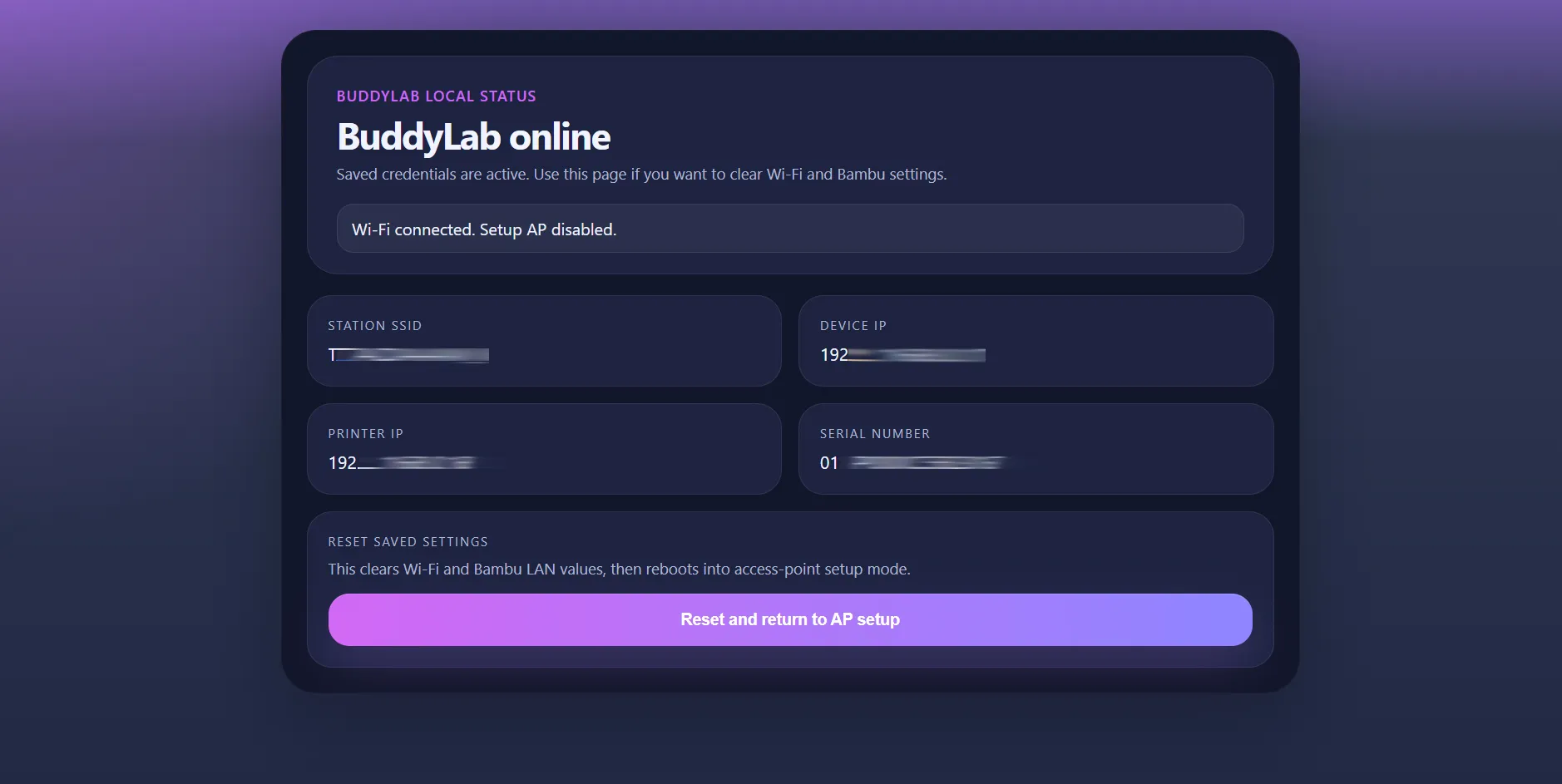
- If you want to reset the module later, go to:
- buddylab.local
🧠 Included Firmware
Ready-to-flash firmware included.
It connects to your Bambu printer via MQTT and displays live data with zero hassle.
🎭 Interface
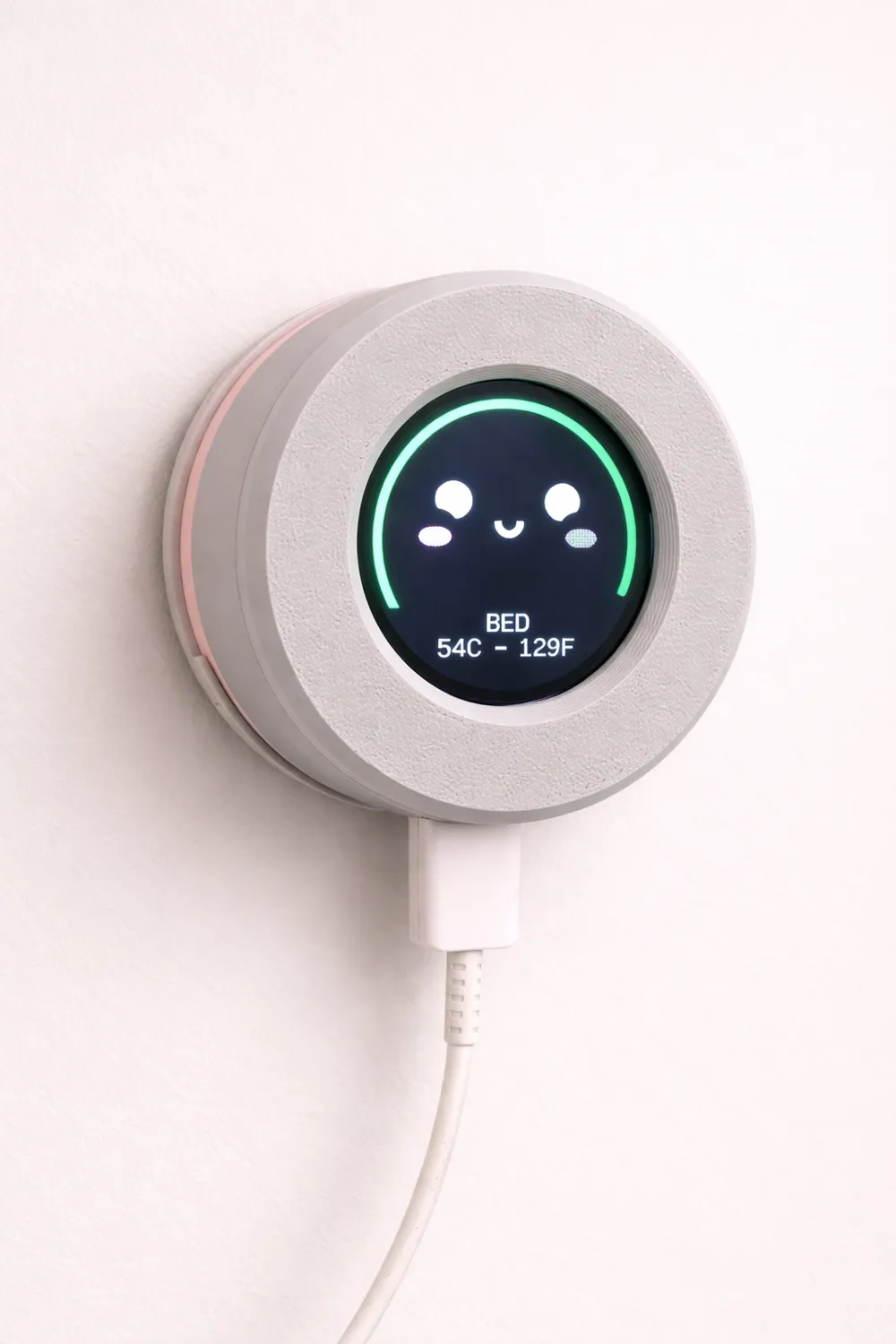
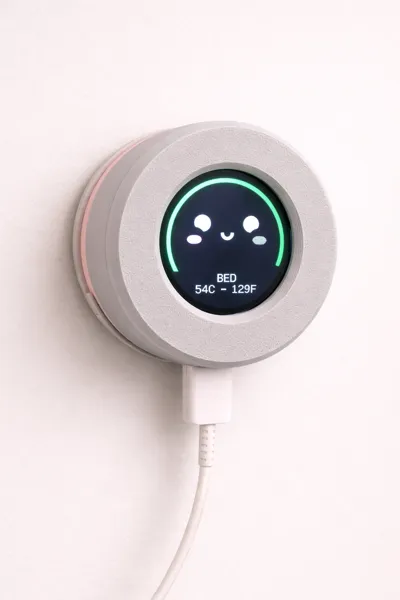
- Animated face
- Blinking eyes
- Left / right eye movement
👉 Yes, it’s intentionally “alive” — because static screens are boring.
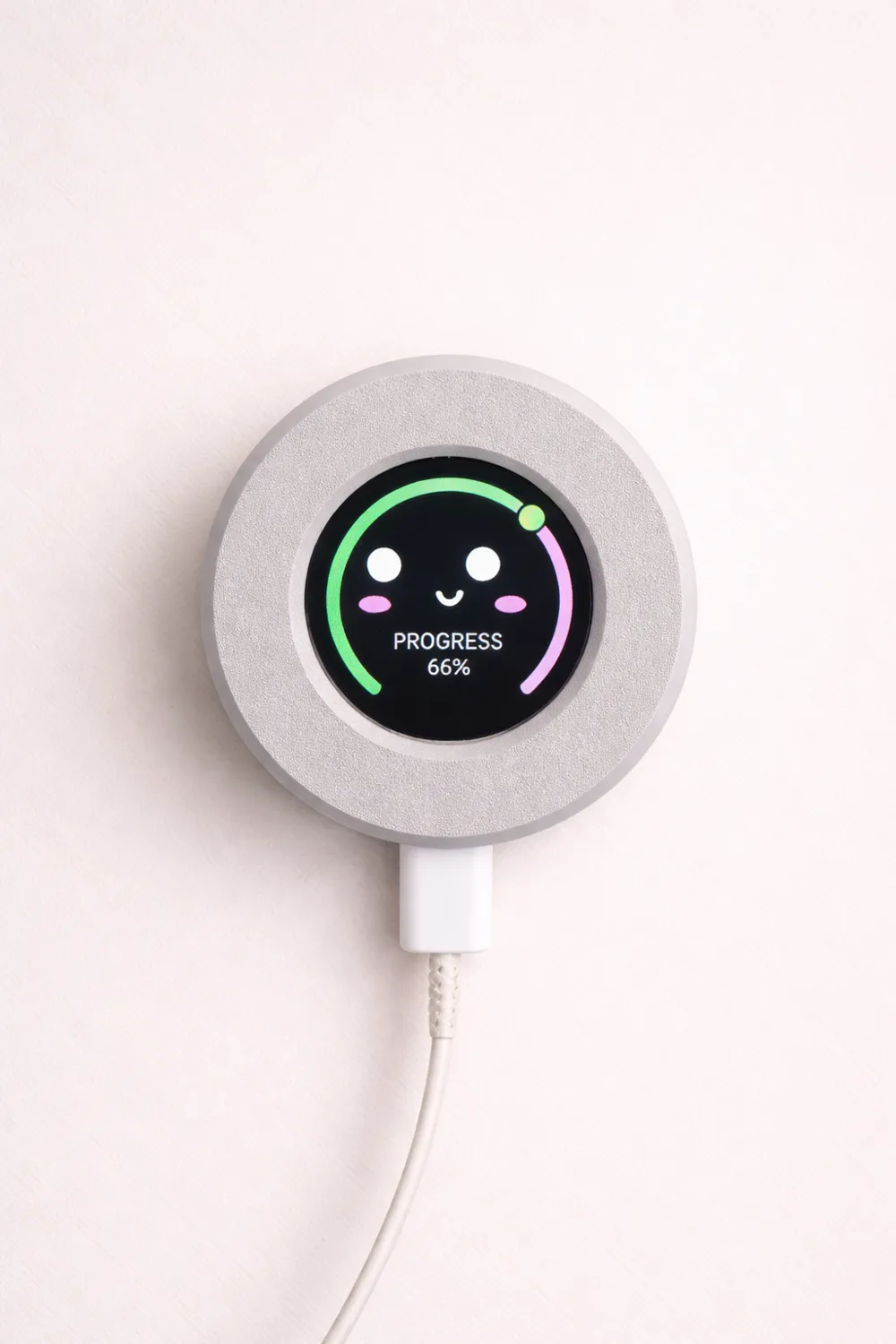
📊 Main Gauge
- Circular progress ring = print progress
- Based on:
- mc_percent (primary source)
- fallback → layer_num / total_layer_num
📱 Dynamic Slides (carousel)
Information cycles automatically at the bottom of the screen:
- PROGRESS → print percentage
- TIME LEFT → estimated remaining time
- NOZZLE → nozzle temperature (°C / °F)
- BED → bed temperature (°C / °F)
- FILE → file name (if available)
- LAYER → current / total layers
- STATUS → PREPARING, PRINTING, PAUSED, FINISHED, ERROR…
- WIFI / MQTT → connection status
🧠 Smart Display Logic
Only relevant data is shown:
- no file name → no FILE slide
- no ETA → no TIME LEFT
- no total layers → not displayed
👉 Result: always clean, never cluttered.
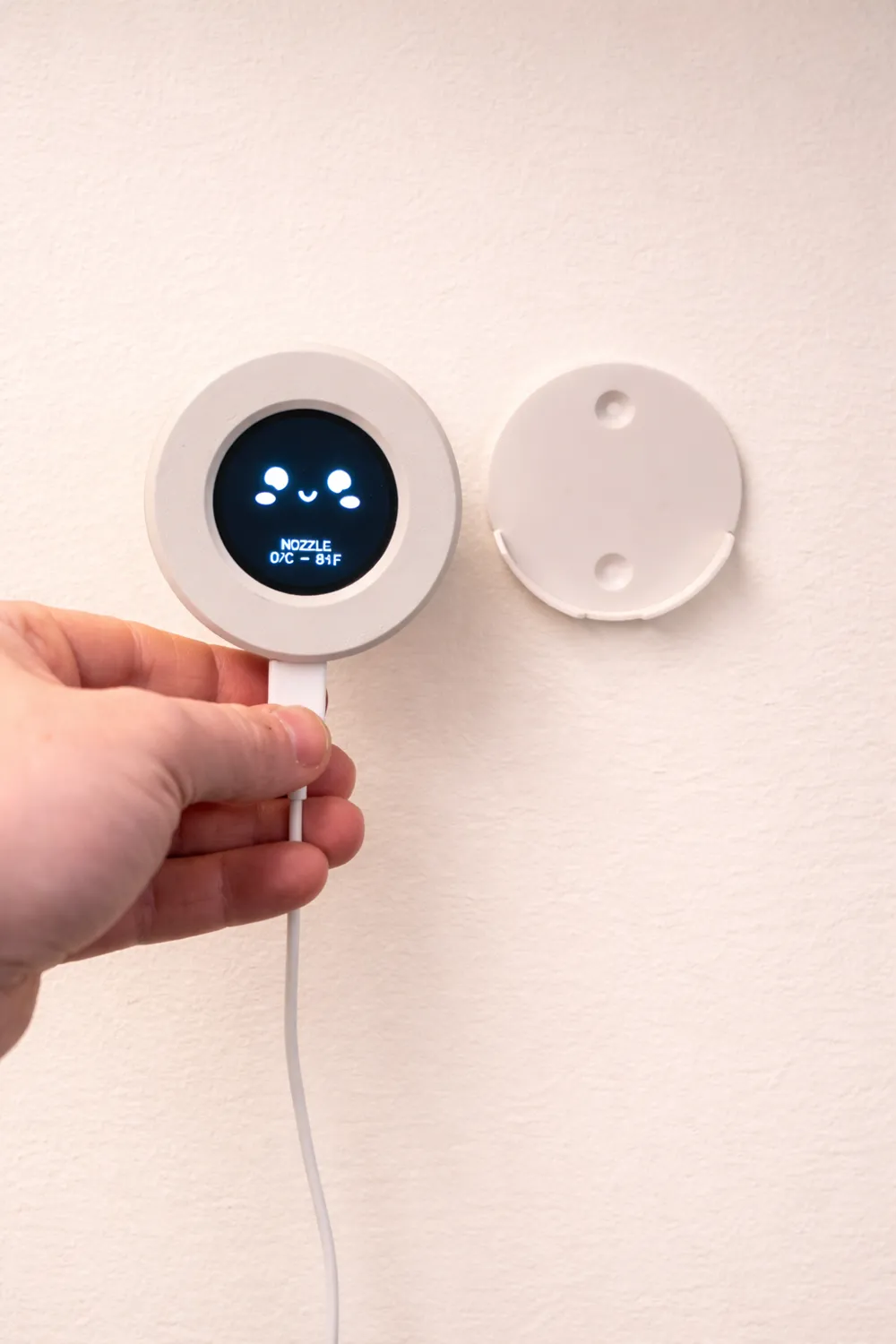
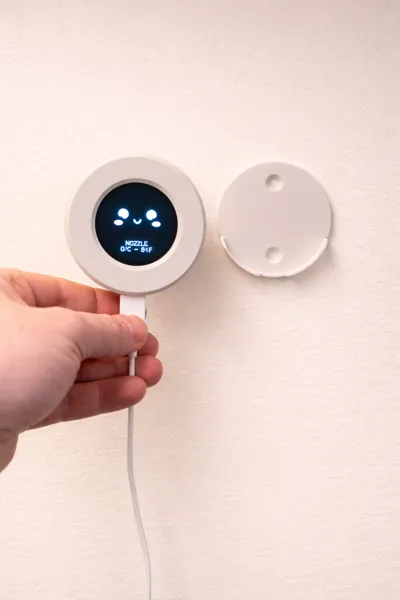
🧲 Wall Mount (optional)
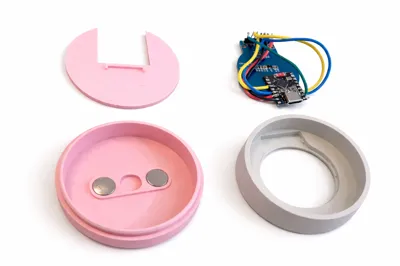
The case includes slots for 10×3 mm magnets:
- inside the main body
- inside the wall mount
👉 The monitor snaps magnetically onto its support.
Benefits:
- quick installation
- easy removal
- clean alignment
- no visible mounting system on the device
⚠️ Make sure to check magnet polarity before inserting them.
🔌 Goal
A simple device that does exactly what it should:
- power it on
- it connects
- it shows your print
- done
No complex UI, no unnecessary menus.
💡 Why it’s cool
- See your print status instantly
- No need to constantly open Bambu Studio or Handy
- Adds a real visual presence to your setup
- And… it just looks good
License

You shall not share, sub-license, sell, rent, host, transfer, or distribute in any way the digital or 3D printed versions of this object, nor any other derivative work of this object in its digital or physical format (including - but not limited to - remixes of this object, and hosting on other digital platforms). The objects may not be used without permission in any way whatsoever in which you charge money, or collect fees.


Comment & Rating (123)