
Mini ESP32 Clock & Media
Print Profile(1)

Bill of Materials
- ESP32C6 x 1: https://it.aliexpress.com/item/1005009279209835.html
- WHITE OLED SCREEN 0,96" x 1: https://it.aliexpress.com/item/1005006141235306.html
- M2 heat inserts and M2 hex screws x 8: https://it.aliexpress.com/item/1005007615031481.html
- solder pin headers x 4: https://it.aliexpress.com/item/4000875355189.html
- jumper cables x 4: https://it.aliexpress.com/item/1005003641187997.html
Description
Boost Me (for free)
PLEASE BOOST AND HAVE FUN
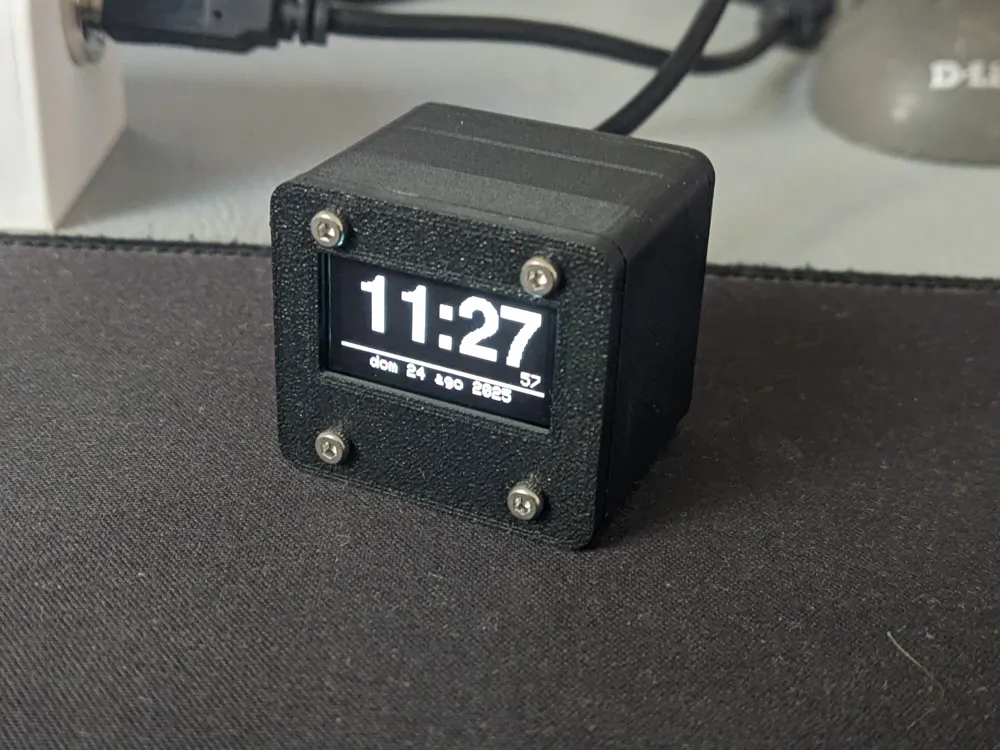
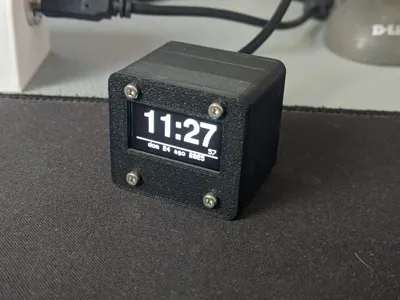
Tiny Wi-Fi Clock / Media Display
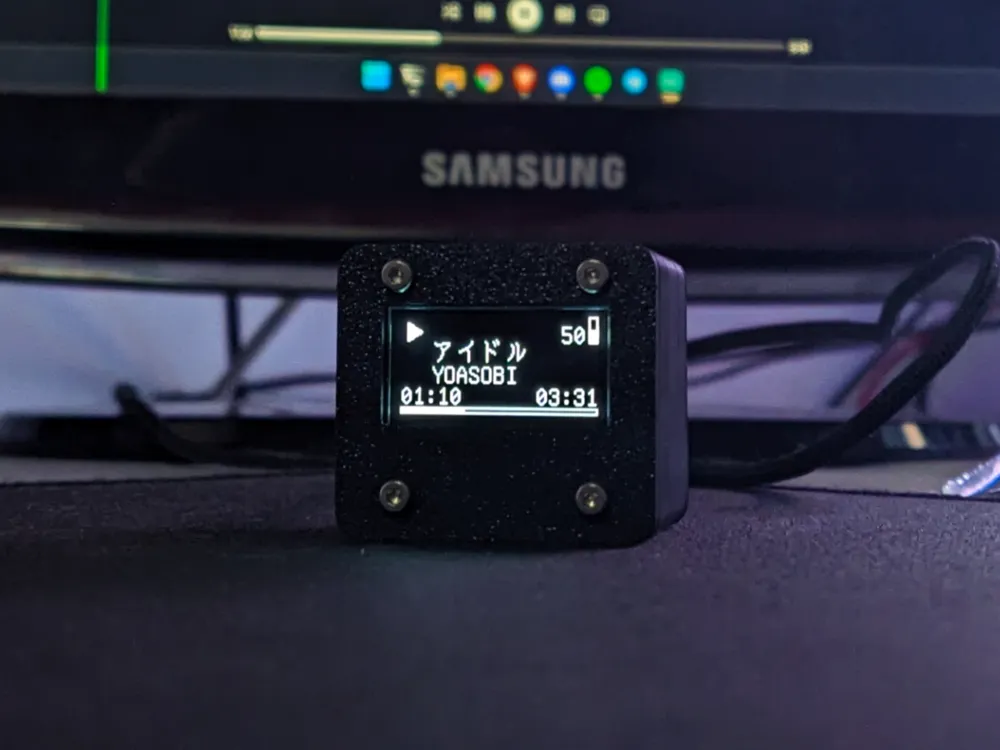
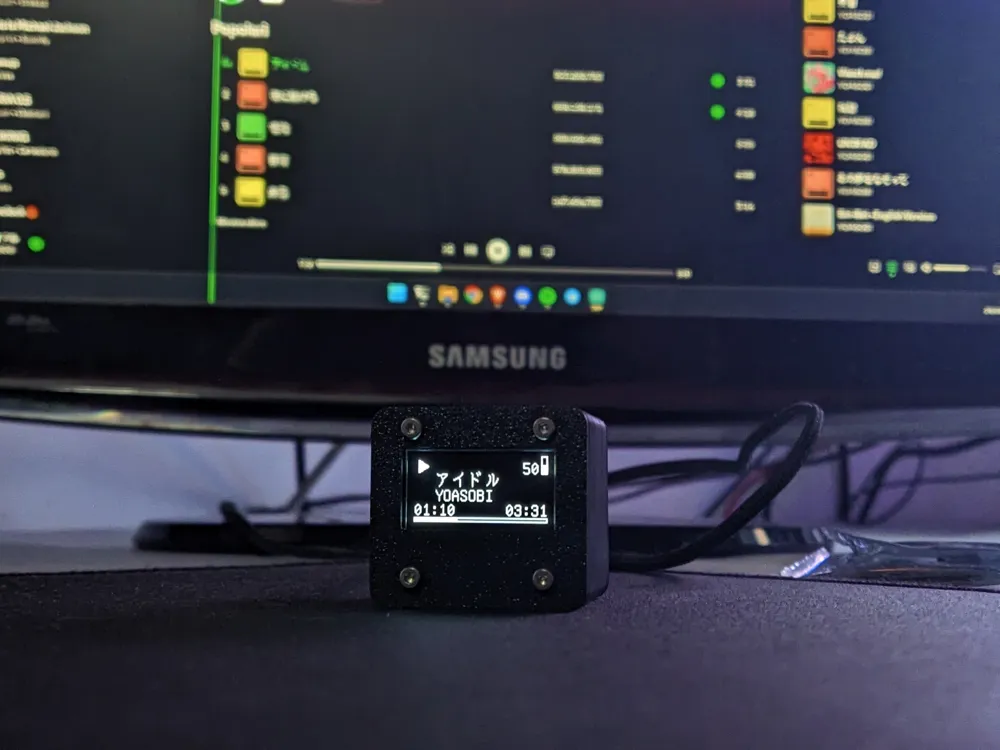

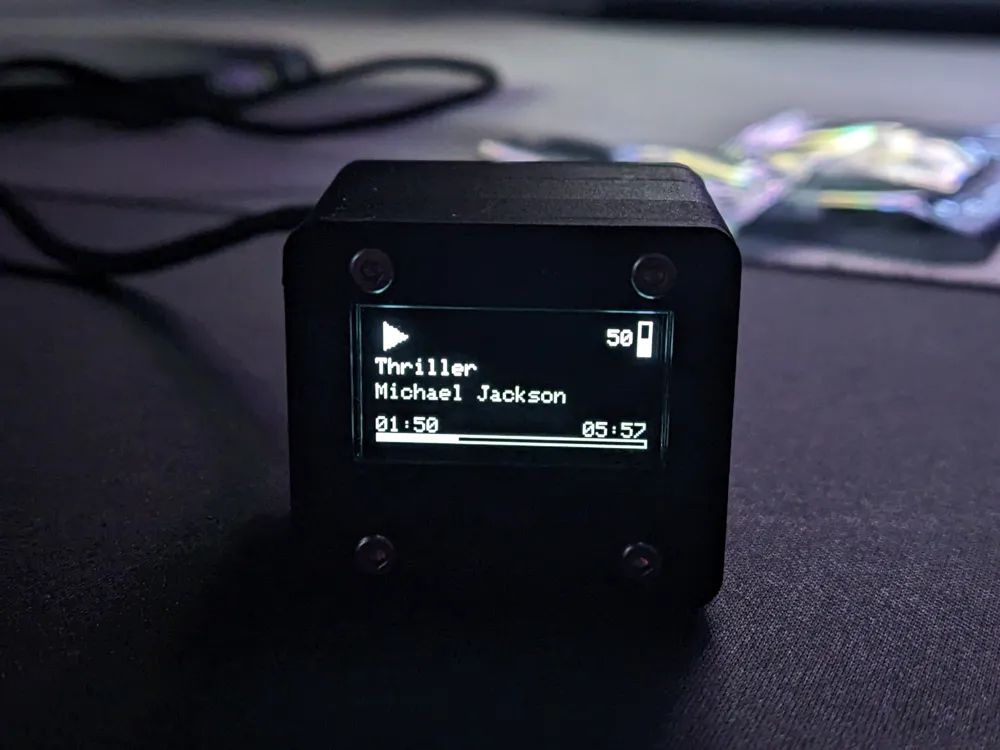
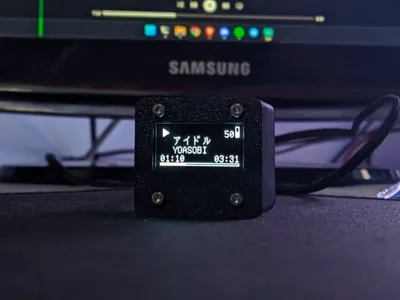
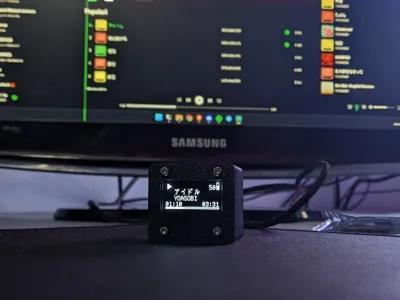
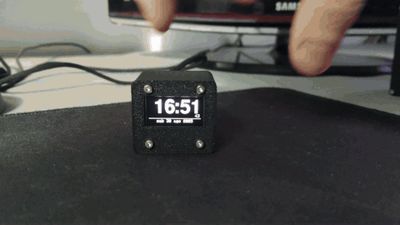
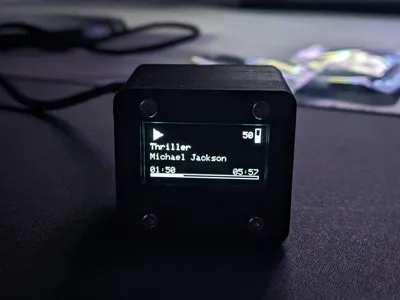
A compact 3D-printed desk gadget that displays the time or, with a press of the on-board BOOT button, switches to show your PC’s current media activity (received via Wi-Fi from a small Python script).
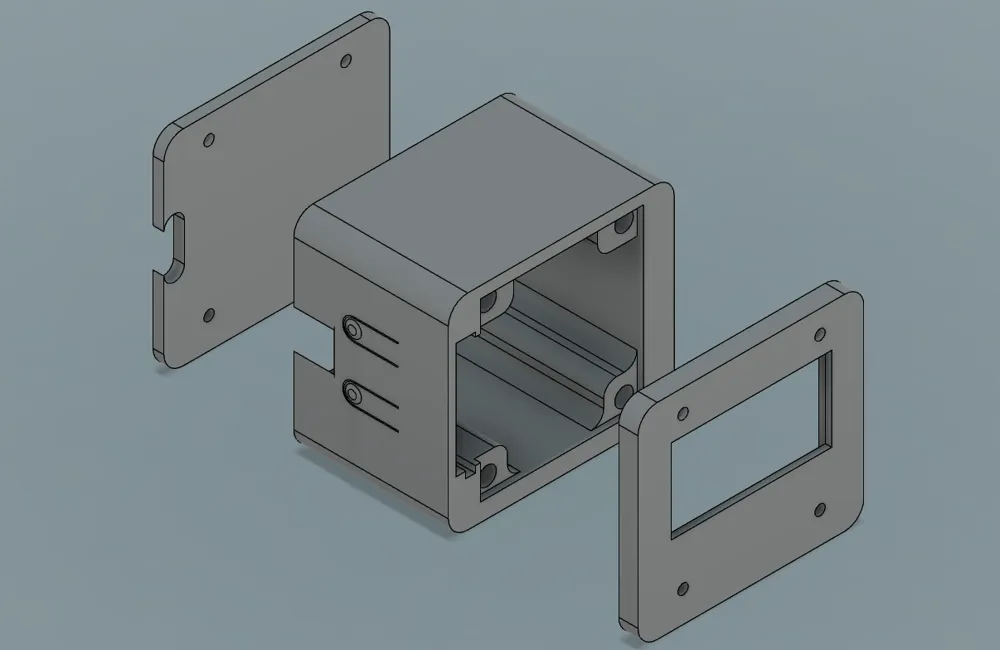
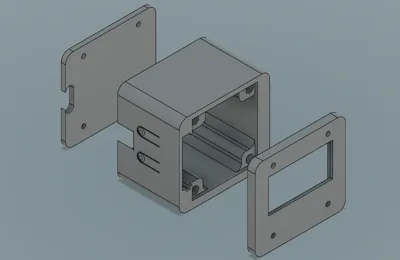
The enclosure is printed in three PLA parts (front, middle, back) assembled with heat inserts and screws for a solid, serviceable build.
It prints in about 1 hour and uses only ~14 g of PLA — perfect for a quick and satisfying build.
Features
- 🕒 Clean, high-contrast oled time display
- 🎵 Media mode with track info and progress
- 📡 Wi-Fi6 communication with a simple Python script on your PC
- 🔘 Uses the on-board BOOT button — no external switch needed
- 🧱 3-part enclosure with heat inserts + M2 screws
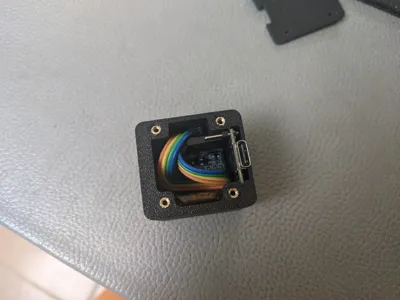
- ⚡ USB type C connection
Print Details
- 🧵 Material: PLA (~13 g)
- ⏱ Print time: ~1 hour
- 🧩 Included 3MF parts: front (screen cover), middle (electronics housing), rear
Bill of Materials
Here are the exact components used in the build:
- 🔌 ESP32-C6 SuperMini development board (USB-C)
https://it.aliexpress.com/item/1005009279209835.html - 🖥️ 128×64 0.96″ monochrome white OLED display
https://it.aliexpress.com/item/1005006141235306.html - 🔩 M2 brass heat inserts + M2 screws
https://it.aliexpress.com/item/1005007615031481.html - 📌 Solder-pin headers (to connect the OLED via jumper wires)
https://it.aliexpress.com/item/4000875355189.htmlt=glo2ita - 🧵 Female-to-female jumper cables
https://it.aliexpress.com/item/1005003641187997.html
How to Flash the Code to the ESP32-C6 SuperMini
Follow these steps to upload the firmware to your ESP32-C6 using the Arduino IDE.
🔧 1. Install the required tools
- Download and install the Arduino IDE (version 2.x recommended).
- Open the IDE, go to File → Preferences.
- In Additional Boards Manager URLs, add this URL (if not already present):
https://espressif.github.io/arduino-esp32/package_esp32_index.json
- Go to Tools → Board → Boards Manager and search for:
“ESP32 by Espressif Systems”
→ Install it (or update to the latest version). - Install any required libraries for your project (e.g. WiFi, SSD1306 display, etc., depending on your code, they are usually on top).
🔌 2. Connect the ESP32-C6 to your PC
- Plug the board into your computer using a USB-C cable (ensure it’s a data cable, not charge-only).
- The board should appear as a COM/serial port or it should be recognized as ESP32 Family Device then select the appropriate device.
🧭 3. Select the correct board
In Arduino IDE:
- Go to Tools → Board → ESP32
- Select “ESP32C6 Dev Module” (or “ESP32-C6 SuperMini” if shown).
🔌 4. Select the right serial port
- Go to Tools → Port
- Choose the port labeled ESP32C6 or the newly appeared COM port.
If you’re unsure which one is correct:
- Unplug the board → check the list
- Plug it back → choose the new entry that appears.
📄 5. Load your project code
- Open the .ino file (or create a new sketch and paste your code).
Go to Sketch and click Add file… to add the fonts (THIS IS MANDATORY)
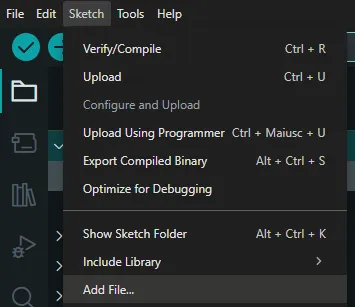
- Verify that any required libraries are installed otherwise it will give out error (the error shows wich library is missing).
📝 6. Adjust upload settings
Usually the defaults work, but for ESP32-C6 ensure:
- Tools → Upload Speed: 115200 (safe default)
- Tools → USB CDC On Boot: Enabled
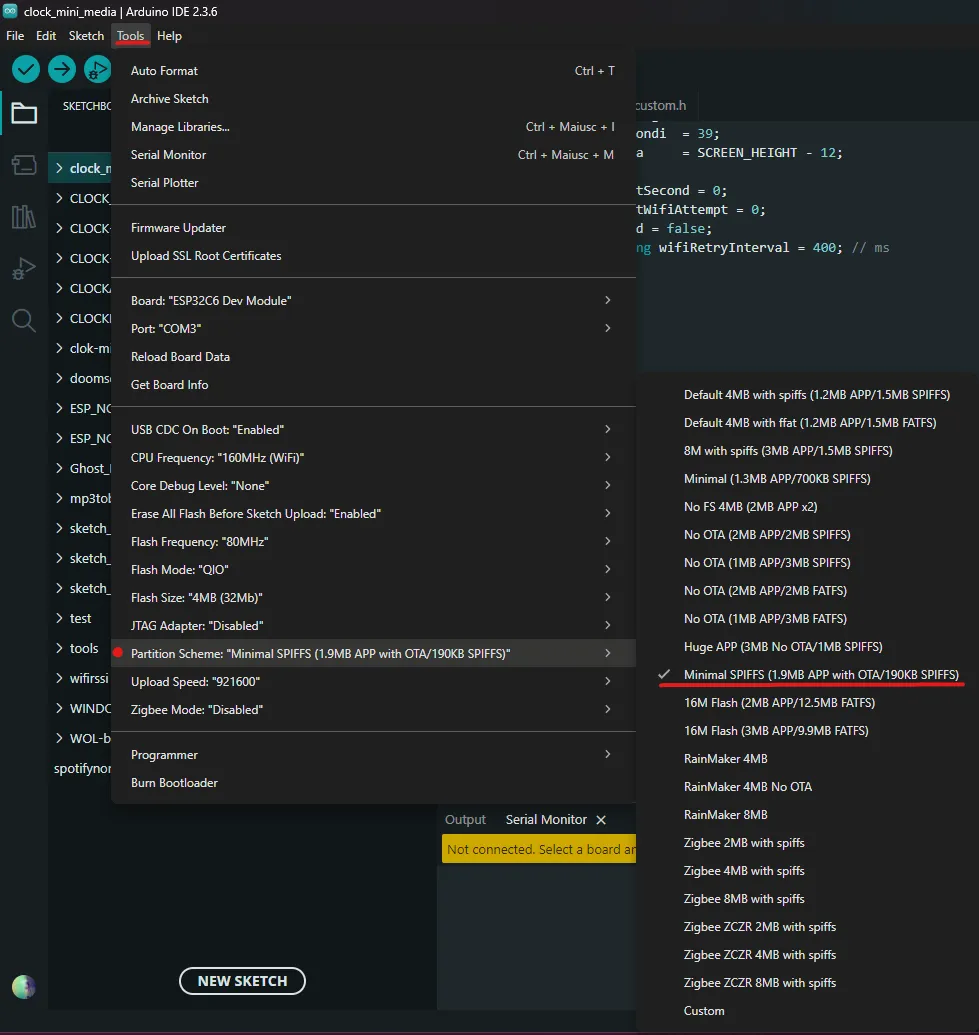
- Tools → Partition Scheme: Minimal SPIFFS (otherwise ota update will not work)
⬇️ 7. Put the board into bootloader mode (if required)
Often the ESP32-C6 enters bootloader mode automatically.
If flashing fails on the first attempt:
- Hold BOOT
- Click RESET (if present on your module)
- Release BOOT after 1–2 seconds
Then try uploading again.
Most C6 SuperMini boards auto-reset and you won’t need this step.
🚀 8. Upload the code
- Click the Upload button (the right-arrow icon).
- Wait for compilation and flashing to complete.
- The serial monitor will confirm a successful upload.
✔️ 9. Test the device
- Open Serial Monitor (Tools → Serial Monitor) to check Wi-Fi logs or debug messages.
- If using your BOOT button to toggle modes, verify it responds correctly once the device is running.,
BUILDING INSTRUCTIONS
- Print the the file (1 part at a time or all at once as you prefer)
- use your preferred method to put all the heat inserts:
face: M2 x 3mm screw: M2 x 7mm (or at least more than 3mm)
rear: M2 x 2mm screw: M2 x 6mm (or at least more than 2mm) - solder 4 header pins (gnd - 3v3 - 20 -19)
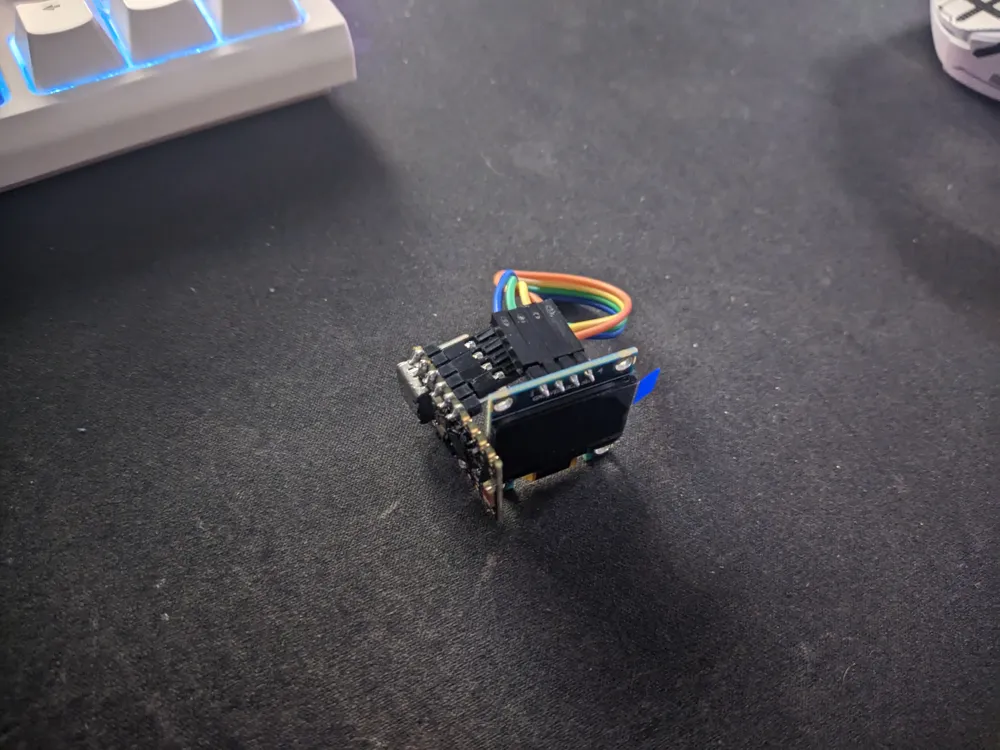
- insert ESP32 from the back in the mid 3d printed part
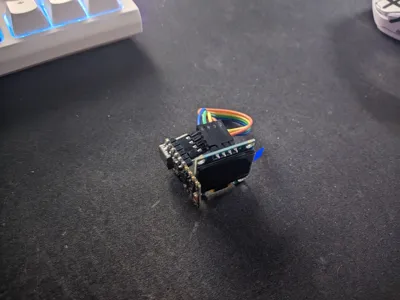
- connect to screen with jumper cables:
- gnd with gnd
- 3v3 with 3v3
- pin 20 with SCK
- pin 19 with SDA
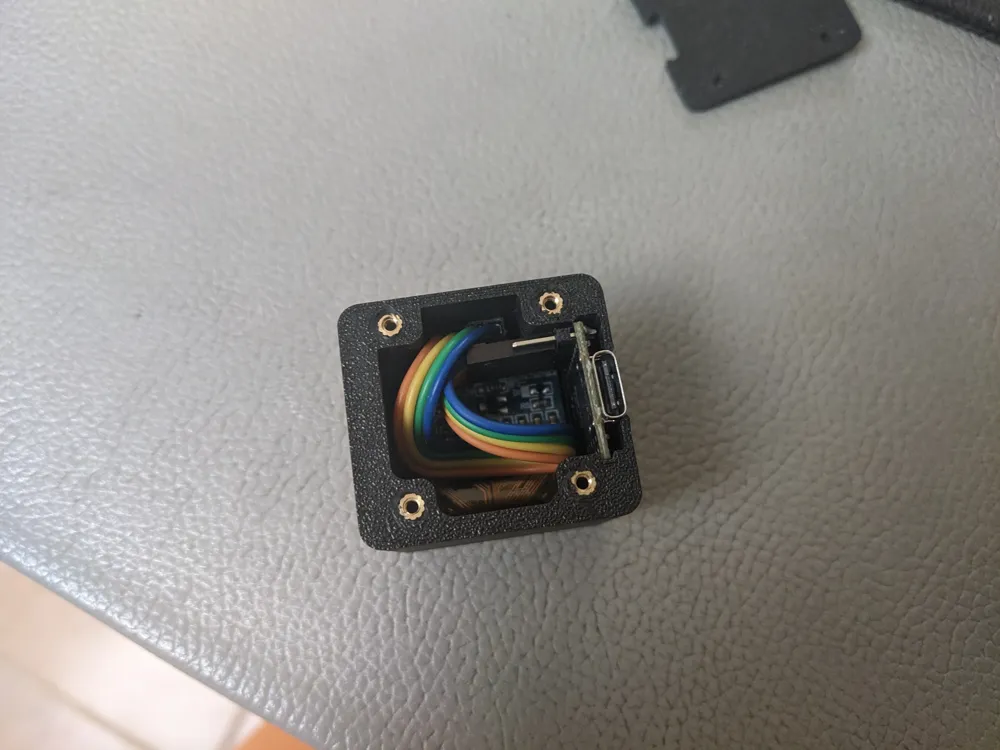
- "coil" the cable to fit all inside the enclosure
- put the screen over the holes from the front and put the face 3d printed part over it then screw them to keep it in place
- put the rear cover and screw it in place
FULLY OPEN-SOURCE
All required files — firmware, the Python script, and all 3D models — are available on GitHub:
👉 https://github.com/caneduro/esp32-clock-media
The project is fully open‑source.
Anyone can fork it, modify it, improve it, or contribute.
The current version is not 100% complete and can definitely be refined by someone with more experience — contributions are welcome!
BTW right now all the text are in italian, so you need to change them to be your language + YOU NEED TO CHANGE WIFI CREDENTIALS OTHERWISE IT WON'T WORK AND OTA (if you need to)
Documentation (2)
License



Comment & Rating (4)