
A1/A1mini Multi-color/Filament Change Time Optimization and Reduced Flushing
Print Profile(2)


Description
Kx (Kobra X) is about to be released, A1 users must be feeling great about it, I researched the differences between the two and found that the A1 also has much room for optimization during color changes, so I analyzed the reasons, and as expected, the effect was quite good, basically on par with Kx, so I'm sharing it with everyone
I observed that the time-consuming aspects of A1 filament changes were, first, the purge process is long, and second, there is heating and cooling during purging, waiting for the nozzle temperature to reach the set value
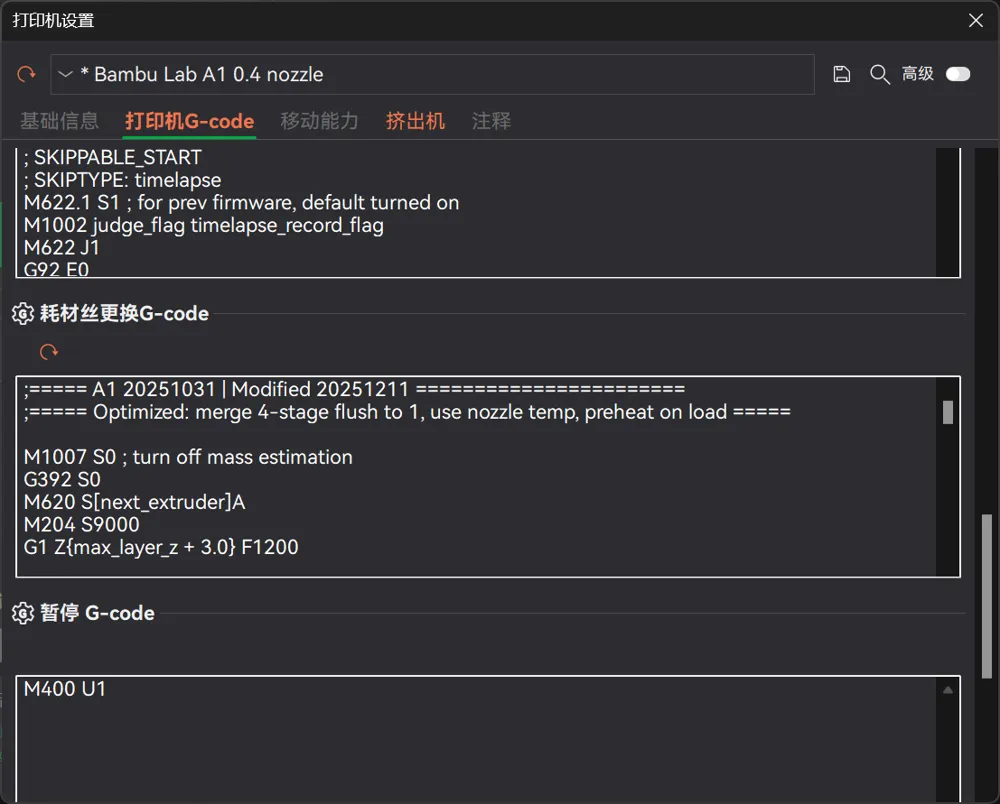
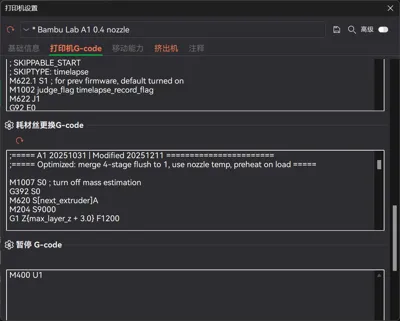
The printer G-code has a filament change G-code, with complete filament change steps that can be customized, so I optimized it by modifying the change_filament_gcode
My optimizations are as follows:
1、Changed from 5 pulse purges in each of 4 stages to 2 pulse purges in 1 stage
2、Purge temperature now uses printing temperature
3、Filament printing temperature remains unchanged, temperature also unchanged during filament change, no waiting required
4、If new filament temperature is high, preheat in advance, purging can happen quickly after filament change, no waiting after purging
5、If new filament temperature is low, cool down in advance, shortening waiting time after purging
6、Enable Filament Pull Back before cutting
Optimization Results:
Filament change time reduced from original 90-150 seconds to 45-60 seconds
Purge volume reduced by 60%
How to Use:
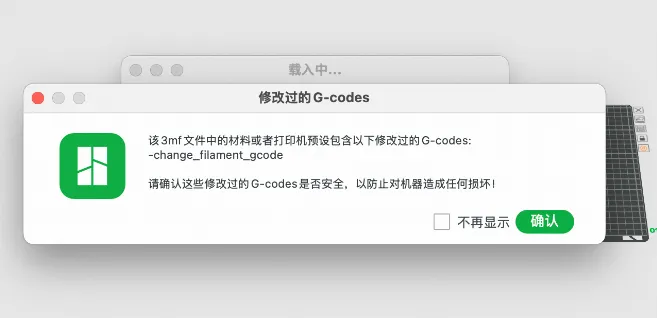
1、Download the configuration for A1 or A1 mini, open it with Bambu Studio, a warning will appear when opening, as machine G-codes have been modified
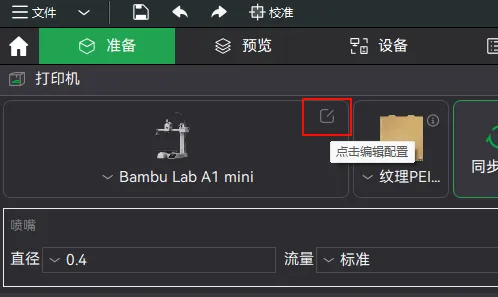
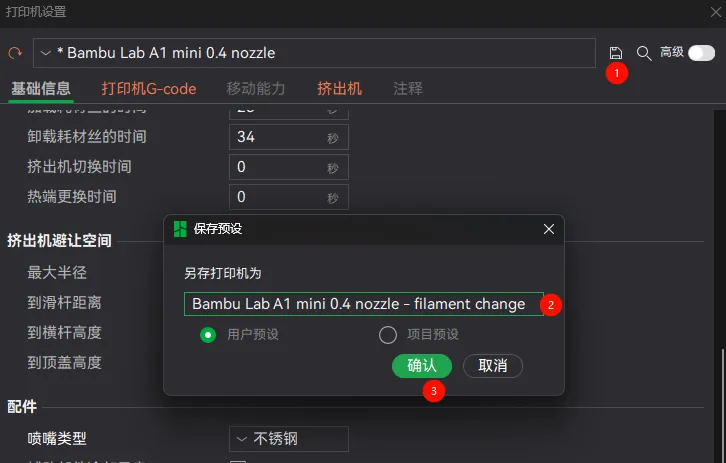
2、Then click on the printer, save it, e.g. as “filament change”
3、Open the multicolor model
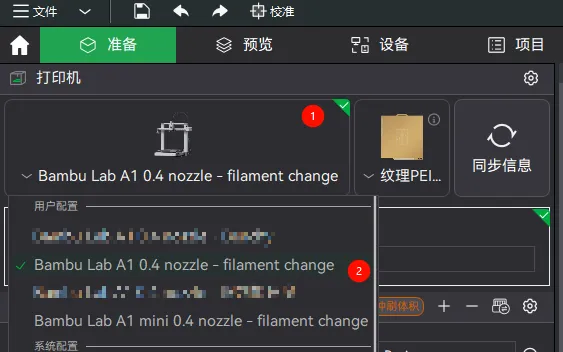
4、Select the printer as “filament change”
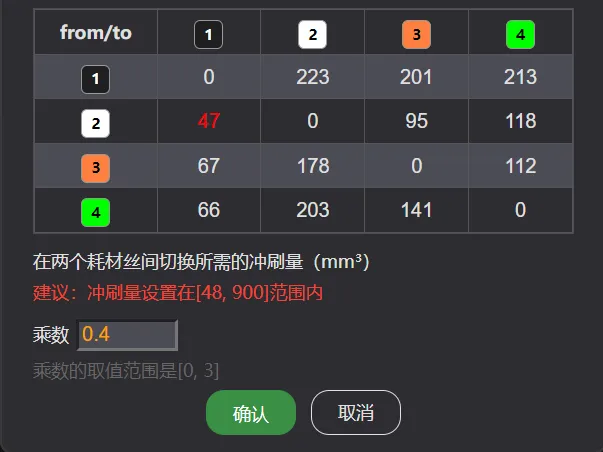
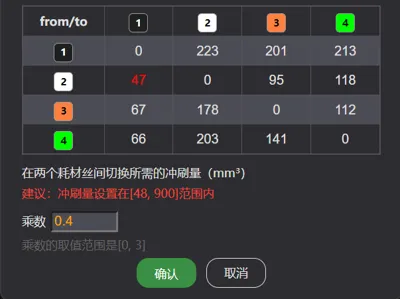
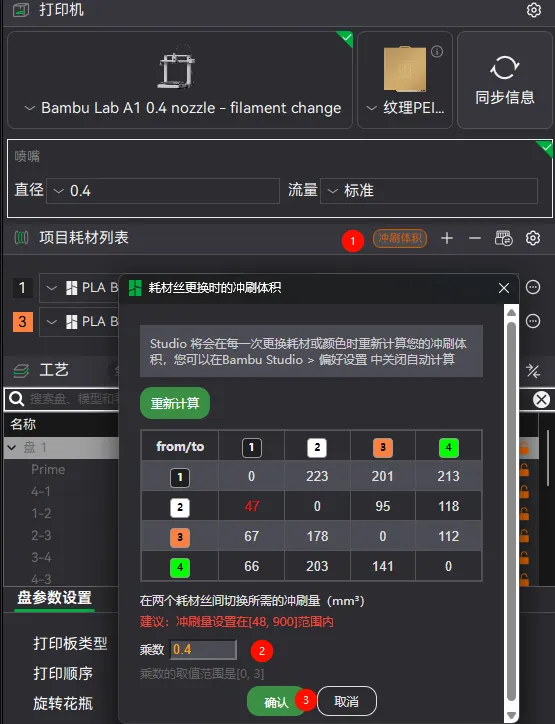
5、Change the purge multiplier to 0.4
6、Slice and print
Because there is code that waits for nozzle temperature changes during filament changes, the sliced display time and actual printing time are different, the original configuration will actually take more time, my optimized configuration's actual printing time will be shorter than the sliced display time
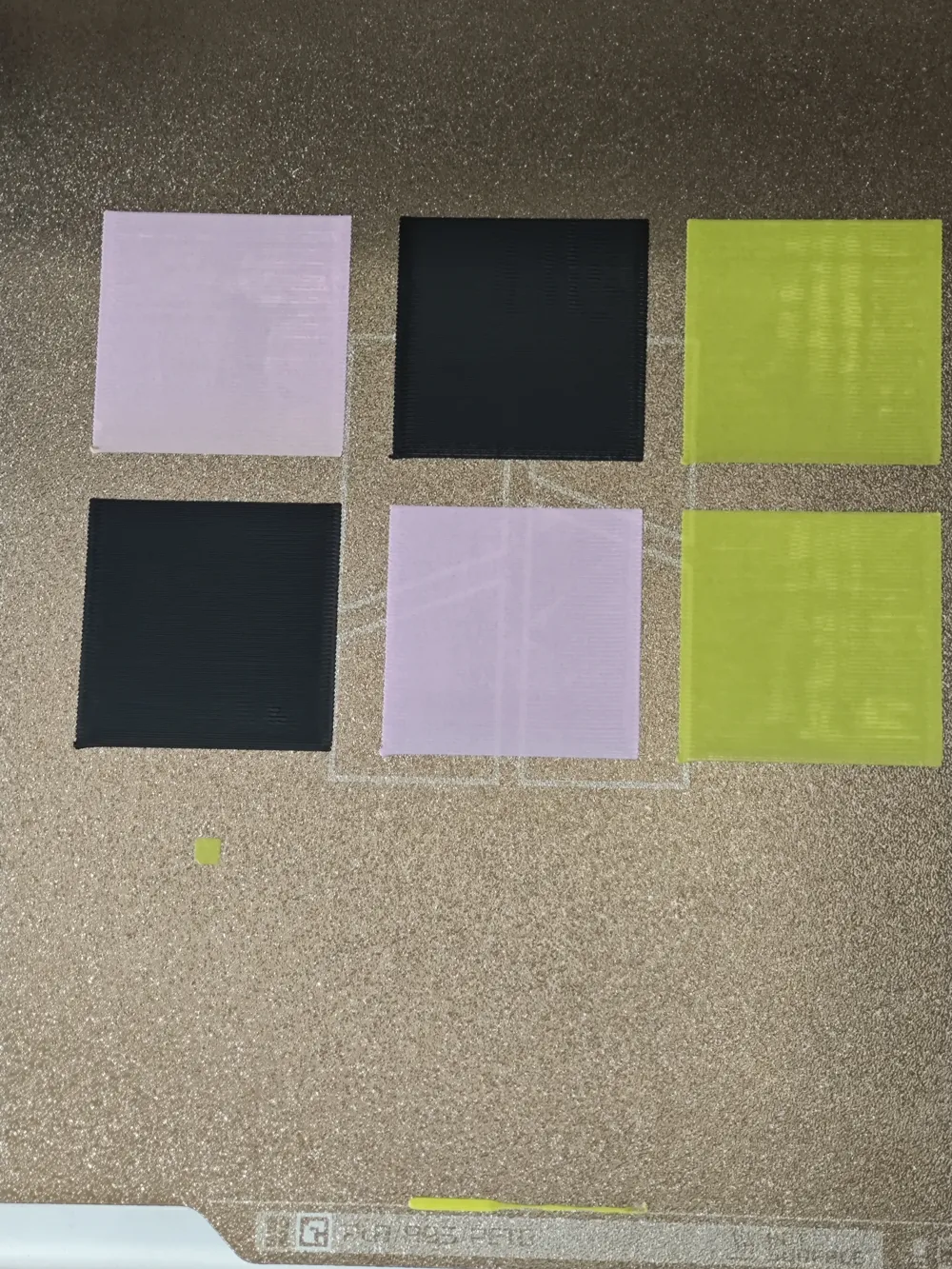
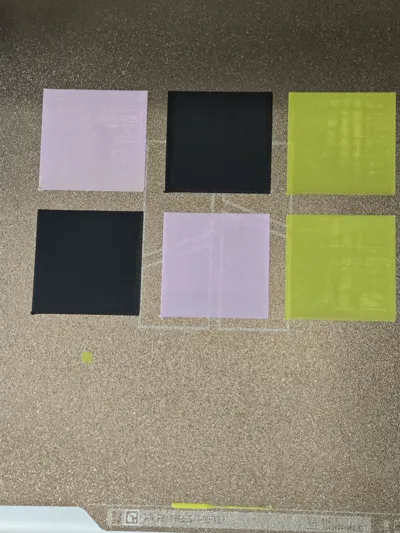
If interested, the model in the configuration can be used for purge testing, I tested and found 0.4 is sufficient in most cases, you can adjust the purge multiplier according to your own situation
The prime tower can improve printing quality, and should be used in most cases
If using different materials, such as a mix of PLA and PETG, you should manually increase the purge volume to avoid printing issues like delamination or poor adhesion due to insufficient purging
Warning when opening the model:
Open printer profile:
Save printer profile:
Use printer profile:
Modify purge multiplier:
Thanks:
Leon Fisher-Skipper Filament Pull Back https://makerworld.com.cn/zh/models/125897
ZiggyP purge test https://makerworld.com.cn/zh/models/142050
License



Comment & Rating (1)