
Plant labels with clip, individually customizable
Print Profile(1)

Description
Boost Me (for free)
Description (German)
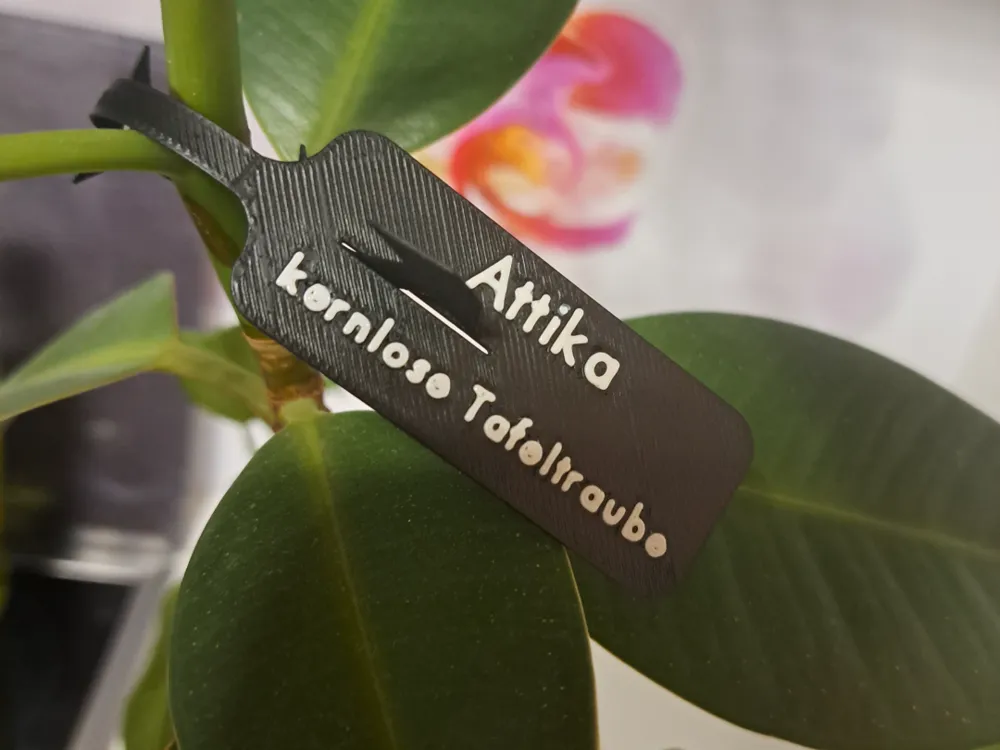
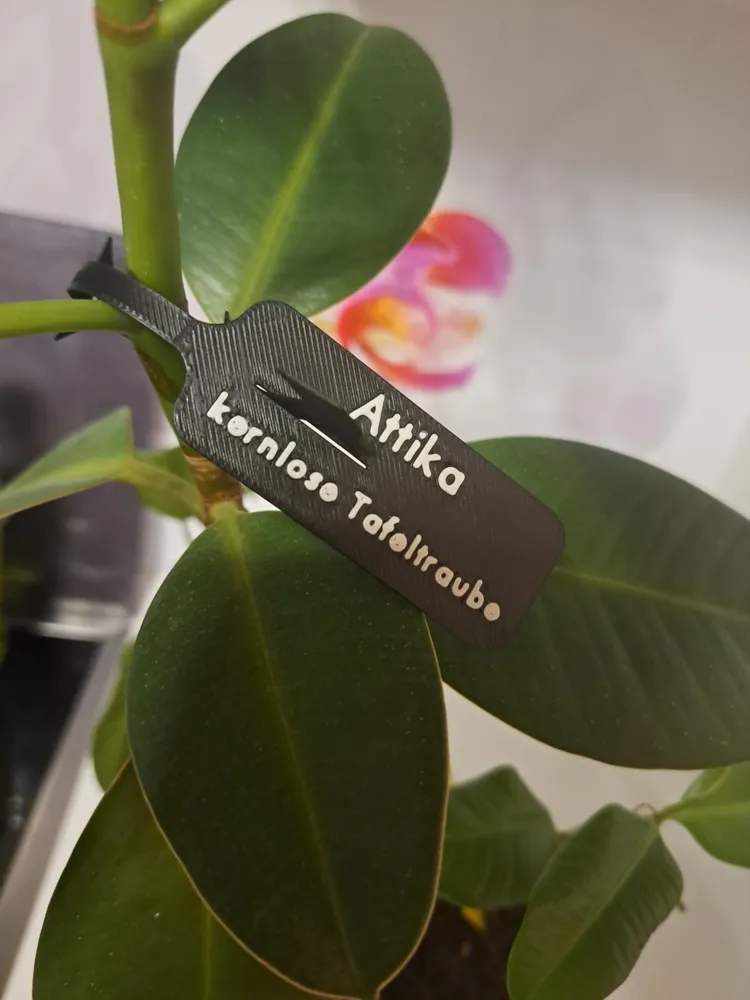
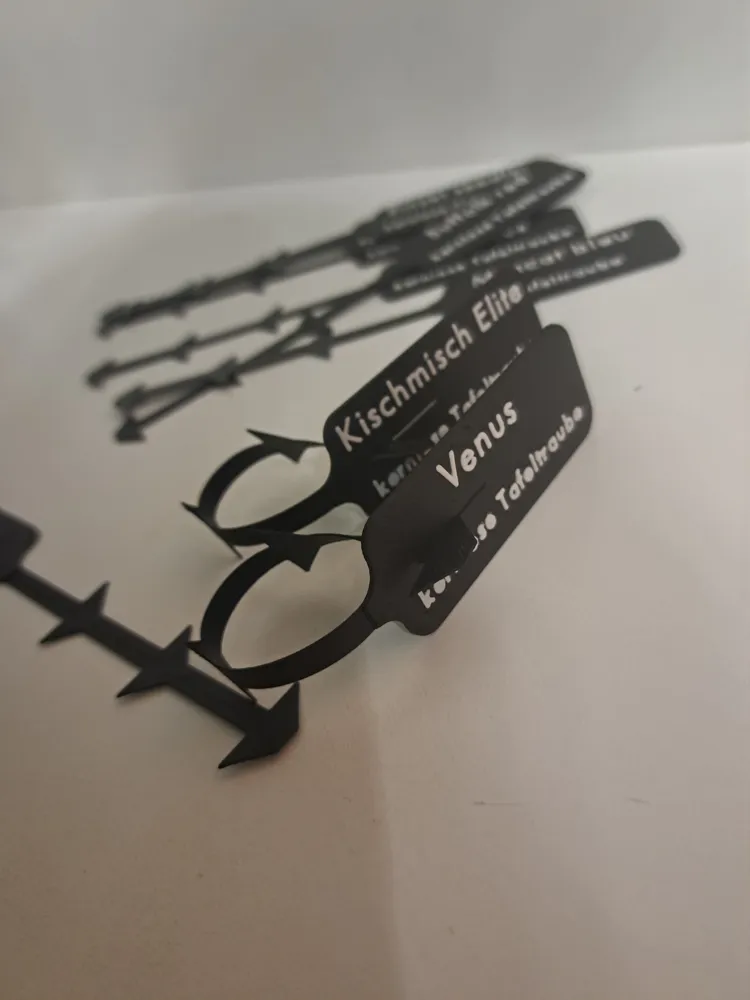
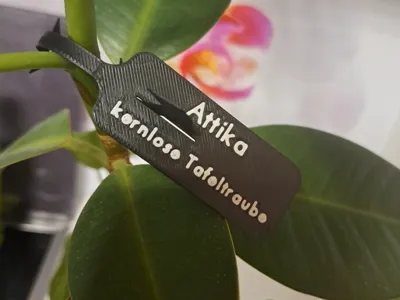
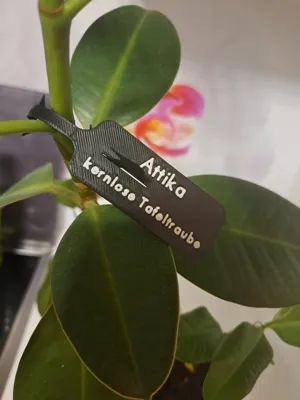
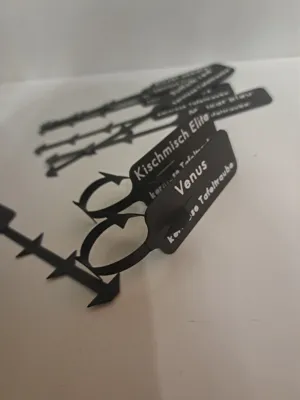
Practical 3D printed plant labels for clipping onto shoots, branches or stakes.
The clips are easy to open, attach, and remove – ideal for grapevines, fruit trees, herbs, and houseplants.
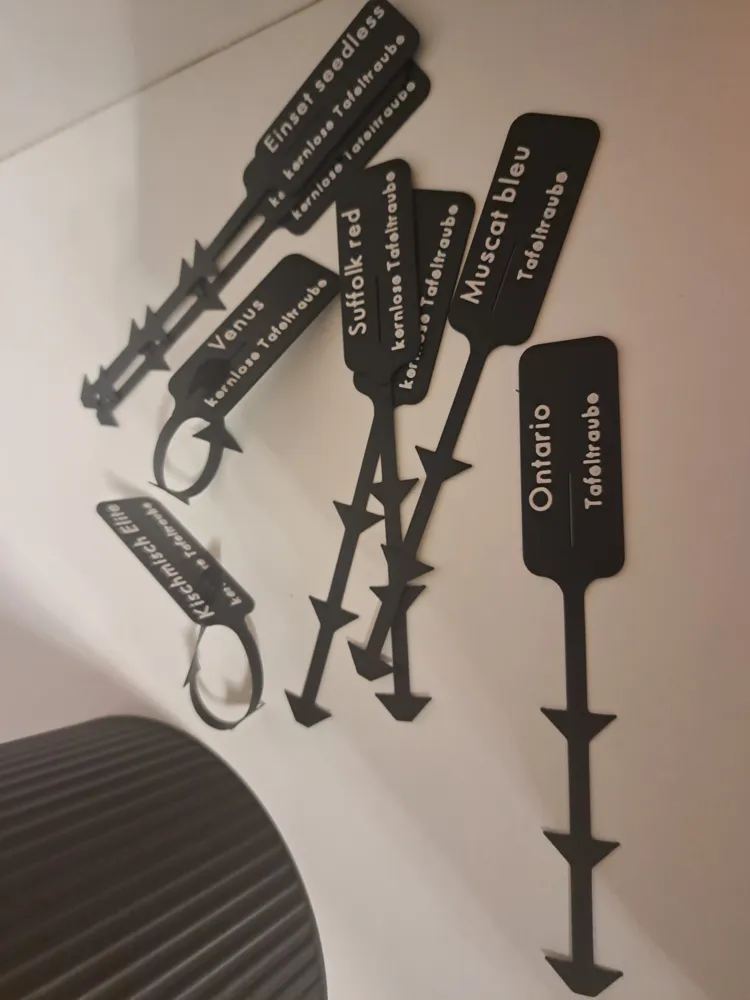
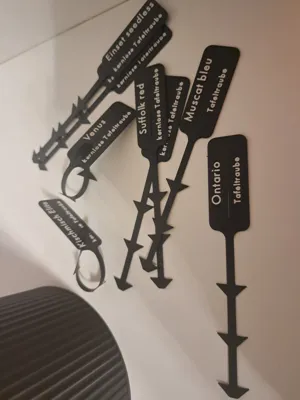
The text is directly integrated into the model and can be customized in Bambu Studio (desktop), e.g., for variety names (“Attika”, “Venus” …), sowing dates, or locations.
The examples were printed in PETG for outdoor use and PLA/PETG for indoor use.
You can simply duplicate the object in the slicer to create multiple clips with different names in one print.
Instructions – Customize Text (EN)
Only works in the desktop version of Bambu Studio.
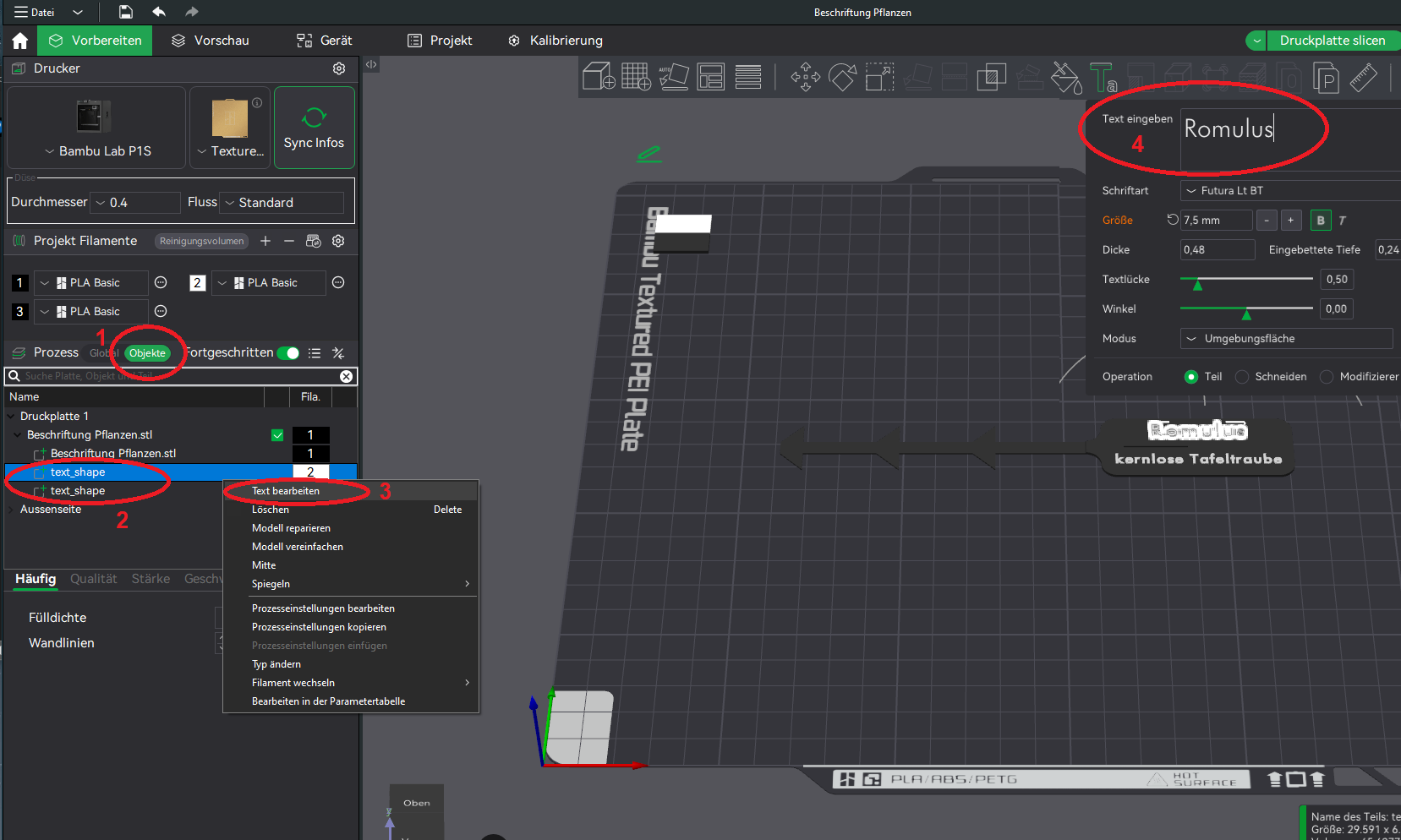
- Open the model in Bambu Studio.
- In the left object list, go to “Objects”.
- Select the desired text element “text_shape”.
- Right-click on “text_shape” → “Edit Text”.
- In the new window, enter the desired text under “Input Text”.
- Confirm with OK – the clip updates automatically.
- For multiple names:
- Click the finished clip.
- Use Ctrl+C / Ctrl+V or right-click → Copy.
- Change the text on the duplicate as above.
- Slice and print all clips together.
Usage (EN)
Gently open the clip, place it around the shoot/cutting/stem, and close it again.
If needed, simply remove it or move it to another location.
Description (English)
3D printed clip-on plant labels for attaching directly to stems, branches or sticks.
The clips are easy to open, attach and remove – perfect for grapevines, fruit trees, herbs and houseplants.
The text is part of the model and can be customized in Bambu Studio (desktop), for example with variety names (“Attika”, “Venus”…), sowing dates or location info.
The samples are printed in PETG for outdoor use and PLA/PETG for indoor use.
You can duplicate the object in the slicer to print many clips with different names in one batch.
How to customize the text (EN)
Works only in the desktop version of Bambu Studio.
- Open the model in Bambu Studio.
- In the left object list, go to “Objects”.
- Select the text object “text_shape”.
- Right-click “text_shape” → “Edit Text”.
- In the popup window, enter your text in “Input Text”.
- Confirm with OK – the clip will update automatically.
- For multiple names:
- Click the finished clip.
- Use Ctrl+C / Ctrl+V or right-click → Copy.
- Change the text on each copy as above.
- Slice and print all clips together.
License

You shall not share, sub-license, sell, rent, host, transfer, or distribute in any way the digital or 3D printed versions of this object, nor any other derivative work of this object in its digital or physical format (including - but not limited to - remixes of this object, and hosting on other digital platforms). The objects may not be used without permission in any way whatsoever in which you charge money, or collect fees.


Comment & Rating (1)