Search models, users, collections, and posts

Book Stand - Print In Place

IP Report

Print Profile(4)

All
A1
P2S
H2S
H2C
X2D
H2D Pro
H2D
A2L
X1E
P1S
X1 Carbon
X1
P1P

0.2mm layer, 4 walls, 15% infill
Designer
19.2 h
3 plates

NO LION OR TEXT - With Jerusalem Skyline
Designer
4.6 h
1 plate

NO TEXT
NO TEXT
Designer
4.7 h
1 plate

NO DESIGNS OR TEXT
NO DESIGNS OR TEXT
Designer
3.9 h
1 plate

Open in Bambu Studio
Boost
38
58
17
9
52
22
Released 

Description

Boost Me (for free)

If this added beauty to your learning space, tap LIKE!
Your support helps this design climb the charts and lets me keep creating more high-detail Judaica pieces.

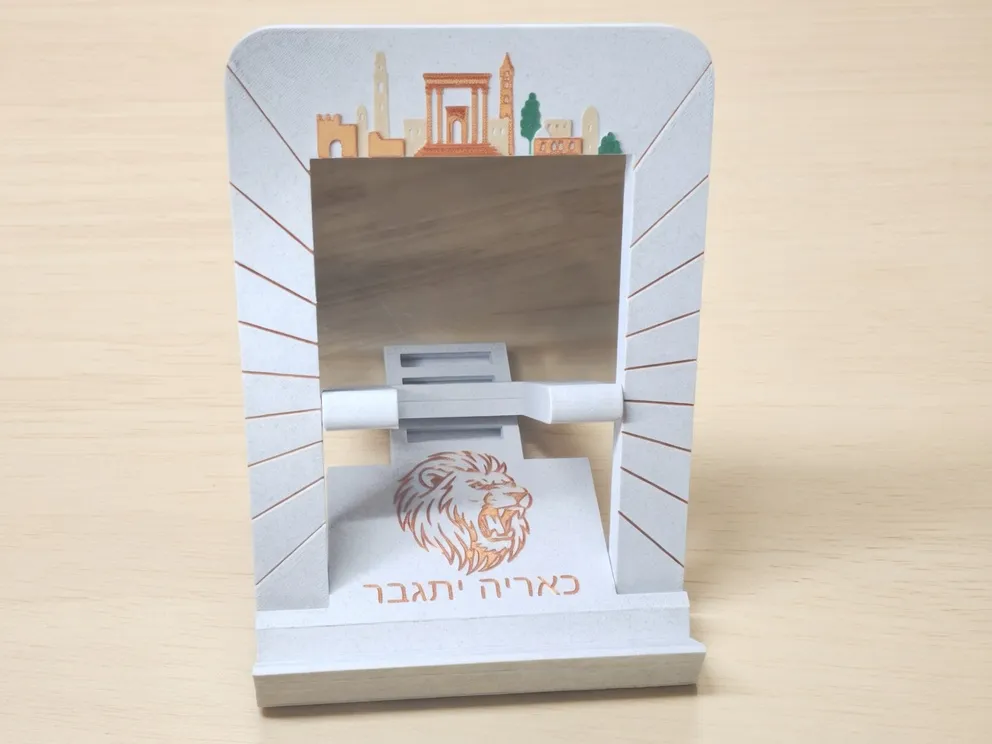
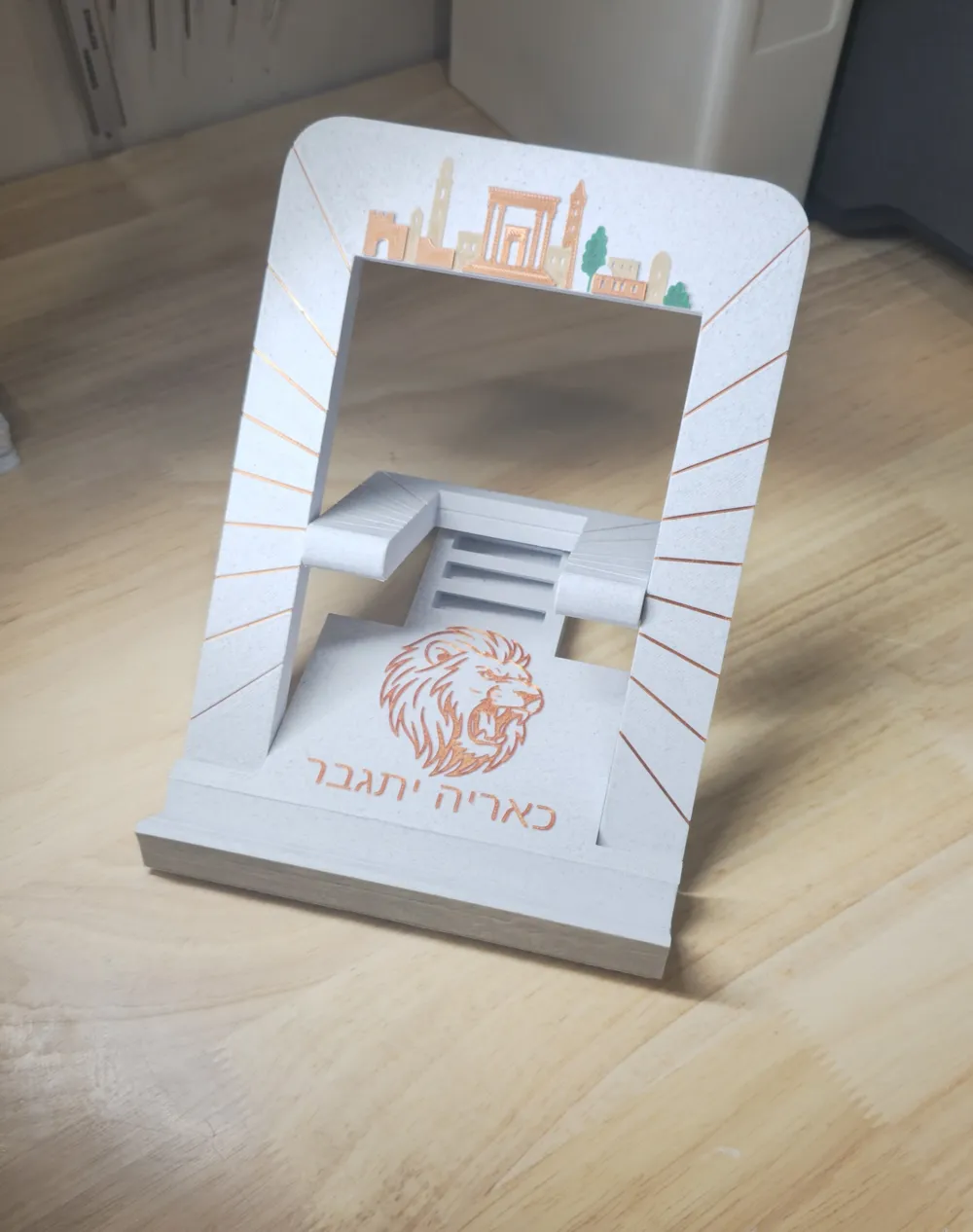
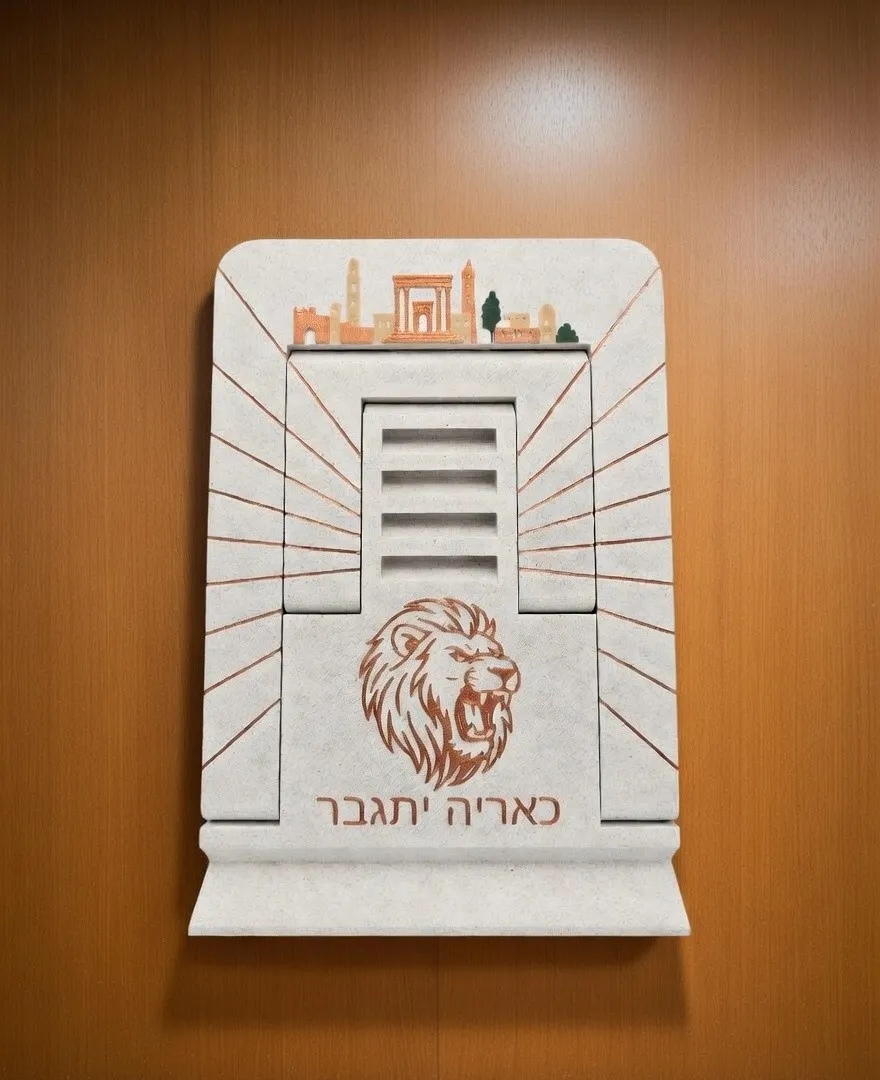
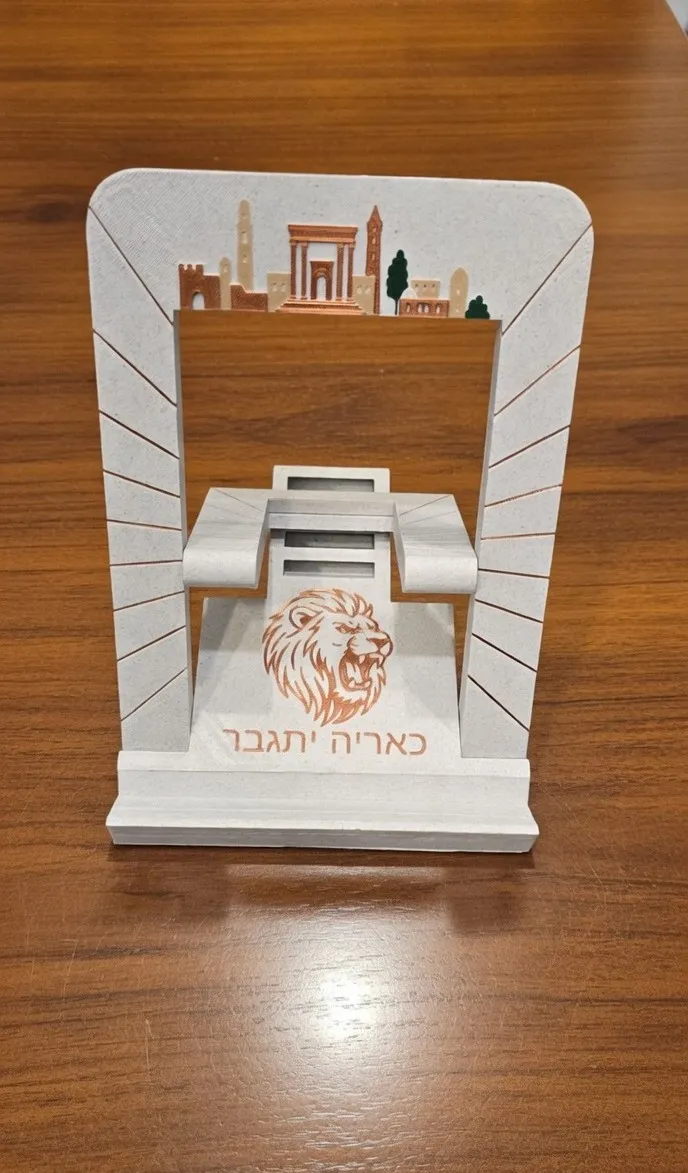
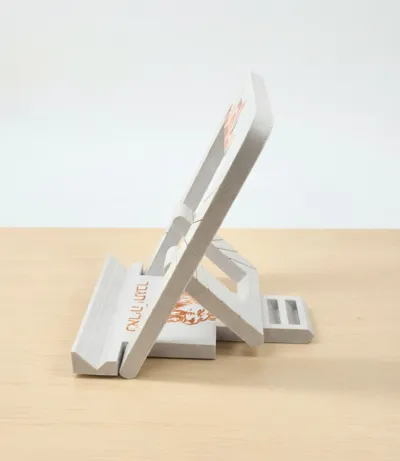
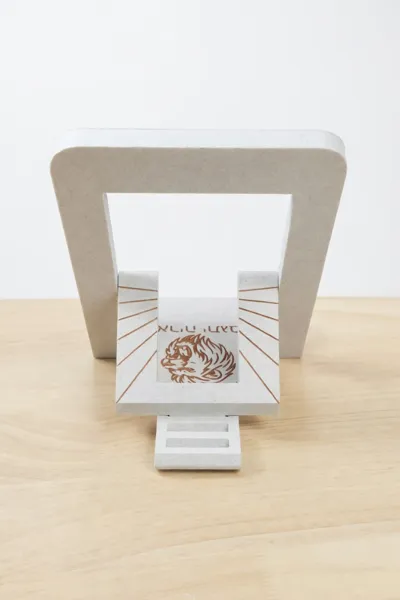
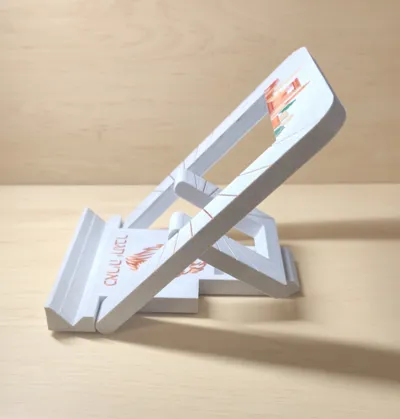
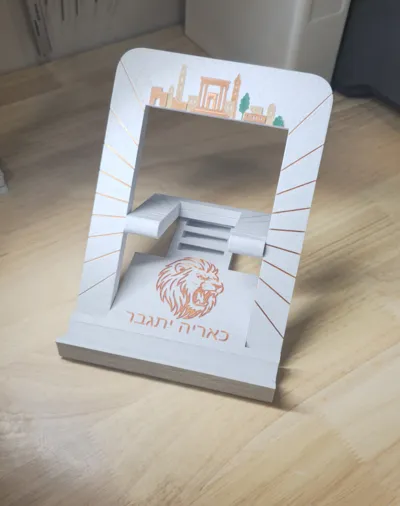
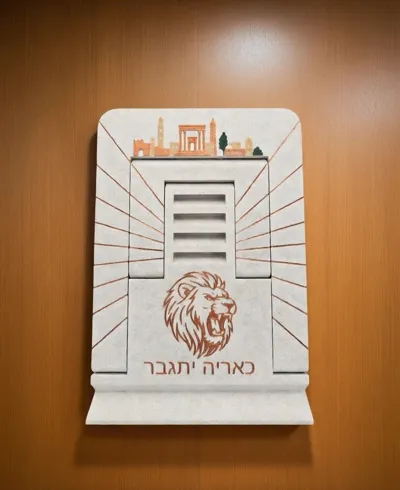
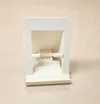
A uniquely designed book stand inspired by strength, faith, and redemption.
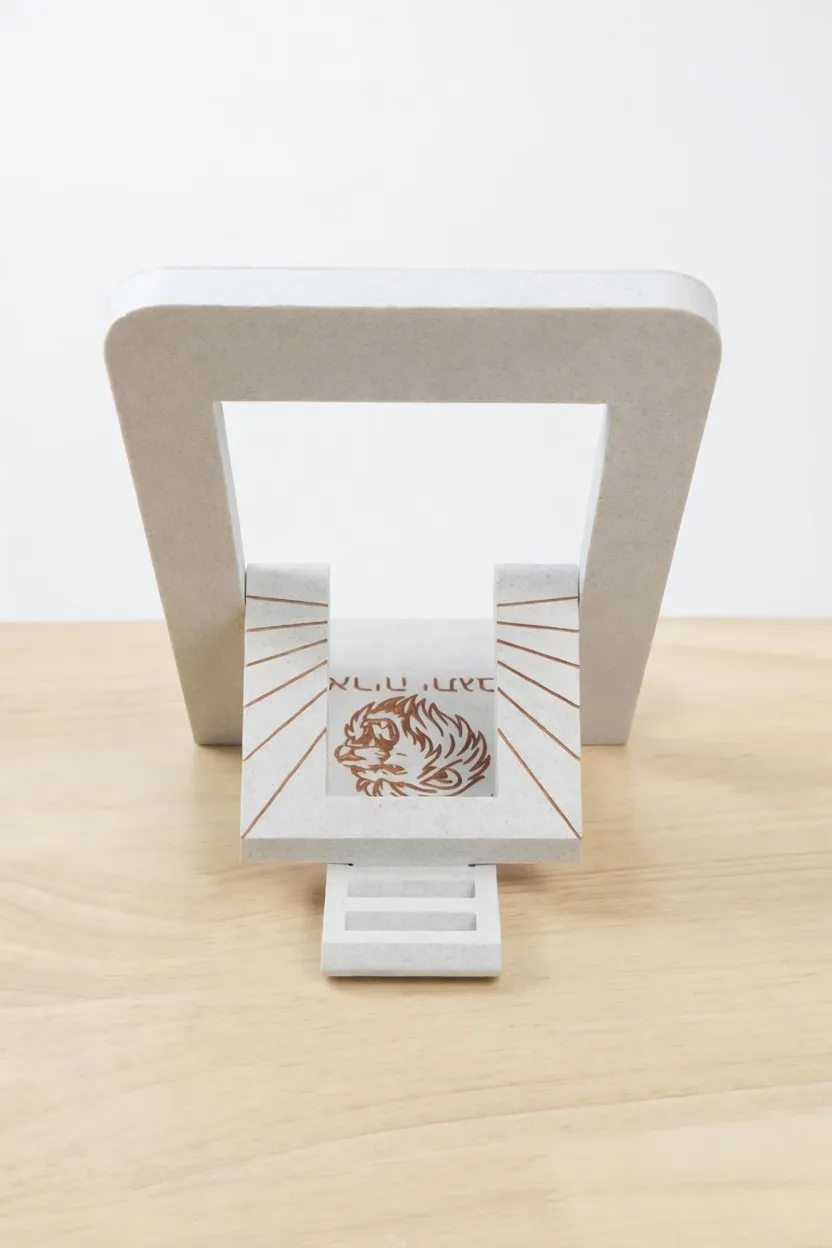
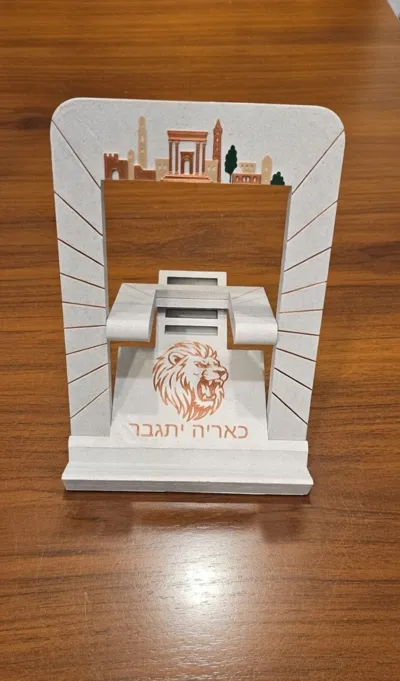
Features a Jerusalem skyline crowned with the sanctuary, radiant rays of redemption, and a Lion of Judah engraving with the words “Be Stong as a Lion” in Hebrew.


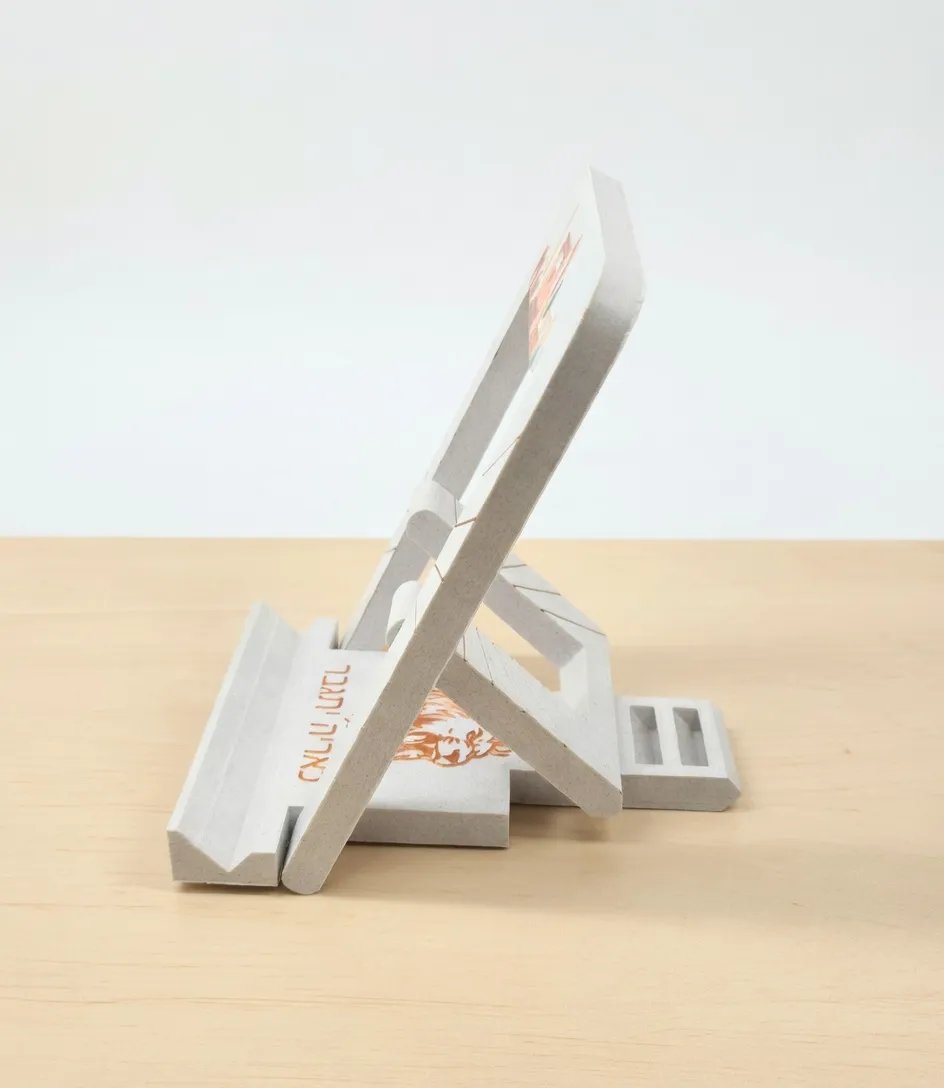
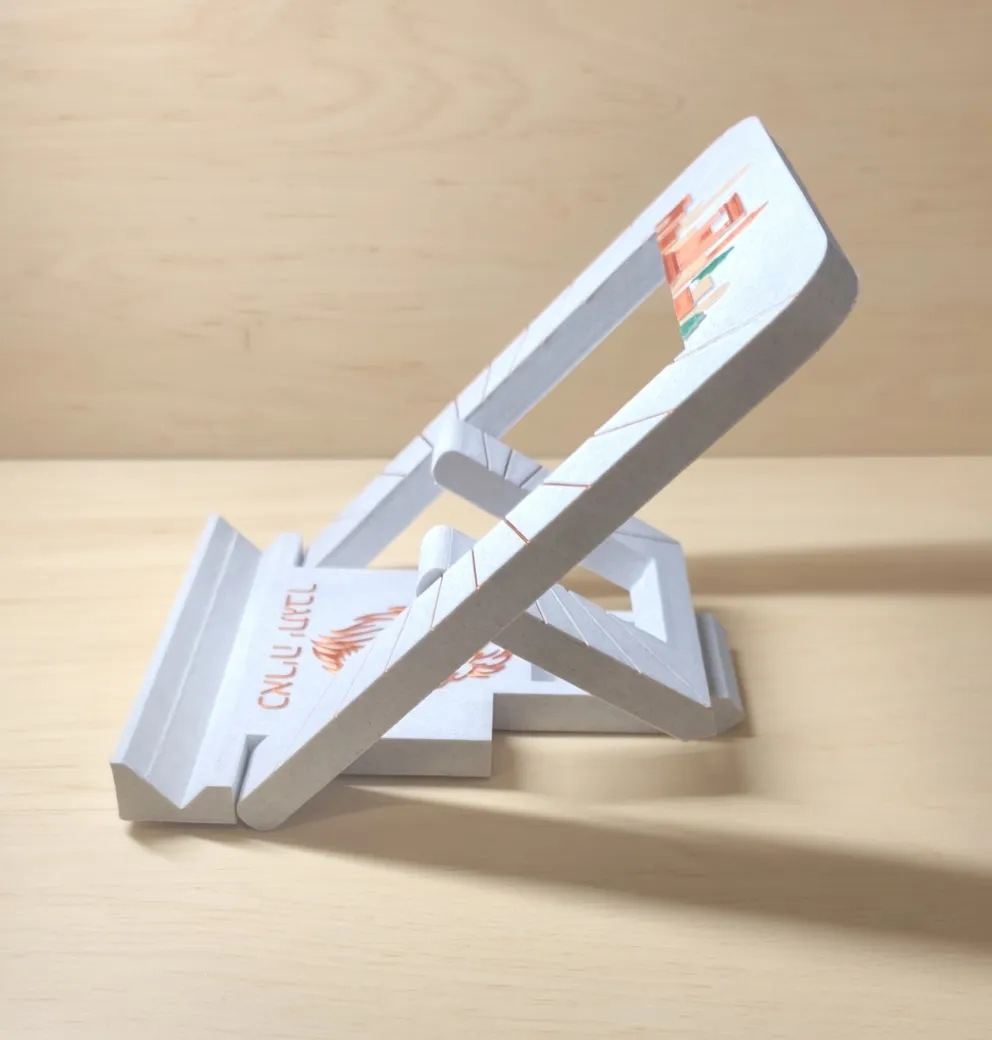
The stand is fully functional and folds flat for transport.


Features

  • Symbolic Design: Combines the Jewish Temple, Jerusalem, and Lion of Judah motifs
  • Portable: Folds easily, sturdy locking mechanism
  • Engraved Texts: Hebrew inscriptions and rays pattern
  • Multi-color option: Works with AMS or single-color printing (painted top layers supported)


Comment & Rating (17)

(0/1000)

Great design!!! Thank you
0
Reply
how do you do custom text
The designer has replied
0
Reply
To edit the custom text, you must be working in the Objects tab (not Global). Steps: 1. Go to the Objects tab at the top of the left panel. 2. Select Plate 3 (Custom Text). 3. Expand the plate and click on text_shape (the green-highlighted item in your screenshot). 4. Right click text_shape selected edit the text Slice again after making changes. Important note: If you don’t select text_shape under Plate 3, you won’t see any text editing options — the model will just behave like a normal STL. That’s it 👍
0
Reply
Replying to @dovdov18 :
on this app or on the computer
0
Reply
Replying to @user_3364743104 :
This would need to be done on a computer in the Bambu Studio slicer app (not on mobile).
0
Reply
p1s can u make a p1s setting
The designer has replied
0
Reply
Hi, it is compatible with the P1S
0
Reply
I’ve now added a P1S-compatible print profile. Just re-download the model and use the updated profile 👍
0
Reply
The print profile is no longer public
super, very nice
The profile uploader has replied
Show original
0
Reply
Thank you!
0
Reply
Hello, I am also trying to print with P1S and on the print page it says “incompatible printer model”. Any advice? Yasher Koach
(Edited)
The designer has replied
0
Reply
Thanks for catching that! I’ve now added a P1S-compatible print profile. Just re-download the model and use the updated profile 👍
0
Reply
are you able to make this compatible with a p1s?
The designer has replied
0
Reply
Hi, it is compatible with P1s
0
Reply
This is genius... Use it all the time and it printed so nicely
0
Reply
No more

License

This user content is licensed under the MakerWorld Exclusive License.

You may create derivative works based on this object, provided that all such derivative works are published exclusively on the MakerWorld platform and include proper attribution to the original creator. You may not share, upload, host, distribute, or publish this object—or any derivative work of this object—on any other digital platform, marketplace, or distribution channel. Commercial use of this object and any derivative works is strictly prohibited. This includes, but is not limited to, selling, renting, sublicensing, or using the object in any context in which you receive monetary compensation or other financial benefits.