
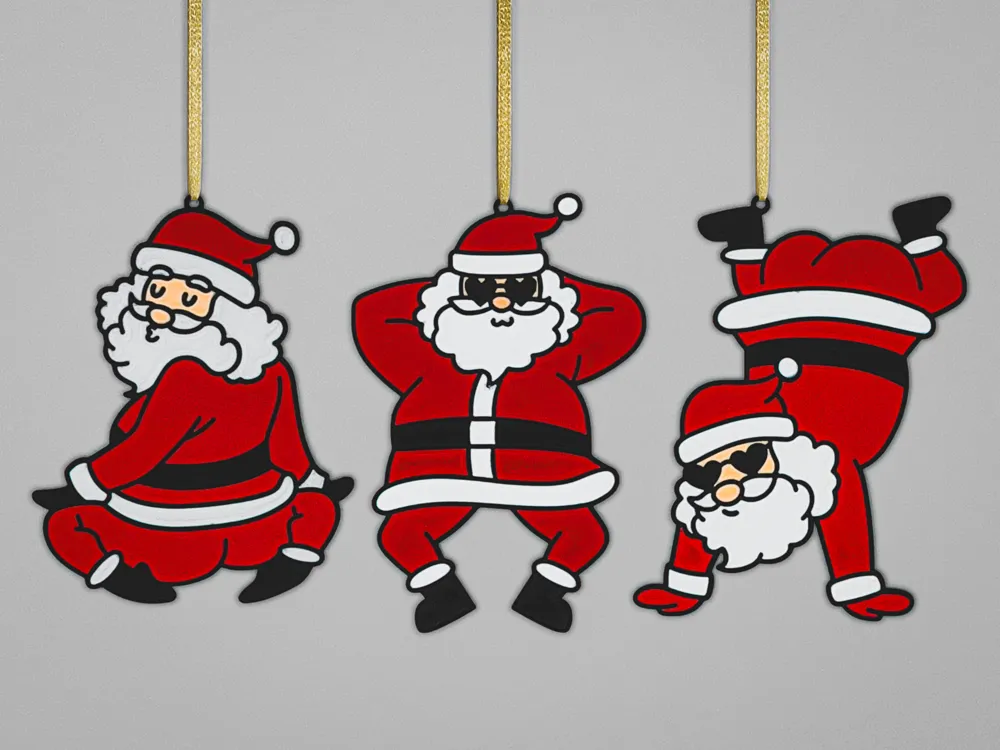
Dancing Santa Ornaments 1 of 3 Booty & Breakdance
Print Profile(1)

Description
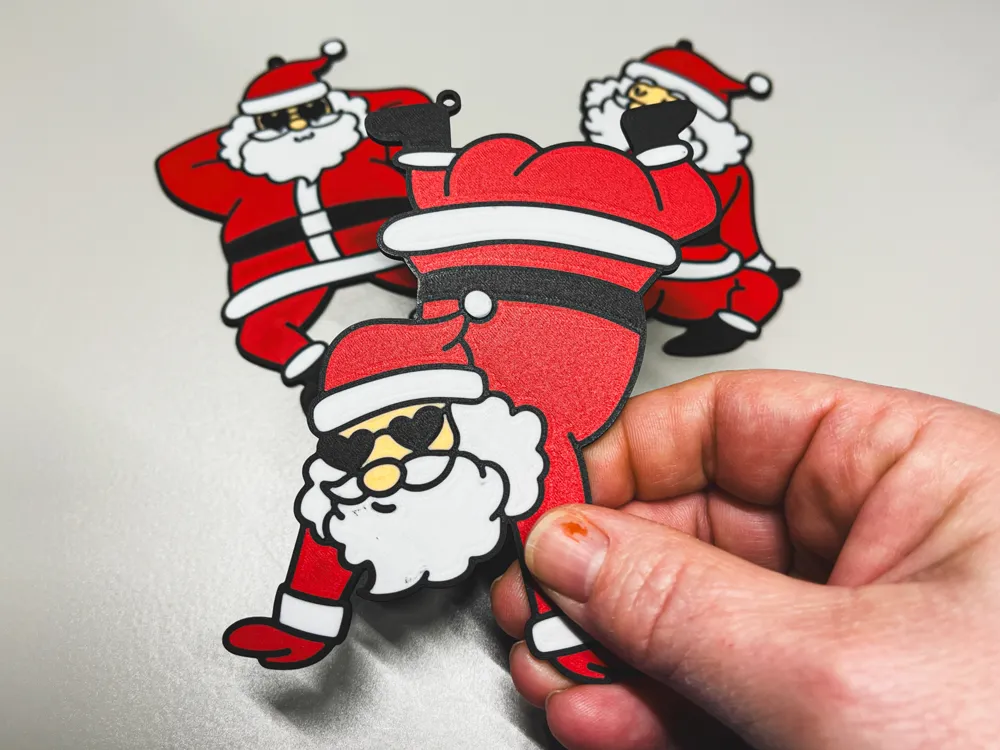
Santa's got moves! Bring a touch of fun to your Christmas decor with this trio, including Booty Dance Santa, Breakdance Santa and Chilling Santa. Want more? Check out Dancing Santa 2 of 3 and Dancing Santa 3 of 3 to see Santa twerk, pole dance and more.
These ornaments print best with a 0.2mm nozzle to capture the fine detail. In a hurry (or don't have an AMS)? I also made a black and white outline version that uses only one filament per layer. This “coloring book” version looks great as is or you can color in with a permanent marker. Dancing Santa 1 of 3 (B&W No AMS).
Check out the rest of our collection of Funny Christmas Ornaments! We also have a NSFW Funny Christmas Collection if you like edgier holiday humor. Also check out our Pretty Christmas Baubles and Ornaments from Christmas Movies and Specials.
Tips and Tricks for ‘flat’ AMS designs like this:
- For this type of print, I recommend matte filaments, especially for white and other light colors because they are more opaque.
- My designs allow you to switch the backing color. I recommend using white unless you are sure your top colors will not show through.
- Missing a filament color? You can always print it white and use a permanent marker to color it in.
- For the smoothest top surface, I recommend flipping the design over and using a plate with excellent adhesion. I always reserve my newest SuperTack plate for the most detailed designs. Your print will only be as good as your first layer, so keep a close eye and restart if needed.
- Printing each layer with colors in order from lightest to darkest is best. My prints are set up to do this, but if you use different colors you can adjust the filament sequence in the plate settings.
- For detailed designs, a 0.2mm nozzle is a must - even though it seems painfully slow!
- In the Global slicer settings, enabling the “Interface shells” option under the “Strength” tab can help your prints look sharp. (If you don’t see this option, turn on “Develop Mode” in the slicer preferences).
- Another slicer setting to try is in the Quality tab in the Advanced section. Select “Not applied” for the “Only one wall on top surfaces” option.
Boost Me (for free)
If you like my designs, I would appreciate a boost!
License

You shall not share, sub-license, sell, rent, host, transfer, or distribute in any way the digital or 3D printed versions of this object, nor any other derivative work of this object in its digital or physical format (including - but not limited to - remixes of this object, and hosting on other digital platforms). The objects may not be used without permission in any way whatsoever in which you charge money, or collect fees.


Comment & Rating (2)