Search models, users, collections, and posts
MikeGyverMinis
@MikeGyverMinis
585
10.6 k
15.4 k
7.3 k
Bio
I design D&D Miniatures & Chibi Decor that actually print. Every model is rigorously tested on my Bambu Lab Printers using a 0.2 & 0.4 Nozzle 🛡️ My Philosophy: Most of the set is Free. I share the core units of the set here so everyone can enjoy the hobby. 👑 Need the Boss / Additional class archetype? I keep the Elite Monsters and Commercial Licenses on my Patreon. This includes 1:1 Printing Support from me. Join the Squad: https://patreon.com/MikeGyverMinis (Or find all my links here: https://linktr.ee/mikegyverminis 🔗) Thanks for your support and happy printing! 🙏
Achievements
MakerWorld Guardian
Active more than 20 days out of last 30 days UTC time

Popular Creator
More than 1,000 followers.

Stellar Reviewer
Rate or Comment 283 different models
Pioneer Maker
Print successful 204 different models and 11,826 hours
Recent Article
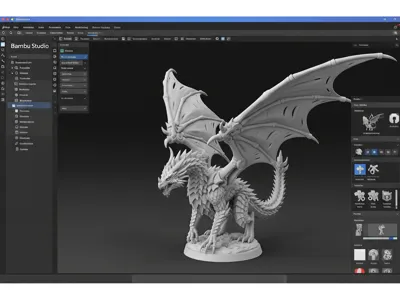
Let's talk about Bambu Studio Resolution & Minis🎲
Let's talk about Bambu Studio Resolution & Minis🎲Are you tired of your D&D and tabletop miniatures looking a little… pixelated? Do you wish you could capture every tiny scale on your dragon or every intricate detail on your hero's armor? Well, get ready to upgrade your miniature printing game, because we're about to talk about a game-changing setting in Bambu Studio: Resolution!  Think of it like this: you're moving from a 720p viewing experience to a glorious 4K spectacle for your miniatures. This setting directly impacts how finely your printer lays down material, allowing for much smoother curves and sharper details.Where to find this magical setting?It's super easy to find! Open Bambu Studio, head over to the "Quality" tab, and then look under the "Precision" heading. That's where you'll find the "Resolution" setting. The Power of Higher ResolutionBy default, Bambu Studio often uses a resolution (0.12mm) that's perfectly fine for most prints. However, for miniatures, you want to push the boundaries. While a 0.2mm nozzle will undoubtedly show an improvement with a higher resolution, you'll be amazed at how well a standard 0.4mm nozzle can capture those tiny details when this setting is optimized. The difference is truly remarkable, allowing you to bring out the subtle textures and intricate designs that elevate your miniatures from good to outstanding.A Small Caveat (but totally worth it!)Now, for a bit of a heads-up: increasing the resolution will significantly increase your slicing times. Your computer will also be working a little harder, so be prepared for that. But honestly, for the level of detail you'll achieve on your miniatures, it's a small price to pay!My Recommendation for Miniature PerfectionFor the absolute highest quality in your D&D and tabletop miniatures, I highly recommend setting the Resolution to 0.01mm. This setting truly brings out every minute detail, making your prints look professionally sculpted. 0.01mm is the highest resolution value you can set that the printer can mechanically do. It will bring out all the details it can. Any value more than that has dimishing returns. 0.4 Nozzle 0.08mm Layer Height0.2 nozzle 0.06mm layer heightLevel Up Your Collection!Ready to see what a difference this setting can make? I've been refining my miniature printing process, and you can check out my D&D collection right here:https://makerworld.com/en/collections/4956645-dnd-minis-terrain Pay close attention to models like the Skeleton King and the mighty Treant, as these minis are using the high resolution. You'll be able to see the incredible detail in the bones and bark, showcasing exactly what a higher resolution can achieve.  So go forth, experiment with your resolution settings, and start printing miniatures that truly stand out on your gaming table! Happy printing!