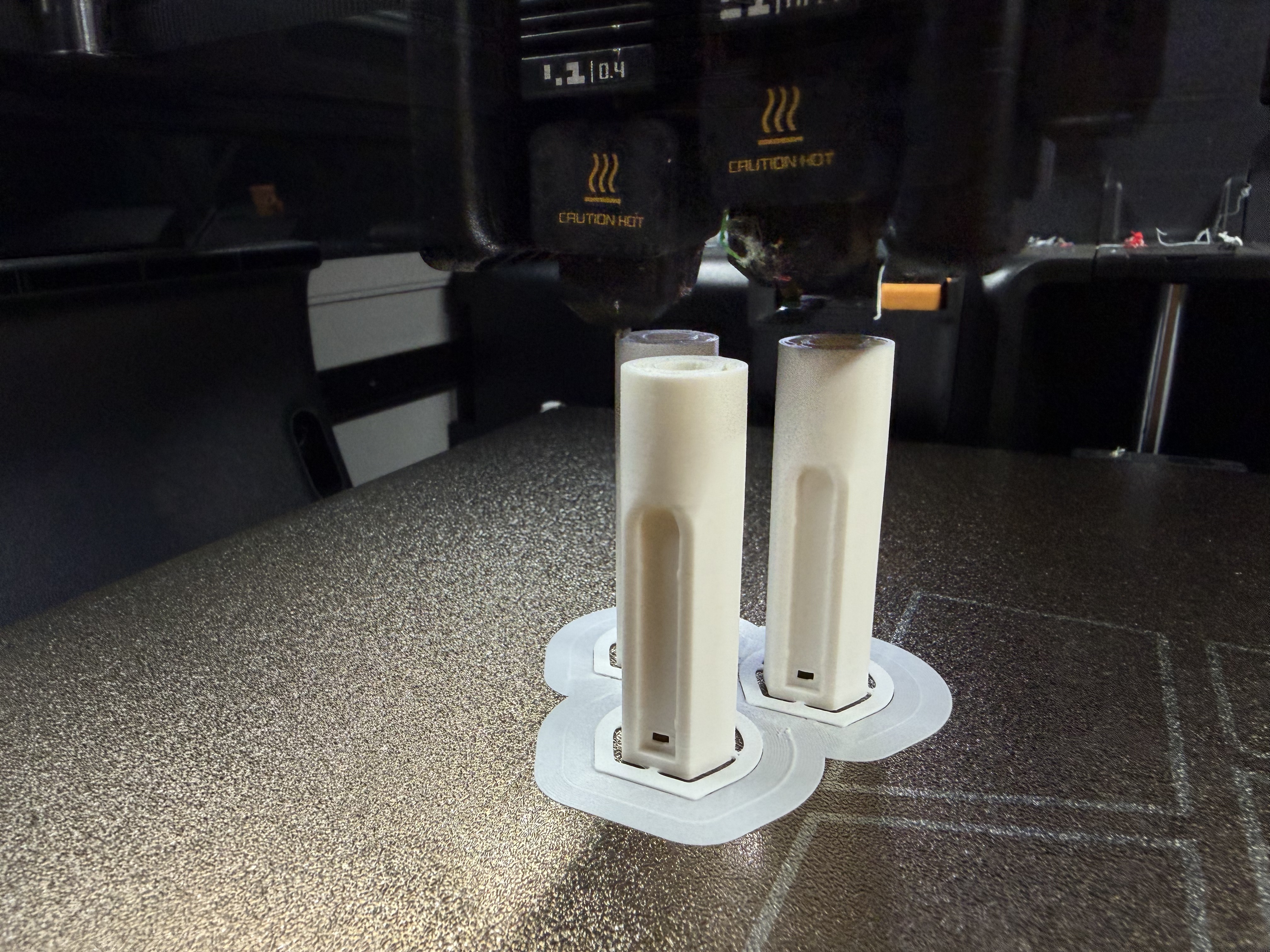
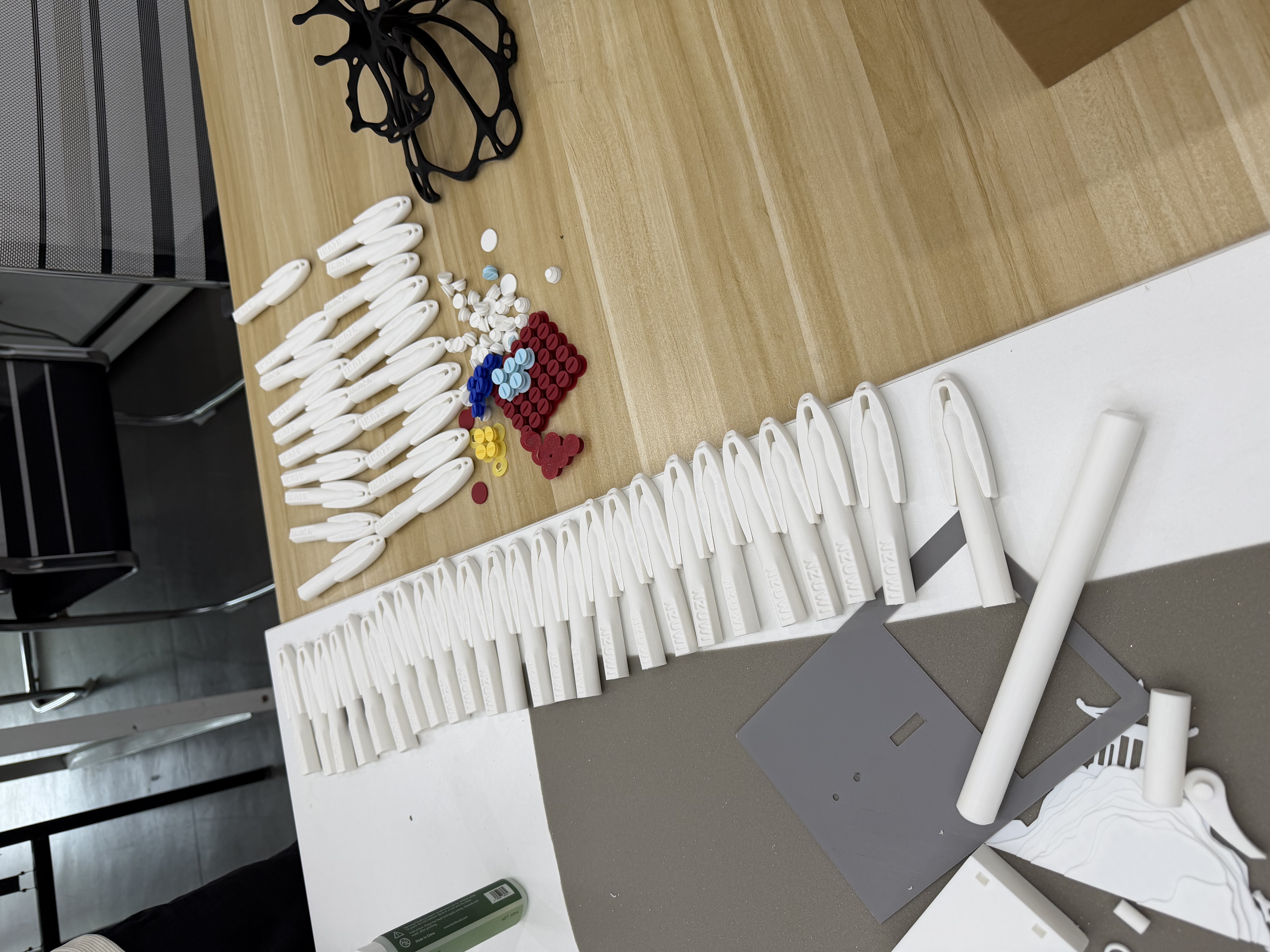
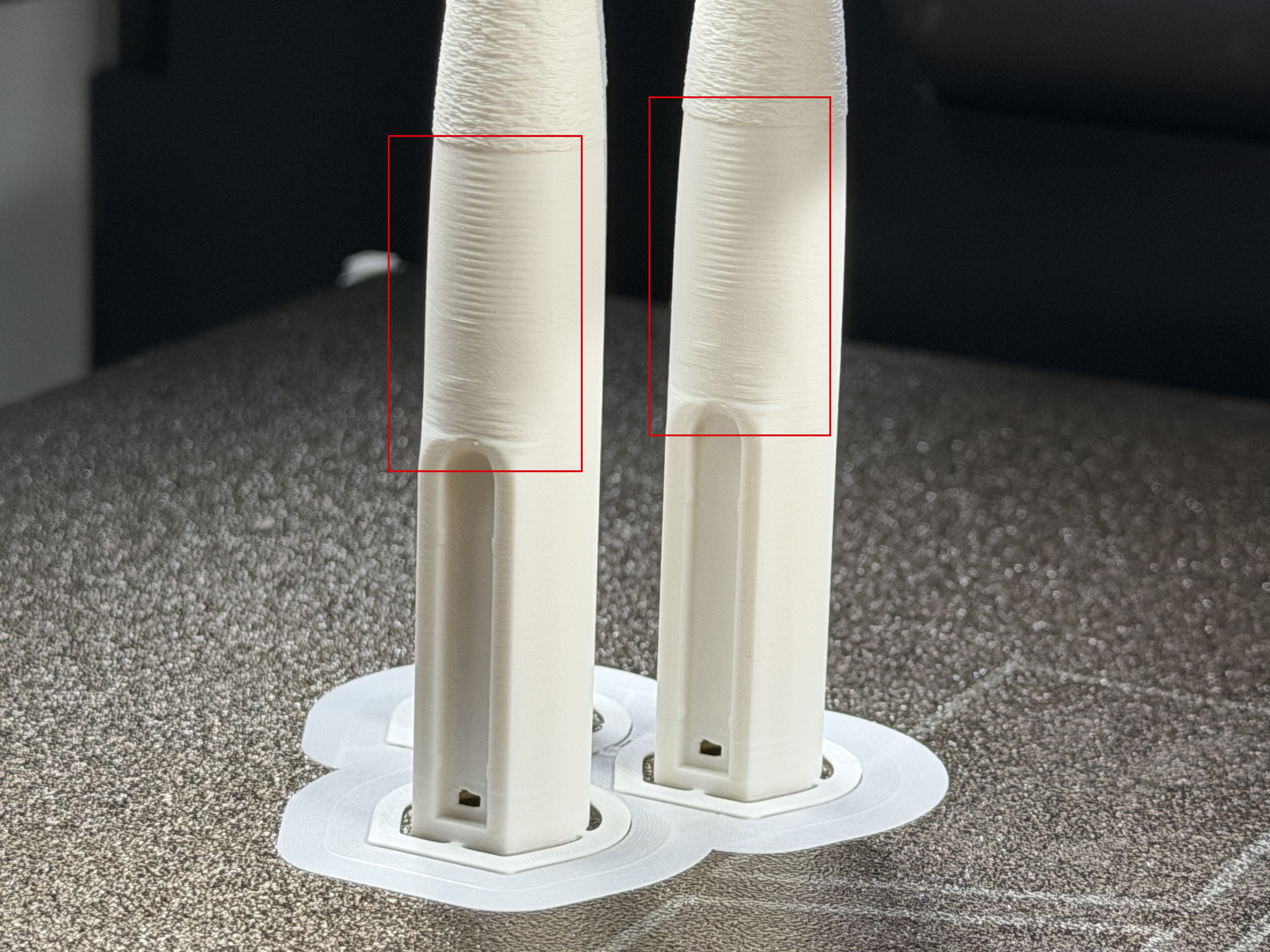
I designed this Lanyard Pen for exhibitions and public events, so I needed to print a whole batch at once. During my initial tests with a single pen, the surface was incredibly clean and smooth. However, when I cloned it to print multiple pieces, an ugly artifact appeared on the upper section of the logo tag on every single pen, as shown in the image below. Whether I printed two or ten, the issue persisted as long as there was more than one pen on the build plate. I tweaked numerous settings and tested the print on different machines, including the H2D, P2S, and P1P, but nothing worked. That was until I found a solution.
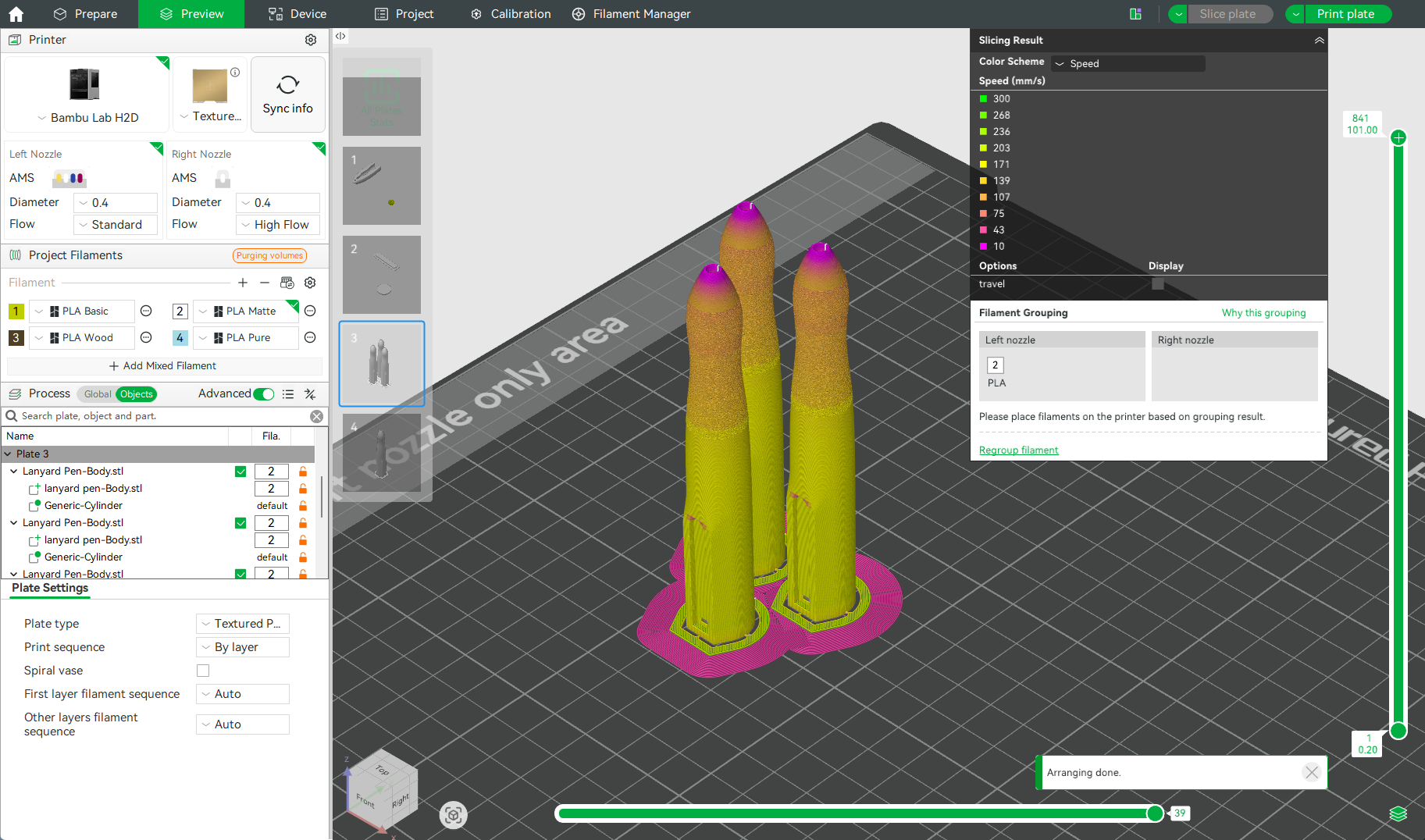
While reviewing the different color schemes in Bambu Studio, I noticed that the biggest difference between printing one pen versus multiple pens was the print speed. The single-layer print speed for one pen was significantly slower than for multiple pens, as shown in the two images below. This made me realize the issue must be cooling-related: when printing multiple pieces, the nozzle moves too fast and spends too little time on each layer, leaving the cooling fan insufficient time to cool each layer properly.
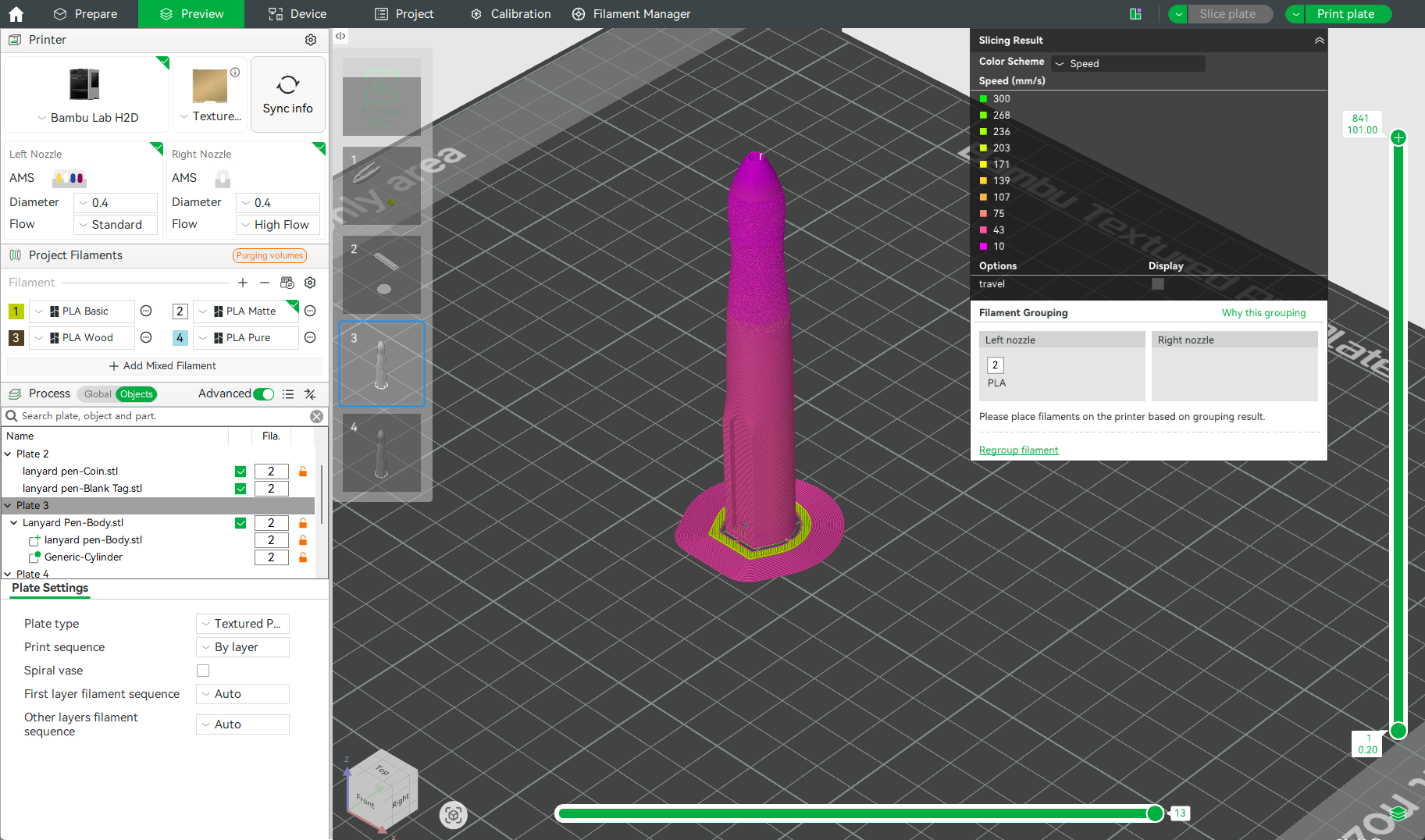
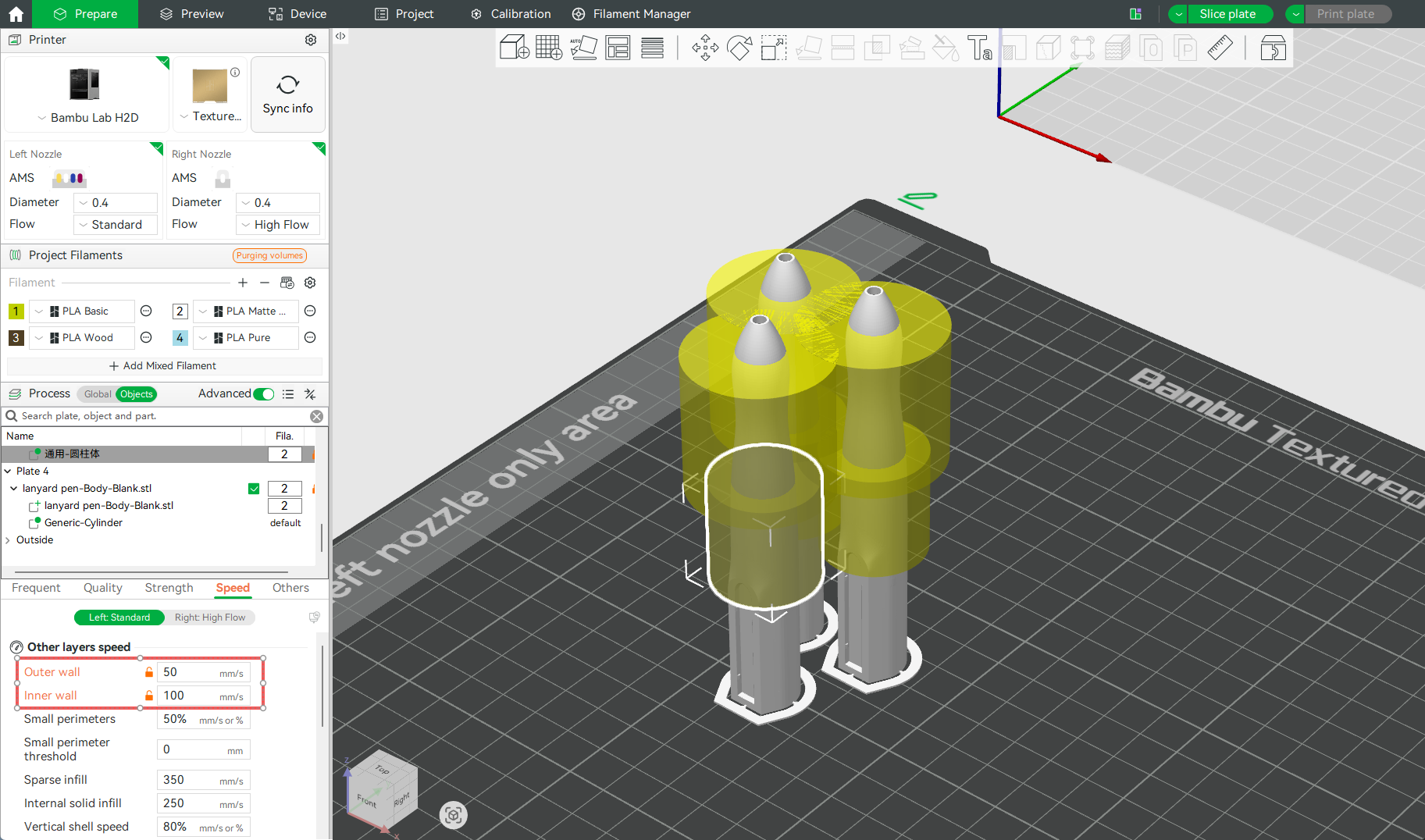
Since cooling-related settings are typically modified within the filament profile (which is saved locally to the user's device), the best way to embed this fix directly into the print profile was to adjust the model's process settings instead. I added a modifier (Cylinder) to the problem area of each pen and lowered the print speed within that modifier to the values shown in the image(The cylinder modifier above is used to add a fuzzy skin to the model). After slicing, the print speed in that specific zone matched the speed of a single-pen print. Then, I ran a test.
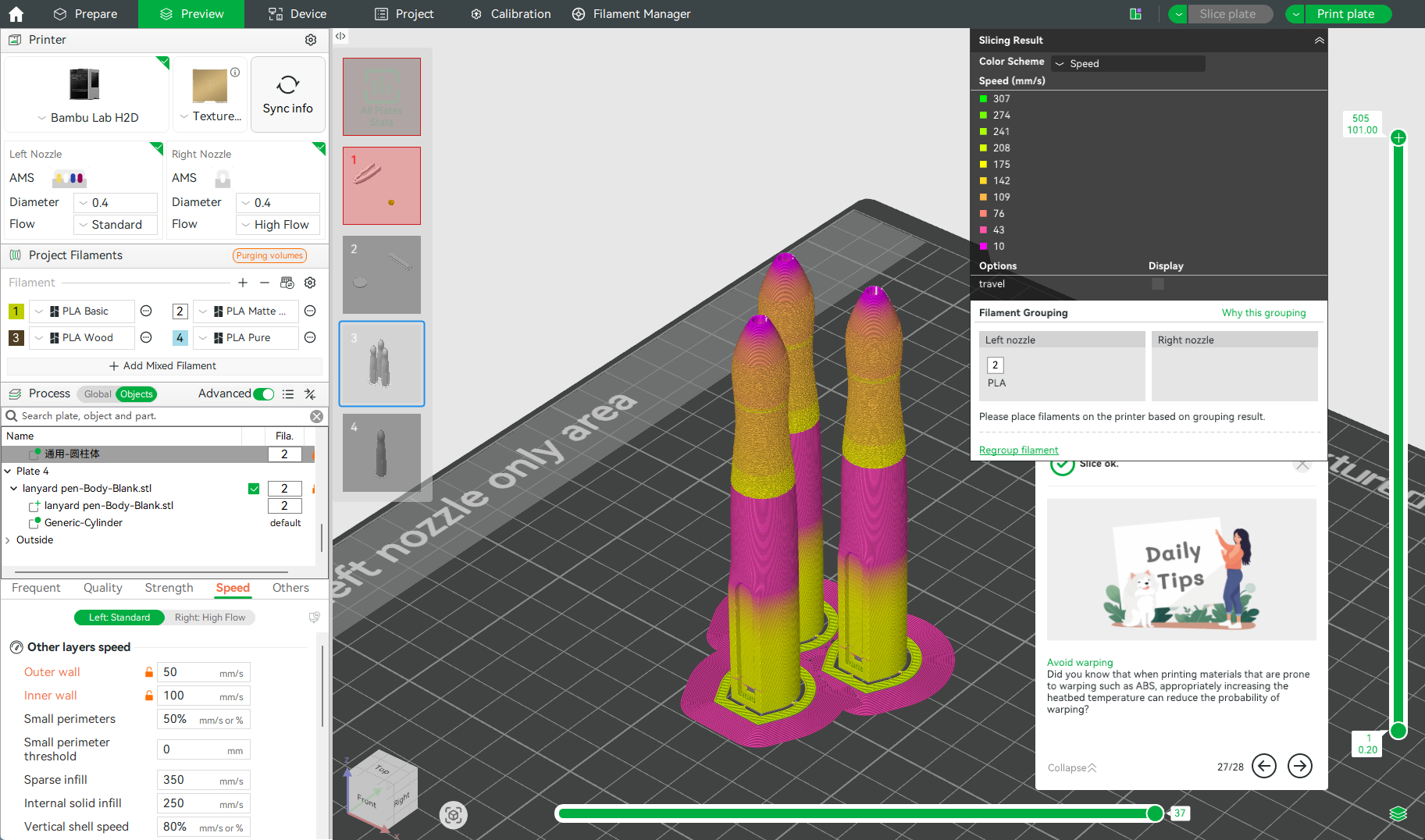
The results were perfect! The issue was completely resolved. What’s even better is that when printing three pens, using the modifier only added 9 minutes to the total print time—a negligible impact. Finally, I can mass-produce this pen! If you run into a similar issue, give this method a try!