
Stitch Counter | Game Counter | Maschenzähler
Print Profile(6)


Description
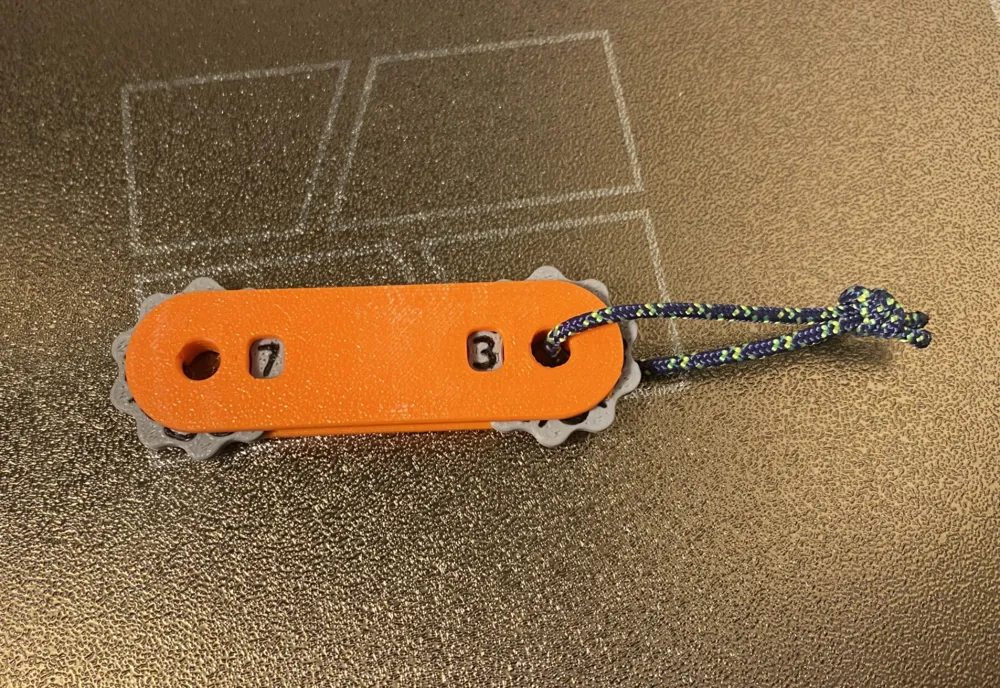
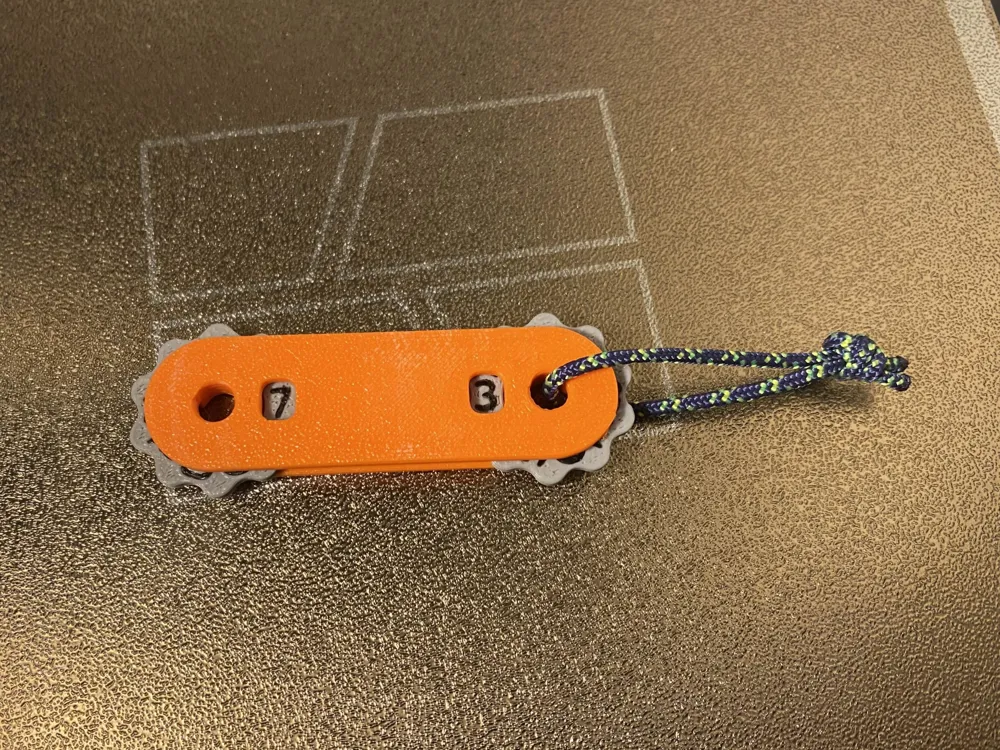
I designed this counter for counting knitting stitches but it can be used for a variety of purposes.
Assembly:
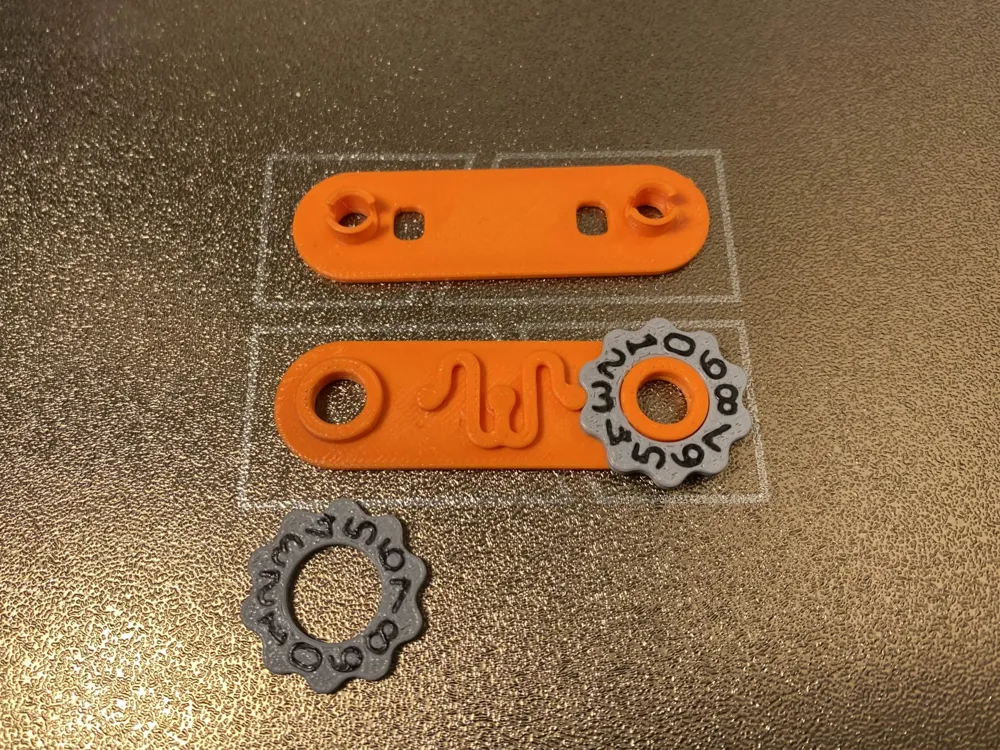
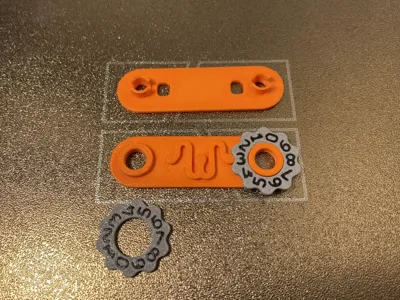
- first you need to free the print-in-place springs by prying them up cautiously
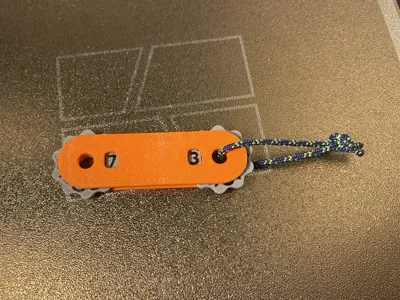
- now insert the wheels, keep the orientation of the digits in mind(right orientation is shown in the second picture)
- finally press the top on
It is possible to print without AMS but because BambuStudio does not support mid layer pause it is a bit annoying but it is definitely doable, i added an explanation below.
I made multiple Print Profiles each in PLA or PETG you can choose between:
Single Plate AMS (three colors | everything on one plate, but wastes some filament | AMS is necessary)
Two Plates AMS (the housing is printed on one plate in one color | only one filament change while printing the wheels | AMS is necessary)
Two Plates noAMS (if you want to print without AMS please read below)
If you want to print without AMS you need to follow these steps:
- To print the wheels without an AMS you need to wait for the added pause before the last layer.
- Then resume the print.
- When everything except the digits is printed and the printer moves to the prime tower you need to pause the print manually.
- Now change the filament manually. If the unload button is unavailable you need to:
- cut the filament manually
- extrude backwards a bit
- remove the old filament
- put the new filament in
- then either use the load button or:
- heat the nozzle manually
- extrude forward until the old filament is purged
Finally resume the print.
Done!
Boost Me (for free)
License

You shall not share, sub-license, sell, rent, host, transfer, or distribute in any way the digital or 3D printed versions of this object, nor any other derivative work of this object in its digital or physical format (including - but not limited to - remixes of this object, and hosting on other digital platforms). The objects may not be used without permission in any way whatsoever in which you charge money, or collect fees.


Comment & Rating (37)