
Simracing VoCore 6.8" DDU 2.0
Print Profile(1)

Description
Boost Me (for free)
Boosts are very much appreciated!
Tips are much appreciated!
https://ko-fi.com/disegnifugazi
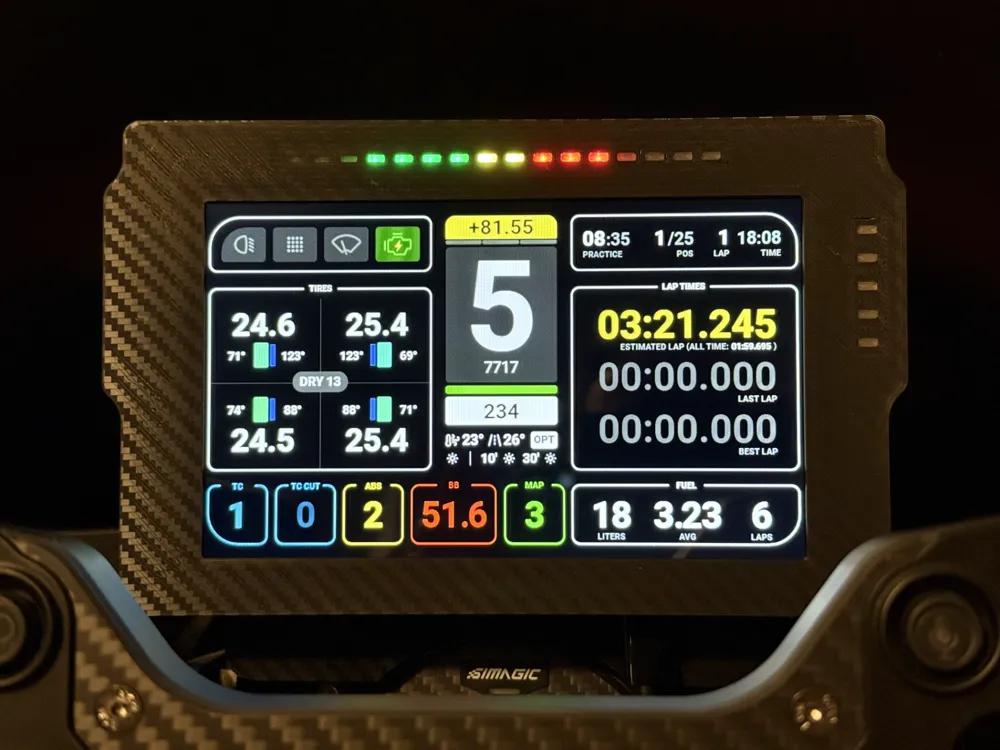
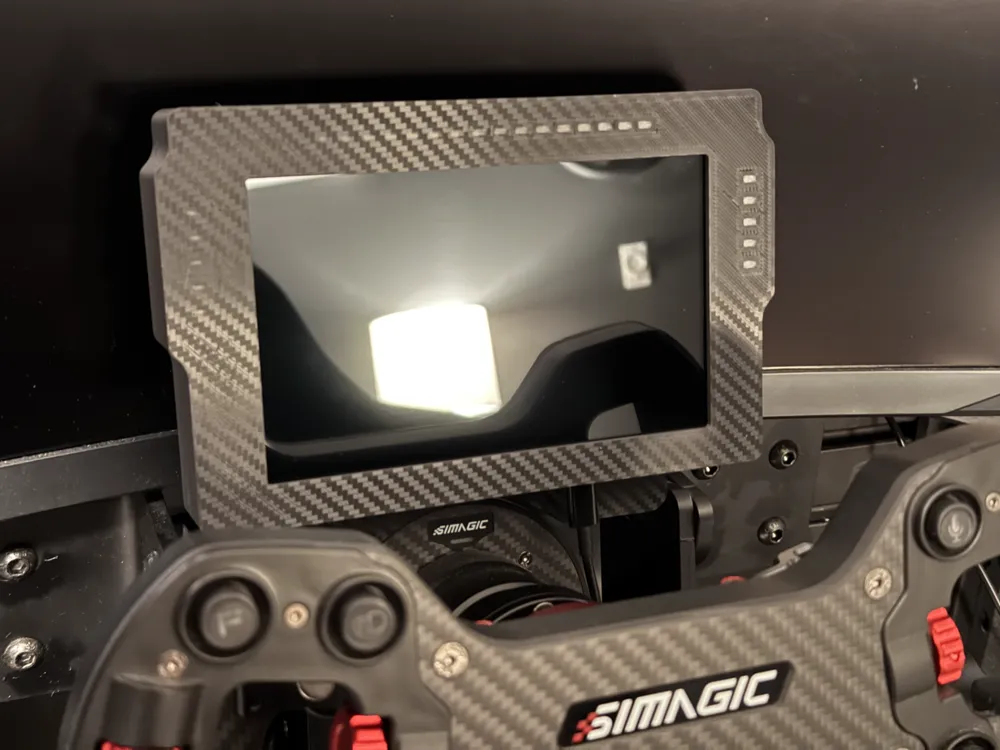
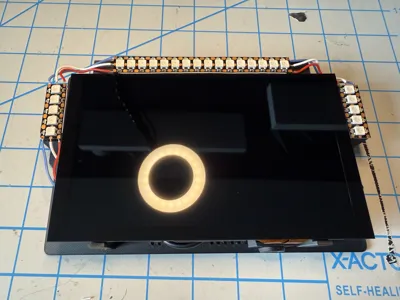
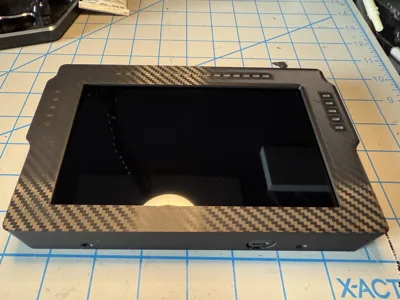
Here is the long overdue update to my original DDU design. The goal here was mainly to incorporate an internal USB hub so that a single cable could be used for both the screen and Arduino. I also cleaned up a few other design details and added transparent covers for the LEDs (optional).
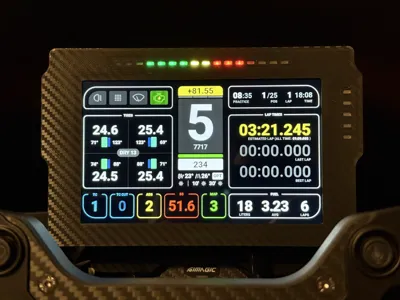
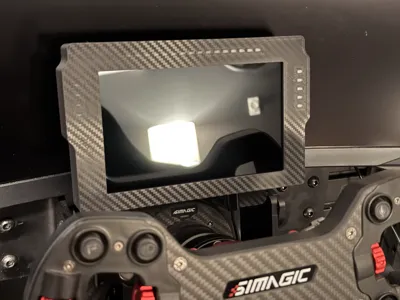
Here's the DDU in action:
This design retains the VoCore 6.8" display but reduces the top bar of LEDs from 20 to 16. I found 20 to be unnecessary.
As before, the display and LEDs can be controlled by SimHub or similar software. I highly recommend the Lovely Dashboard and Daniel Newman Racing LED Profiles. Please support these projects if you find their work helpful (I have no doubt you will!).
Bill of Materials:
- M3 x D4.2 x L6.0 Thread Inserts (11 - Arduino mount, top/bottom/back)
- M2.5 x OD4.2 x L5.0 Thread Inserts (4 - USB Hub mount)
- M3 x 8mm Countersunk Head Screws (4 - Enclosure)
- M3 x 8mm Button Head Screws (3 - Arduino Mount)
- M3 x 8mm Thumb Screws (4 - DDU Mount)
- M2.5 x 5mm Button Head Screws (4 - USB Hub)
- VoCore 6.8" Display
- Arduino Nano
- USB Hub
- WS2812B Individually Addressable Led Strip (1m 144 IP30)
- Male 4 Pin Micro USB or Male 4 Pin USB-C Cable (connection from VoCore to USB Hub, older models use Micro USB while newer models use USB-C)
- Male 4 Pin Mini USB Cable (connection from Arduino to USB Hub)
- Female 4 Pin USB-C Cable (connection from USB Hub to PC)
- USB-C Cable (connection to PC)
- 24 AWG Wire
- 3M Double Sided Tape
- Faux Carbon Fiber Build Plate (optional)
- M8 x 12mm button head screws (2 - may be different for your wheelbase)
Printing:
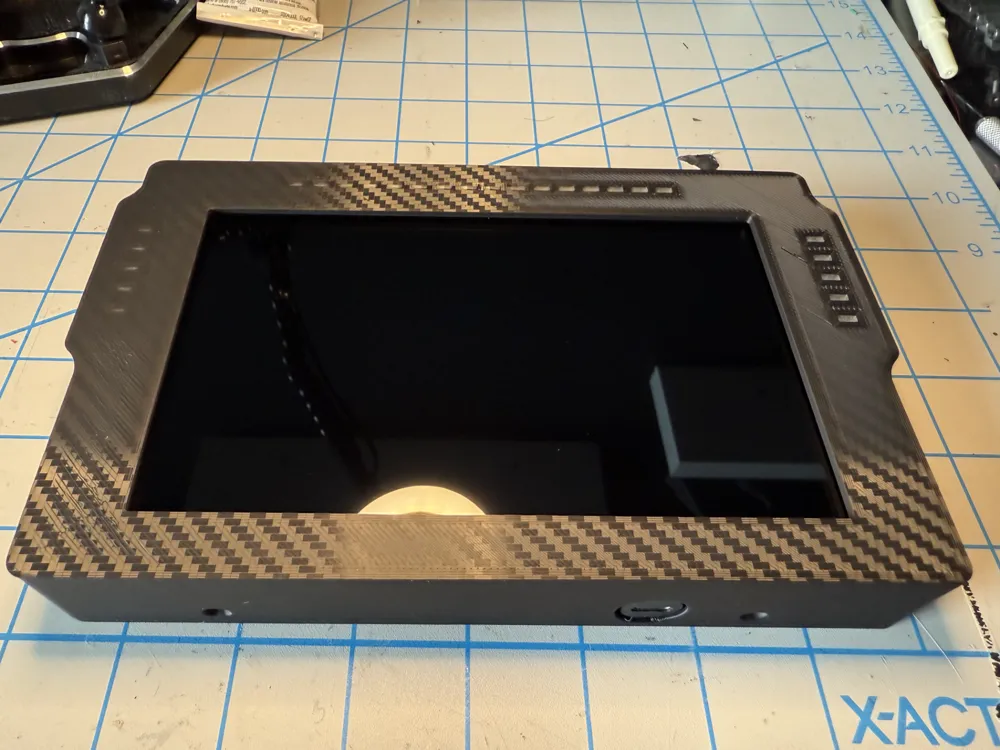
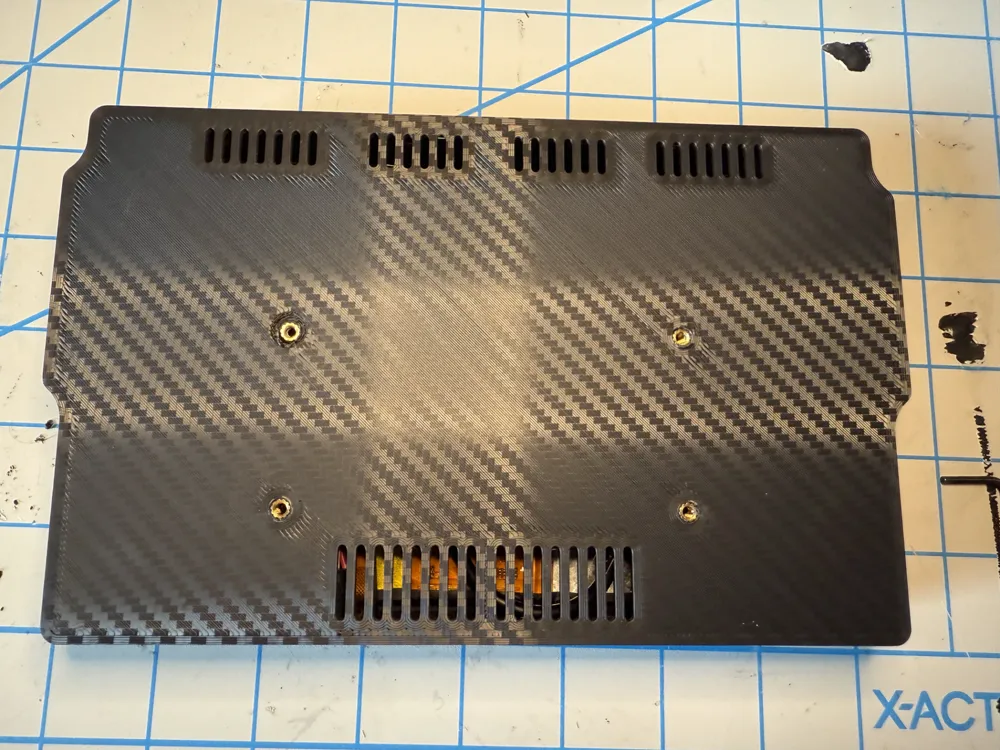
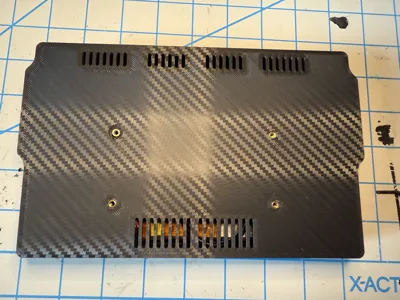
Optional: I used the faux carbon fiber plate to give that look to the front and back of the enclosure.
Material: PLA or better for housing. The LED covers need to be printed in transparent filament to allow the light to shine through. You have the option to delete this portion of the model and just print the case with openings over the LEDs like the previous design.
Layer height: 0.2mm
Wall loops: 4
Top shell layers: 4
Bottom shell layers: 4
Infill: 60%
Infill pattern: Gyroid
Supports: None
Assembly:
- Melt the M3 threaded inserts (11) into back enclosure using a soldering iron
- 4 used on the back, 3 for the Arduino mount, 2 on the bottom, and 2 on the top
- Set temperature to melting temperature of material used
- Make sure inserts are flush with outer surface
- Melt the M2.5 threaded inserts (4) into the back enclosure
- All 4 used on the USB Hub mount
- Set temperature to melting temperature of material used
- Make sure inserts are flush with outer surface
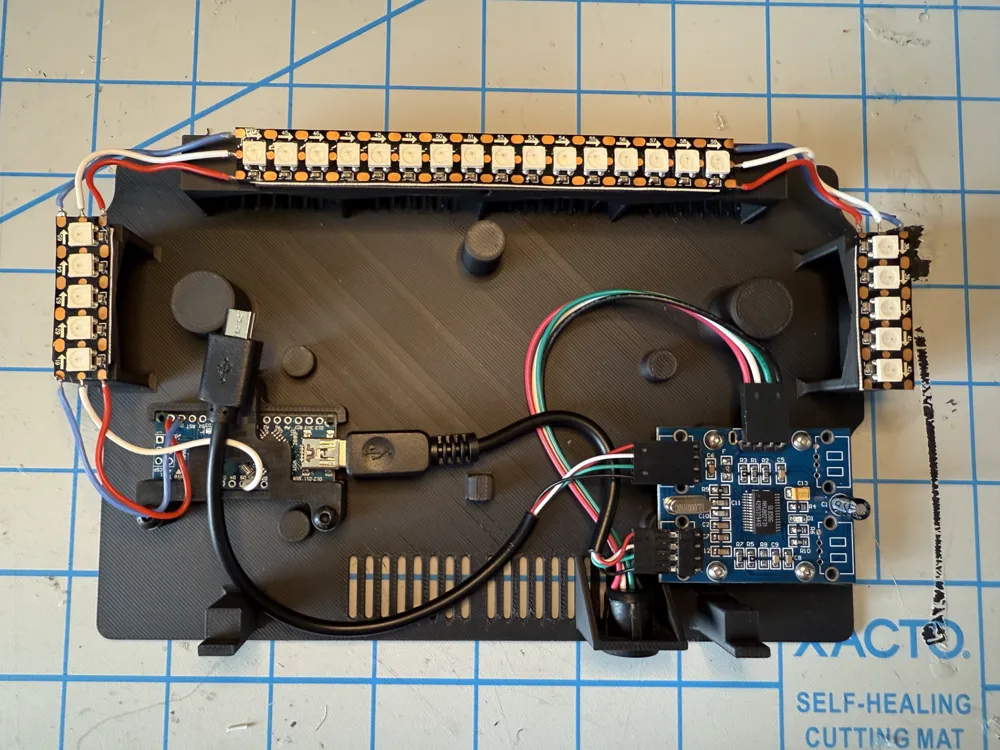
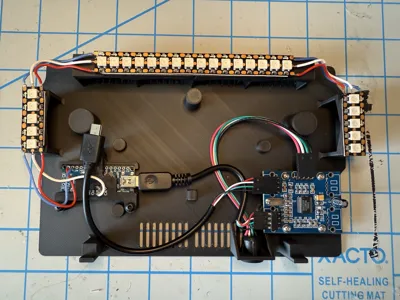
- Cut LED strip into 3 sections (Tip: these LEDs are very close together and can make soldering the center connection difficult. You can sacrifice an LED when cutting and leave a larger portion of the connection to solder onto to make things easier. It's doable without doing this though.)
- 2 x 5 LED strips
- 1 x 16 LED strip
- Solder the LED strips together using 24 AWG wire
- Make sure the arrow on the PCBs are all pointing the correct direction (away from Arduino)
- Solder Arduino Nano to LED strip
- Solder directly to the Arduino, no pins needed (there are cutouts on the Arduino mount to allow the wires to poke through the back)
- Use VIN (red wire), GND (blue wire), and D6 (white wire)
- Remove adhesive backing from LED strips and place them on the platforms
- Start with the 16 LED strip
- Notice that there is an alignment arrow on each platform for the center point of the strip
- Start at the center and slowly work your way out
- Once perfectly aligned, repeat the process for each 5 LED strip
- Screw down Arduino cover using 3 button head M3 x 8mm screws
- Test fit the front enclosure to make sure LEDs are aligned with holes, adjust as needed then remove front of enclosure
I recommend using Dupont connectors for the USB Hub and 4 Pin cables but you do have the option to solder directly to the hub. See the picture for wiring locations. Note that the female USB-C cable must be threaded through the mounting hole on the bottom of the back enclosure before being connected to the hub!
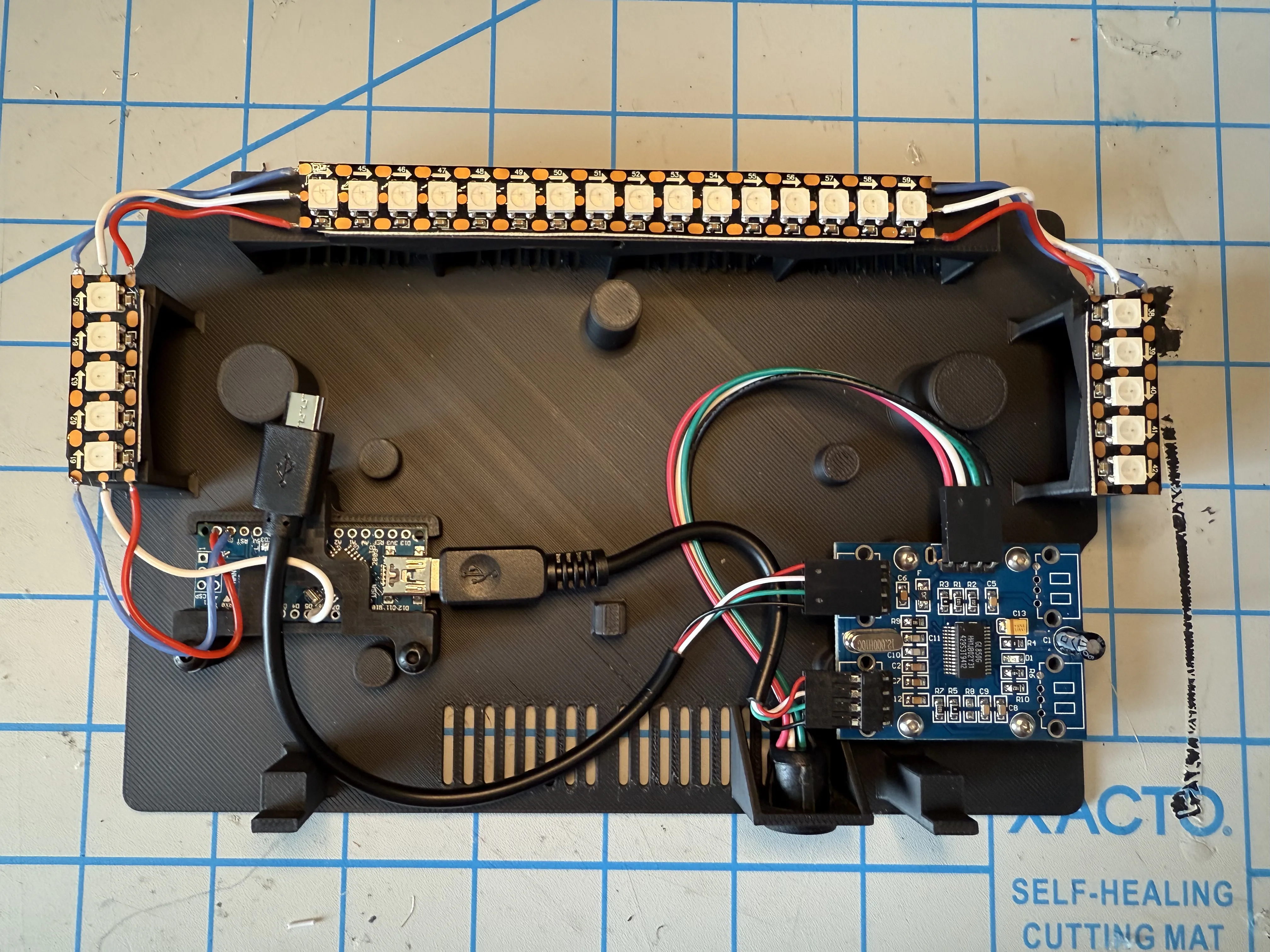
- Screw down the USB Hub using 4 button head M2.5 x 5mm screws
- Optional: there is zip tie clip on the back enclosure if needed for wire management
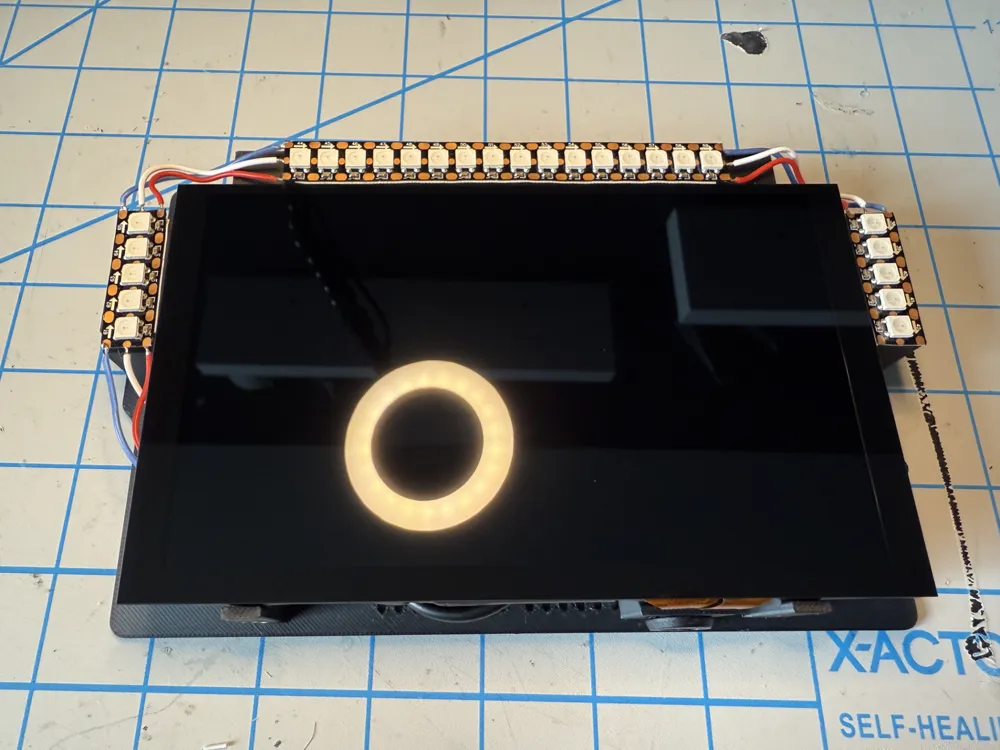
Use double sided tape to attach the ribbon cable seat to the back of the VoCore display then use another piece of tape to attach the ribbon cable to the seat as shown in the picture
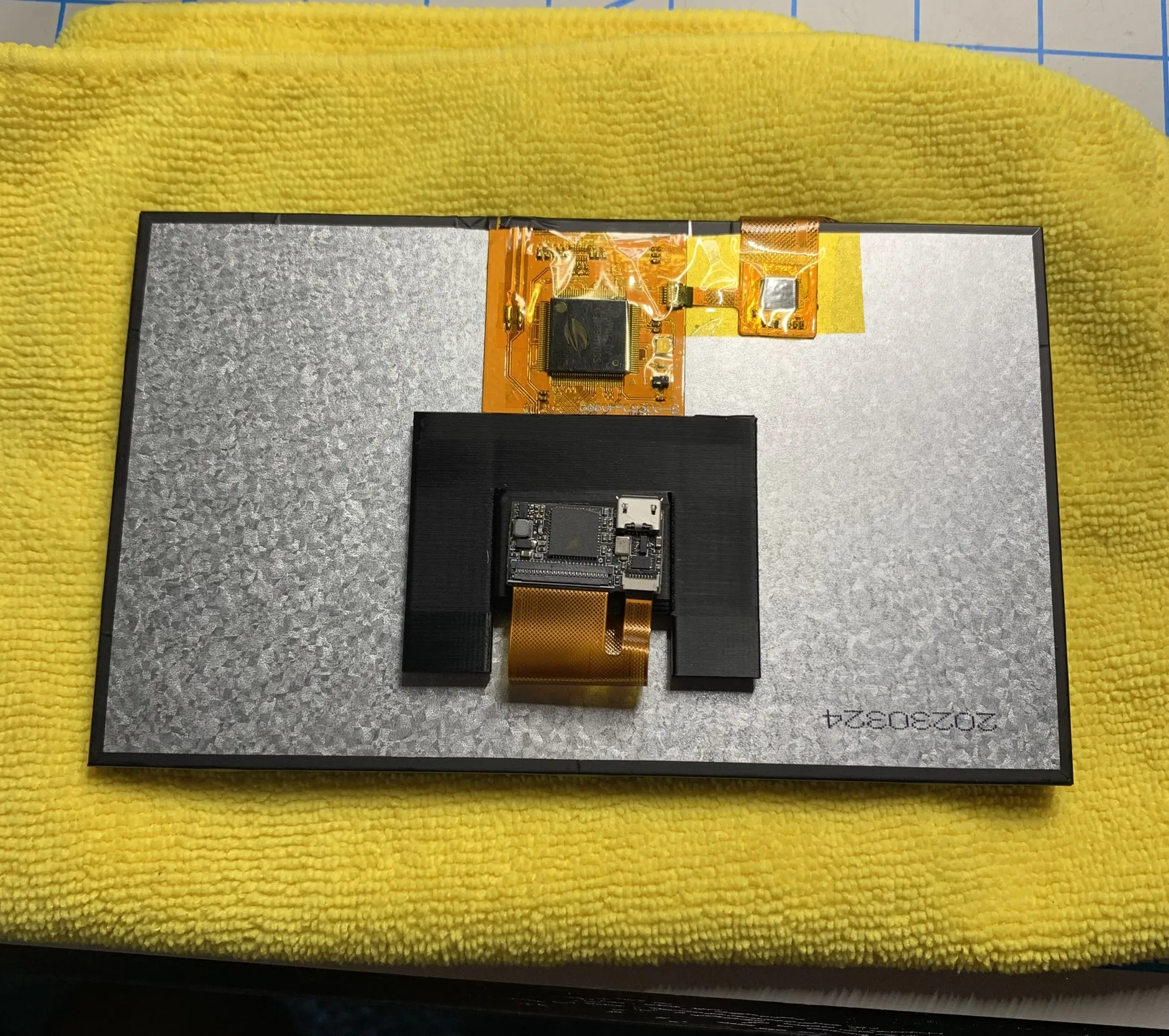
- Plug in the Arduino to the hub
Plug in the VoCore to the hub and rest into the back enclosure ensuring no wires are being pinched (it should sit perfectly flush to the 5 supports)
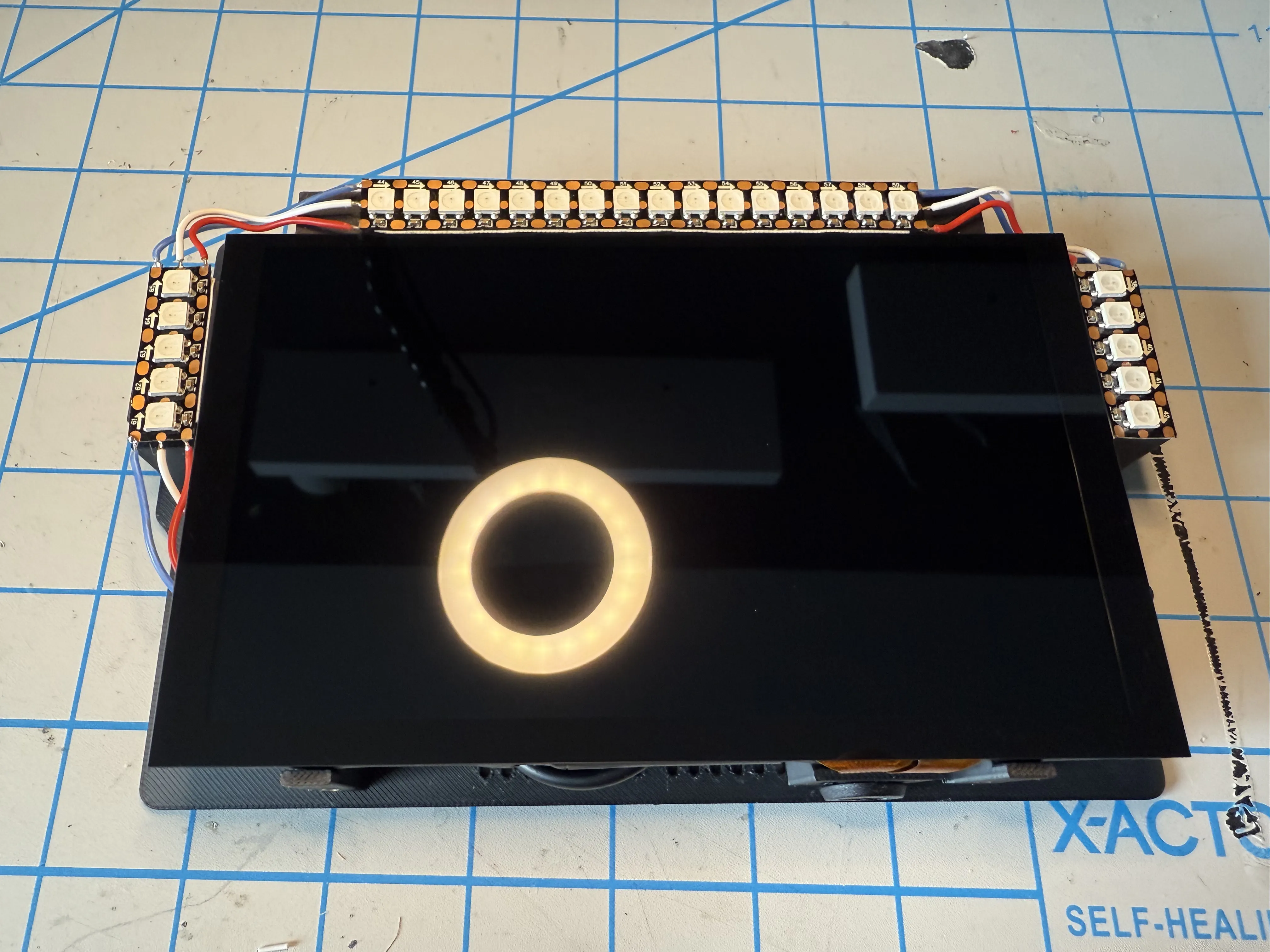
- Carefully slide the front enclosure over the back enclosure and secure using M3 x 8mm countersunk screws (4)
Tip: angle the front enclosure and slide it over the bottom of the back enclosure first then slip it over the top. This allows it to slip over the female USB-C connector easier.
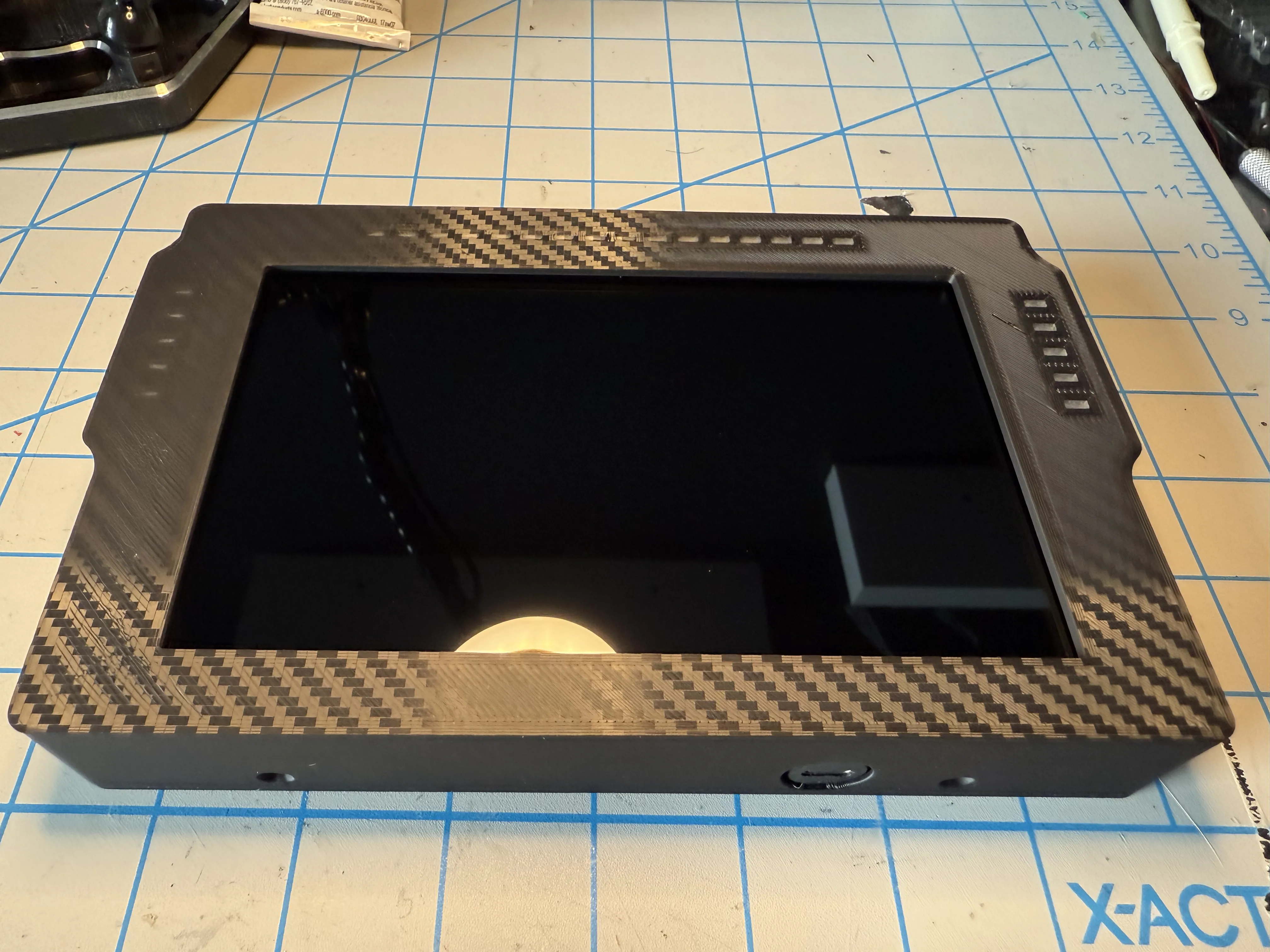
- Attach mounting bracket using 4 M3 x 8mm thumb screws (don't quite fully tighten these yet so that you can fine tune the positioning once it's mounted to the wheelbase)
- Attach the mounting bracket to the wheelbase using M8 x 12mm button head screws (may be different for your wheelbase)
- Position DDU at desired height and tighten thumb screws
SimHub Setup:
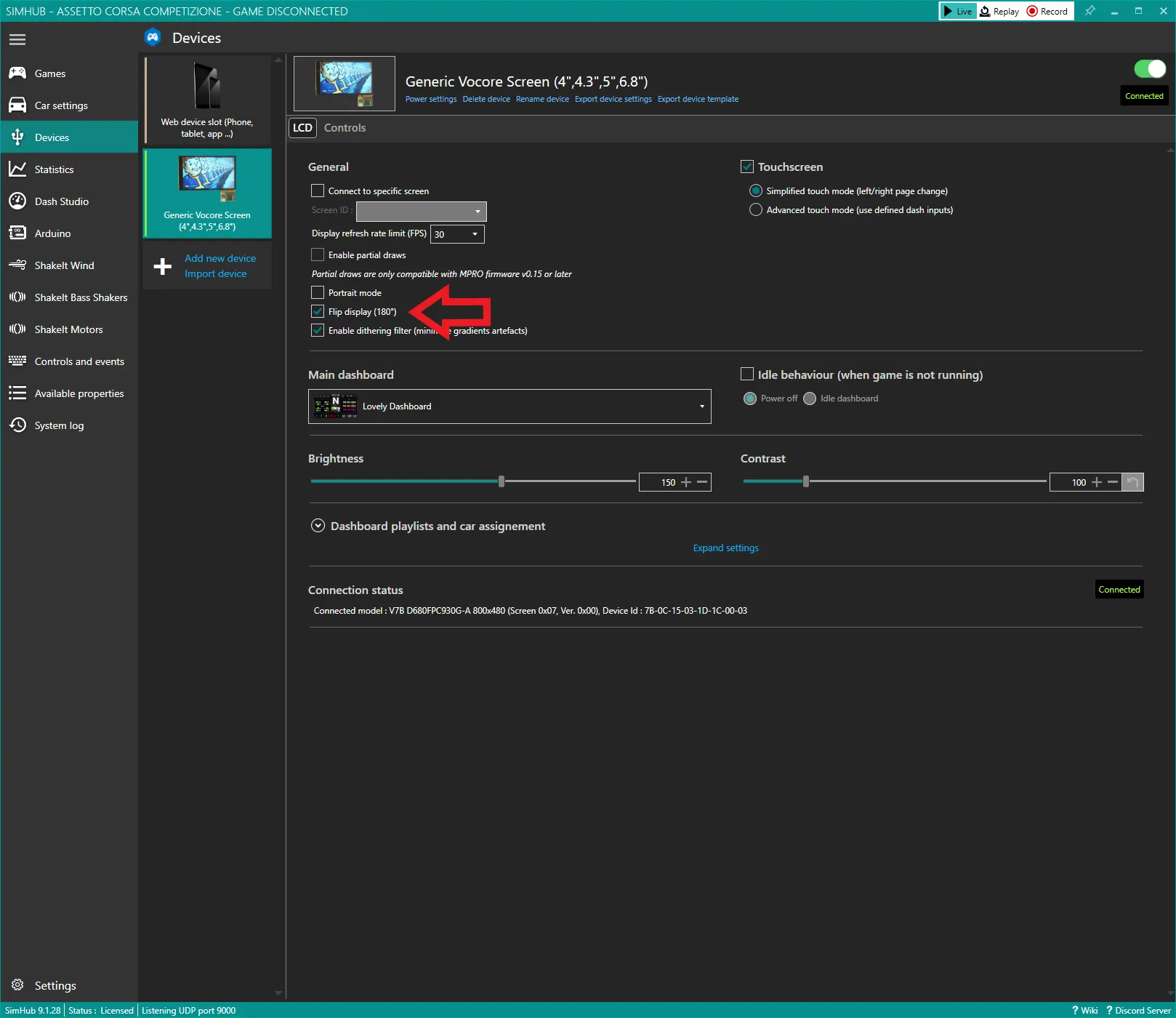
The display should be recognized right away by SimHub. You can simply navigate to the device tab and load the dashboard of your choice and adjust the display to your liking. Again, I highly recommend the Lovely Dashboard. Note that you'll need to flip the display.
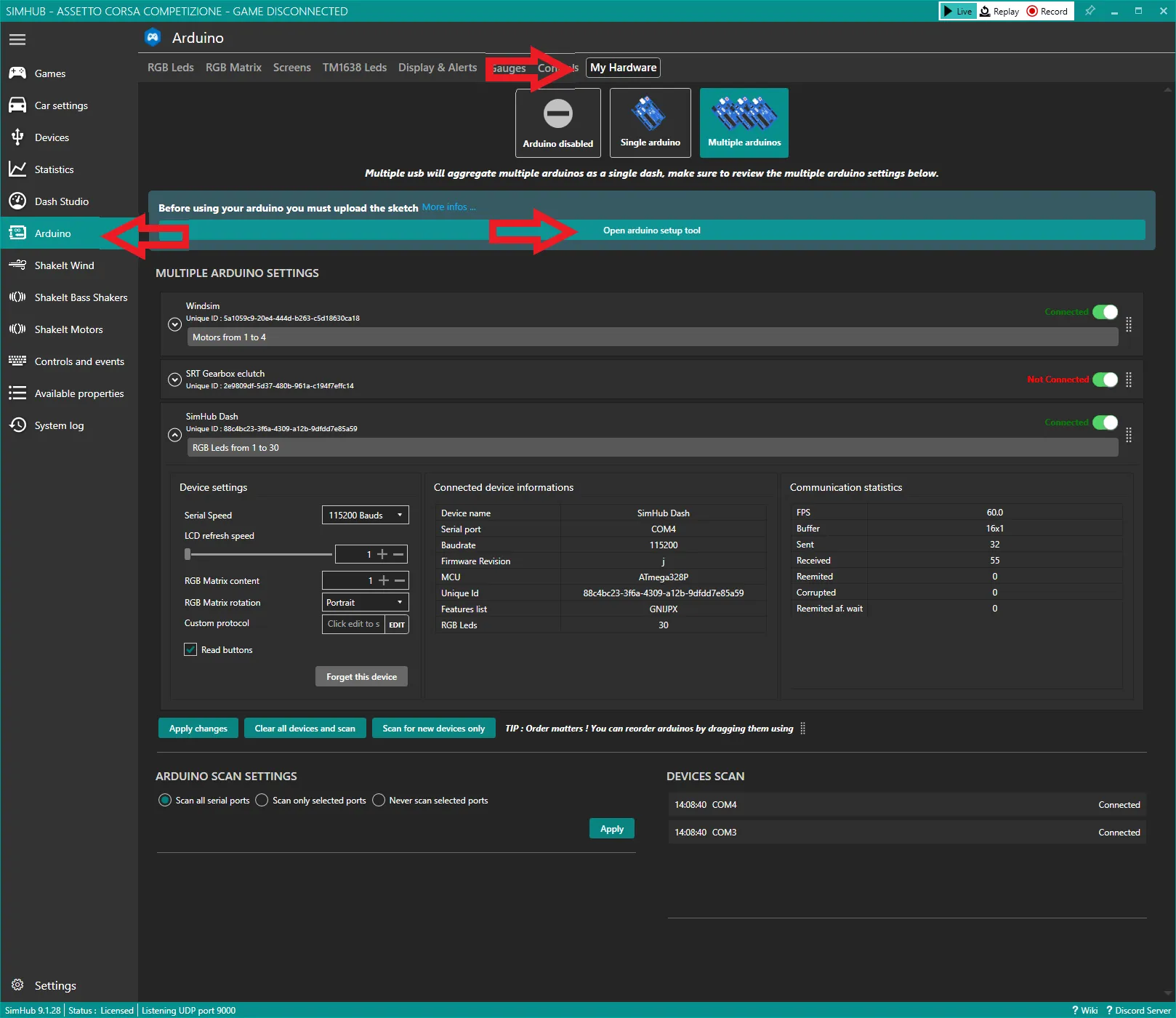
For the LEDs, you'll need to flash the Arduino using the provided tool:
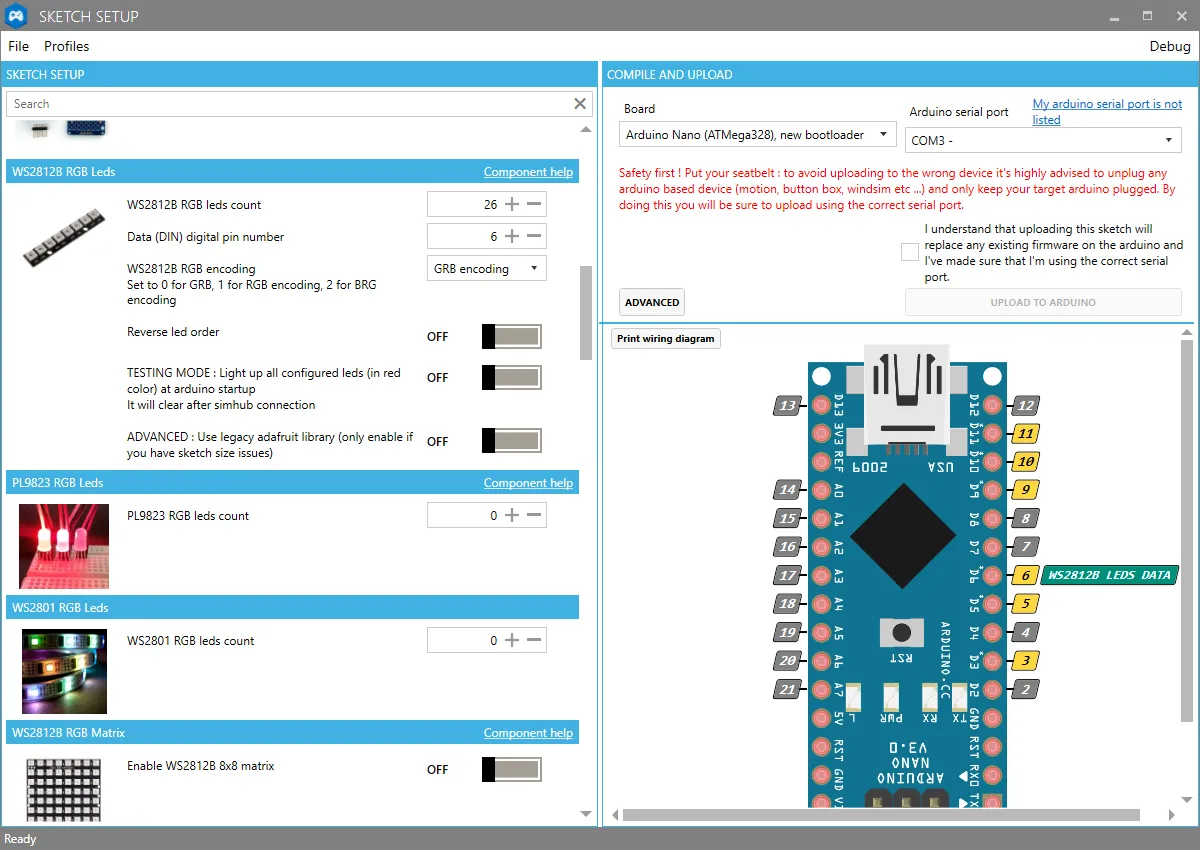
Make sure you select the correct COM before flashing. If you don't see your COM listed you likely need to install the drivers.
After it's flashed, you'll need to configure the LED profile to your desired behavior on the RGB LEDs tab. This is fairly straightforward but you can definitely get very detailed in your configuration. Definitely check out Daniel Newman Racing LED Profiles to see how crazy/awesome this can get.
Have fun and I welcome feedback!
This remix is based on

License



Comment & Rating (123)