
Tap to Pay Paystation
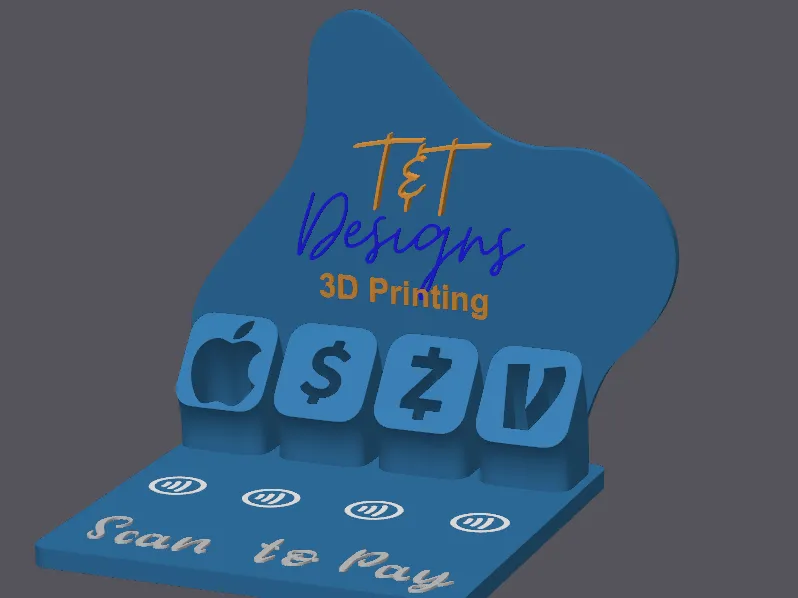
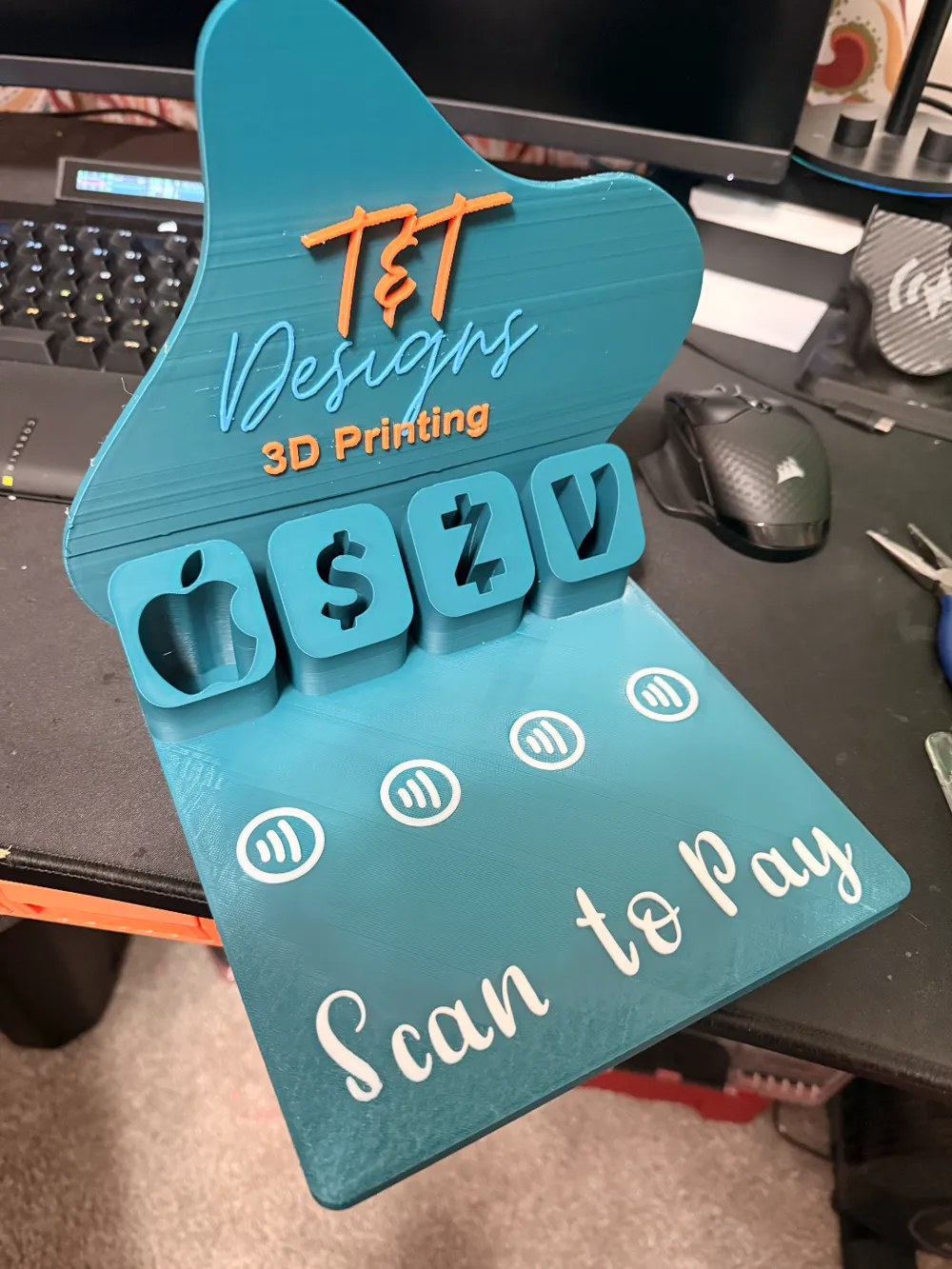
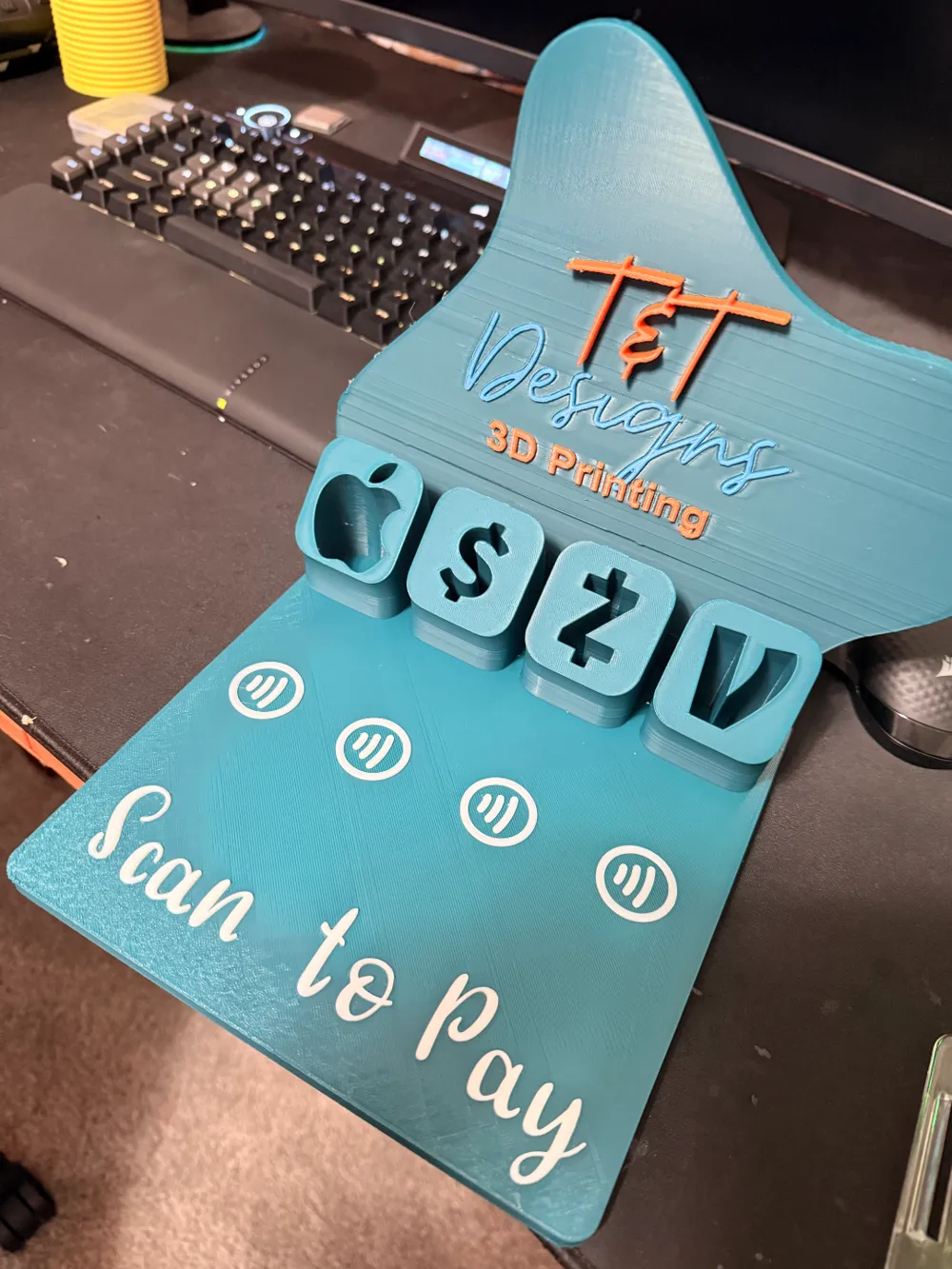
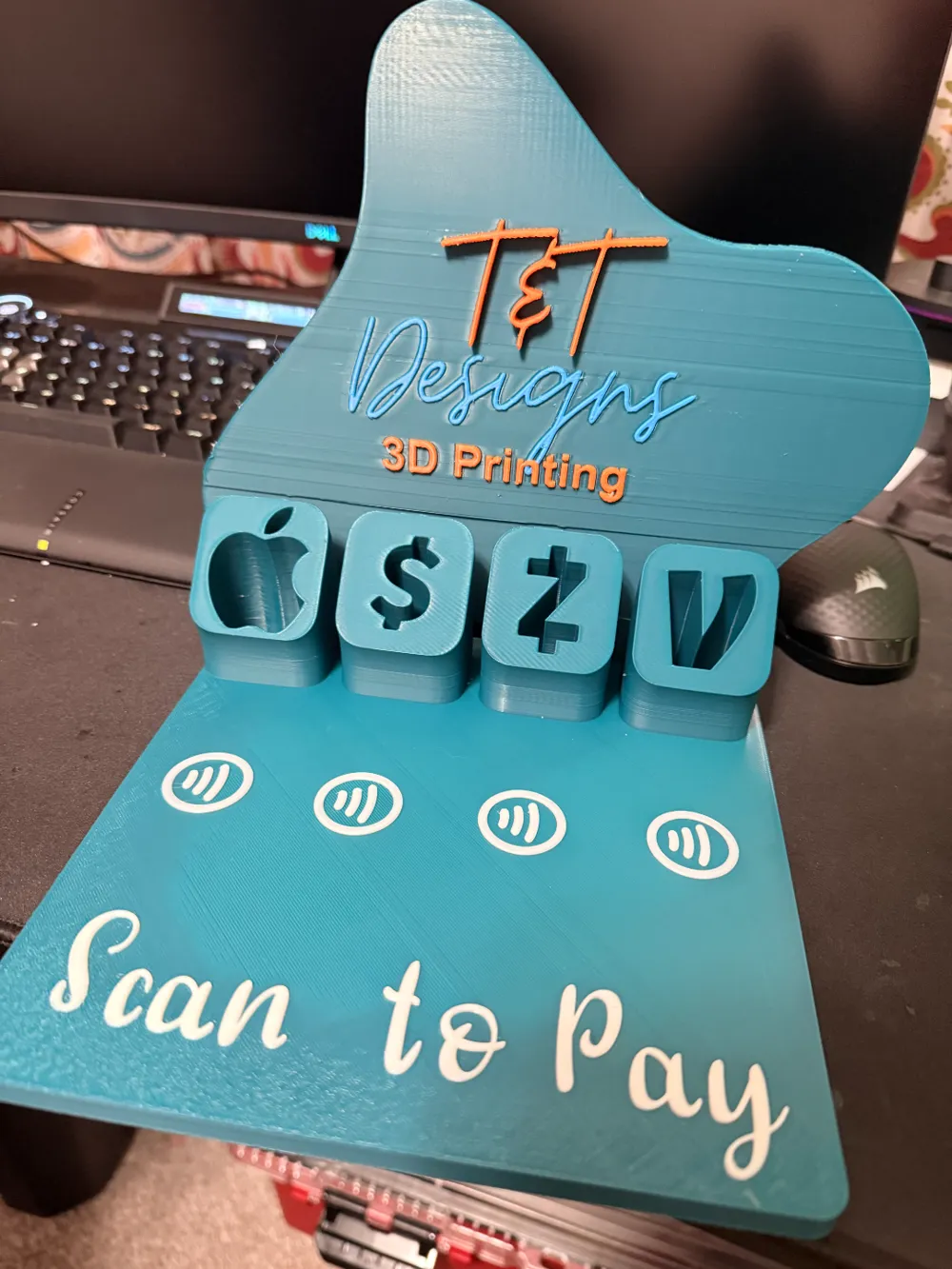

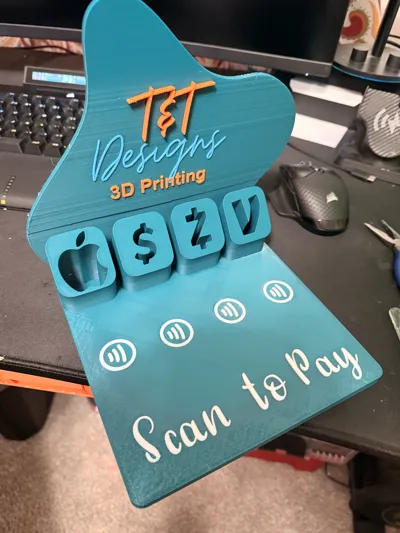
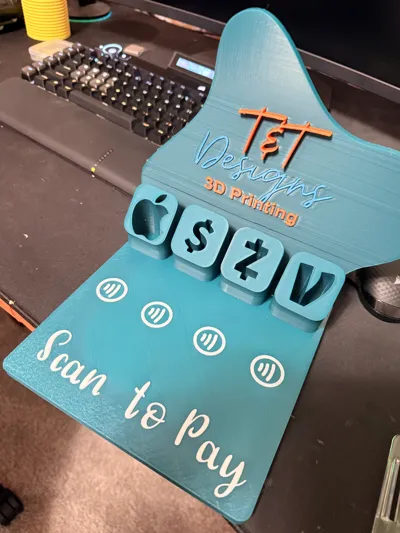
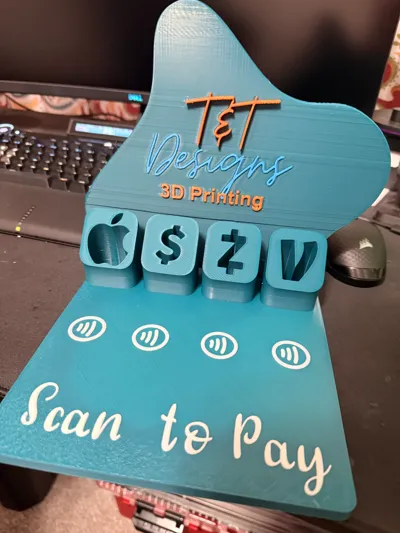
Print Profile(3)


Description
Print Profile for Tap-to-Pay Paystation
Instructions:
- Start the Print
Begin the print as normal, ensuring the printer is calibrated and the material loaded correctly. - Pause at Layer 41
Important: Pause the print at Layer 41. This is the critical point where the NFC tag housing and any necessary adjustments for support material will be handled. - Add NFC Tags
If you are using NFC tags for the tap-to-pay features, this is the moment to place them into the designated NFC tag slots. Carefully insert the tags into the pre-designed holders within the print, ensuring they are positioned securely and without shifting. - Support Blocker Adjustment
If you are NOT using NFC tags, remove the support blocker that has been printed in this section. Carefully remove the support structure to ensure the smooth continuation of the print. If you are using NFC tags, you may leave the support blocker in place. - Resume the Print
Once you’ve added the NFC tags (if applicable) and adjusted the support material, resume the print to continue to the final stages. - Final Adjustments
After resuming, the print will proceed to completion. Monitor the print to ensure there are no further issues, and the NFC housing is correctly integrated.
Important Notes:
- Ensure proper alignment of NFC tags before resuming to avoid any malfunction in the tap-to-pay functionality.
- Double-check that the support material is fully removed if not using NFC tags to ensure a clean final finish.
By following these steps, you will have a perfectly printed Tap-to-Pay Paystation with seamless NFC tag integration for tap-to-pay features.
link for the tags I used:
https://www.amazon.com/dp/B08BYG1GQZ?ref_=cm_sw_r_cp_ud_dp_GHNA14K2V4BH0C4GYBT7%0A%0A
Boost Me (for free)
License

You shall not share, sub-license, sell, rent, host, transfer, or distribute in any way the digital or 3D printed versions of this object, nor any other derivative work of this object in its digital or physical format (including - but not limited to - remixes of this object, and hosting on other digital platforms). The objects may not be used without permission in any way whatsoever in which you charge money, or collect fees.


Comment & Rating (111)