
A1/A1 mini X-Axis Endcap with PTFE Mount
Print Profile(1)

Description
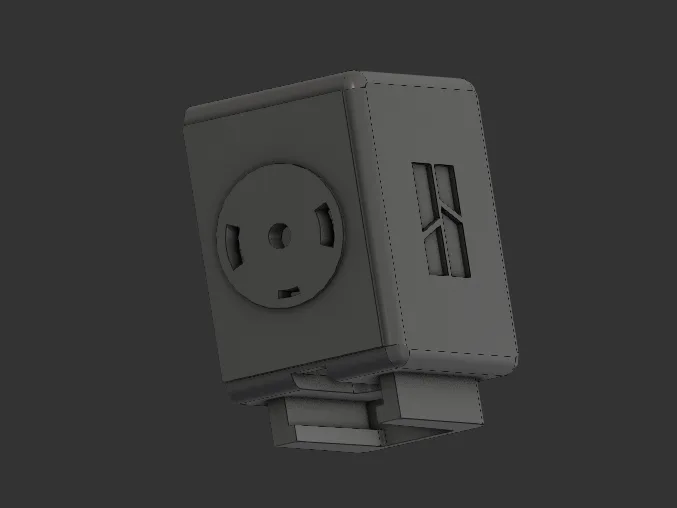
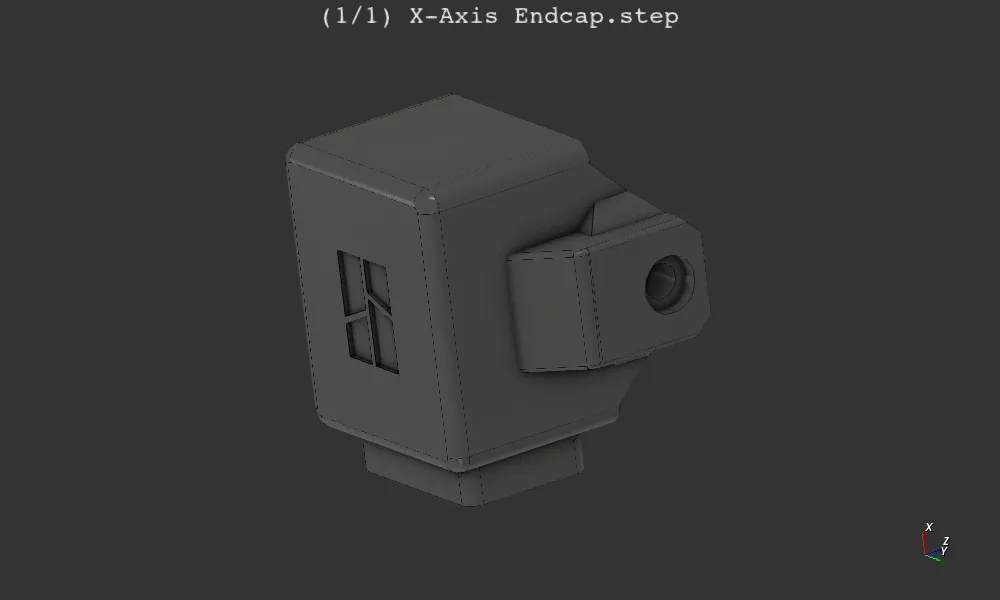
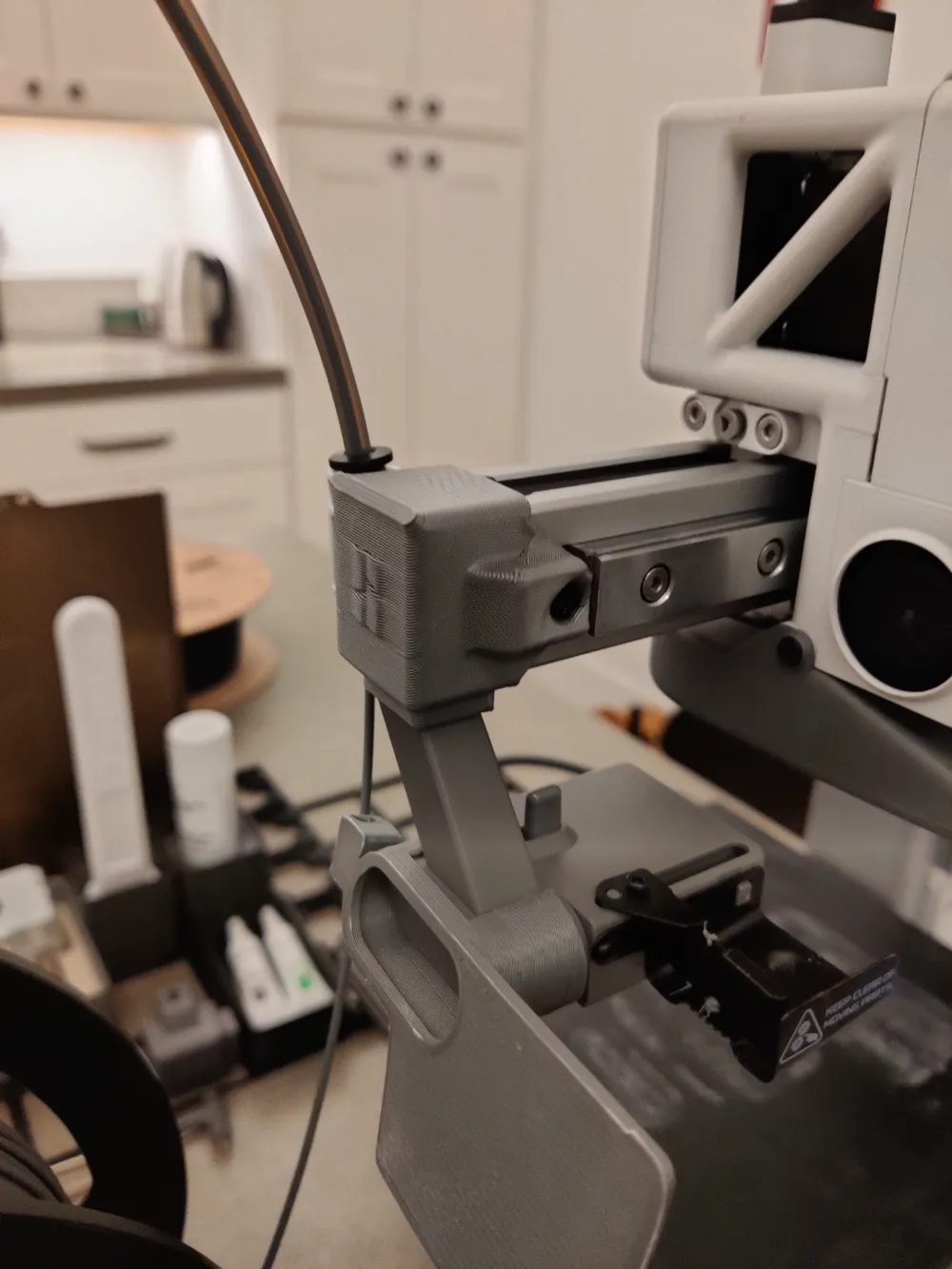
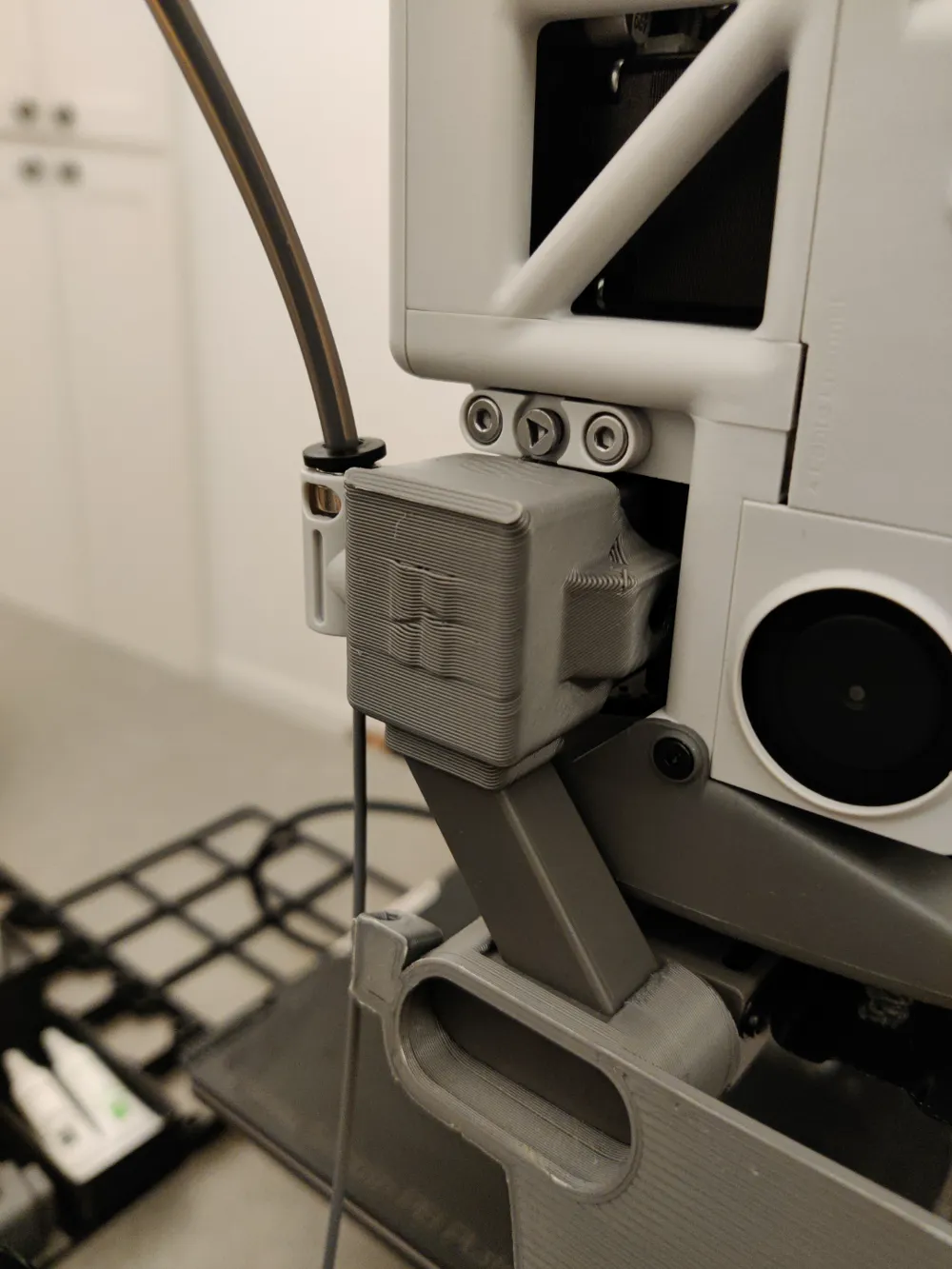
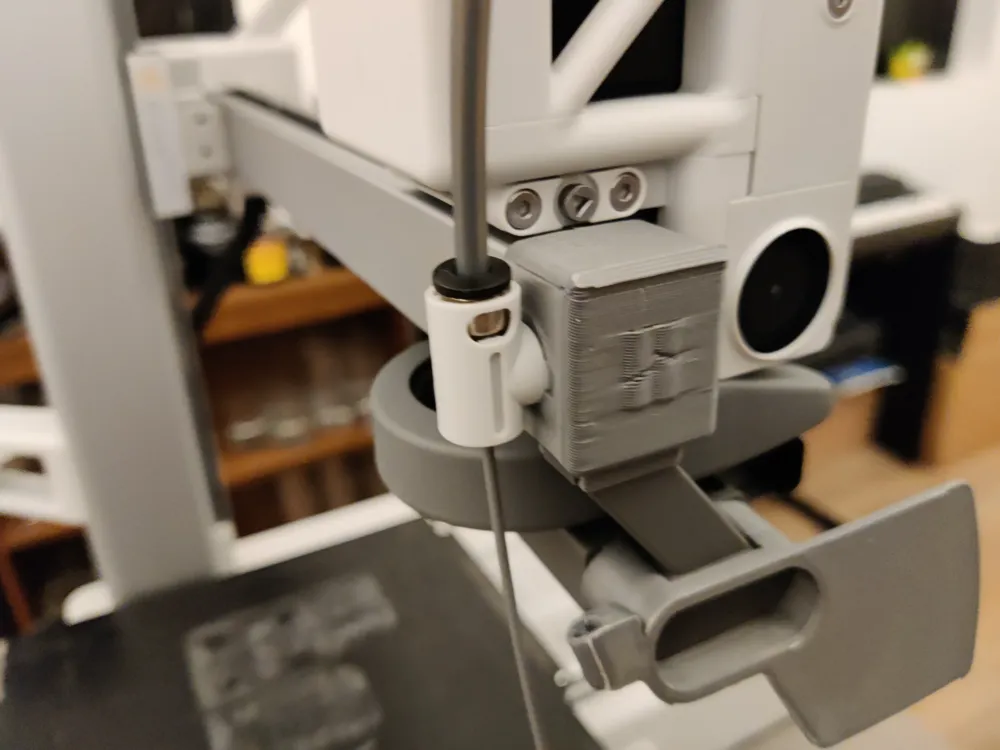
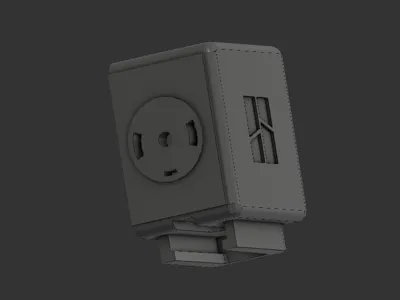
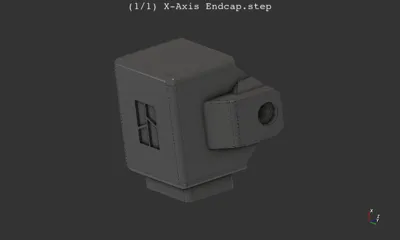
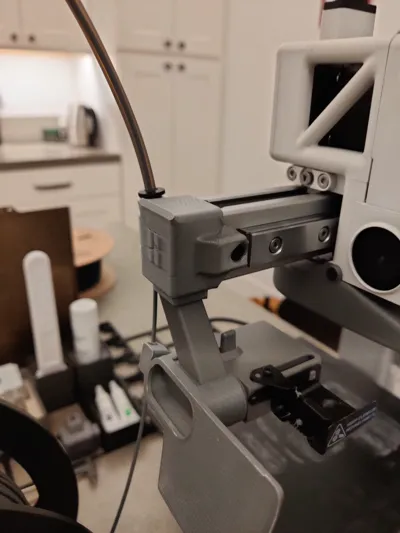
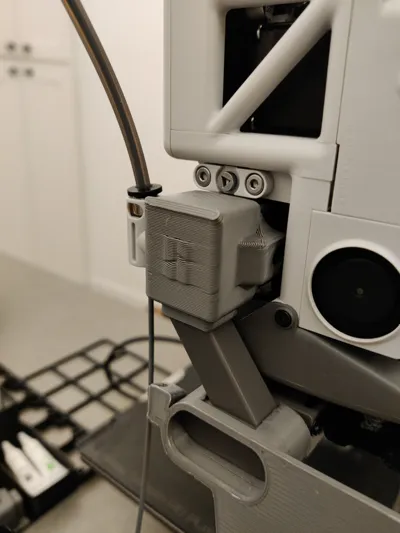
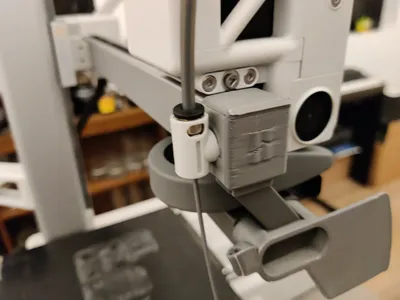
This is a replacement for the BambuLab A1 mini x-axis endcap that allows you to attach a BambuLab PTFE tube connector. I use this to more easily swap between two different spools of filament without having to remove the first one from the printer. I can just unspool the filament a little bit, and load the second one. This is really convenient when doing multi-color swaps at specific layers. It's really nice to be able to add text to the top of a model with a second color by adding a pause at the right layer, and with the second PTFE tube, I can set up the second spool to load at the beginning of the print.
Parts
- PTFE tube connector from BambuLab https://store.bambulab.com/products/ptfe-tube-connector-a1-mini
- PTFE Tube from anywhere, e.g. https://store.bambulab.com/products/ptfe-tubes
Assembly
- First disconnect the purge wiper assembly by unscrewing it from the bottom
- Disconnect the included x-axis endcap by unscrewing it from the front
- Replace the x-axis connector and screw it in from the front
- re-attach and screw in the purge wiper
- Snap the PTFE tube connector
- Run a PTFE tube from the newly-install connector to one of the 4 inlents in the top of the toolhead
Manual Filament Changes
- Add a pause at the right layer (see below) in the slicer
- Once the print pauses, navigate on the A1-mini screen to the “Filament” page and “Unload Filament”
- only have to retract the filament past the PTFE tube joint
- Once the filament is unladed click “Load Filament” on the printer screen
- Once the filament has loaded, go back to the home screen and resume the print by pressing the play button
Using OrcaSlicer
If you use Orca Slicer, manual filament changes are relatively easy. You have to configure a few settings in the slicer, but any filament change will automatically trigger a pause.
Using Bambu Studio
To simplify your filament swaps, it helps to add a pause in the slicer. If you're using BambuStudio AFAIK there is no manual color change option. You'll need to add a pause at the right layer. Here's a quick video on the subject.
However, if you have
This remix is based on


License



Comment & Rating (3)