
Custom QR Code Luggage / Bag Tag


Print Profile(2)


Description
Boost Me (for free)
If you like to show appreciation for the effort that went into creating this model, pls hit that BOOST button!
Membership
Get the commercial license to sell 3D prints of my designs at local shows, online, storefronts, or anywhere you would like to sell. Sign up here on makerworld.
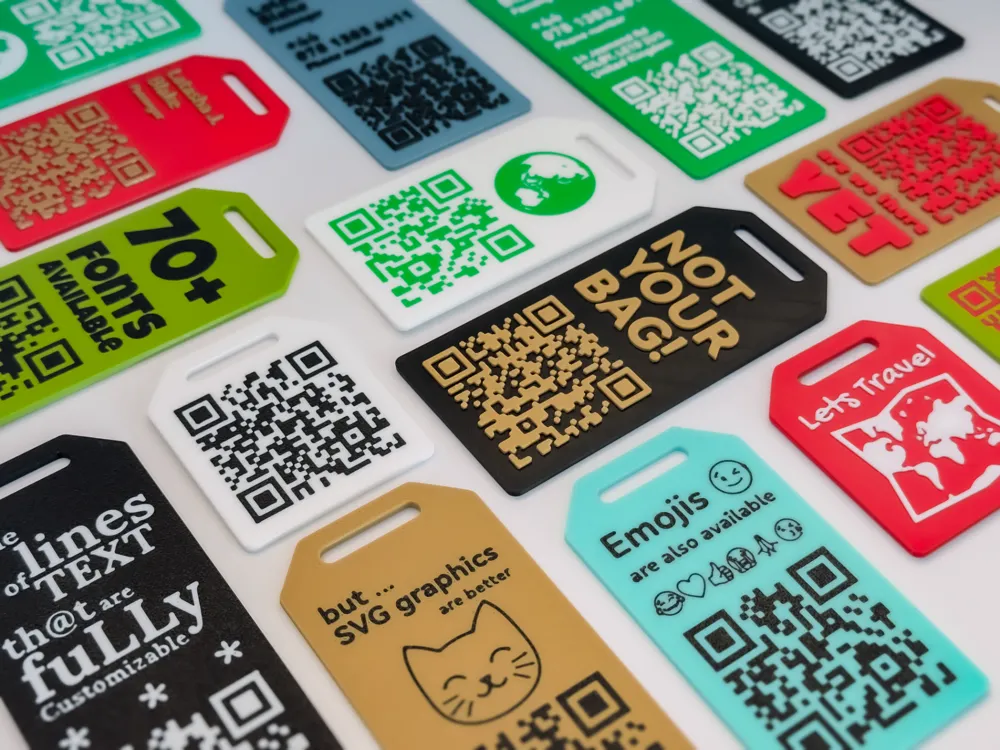
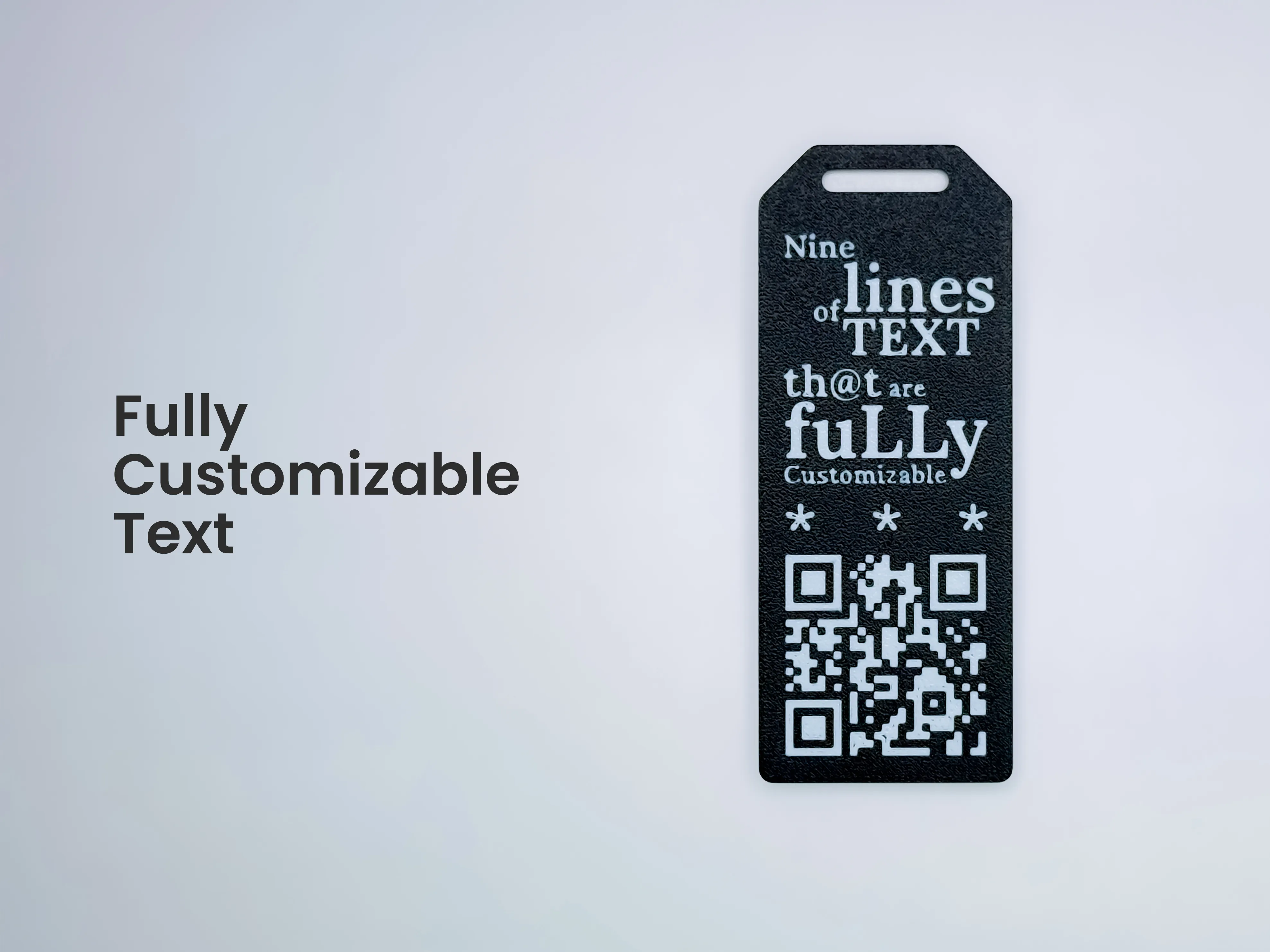
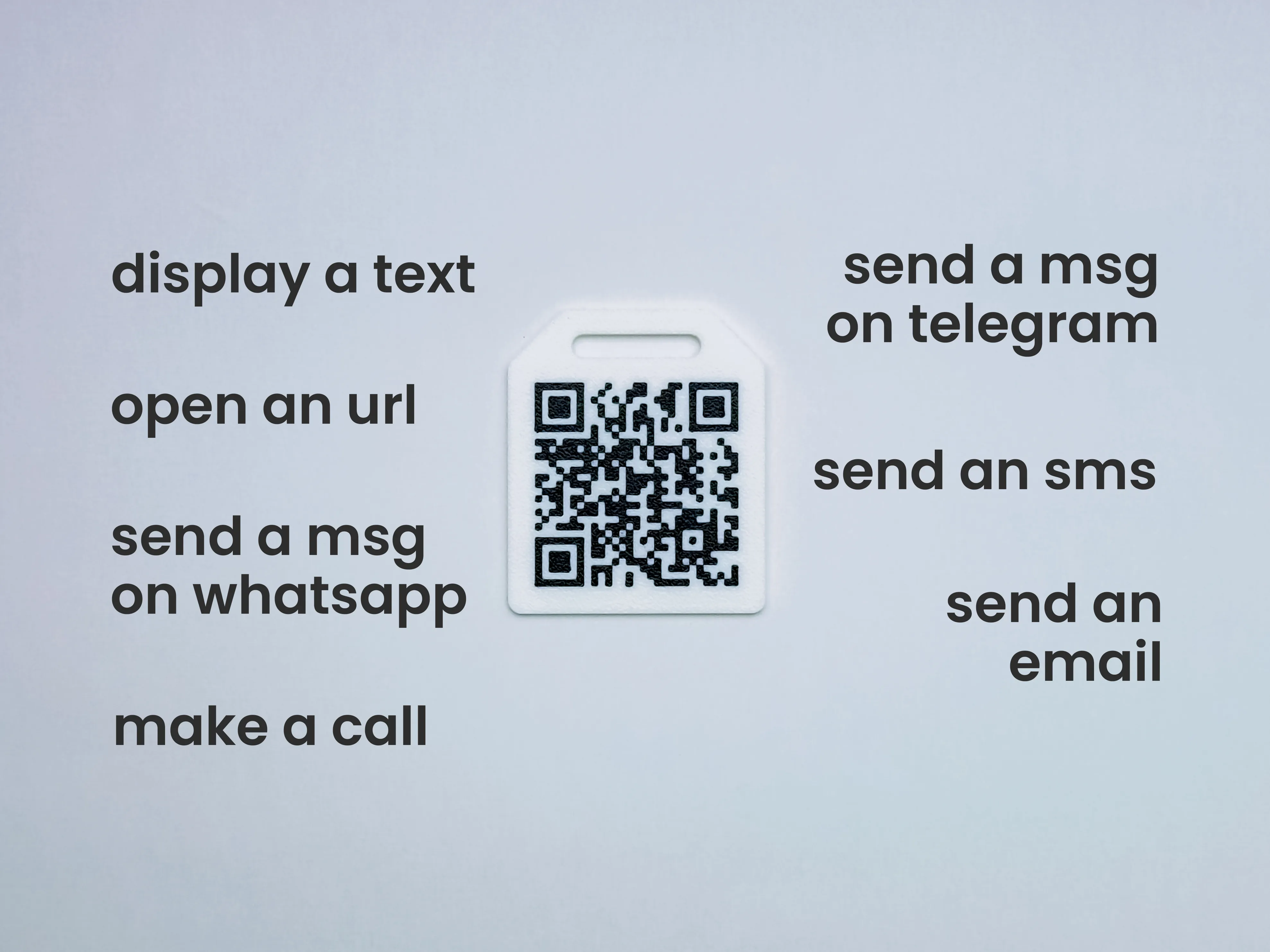
This parametric script is designed to generate 3D tags with a custom QR code. These tags are ideal for identifying luggage during travel, allowing users to recover their baggage in case it gets lost.
The software offers extensive customization options, enabling users to adjust parameters such as tag size, text thickness, QR code options, and the specific information or actions that the QR code will trigger.

Using The Customizer - Documentation
Table of Contents
- Tag
- Text Line Activation and Deactivation
- Text Lines
- QR Code
- Style
- Text Alignment
- SVG Graphics
- Experimental Configuration
Tag
- HIDE TAG / Switch
This parameter allows you to hide or show the tag.
Note: It does not affect the text, graphics, or QR code, as they have their own switches.
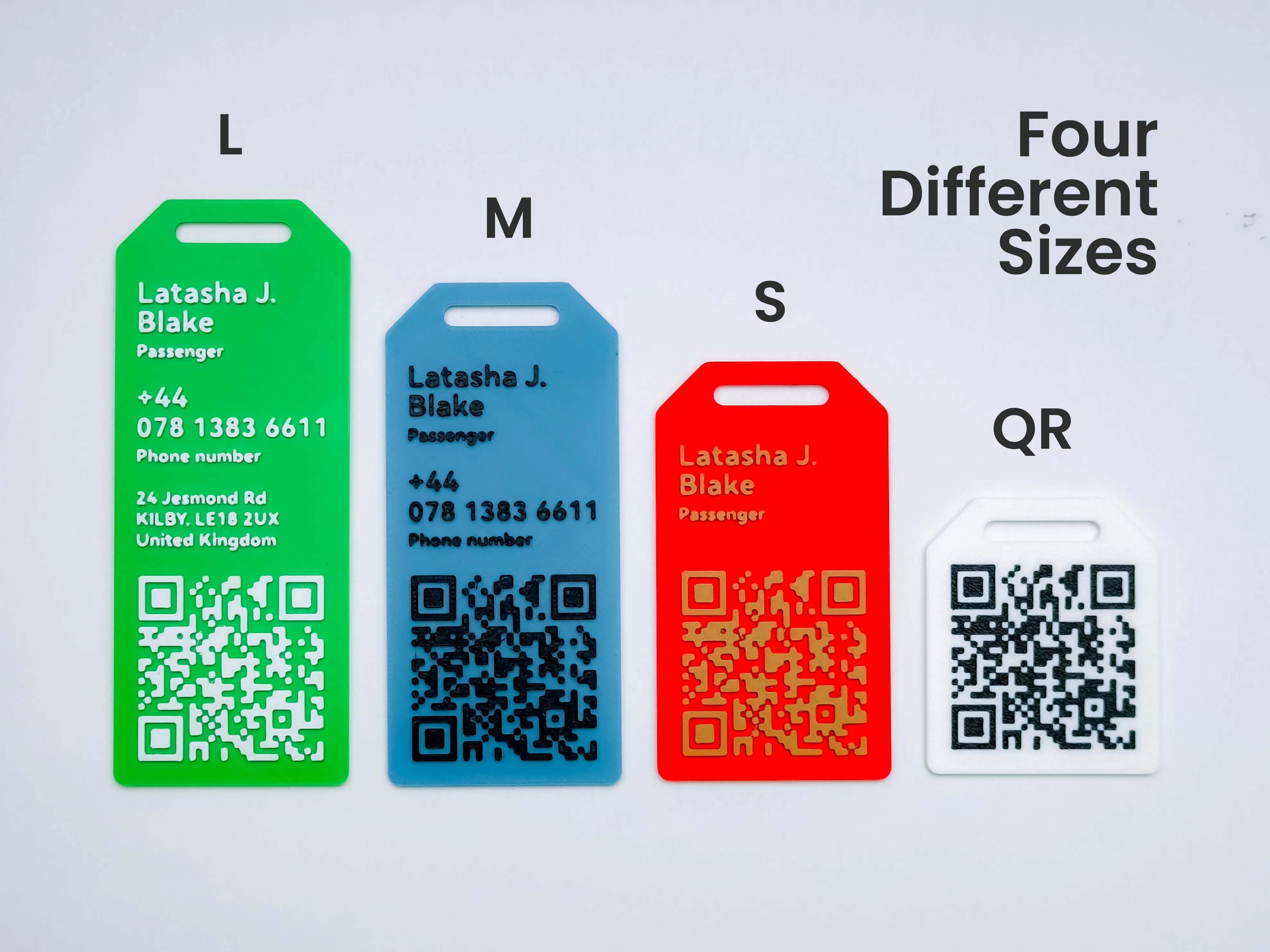
- TAG SIZE / Dropdown menu
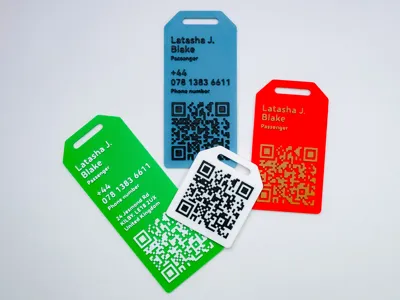
It allows you to select the size of the tag, This parameter has four values:
Small, Medium, Large and QR Only
- TAG THICKNESS / Numeric value
This parameter defines the thickness of the tag in millimeters.
Recommendation: The minimum recommended thickness is 2mm.
- TEXT THICKNESS / Numeric value
This parameter sets the thickness of the text in millimeters.
- QR THICKNESS / Numeric value
This parameter sets the thickness of the QR code in millimeters.
- FACEDOWN MODE / Switch
This parameter makes the tag a flat surface, regardless of text and QR code thickness settings.
Note: If you encounter issues when using the Bambu Studio laminator, adjust the FACEDOWN THICKNESS parameter in the advanced settings section.
- HIDE TAG / Switch
Text Line Activation and Deactivation
- ADD TEXT LINE / Switch
This parameter allows you to activate or deactivate text lines (1 to 9) on the tag. By default, lines 1 to 3 are activated.
Note: To display more than 3 text lines correctly, adjust the TAG SIZE parameter.
- ADD TEXT LINE / Switch
Text Lines
Note: The first three text lines are grouped under "Basic Text Lines (1-3)" for easier basic editing, while the remaining lines are grouped under "Extra Text Lines (4-9)."
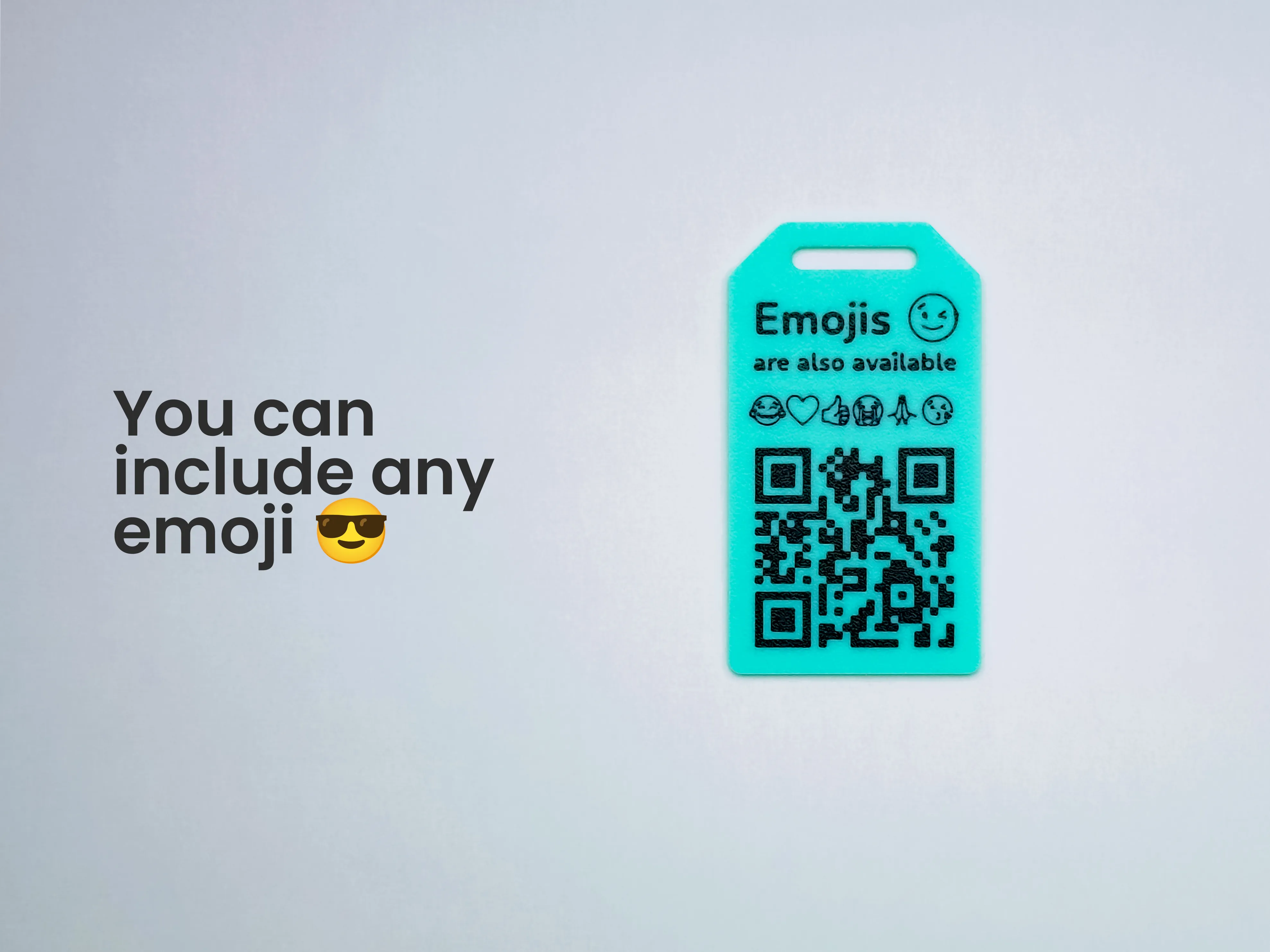
- ENABLE EMOJIS LINE / Switch
This parameter allows you to define a text line for emojis only.
Note: Character spacing will be significantly reduced when this option is enabled.
- TEXT LINE / Text field
This parameter allows you to define the text or emoji that will appear on the tag.
Note: Some special characters may depend on the selected font.
- SIZE TEXT LINE / Numeric value
This parameter defines the text size in points.
Recommendation: The minimum recommended value is 20pt for better readability.
- ENABLE EMOJIS LINE / Switch
QR Code
- HIDE QR / Switch
This parameter toggles the visibility of the QR code.
QR ACTION / Dropdown menu
This parameter allows you to select the action the QR code will perform. Options include:
DISPLAY A TEXT
OPEN A WEBSITE
SEND ME A MESSAGE ON WHATSAPP
SEND ME A MESSAGE ON TELEGRAM
SEND ME AN EMAIL
SEND ME AN SMS
CALL ME
- TEXT / Text field
This parameter allows you to include text or a URL in the QR code (used with the "DISPLAY A TEXT" or "OPEN A WEBSITE" options).
- PHONE NUMBER / Numeric field
This parameter allows you to include a phone number in the QR code.
- EMAIL / Text field
This parameter allows you to include an email address in the QR code.
- QR SIZE / Numeric value
This parameter defines the size of the QR code in millimeters.
Note: The default size is 44mm + 6mm margin on each side.
- QR LOCATION / Numeric fields
This parameter allows you to control the horizontal and vertical positioning of the QR code on the tag.
- HIDE QR / Switch
Style
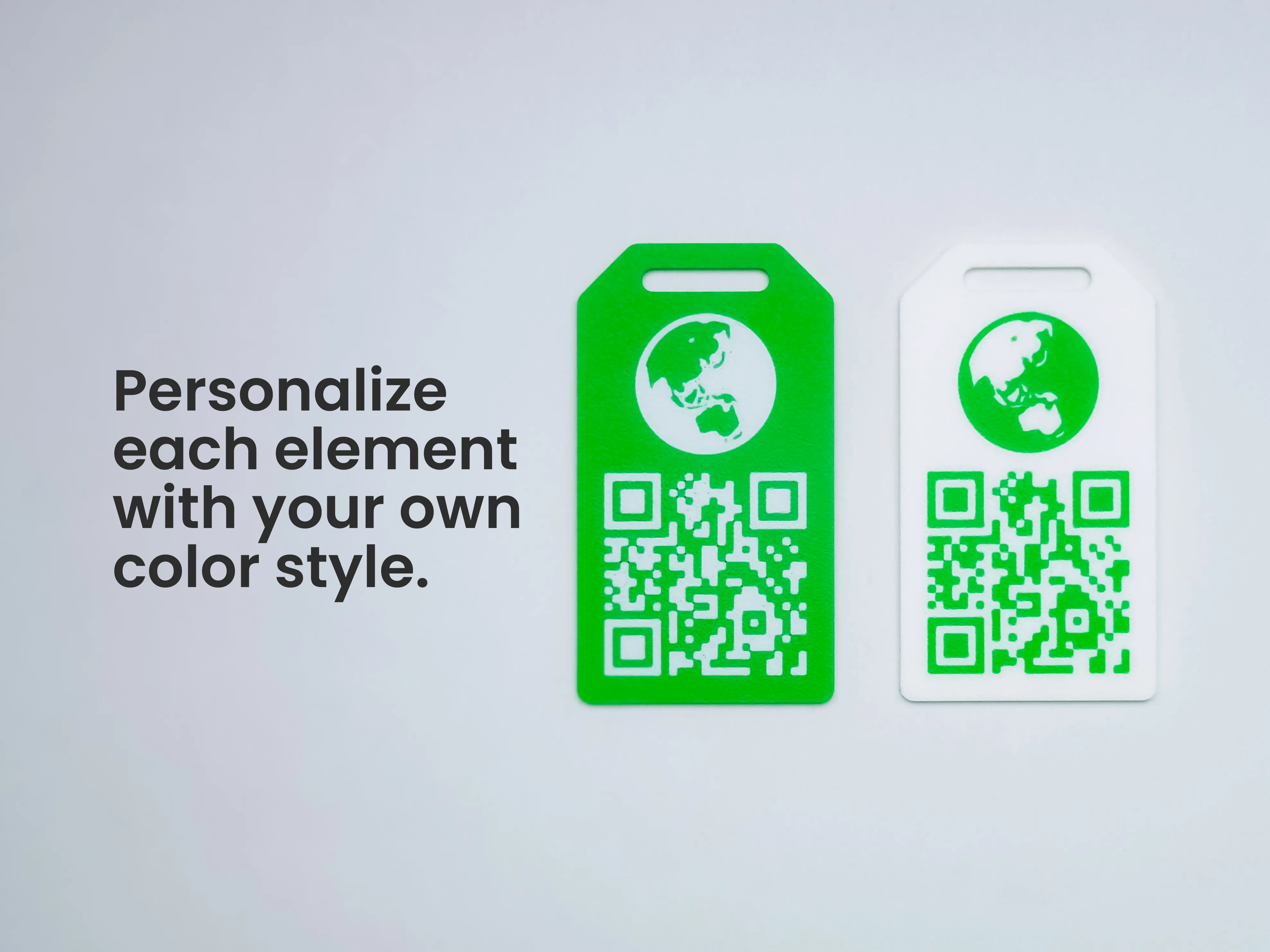
- TAG COLOR / Color selector
This parameter allows you to select the tag color.
- TEXT COLOR / Color selector
This parameter allows you to select the text and emoji color.
- QR COLOR / Color selector
This parameter allows you to select the QR code color.
Recommendation: Use contrasting colors for better QR code readability.
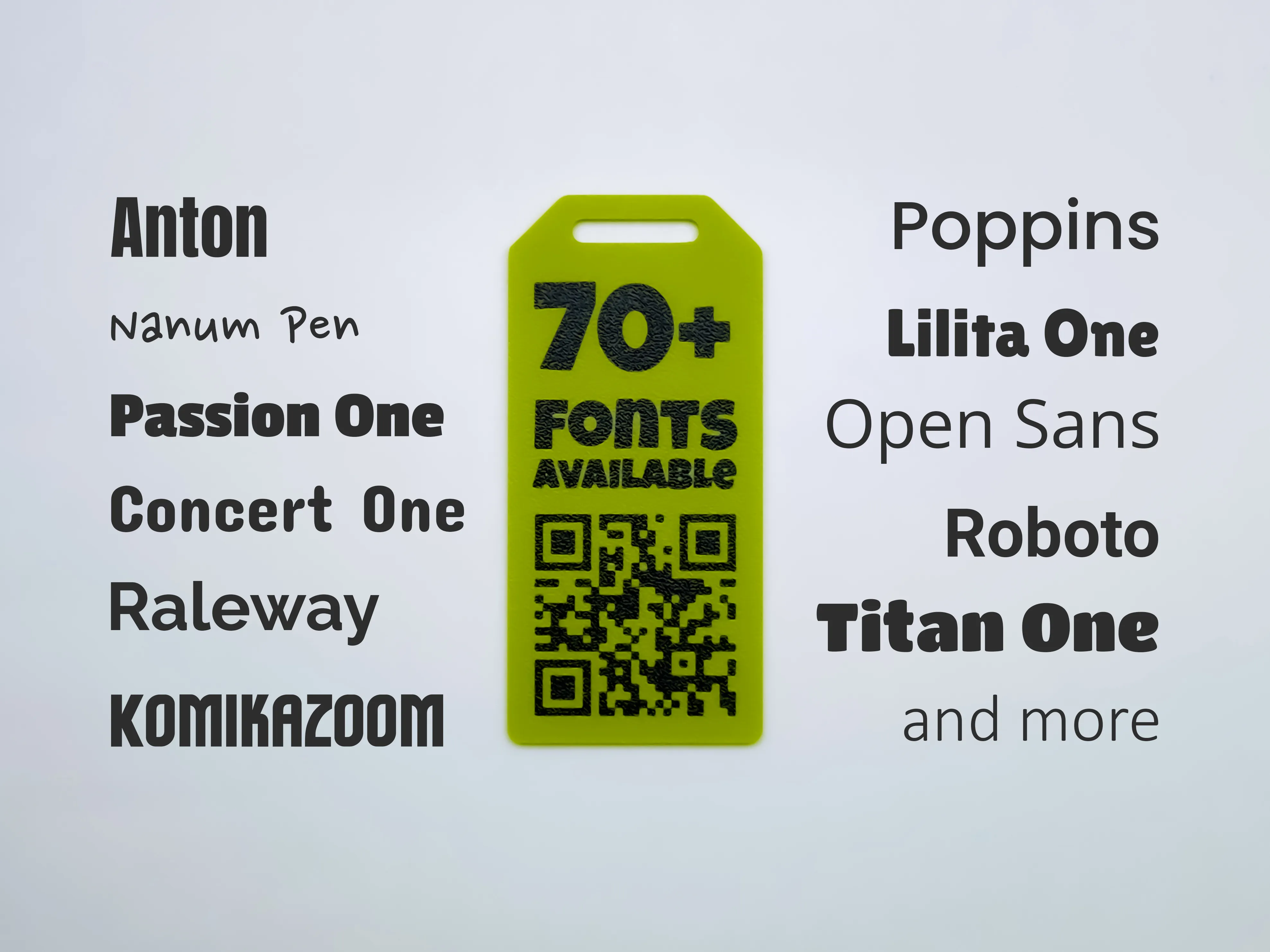
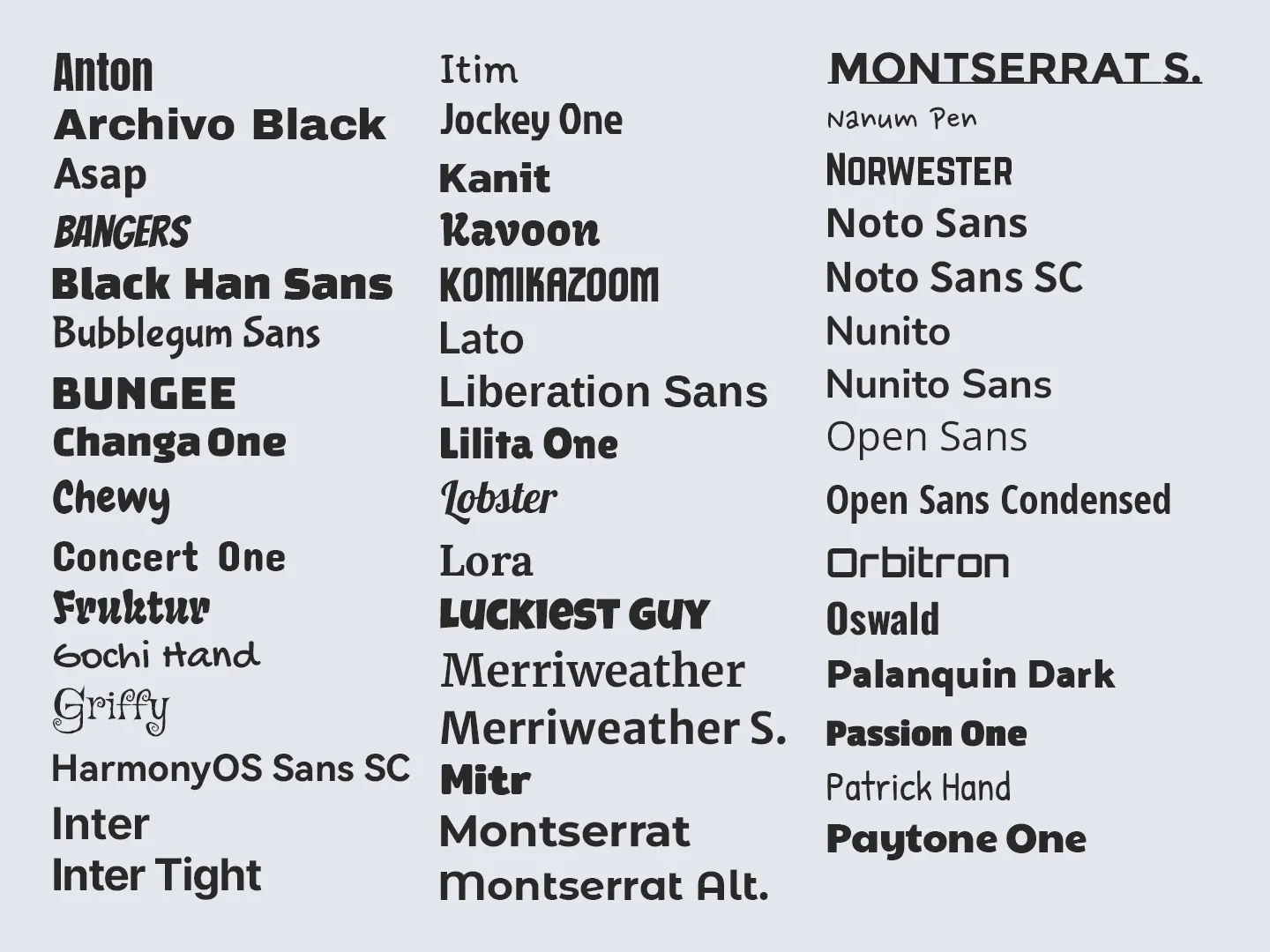
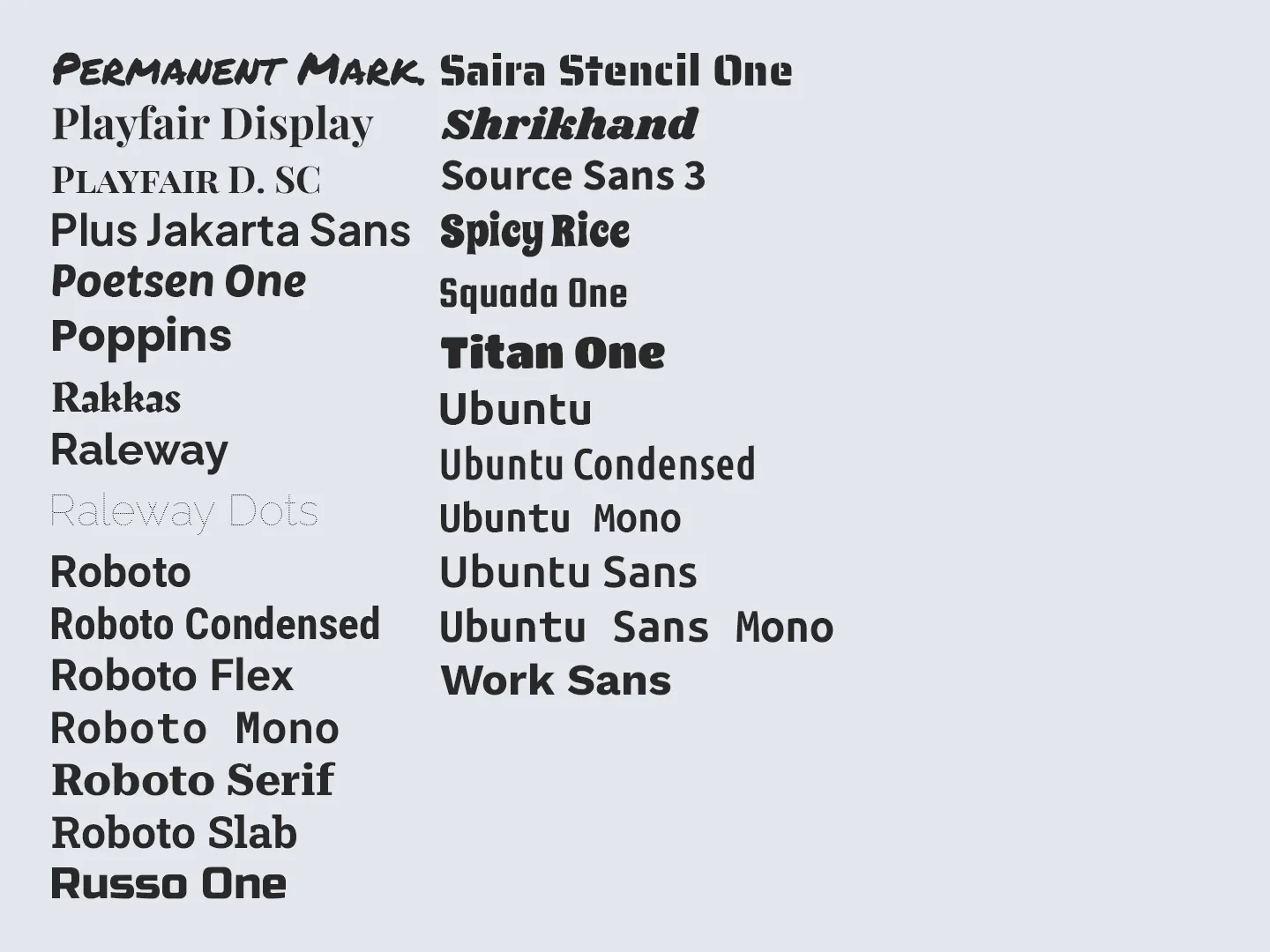
- FONT NAME / Dropdown menu
This parameter allows you to select the font type for the text.
FONT STYLE / Dropdown menu
This parameter allows you to select the font style.
Note: Not all styles are recommended for printing, as some may generate very thin lines, making lamination difficult.
- TAG COLOR / Color selector
Text Alignment
- TEXT LOCATION / Numeric fields
This parameter allows you to control the horizontal and vertical positioning of the text lines on the tag.
- TEXT LOCATION / Numeric fields
SVG Graphics
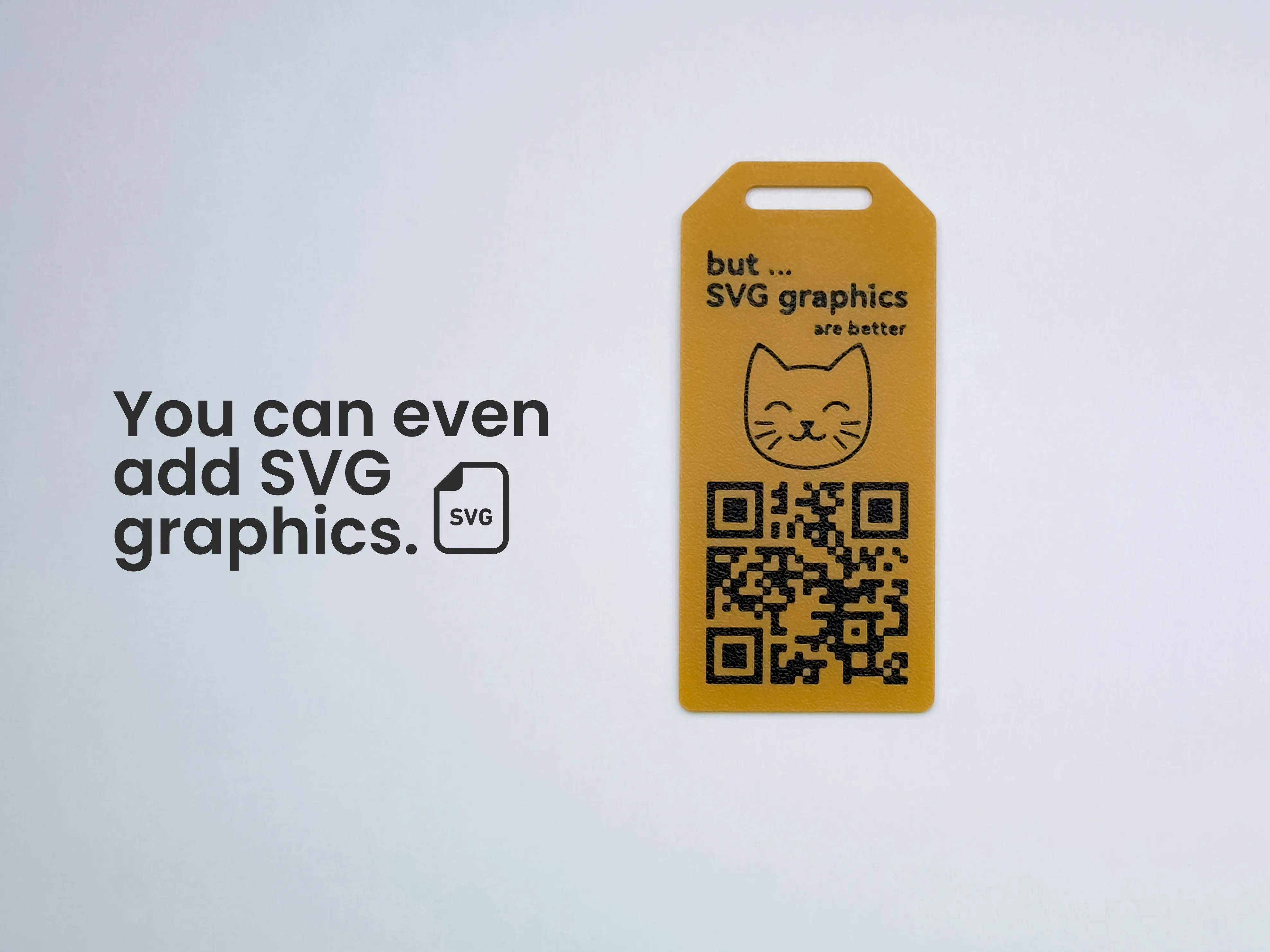
- ENABLE SVG / Switch
This parameter enables or disables the display of SVG graphics on the tag.
- FILE / File upload
This parameter allows you to upload an SVG graphic for display on the tag.
Note: It is recommended to use lightweight files (~40KB) for faster rendering.
- SVG THICKNESS / Numeric value
This parameter sets the thickness of the SVG graphic in millimeters.
- SVG SIZE / Numeric value
This parameter sets the size of the SVG graphic in millimeters.
Note: The default size is 44mm.
- SVG LOCATION / Numeric fields
This parameter controls the horizontal and vertical positioning of the SVG graphic on the tag.
- SVG COLOR / Color selector
This parameter allows you to select the color of the SVG graphic.
- ENABLE SVG / Switch
Experimental Configuration
- SCALE TAG X / SCALE TAG Y / Numeric values
These parameters allow you to scale the tag along the X and Y axes.
Recommendation: Keep both values equal to increase tag size and achieve better results.
- QR ERROR CORRECTION / Dropdown menu
This parameter sets the error correction level for the QR code.
- QR MASK / Dropdown menu
This parameter allows you to select different QR code patterns.
- FACEDOWN THICKNESS / Numeric value
This parameter controls potential issues related to the FACEDOWN MODE. Use it if errors are observed on the tag.
- SCALE TAG X / SCALE TAG Y / Numeric values
Font List
Printing
Printing the tag is a fairly simple process. However, to achieve the best results, it is recommended to use the suggested printing profile. You can download and save this profile as a preset configuration on your printer. By doing so, You’ll ensure the optimal print settings for achieving the desired quality.
License
You shall not share, sub-license, sell, rent, host, transfer, or distribute in any way the digital or 3D printed versions of this object, nor any other derivative work of this object in its digital or physical format (including - but not limited to - remixes of this object, and hosting on other digital platforms). The objects may not be used without permission in any way whatsoever in which you charge money, or collect fees.


Comment & Rating (440)