
Klipper Power Switch
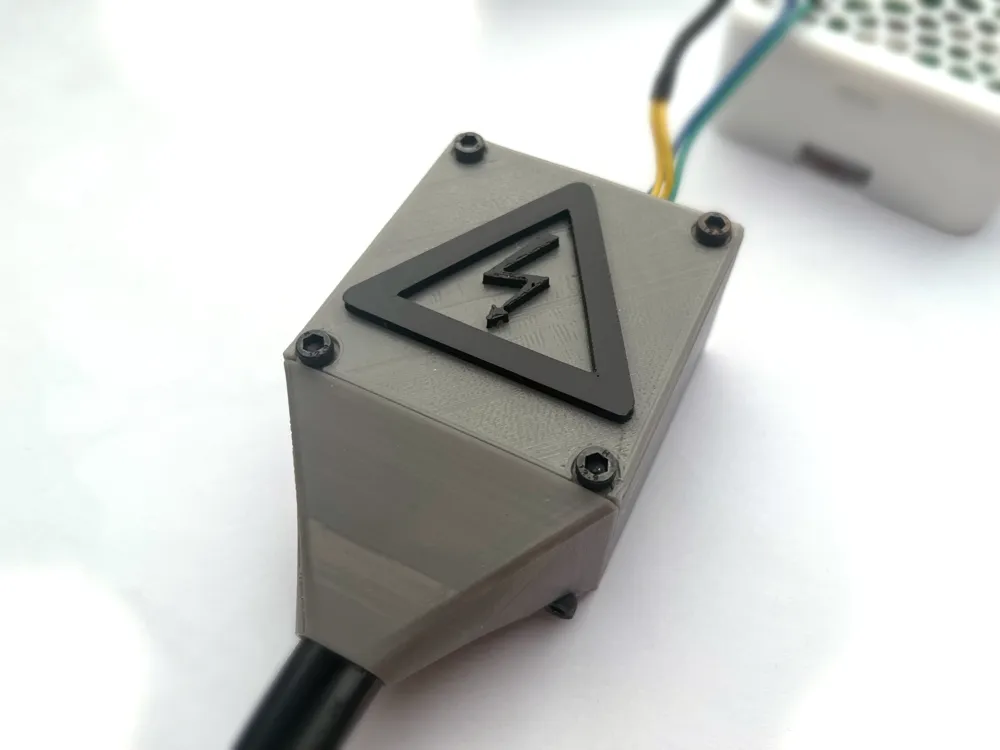
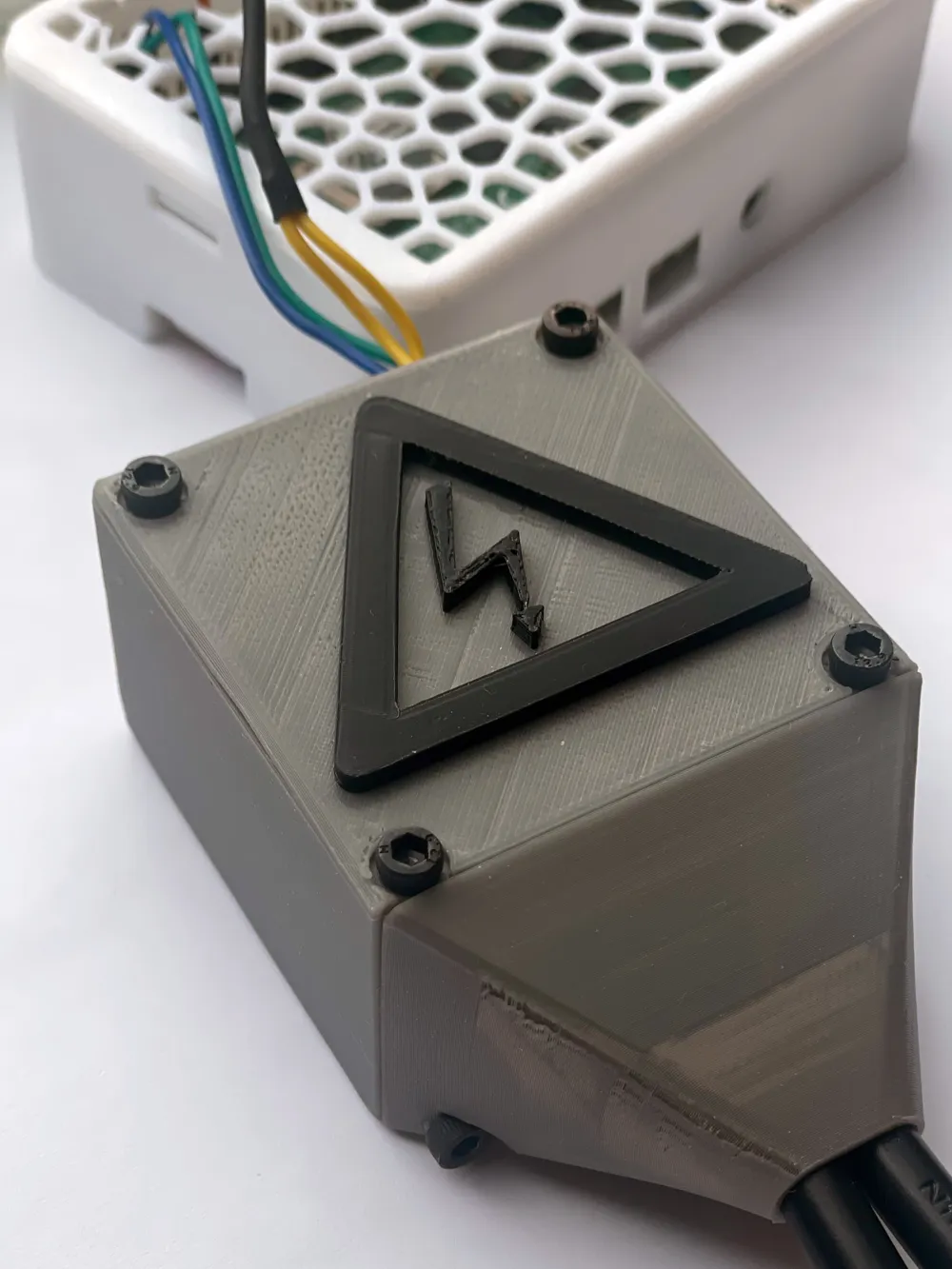
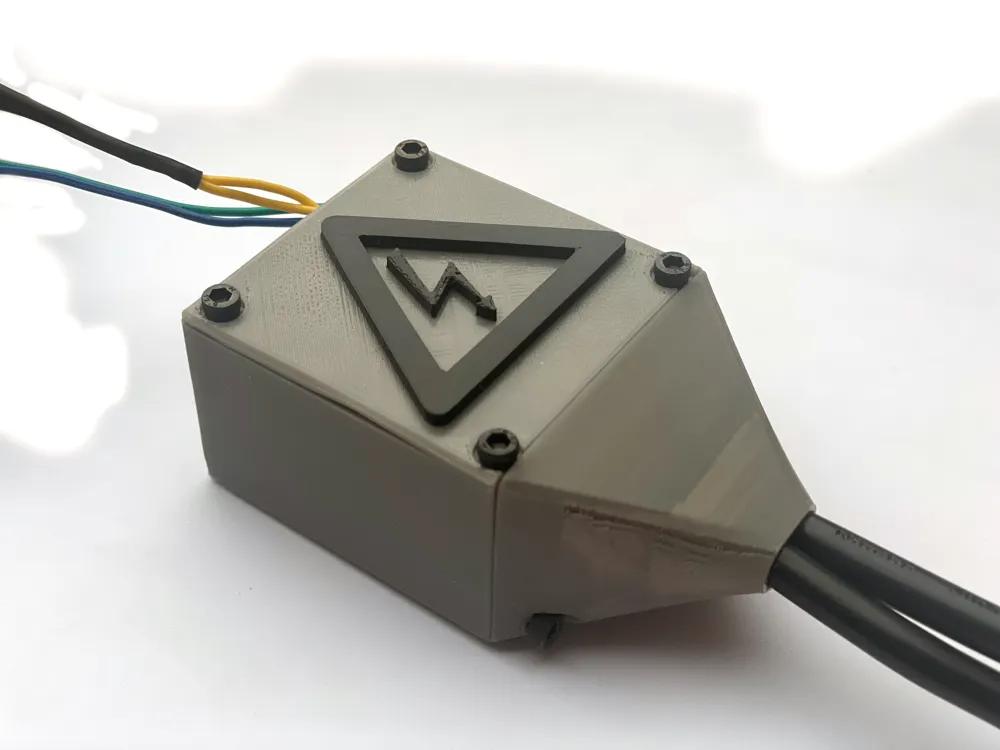
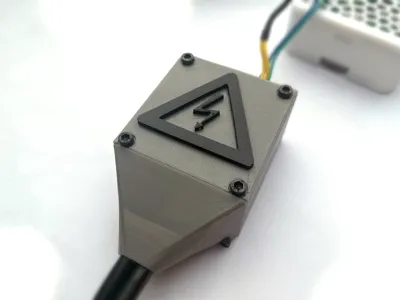
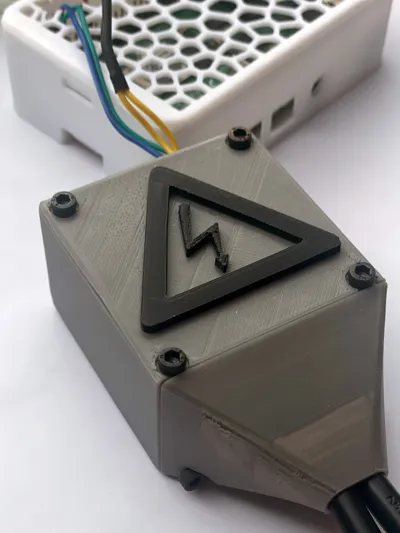
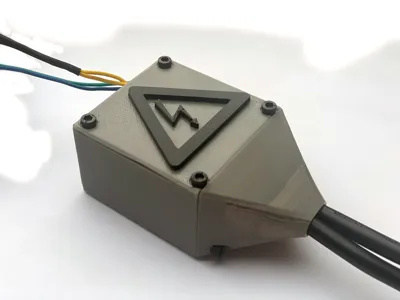
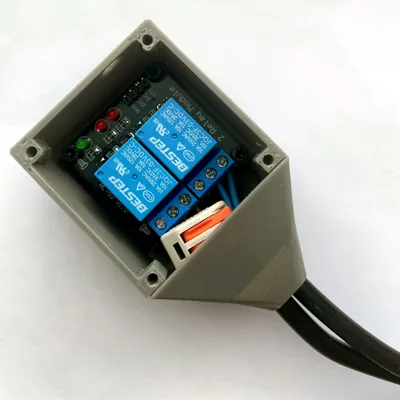
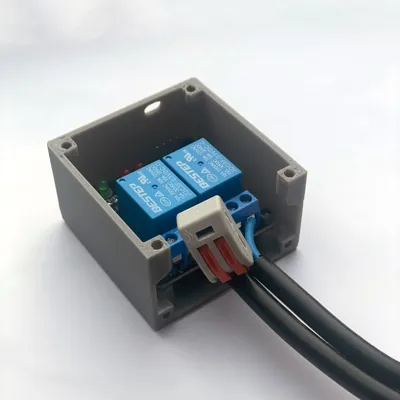
Print Profile(1)

Bill of Materials


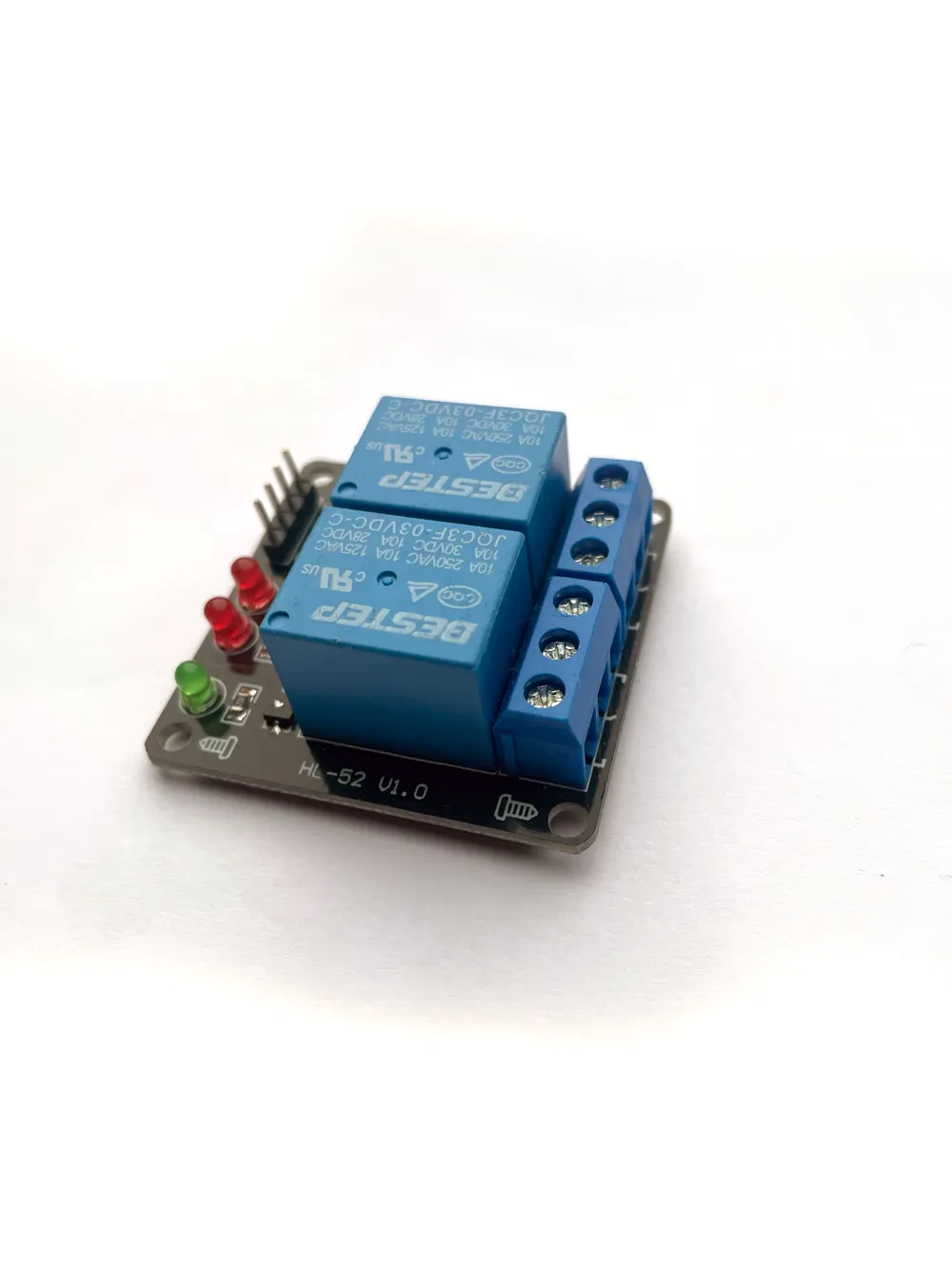
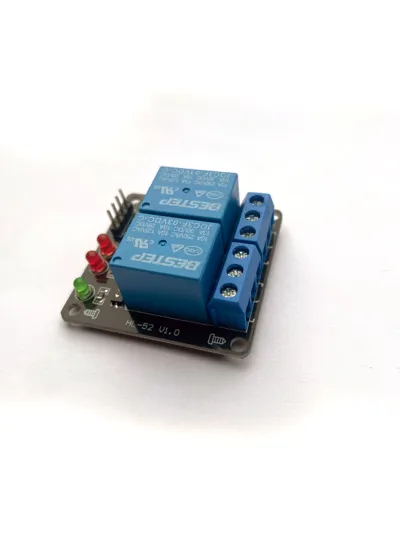
- HL-52 V1.0 Relay x 1: https://amzn.to/4eMA9Wi
- M3 Treated Inserts x 4: they fit better https://amzn.to/4eGNwag
Description
Introduction
Did you know you can shut down your Klipper printer after your print?
With a relay and this guide you can build a device to automatically shut down your printer after the finished print.
Boost Me (for free)
If you think that I did a good job: Boost Me
Things you need:
| HL-52 V1.0 Relay | https://amzn.to/4eMA9Wi |
| 8x M3*8mm screw | https://amzn.to/3XYwnDl |
| 4x M3*10mm screw | https://amzn.to/4gOs1Gk |
| 4 M3 Treated Inserts | https://amzn.to/4eGNwag |
| Soldering Iron | |
| Wago clamp or other | https://amzn.to/3zQQkms |
| Raspberry Pi | |
| Female to Female Dupont | https://amzn.to/4eVmE6m |
| M3 assortment box | https://amzn.to/4gVq5vS |
If you buy these parts over the links above or over Makers supply, your support me.
First things first:
First thing you will need to do is printing the files. You can print it in one color or you can print the warning sign on the top in an other color. I recommend to use two colors.
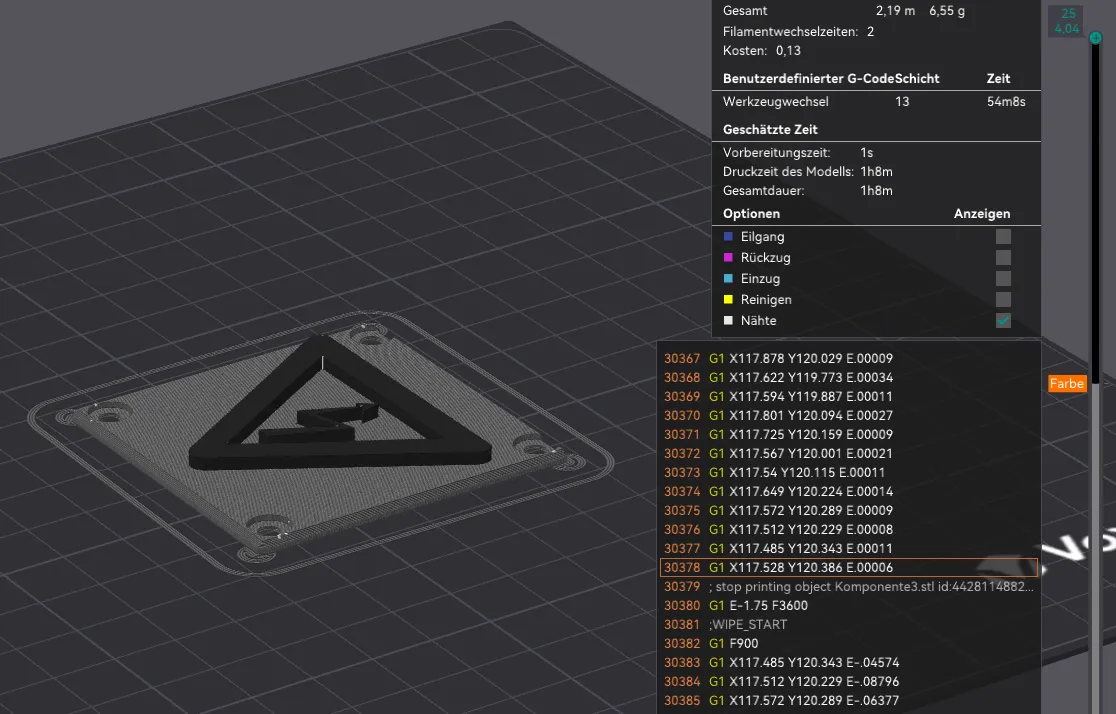
Just right click on the layer you want to change the color and click change filament.
If you don't have something like an AMS or a MMU you could change the filament yourself.
If you need any help with that there are very good tutorials for that.
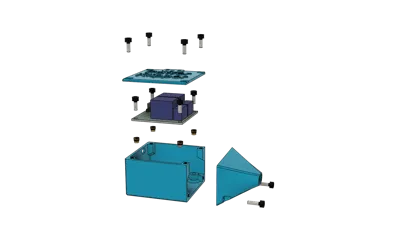
You will need to print 3 things:
- Case
- Cable adapter
- Top
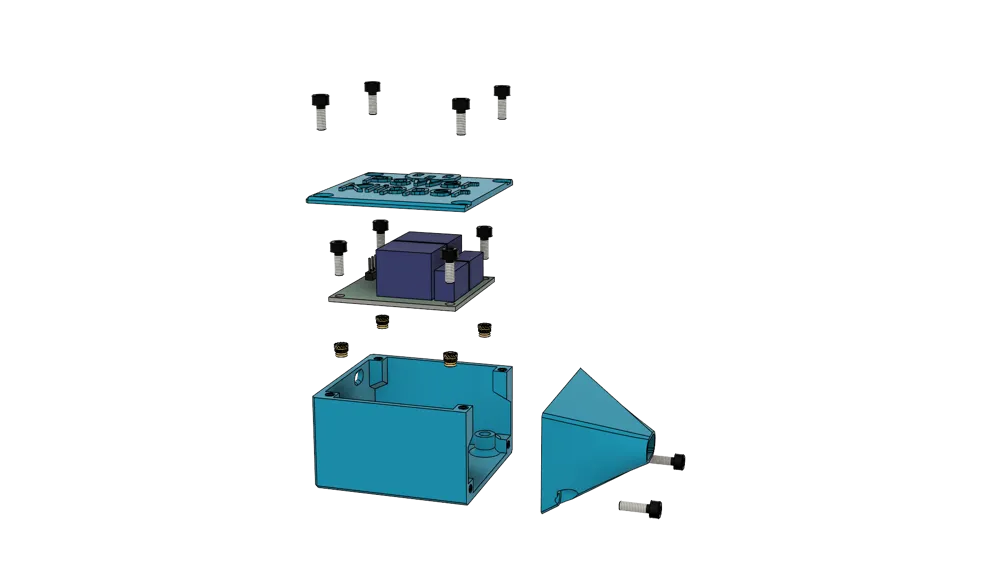
Build everything together like this:

You will need a soldering iron to press the threaded inserts in their holes.
You need the M3*8mm screws for this step.
⚠ Important Safety Warning: Electrical Cables
Before cutting or connecting any cables to the relay, make sure the printer is completely disconnected from the power supply.
Working with live electrical cables can be dangerous. Turn off the printer and unplug it from the wall socket before starting any work on the cables or the relay. Ensure there is no residual power present before proceeding.
Use appropriate tools and double-check the connections before plugging the printer back in. If you're unsure about any part of this process, consult a professional for assistance.
Disclaimer:
I am not responsible for any injuries, damages, or malfunctions that may occur while following this guide. Please proceed with caution and at your own risk. Always ensure proper safety precautions when working with electrical components.
Electronics:
⚠First of all you need to unplug the printer and unplug the cable.
Now you cut the old power cord and strip the insulation.
Thread both ends of the cable through the hole of the model.
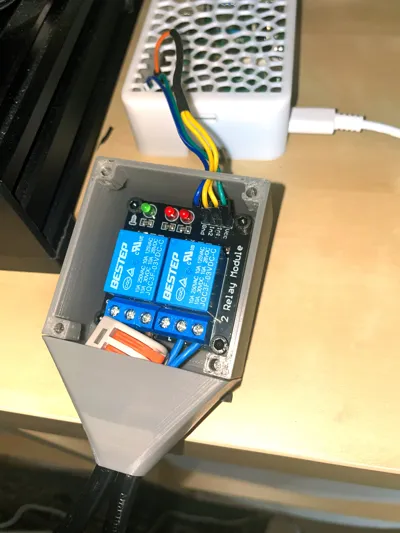
Connect everything like this:
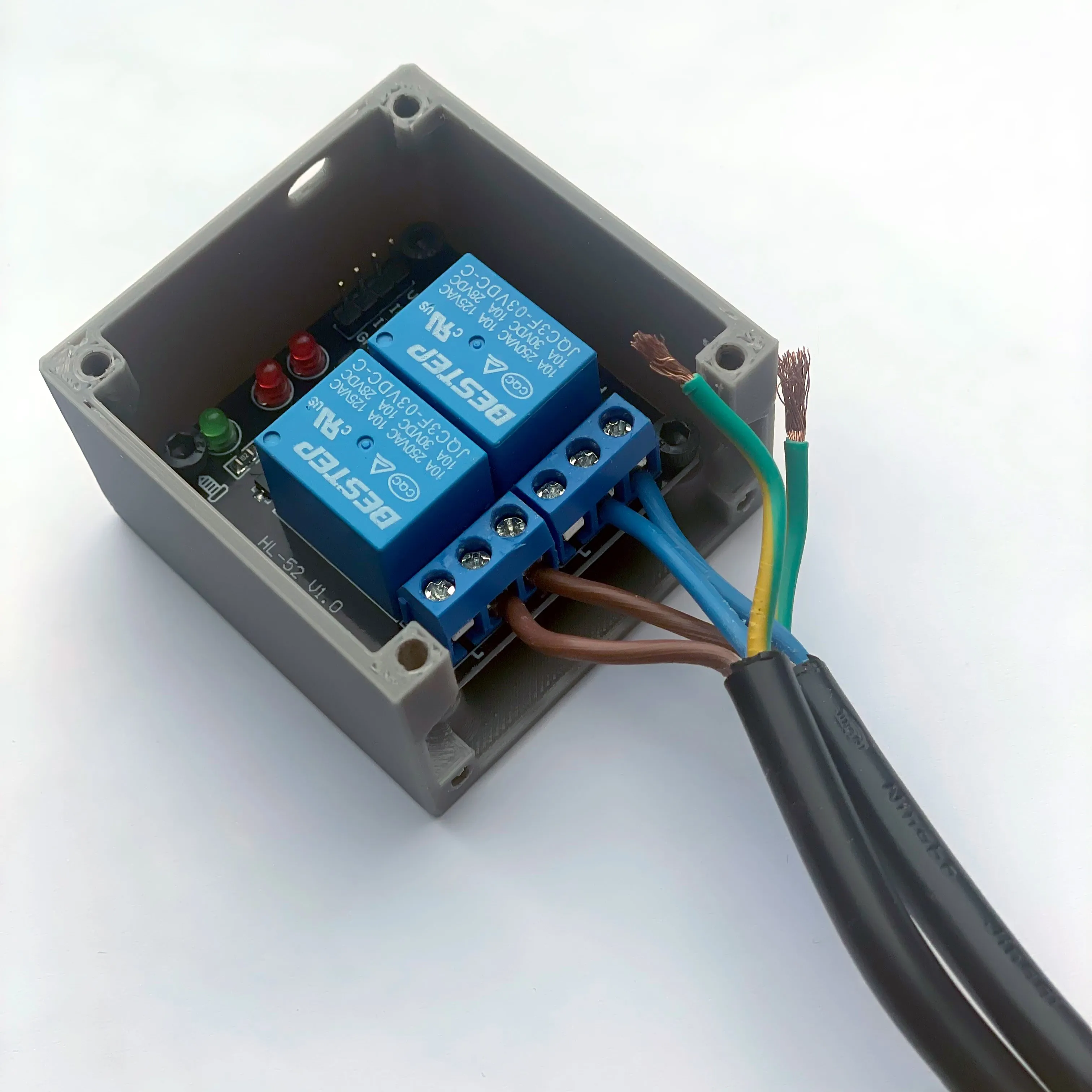
Blue goes together in one relay on the both upper holes.
Brown/Black goes in the other relay and also go in the two upper holes.
Be sure that the cables are secure and you cant pull them out.
⚠This step is Important
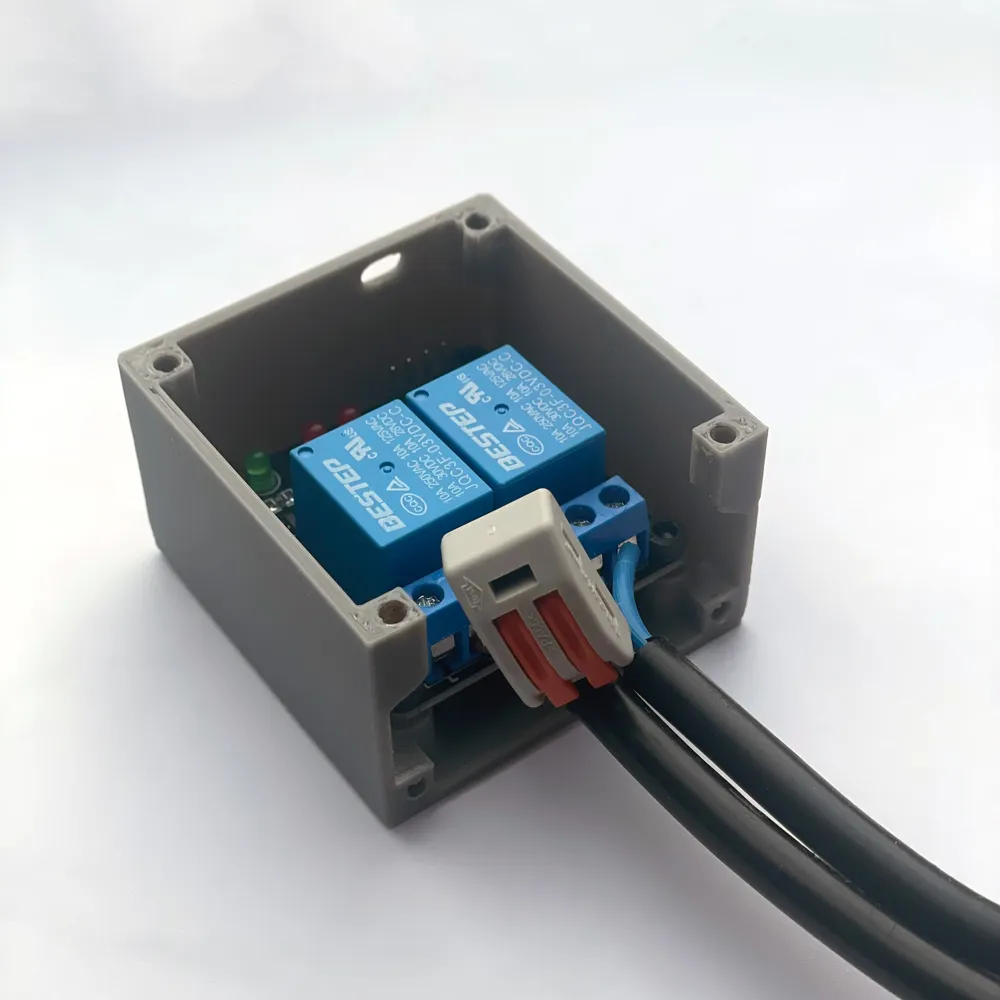
Now you need something like a Wago clamp:
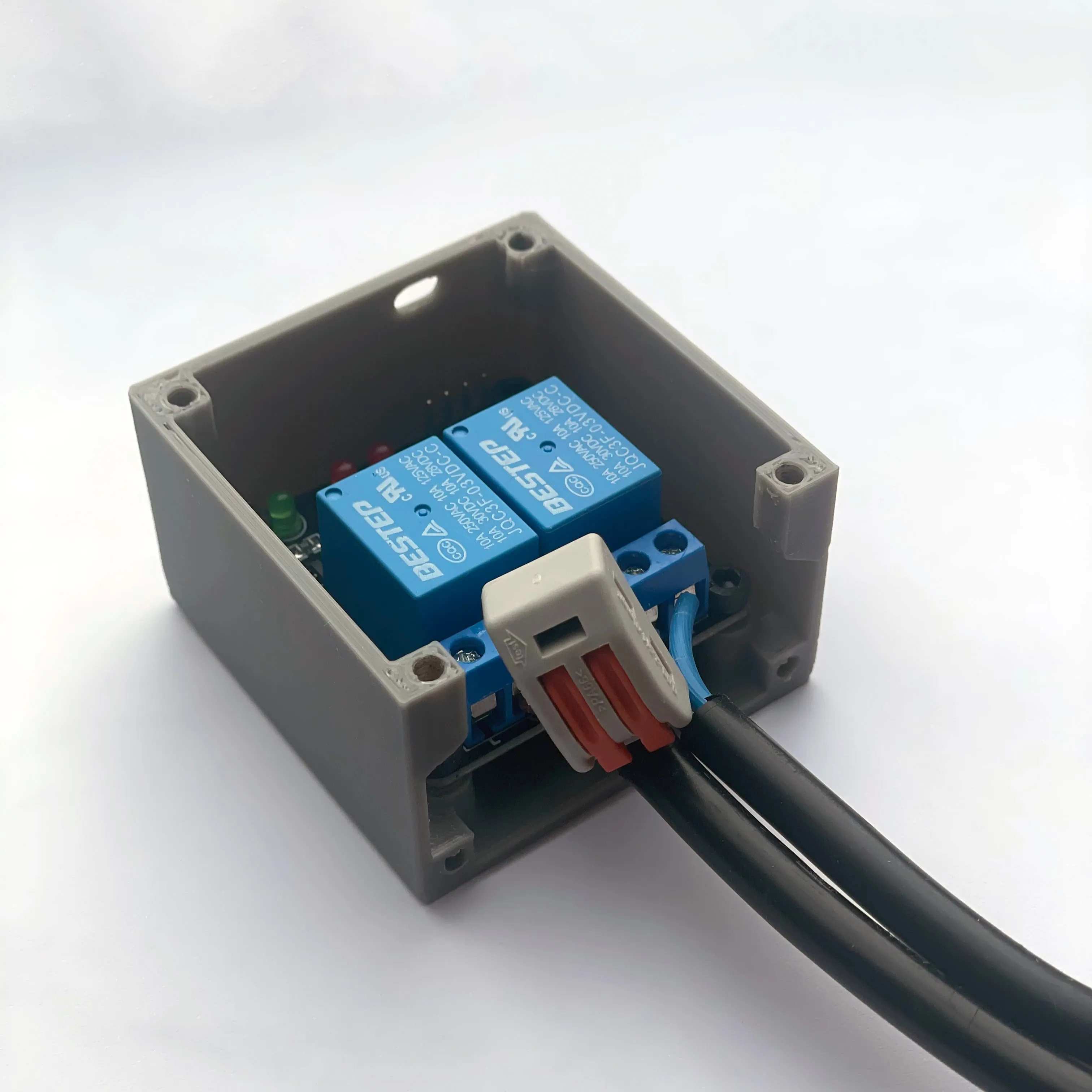
I used a cheap one i had lying around but i recommend to use an original one.
Push both green/yellow cables in and pull the lever.
Be sure that you cant pull the cable out anymore.
After you made the electrical work you can screw the cover of the cables on the main component:

For this you need the M3*10mm screws.
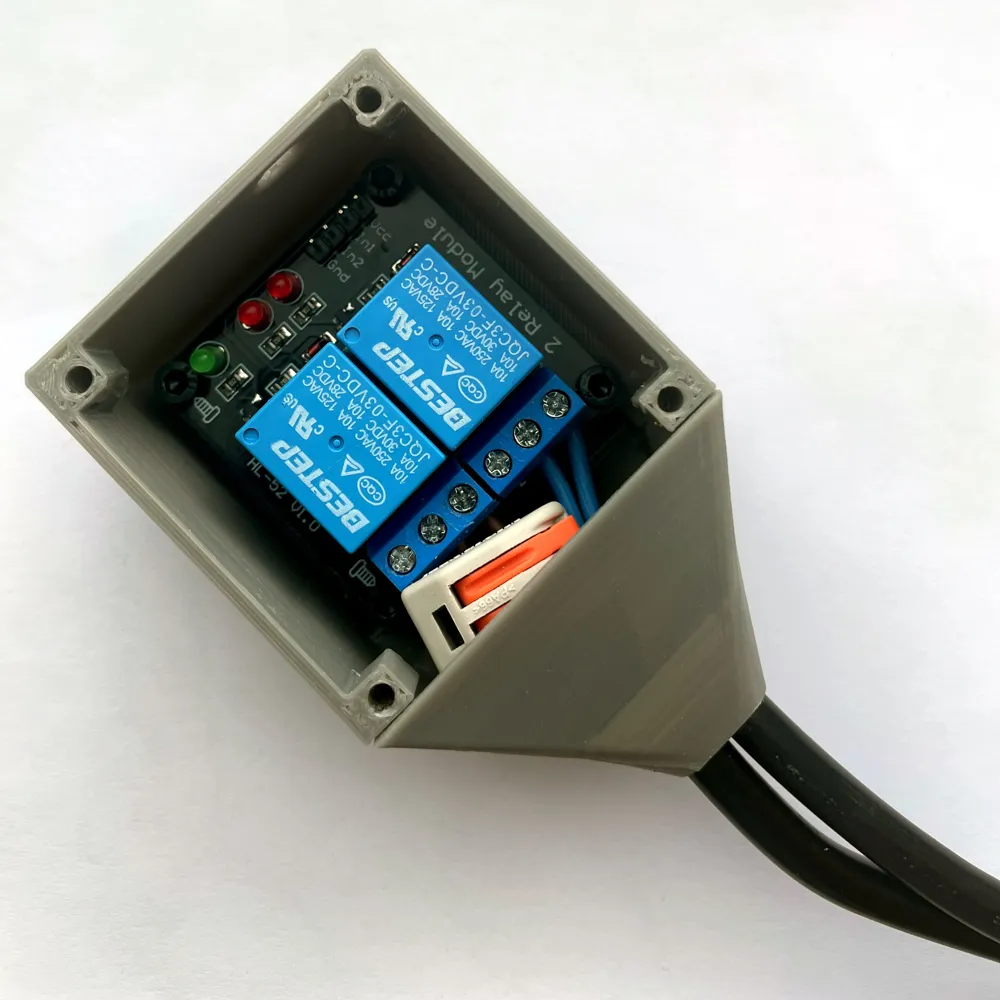
You should have something like this:
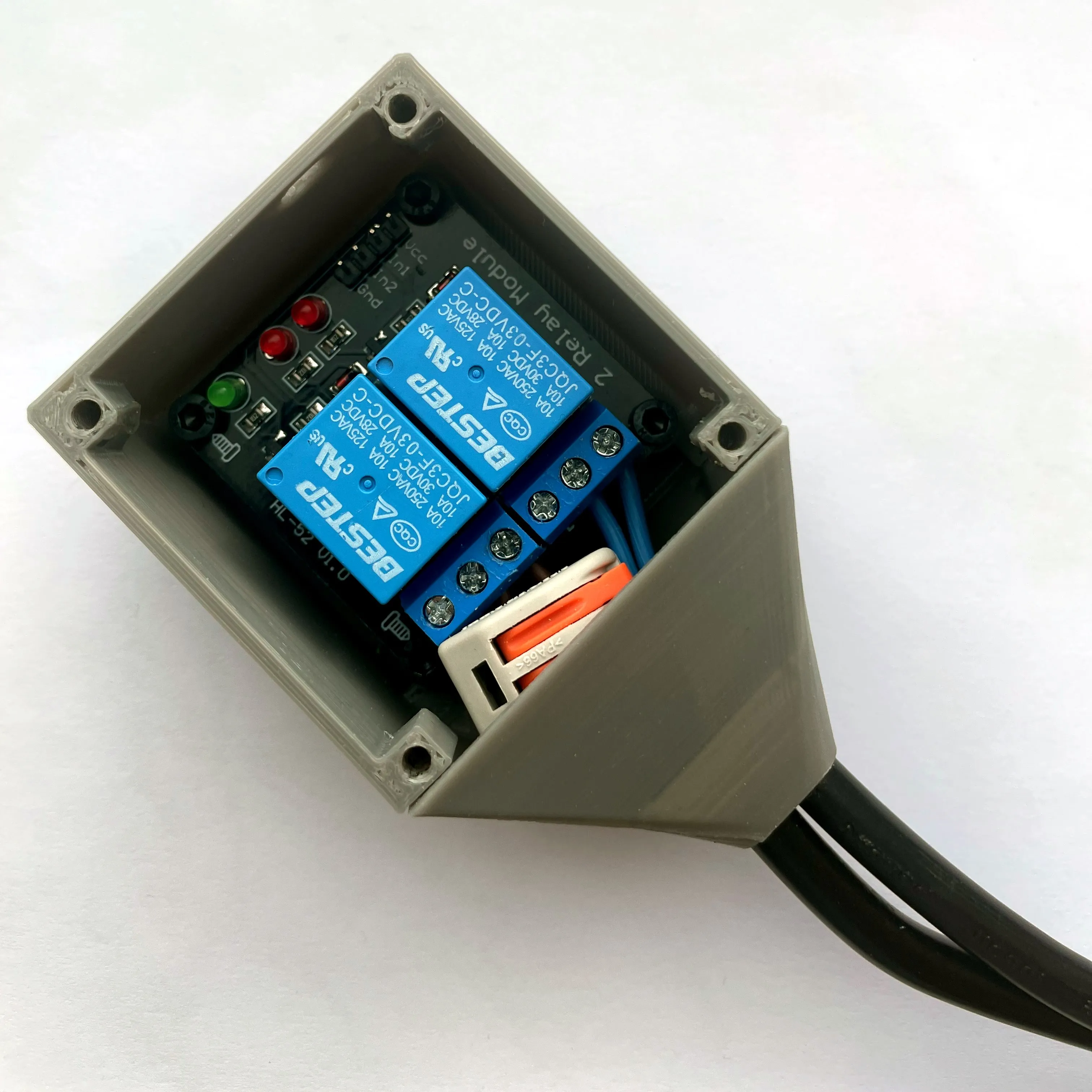
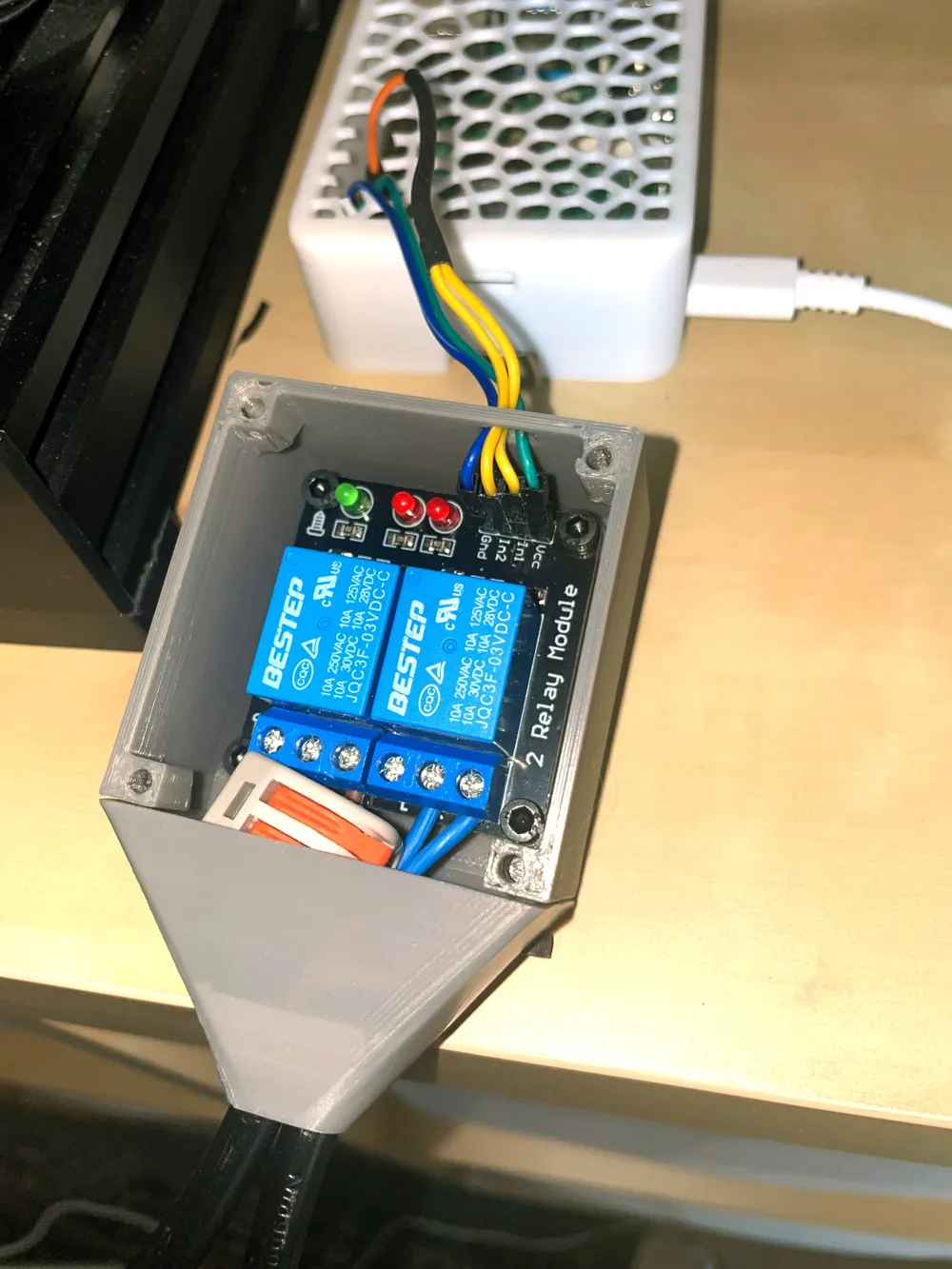
Now you make the connection to the raspberry pi:
You need to use 4 female to female Dupont Jumper Wire. You cut two of them in half and solder them together like the letter Y. Now you should have a wire with one side that can go to the Pi and two wires that go to the relay.
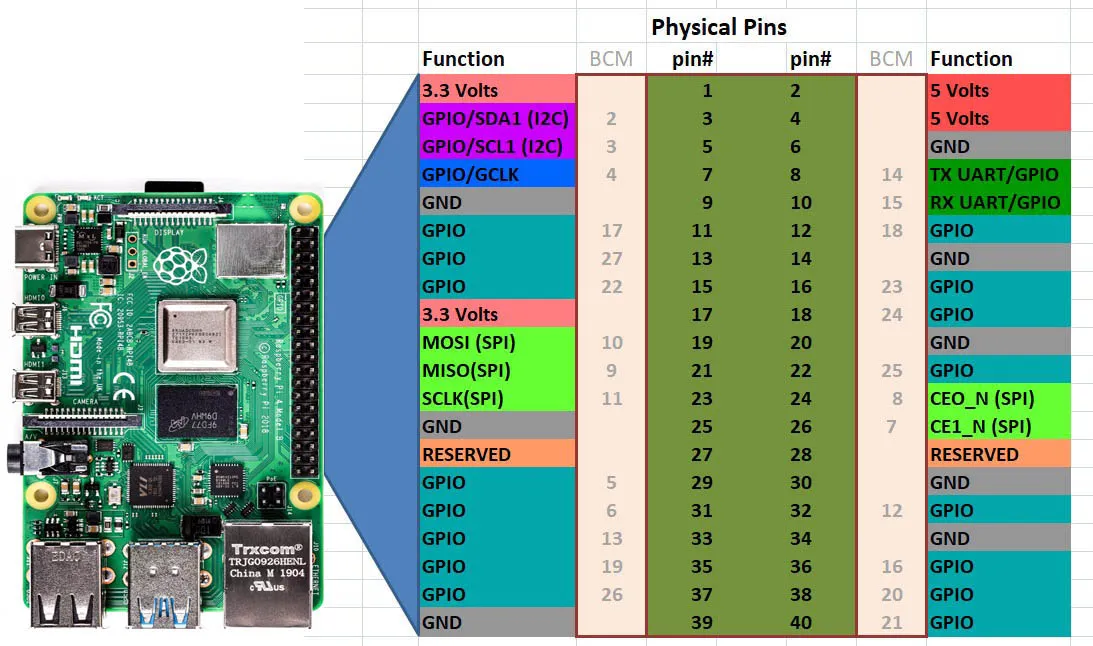
You need to connect it like this:
| Raspberry Pi | Relay |
|---|---|
| 3.3 Volts / pin#1 | VCC |
| GND / pin#6 | GND |
| GPIO17 / pin#11 | In1 |
| GPIO17 / pin#11 | In2 |
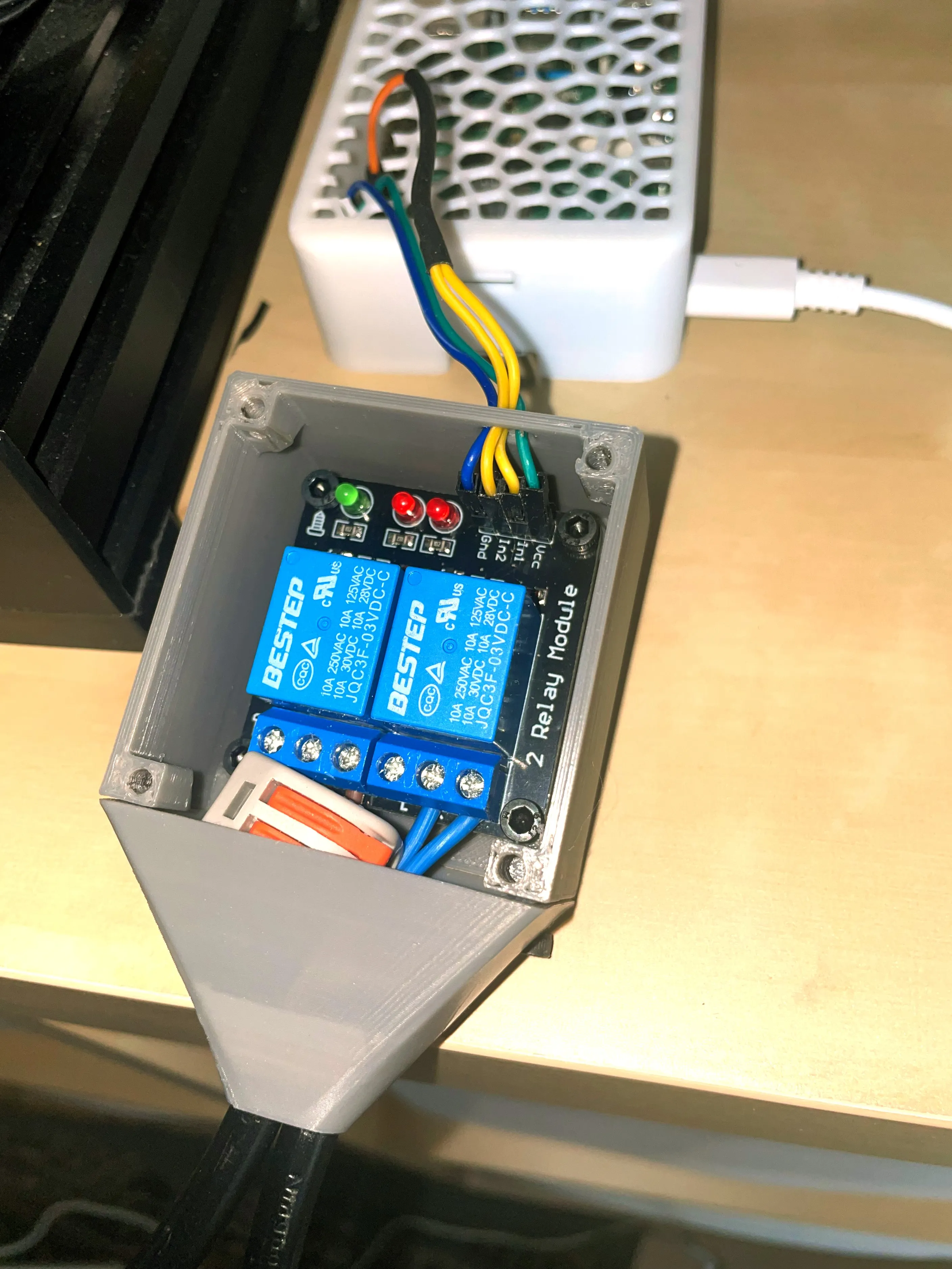
Cover:

For this step you need M3*8mm screws.
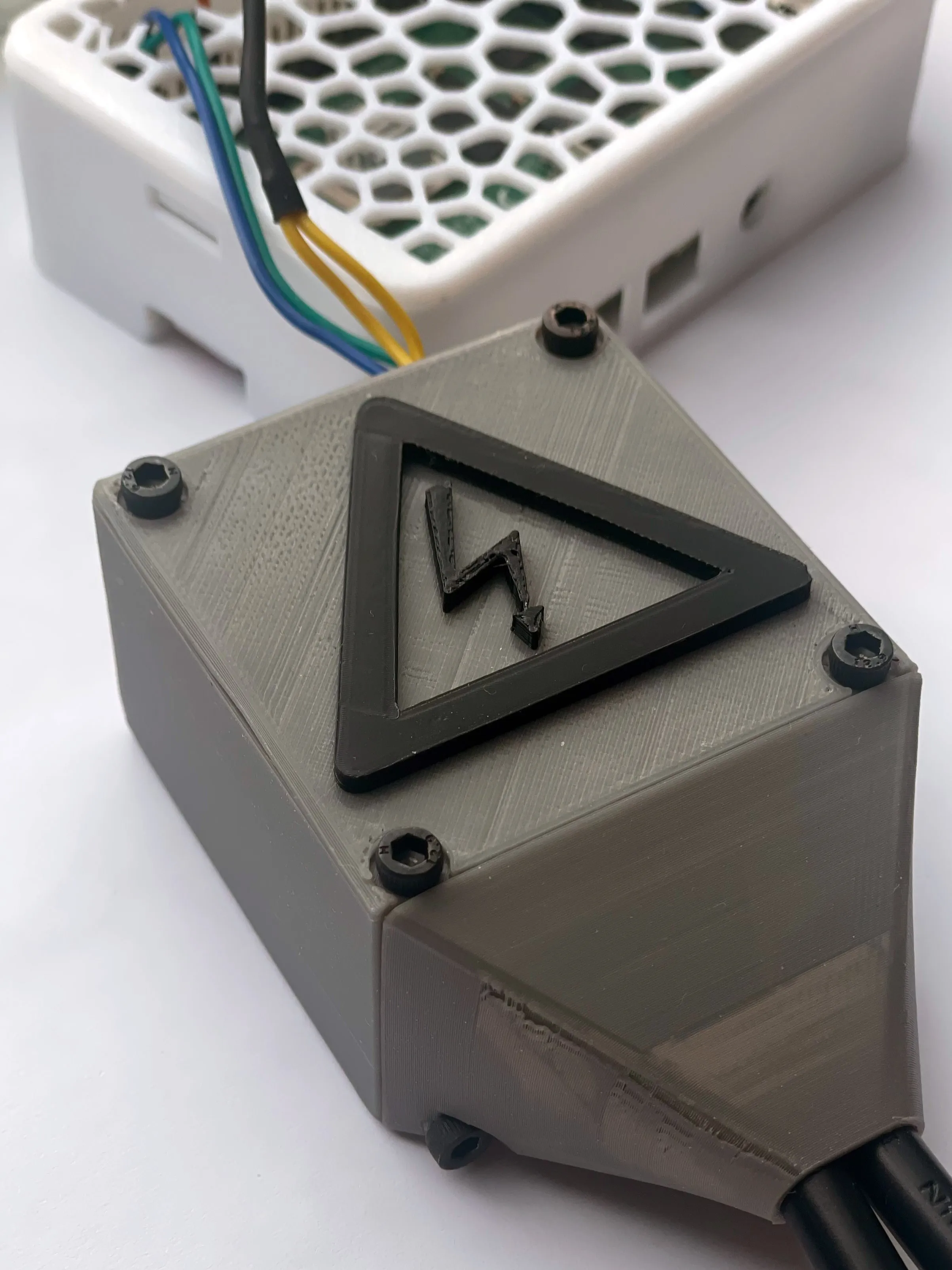
Plug the power cord back in and your printer should turn on.
Software:
In this part you will learn how to program your raspberry pi to turn the printer on and off. You will also learn how to automatically turn the printer off after a print has finished.
RPI as its own MCU:
- Type cmd in the search bar in windows and open Command prompt
- Now ssh into your raspberry pi with ssh username@ip
- example ssh pi@123.123.123.12
- Run this code:
- cd ~/klipper/
sudo cp ./scripts/klipper-mcu.service /etc/systemd/system/
sudo systemctl enable klipper-mcu.service
- cd ~/klipper/
- Go into the settings of the pi:
- cd ~/klipper/
make menuconfig
- cd ~/klipper/
- Go on Micro-controller Architecture
- Now select Linux process and exit and save
- Build and install the new micro controller code:
- sudo service klipper stop
make flash
sudo service klipper start
- sudo service klipper stop
- Close the Command prompt
If there are problems with that you can take a look at the klipper docu: https://www.klipper3d.org/RPi_microcontroller.html
Moonraker Configuration:
- Go on your browser on your klipper site
- Go to maschine
- Open moonraker.conf
- Paste this code on the bottom of your config:
- [power printer]
type: gpio
pin: gpio17
off_when_shutdown: True
restart_klipper_when_powered: true
initial_state: off
bound_services: klipper 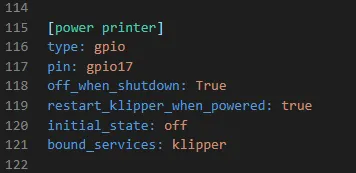
- [power printer]
- Save and exit
- Open printer.cfg
- Paste this code on the bottom of your printer config:
- [gcode_macro _POWER_OFF_PRINTER]
gcode:
{action_call_remote_method("set_device_power",
device="printer",
state="off")} - [delayed_gcode POWER_OFF_PRINTER_CHECK]
gcode:
{% if printer.idle_timeout.state == "Idle" or printer.idle_timeout.state == "Ready" %}
{% if printer.extruder.temperature < 50.0 and printer.heater_bed.temperature < 50.0 %}
{% if printer.extruder.target == 0.0 and printer.heater_bed.target == 0.0 %}
UPDATE_DELAYED_GCODE ID=POWER_OFF_PRINTER_CHECK DURATION=0
_POWER_OFF_PRINTER
{% else %}
UPDATE_DELAYED_GCODE ID=POWER_OFF_PRINTER_CHECK DURATION=2
{% endif %}
{% else %}
{% if printer.idle_timeout.state == "Printing" %}
UPDATE_DELAYED_GCODE ID=POWER_OFF_PRINTER_CHECK DURATION=0
{% else %}
{% if printer.extruder.target == 0.0 and printer.heater_bed.target == 0.0 %}
UPDATE_DELAYED_GCODE ID=POWER_OFF_PRINTER_CHECK DURATION=2
{% else %}
UPDATE_DELAYED_GCODE ID=POWER_OFF_PRINTER_CHECK DURATION=0
{% endif %}
{% endif %}
{% endif %}
{% endif %} 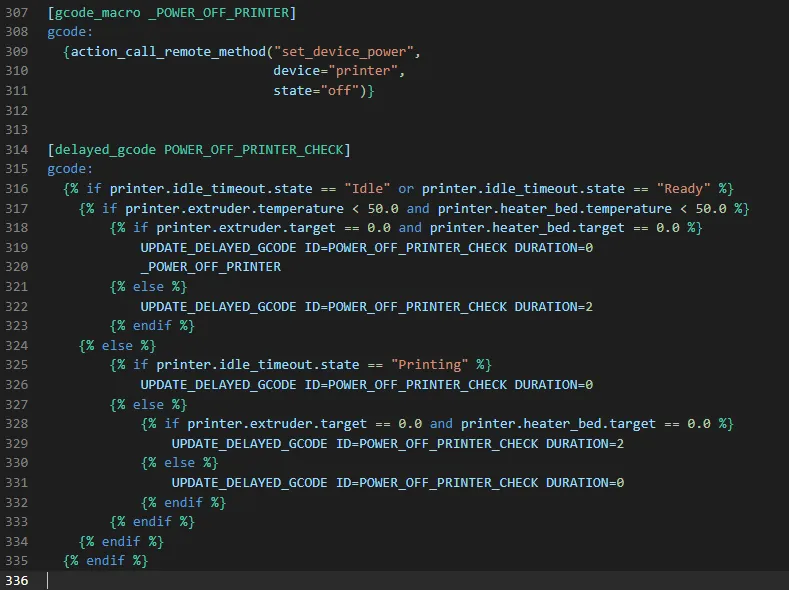
- [gcode_macro _POWER_OFF_PRINTER]
- Save and exit
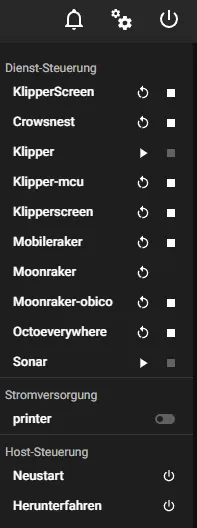
Now you should have a button on the power control on the top right site. This button turns the printer on and off.
Also your printer turns off after your print has finished and both the heatbed and the hotend are below 50°C.
I hope these instructions where easy to understand and everything works now.
If you have questions about this project ideas to improve these instruction please let me know in the comments.
I would appreciate if you do a remix for a relay you have laying around.
License



Comment & Rating (0)