
Macro Button Box - 8 Button
Print Profile(1)

Description
Boost Me (for free)
It's free, if you like the stuff I make and want to, leave a boost :)
This design may be changing over time with new designs and updates, but the hardware will stay the same!
Description
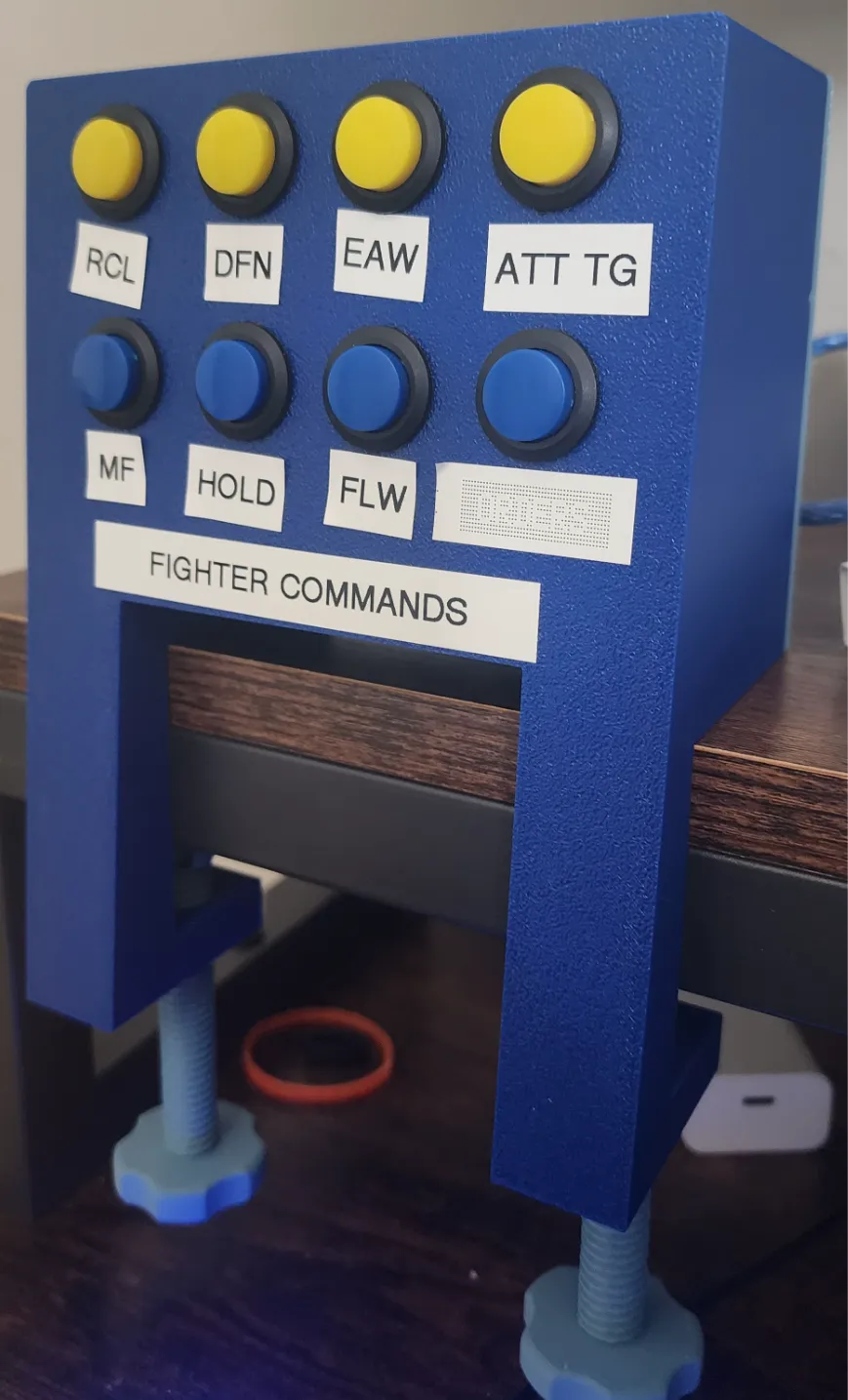
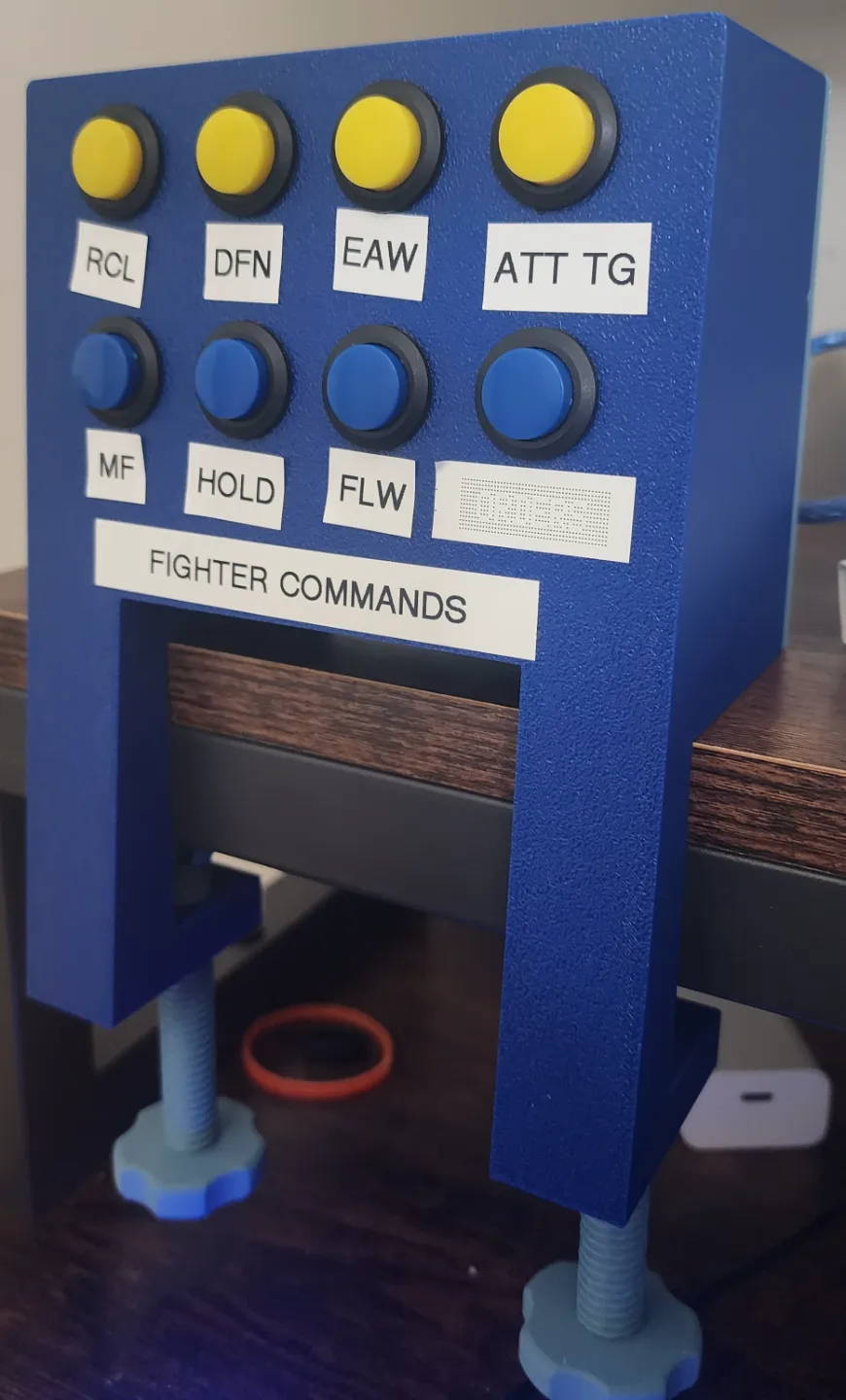
A Macro Button box made with momentary buttons, toggle switches and an Arduino pro micro clone that mounts to the front of a desk or table. I wanted to make a macro box for Elite Dangerous so I could open up some hot keys on my keyboard and also to add a cool factor to the game. I made a quick design to accommodate that. I used a clamp as a base model and went from there (uses the threaded knobs from user Wilco - C-Clamp / G-Clamp 01 - 04). It has a 5 degree shifted face so it aims slightly up towards the user. No supports are needed for this build. This button box is similar to this one, but allows for 8 buttons instead of 4 and without toggle switches while increasing the size a bit. It uses the same hardware as that one. You could always buy one of these, but i thought “why not try and make one?”. I have added the parts I used to create this below.
Code
Here is some Arduino code that i use for my button box. I just used chat gpt for ease of use and quick programming but you can code it however you want.
#include <Keyboard.h>
// Define button pins
const int buttonPin1 = 2;
const int buttonPin2 = 3;
const int buttonPin3 = 4;
const int buttonPin4 = 5;
const int buttonPin5 = 6;
const int buttonPin6 = 7;
const int buttonPin7 = 8;
const int buttonPin8 = 9;
void setup() {
// Set button pins as input with internal pull-up resistors
pinMode(buttonPin1, INPUT_PULLUP);
pinMode(buttonPin2, INPUT_PULLUP);
pinMode(buttonPin3, INPUT_PULLUP);
pinMode(buttonPin4, INPUT_PULLUP);
pinMode(buttonPin5, INPUT_PULLUP);
pinMode(buttonPin6, INPUT_PULLUP);
pinMode(buttonPin7, INPUT_PULLUP);
pinMode(buttonPin8, INPUT_PULLUP);
// Start the keyboard communication
Keyboard.begin();
}
void loop() {
// Button 1: Tab + 1
if (digitalRead(buttonPin1) == LOW) {
Keyboard.press(KEY_TAB);
Keyboard.press('1');
delay(100);
Keyboard.releaseAll();
delay(500);
}
// Button 2: Tab + 2
if (digitalRead(buttonPin2) == LOW) {
Keyboard.press(KEY_TAB);
Keyboard.press('2');
delay(100);
Keyboard.releaseAll();
delay(500);
}
// Button 3: Tab + 3
if (digitalRead(buttonPin3) == LOW) {
Keyboard.press(KEY_TAB);
Keyboard.press('3');
delay(100);
Keyboard.releaseAll();
delay(500);
}
// Button 4: Tab + 4
if (digitalRead(buttonPin4) == LOW) {
Keyboard.press(KEY_TAB);
Keyboard.press('4');
delay(100);
Keyboard.releaseAll();
delay(500);
}
// Button 5: Tab + 5
if (digitalRead(buttonPin5) == LOW) {
Keyboard.press(KEY_TAB);
Keyboard.press('5');
delay(100);
Keyboard.releaseAll();
delay(500);
}
// Button 6: Tab + 6
if (digitalRead(buttonPin6) == LOW) {
Keyboard.press(KEY_TAB);
Keyboard.press('6');
delay(100);
Keyboard.releaseAll();
delay(500);
}
// Button 7: Tab + 7
if (digitalRead(buttonPin7) == LOW) {
Keyboard.press(KEY_TAB);
Keyboard.press('7');
delay(100);
Keyboard.releaseAll();
delay(500);
}
// Button 8: Tab + 8
if (digitalRead(buttonPin8) == LOW) {
Keyboard.press(KEY_TAB);
Keyboard.press('8');
delay(100);
Keyboard.releaseAll();
delay(500);
}
delay(50); // Short delay to prevent bouncing
}
Materials
Materials used in this project (Links not affiliated, just what I used). Soldering skills needed, but you could also use jumpers and WAGO style connectors if you want. there really are many ways to wire this thing up :) Just make sure that if you go the Wago route, that buttons you get have pigtails (existing wire already soldered to the button terminals) and your Arduino pro micro or clone already has headers soldered on.
- (1) Arduino Pro Micro/Leonardo - Amazon link (Make sure you have a USB-C -- USB-C/A handy!
- (8) Buttons - Amazon Link - 16 mm
- Many Jumper wires/wires (with solder, shrink, etc)
- (4) M3x8 Machine Screws
- (4) M3 heat set inserts
That's it! Enjoy and happy printing/gaming/macro-ing!
License



Comment & Rating (0)