Search models, users, collections, and posts

Scale Bar for RealityCapture (Customizable)
IP Report

Print Profile(1)

0.4mm nozzle, 0.2mm layer, 2 walls, 15% infill
Designer
44 min
1 plate
Open in Bambu Studio
Boost
31
68
5
1
65
23
Released
Description
Scale Bar for RealityCapture (Customizable)
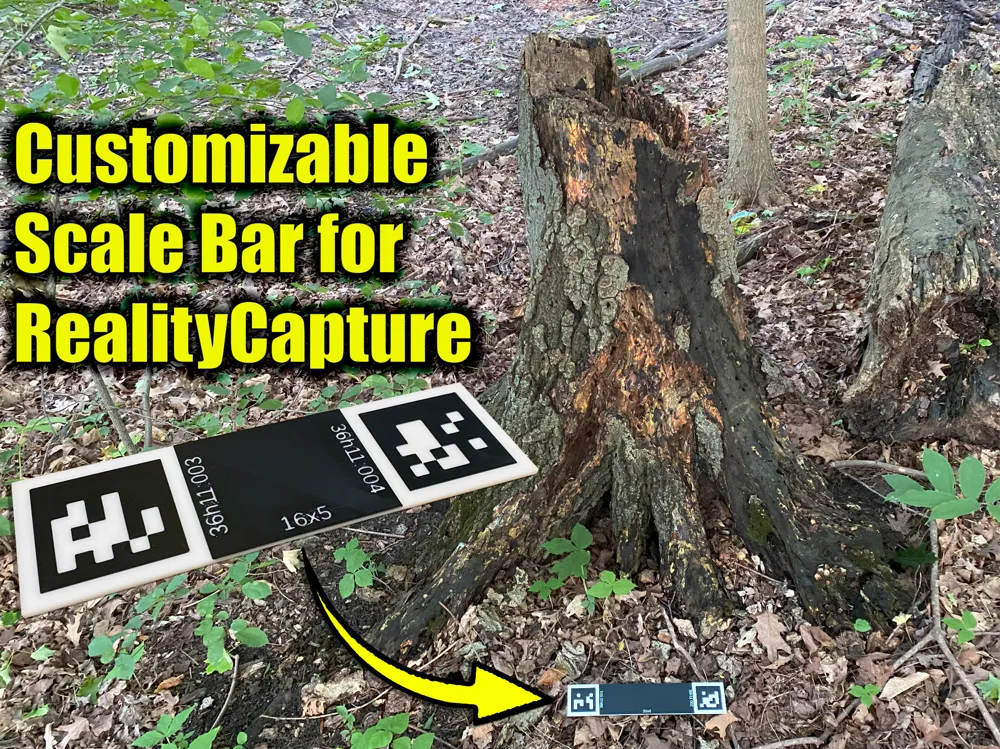
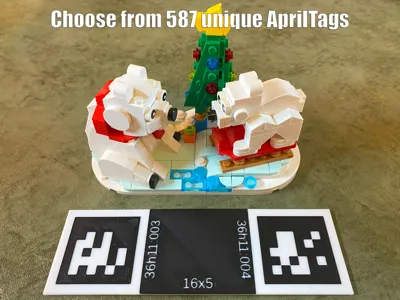
A scale bar is used during photogrammetry to ensure that the produced object mesh is the same size as the real world object. A coded scale bar such as those produced by this model are used by photogrammetry software (like RealityCapture) to automatically perform this sizing.
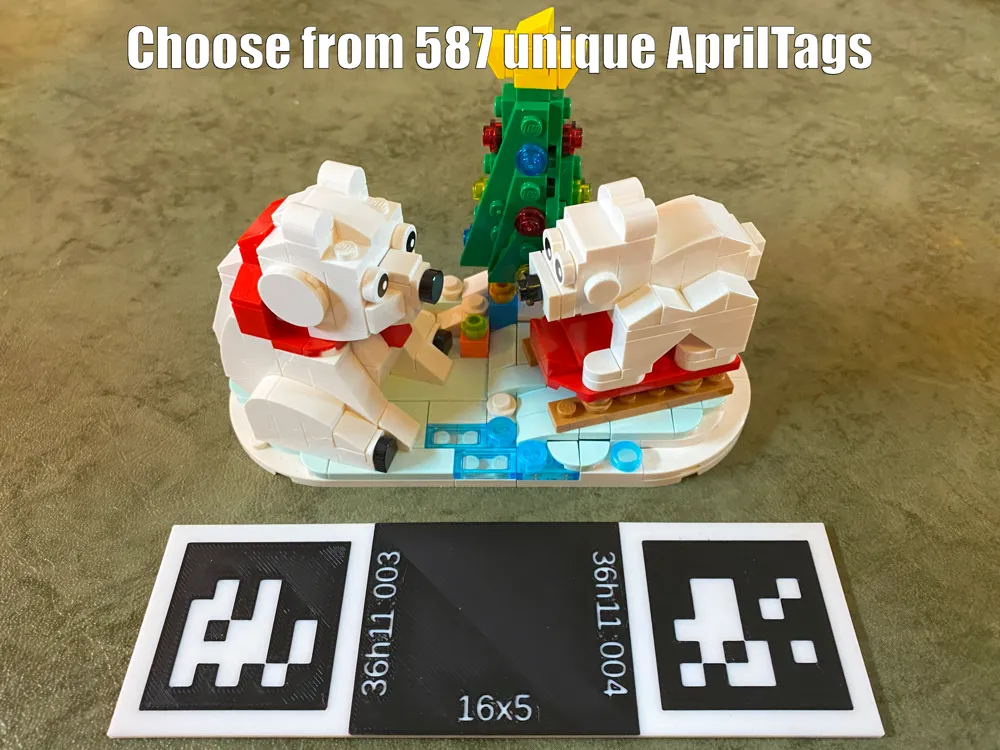
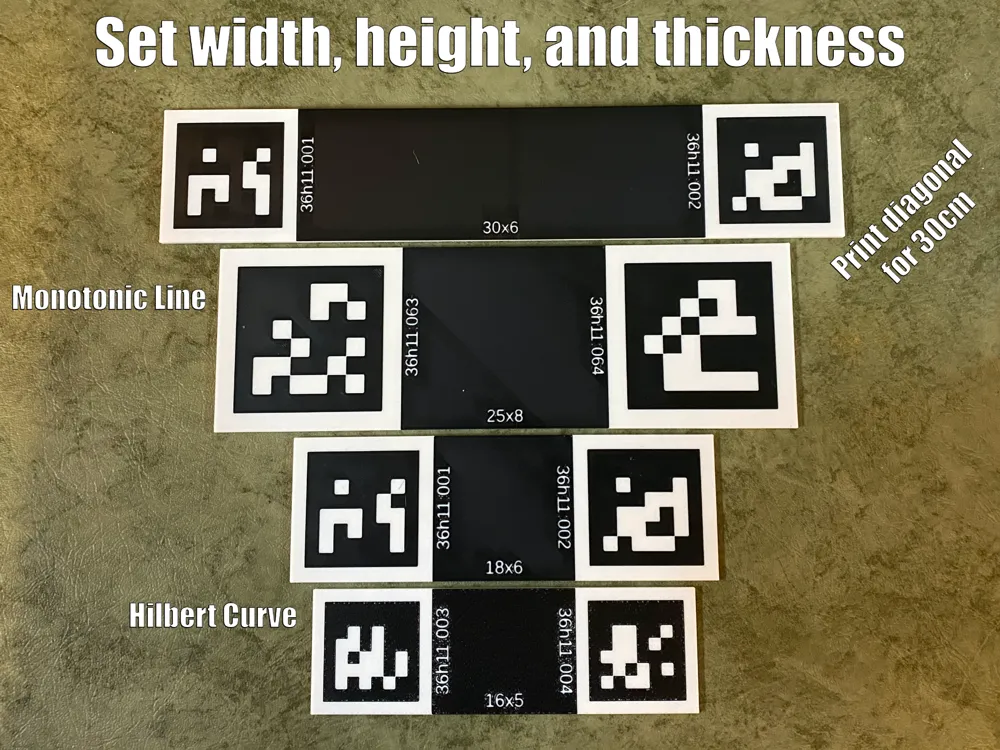
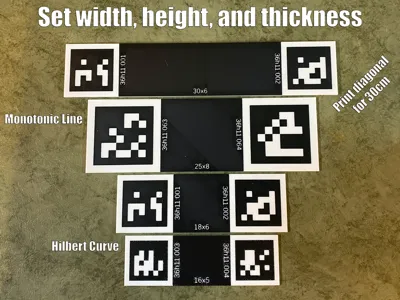
While there are many possible marker types for coded scale bars, this model is focusing on 36h11 AprilTags, which is a common format. Using the power of OpenSCAD and Maker World, you can customize the printed scale bar's width, height, thickness, and the unique AprilTag marker that is generated on each end.
Features
- Customizable 36h11 AprilTag scale bar for RealityCapture photogrammetry software
- Supports all 587 36h11 AprilTags in RealityCapture's proprietary ordering
- Modify width, height, thickness, left 36h11 AprilTag marker number, and right 36h11 AprilTag marker number
AMS Print Instructions
- Load up the AMS with white (filament 1) and black (filament 2) filament.
- Make the primary color of the scale bar white.
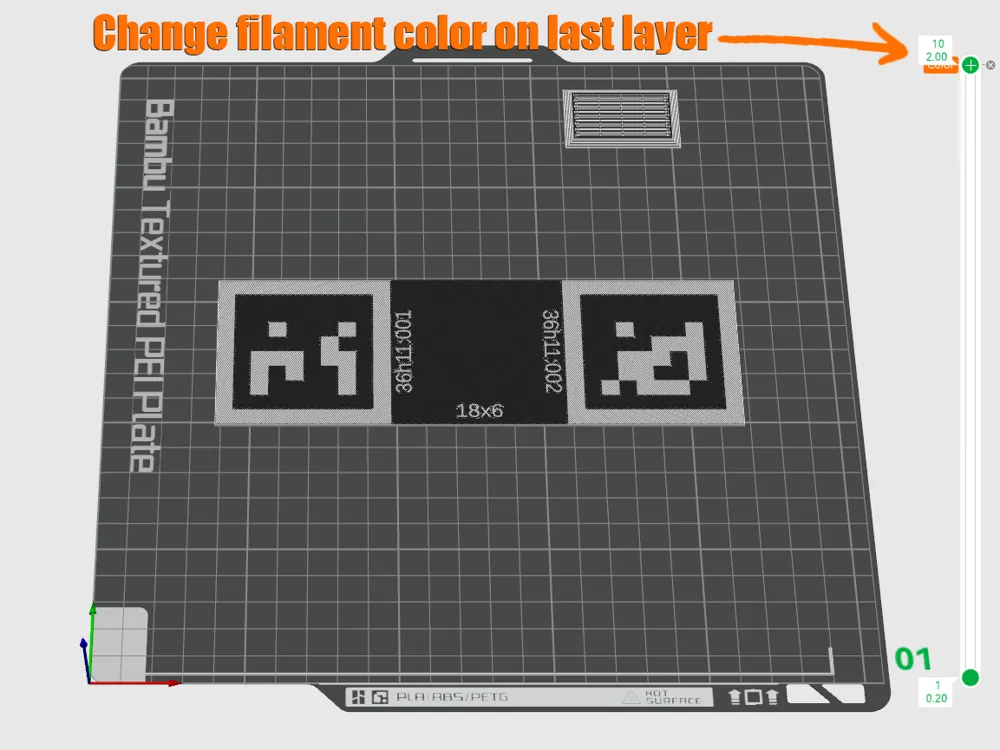
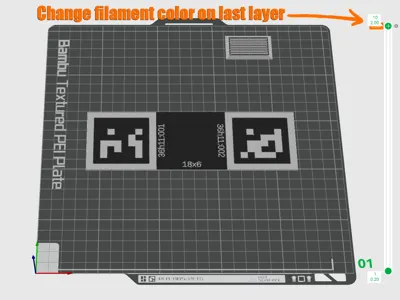
- As OpenSCAD models cannot perform a color change on their own, you'll need to set it up manually:
- Optionally change the model's Top surface pattern from Monotonic line to Hilbert Curve if you prefer that look.
- Slice the plate.
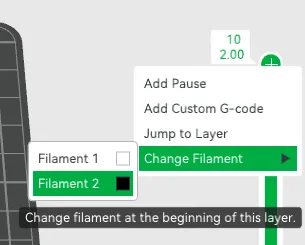
- Right-click on the last layer (layer 10 if using the standard 2mm thickness for the bar) to open the layer menu.
- Choose Change Filament → Filament 2, which should be filled with black.
- Slice the plate again.
- The top layer should now be black with the rest of the scale bar white.
- Print the scale bar.
Single Spool Print Instructions
- Optionally change the model's Top surface pattern from Monotonic line to Hilbert Curve if you prefer that look.
- Slice the plate.
- As OpenSCAD models cannot perform a color change on their own, you'll need to set it up manually:
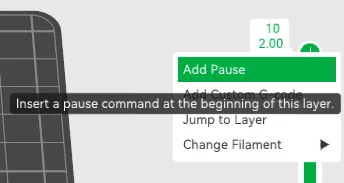
- Right-click on the last layer (layer 10 if using the standard 2mm thickness for the bar) to open the layer menu.
- Choose Add Pause to have the printer pause before printing this layer.
- Slice the plate again.
- Load the printer with white filament.
- Print the scale bar.
- When the printer pauses just before the final layer unload the white filament and load the black filament.
- Continue with the printing.
Notes
- The size of coded scale bars is measured from the centers of the AprilTags. While it is easy to determine the distance from the centers mathematically based on the scale bar's width and the ApriltTags' size, in reality the printing process will not exactly match this theoretical value. For an accurate coded scale bar size that is entered into RealityCapture, it is best to measure the distance from the centers of the AprilTags on the printed scale bar yourself.
- RealityCapture uses its own AprilTag ordering that is different from the industry standard, and numbers them 1 to 587 instead of 0 to 586. For example, RealityCapture's 001 36h11 AprilTag marker is the same as the industry standard's 476 36h11 AprilTag marker. The provided model and OpenSCAD's code follow RealityCapture's AprilTag ordering, and is only directly compatible with it. See this forum post for more information.
- Find out more about using coded scale bar in RealityCapture from this tutorial written by the RealityCapture developers. Their example uses circle markers, but it is the same procedure for 36h11 AprilTags.
- The OpenSCAD code is copyright Gnometech Inc., and written by David Wyand (the author of this model on Maker World).
- The original 36h11 AprilTag makers are are extracted from this repo. Copyright (c) 2013-2016, The Regents of The University of Michigan. All rights reserved. Used under the BSD 2-Clause License.
License

This user content is licensed under a
Creative Commons Attribution-Share Alike


Comment & Rating (5)