
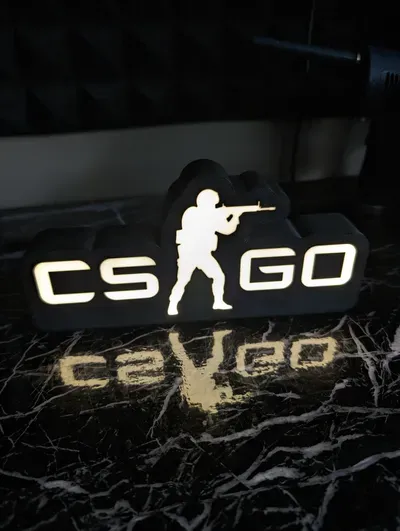
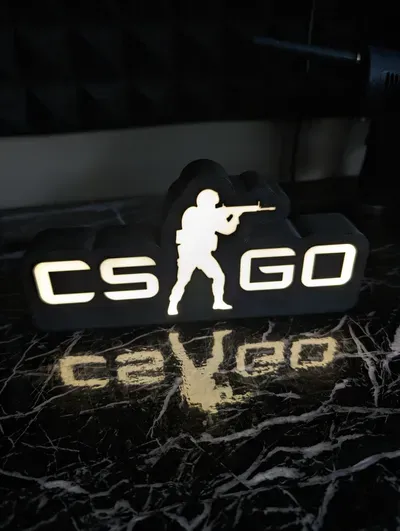
CS GO Lightbox LED Lamp




Print Profile(1)

Description
Membership
Become a member and support more creations!
Boost Me (for free)
A BOOST a day keeps the bad prints away!
The 3D model of a lightbox featuring the CS:GO logo is a must-have for Counter-Strike enthusiasts. This captivating lightbox showcases the iconic Counter-Strike: Global Offensive logo, known to gamers worldwide. The attention to detail and precision in design make this lightbox a true work of art. When illuminated, it transforms into a stunning centerpiece, casting a warm, immersive glow in any gaming den or bedroom. For CS:GO fans, this lightbox is more than decor; it's a statement of your passion for one of the most popular first-person shooter games. Enhance your gaming setup with this CS:GO lightbox and immerse yourself in the world of virtual combat. 🎮🔫✨
If you don't have or don't want to install LED's you can just glue the parts together and have an awesome sign!
Materials and tools:
- glue gun
- aluminum tape
- led strip (here is the one I use): simple 1m white led USB
- soldering iron (optional)
RECOMMENDATIONS
- use a textured PEI sheet
- remove purge line at the beginning of the print
- use the print profile, it has quite a few setting changes that help achieve the best results
- make a hole for the USB strip wherever you like it best with a soldering iron, drill or in the slicer
- use the aluminum tape on the inside of the backplate to help with light diffusion
- glue the LED's the further away from the colored design possible; placing them too close ruins the diffusion and the individual LED's become visible
Bambu Studio Settings:
I always recommend using the print profile I provided since it has settings with which I've been able to get the best results.
If you choose not to here are the main slicer settings I recommend:
- preferences (ctrl + P) → activate developer settings → Quality →Advanced → First Layer Flow Ratio: 1.04
- Quality → Wall generator → Arachne
- Quality → Wall transitioning threshold angle → 50º
- Strength → Advanced → Infill/wall overlap → 20%
- Quality → Advanced → Avoid crossing walls
- Increasing retraction / reducing temperature can help reducing wisps
- Order color printing from lightest to darkest color
How to make a hole in Bambu Studio:
Assembly video:
Some models are fanart and are shared as artistic tributes, you may not sell, share, or profit from them. For original designs, a commercial license is required to sell physical prints (available on Maker World or Patreon).
License

You shall not share, sub-license, sell, rent, host, transfer, or distribute in any way the digital or 3D printed versions of this object, nor any other derivative work of this object in its digital or physical format (including - but not limited to - remixes of this object, and hosting on other digital platforms). The objects may not be used without permission in any way whatsoever in which you charge money, or collect fees.


Comment & Rating (38)