
Biscuit Keychain Box (Customizable)
Print Profile(8)
Description

Customizable Biscuit Box
Boost Me (for free)
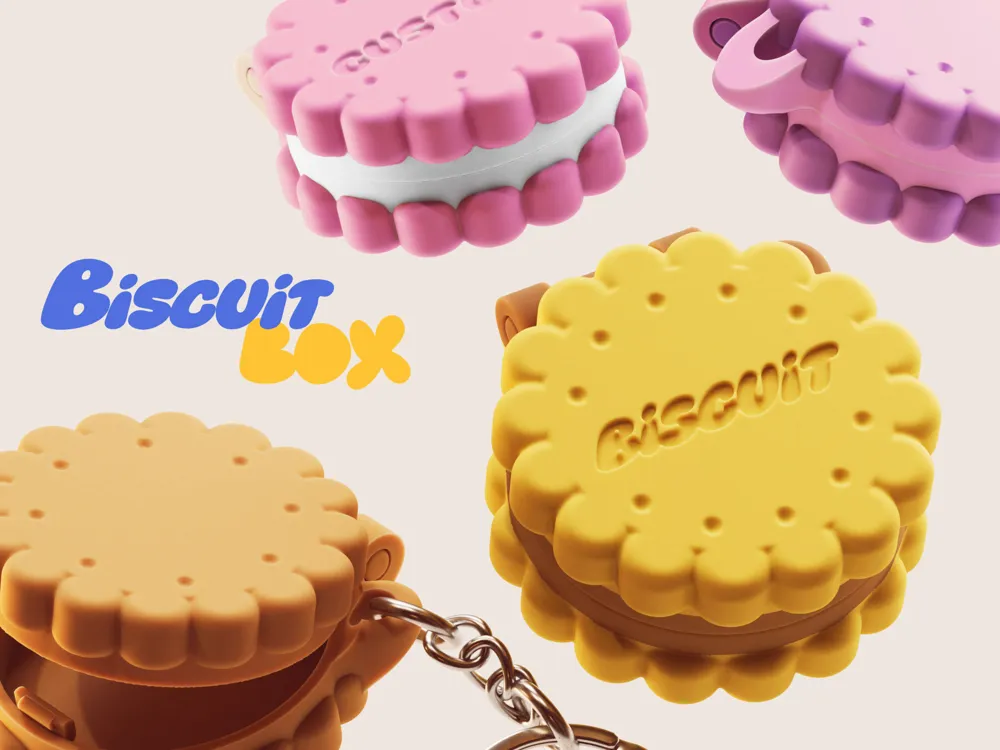

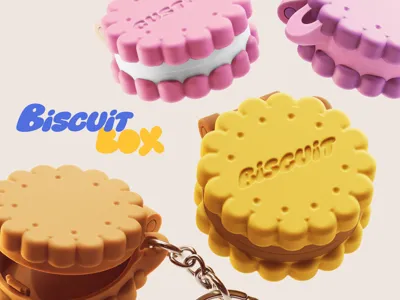
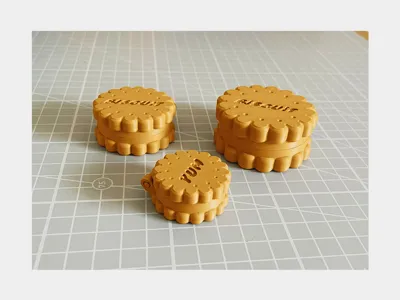

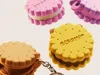
For the keychain version of my Biscuit Box series, I wanted to create a unique round design, and this box delivers exactly that.
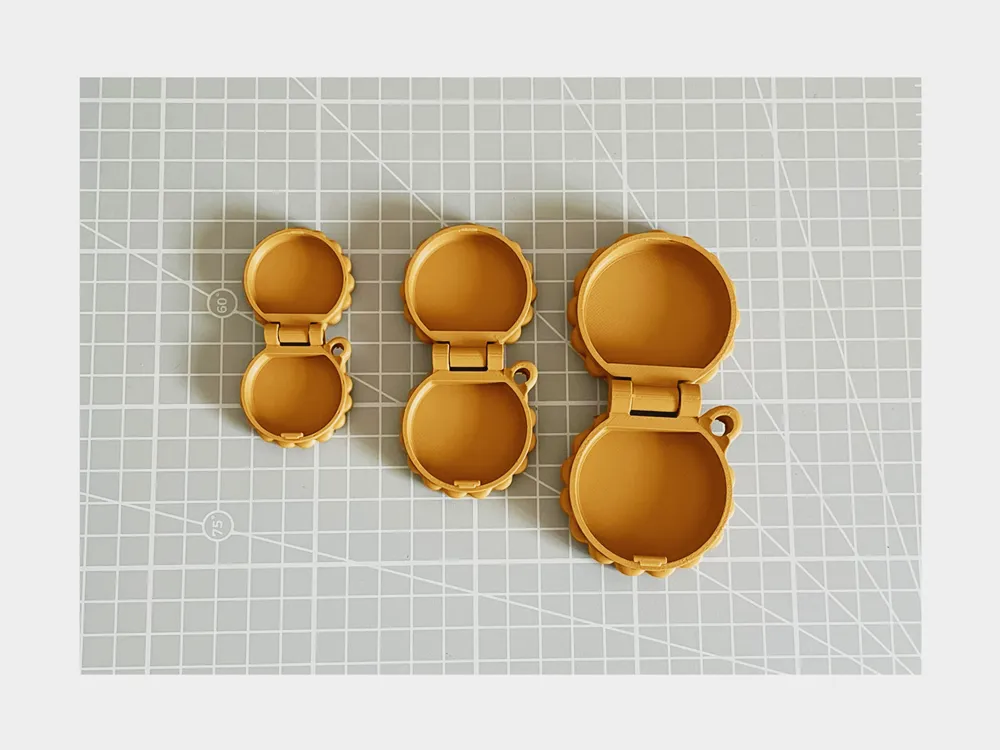
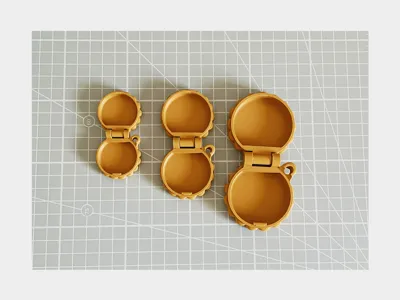
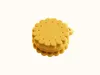
This Biscuit Box features a print-in-place hinge and snap-lock mechanism, so no assembly is required. It’s ready to use straight off the printer.
On the side, you’ll find a small hole that lets you attach the box to any keychain.
Despite its compact size, the box is sturdy and easy to open and close, while the snap lock keeps the lid securely in place.
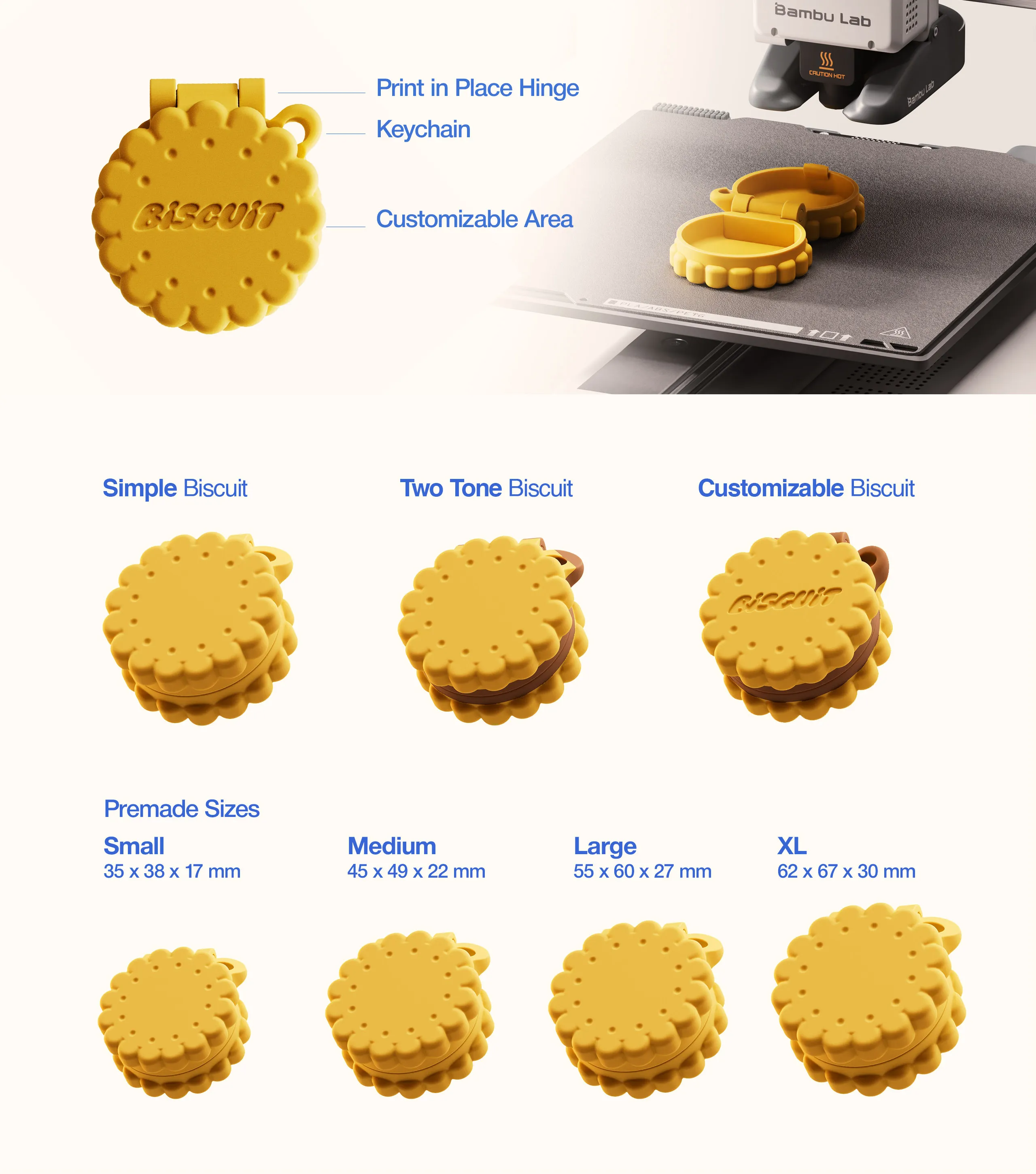
Customization Options
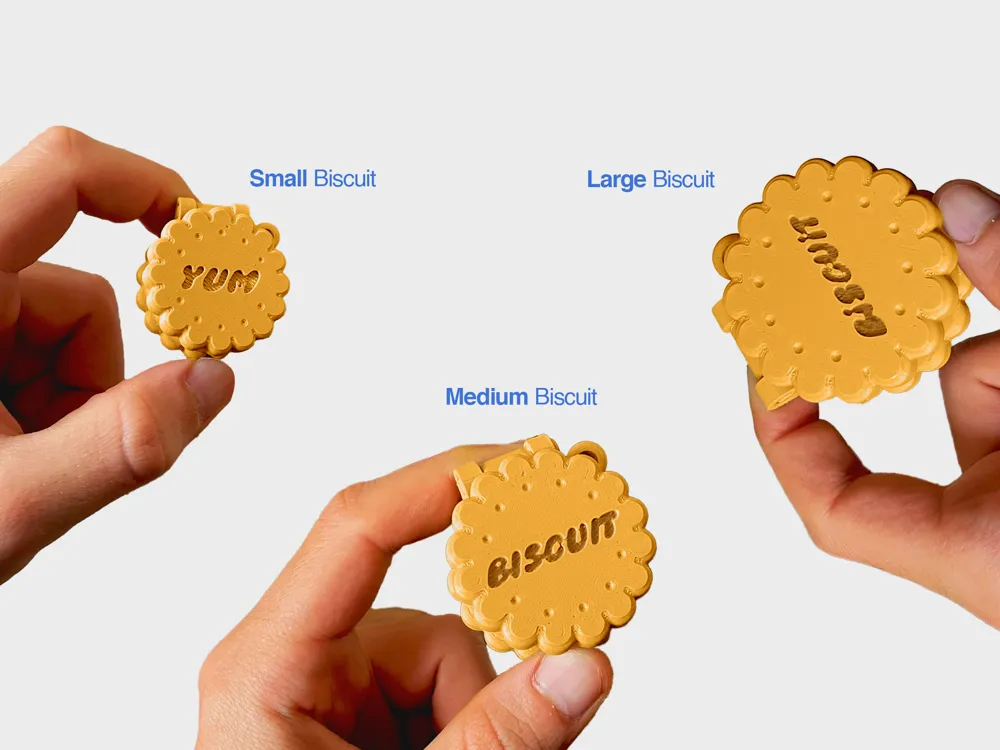
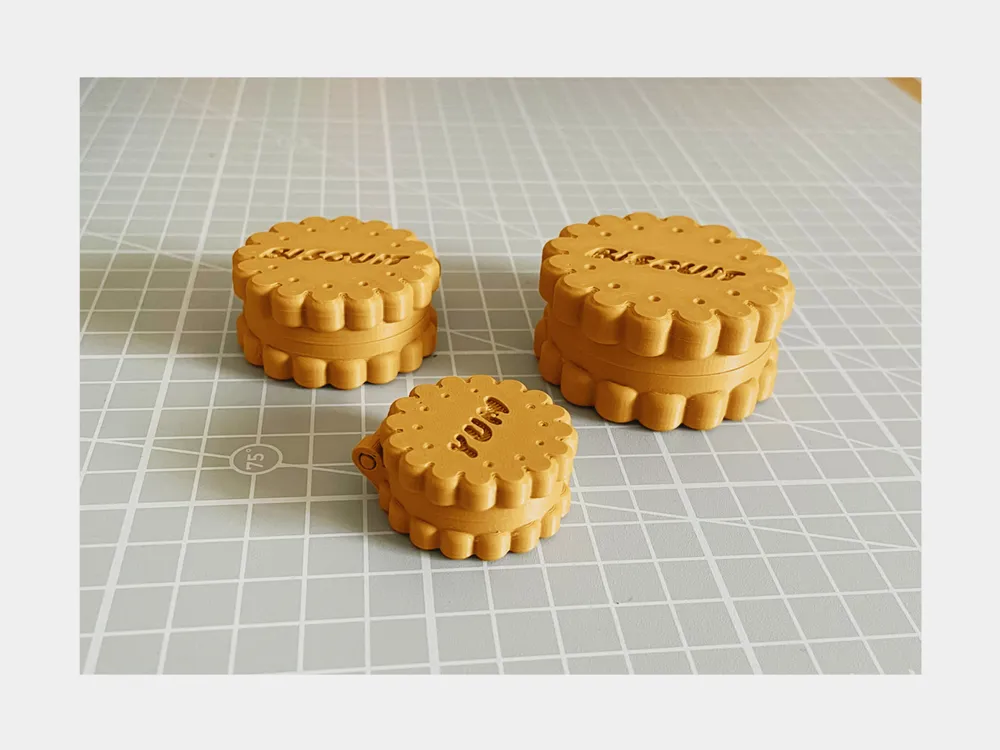
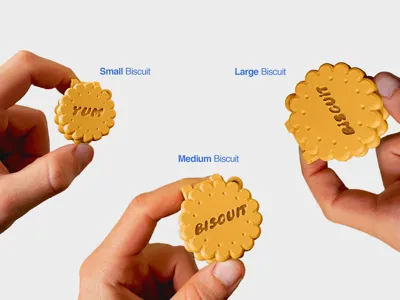
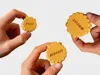
I’ve added customization options for the biscuit lid. You can engrave any name or initials directly into the top of the box.
The customizable files can be found in the print profiles.
See below if you need a guide for customizing the biscuits.
Premade Sizes
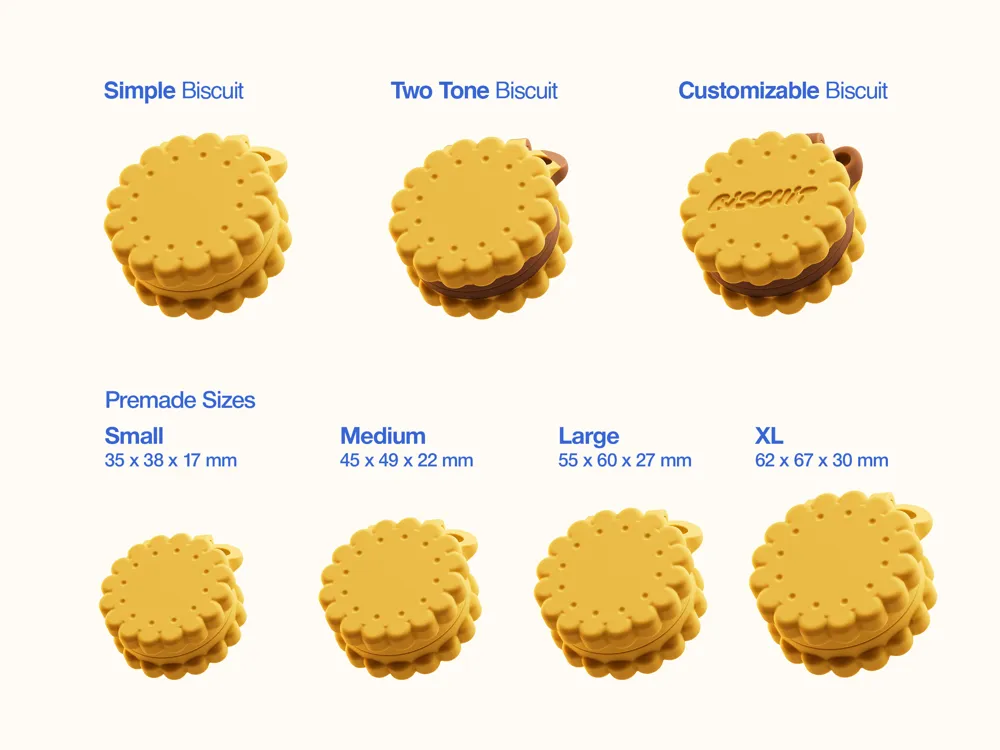
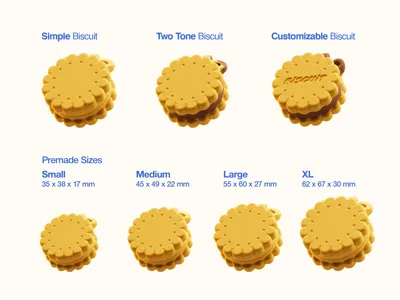
The Biscuit Box is available in 4 premade sizes:
Small
35 x 38 x 17 mm
Medium
45 x 49 x 22 mm
Large
55 x 60 x 27 mm
XL
62 x 67 x 30 mm
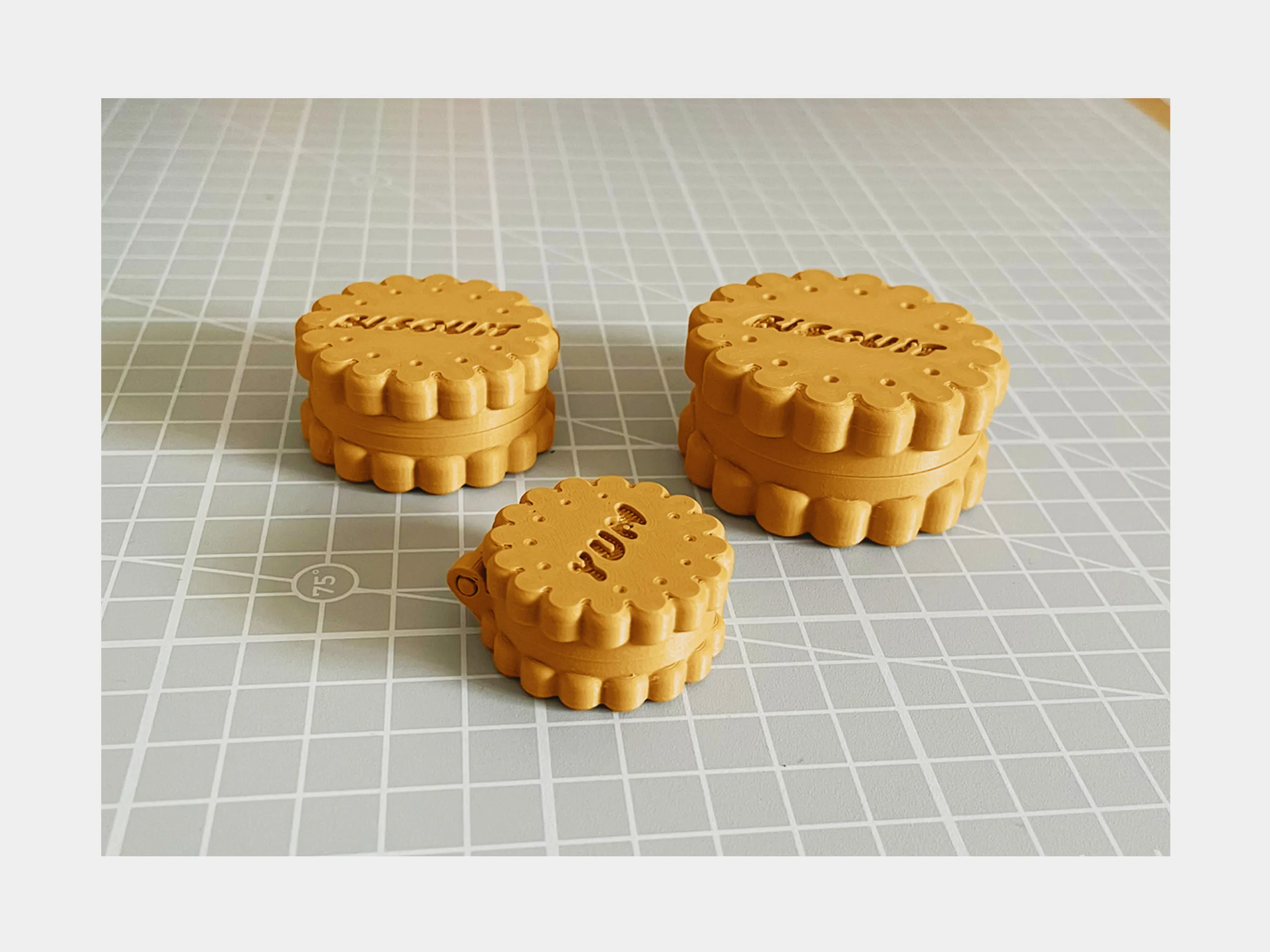
How to Customize the Biscuit
Note:
For the biscuits shown in the example images, I used the Super Feel font. It’s free to download and use.
You can find it here: Super Feel Font | dafont.com
Make sure the font is installed on the device running Bambu Studio before editing the project, if you want to have the same look.
Of course you’re free to use any other font you like as well.
Step-by-Step
Step 1
Download the customizable .3mf file and open it in Bambu Studio.
Step 2 – Choose the Biscuit Size
- Large & XL biscuit: 6–10 letters
- Medium biscuit: 1–7 letters
- Small biscuit: 1–4 letters
Using longer text on smaller biscuits may cause sizing or fit issues.
Step 3
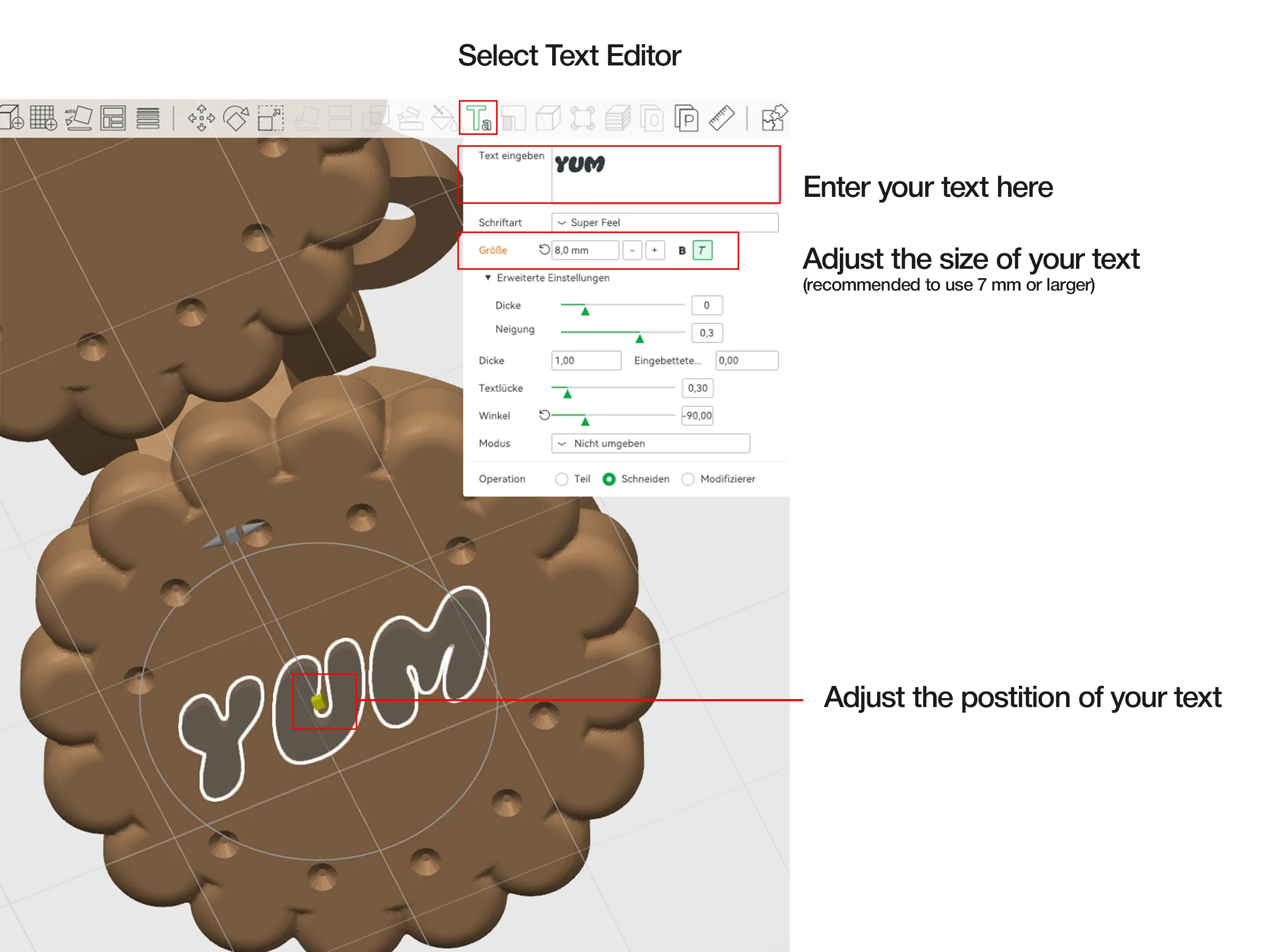
Select the text object under your chosen biscuit size in the Objects tab.
Alternatively, you can select the text object directly in the viewport—it’s located below the biscuit and build plate.
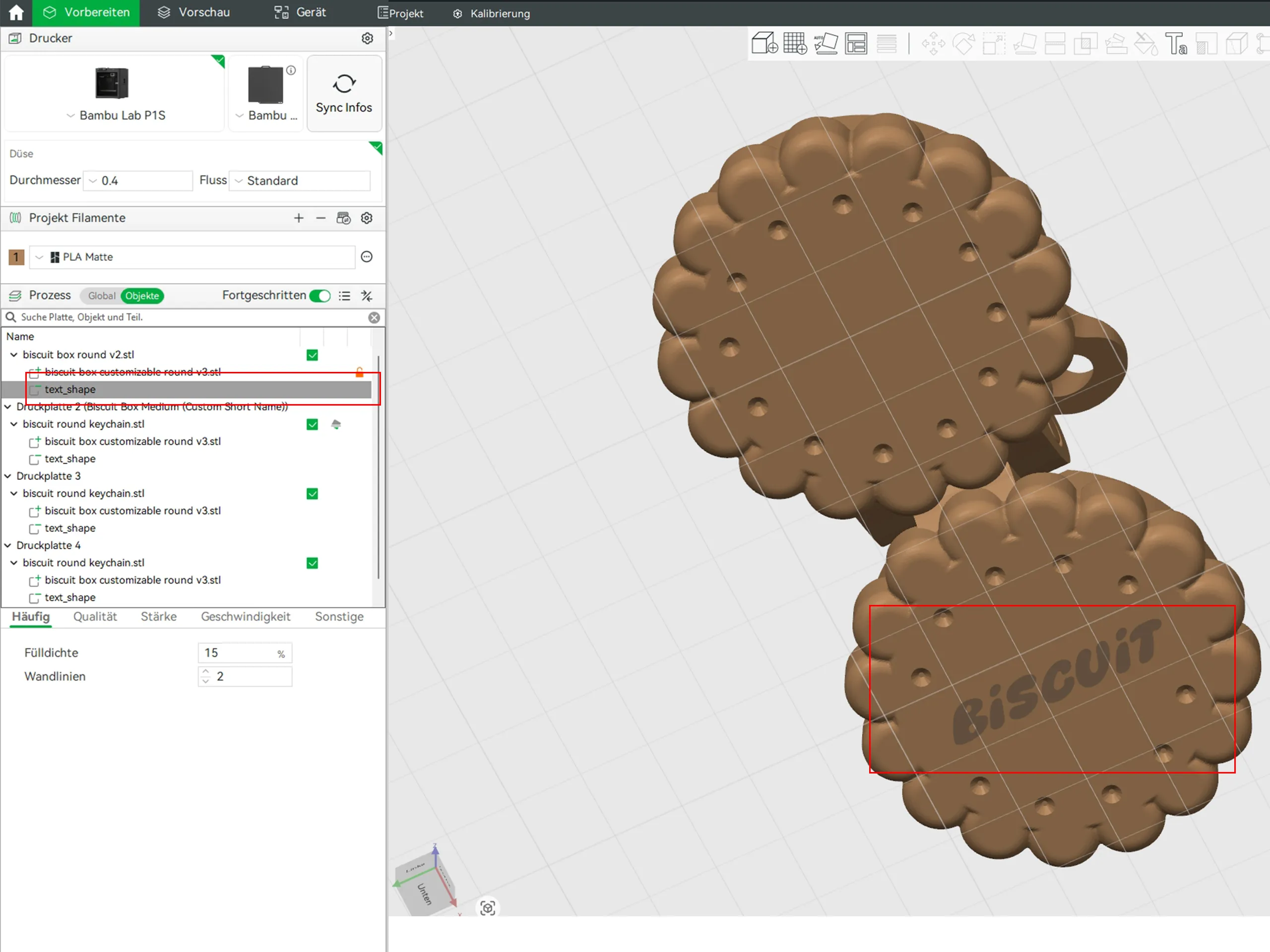
Step 4
With the text object selected, open the text editor & enter your custom text
Step 5 – Adjust Size & Position
- Adjust the position using the yellow handle in the viewport
- Set the text size in the text menu
⚠️ Important: Do not set the text size below 7 mm, as smaller text may not print cleanly with a standard 0.4 mm nozzle.
Leave the remaining settings unchanged and you’re ready to start printing.
Color Options
You can print the biscuit in a single color or create clean two tone designs by adding just one manual filament change no AMS required.
All multicolor options are included in the print profiles.
Check out my other Biscuit styled models here
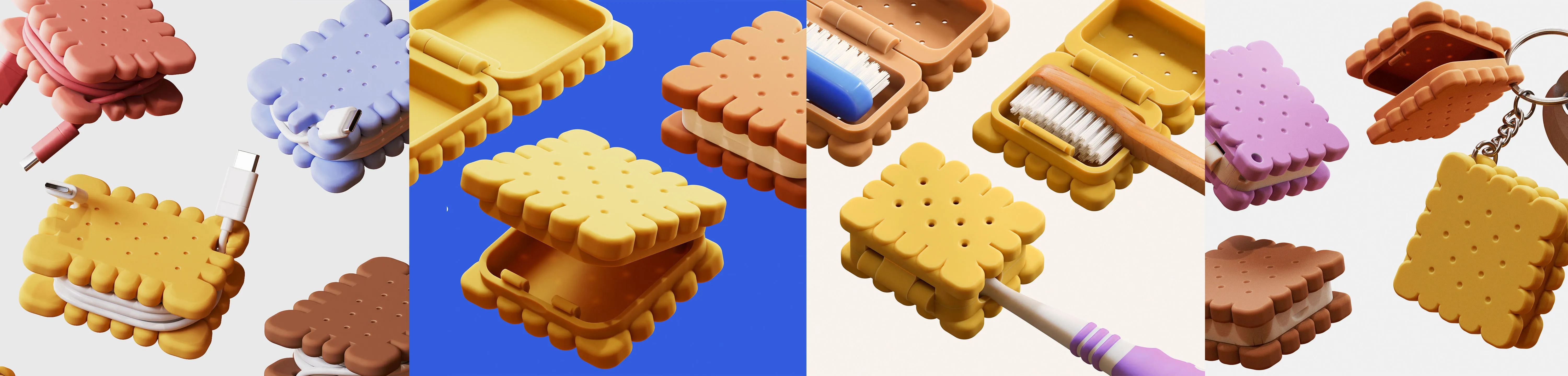
I will try to add my other rectangular boxes to the project with customization features in the future.
Let me know how you like the project and please rate the print profiles if you had a good experience :)
Membership
License

You shall not share, sub-license, sell, rent, host, transfer, or distribute in any way the digital or 3D printed versions of this object, nor any other derivative work of this object in its digital or physical format (including - but not limited to - remixes of this object, and hosting on other digital platforms). The objects may not be used without permission in any way whatsoever in which you charge money, or collect fees.


Comment & Rating (12)