
Patterned Letter & Number
Print Profile(2)
Description
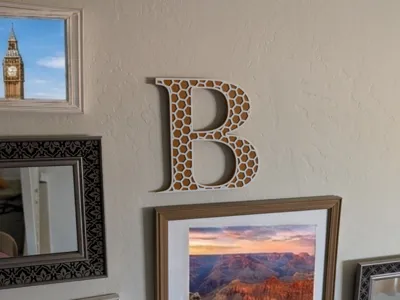
A fully customizable 2-color decorative letter or number, designed for Bambu Lab multi-color printing. The base letter prints in one color, and a raised geometric pattern on top prints in a second color.
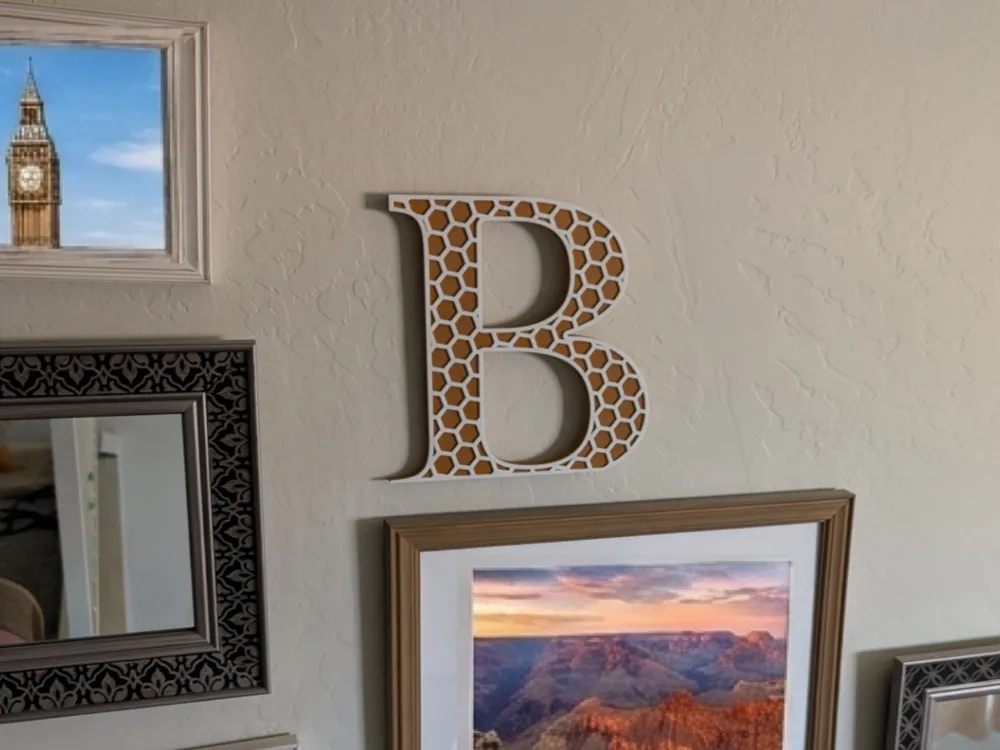
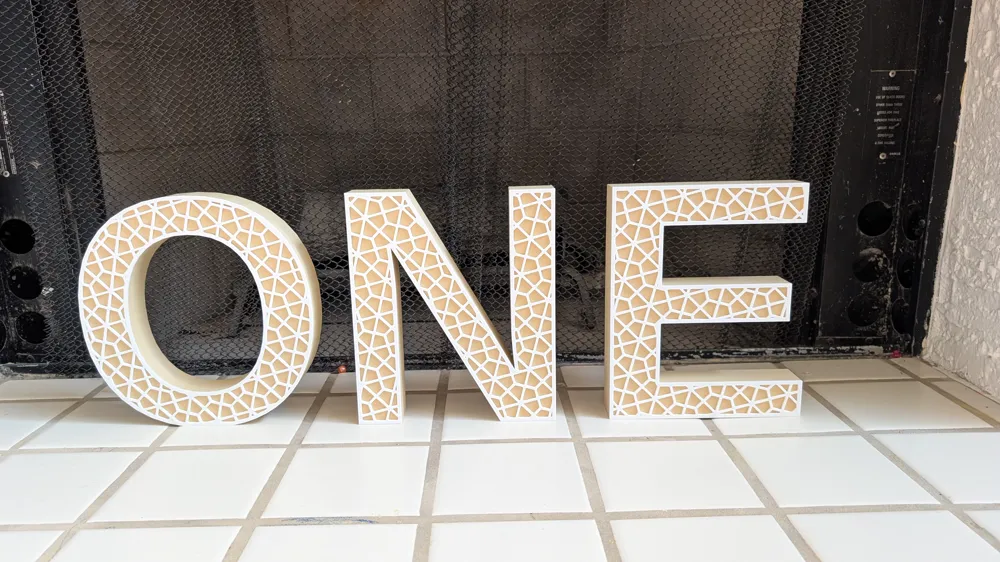
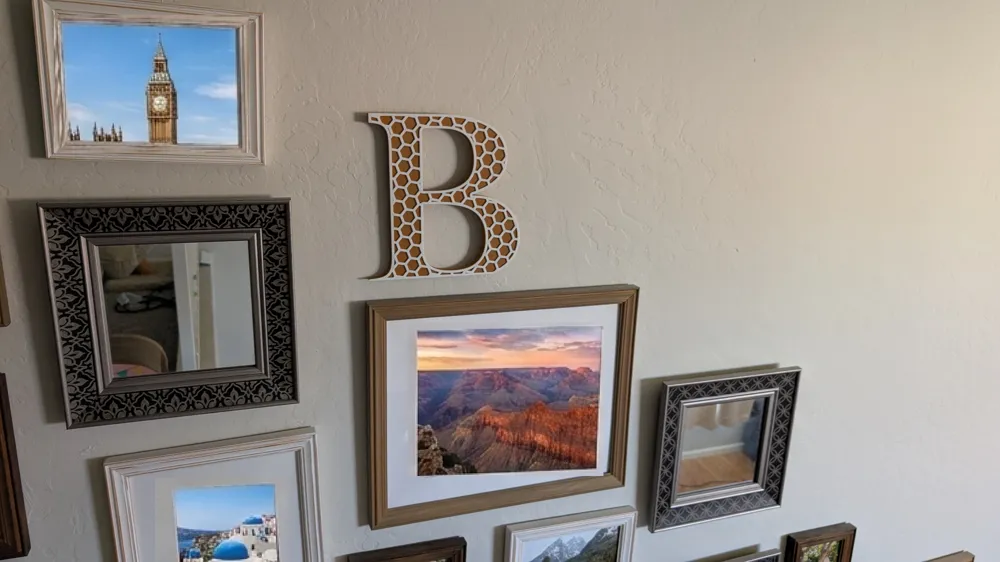
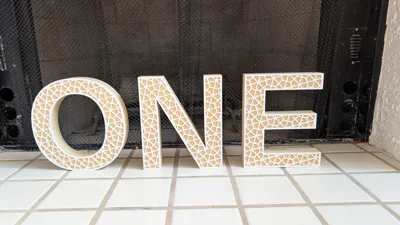
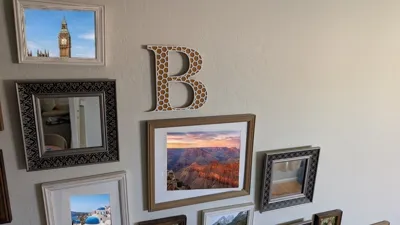
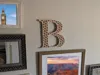
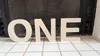
This model uses the OpenSCAD . Open it, set your letter, pick your pattern and colors, then download and slice. I have a set of decorative letters already created. Letter size 190, height 20 , Pattern: Honeycomb inverse , pattern size 20. I have also a set created for a photoshoot done: O N E (pattern: triangle inverse). I wall mounted my letter with command strips. I have found sanding down the back of the letter helps adhere tape better. Note; I currently did not have a “blank” setting for just a letter. You can effectively do this by selecting the circle pattern and increasing the pattern size to max.
Letter / Number Settings
Character Type any single letter (A–Z), number (0–9), or supported symbol. Best works with one character at a time. At max letter size ~5 letters will work at a time without adjusting the “Tile” setting. Increasing the tile setting will allow more letters but it may time out. In Bambu you will need to “Split by object” to get the file to slice.
Letter Size (20–400 mm) The overall height of the character in millimeters. Default is 240 mm — a good size for a decorative wall piece. Scale down for smaller desk ornaments.
Letter Height (1–80 mm) How thick/deep the letter base is. 30 mm gives a solid, weighty feel. Go thinner (10–15 mm) for lightweight prints or thicker (50+ mm) for a bold statement piece.
Stand Slice Enable (on/off) Toggle this on for letters with curved bottoms — C, G, O, S, U and numbers like 0, 3, 6, 8. It trims a flat edge off the bottom so the letter sits upright without rocking.
Stand Slice (0.01–10 mm) How much to trim off the bottom when Stand Slice is enabled. Start small (1–2 mm) and increase until the letter stands flat. Has no effect when Stand Slice is off.
Font
Six fonts are available, each with a different character:
Font | Style |
| Noto Serif | Classic serif, elegant and readable — good all-rounder |
| Arial | Clean sans-serif, modern and bold |
| Liberation Sans | Similar to Arial, slightly wider |
| Cinzel | Tall Roman capitals, architectural feel |
| Abril Fatface | Heavy display serif, very bold and decorative |
| Libre Baskerville | Traditional book serif, refined |
Pattern Settings
Top Pattern Choose from 9 geometric patterns. See the photo gallery for examples of each.
Pattern | Notes |
| Triangles | 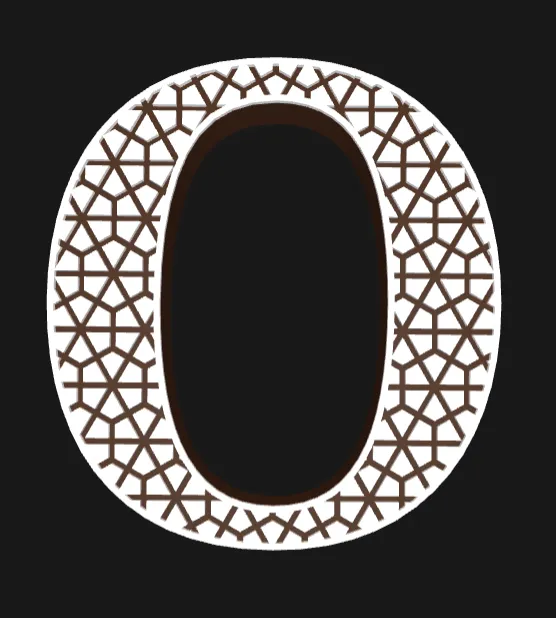 |
| Triangles Inverse | 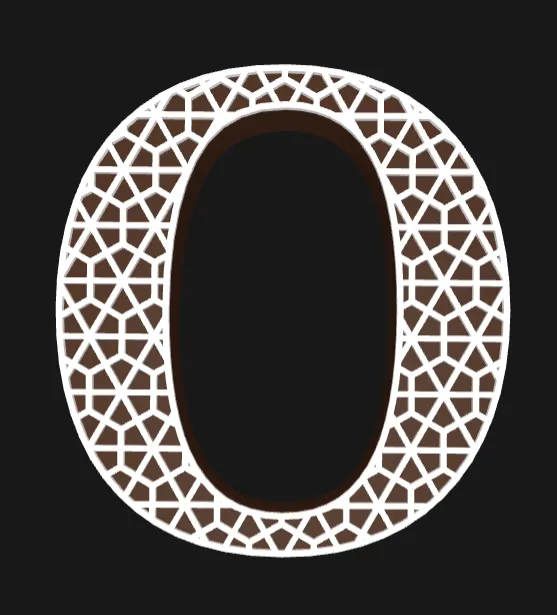 |
| Pinwheel | 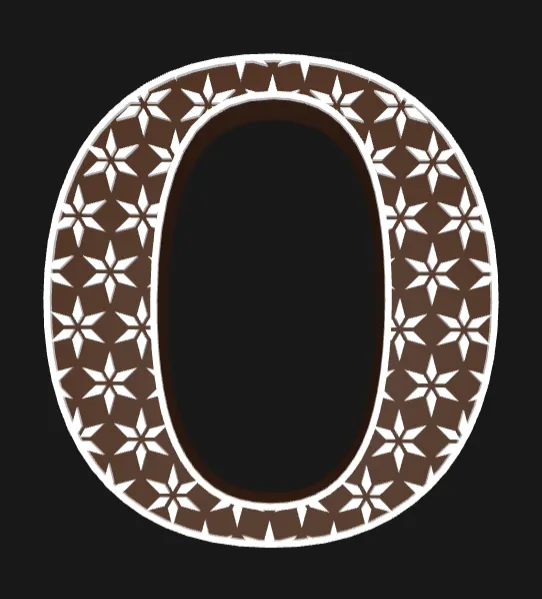 |
| Pinwheel Inverse | 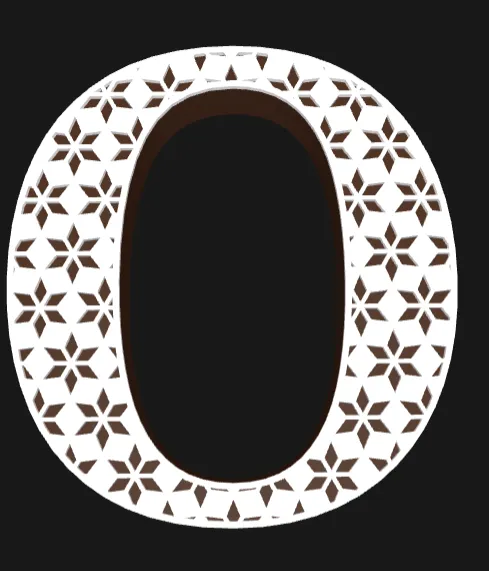 |
| Cross | 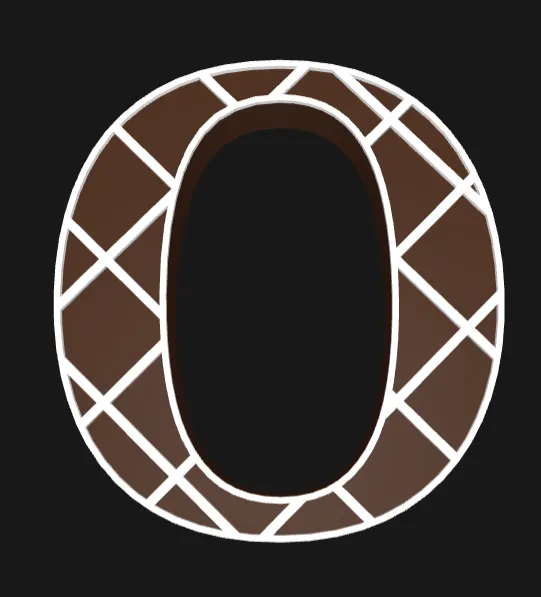 |
| Stripes | 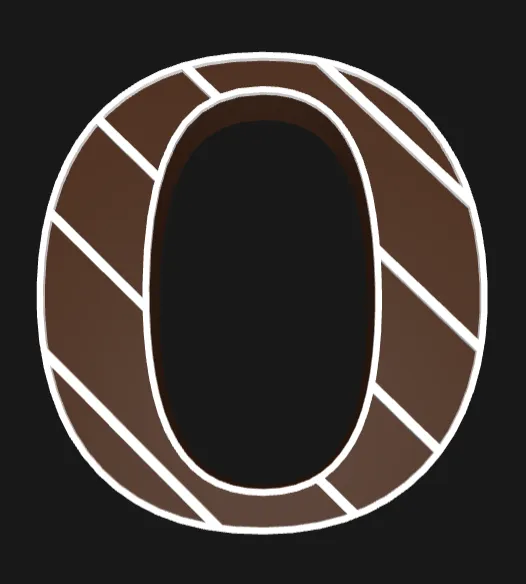 |
| Circles | 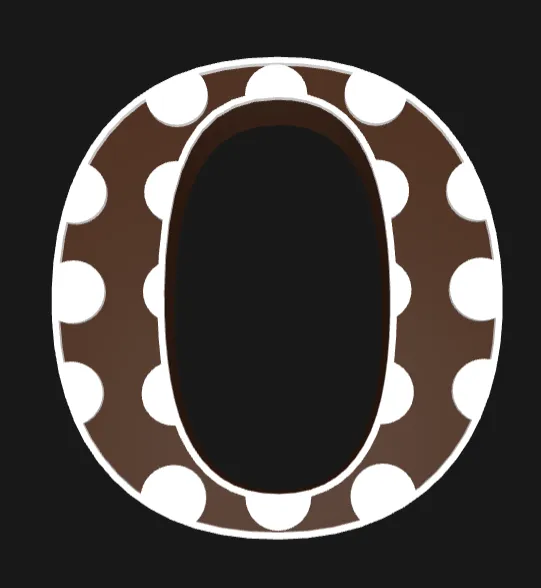 |
| Honeycomb | 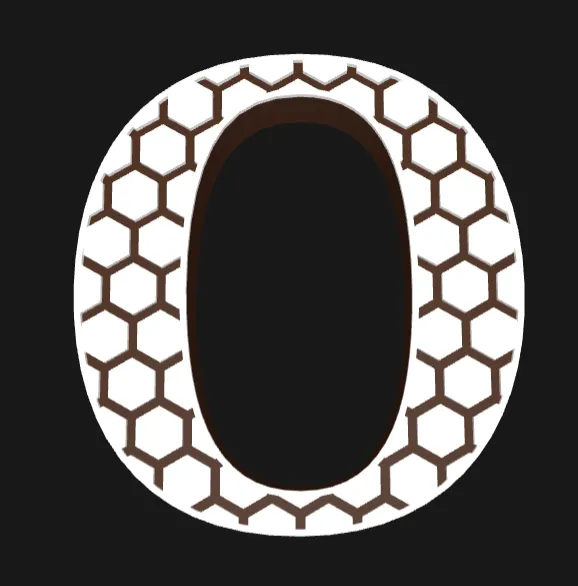 |
| Honeycomb Inverse |
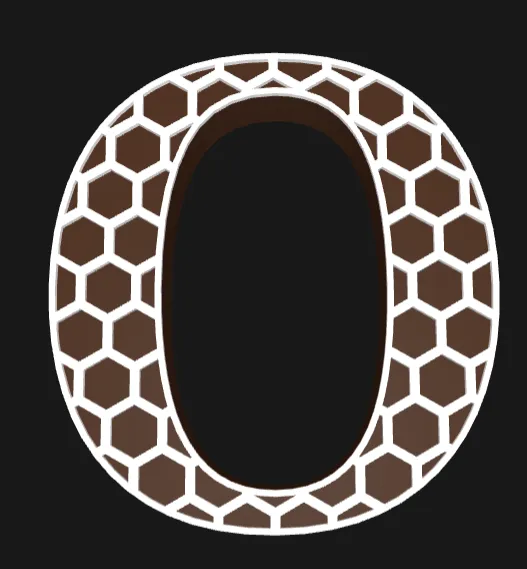 |
Pattern Height (1–10 mm) How tall the raised pattern layer sits above the letter base. 2 mm is the default and works well for most patterns. Go higher for a more dramatic raised effect; lower for a subtle texture.
Outline Thickness (1–10 mm) The width of the solid border ring that runs around the edge of the letter on the top face. This outline always prints in the pattern color and frames the pattern cleanly. 3 mm is a good default.
Pattern Size (1–80 mm) Controls the size of individual pattern elements — the side length of each triangle, the diameter of circles, and the cell size of hexagons. Larger values give fewer, bolder elements; smaller values give a finer, denser texture. Default is 30 mm.
Pattern Spacing (4–60 mm) Controls the center-to-center distance between elements in the Stripes and Circles patterns. Larger spacing spreads elements further apart; smaller spacing packs them tighter. Does not affect the tessellation patterns (triangles, pinwheel, honeycomb) as those are tiled continuously.
Triangle Split (0.1–0.7) Only affects the Pinwheel, and Pinwheel Inverse patterns. Controls where the dividing lines cross each edge of each tile:
- 0.5 — lines cross at the midpoint, giving a symmetric 3-section split
- 0.333 — lines cross at 1/3 from each corner (default), giving the classic pinwheel/swirl
- Lower values pull the lines closer to the corners for a tighter swirl; higher values push them outward
Pattern Angle (0–360°) Rotates the entire pattern layer around the center of the letter. Works on all patterns. Useful for aligning stripes diagonally, orienting triangles to match the letter shape, or just finding the most visually pleasing angle.
Bambu Lab Colors
Both dropdowns contain the full current Bambu Lab filament color palette, split into Basic and Matte ranges.
Base Color — the letter body (Bottom). Default: Matte Dark Brown. Pattern Color — the raised pattern and outline (Top). Default: Matte Ivory White.
The colors shown in the OpenSCAD preview are approximate.
License

You shall not share, sub-license, sell, rent, host, transfer, or distribute in any way the digital or 3D printed versions of this object, nor any other derivative work of this object in its digital or physical format (including - but not limited to - remixes of this object, and hosting on other digital platforms). The objects may not be used without permission in any way whatsoever in which you charge money, or collect fees.


Comment & Rating (0)