
Custom Slide In Can Holder 0.5L - Al Bundy No Maam
Print Profile(1)

Description
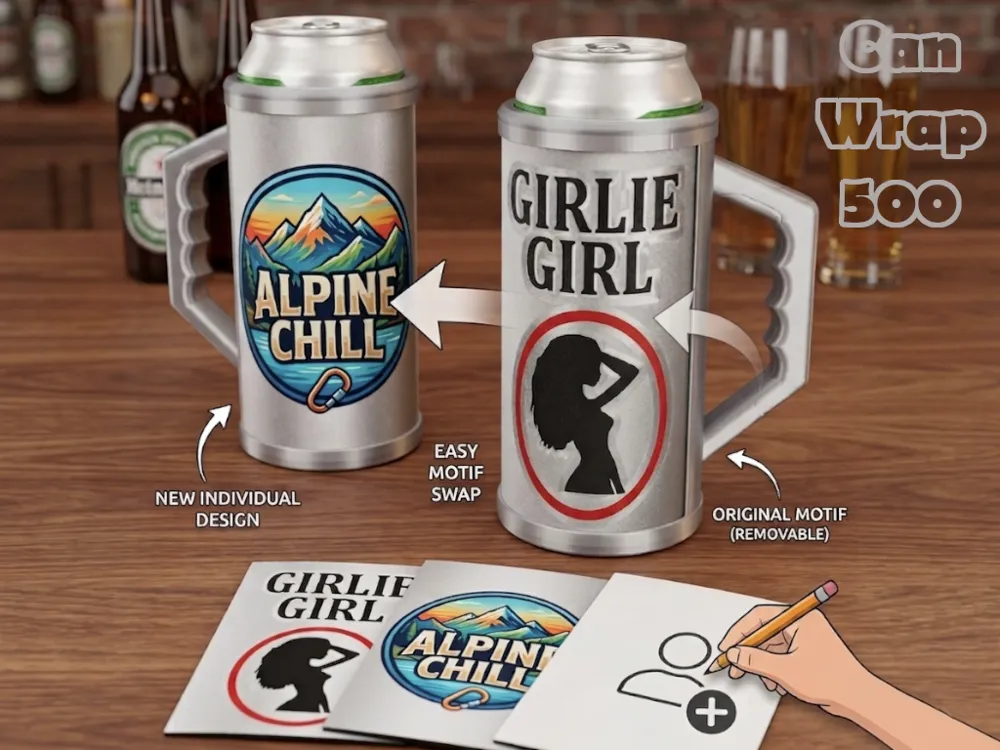
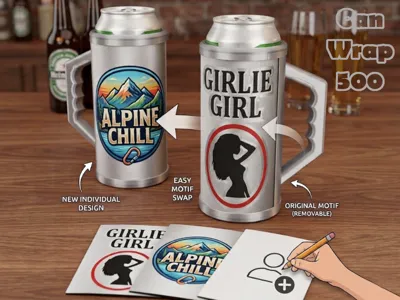
Turn every 0.5L can into your own custom creation.
This customizable can holder features a unique slide-in insert system that allows you to personalize the design anytime — without reprinting the entire holder.
You can:
- add custom text directly in Bambu Studio using the built-in text function
- print your own artwork on paper or cardboard
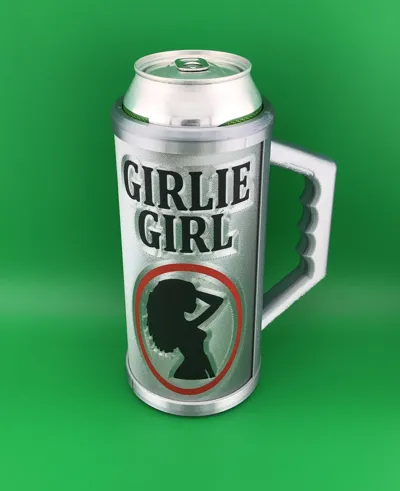
- slide the insert into the holder
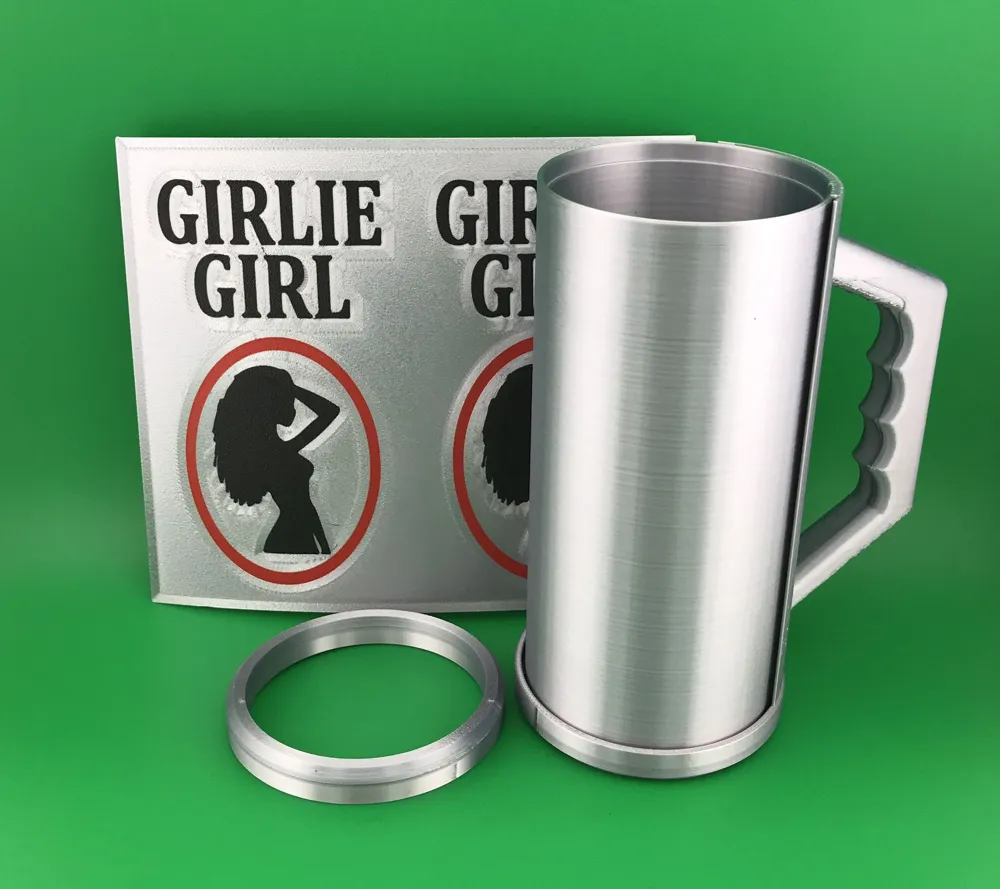
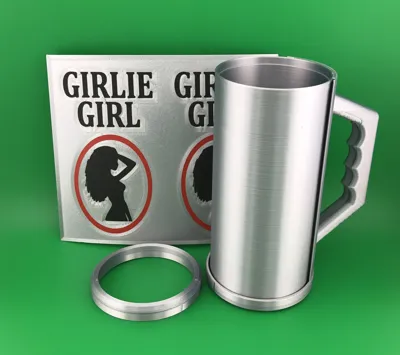
- secure it with the included locking ring on top
The print profile includes:
- a blank template for your own designs
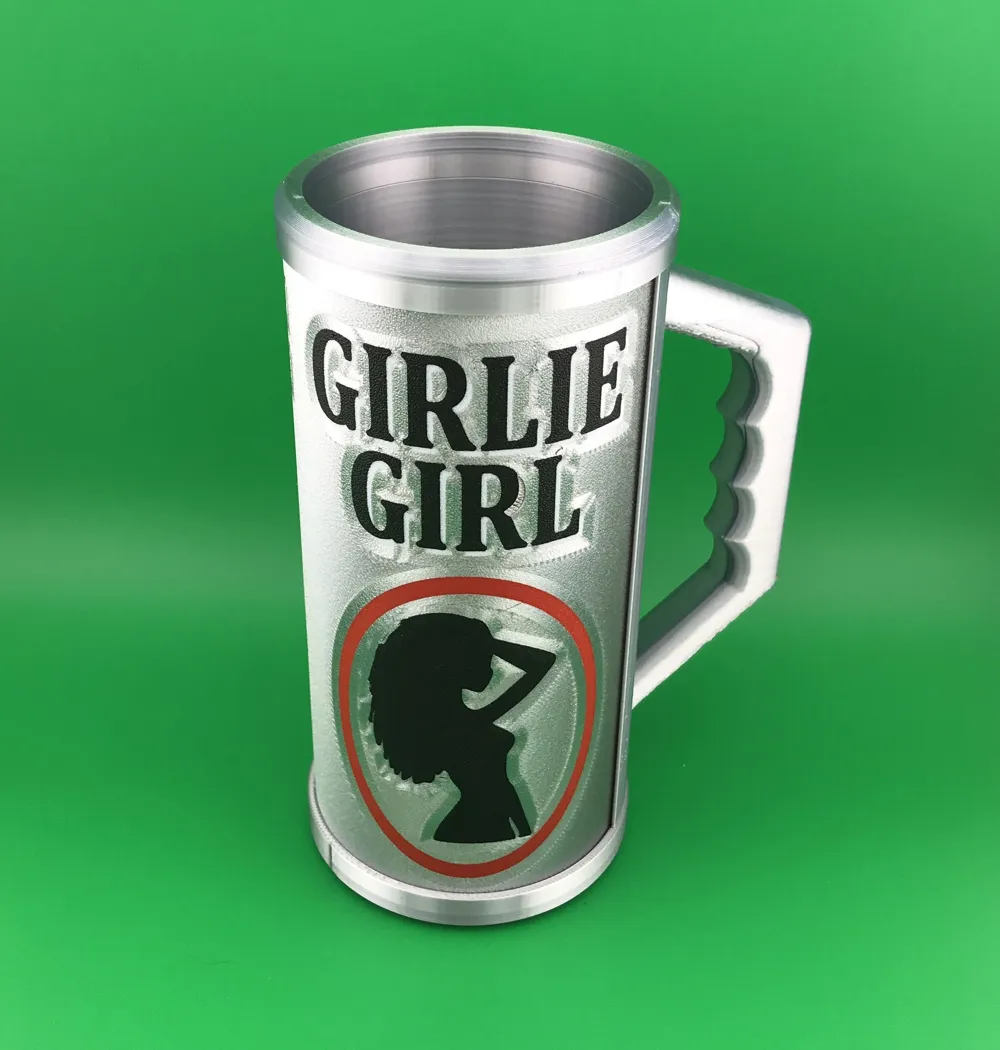
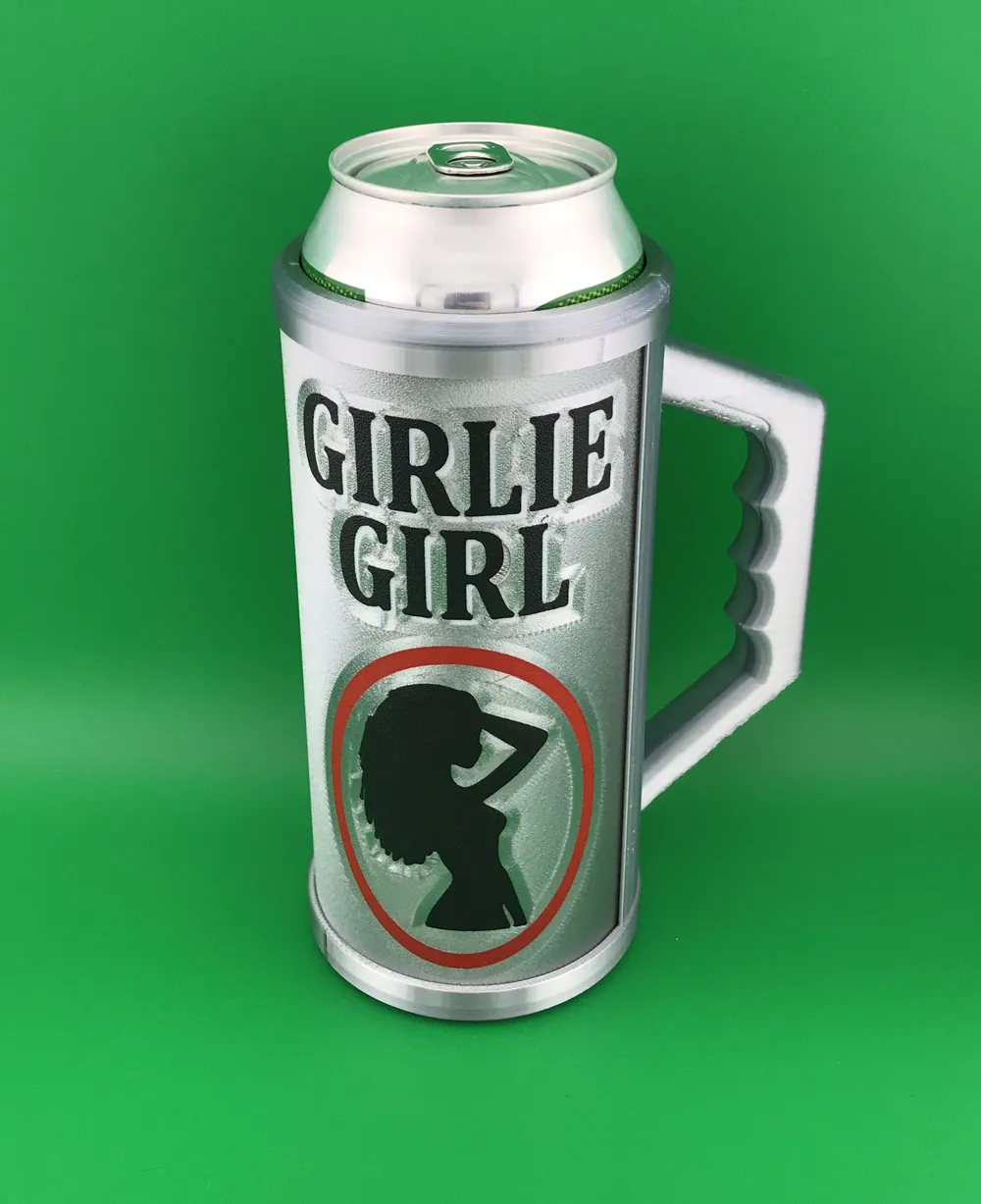
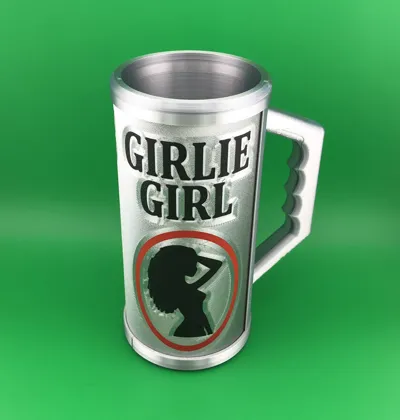
- a “Girlie Girl Beer” inspired insert
- a “No Ma’am” inspired insert
Perfect for:
- parties
- BBQs
- gifts
- man cave setups
- retro TV fans
- personalized beer accessories
Features:
- designed for standard 0.5L cans
- reusable interchangeable insert system
- easy to customize
- fast and filament-friendly print
- removable top ring for quick artwork changes
Create one holder — and swap the style whenever you want.
***
Tip: Combine it with a customized lid
https://makerworld.com/de/models/1506437-my-lid-customizer
🛠 How to Customize Your Own Text in Bambu Studio
Follow these simple steps to create your personalized sleeve using the template included in the print profile:
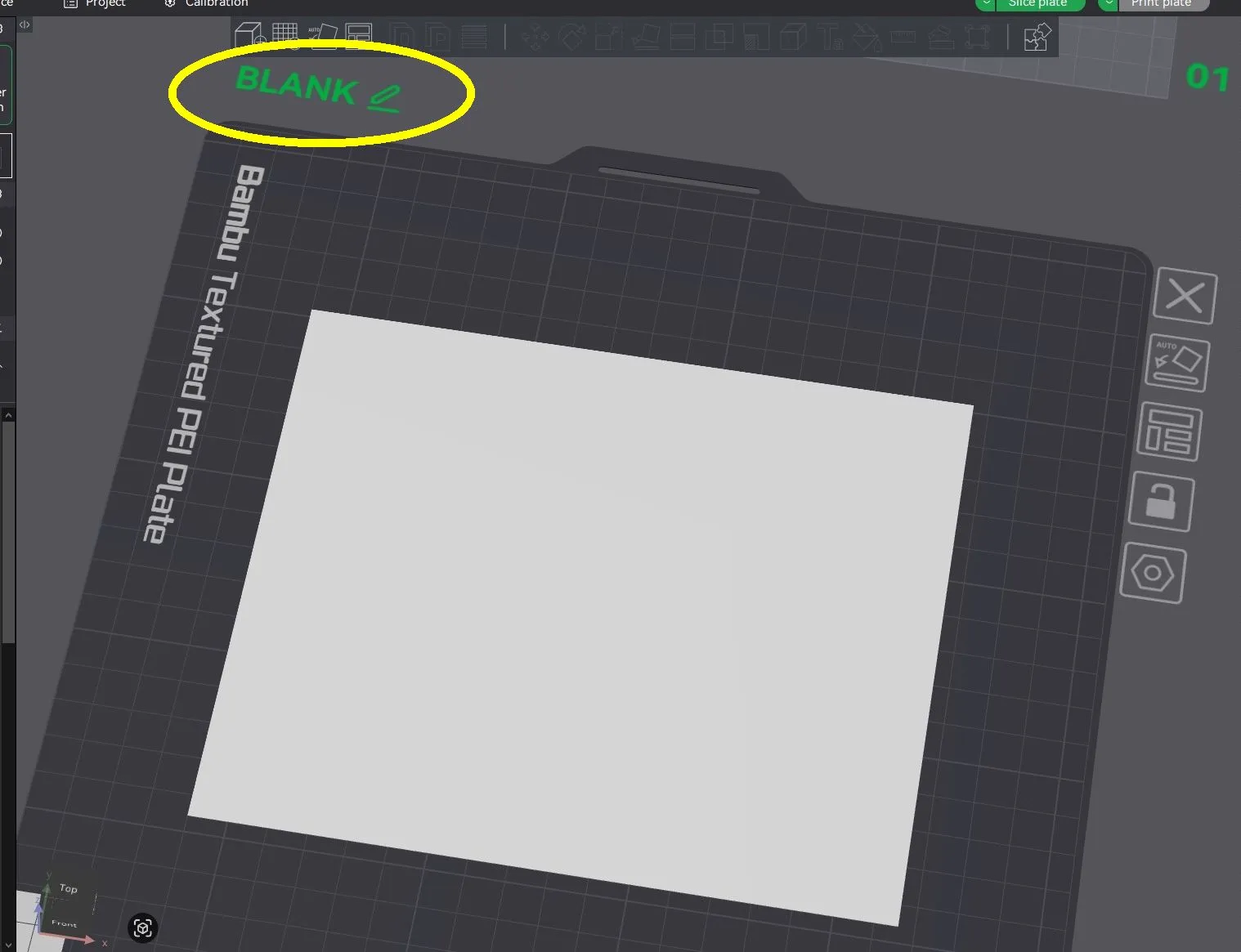
1. Choose the Template (Image 1)
Select the blank template named "BLANK" on the build plate.
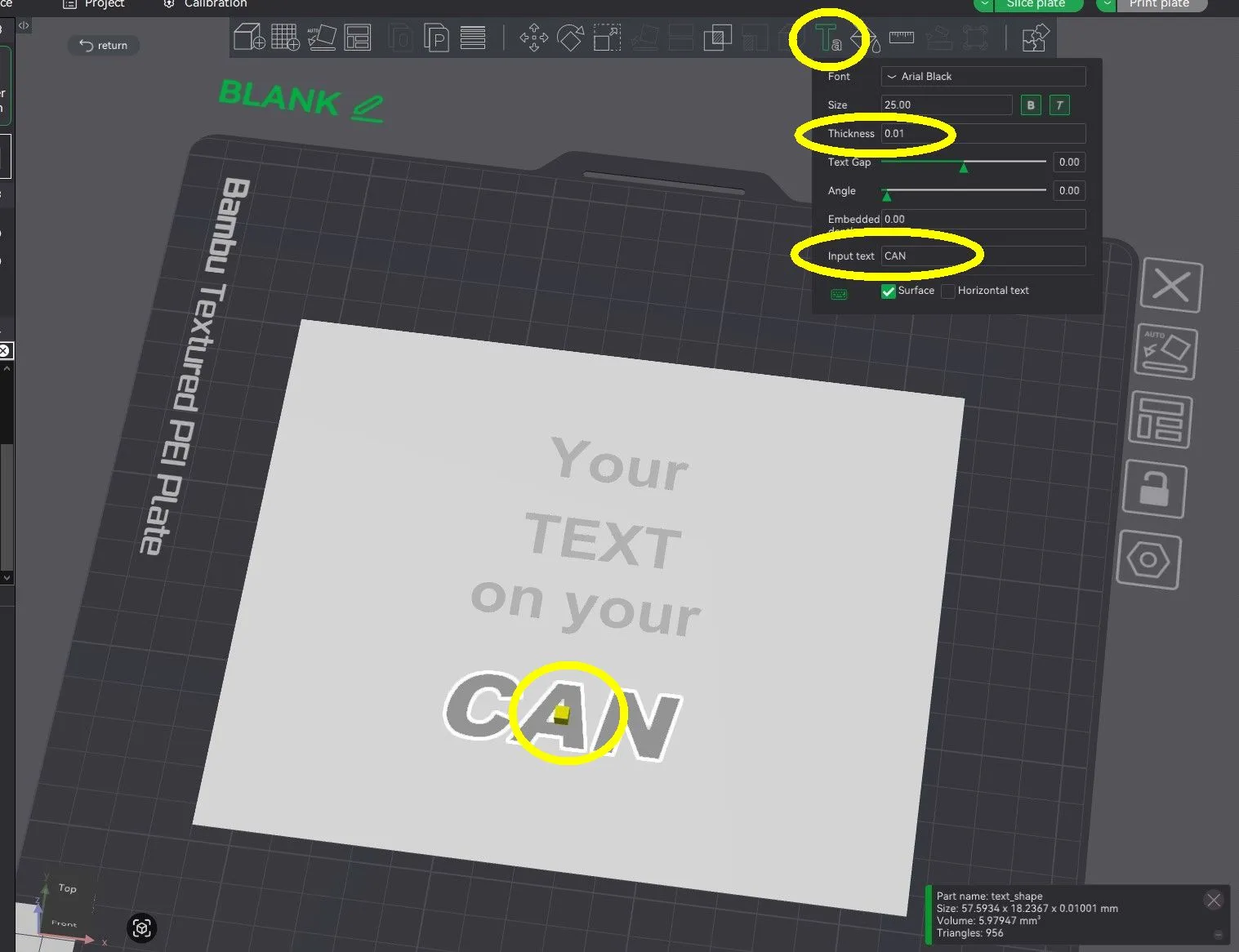
2. Insert Text (Image 2)
- Click the Text icon in the toolbar.
- Choose your desired font and font size.
- Set the thickness to 0.01 mm.
- Type your text and place it wherever you like on the template.
- Press "Return" to go back.
3. Add More Text Elements
Repeat the previous step for each additional text element you'd like to include.
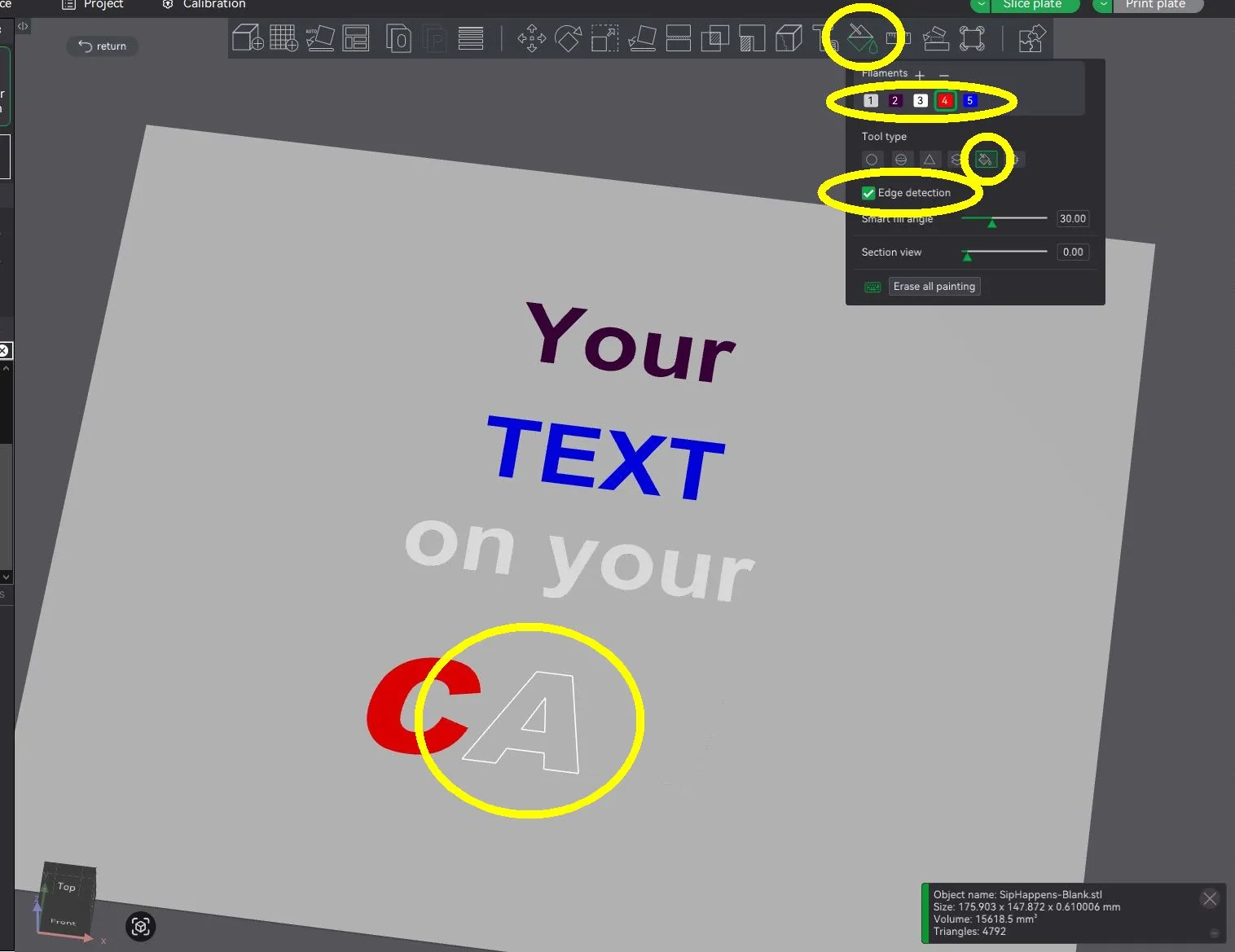
4. Apply Color (Image 3)
- Click the template again.
- Select the paint bucket icon from the toolbar.
- Choose your desired color, select the fill symbol, and enable edge detection.
- Hover over the surface — where the text is detected, you can now fill it with color.
- Once you're done coloring, press “Return” to exit.
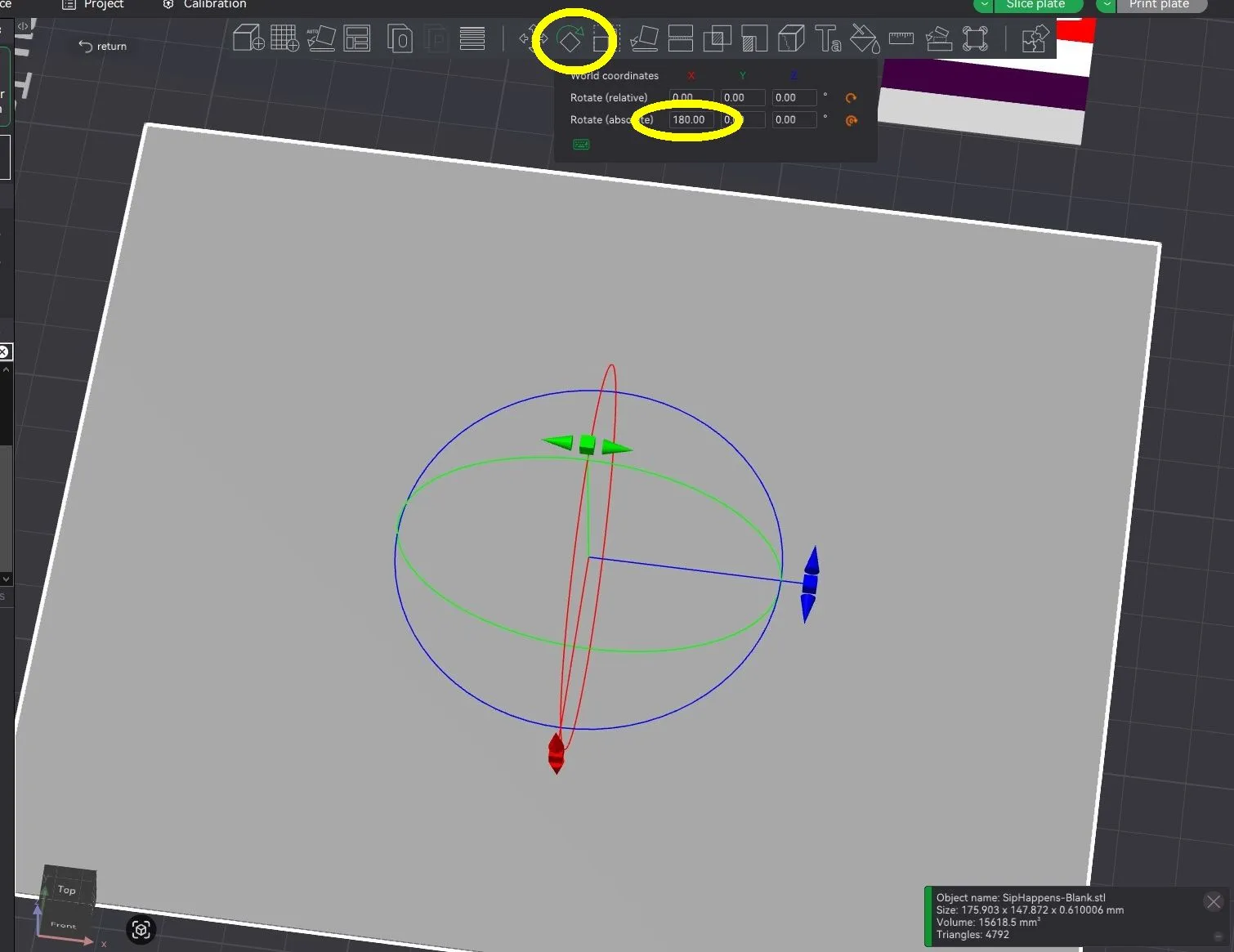
5. Rotate 180 Degrees (Image 4)
- Click the object once more.
- Choose the rotation icon from the toolbar.
- Rotate the object 180° along the X-axis.
- This flips the text so it’s correctly mirrored for printing in perfect quality.
6. Slice
Proceed to slice the model as usual.
7. Print
Start your print and enjoy your fully customized design!
Boost Me (for free)
Small click, big smile 😊.
License

You shall not share, sub-license, sell, rent, host, transfer, or distribute in any way the digital or 3D printed versions of this object, nor any other derivative work of this object in its digital or physical format (including - but not limited to - remixes of this object, and hosting on other digital platforms). The objects may not be used without permission in any way whatsoever in which you charge money, or collect fees.


Comment & Rating (0)