
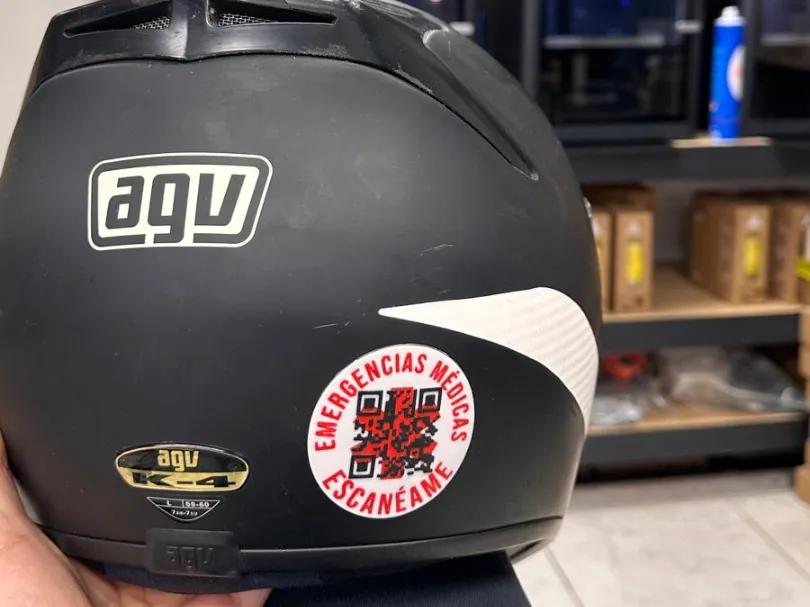
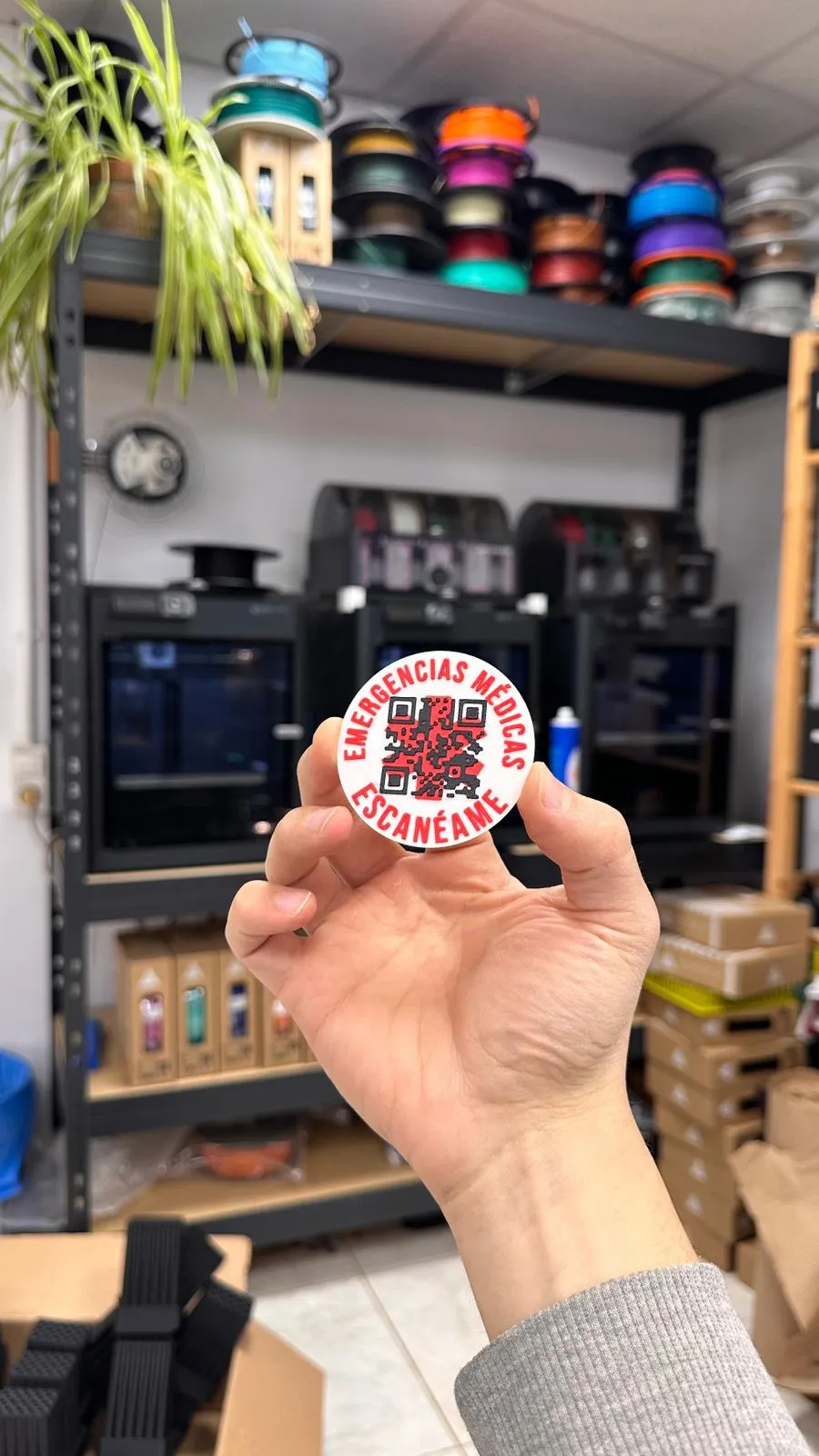
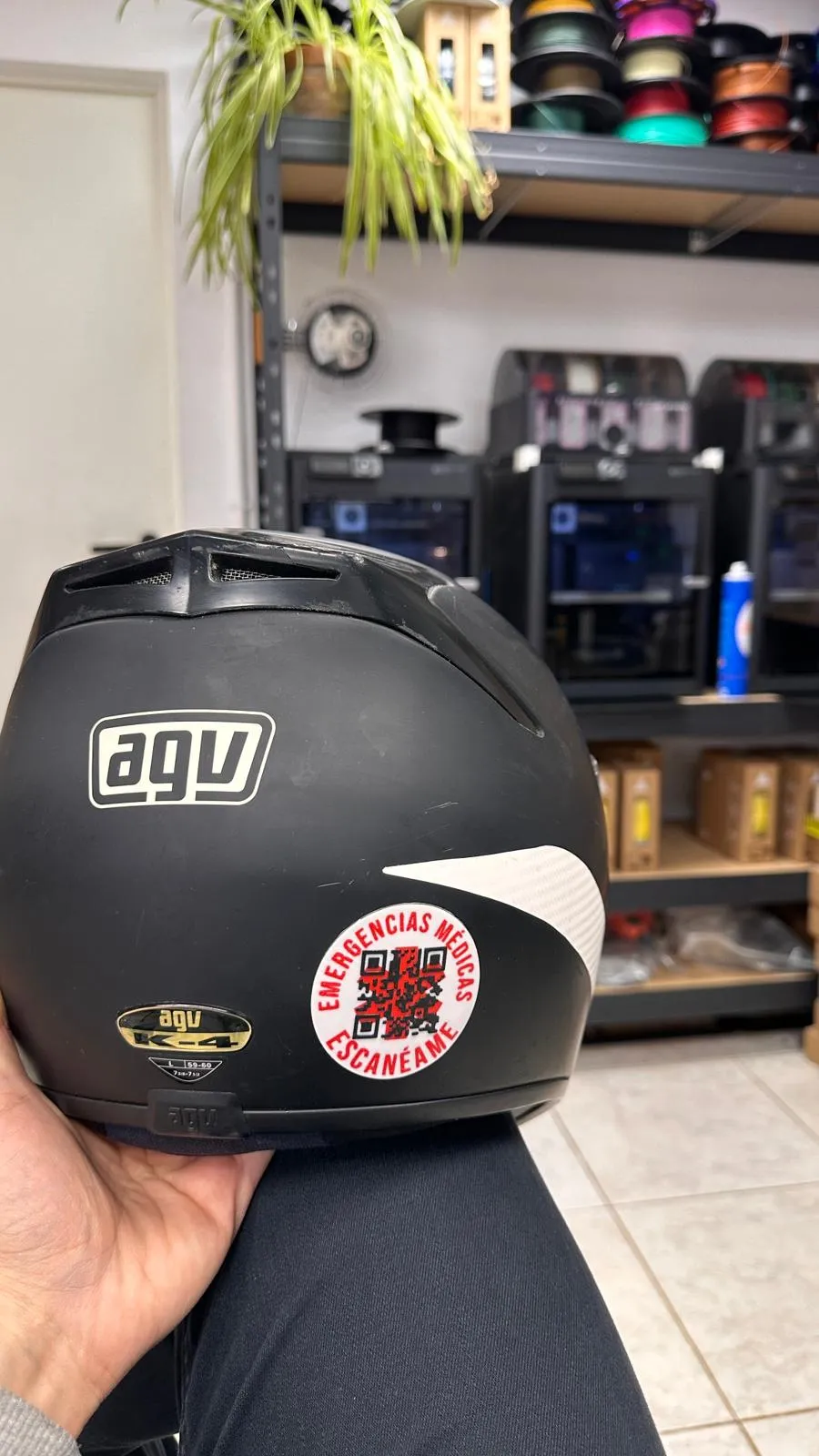
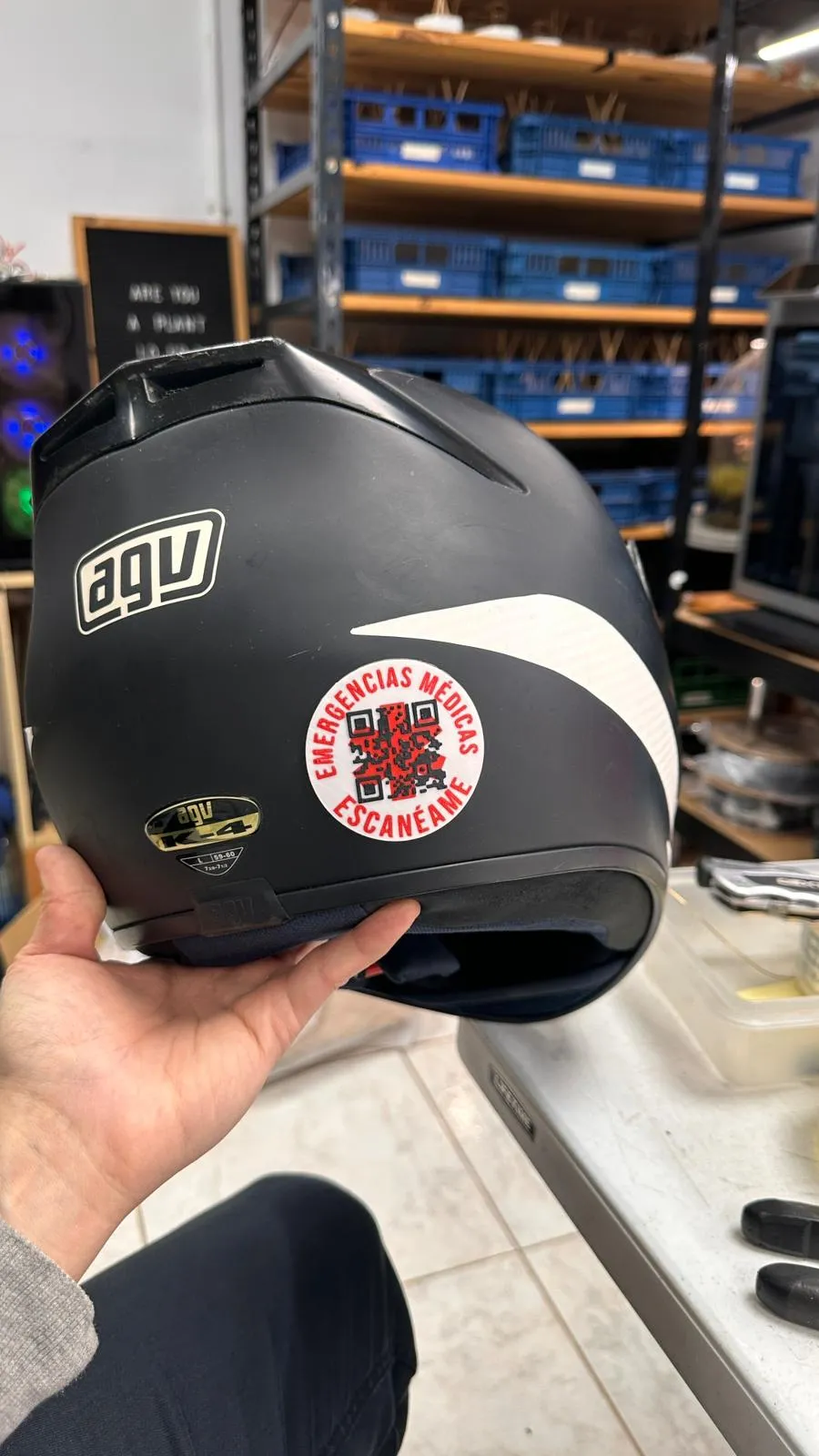
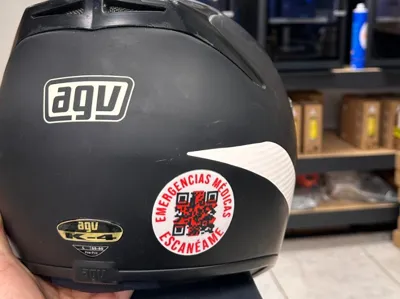
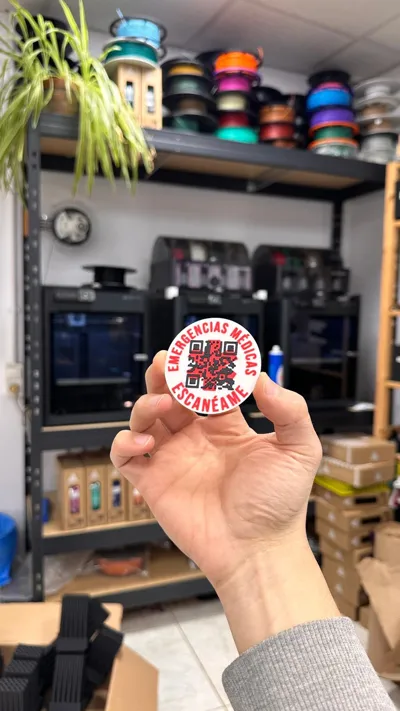
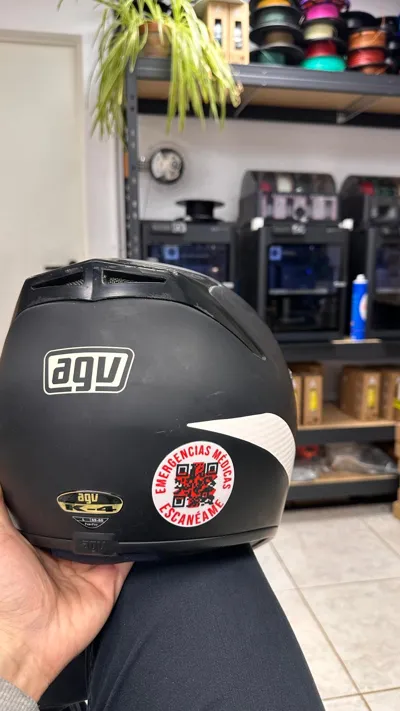
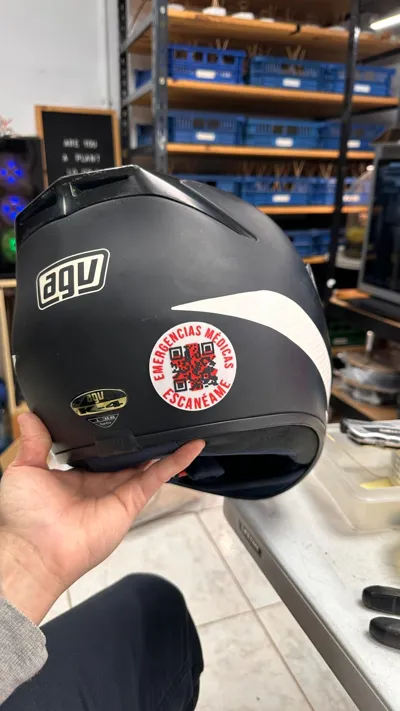
QR health emergency label
Print Profile(1)
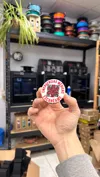
Description
Guide on how to create a medical emergency label
STEP 1 Create a Word document in Google Drive with the biker's medical emergency data. Ideally, the biker should create it and give you the link. If not possible, create it yourself and ask for the link to grant editor permissions.
|
Recommended text example. If you like it, I'd say you can copy it, paste it into your Word document, and edit the data.
IMPORTANT: It is crucial that this file in Drive is never deleted. If that happens, the QR will stop working.
What we are looking for with this is to have a place where the information we want the emergency services to have, if necessary, is stored.
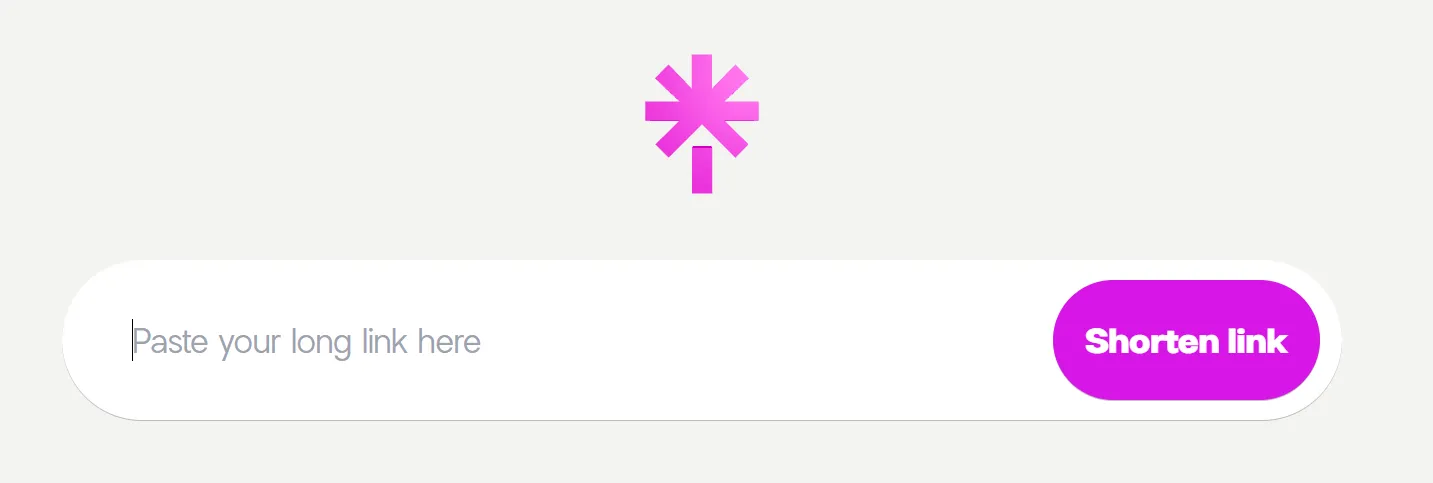
STEP 2 Once we have the link (URL), we will copy it and take it totr.ee. Go to the website and where it says “Paste your long link here”, paste your link and click “Shorten link”.
|
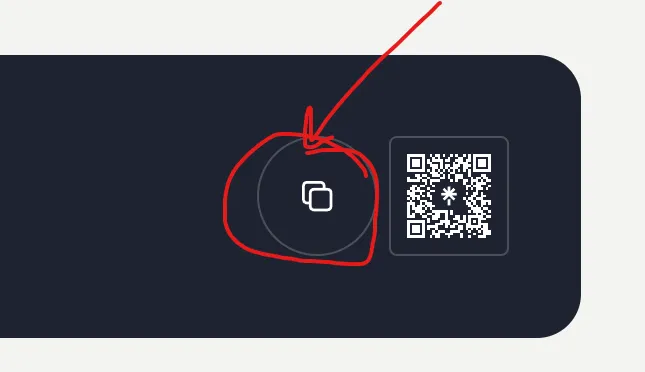 It is very important that you copy the link from that button I point to in red.
This serves to shorten the link's length. Thanks to this, the QR we generate later will have larger squares and will be easier to 3D print.
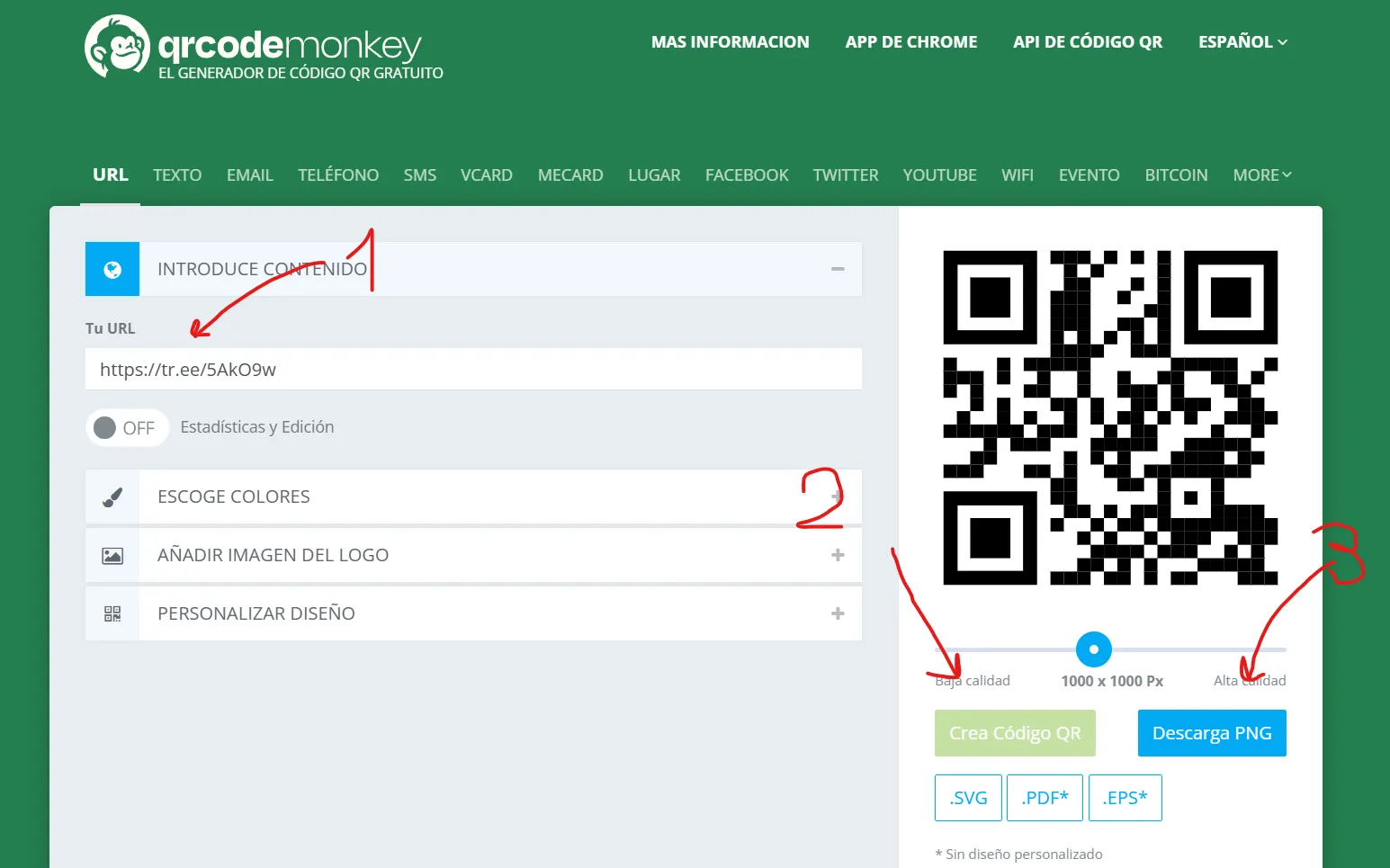
STEP 3 Once we have the shortened link, we will take it tohttps://www.qrcode-monkey.com/es/. Look at the image below and follow these 3 steps. In step 1, paste the link. Then click “Create QR Code” and then click “Download PNG”.
|
STEP 4 Once we have the QR in PNG format, we will go tohttps://convertio.co/es/png-svg/. Here we will convert the QR from image to SVG.
|
SVG is the necessary format to integrate it into the slicer and be able to print it with volume.
STEP 5 We go to the model published on MakerWorld and click the purple button “Boost Me (for free)” 🙏🏼🙇🏻♂️ then open the design with Bambu Studio. |
Boost Me (for free)
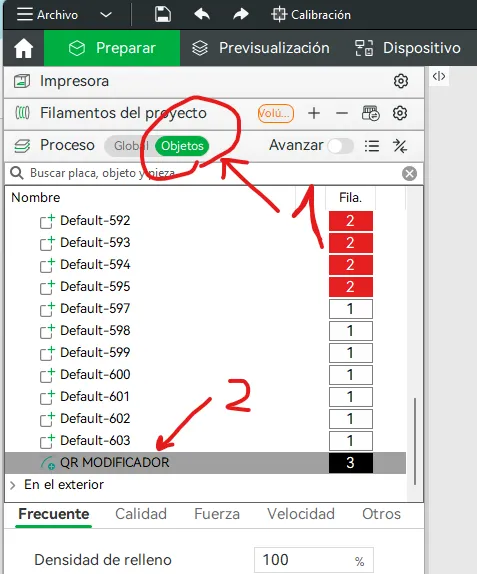
STEP 6 In the “Process” tab, select “Objects”. Scroll down until you find the “QR MODIFIER” element. Right-click and select Edit SVG.
|
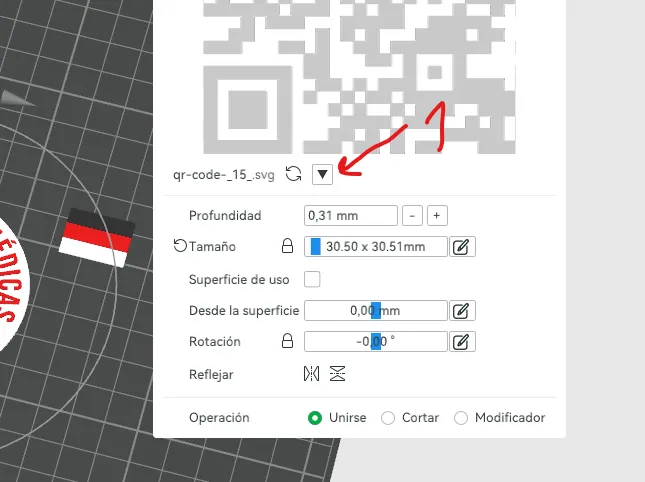
STEP 7 In the image below, you will see the down arrow button that you need to click. Then click “Change file” and select your QR's SVG file to replace mine. |
STEP 8 And that's it, slice it and send it to print. Please, if it was useful, don't forget to give me a Boost. You'll help me a lot. |
License

You shall not share, sub-license, sell, rent, host, transfer, or distribute in any way the digital or 3D printed versions of this object, nor any other derivative work of this object in its digital or physical format (including - but not limited to - remixes of this object, and hosting on other digital platforms). The objects may not be used without permission in any way whatsoever in which you charge money, or collect fees.


Comment & Rating (6)