
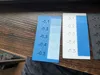
Two colour filament layering test swatches
Print Profile(3)

Description
🎨 Colour layering test swatch 🎨
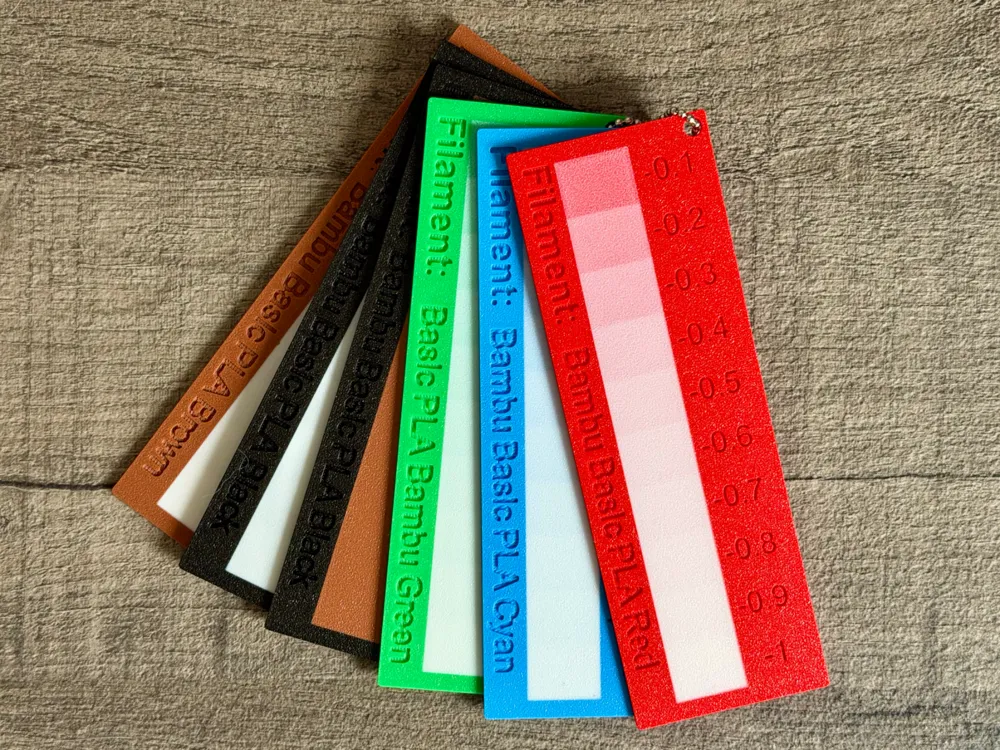
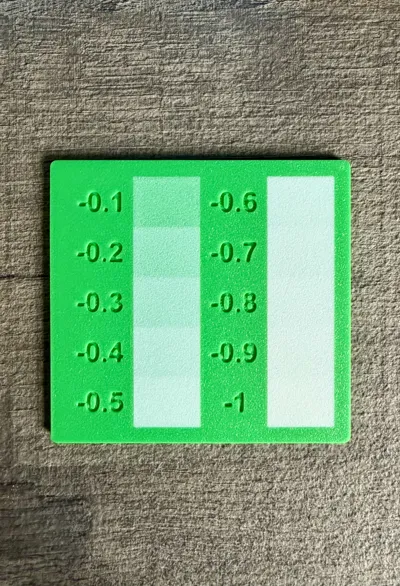
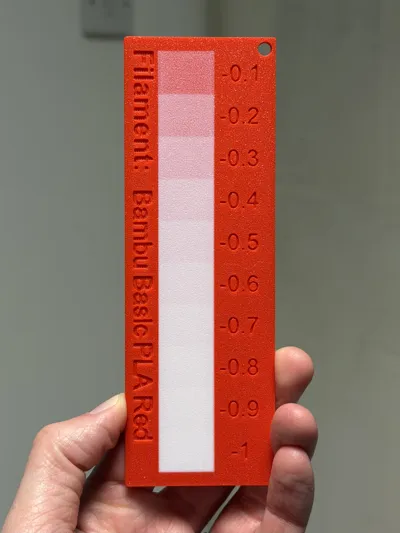
This swatch is designed to help you explore what happens when you layer one filament colour over another at different thicknesses. As the top layer increases, the underlying colour subtly shifts, creating a range of tones and shades using just two filaments.
It’s a simple but powerful way to unlock more visual depth in your prints without needing a full palette of materials, it's also something simple to do in your CAD software, rather than needing extra software.
You now have two print profile options included:
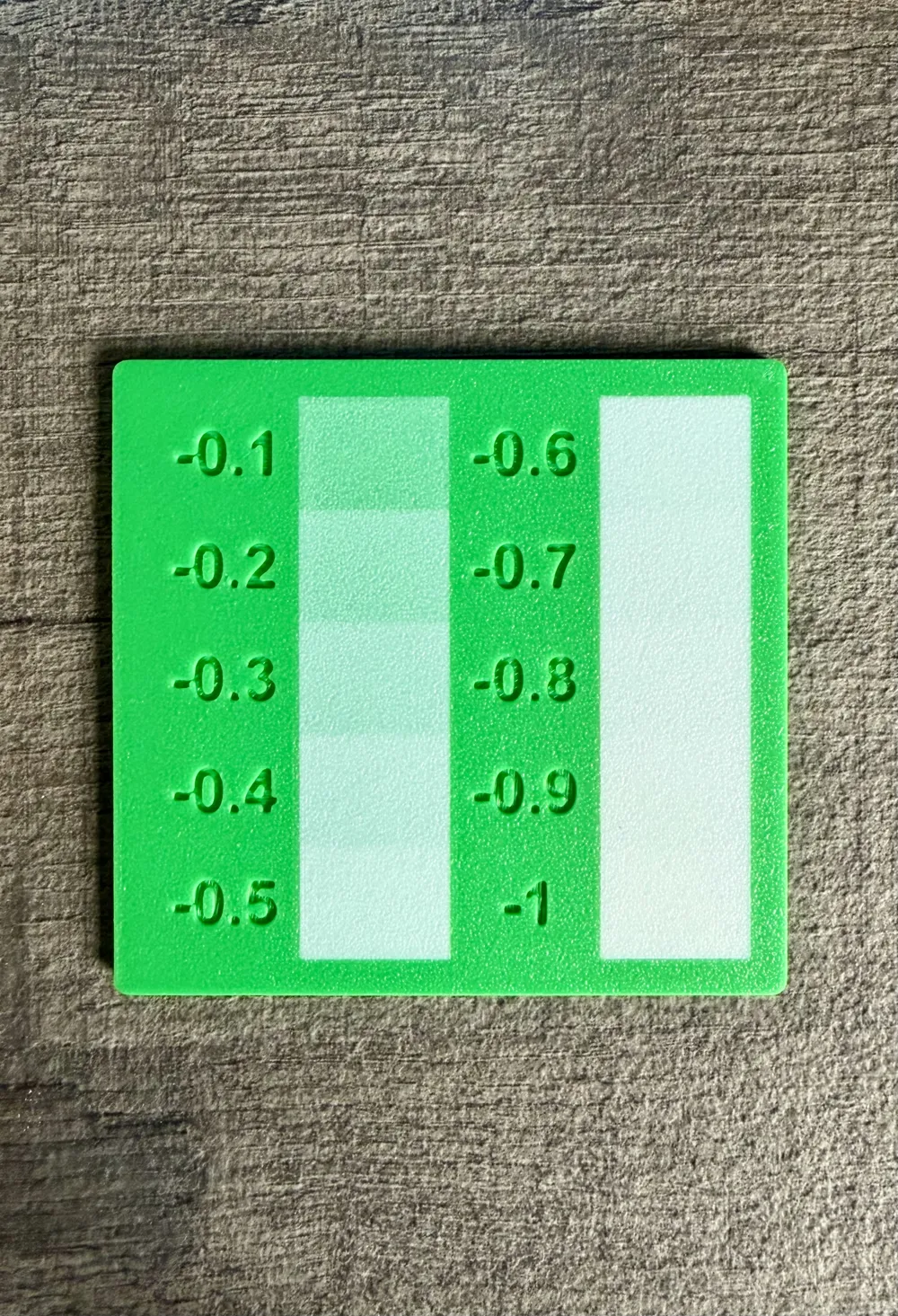
- Two rows, small profile – shows incremental thickness changes across separate sections for clear comparison
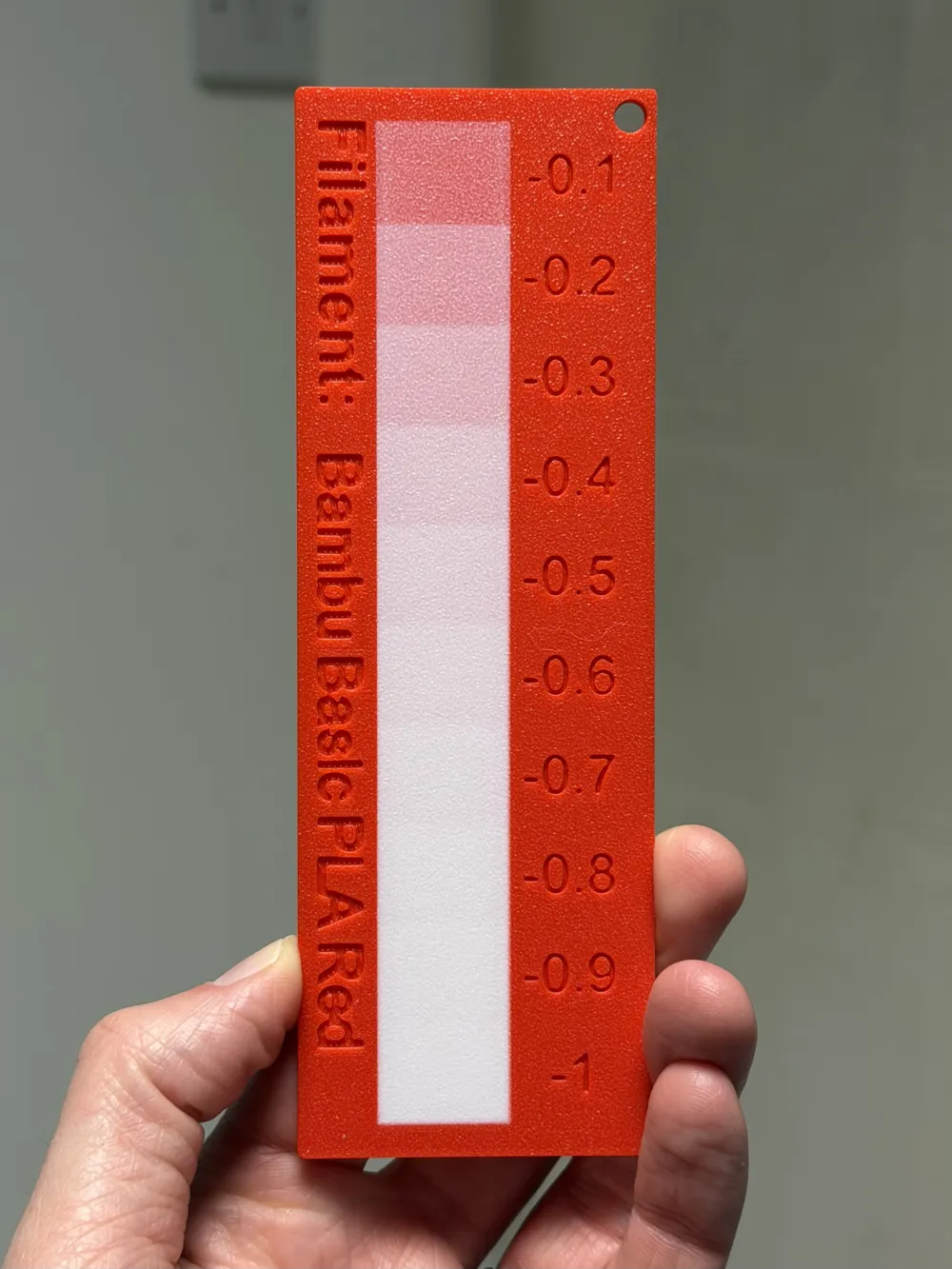
- One row, customisable (new) – displays a smooth progression from faint to full colour in a single row, making it easier to visualise transitions at a glance
The new version also includes:
- A keyring cut-out to help store your colour layer swatches
- Customisable text, allowing you to label the base filament colour used for the test
The swatch patches start at a 0.10 mm top layer and gradually increases up to 1.0 mm. Beyond 0.9 mm, the difference becomes extremely difficult to distinguish (especially when using white over a darker base), so this range gives you the most useful and visible results.
By testing and understanding these layered tones, you can bring that HueForge-style approach into your own CAD workflow. Instead of relying purely on colour swaps, you can design depth into your models, extruding features at specific heights to achieve different shades from the same two filaments.
The included 3MF is set up with:
- A base part labelled Background Colour
- Top layer parts (defaulted to white) increasing in thickness across the swatch, each labelled with the depth used.
You can:
Change colours at the object level in Bambu Studio
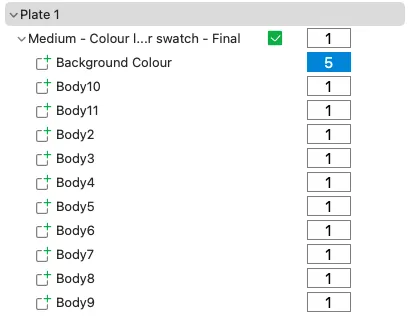
Or
Simply swap filament assignments at the print screen, which is usually the quickest option
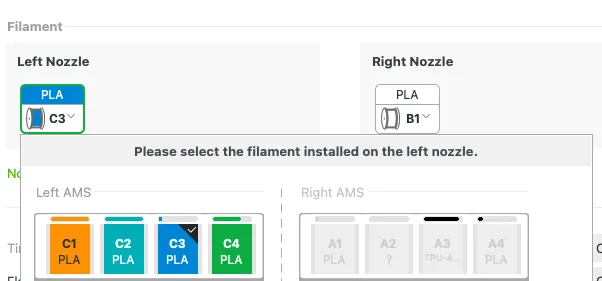
The end result is a clean, easy-to-read reference swatch showing exactly what tones you can achieve, ready to apply directly into your own designs.
Boost Me (for free)
🎨 If this print if helpful to you, please consider a boost as a way to support me on here 👨🎨
·····
✏️ Customising your swatch
You can easily adapt this swatch to test different filament combinations or expand your own reference library.
Changing colours
- Open the 3MF in Bambu Studio
- Select the parts in the object list
- Either (pictures above for both options):
- Change colours at the object level, or
- Swap filament assignments at the print screen
💡 Swapping at the print screen is usually quicker when testing multiple combinations.
Editing the custom text (one row)
Select the Filament Name object in the object list
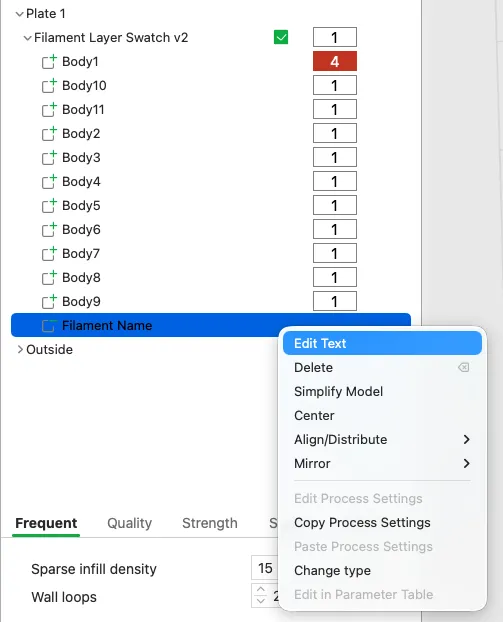
- Right-click and choose Edit Text
Enter your desired label (e.g. “PLA Black”, “Matte Grey”, etc.) within the Input text field - Font size is set at 9 and font is Arial (bold). If you are going to adjust these, please slice and ensure they still fit as exptected.
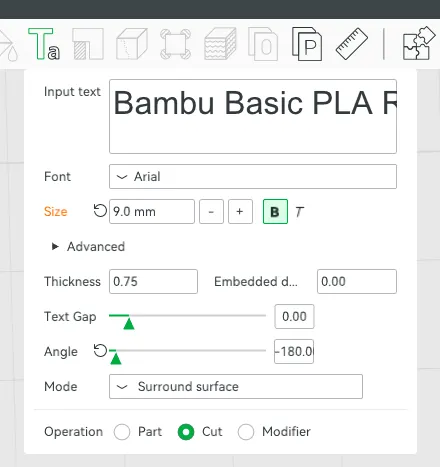
- Confirm the changes
💡 Keep the text short for best results and readability.
Checking positioning
- Ensure the text sits flush with the model surface
Use the move tool as appropriate to centre / position the text
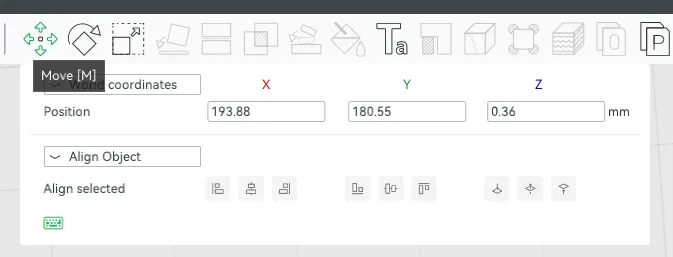
Final step
- Save your project before slicing to keep your customised version
·····
🎨 Using this technique in your own designs
At the design stage
- In your CAD software, design your model as normal
- Extrude areas of your design downwards (negative direction) to create layered depth (as New Body's, rather than Cuts)
- Use the swatch as your reference for what thickness produces which shade
Matching slicer settings to your design
Once your design is ready, your slicer settings must match your extrusion depths:
- Your layer height (and initial layer height) should match your smallest extrusion depth
- Example: if your shallowest feature is -0.1 mm, set:
- Layer height: 0.1 mm
Initial layer height: 0.1 mm
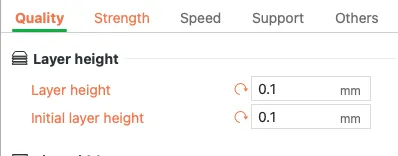
If these don’t match, your layers won’t align with the intended colour transitions, and the effect will be lost.
Shell thickness setup
Depending on how you orient your model:
- Face down (design against the build plate):
Set Bottom Shell Thickness to 2 mm
This ensures full coverage for up to -1 mm extrusions and gives a solid background colour - Face up (design on top):
Set Top Shell Thickness to 2 mm
This ensures the layered effect is properly formed from above
💡 Keeping this consistent ensures clean, predictable colour results across your designs.
·····
🔥 Tips before you start
Having a clean print bed and hot end(s) free from filament is essential in getting that crisp, clean look. Here's some tips on what to do to get the best print possible;
🧼 Cleaning
Clean your plate first, following your usual routine. Dish soap works best, clean and then rinse thoroughly, ensure the plate is dry and free of debris before putting back in the printer.
Leftover filament residue on your hot end can cause unwanted colour streaks, which will show very clearly against the lighter layered areas of the print. Please inspect your hot end before starting the print, if you spot any clumps or leftover filament, follow Bambu's recommended cleaning guide to remove.
👀 Watch the first layers
Even with the best pre-printing cleaning routine, filament can sometimes surprise you and some small strands can sometimes get dragged into areas they shouldn’t be. Watch the first couple of layers go down, if you spot any potential colour bleed, you can pause and remove any stray filament from where it shouldn't be.
·····
🖨️ Printing setup
This model is designed as a two-colour layered print and works best with an AMS.
Build plate
- Any - My preference is to print face down on Textured PEI for these decorative style prints.
- Ensure the plate is clean to maintain sharp colour transitions
Filament setup
- Slot 1: Background colour (darker colours work best for contrast)
- Slot 2: Top colour (white or lighter tones recommended for testing)
Notes
- The swatch is pre-configured with correct layer heights for each section
- Avoid modifying Z heights unless you want to experiment further
- Printing a selection of these with different background colours to have to hand will make design choices easier when modelling with CAD.
·····
🧰 Troubleshooting
Model Doesn’t Match Preview / Wrong Colours / Odd Layout
If your model looks misaligned, missing colours, or prints incorrectly, please make sure you are using the supplied 3MF print profiles, not the raw STL or STEP files.
The 3MF files contain all the model specific tuning, including:
- Correct object positioning including Z height
- Colour allocations
- Layer Height settings
- Print specific adjustments
To use them properly:
- Either click “Open in Bambu Studio” directly from MakerWorld,
- Or download the .3MF file and open it manually in Bambu Studio.
Avoid using the raw STL or STEP files unless you specifically want to rebuild your own profiles, they do not include the tuned print settings.
License

You shall not share, sub-license, sell, rent, host, transfer, or distribute in any way the digital or 3D printed versions of this object, nor any other derivative work of this object in its digital or physical format (including - but not limited to - remixes of this object, and hosting on other digital platforms). The objects may not be used without permission in any way whatsoever in which you charge money, or collect fees.


Comment & Rating (6)