
Sleeping Panda Page Holder


Print Profile(2)

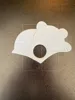
Description
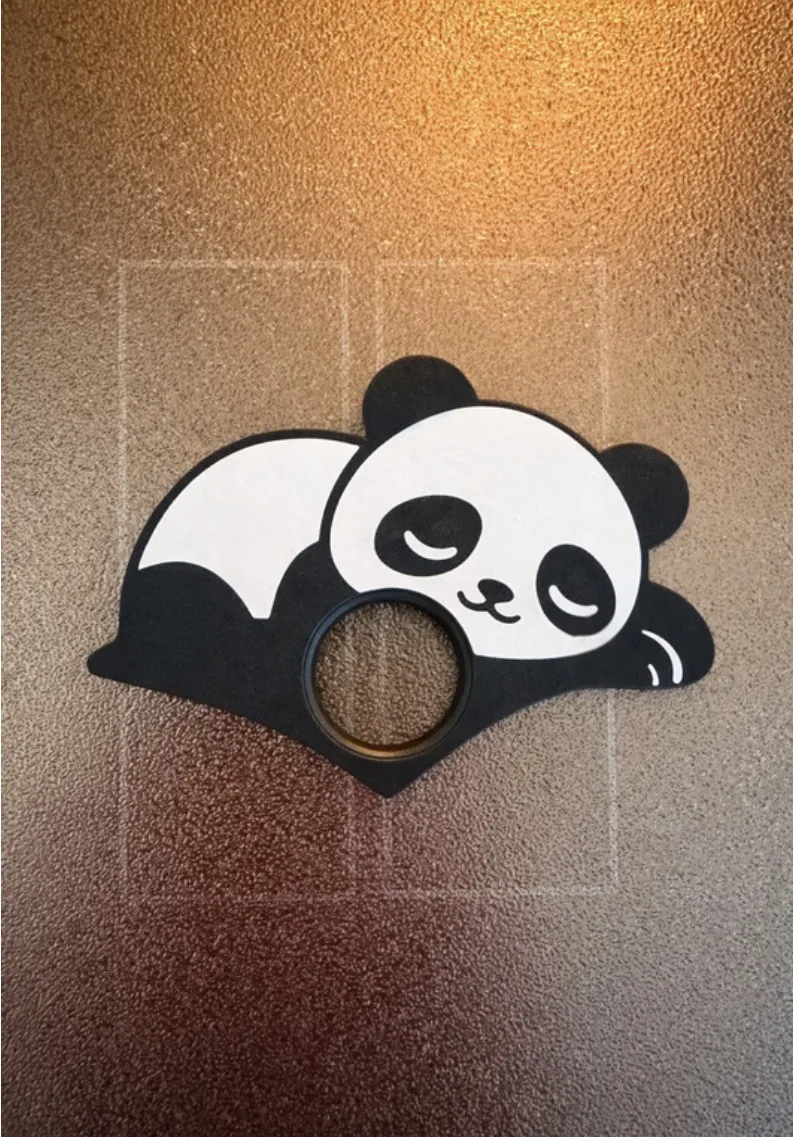
🐼 Sleeping Panda Page Holder – One-Handed Reading
Hold your book open with one hand—while a sleepy panda does all the work.
This Sleeping Panda Page Holder combines a cute, relaxing design with real functionality. The peaceful sleeping panda sits on top while a cleverly designed V-shaped base holds your pages open, making one-handed reading easy and comfortable.
✨ Features
- 🐼 Adorable sleeping panda design – perfect for cozy reading vibes
- 🎨 Optimized for multi-color printing – raised details bring the panda to life in 3D
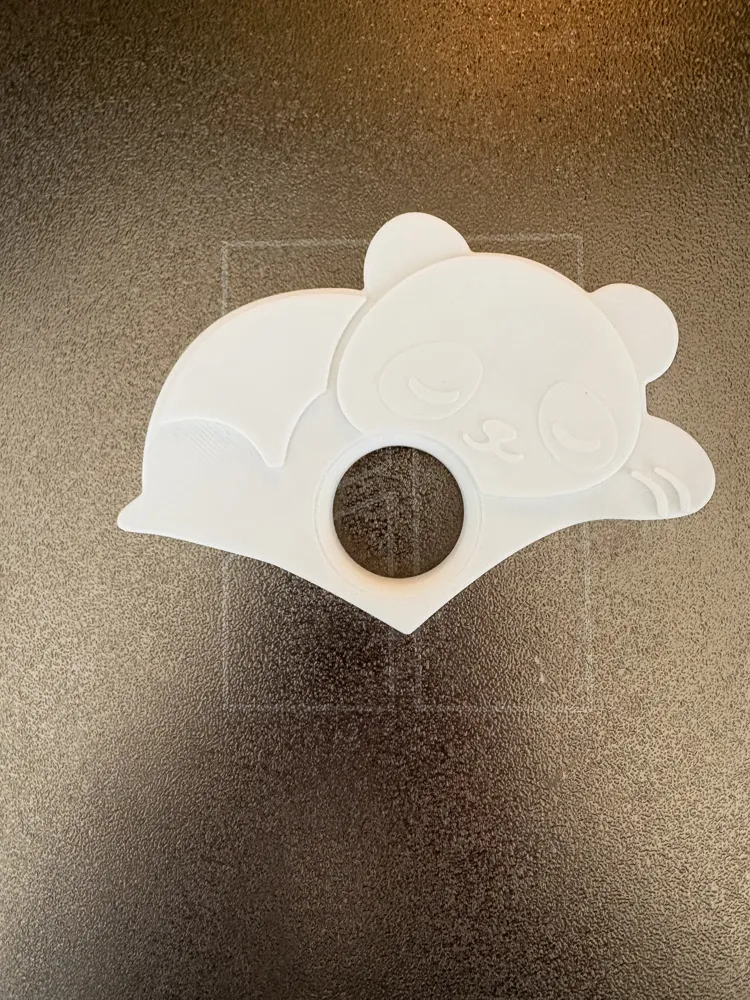
- ⚪ Also looks great in single color – clean and simple if you prefer a faster print or you don’t have a multi-color setup like an AMS
- 👍 One-handed reading – perfect for relaxing, commuting, or multitasking
- 📖 Works with all book types – especially helpful for paperbacks
- 👨👩👧👦 Great for all ages – functional, fun, and giftable
🧠 How It Works
Slide your thumb through the center hole, place the V-shaped base between your pages, and support the back of the book with your fingers.
When you gently squeeze your hand, the angled base pushes the pages outward—keeping your book open comfortably with just one hand.
📏 Size & Customization
- Default thumb hole: 25mm
- 🔧 Thumb hole size: customizable
- Default thickness : 11.1mm
- 🔧 Thickness: customizable
🎨 Customization Notes (Important)
⚠️ When you customize the model (such as adjusting thumb size or thickness), the multi-color settings may be removed.
You will need to reassign colors in Bambu Studio after making changes.
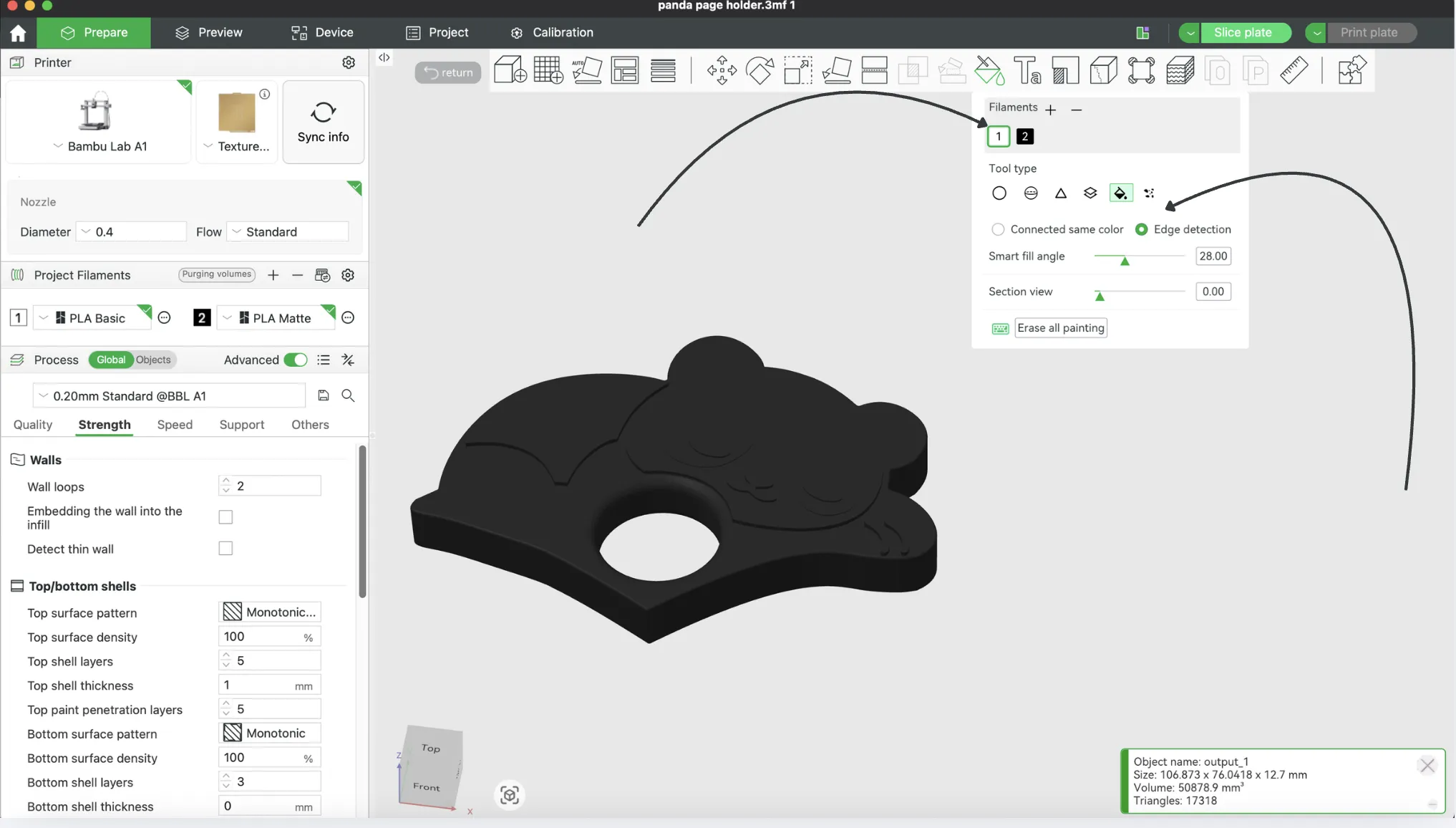
Import your model
Click the “Add” button in Bambu Studio and select your customized model.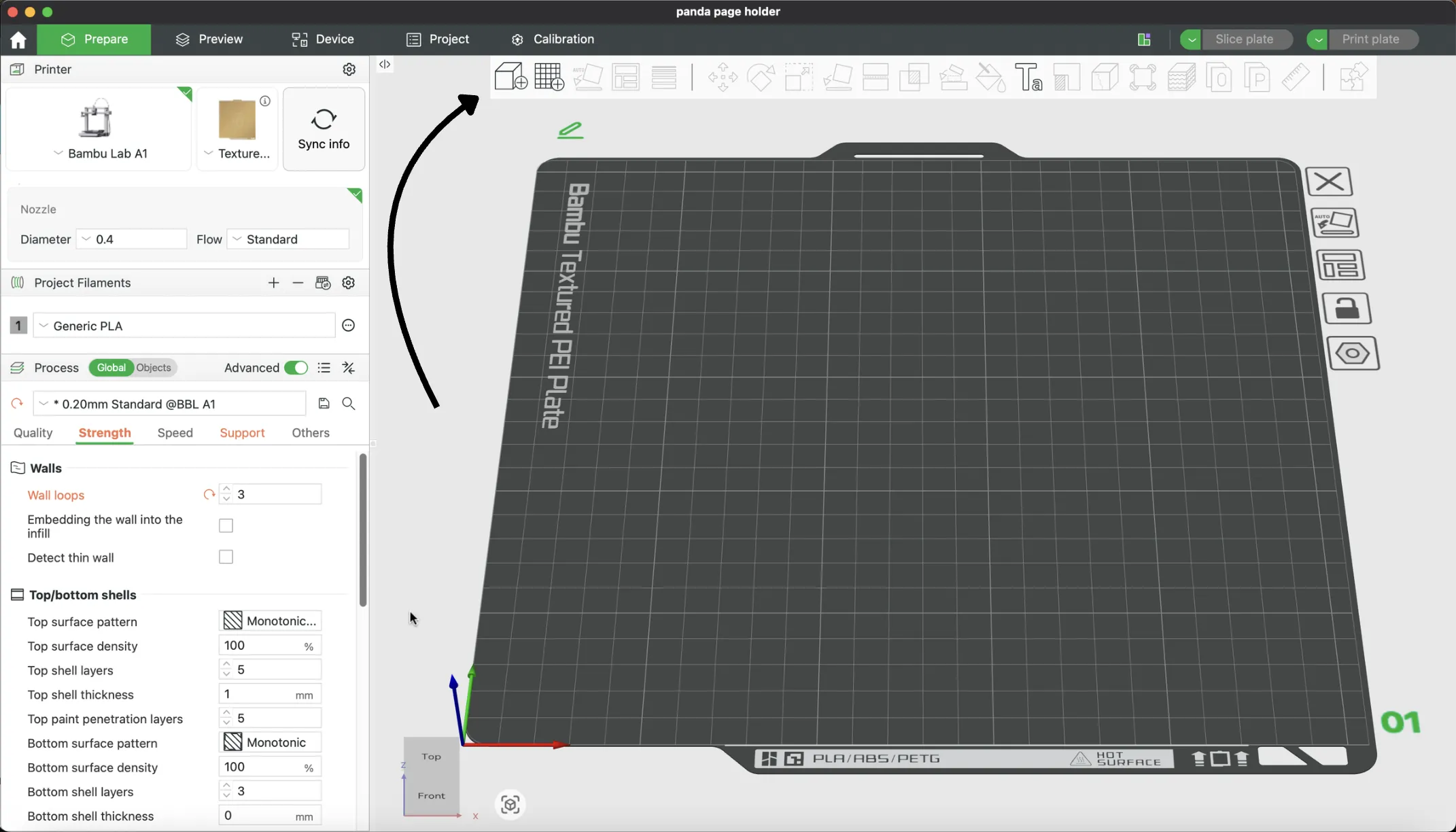
2. Open Color Painting Tool
Click the “Color Painting” button.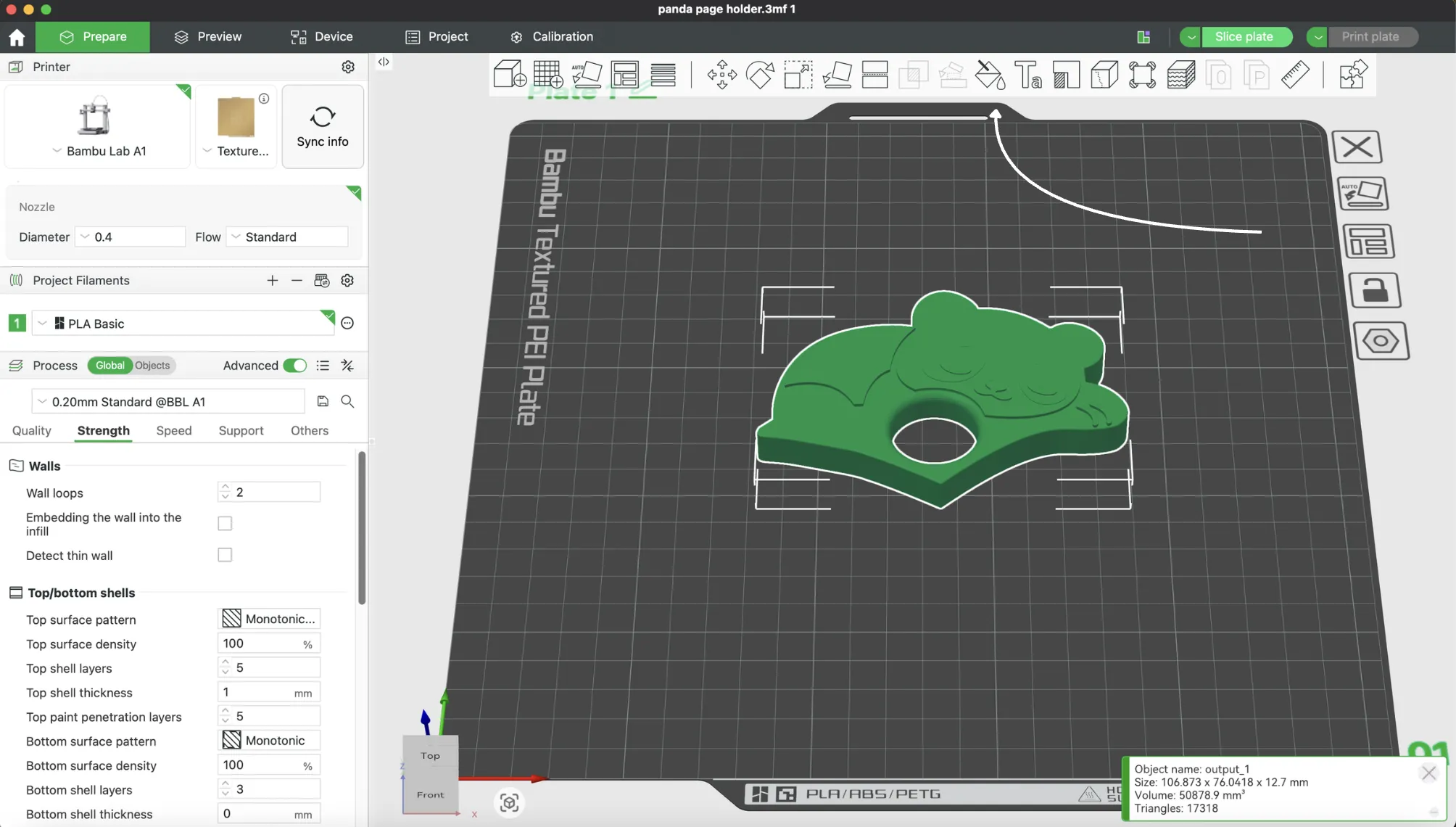
3. Apply Base Color
- Select the Fill tool
- Choose “Connected same color”
Select your base color and click the model
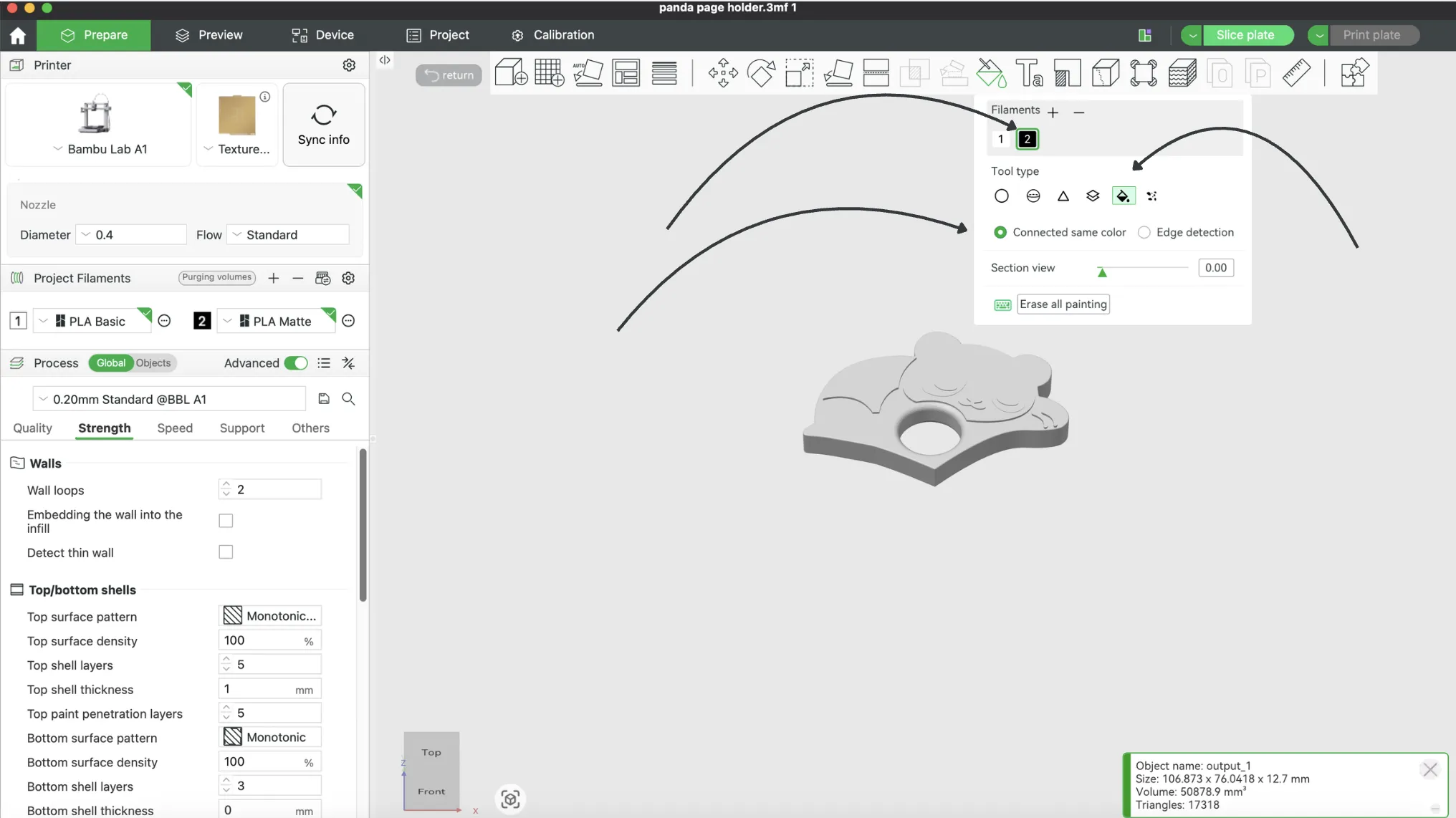
4. Add Secondary Colors
- Select your next color
- Use Edge Detection
- Click the areas you want to color
Once finished, slice and print as normal.
🖨️ Print Settings
- Layer height: 0.2mm
- Infill: 5%
- Walls: 3
- No supports needed
- Prints flat in a single piece
🎯 Use Case
Perfect for:
- Reading in bed
- One-handed use
- Kids and adults
- Easy, thoughtful gifts
❤️ License / Support
This model is free to use, including for commercial purposes.
If you do sell prints, I’d really appreciate a small credit like:
“by Sean Essex (Essex Labs)”
Totally optional—but it helps support my designs and means a lot 🙌
License



Comment & Rating (7)