
Fully Customizable Multi-Slider (multiple questions)
Print Profile(1)
Description
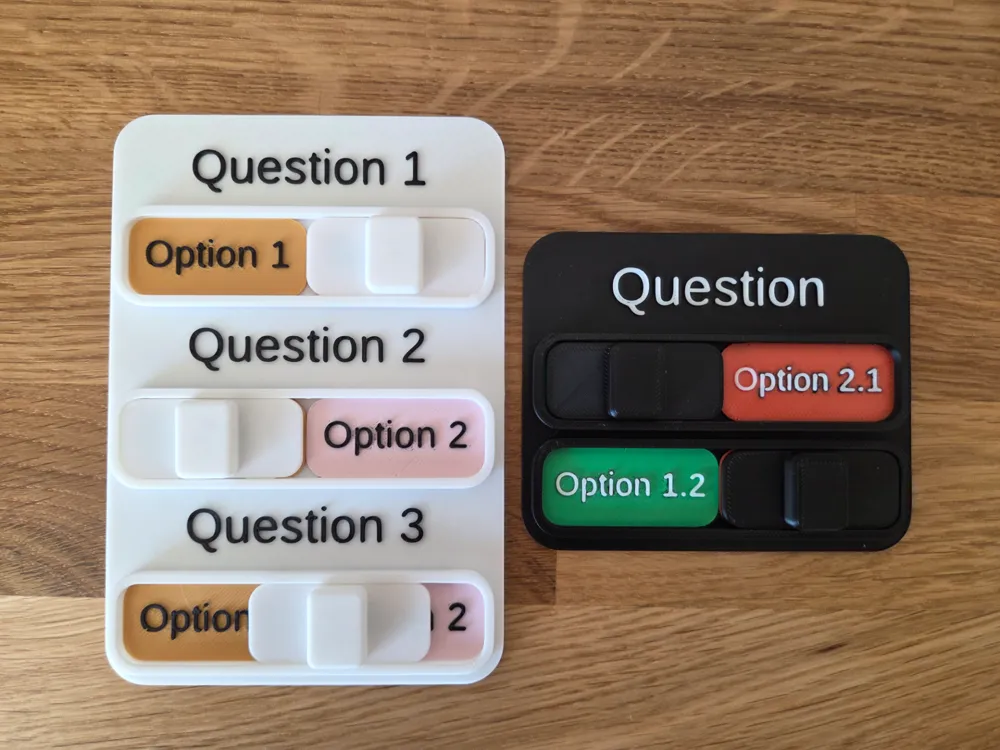
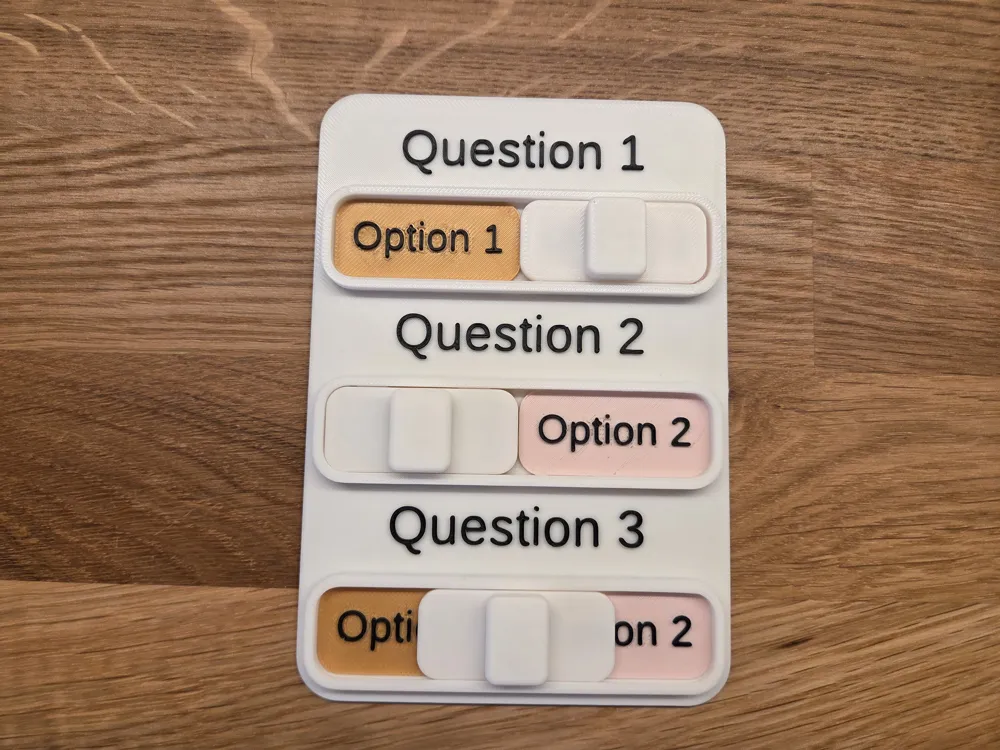
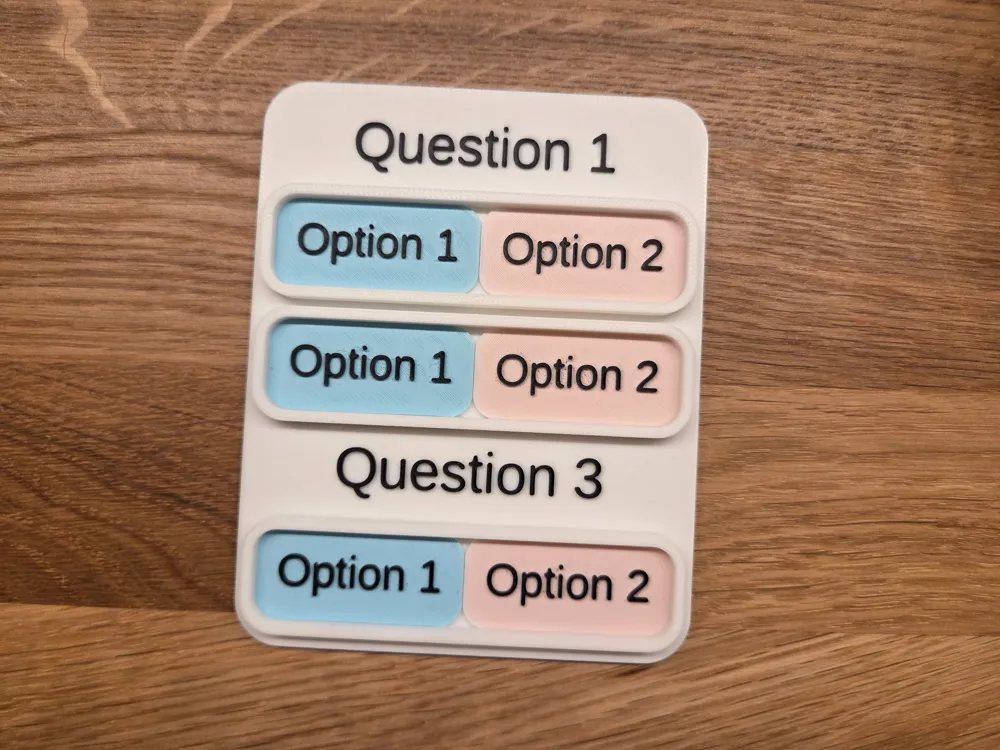
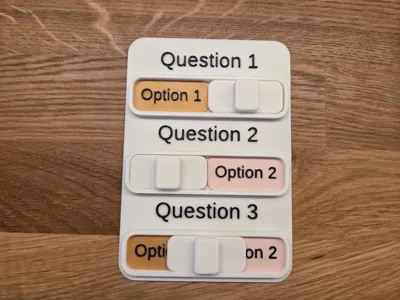
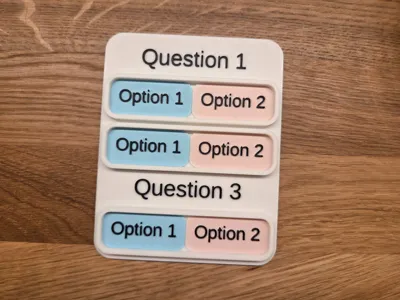
A modular multi-slider that allows you to combine multiple questions or choices on a single plate.
All texts, sizes, and spacing can be changed directly via the "Customize" button.
Ideal for:
- Voting
- Ratings
- Decision aids
- Games
- Teaching
⚙️ Features
- Multiple sliders in one model
- Freely customizable titles and option texts
- Separate text sizes possible per entry
- Automatic adjustment of text height below the groove
- Clean, rounded geometry
- Parametric, usable without CAD knowledge
🖨️ Print Notes
- No support structures needed
- Standard PLA works well
- 0.2 mm layer height recommended
- 10–20% infill is usually sufficient
🛠️ How the multi-slider works
Every entry separated by ; in your lists creates a slider.
These sliders are automatically arranged one below the other.
Slider structure:
[Title]
[ Left ◉──────◉ Right ]
Example:
Titles = "Question 1;Question 2;Question 3;"
LeftTexts = "Yes;Good;Team A"
RightTexts = "No;Bad;Team B"
➡️ This results in 3 sliders one below the other.
✂️ The Separator
By default, entries are separated by ;.
This means:
- first entry = first slider
- second entry = second slider
- third entry = third slider
The lists are therefore always positionally linked.
Example:
Titles = "Question 1;Question 2;Question 3;"
LeftTexts = "Yes;Good;Team A"
RightTexts = "No;Bad;Team B"
Assignment:
- Slider 1 → Question 1 | Yes | No
- Slider 2 → Question 2 | Good | Bad
- Slider 3 → Question 3 | Team A | Team B
➖ Remove Sliders
If you want fewer sliders, simply enter fewer entries.
Example:
Titles = "Question 1;Question 2;"
LeftTexts = "Yes;Option A"
RightTexts = "No;Option B"
➡️ This results in 2 sliders.
⛔ Hide Title
If a slider should not have a title, leave the corresponding entry blank.
Example:
Titles = "Question 1;;Question 3;"
➡️ Result:
- Slider 1 with title
- Slider 2 without title
- Slider 3 with title
So, the empty field between two separators means:
Slider present, but without title.
🔤 Adjust Text Sizes
You can assign individual text sizes for each slider.
Example:
MainTextSizes = "9;10;8"
LeftTextSizes = "7;7;6"
RightTextSizes = "7;7;6"
This gives each slider its own font size.
Uniform Title Height for All
MainTextHeights = "0.8"
This value then applies to all titles.
💡 Tips
- It's best to use the same number of entries in all lists
- Shorter texts usually fit better
- Standard separator is ;
- Using the "Customize" button, you can quickly adapt the model to your own use case
⚙️ Briefly Explained
- Titles → Title above the slider
- LeftTexts / RightTexts → left and right option
- Separator → separates the entries, default is ;
- MainTextSizes → Font size of the titles
- LeftTextSizes / RightTextSizes → Font sizes of the options
- MainTextHeights → Height of the title lettering
- ButtonTextReliefPercent → Height of the button lettering, automatically limited to fit
License

You shall not share, sub-license, sell, rent, host, transfer, or distribute in any way the digital or 3D printed versions of this object, nor any other derivative work of this object in its digital or physical format (including - but not limited to - remixes of this object, and hosting on other digital platforms). The objects may not be used without permission in any way whatsoever in which you charge money, or collect fees.


Comment & Rating (6)