
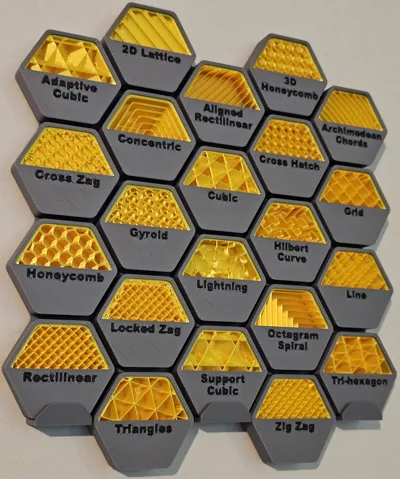
Bambu Studio Infill Comparison Display - All 22
Print Profile(5)
Description
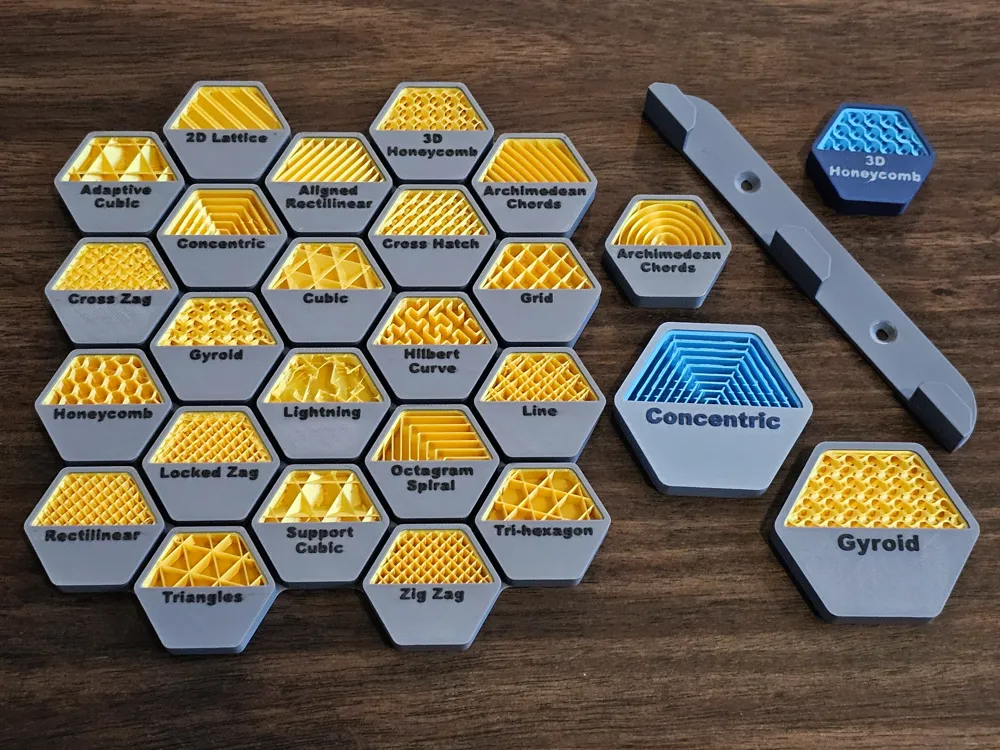
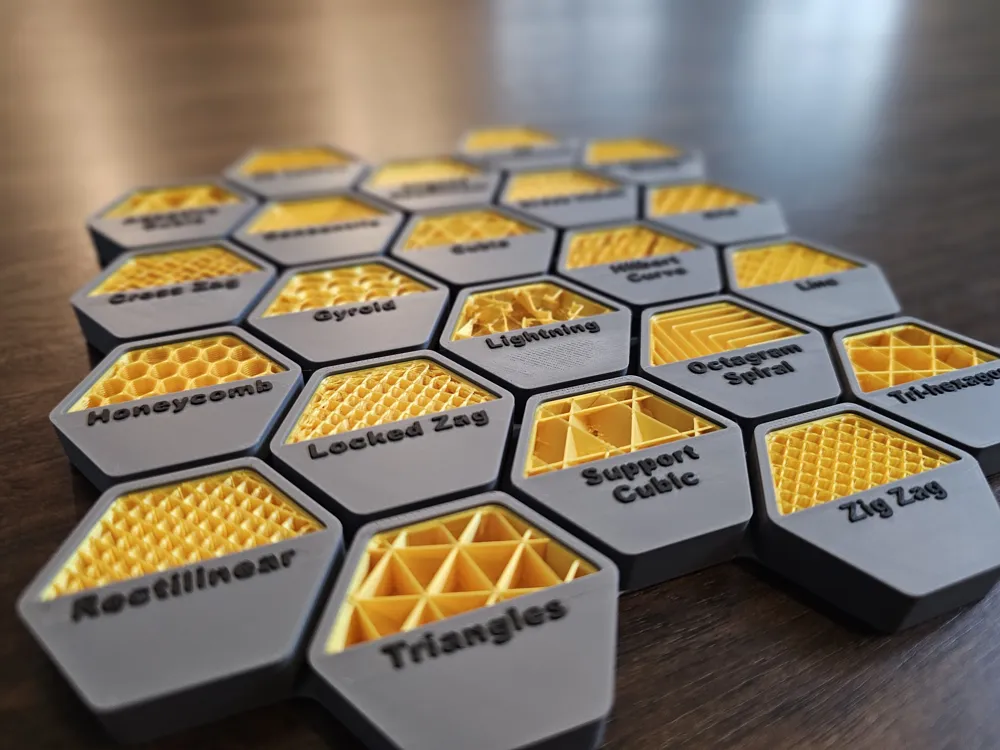
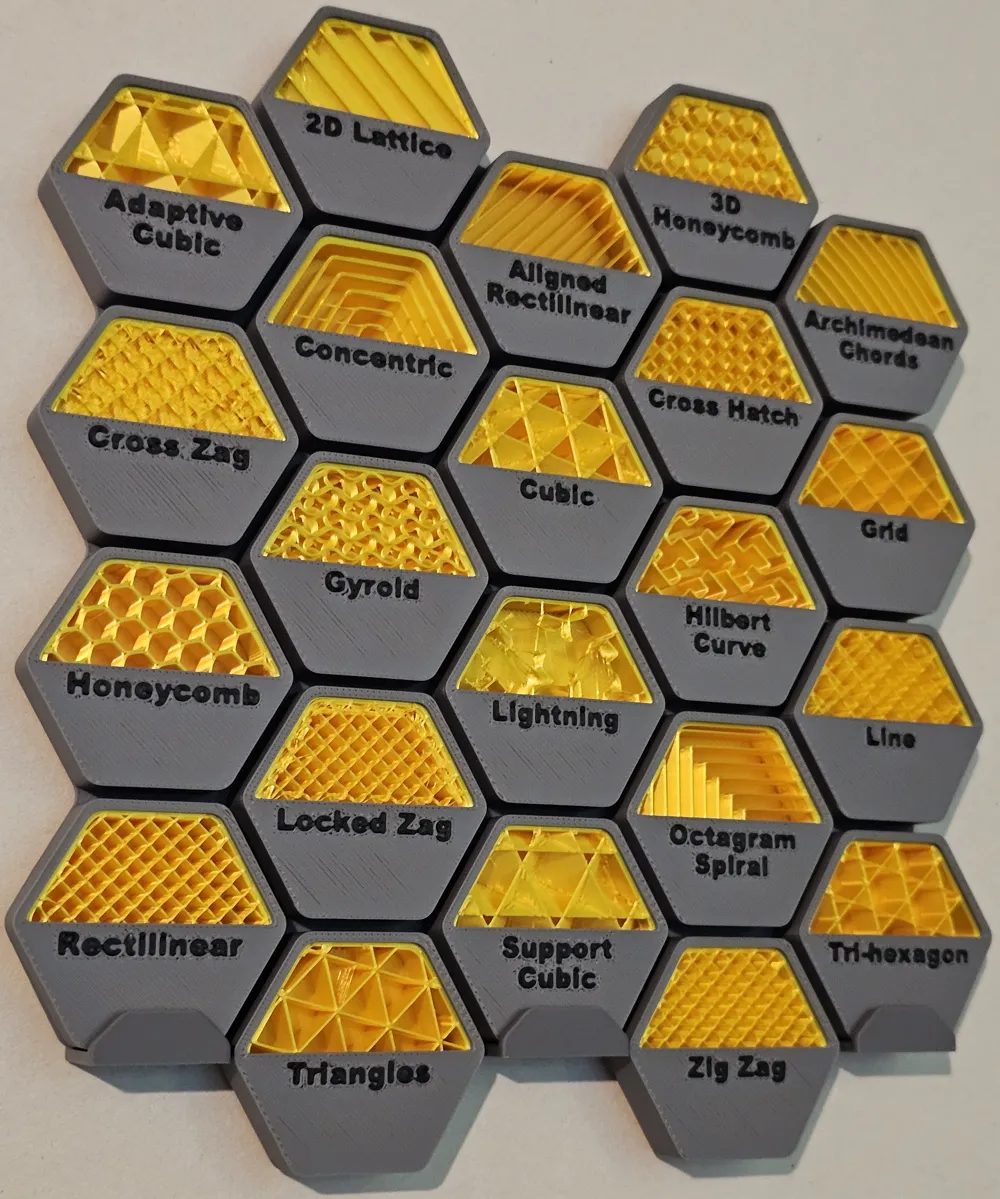
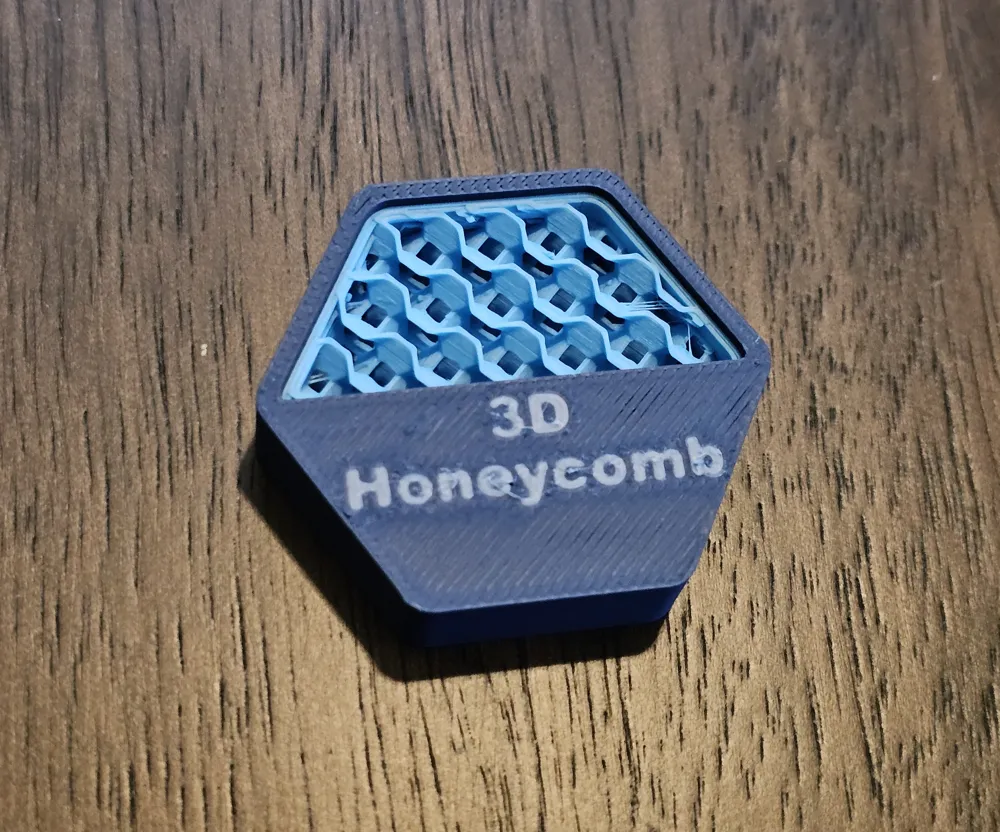
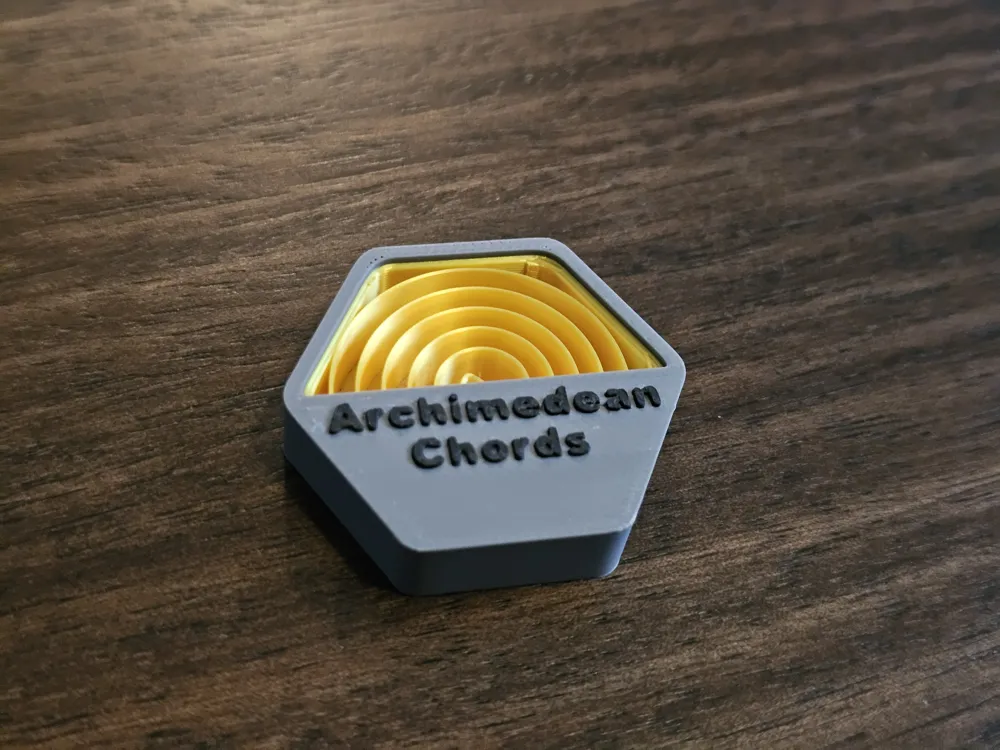
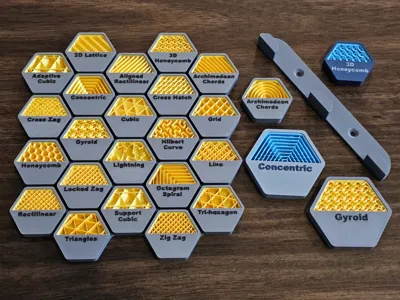
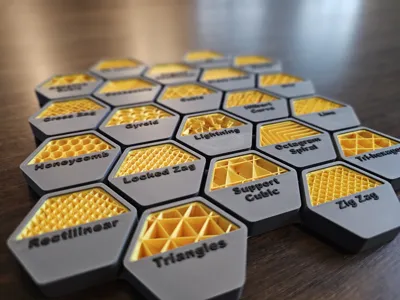
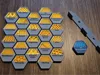
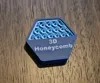
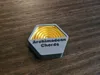
This is a infill comparison display to quickly see the differences between all the different infill types currently available in Bambu Studio. As of publishing this model there are a total of 22 infills that are usable. You will need to use the .3mf file as each infill object and line of text is it's own object and to make this work each has different properties assigned to them.
Highlights:
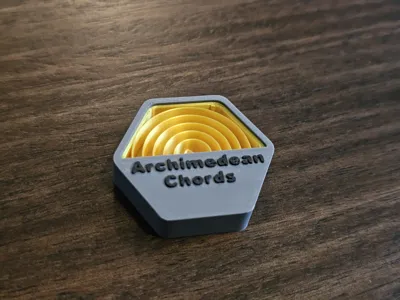
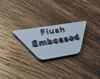
- There is a test print for testing the text labels flush with the surface or embossed above it
- Print the test print first before picking the other models.
- Based on that select the model with either Flush text or Embossed text depending on what looked the best on your printer.
- There are two complete displays in a single print profile. One plate for Flush text and one plate for Embossed text.
- You can also download a print profile with each infill type individually if you just want to print out a selection of them
- Like the complete displays there is a profile for Flush text and one for Embossed text.
- The model has been optimized for either a 0.2mm or 0.12mm layer height depending on the quality you are looking for.
- It's also easy to resize to your liking. See photos and instructions below.
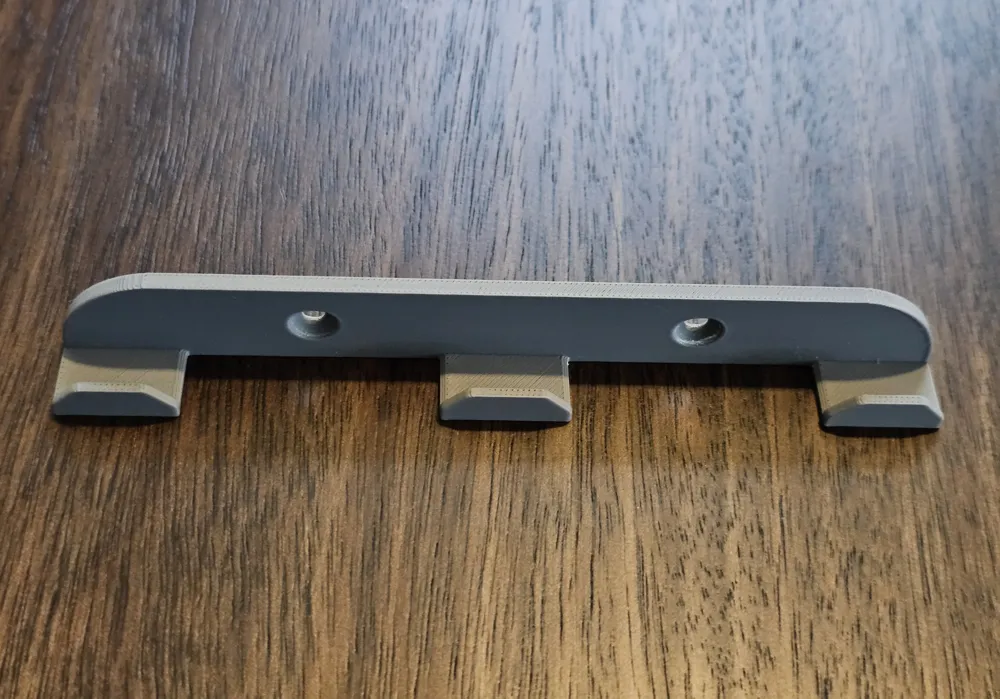
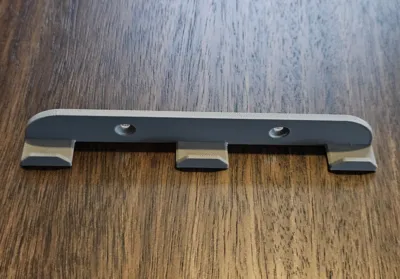
- There is also a print profile for a simple wall mount if you want to display yours.
Changing The Size
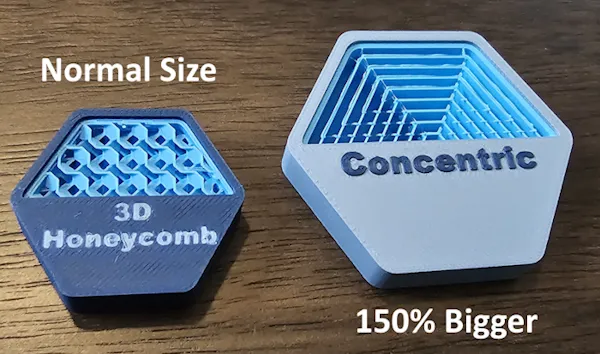
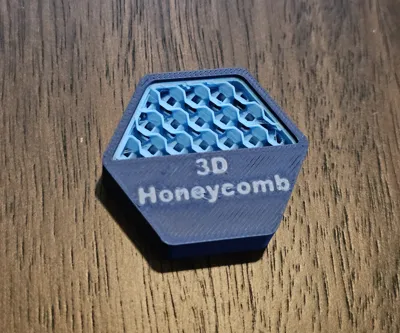
This model was designed to be easily resizable / scalable. For example if you want larger individual pieces you can click one then click your “Scale” button. Turn off “uniform scale” and make the X (width) and Y (length) the same number such as 150% and leave the Z (height) at 100% / 10mm. You can then have examples that are bigger and easier to see details.
Further Refining the Print
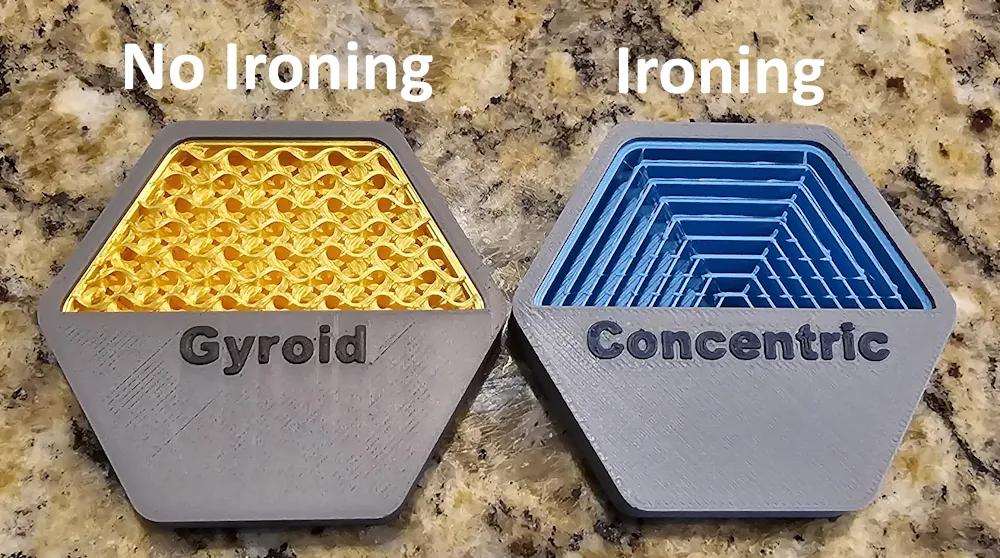
You can also use ironing on the top layer to get it smoother and fill any small gaps. Start out by doing a ironing calibration for the filament you are using such as THIS ONE. Once you print it you should have one, or a couple, squares that are cleaner then others. Go into your Quality settings and turn on ironing for “Top Surfaces” and enter the “Ironing speed” and “Ironing flow” from the calibration print. It's recommended to only do this if you are using the Embossed text option as with the flush text it might smear the text.
If you also want to see the differences between different infill percentages please check out my Bambu Studio Infill Density Comparison model which displays the different infills at different densities (percentages).
Boost Me (for free)
All of my models are free to download. I have no patreon, donation links, or affiliate links in any of my listings. With that said if you want to give me a like or a free boost I would very much appreciate it. Thank-you.
License

You may create derivative works based on this object, provided that all such derivative works are published exclusively on the MakerWorld platform and include proper attribution to the original creator. You may not share, upload, host, distribute, or publish this object—or any derivative work of this object—on any other digital platform, marketplace, or distribution channel. Commercial use of this object and any derivative works is strictly prohibited. This includes, but is not limited to, selling, renting, sublicensing, or using the object in any context in which you receive monetary compensation or other financial benefits.


Comment & Rating (21)