
Raaco Hardware Storage Drawers + Parametric Labels
Print Profile(2)


Description
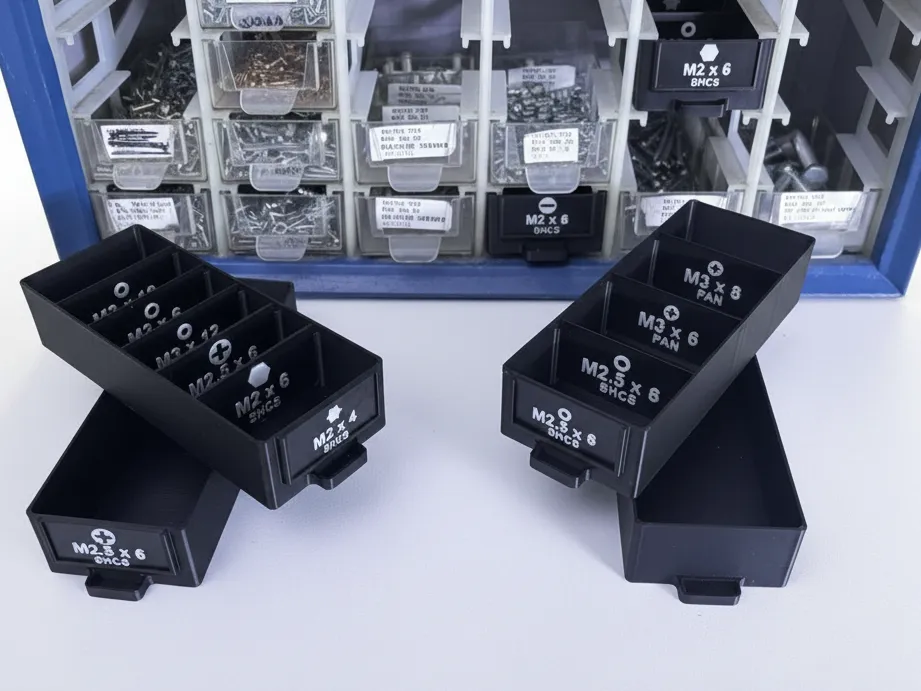
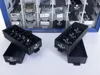
🏷️ Hardware Storage Drawers with Parametric Screw Labels
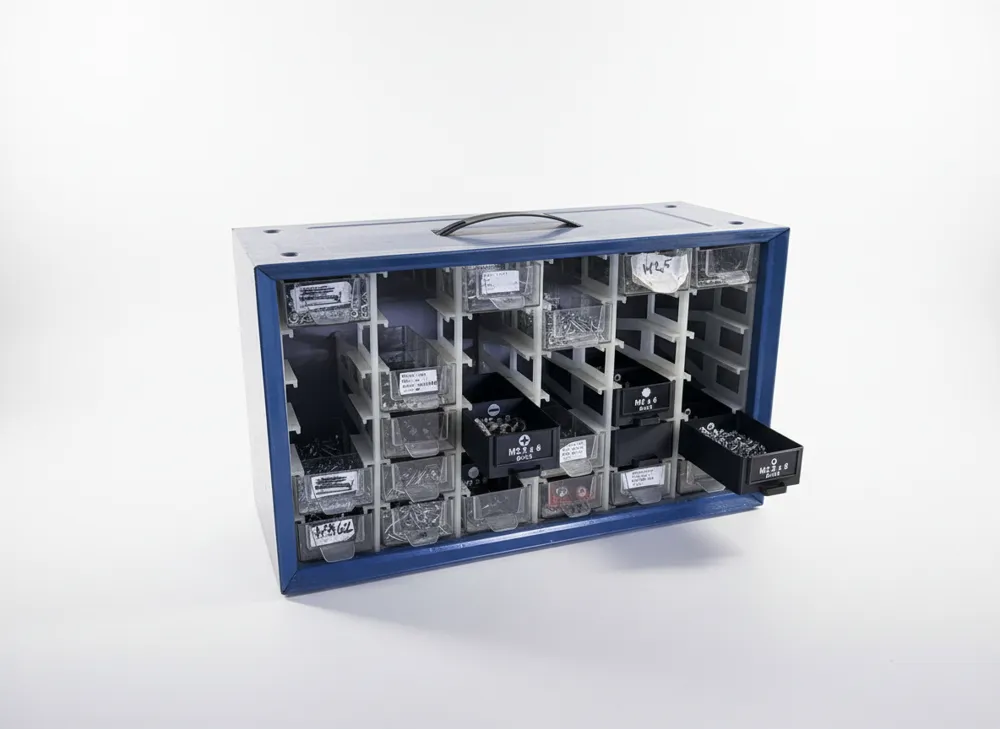
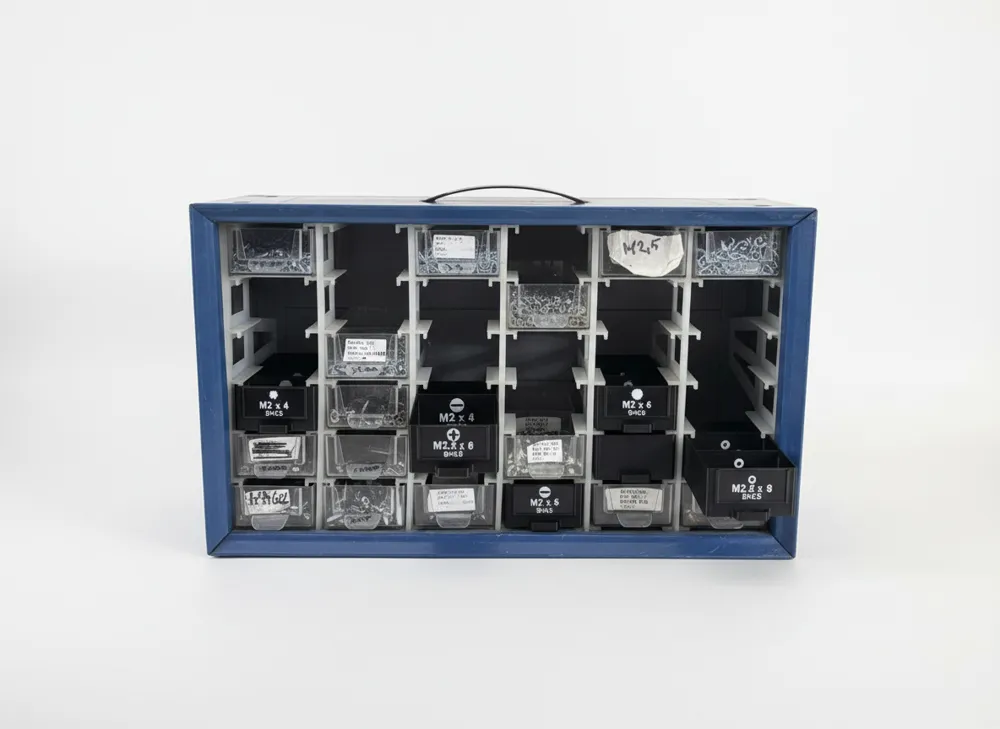
Upgrade your old metal organizer bins. Includes 6 drawer layouts for small parts (RC/3D printing) and a custom MakerLab script to generate matching hardware tags.
The Ultimate Hardware Storage Upgrade
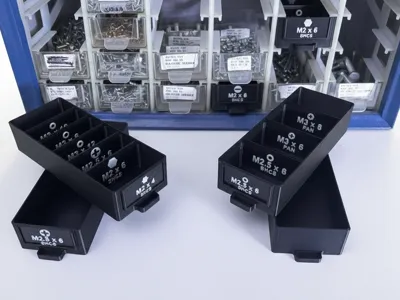
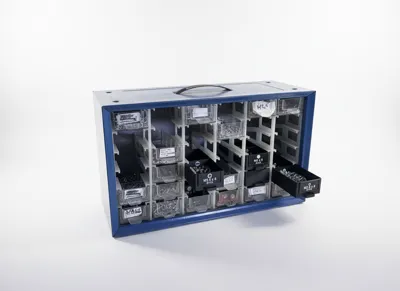
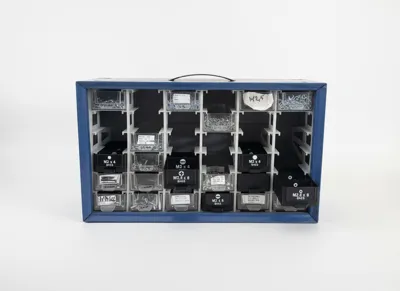
Breathe new life into your vintage metal hardware organizers (like Raaco or similar brands) with these fully modular, 3D-printable replacement drawers. Designed specifically for organizing screws, RC parts, and small electronics, this upgrade is a game-changer for your workshop or homelab.
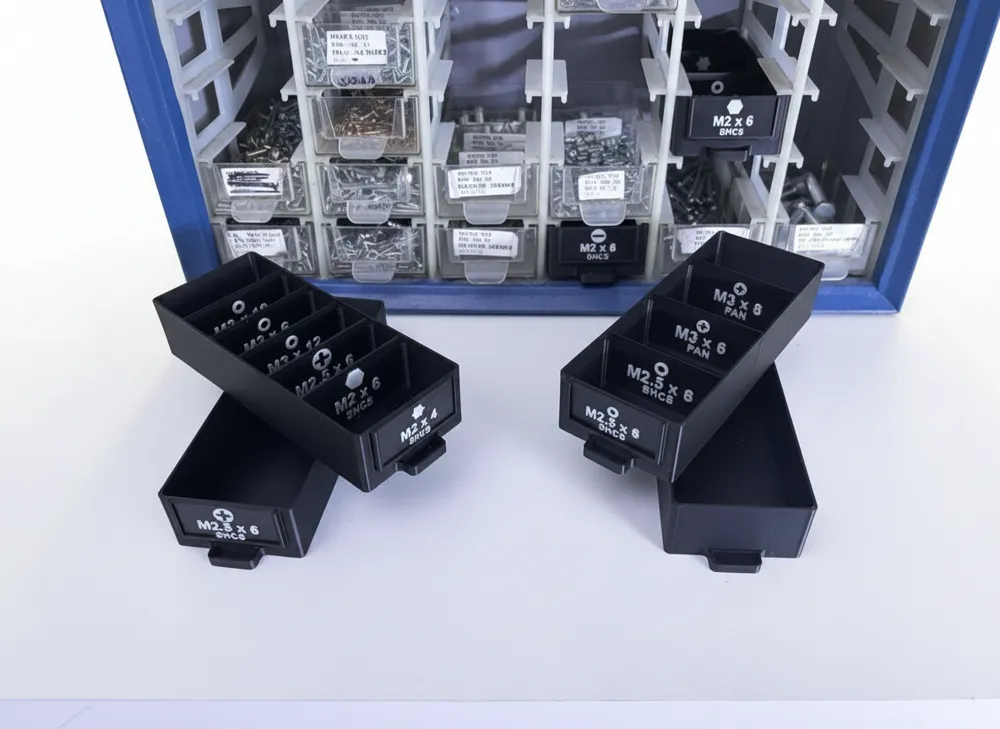
Instead of messy, taped-on labels on old plastic bins, this project includes sleek black drawers with dedicated slots, plus a 100% custom-built Parametric Label Generator to make your own professional, multi-color hardware tags!
🚀 Future Updates Planned
This project is actively being developed! Currently, it focuses on the replacement drawers and labels. In future updates, I plan to add more variations, accessories, and potentially fully 3D-printable outer cabinets to create a complete standalone storage ecosystem. Be sure to follow and like the model to get notified!
Boost Me (for free)
🚀 Boost this model to support my unhealthy obsession with perfectly organized tiny screws. Every boost equals one less lost washer on the workshop floor!
📦 What's Included?
1. The Storage Bases (Drawers)
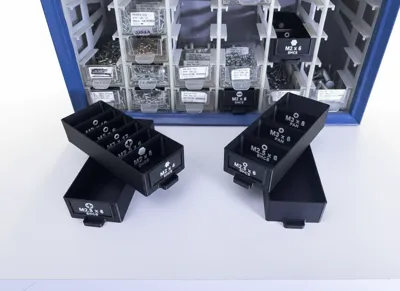
The download includes 6 different pre-configured drawer layouts to fit any hardware size:
- base_nolabel_nocomp (Blank slate, no label slots)
- base_frontlabel_nocomp (Single large bin)
- base_frontlabel_2comp (2 large compartments)
- base_frontlabel_3comp
- base_frontlabel_4comp
- base_frontlabel_6comp (Perfect for tiny M2 screws and washers)
(Includes a master .3mf file with all models arranged and ready to print!)
2. The Labels (Examples + Generator)
- Ready-to-Print Examples: The download includes fully configured .stl and .3mf examples for both the Front Face Labels and the internal Compartment Dividers. You can print these immediately to test the fit!
- The Parametric Label Generator (.scad): This is the magic tool! Stop messing around with SVG files in CAD software. This script automatically generates perfectly sized labels that snap right into the slots of the drawers.
⚙️ How to generate your Custom Labels (100% Online via Bambu MakerLab)
You don't need to download or install any coding software! You can fully customize and generate your labels right here on this page using the Bambu Parametric Model Maker.
Step 1: Click "Customize"
Open the MakerLab interface on this model page. You'll see a simple menu on the side.
Step 2: Choose your label type
In the menu, select what you want to print:
- Front Faced Label: Generates the 42.3 x 19.8 mm nameplates for the front handles of the drawers.
- Compartment Label: Generates the 53.0 x 28.0 mm dividers that slide directly into the inner slots of the drawers.
(The script automatically calculates the correct thickness and scales the text so it always fits perfectly).
Step 3: Type your hardware
The generator gives you 12 slots to fill out at once. For each slot, simply define:
- Title: e.g., M3 x 10
- Subtitle: e.g., SHCS, PAN, or BHCS
- Icon: Choose from a drop-down menu! (hex for Allen keys, phillips for crosshead, flat for slotted, torx for star-shape, or none for nuts/washers).
(Don't need 12 labels? Just delete the text in the slots you don't need, and the script will magically ignore them!)
Step 4: Generate and Export
- Set the Render Mode to Batch Grid at the top.
- Click Generate/Export. The MakerLab will neatly place all your custom labels on a grid and give you an .stl file ready for your slicer!
🎨 Printing Instructions for Labels (Multi-Color)
Drop your generated .stl into Bambu Studio. Use the "Fill" (Paint) tool, set it to "Height" or "Layer" mode, and simply click the raised letters. The text extrudes exactly 0.6mm (3 layers at 0.2mm height). This guarantees a crisp, readable dual-color print using your AMS!
License

You shall not share, sub-license, sell, rent, host, transfer, or distribute in any way the digital or 3D printed versions of this object, nor any other derivative work of this object in its digital or physical format (including - but not limited to - remixes of this object, and hosting on other digital platforms). The objects may not be used without permission in any way whatsoever in which you charge money, or collect fees.


Comment & Rating (0)