
Magnet 30x30 diverse designs
Print Profile(17)
Description
– English version below --
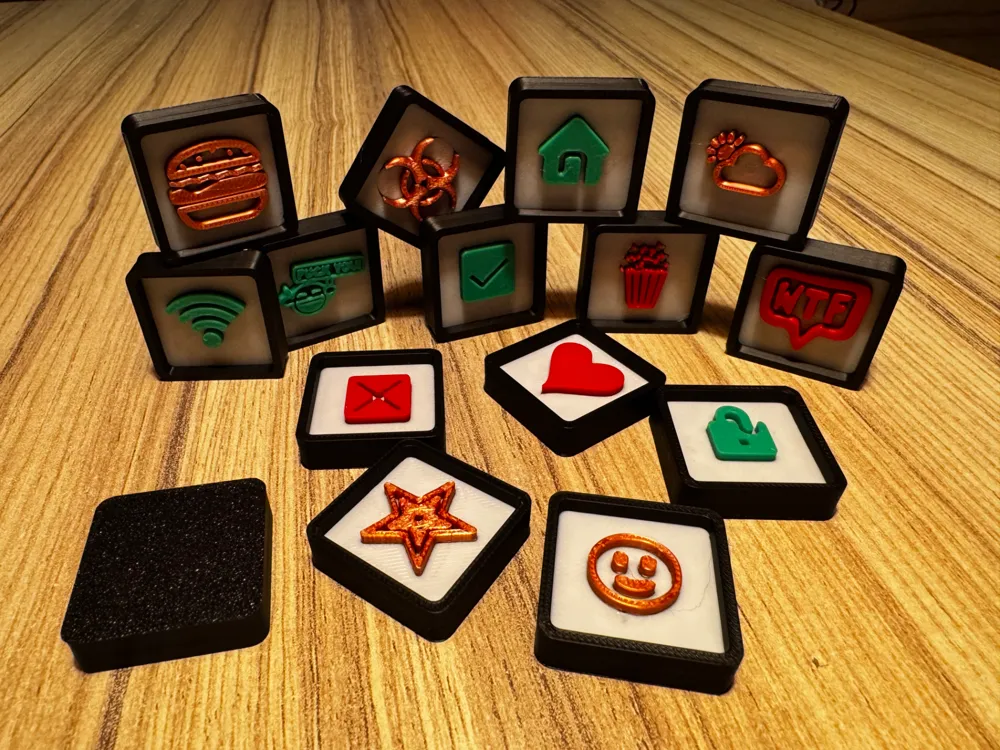
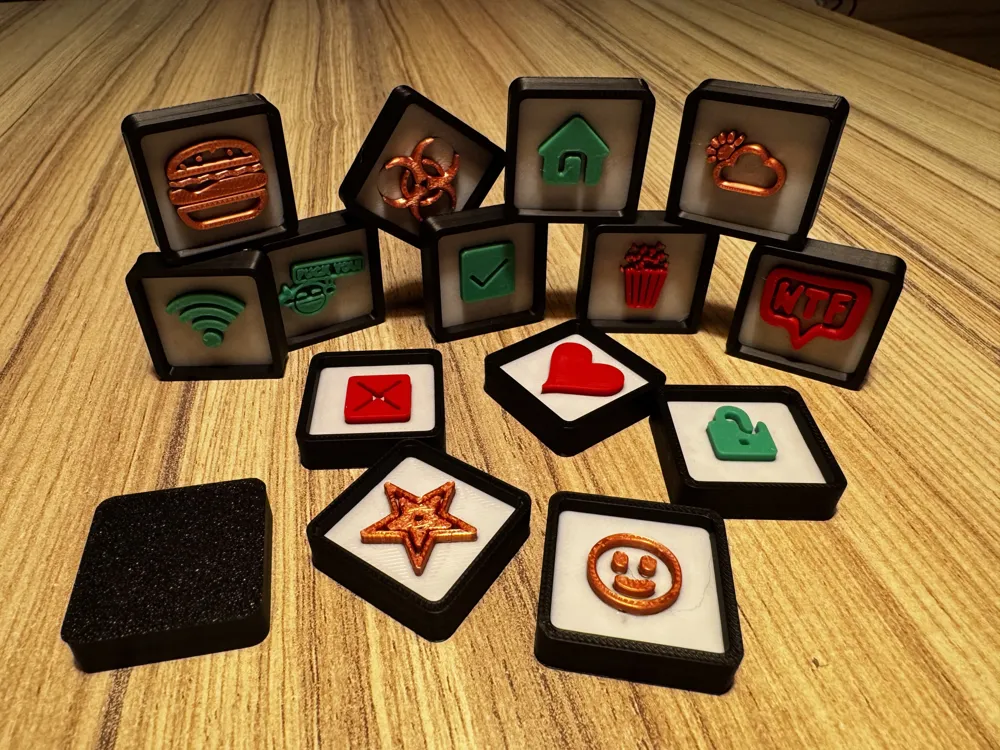
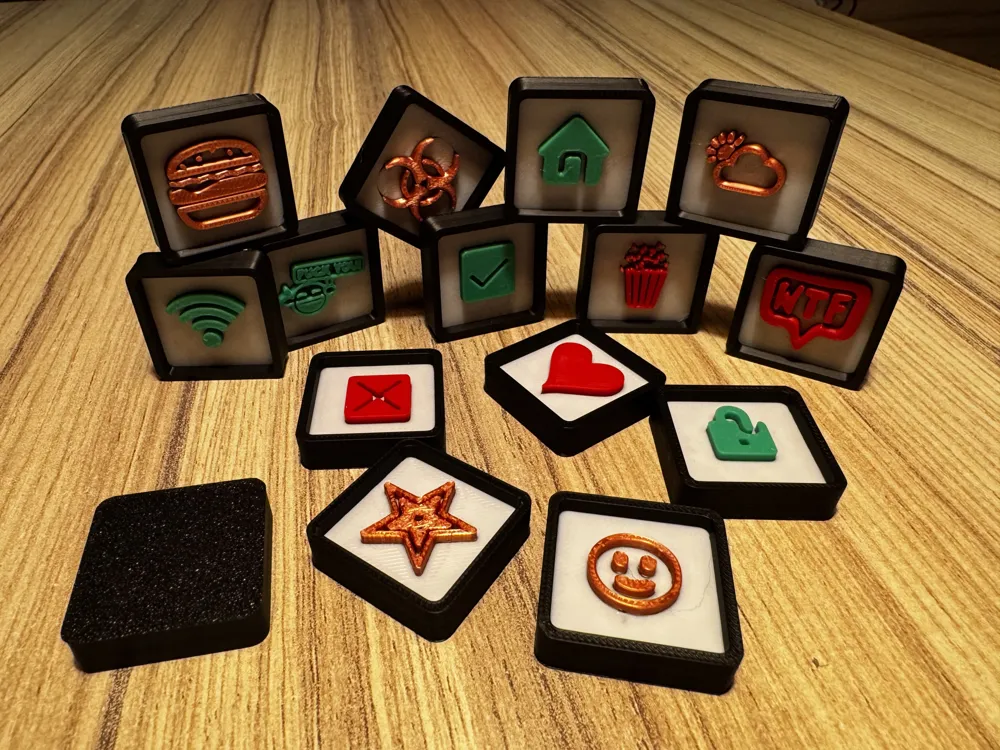
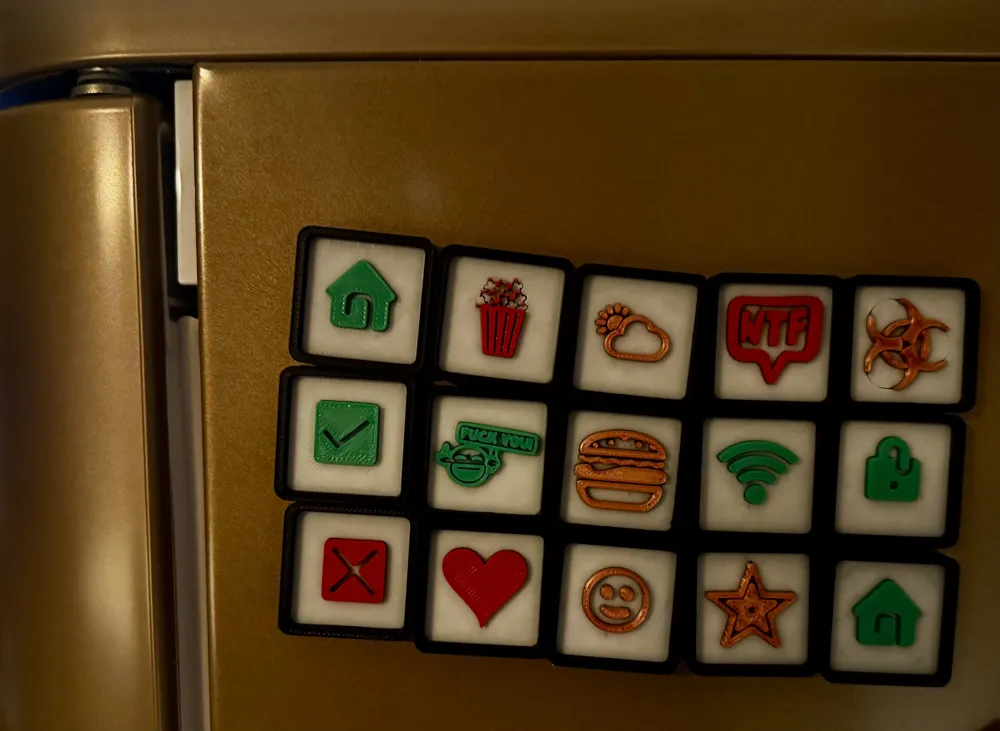
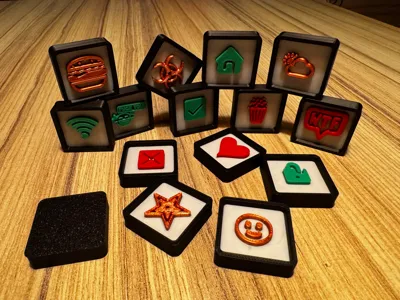
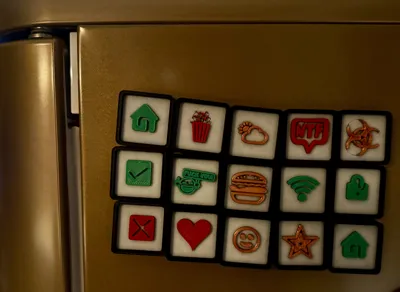
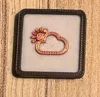
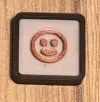
These are magnets with dimensions of 30 × 30 × 8 mm
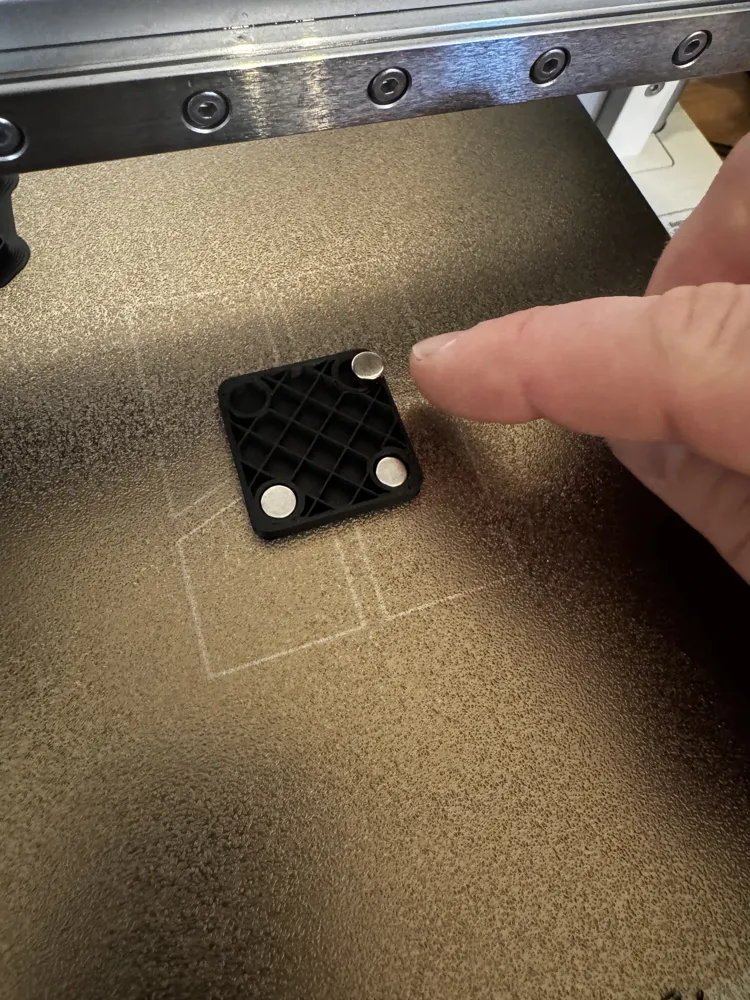
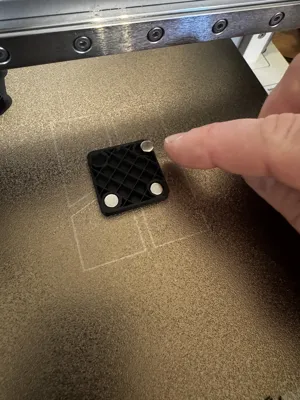
The special feature is the embedded magnets. This means the print is paused so that the magnets can be inserted
As a result, the magnets are not visible from the outside, do not add extra thickness, and there is no need to glue them in place
The magnets used are standard round magnets with a diameter of 6 mm and a height of 3 mm
I bought these from Amazon, but of course any others with these dimensions will work as well:
https://amzn.eu/d/08IWeYSc
https://eu.store.bambulab.com/de/products/round-magnet?skr=yes&id=48741472633180&modelId=663160
I have already created various print profiles as “ready to print”
There is also a print profile in which the text itself can be edited
Procedure:
- The pause should already be correctly set in the 3mf file and must be located on layer no. 18. This should then be visible in the “Slice-Plate” menu. If this is not the case. Please add the pause by dragging the green dot on the right-hand bar to layer no. 18 → right-click → Add Pause
- Start the print, the print will then pause at layer no. 18
- Then insert the magnets. 1 magnet is sufficient. 2, 3 or 4 are of course even better
- Then resume the print (this can be done directly on the printer’s display)
Additional notes:
- The symbol is basically a special font. This can also be easily selected as “text_shape” via “Objects,” for example to change the color
- You can also insert any text there. For this, it is easiest to use the print profile “….yourText.”
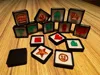
I have also uploaded a print profile with double the number of pieces. This way you can play an excellent game of Memory. For the Memory use case, it may not be necessary to use magnets. Then you can simply remove the pause or continue the printing process without inserting magnets.
English version:
These are magnets with dimensions of 30 × 30 × 8 mm
The special feature is the embedded magnets. This means the print is paused so that the magnets can be inserted
As a result, the magnets are not visible from the outside, do not add extra thickness, and there is no need to glue them in place
The magnets used are standard round magnets with a diameter of 6 mm and a height of 3 mm
I bought these from Amazon, but of course any others with the same dimensions will work as well:
https://amzn.eu/d/08IWeYSc
https://eu.store.bambulab.com/de/products/round-magnet?skr=yes&id=48741472633180&modelId=663160
I have already created various print profiles as “ready to print”
There is also a print profile in which the text itself can be edited
Procedure:
- The pause should already be correctly set in the 3mf file and should be located on layer no. 18.
- This should be visible in the “Slice-Plate” menu. If this is not the case, please add the pause by dragging the green dot on the right-hand bar to layer no. 18 → right-click → Add Pause
- Start the print. It will then pause at layer no. 18
- Insert the magnets. One magnet is sufficient; two, three or four are, of course, even better
- Then resume the print (this can be done directly on the printer’s display)
Additional notes:
- The symbol is basically a special font. It can easily be selected as “text_shape” via “Objects,” for example to change the color
- You can also insert any text there. For this, it is easiest to use the print profile “….yourText.”
I also uploaded a print profile with double the number of pieces. That way you can play a great game of Memory. For the Memory use case, it may not be necessary to use magnets. In that case, you can simply remove the pause or continue the printing process without inserting magnets
Boost Me (for free)
Like it -> Boost Me
License



Comment & Rating (0)