
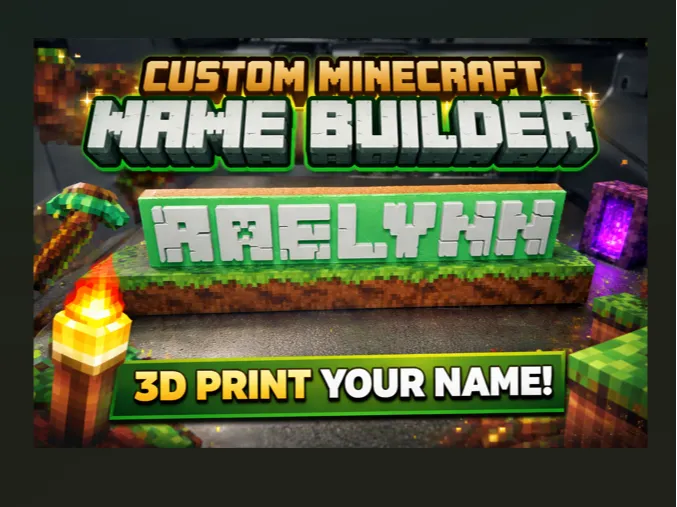
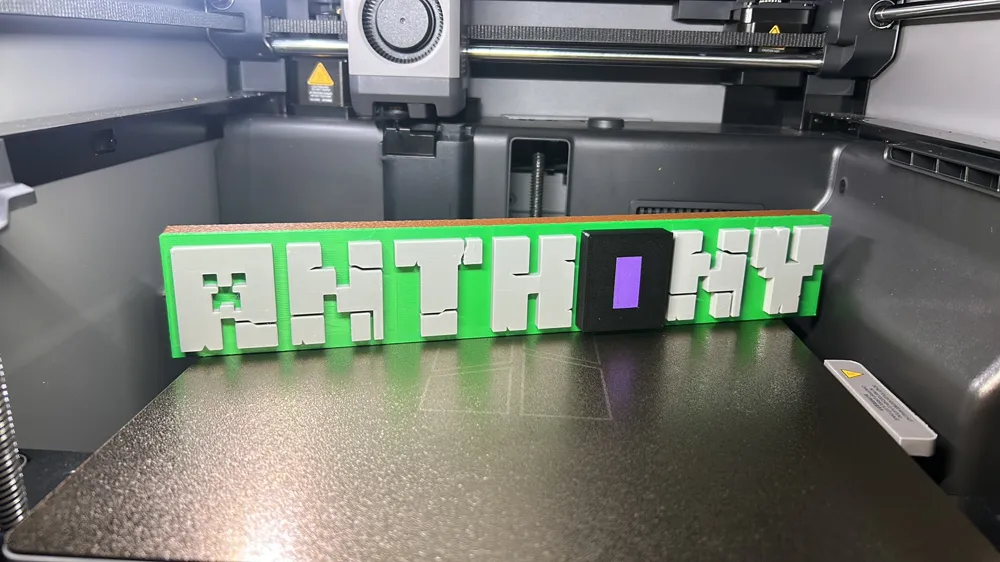
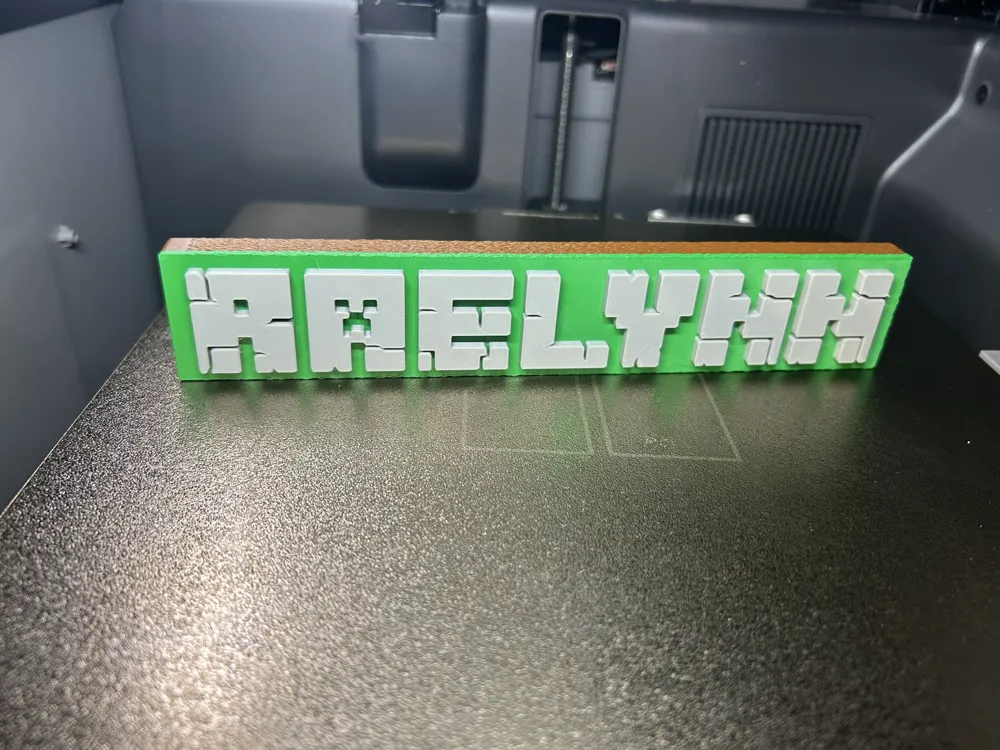
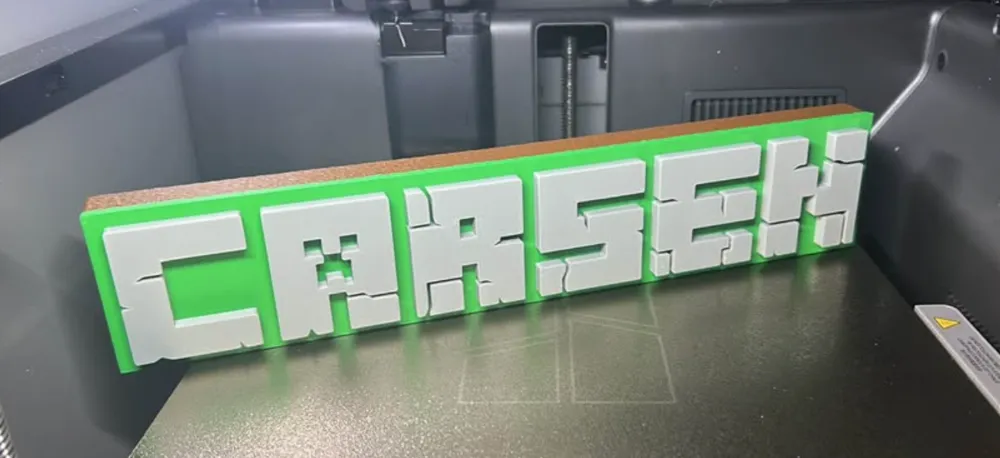
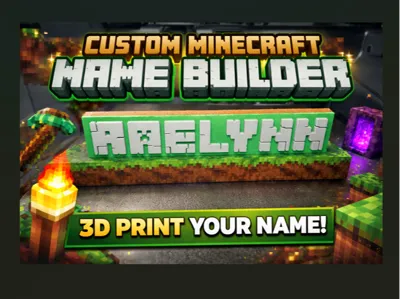
Custom Minecraft Name Builder with Torch or Portal
Print Profile(11)
Description

🚨 WANT TO SELL MY 3D PRINTS?
Join my $3/month Buy me a coffee membership and start making money with my models!
*Also includes logo removal
* Also includes Both Accounts
-Print And Sell account
-Print Sell Profit account
If you boost and send me a name, I’ll make the print profile for you!
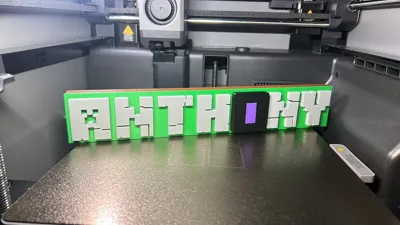
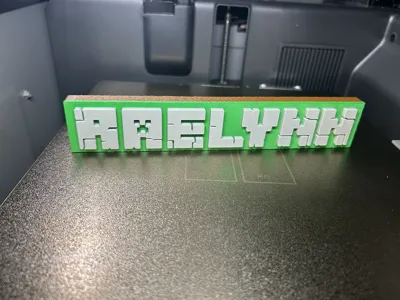
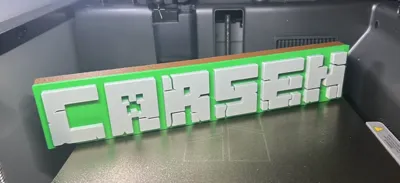
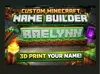
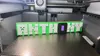
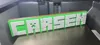
This file will allow you to build your own custom Minecraft Name
Due to the lack of available fonts on maker world this is the best option I'm able to create.
This should be done from a computer and will take 5-30mins depending on abilities!
The prints normally take 4 hours a
Step 1:Left click on plate 1 (this will be the main build plate)
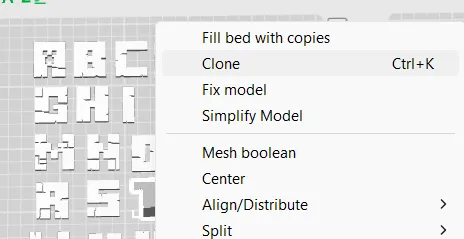
Step 2: Right click the letters needed one by one and "Clone"
pick 1 and OK
Repeat for all the letters of the name, they will stack on build plate 1 because we selected it on step 1
Step 3: Arrange letters on build plate 6 in order and spaced as well as you can
Hold Shift and drag over arranged letters, this will select all the letters of the name.
With all the letters selected right click and select align --- align front (-Y)
*After aligning make sure you like letter spacing, you can re arrange as many times as needed until you are happy with the layout
The name may go off the edge of the plate this will be fix later in the directions
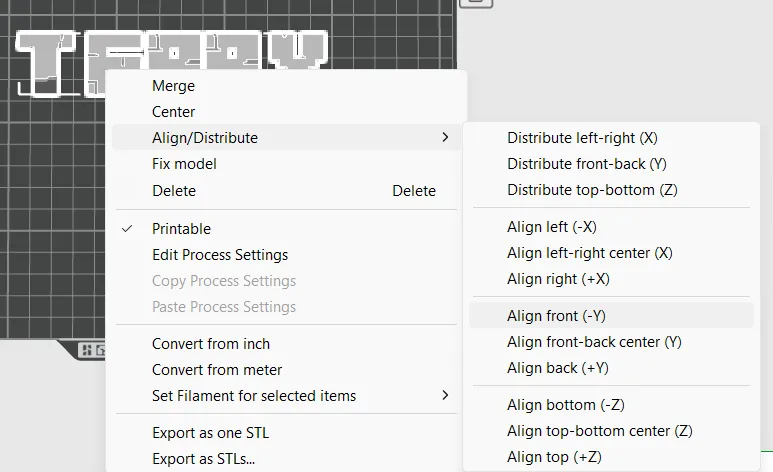
Step 4: Shift drag over letters and base. right click and merge. without this step you will not be able to lift letters to the top of the base
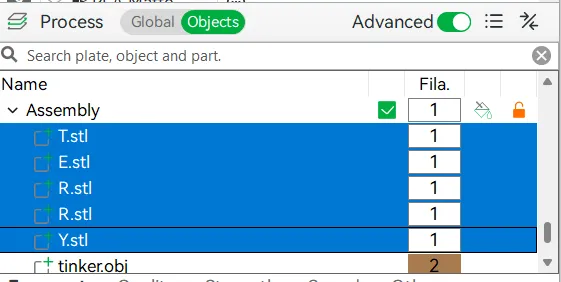
Step 5: On the left side of your screen you will see Process Center
Click Object
Hold shift and pick all the letters of the name so they are Blue
Click the move button at the tom and type 10 into the Blue Z setting. than click enter
This will lift the letters up to the proper heights for the base
STEP 6:
Move letters into position above the base making sure to space it correctly
Optional step scale to the max size of your printer

Step 7:
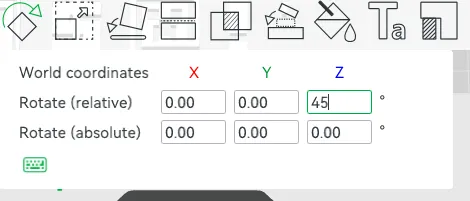
Select Name and base and hit "R" to rotate type "45" degrees into Z Rotate- this will turn your model to allow more build space
Press "S" to scale change any of the % on the top row to grow the model to the edge of the plate (normally 120-150)
(Remember this % number if you plan to do torch or portal letter covers)
****If you get a wanning about prime tower drag the prime tower to an open part of the build plate
Preview Print and make sure it looks complete, if it doesn't you may have to start again
Optional torch and portal
step 8: If you are using the letter covers you must scale them to the same % that you picked in Step 7
click on letter cover you would like to use and Click "s" add your % from step 7 to any of the top % and the letter cover will grow to the proper size to match the name!
Boost Me (for free)
If you boost, I'll send you the joke of the day!!!!! I really appreciate your support
License

You shall not share, sub-license, sell, rent, host, transfer, or distribute in any way the digital or 3D printed versions of this object, nor any other derivative work of this object in its digital or physical format (including - but not limited to - remixes of this object, and hosting on other digital platforms). The objects may not be used without permission in any way whatsoever in which you charge money, or collect fees.


Comment & Rating (8)