
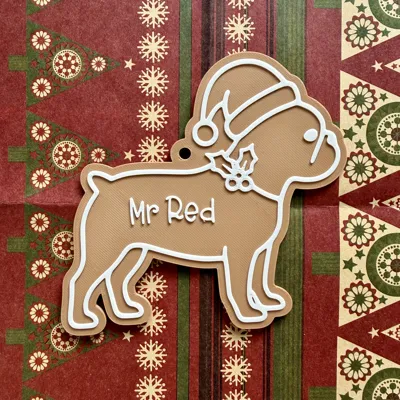
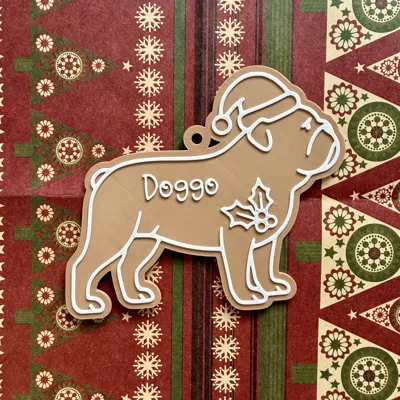
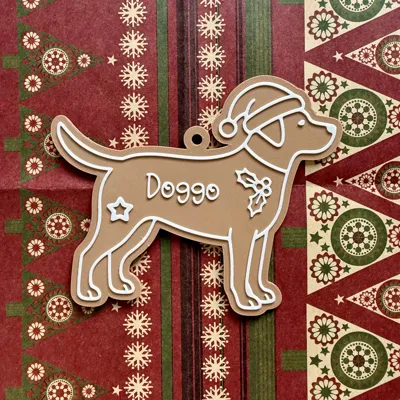
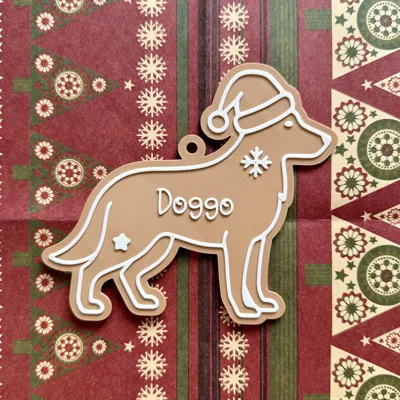
Customisable gingerbread dog Xmas tree decorations
Print Profile(6)


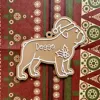





Description
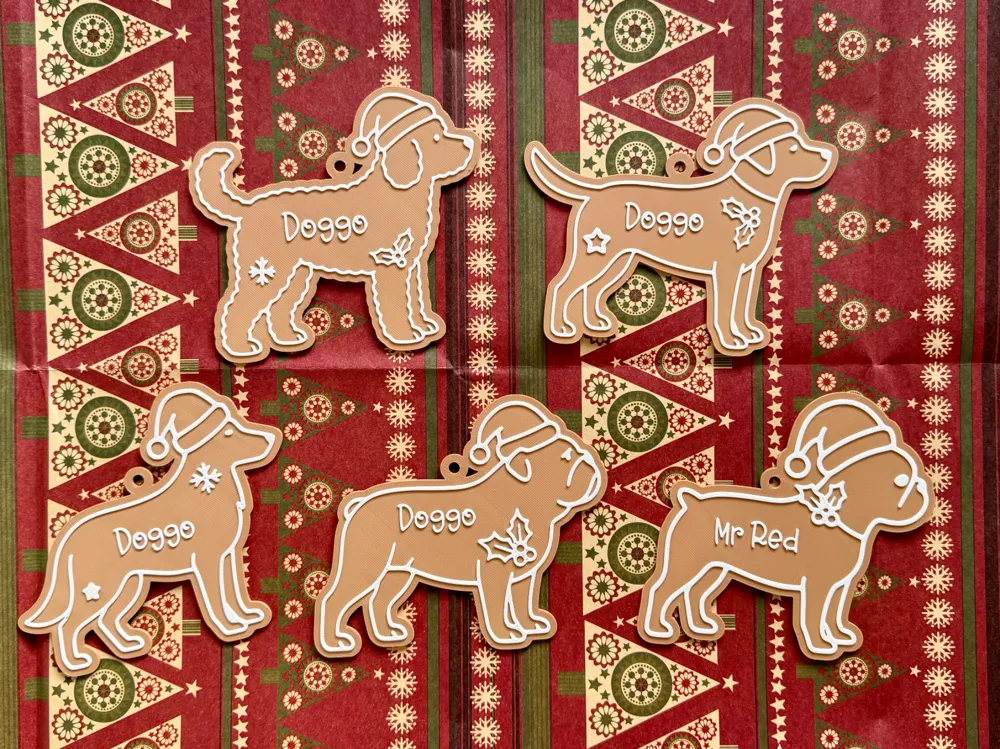
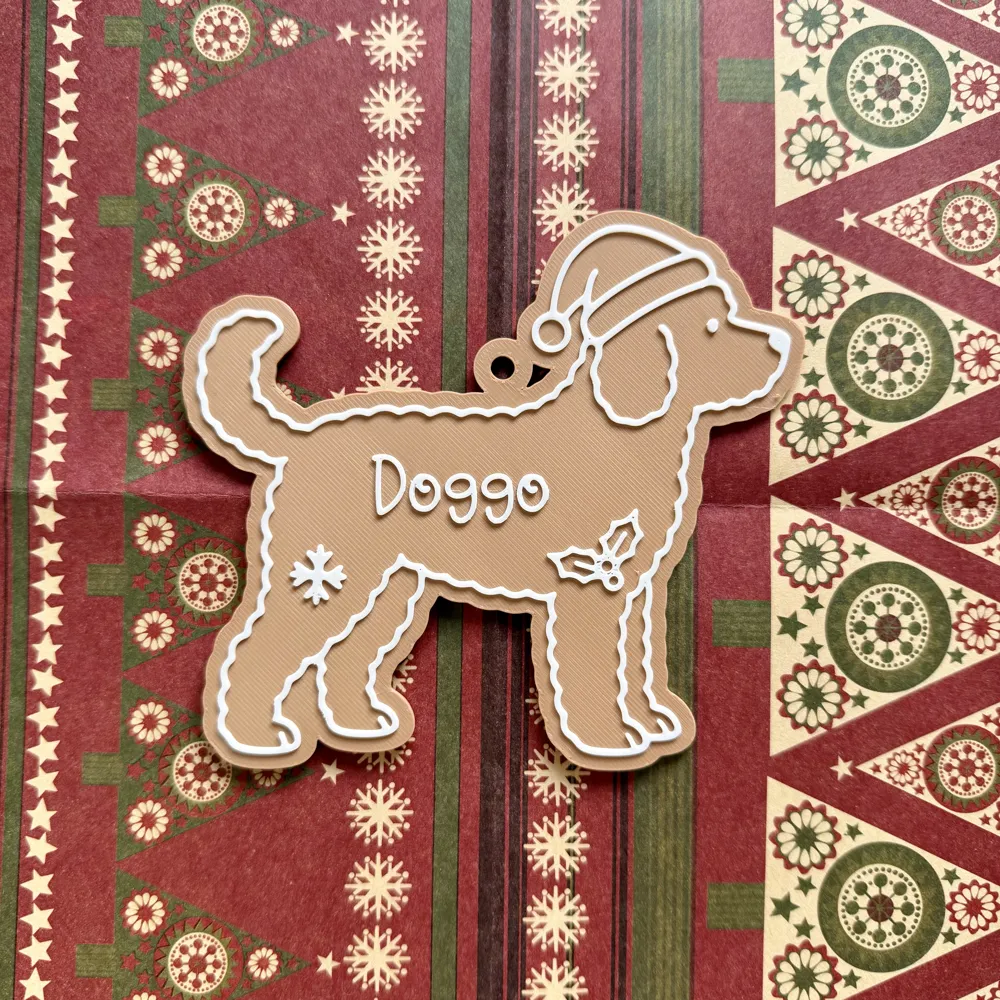
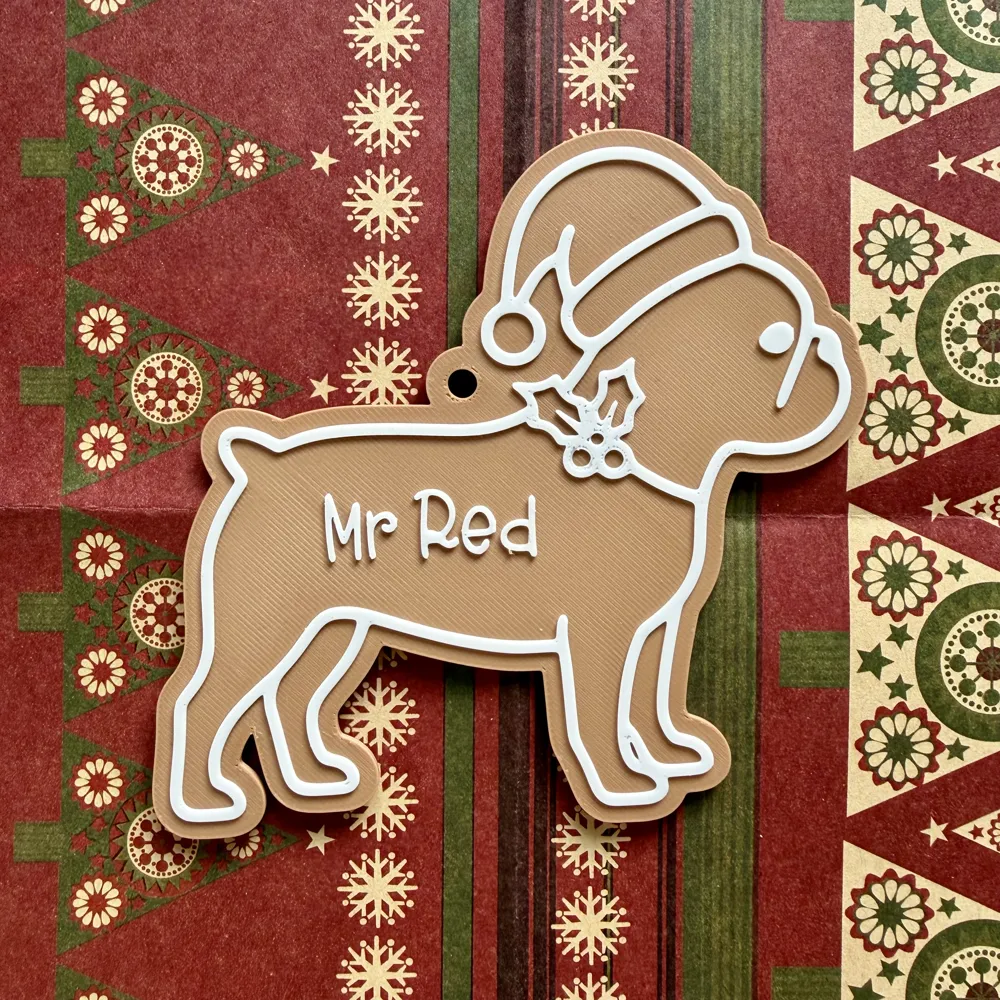
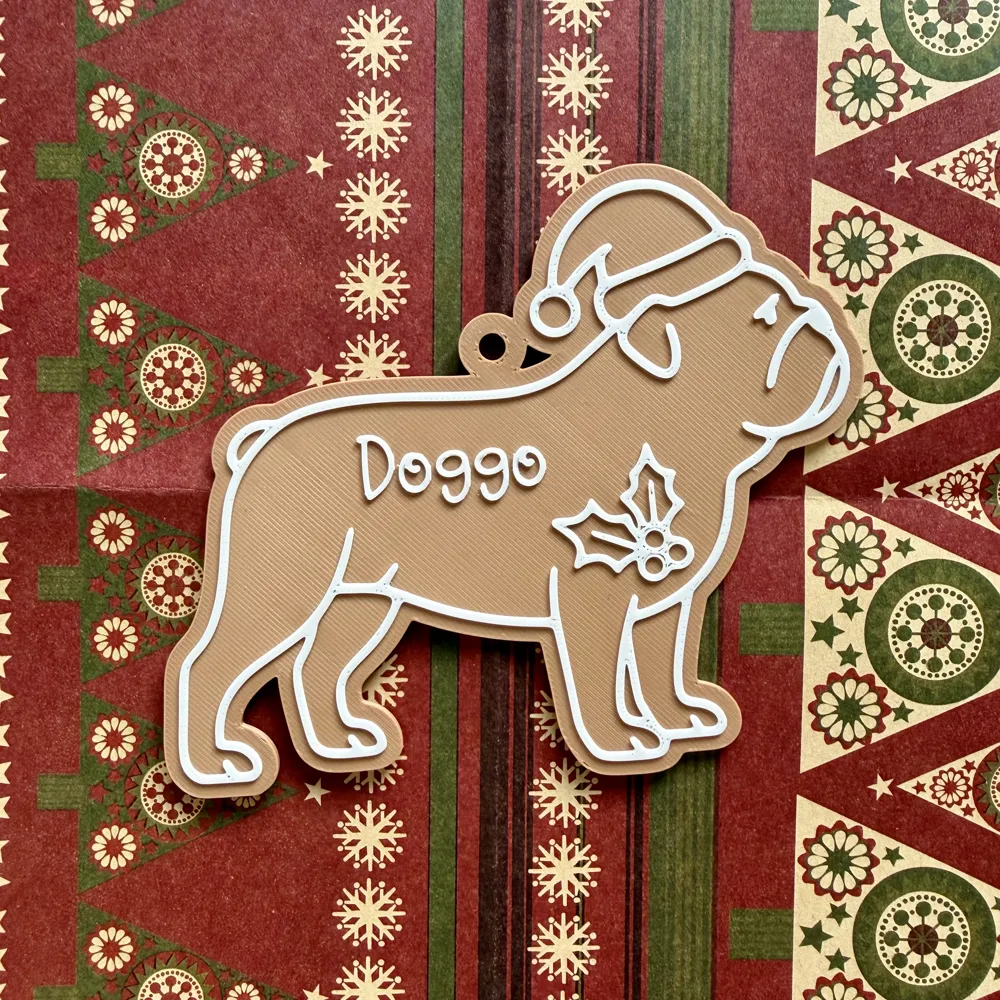
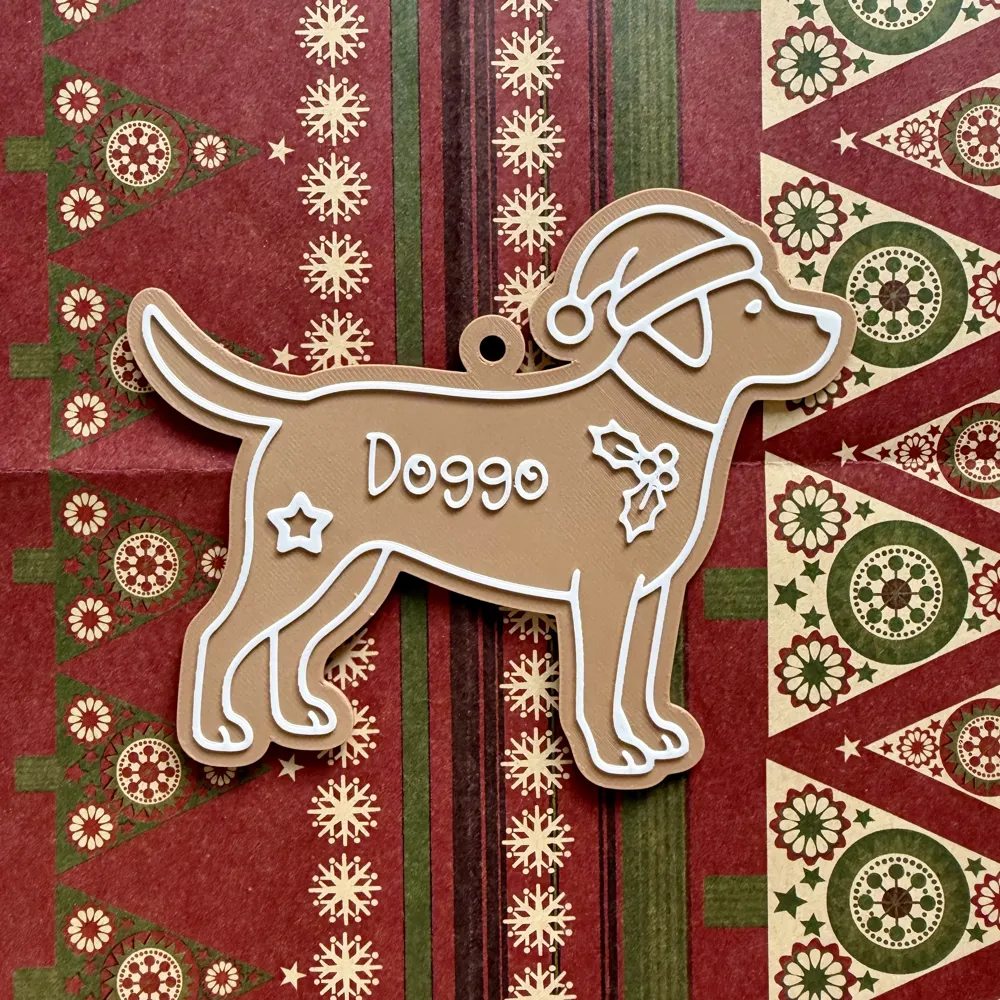
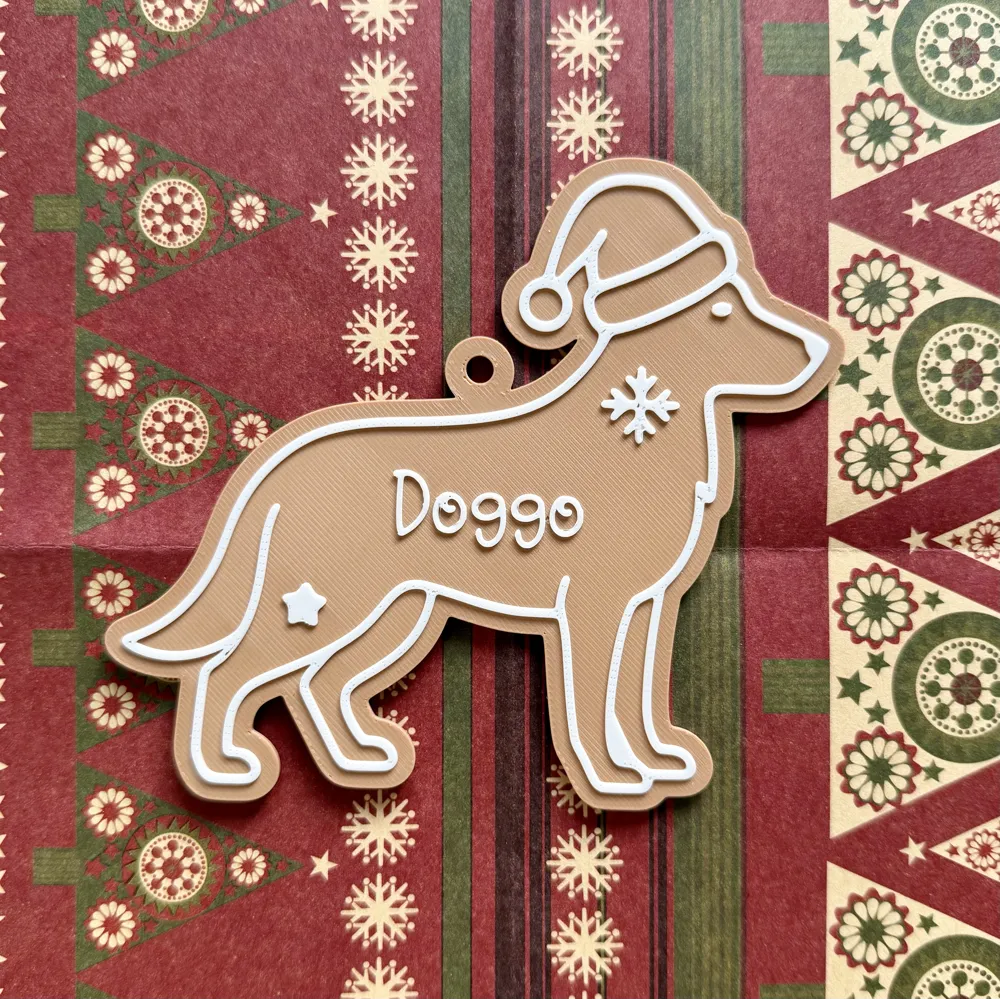
🐾 Iced Gingerbread Style Dog Tree Ornaments – Customisable with Your Pet’s Name 🐾
Celebrate your four-legged family member this Christmas with these iced gingerbread style tree ornaments.
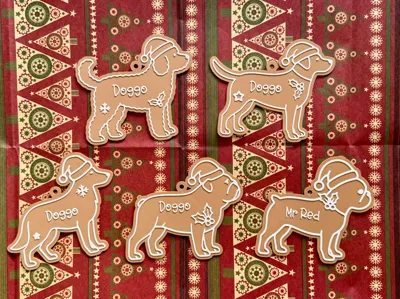
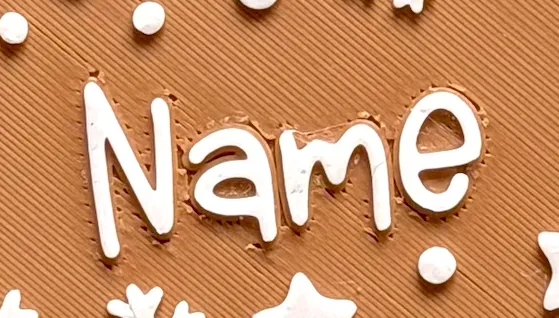
Each decoration is shaped like a different dog breed, with an editable name field so you can personalise it for your own pet, or create a keepsake in memory of the goodest boy or girl.
These ornaments are quick and easy to print, look adorable on the tree, and make wonderful gifts for dog lovers.
Every dog breed has its own separate 3MF print profile, so simply download the one you want and edit the name.
No AMS needed, details in the Printing section below.
For anyone new to changing settings within Bambu Studio, don't panic! - I've walked through each step with screenshots - If at any point you've made changes that you aren't happy with, just hit undo (Ctrl-Z/Command-Z) and start those changes again.
Boost Me (for free)
🐾 If you like these ornaments, a boost is a great way to support me on here 🐾
🐶 Want More Breeds?
I've uploaded five dog breeds to start with, If there’s a dog breed you’d love to see added, feel free to leave a comment below. I can’t guarantee I’ll be able to create every suggestion, but I’ll definitely take a look and add more whenever possible. It can take a little time, as I need to print and optimise each design.
-----
🧰 Before You Begin
To ensure the text displays and prints correctly:
Install the Required Font
These ornaments look best using the same “Winter Wishes” font.
Download it here (free): https://www.dafont.com/winter-wishes.font
After installing, restart Bambu Studio before opening the 3MF file. This ensures the correct font loads and avoids it being replaced automatically.
-----
✏️ Customising Your Ornament
Each ornament contains a single editable text field called Name.
How to Edit the Name
- Open your chosen dog breed’s 3MF file in Bambu Studio.
- In the Process panel, click Objects.
- Expand the object list until you see Name.
- Left-click to highlight it.
- Right-click → Edit Text.
- Enter your pet’s name in the Input text field.
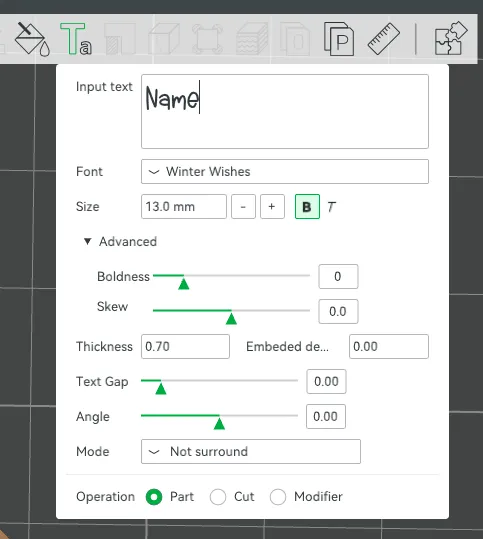
- Choose the Winter Wishes font (or search for it) from the drop down next to Font if it is not already selected.
💡 You can use another font if you like, but note that this print profile was designed around “Winter Wishes.” Thin or intricate fonts may need line-width adjustments. Always check the preview before printing.
Moving the Name
If you need to reposition it:
- Select the To Name object, then click Move from the top toolbar.
- Use the arrows to adjust placement.
- Do not change the Z height from 0.75mm.
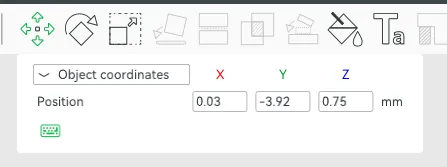
Once you are happy, save your project before slicing, this allows you to easily re-print the tag without having to make the changes again.
Important Notes
- After editing the name, always check the Z height.
Bambu Studio often resets this when you modify text.
Go to Move and check that Z = 0.75 mm.
If it has changed, simply correct it and re-slice. - If you use a different font, check the preview to ensure the lines look solid with no gaps.
- For longer names, you may need to slightly reduce font size so everything fits neatly.
-----
🖨️ Printing Setup
Each dog has its own print profile, so just download the ones you want.
Build plate: Your choice
Filament examples:
- Bambu Matte PLA Caramel (for gingerbread)
- Bambu Basic PLA White (for icing)
Links for both can be found within the BOM (Bill of Materials) on this page.
AMS Users
Load both filaments into the AMS, you’re ready to print!
Non-AMS Users
1. Slice plate or click Preview, scroll to Layer 8* on the right handside scroll bar.
2. Right-click → Add Pause.
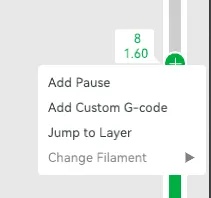
3. Start printing with your gingerbread colour.
4. When the printer pauses, swap to the white filament and continue.
* If in the preview on layer 8 you don't just see the gingerbread part, please check the Z height of the name (under move) to ensure it is at 0.75. If you have resized (under Further Personalisation below), please check the Z height under Scale is 2.20mm
-----
🧰 Troubleshooting
If your tag slices or prints with the name appearing too early (before the icing layer), or you see white “icing” artefacts appearing on the gingerbread section, don’t worry!
This usually happens because Bambu Studio has automatically changed the Z height of the name object.
Here’s how to fix it:
1. In Bambu Studio, click on the To Name object in the Objects panel.
2. Click the Move icon in the top toolbar.
3. Check the Z height value, it should be 0.75mm.
4. If it’s not, simply change it back to 0.75 and hit Enter.
💡 Once corrected, re-slice your model. You should now see the name start at layer 9 or later, with no premature printing on the gingerbread layer.
📦 Model Doesn’t Match Preview / Wrong Colours / Odd Layout / Dots instead of lines or shapes
If your model looks misaligned, missing colours, or prints incorrectly, please make sure you are using the supplied 3MF print profiles, not the raw STL or STEP files.
The 3MF files contain all the model specific tuning, including:
- Correct object positioning including Z height
- Colour allocations
- Line width settings
- Print specific adjustments
To use them properly:
- Either click “Open in Bambu Studio” directly from MakerWorld,
or - Download the .3MF file and open it manually in Bambu Studio.
❌ Avoid using the raw STL or STEP files unless you specifically want to rebuild your own profiles, they do not include the tuned print settings.
Please remember, however delicious these may come out looking, they are not edible - Please supervise any young children that might be around them! 😊
License

You shall not share, sub-license, sell, rent, host, transfer, or distribute in any way the digital or 3D printed versions of this object, nor any other derivative work of this object in its digital or physical format (including - but not limited to - remixes of this object, and hosting on other digital platforms). The objects may not be used without permission in any way whatsoever in which you charge money, or collect fees.


Comment & Rating (10)