
Medabot Funko-Pop + FREE Batch Automation Script!
Print Profile(0)
Description
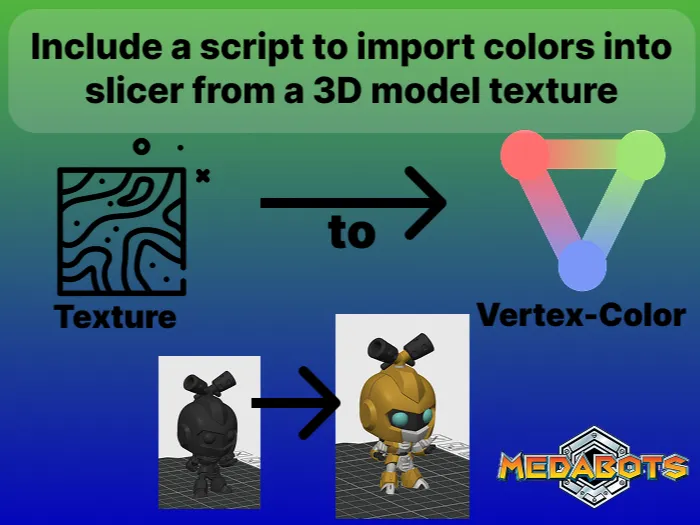
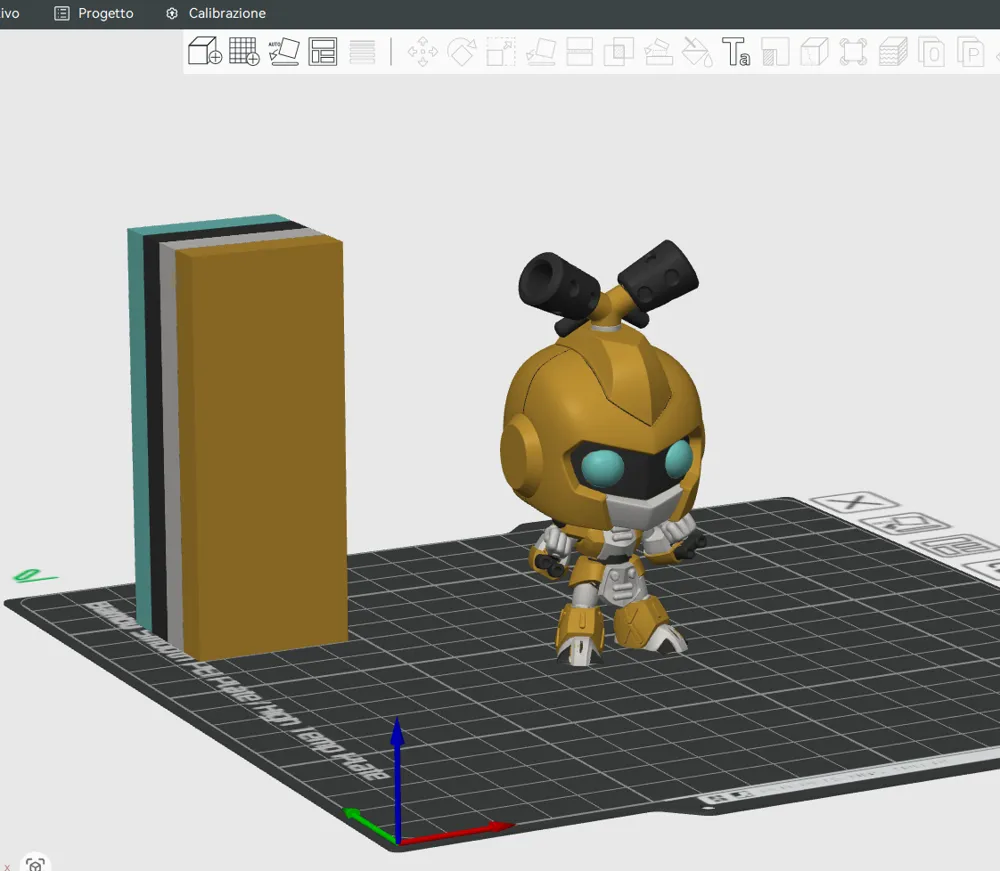
🤖 Medabot Funko Pop & FREE Batch Automation Script
Get an awesome Medabot Funko Pop–style model and a powerful automation tool that will completely change the way you prepare color 3D prints!
This package includes:
- 🧸 A high-quality Funko Pop–inspired Medabot model
- 🐍 A Python batch script that automatically converts a textured 3D model into a format compatible with color slicers
- 🛠️ Automatic 3D model repair during the conversion process
- 🎥 A step-by-step video tutorial to guide you from start to finish
✨ What the Script Does
- Converts any .GLB file into .OBJ while preserving all the original colors embedded in the GLB.
- Automatically repairs common mesh issues to ensure a clean, printable model.
- Runs using Blender in headless mode, making the process fast and efficient.
This makes it perfect for keeping your full-color 3D models intact and ready to print in your slicer.
📦 What’s Inside the ZIP File
When you download the .zip file, you’ll find:
- 🐍 batch_process.py → the main Python automation script
- 📂 all/ → folder where you place your .glb files
- 📂 exported/ → folder where converted .obj files will be saved
- 🎬 Video tutorial → a short, clear walkthrough showing how to use the script step by step
🚀 How to Use the Script
🧰 Requirements
- Blender 4.0+
- Python 3.x
📂 Steps
- Place Files: Drop all your .glb files into the all/ folder.
- Run the Script: Open a terminal in the script directory and execute: - "python batch_process.py"
- ✅ Done! Your repaired and color-preserved .OBJ files will appear in the exported/ folder — ready to slice and print!
⚠️ Important: Blender Path Configuration
The script uses Blender in headless mode to process models.
It will try to automatically detect the path to the Blender executable, but if it fails, you’ll need to manually specify it at the top of the script:
BLENDER_PATH = "C:/Program Files/Blender Foundation/Blender 4.0/blender.exe"
Make sure the path is correct for your system before running the script.
License

You shall not share, sub-license, sell, rent, host, transfer, or distribute in any way the digital or 3D printed versions of this object, nor any other derivative work of this object in its digital or physical format (including - but not limited to - remixes of this object, and hosting on other digital platforms). The objects may not be used without permission in any way whatsoever in which you charge money, or collect fees.


Comment & Rating (0)