
Customizable JackKnife Spinning Knife
Print Profile(3)


Description
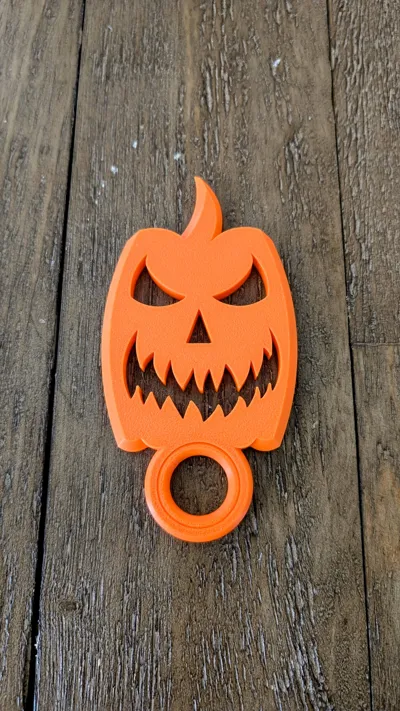
BladeWhirl Series: JackKnife
View all the BaldeWhirl Series Spinning Kinves here!
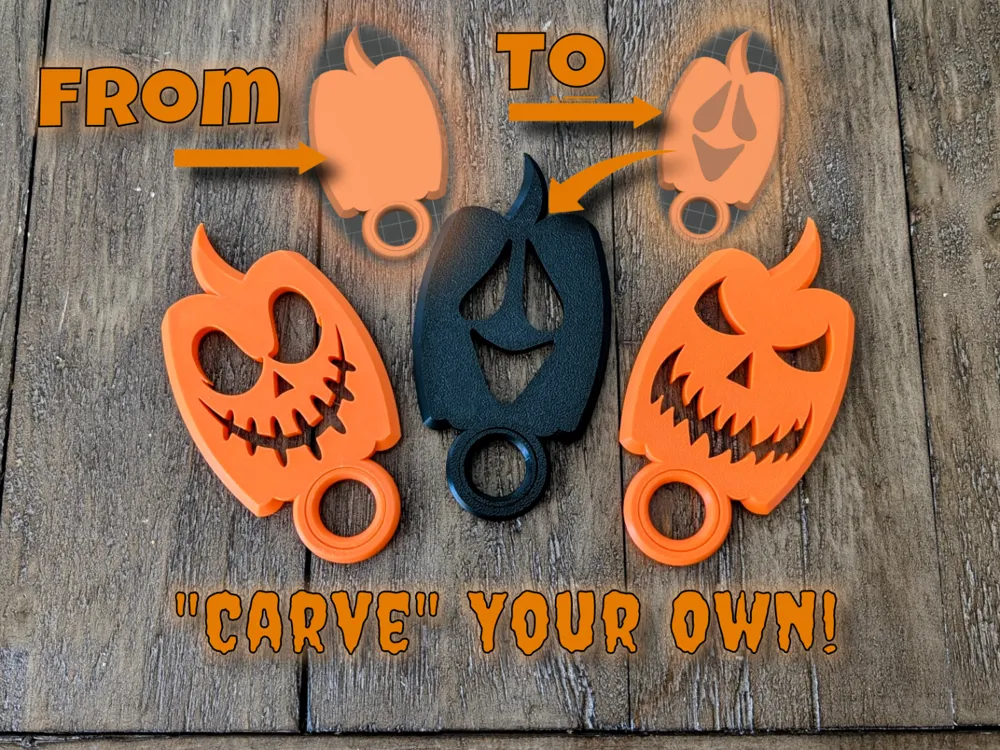
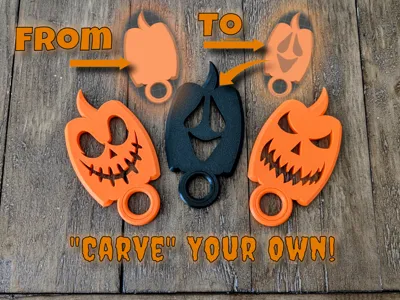
Spin it. Carve it. Make it yours.
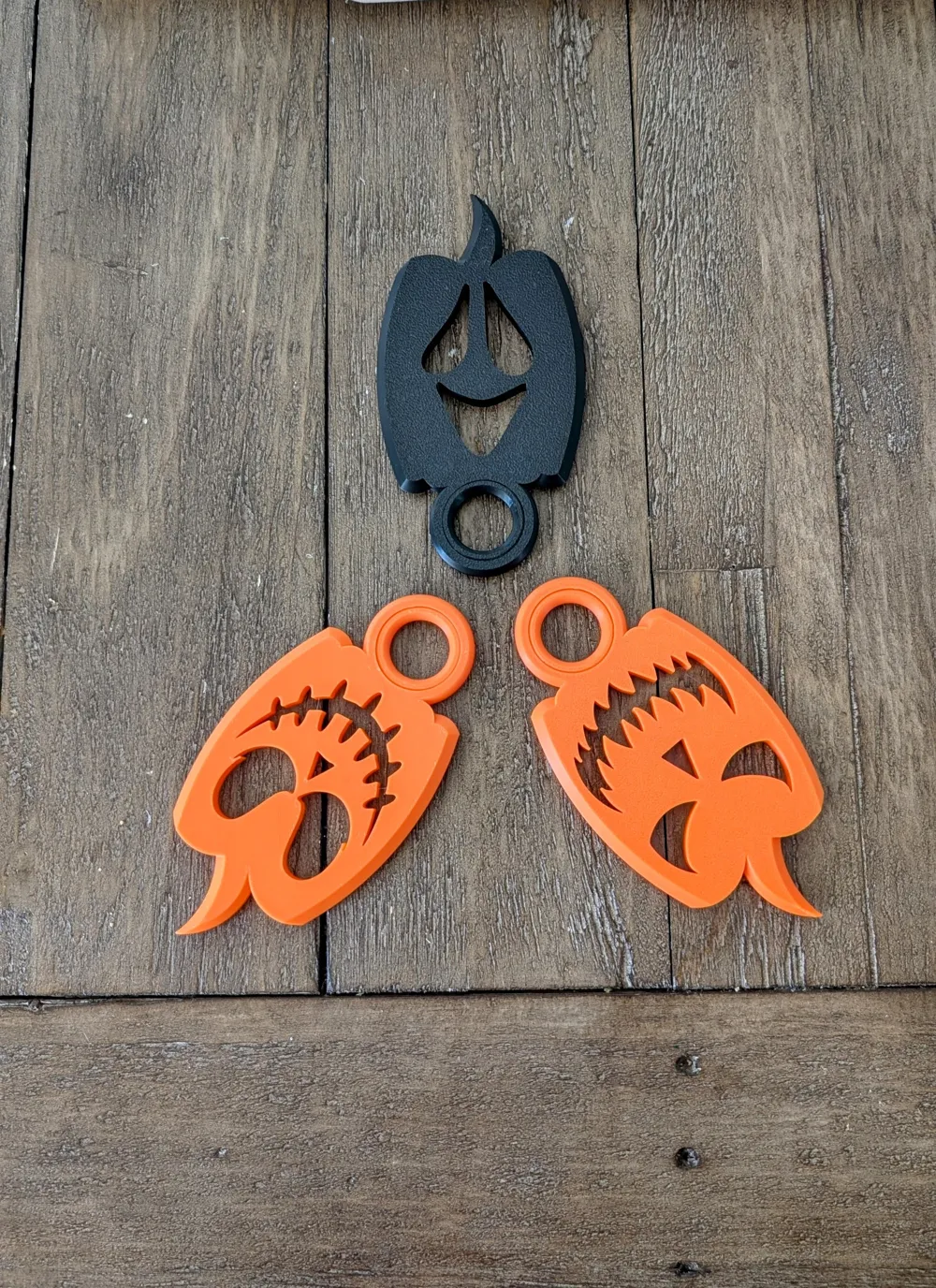
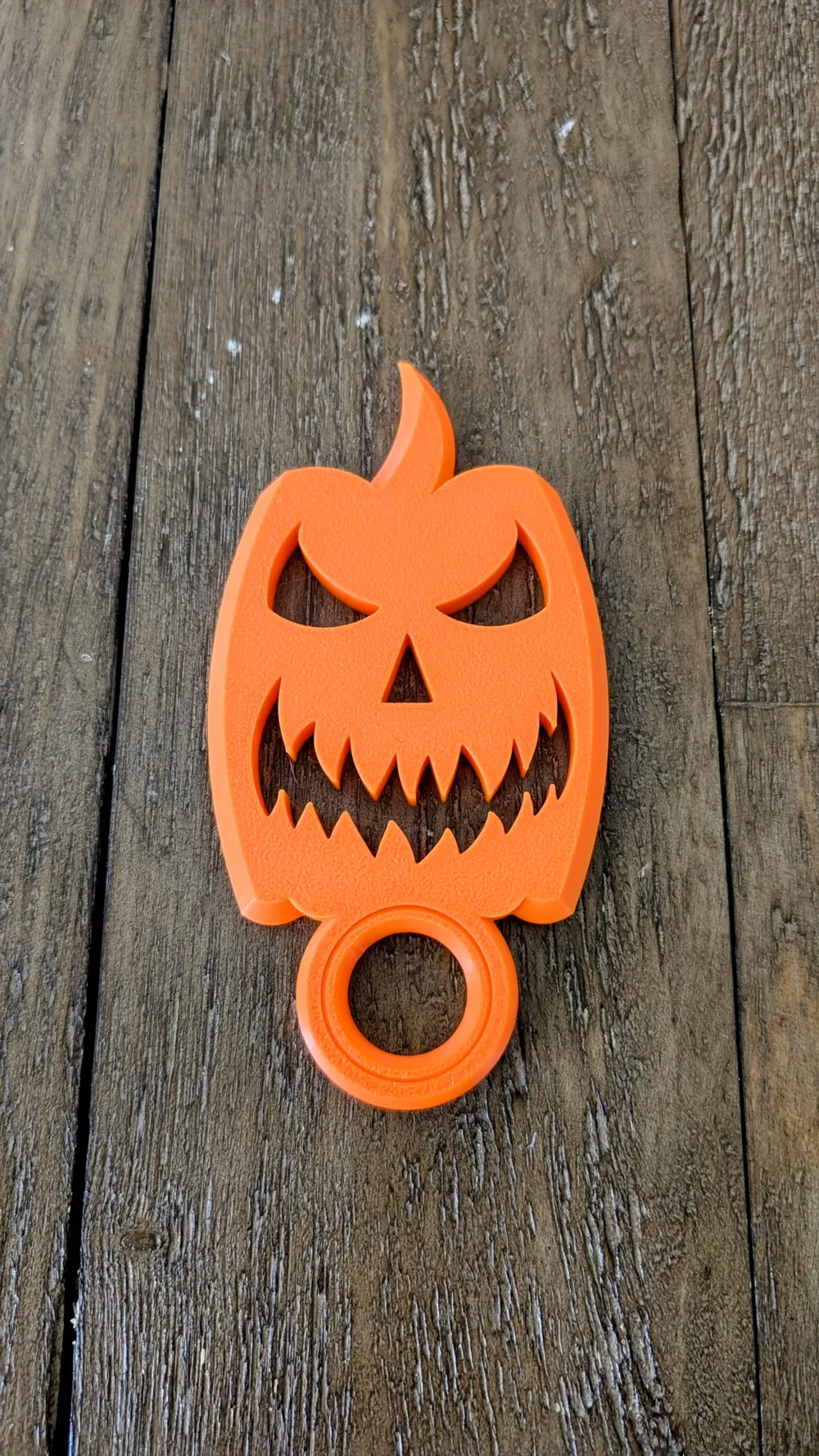
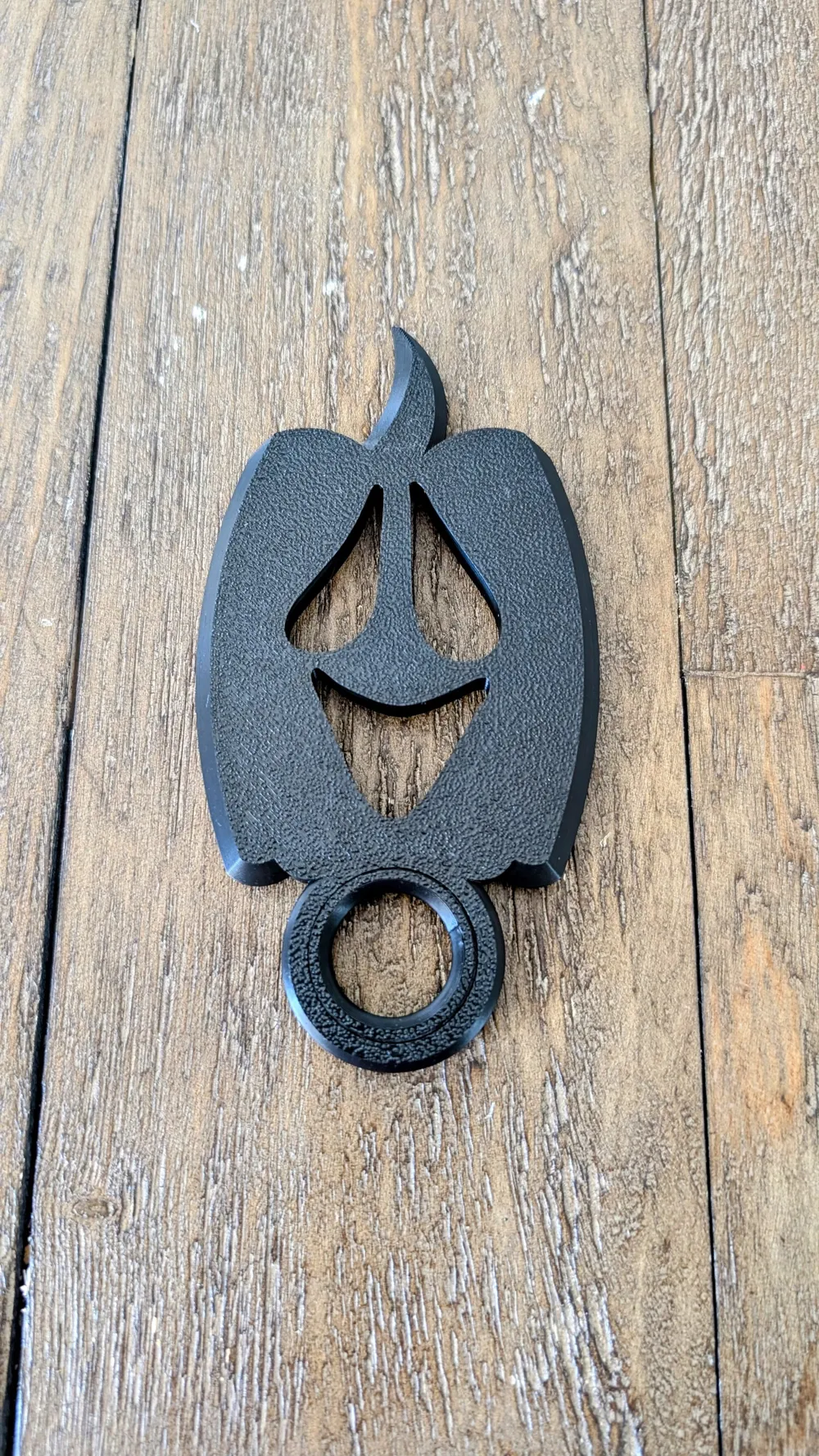
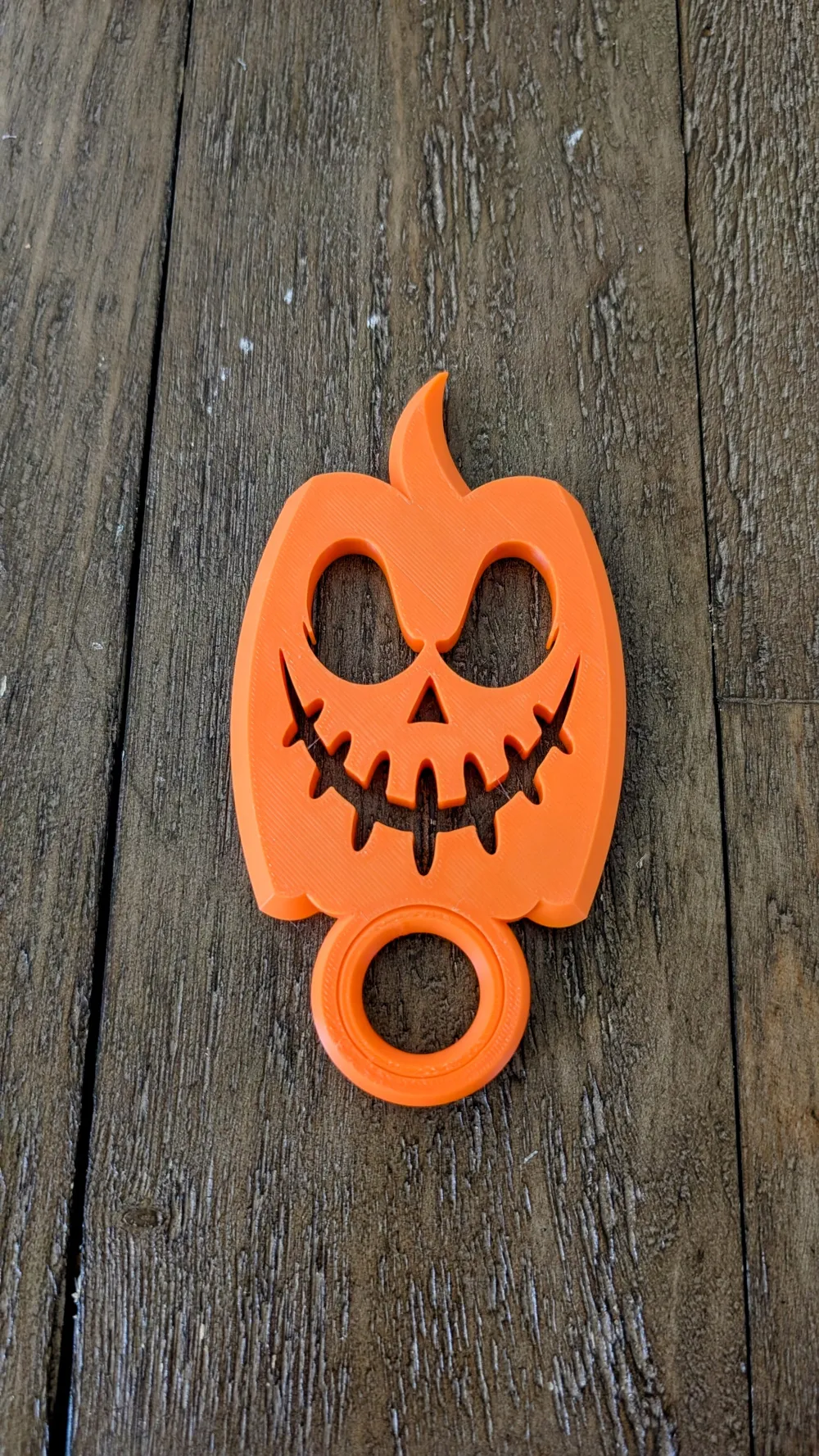
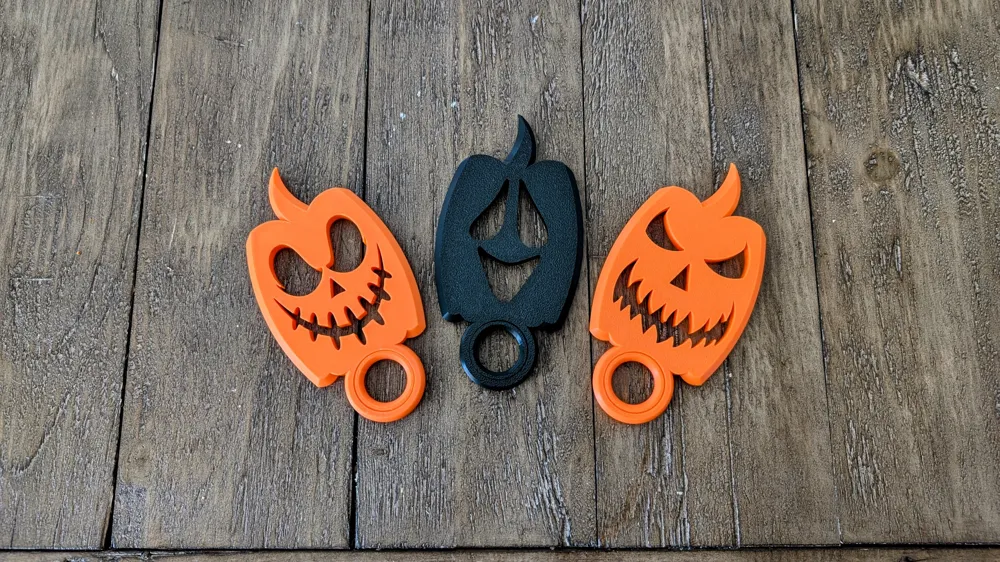
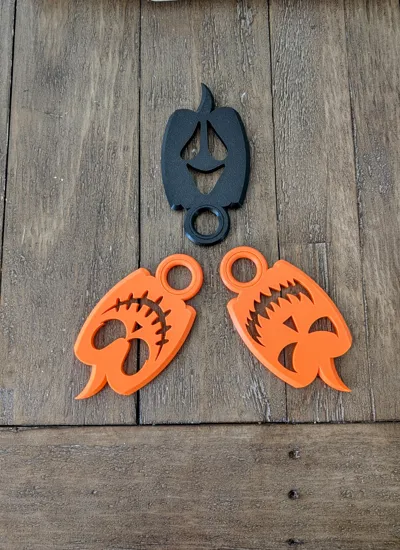
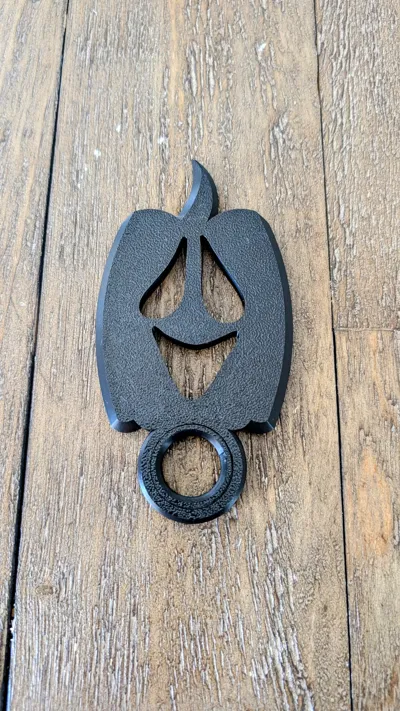
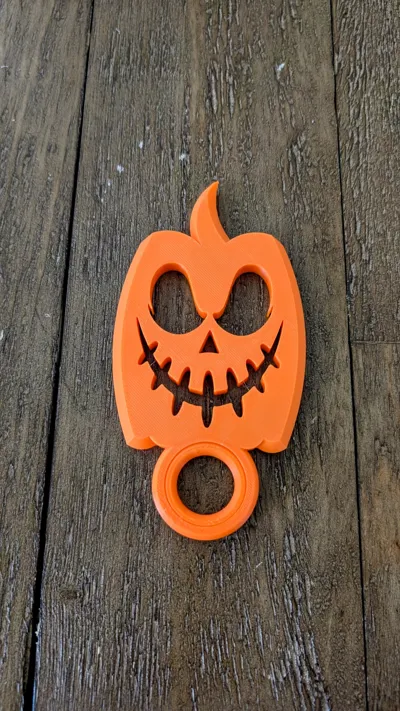
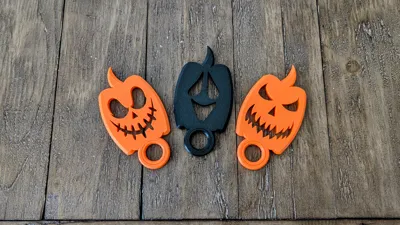
The JackKnife is a pumpkin-themed spinning blade that brings spooky season straight to your fingertips. But this isn’t just a festive fidget — it’s a customizable canvas. With a blank template version included, you can import your own SVG file in your slicer and carve out the face you want: creepy, goofy, classic, or chaotic.
Whether you're printing it for Halloween flair, gifting it to friend, or just want a kinetic toy with personality, this BladeWhirl entry is all about playful precision.
• 🎃 Pumpkin body with blade-style flair
• ✂️ Blank template for custom SVG carving
• 🌀 Smooth finger spin with central grip ring
• 🖨️ Support-free, print-in-place design
• 👻 Perfect for creating something unique
From sinister smirks to silly grins — carve your own legend.
✨Printing Guide:
- Very simple, no supports, 3+ wall loops for added Strength and weight.
- Increase the infill or walls if you want it heavier.
- Make sure your build plate is clean!
- Customize your own JackKnife or choose another profile for an existing design!
Disclaimer: This is meant to be a toy! Please use responsibly.
Boost Me (for free)
Boosts really help me out! If you enjoy the model please consider giving me a free boost, thank you!
✂️How to Customize:
- Using the empty JackKnife print profile you can design your own! Start by opening the empty print profile using Bambu Studio.
Import your SVG or 3D Model (File->Import->Import 3MF/STL/STEP/SVG...) into the opened print profile.
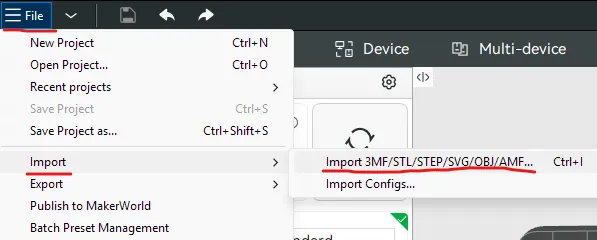
- TIP: This is just like real pumpkin carving! The SVG/Model you pick must not have “floating” pieces. The carved out section of the model must all still form a connected object so the design holds in place.
- Once the Open File Dialog box is show, select your SVG or 3D Model, and import it as a Part.
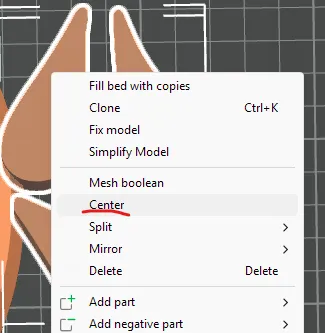
Now that it's an imported Part, center it: Right click on the imported Part and click "Center".
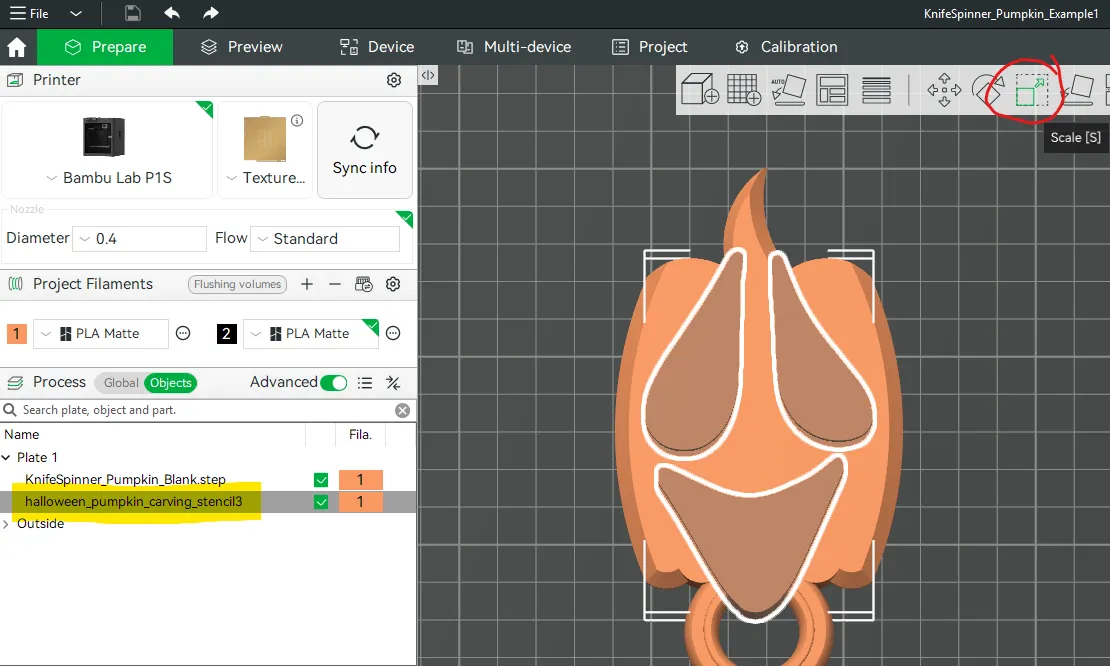
Scale it: Make sure only the imported Part is selected using the "Process->Objects" pane, and then hit the "Scale" Icon in the toolbar. Make sure the "uniform scale" is Unchecked.
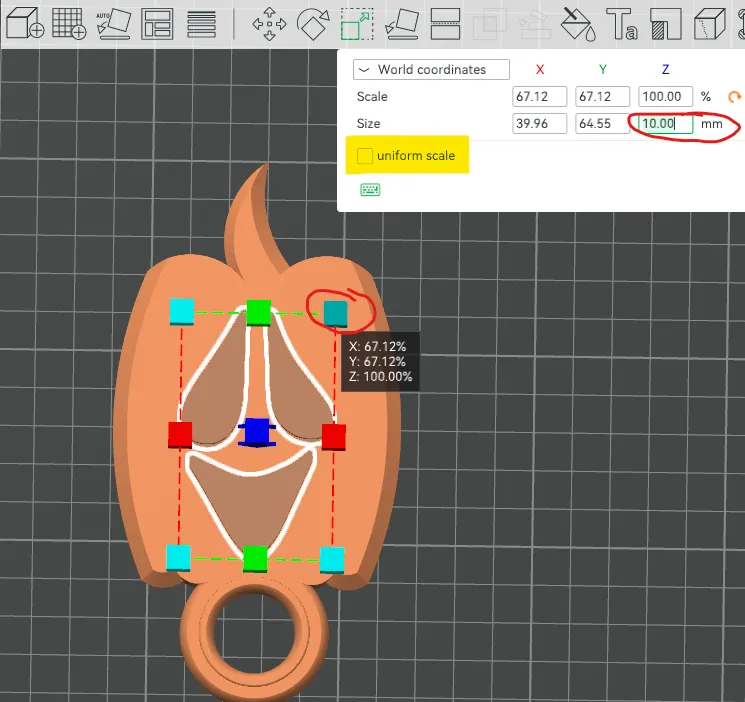
- Using the corner scale boxes (light blue in the picture above), size the imported Part to fit into the center of the JackKnife Spinner. Once you have the desired size, go directly into the scale "Size" "Z" entry box and set it to 10.00mm. Tab out of the field. Setting the Z scale to 10 will ensure you'll end up with a “carved out” design!
You can then use the "Move" tool to finalize the X/Y position to your liking. Ensure the Z position does not change and the imported Part is always touching the plate.
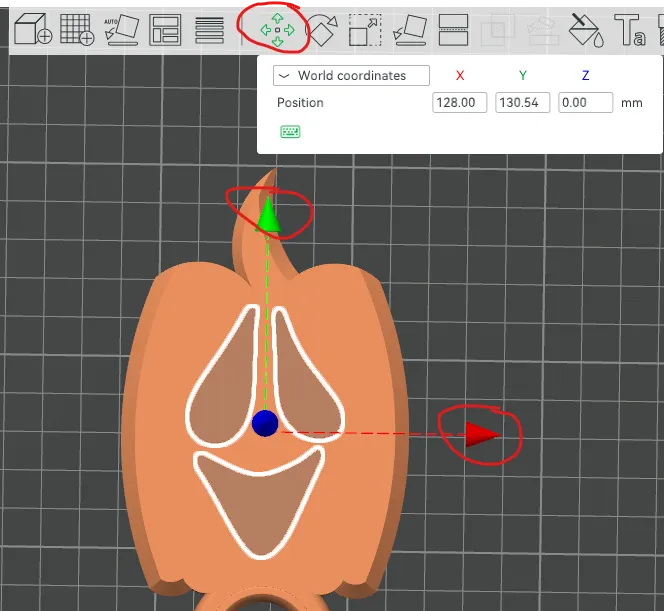
- TIP: Make sure you are within the bounds of the pumpkin, don't overlap the spinning ring, or cut out to the edge of the knife!
Once done moving and scaling, if not already, exit the tool by hitting the "return" button in the upper right corner, near the toolbar.

Now you must Merge the imported Part(s) with the Blank JackKnife Spinner. Go into the "Process->Objects" Tree, and select all of the Parts. Note that some SVG imports will have multiple parts, and might not be a single part, make sure they are all selected. Right click and select "Merge".
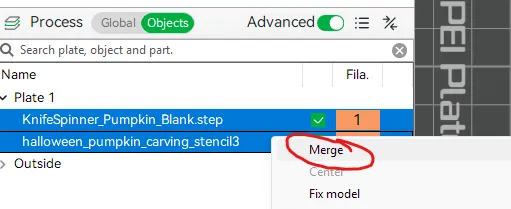
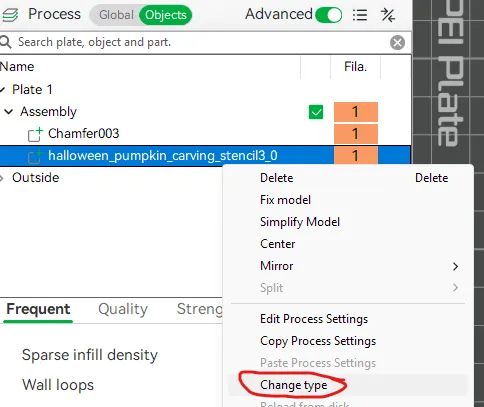
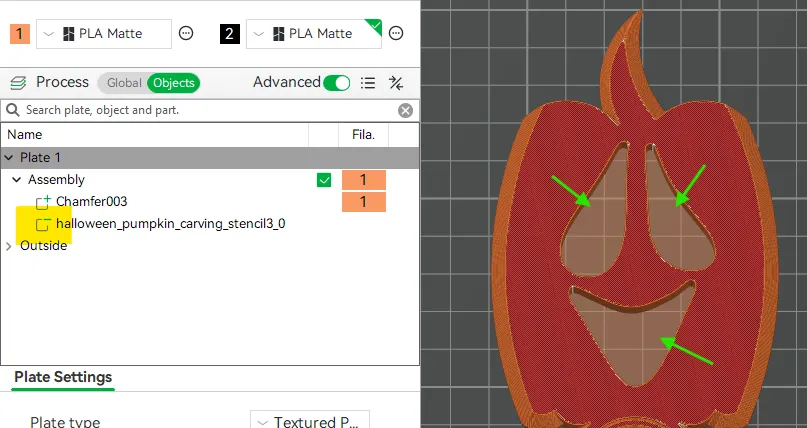
- The last step is to select each of the Imported Parts from your SVG or 3D Model from the "Process->Objects" Tree again, and set them to a "Negative Part" part type. If your SVG/Model has more than one Imported Part, you must do this one at a time!
Right click the Imported Part, and select "Change type" from the drop down
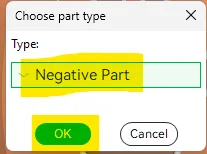
In the popup, there will be a drop down, choose "Negative Part", and hit "OK"
Verify! You can verify they are now Negative Parts by looking back in the "Process->Objects" tree and you should see a "-" icon on the Imported Part. And the last step would be to slice your model and ensure you see the desired pattern carved out of the JackKnife Spinner!
Print and Enjoy! Please post pictures of your designs!
If you enjoyed this design and want to show some support, I have a Ko-Fi page where tips are always welcome — but never expected. Every little bit goes right back into the hobby and helps me keep creating. Thanks for being part of the community! ☕🙏
License

You shall not share, sub-license, sell, rent, host, transfer, or distribute in any way the digital or 3D printed versions of this object, nor any other derivative work of this object in its digital or physical format (including - but not limited to - remixes of this object, and hosting on other digital platforms). The objects may not be used without permission in any way whatsoever in which you charge money, or collect fees.


Comment & Rating (1)