
Parametric: Stackable Box with Lid
Print Profile(2)






Description
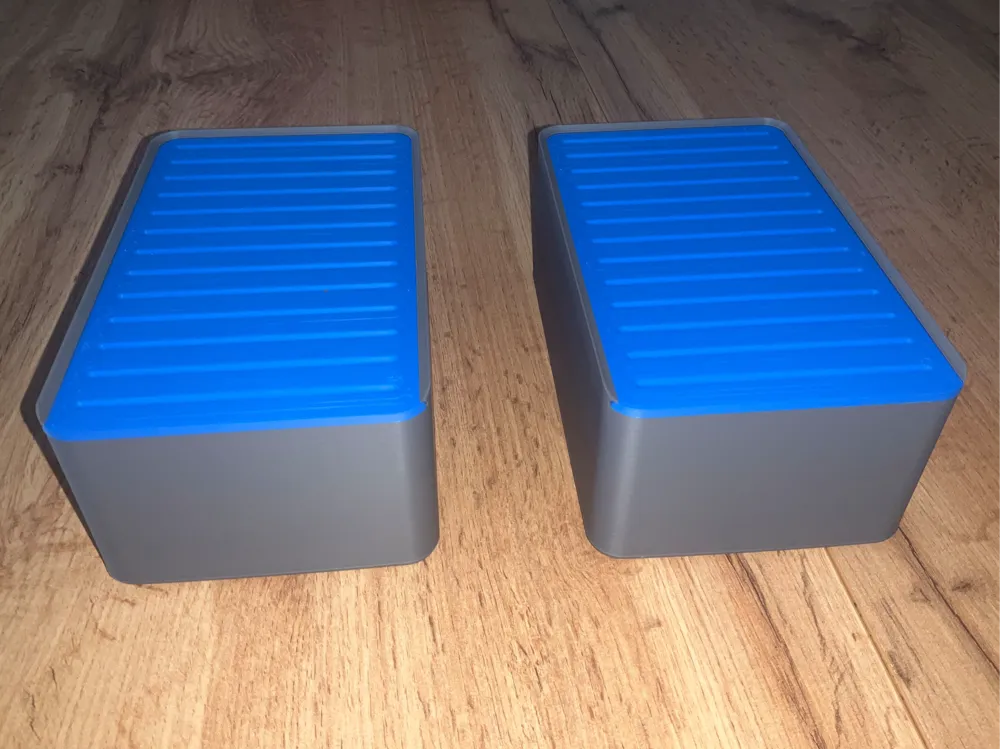
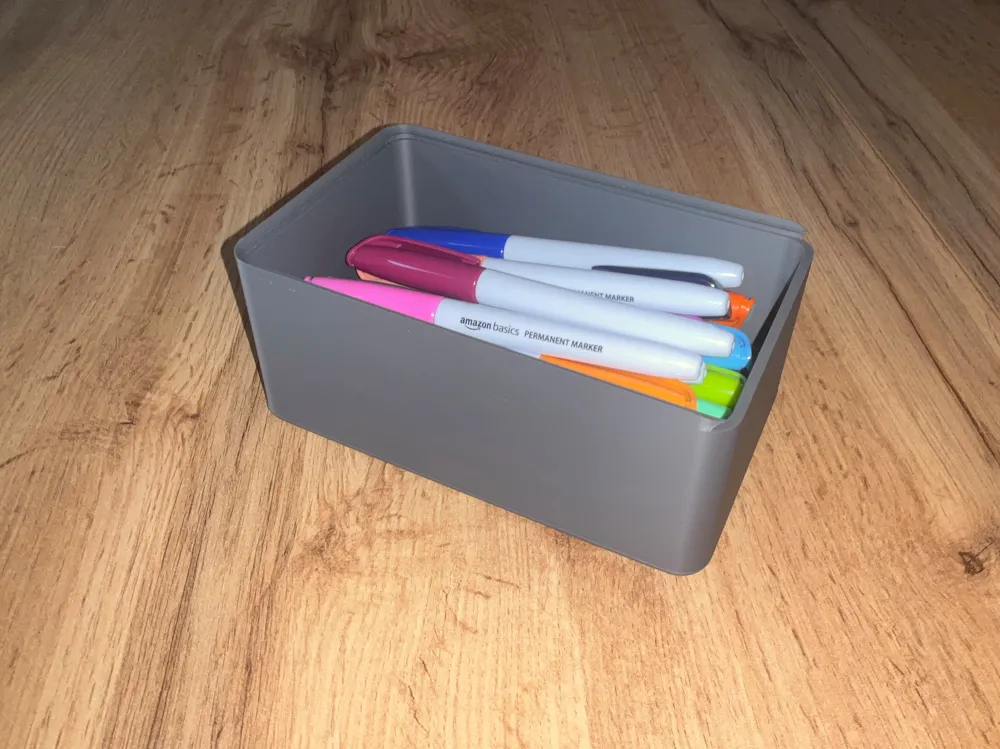
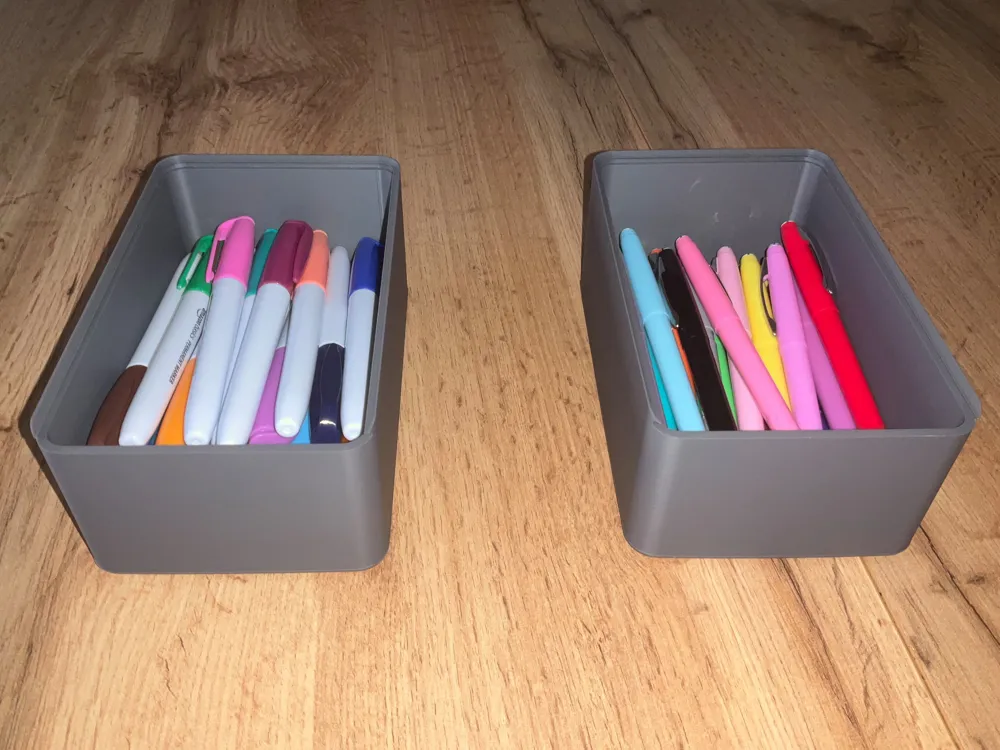
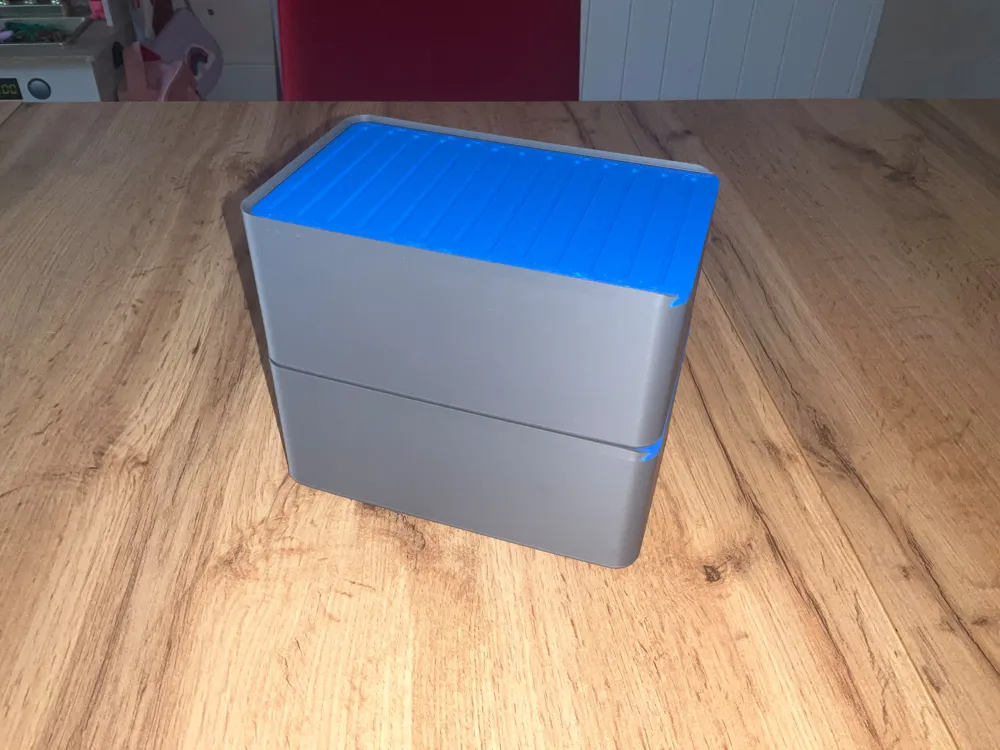
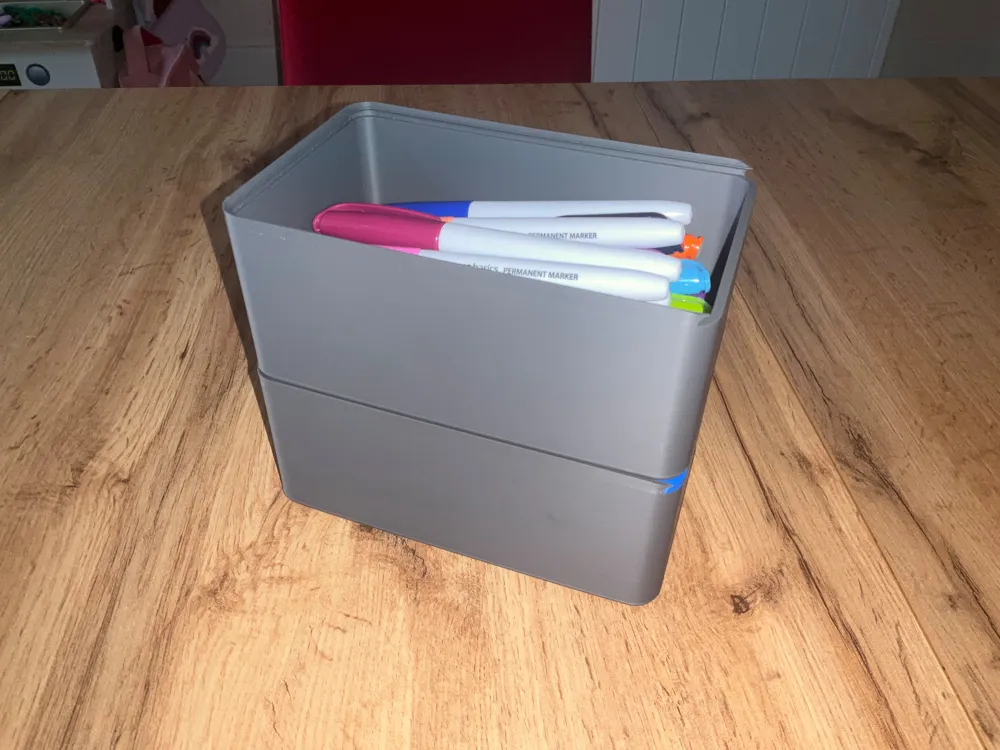
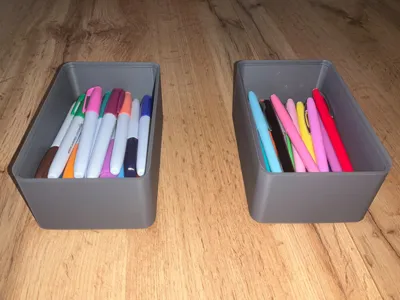
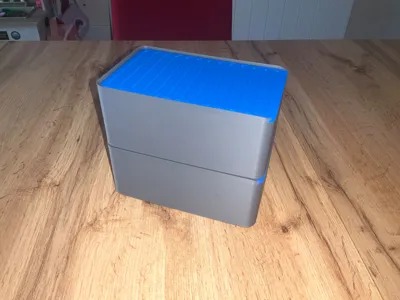
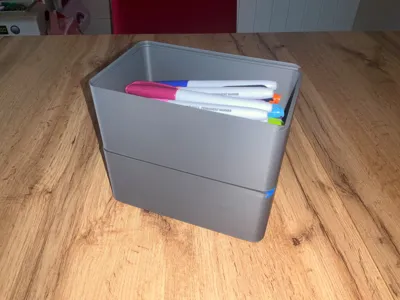
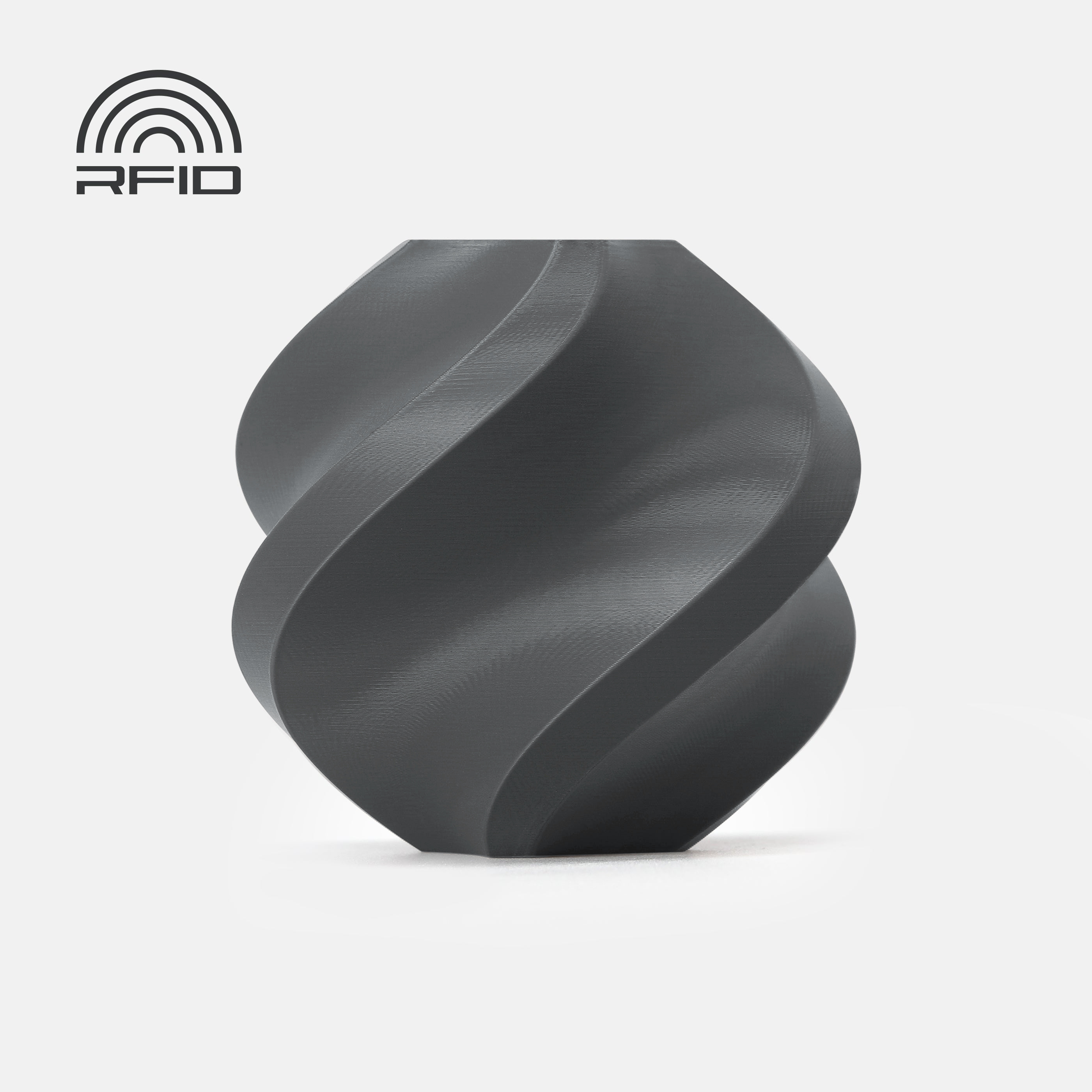
This is a stackable storage box I primarily use in my workshop or to store some of my daughter's toys. This model is parametric.
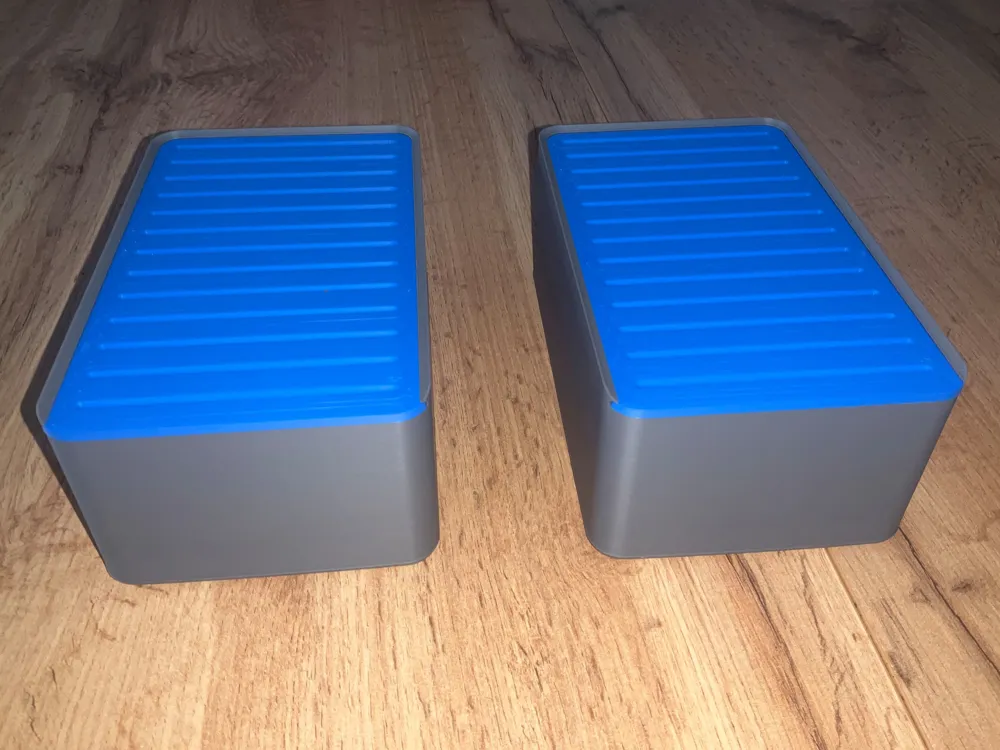
It comprises several parts:
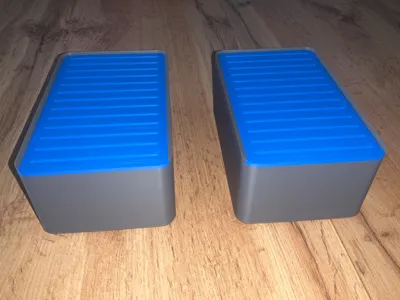
- A base
- A lid
There are no supports. The photos show the model printed at 0.20 mm
To generate your model, click on 
You can choose from the following parameters
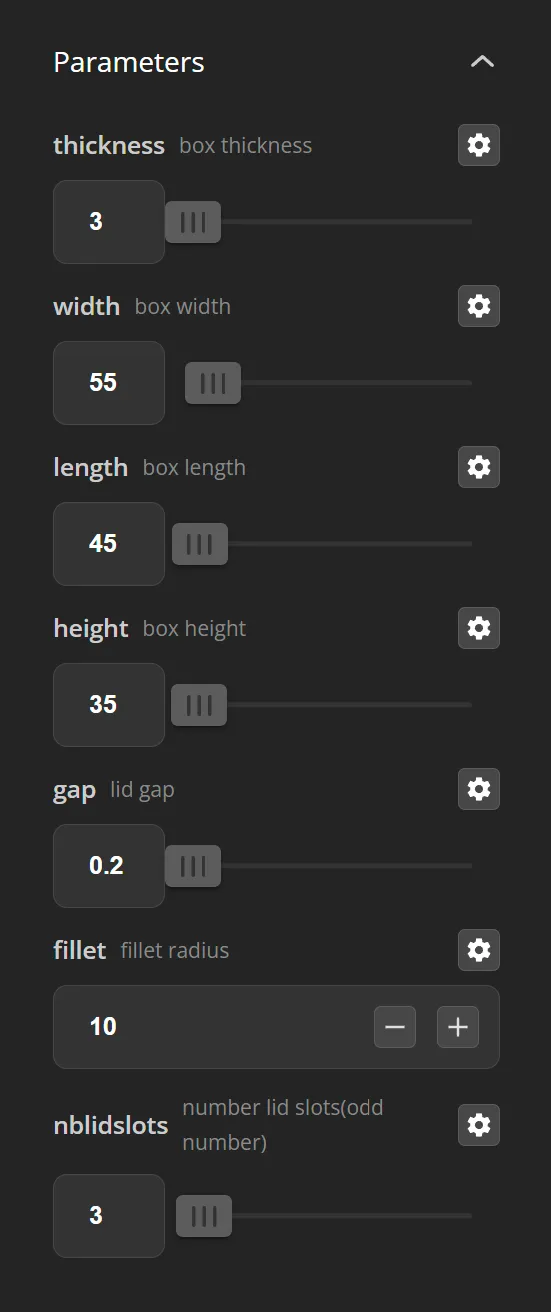
Once you have entered your parameters, click the button 
Once generation is complete, you can click the button  to retrieve your model in .3mf or .stl format
You must modify the attached print profile to integrate your objects; currently, the .3mf configuration is not correctly supported in the generator, and in case of a timeout during .3mf file generation, you must export as an STL file.
Link to a video detailing the modification for those unfamiliar with the Bambu Studio slicer: Bambu studio: openscad parametric stackable box how to import object
After customizing and generating your .3mf or .stl model via Openscad,
- Download one of the print profiles
- Open the profile in Bambu Studio
- Delete all objects except one
 click this icon to import the objects generated via Openscad by selecting the file you generated
- Choose the option to import only the geometry
- The objects will appear grouped; select them, then right-click and split the objects
- Delete the old object you left to import the others
- Also delete any objects you don't need (inserts and/or container)
- Move the objects onto the two build plates
- Select the objects, then right-click to choose the filament you want to use
License: personal use only. No resale, remix or hosting without authorization.
💛 A small like is always appreciated 😊
🛠️ Need an adapted profile or a modification? Say it in the comments, I respond quickly!
Boost Me (for free)
Even more of a boost ^^, that gives me sparkles in my eyes all day long.
License

You shall not share, sub-license, sell, rent, host, transfer, or distribute in any way the digital or 3D printed versions of this object, nor any other derivative work of this object in its digital or physical format (including - but not limited to - remixes of this object, and hosting on other digital platforms). The objects may not be used without permission in any way whatsoever in which you charge money, or collect fees.


Comment & Rating (7)