
Modulizer VX1 - MIDI Controller
Print Profile(1)

Description
Modulizer VX1 - MIDI Controller
Boost Me (for free)
Support me by giving a boost for this model. Thank you!
Membership
Become a member to use my 3D designs for commercial purposes!
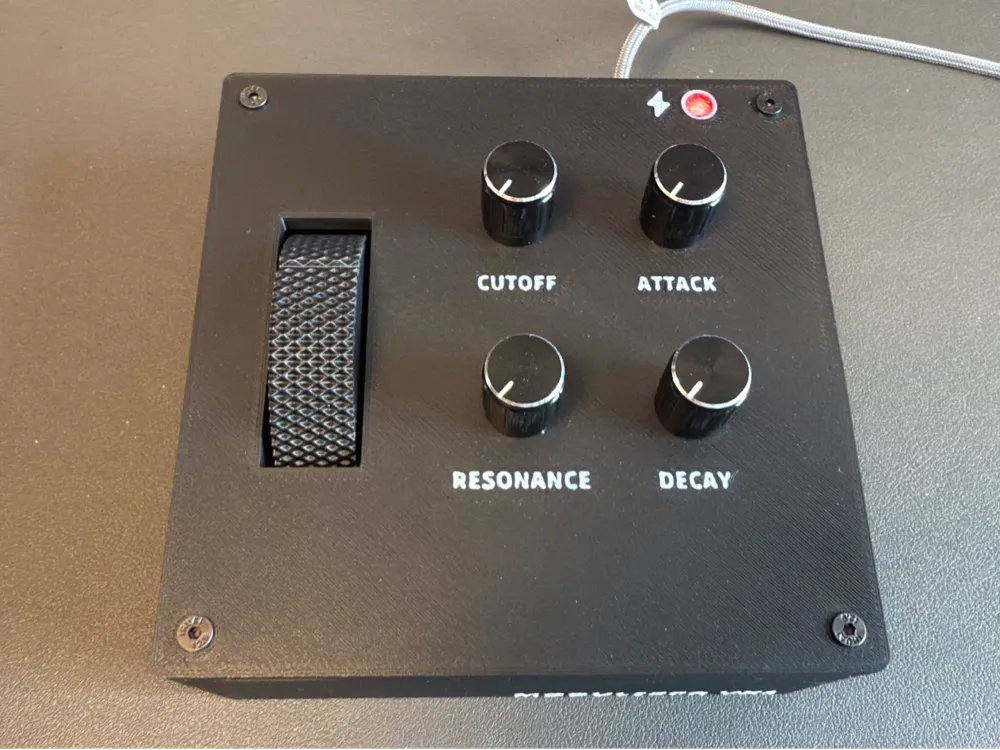
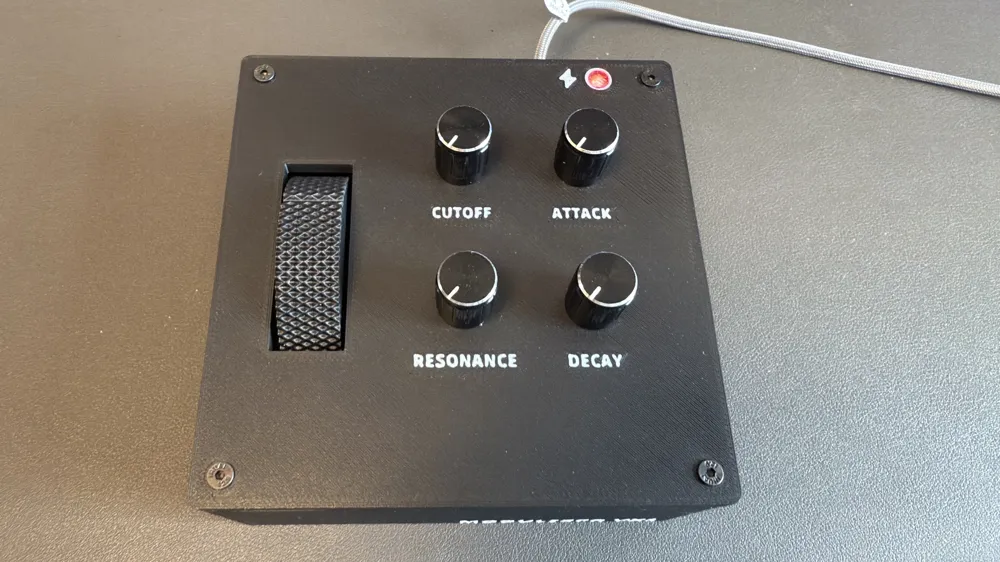
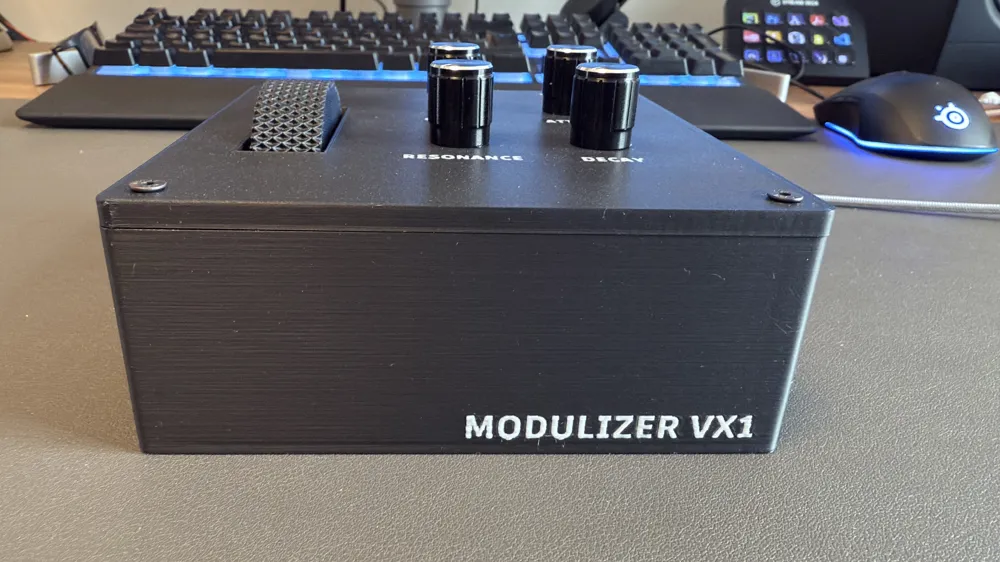
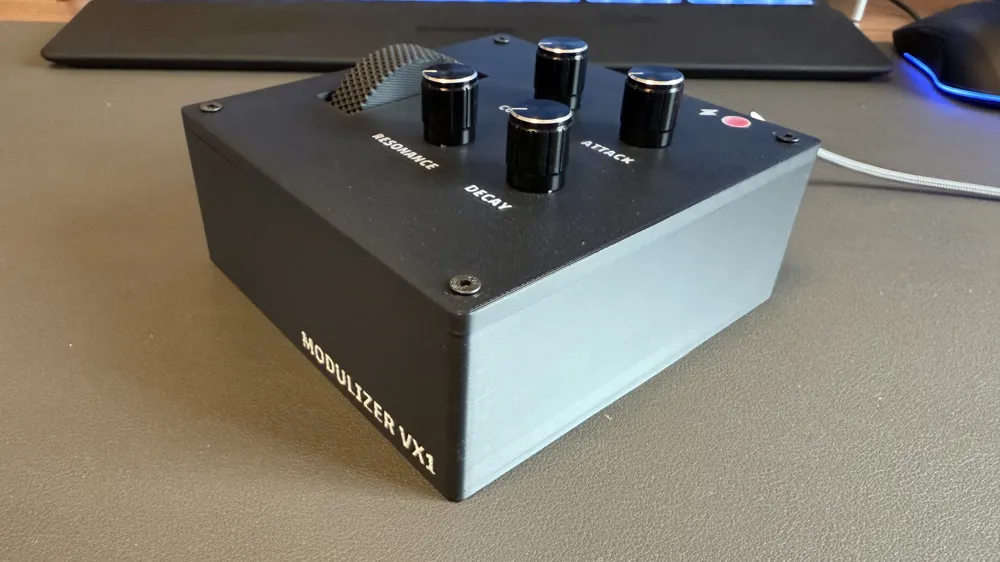
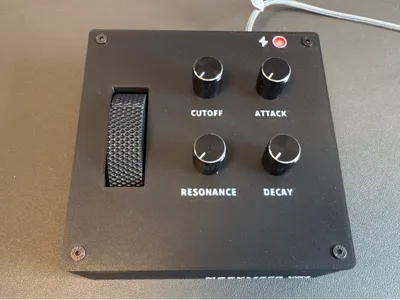
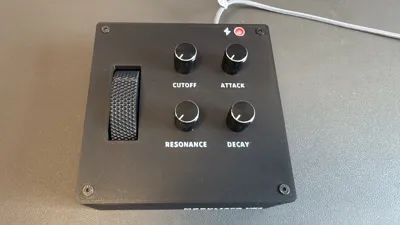
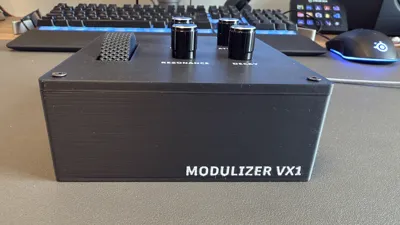
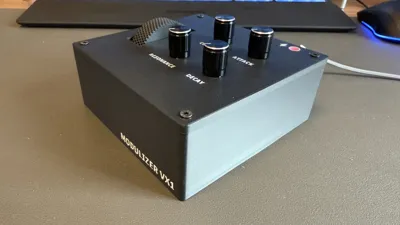
This is a MIDI controller based on an Arduino Nano 33 BLE. The device will be recognized via USB as a native MIDI controller which provides a mod wheel and 4 potis for cutoff, resonance, attack and decay.I wanted a stand alone device to control virtual instruments in my Digital Audio Workstaion (like Cubase).
Required parts:
- Arduino Nano 33 BLE (like this one) IMPORTANT: I also tried the Arduino Nano 33 IoT which was not recognized as native USB device. This seems to be a common issue.
- Nano extension board (this one)
- Micro USB cable
- LED (1x) - optional, you can leave it away if you do not want a power indicator
- Resistor 560 ohms (1x) for LED
- M3 threaded inserts (8)
- Countersunk head screws M3x6 (8)
- 5 potentiometers with knobs (like these) - 360 degree potentiometers will not work
- Shrinking tube
- Soldering iron
- Super glue or hot glue
Instructions:
1) Print all parts as per the provided print profile. There is a power indicator on the lid. I used transparent PLA for the round cover to have the light come through. All other colors are black and white. Set your filaments accordingly in the slicer should you need to make and adjustments.
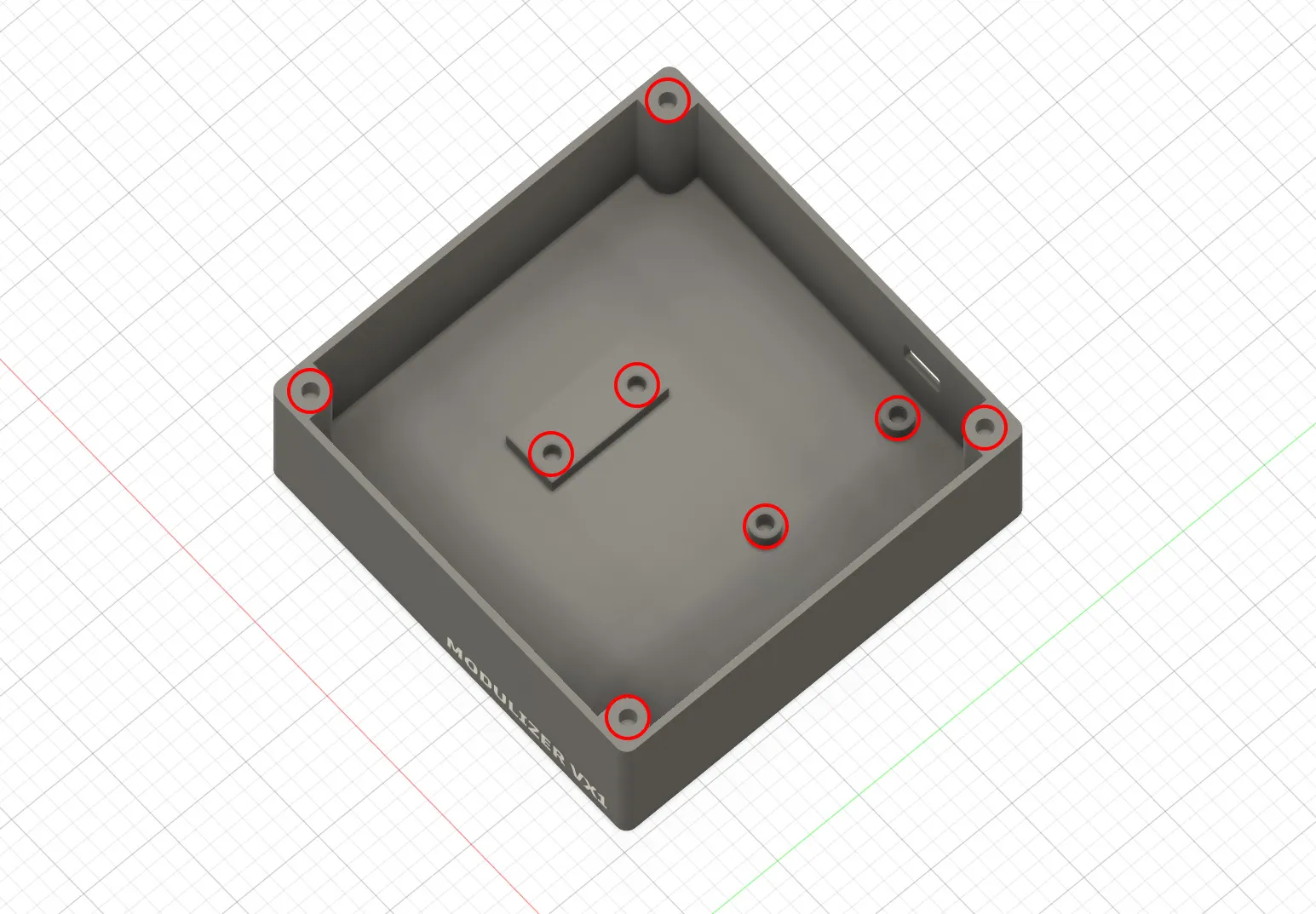
2) Insert M3 threaded inserts into the body as per the below image, using a soldering iron:
3) Solder the resistor to the positive pole of the LED, then solder Dupont cables to the LED legs/resistor. You can shield the legs of the LED by using shrinking tubes.
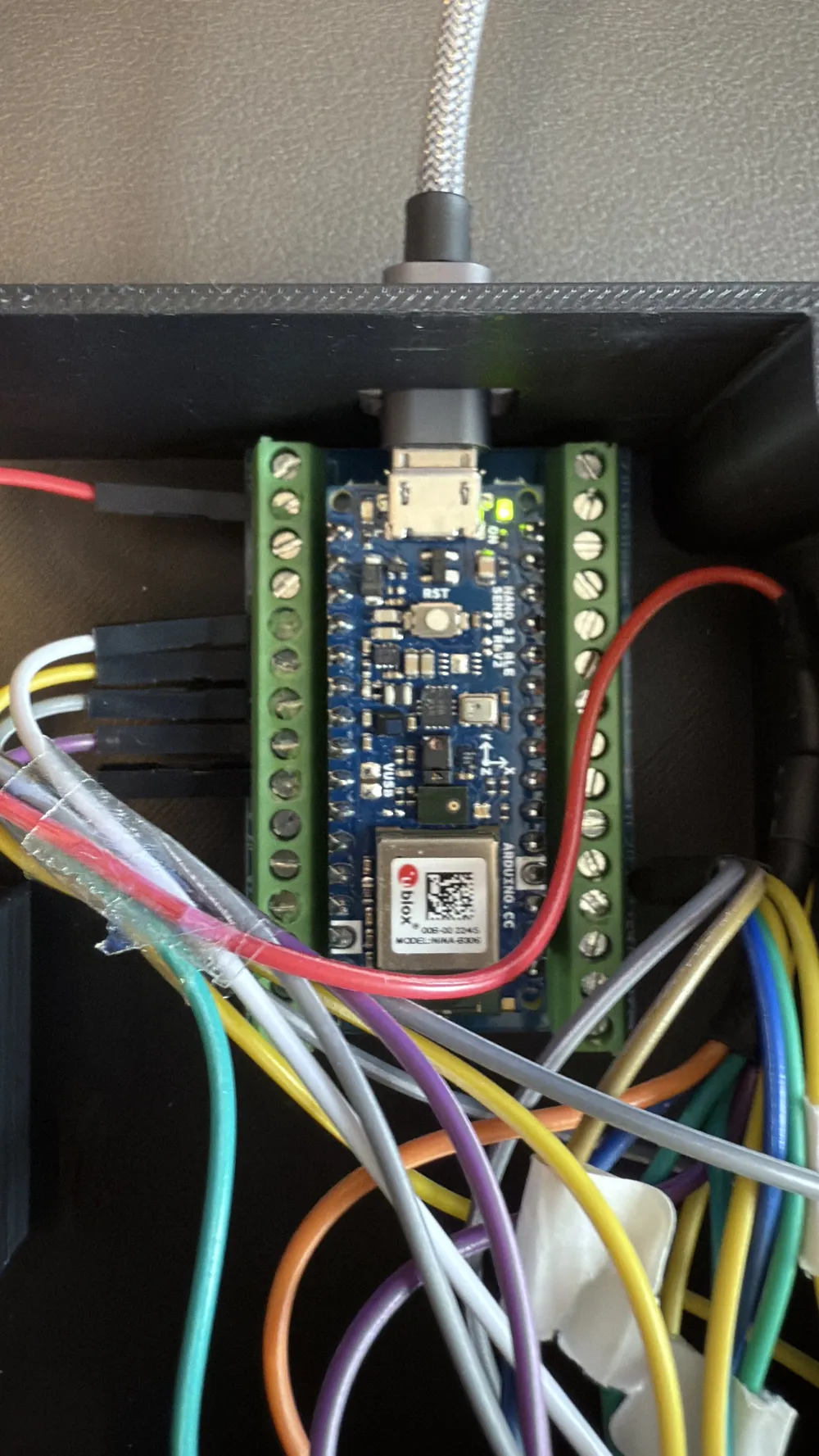
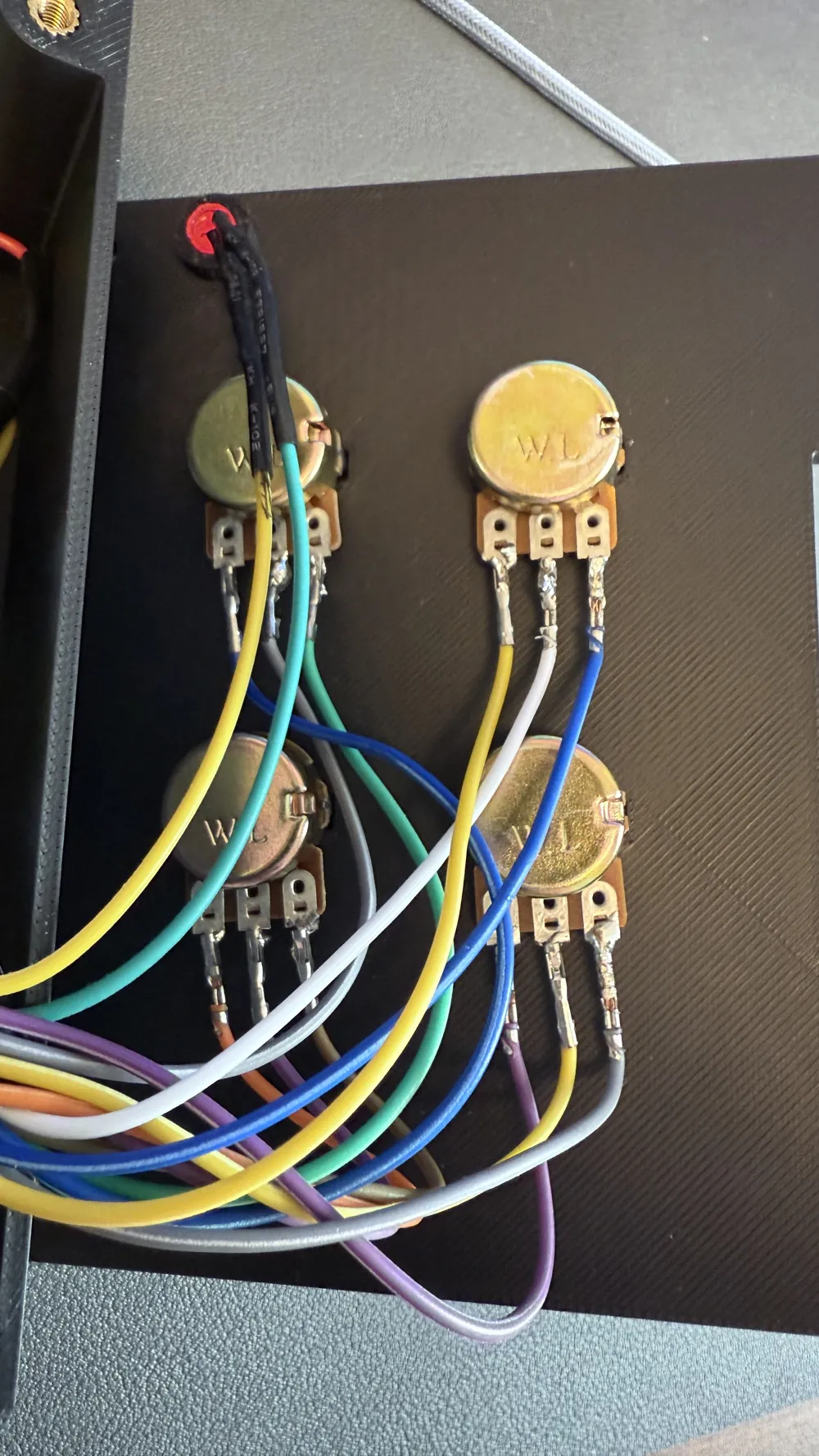
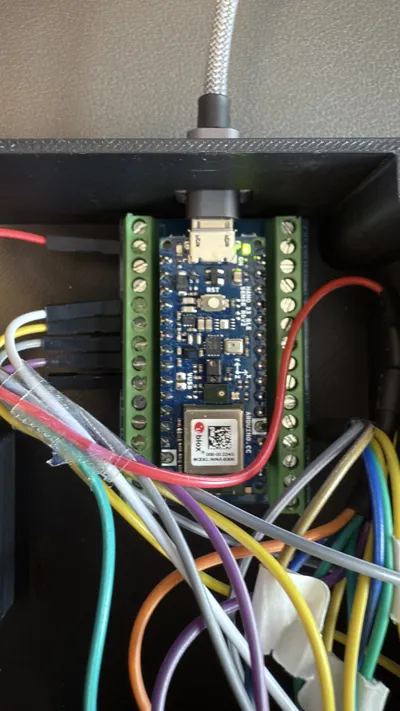
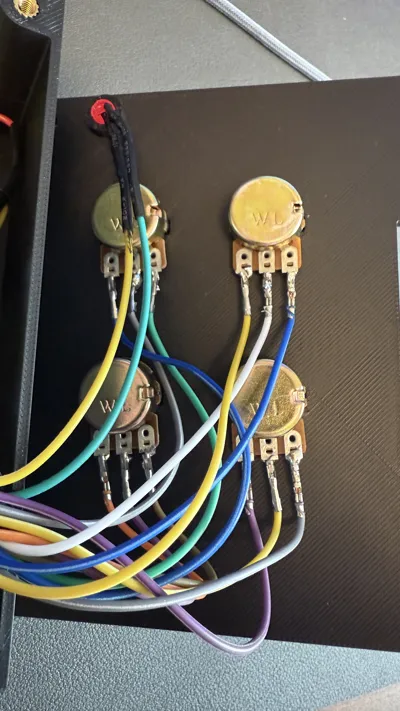
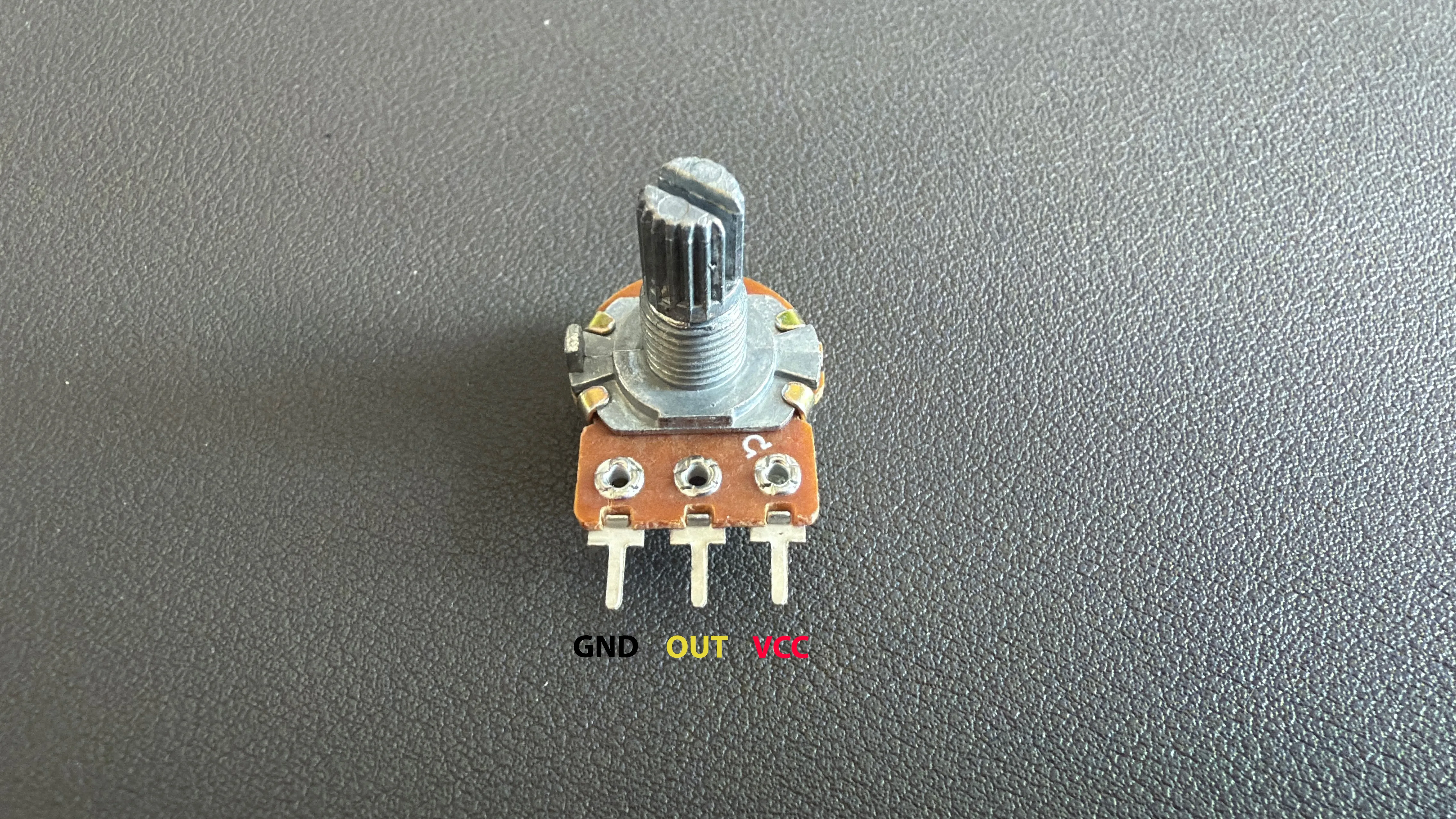
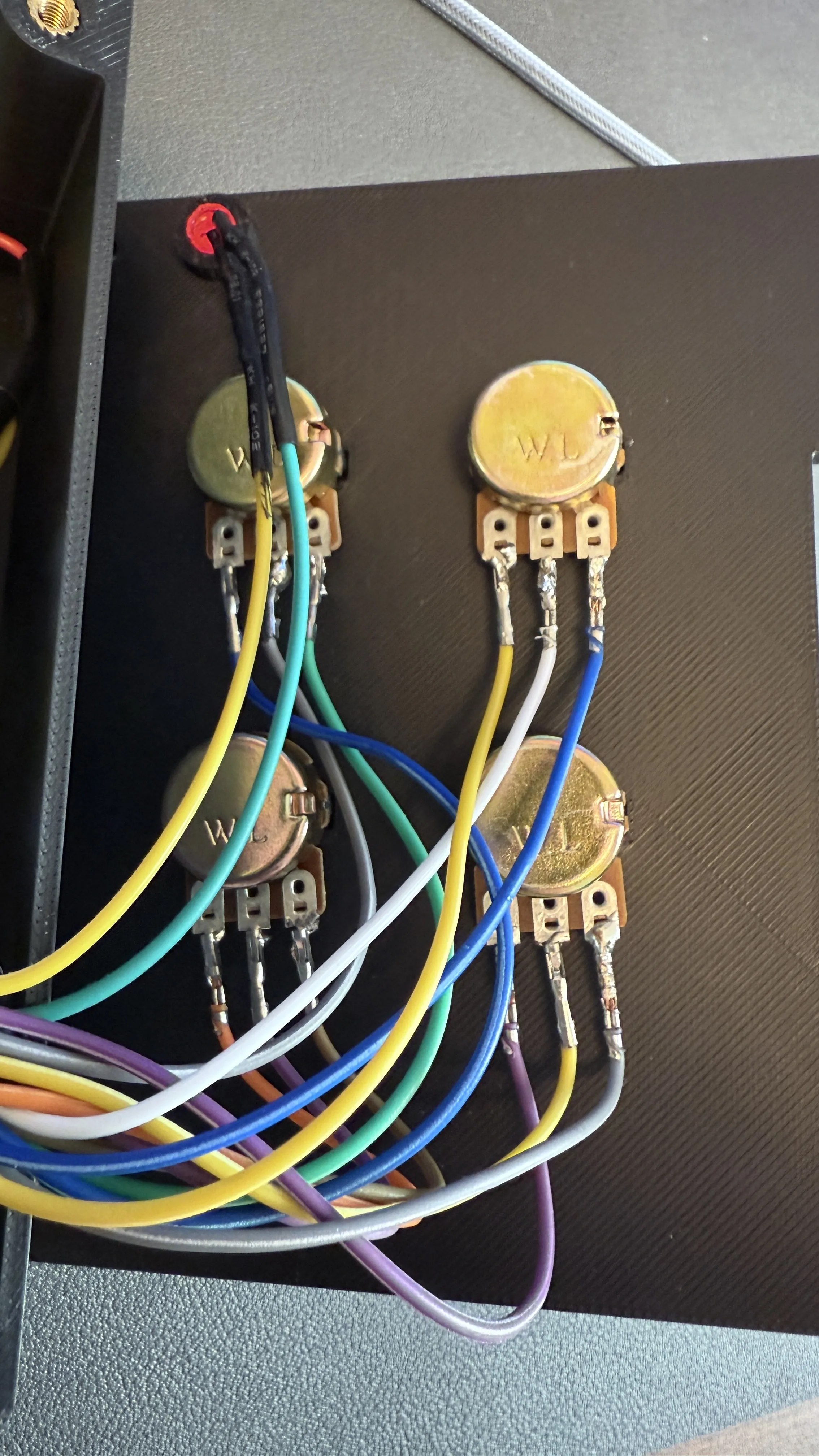
4) Solder Dupont cables to the potis. The middle leg of the potis need a Dupont cable with a pin at its end. These pins need to be connected to the relevant analog ports of the Arduiono. I chose A1 - A5 with the Out signal of the mod wheel poti to be connected to A5. Combine all VCC cables of the potis and the LED by twisting them together and attach them to one of the VCC ports of the extension board. Combine all GND cables of the potis and the LED by twisting them together and attach them to one of the GND ports of the extension board. You can use shrinking tubes to seal off the cables if you like.
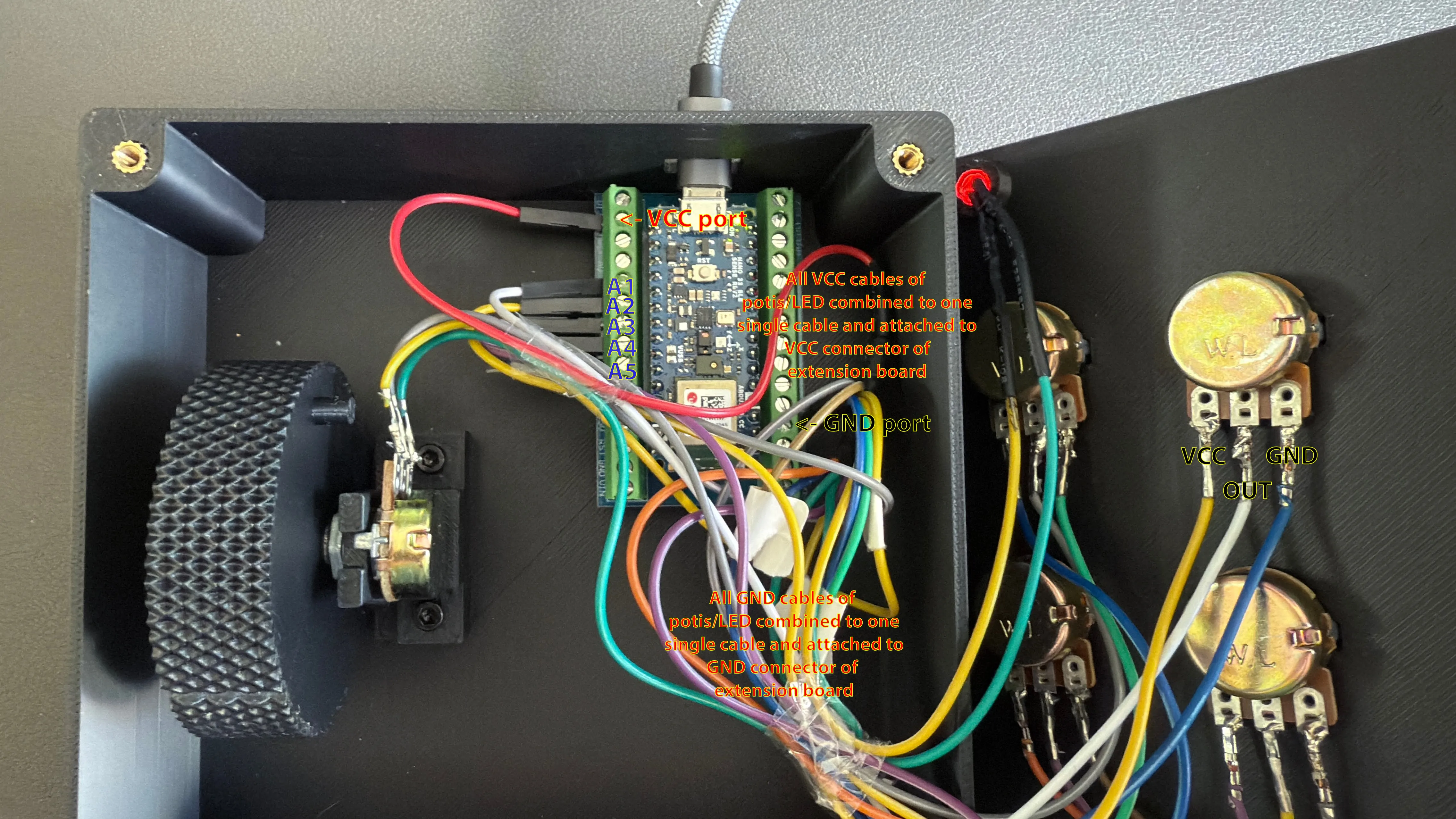
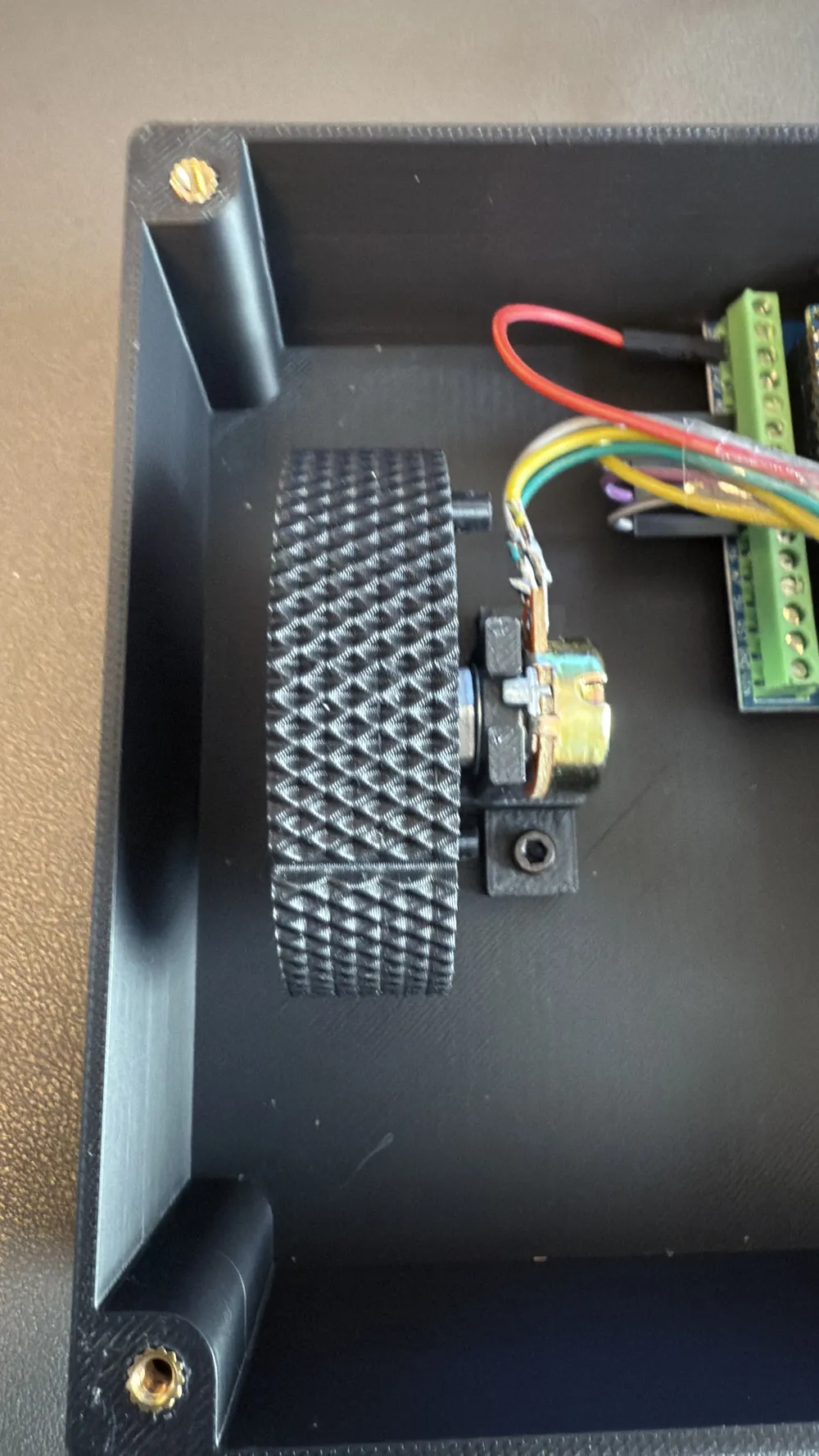
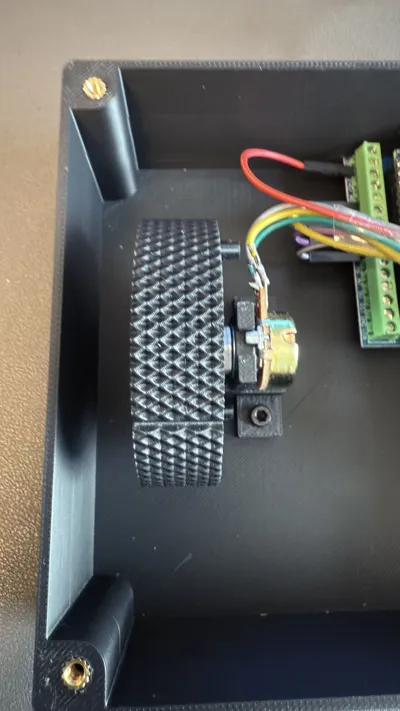
5) Attach the mod wheel to its poti as per the above picture. Be gentle as you may need to apply some force. The poti's legs need to face to the right, so towards the USB port. The wheel holder is attached to the bottom of the box using M3 screws. Make sure that the wheel is in the following position, so turned as far to the left as possible.
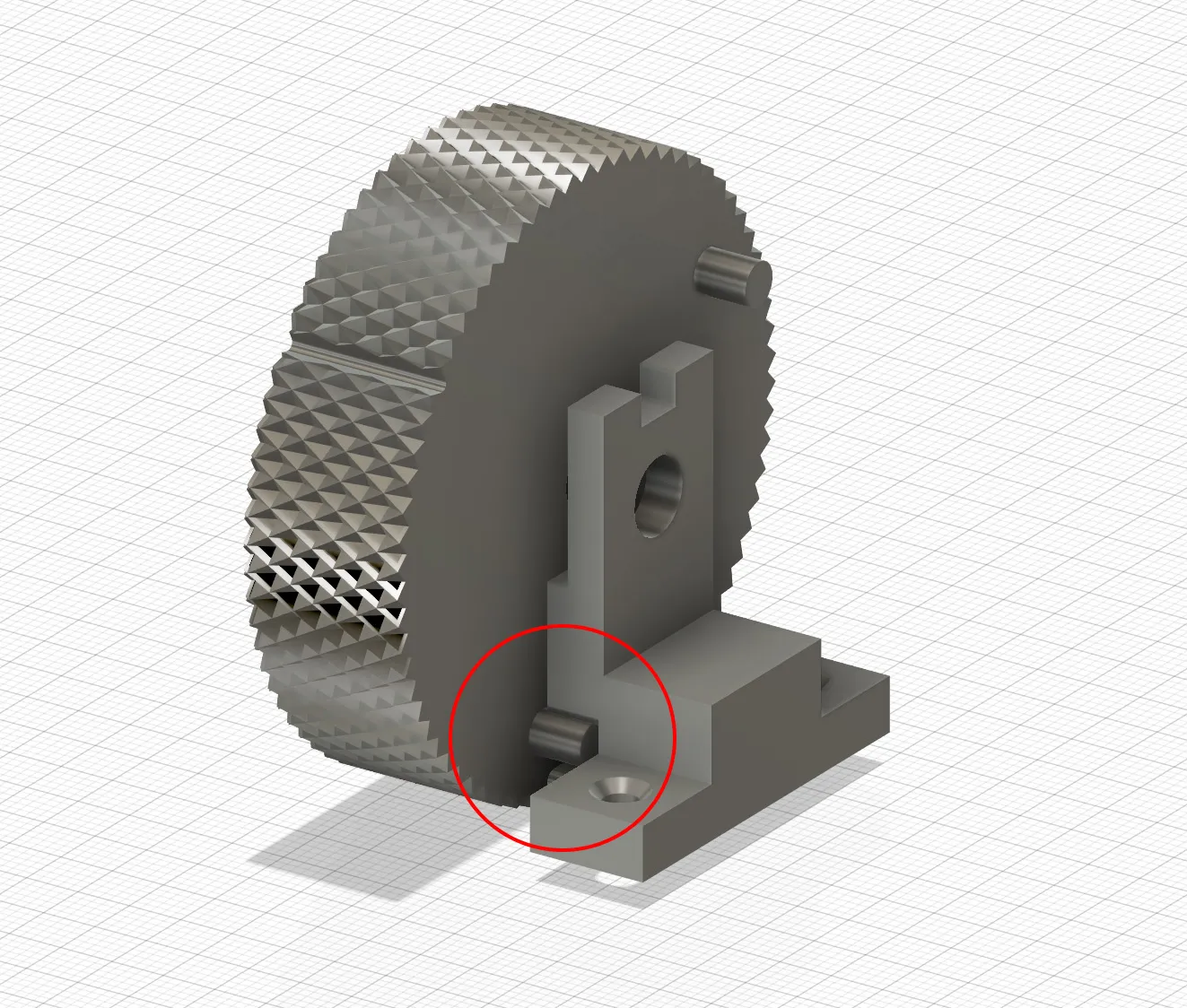
Important: The signal cable of the mod wheel poti needs to be connected to port A5 of the extension board (I am using this port in my Arduino sketch/code).
6) Use super glue or hot glue to fixate the LED to the ring on lid.
7) Attach the Arduino Nano 33 BLE to the extension board
8) Close the lid using M3 screws
9) Start Arduino IDE and upload the sketch/code to the Arduino Nano 33 BLE as per the attached document. The sketch/code uses the Control Surface library (see here) - you may need to install the library in Arduino IDE if not done yet.
10) Done, the Arduino Nane 33 BLE should now be recognized as a USB MIDI Device.
Fine tuning the values of the mod wheel:
Open Arduino Studio and uncomment the last two lines in this code highlighted in red:
////////////////////////////////////////////////////////////////////////////////////////////////////////////////
// DEBUGGING SECTION: Uncomment the following to lines to read out serial monitor
// Take note of the min and max values of your modhweel poti and insert these above for minRaw and maxRaw
// Serial.println(raw);
// delay(200);
///////////////////////////////////////////////////////////////////////////////////////////////////////////////
Upload the sketch/code to the Arduino Nano 33 BLE and open the serial monitor in Arduino IDE. Move the mod wheel all the way down and take note of the value shown. This is your minRaw value. Now move the mod wheel all the way up and take note of the value. This is your maxRaw value.
Undo the uncommenting of the two above lines and copy your values of minRaw and maxRaw further up in the code. 2055 and 3470 are the values for my poti, replace these with your individual values:
///////////////////////////////////////////////////////////////////////////////////////////////
// ! ADJUST THESE VALUES TO MATCH THOSE OF YOUR MODWHEEL POTI -> SEE DEBUGGING SECTION BELOW !
const int minRaw = 2055; // upper limit/stop
const int maxRaw = 3470; // lower limit/stop
///////////////////////////////////////////////////////////////////////////////////////////////
Save the sketch/code and upload it to your Arduino Nano 33 BLE.
Last step: Use the MIDI-Learn function in your DAW to assign the mod wheel and other potis to your instruments.
Have fun and let me know what you think!
Documentation (1)
License

You shall not share, sub-license, sell, rent, host, transfer, or distribute in any way the digital or 3D printed versions of this object, nor any other derivative work of this object in its digital or physical format (including - but not limited to - remixes of this object, and hosting on other digital platforms). The objects may not be used without permission in any way whatsoever in which you charge money, or collect fees.


Comment & Rating (0)