
Hoto Compressed Air Capsule - Charging Dock
Print Profile(1)

Description
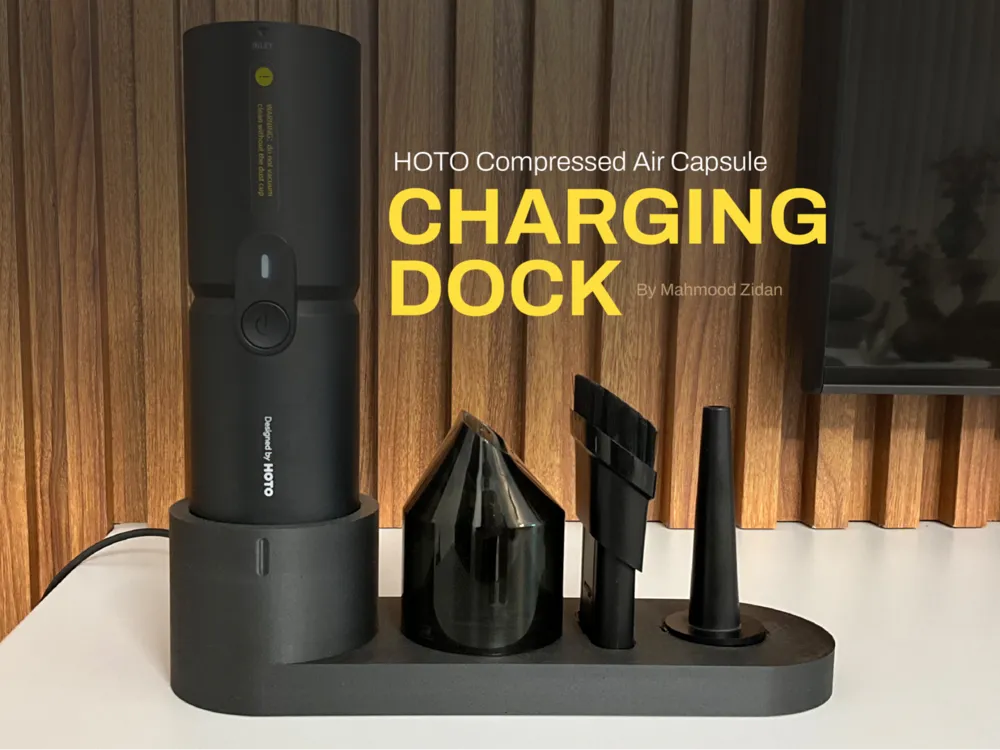
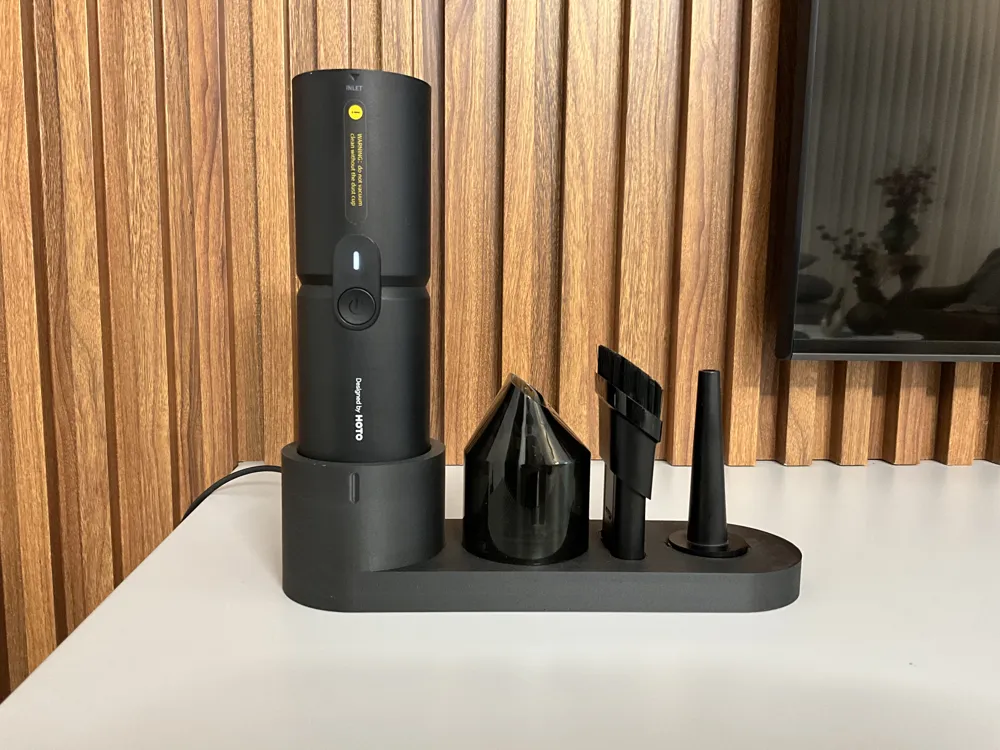
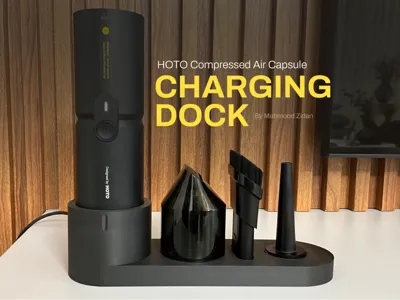
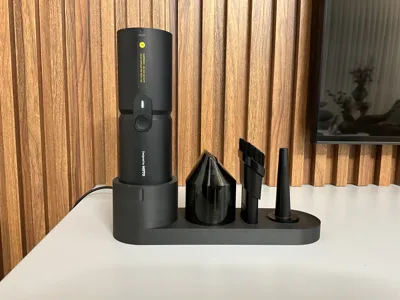
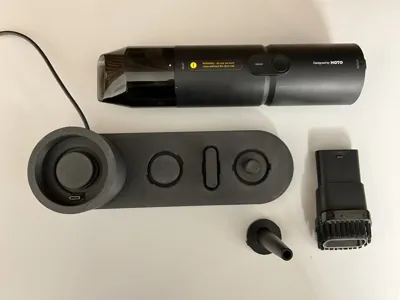
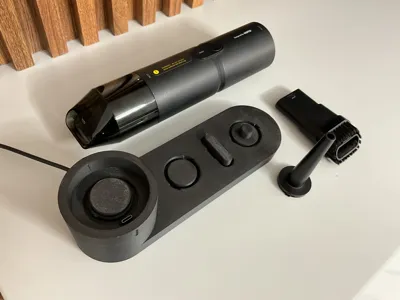
Hoto Compressed Air Capsule / Hoto Air Duster is a professional and powerful tool that always needed a charging dock in my opinion. It lacked the convenience and elegency of a station to be stored in and have it ready to use anytime. This brought the idea of the docking station.
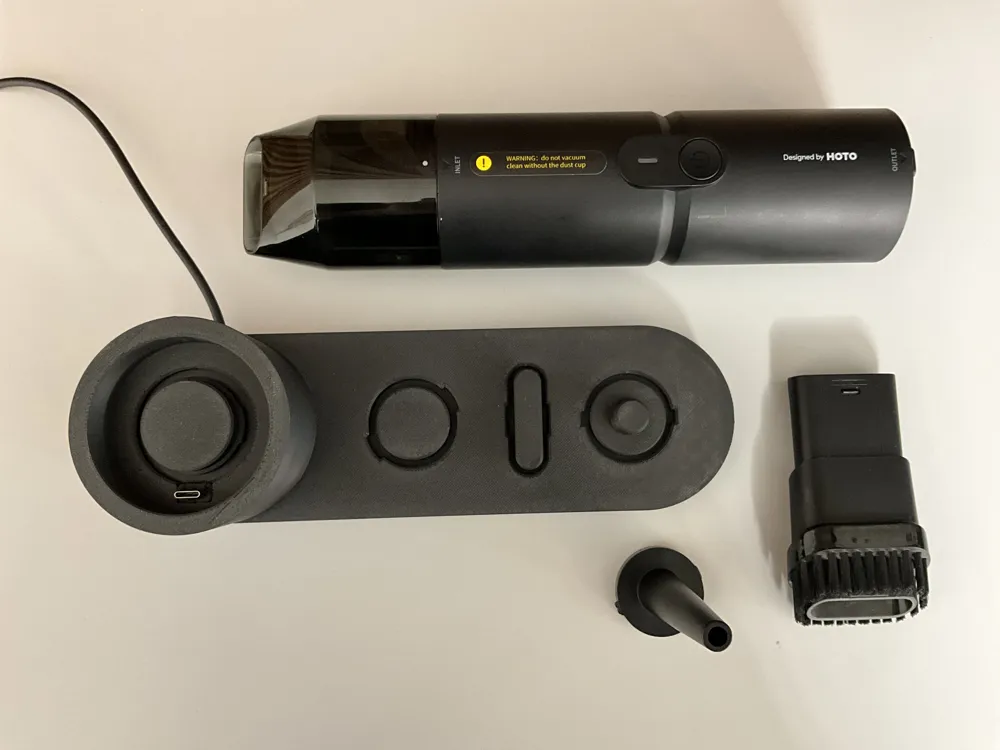
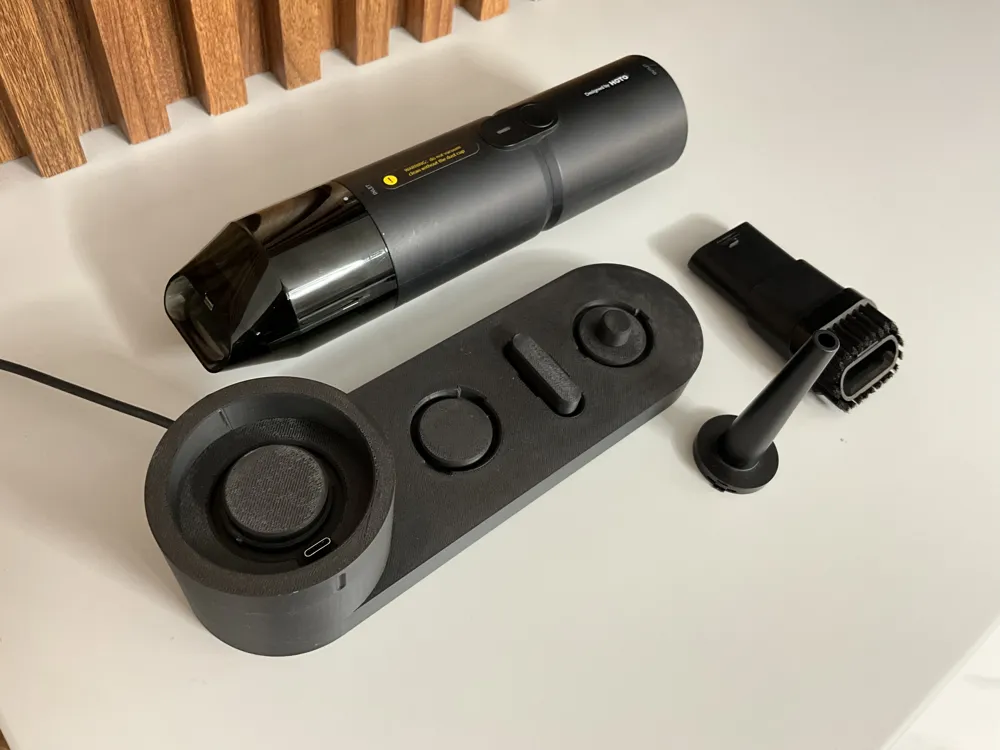
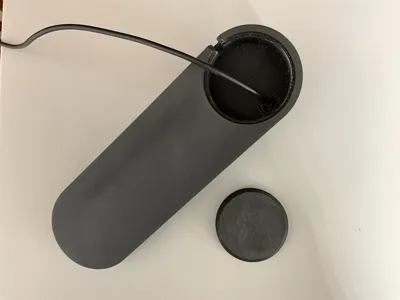
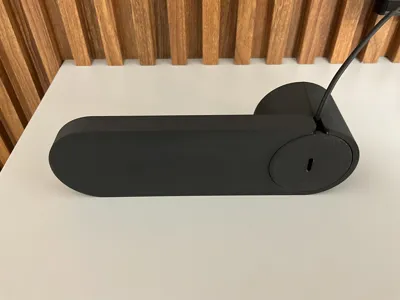
The model utilizes a USB C cable to charge the device while it's docked in. In the model there's the option to input the size of the USB head so it fits the USB cable you have.
Boost Me (for free)
Like it? Boos it. Each boost encourages me to make more.
Parts and tools
- USB C cable: It's preffered to use a cable with a head of somwhat flexibile material. You can find hard rubber like heads. These tend to work best because you can literally shove it in the slot and then it applies pressure on the sides of the slot so it's hard to move which is what we need.
- Calipers, or any other tool to precisely measure the dimenstions of the USB head.
- Nose piler or any other tool to push the USB head into its slot.
- A coin or any other tool to lock the lid.
A. Before You Print…
This print is best used on Bambu Studio desktop version due to the fact that you need to specify the dimensions of the USB head you intend to use. We need to find the right slot size for your USB cable for it to fit. It needs to be a solid rock fit, requiring brutal force to fit it in or release it out. That to make sure it doesn't move when you dock the device in. So:
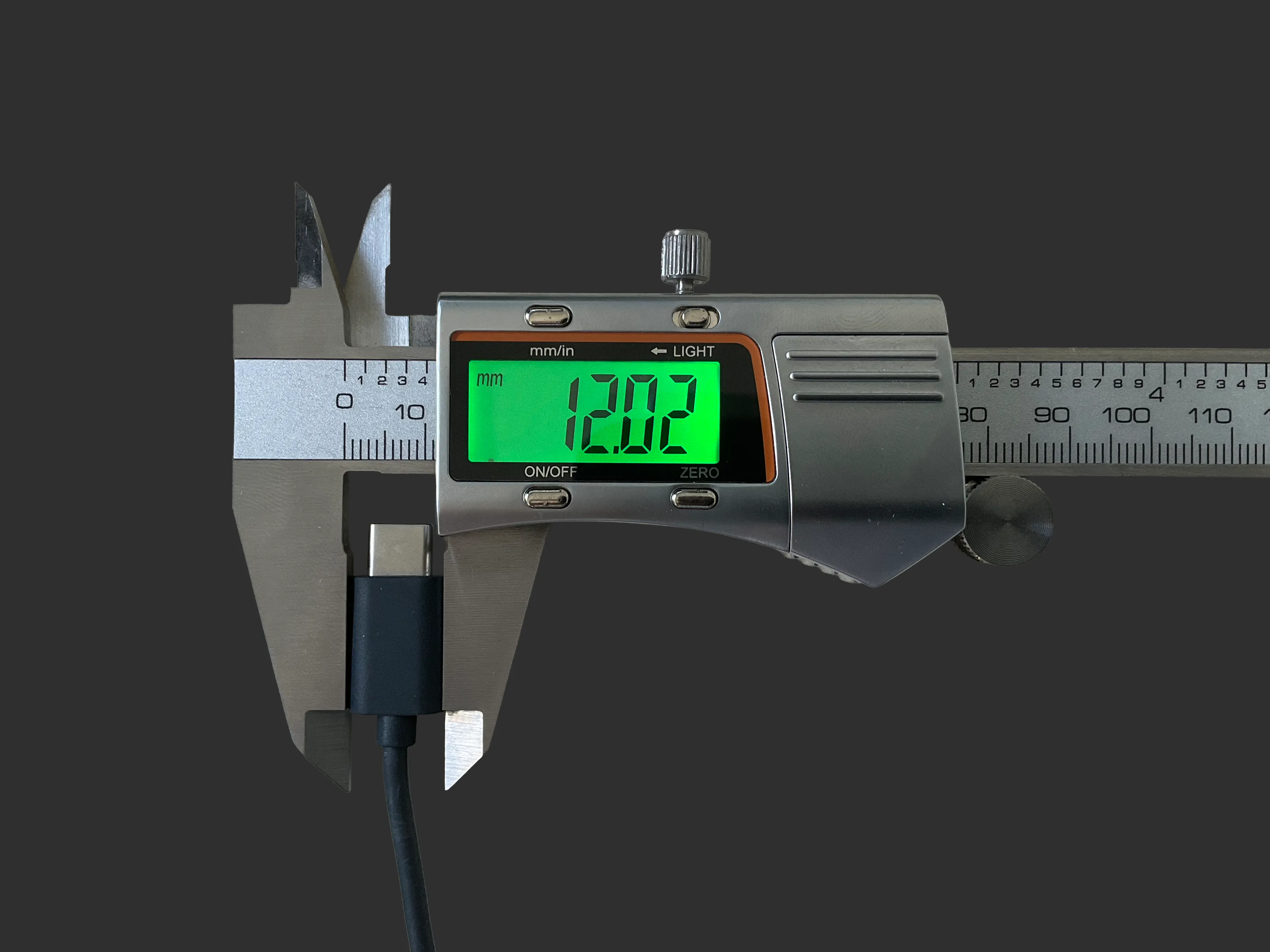
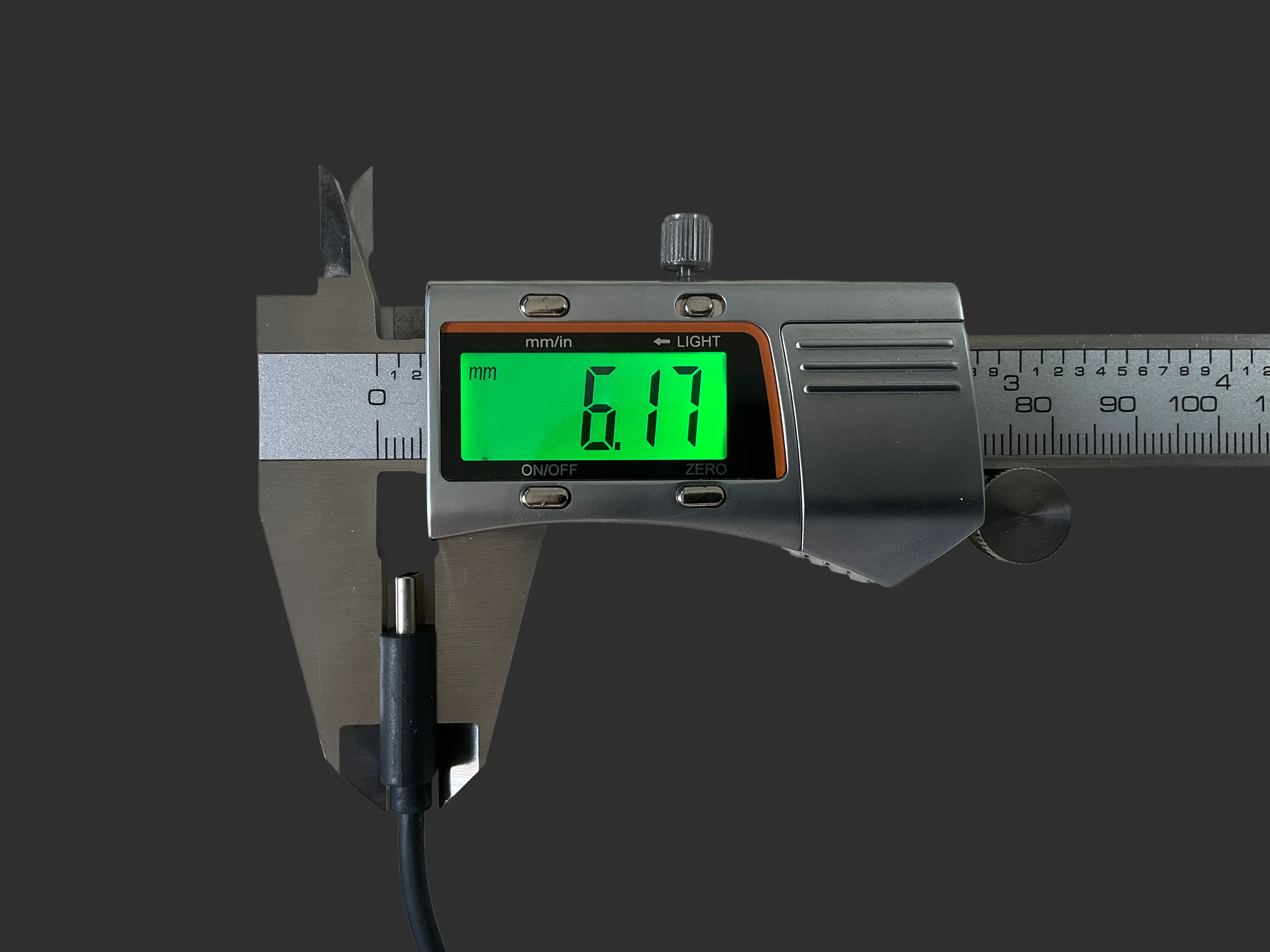
1. Measure your USB head
Using calipers, measure the length and width of the USB cable head.
 |  |
2. Test print the fit
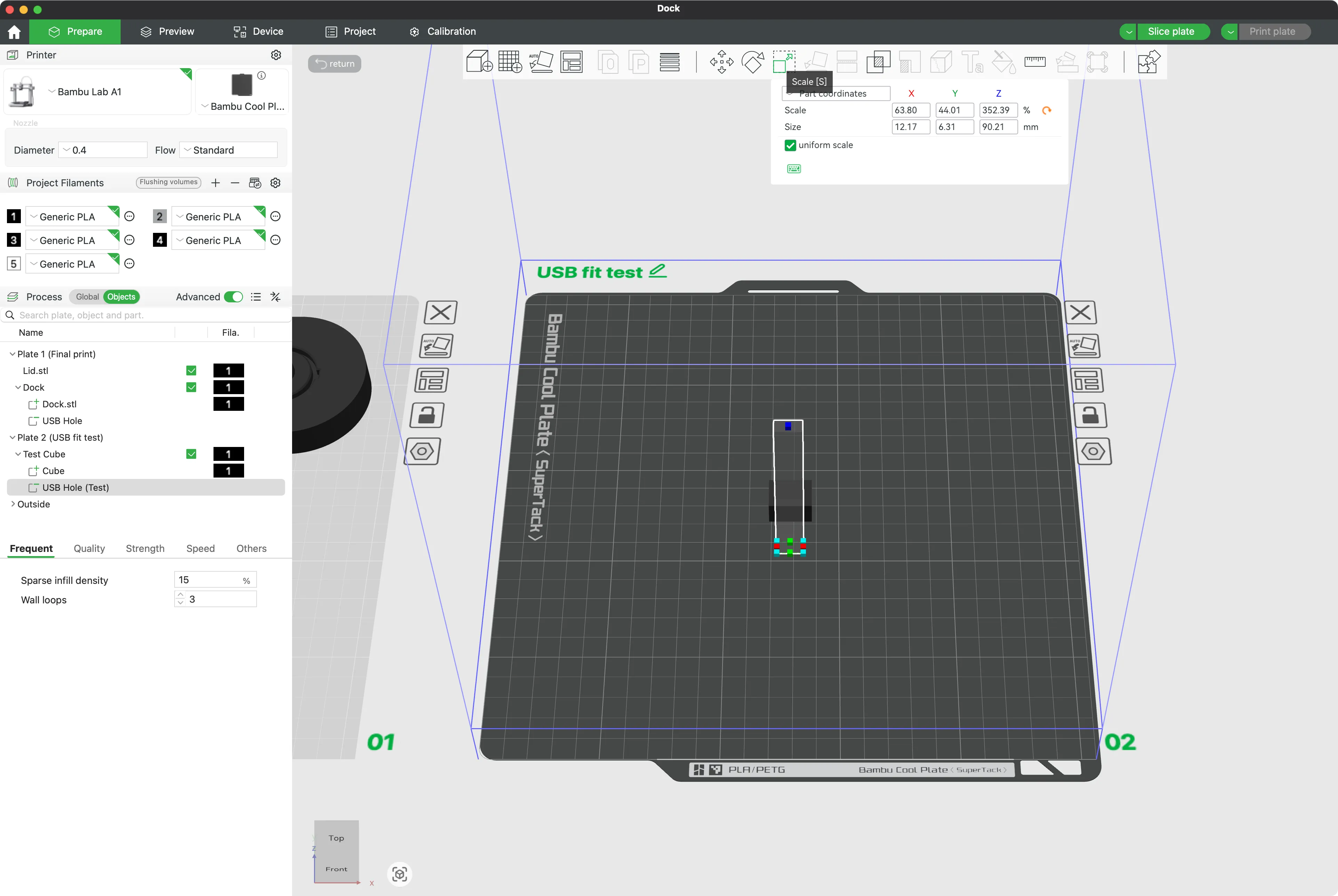
- Open the print file
- Navigate to “Objects” under “Process”
- Expand “Plate 2 (USB fit test)”
- Select “USB Hole (Test)”
- Click on the “Scale” tool on the top toolbar
- Uncheck “uniform scale” if it's checked
- Input the length of the USB head under the X in the “Size” field (Not the "Scale)
- Input the width of the USB head under the Y in the “Size” field (Not the "Scale)
- Press Enter on your keyboard to make sure you applied it
- Now Print the Plate (Plate 2 (USB fit test)
3. Adjust Accordingly
After the model prints, try to fit the USB head inside of it. It needs force and technique which I won't teach you. Make sure it's stuck in there. If that's the case then the size your entered is the size we need.
If it doesn't fit in at all:
- First measure again using your calipers to make sure you didn't mess it up.
- If the size is correct Increase the size incremently. Basically you need to find the perfect fit for the USB cable you are using. you could increase the length and width by 0.1mm and see if that helps.
If it it's very loose:
- First measure again using your calipers to make sure you didn't mess it up.
- If the size is correct decrease the size incremently. Basically you need to find the perfect fit for the USB cable you are using. you could increase the length and width by 0.1mm and see if that helps.
If it fits tight:
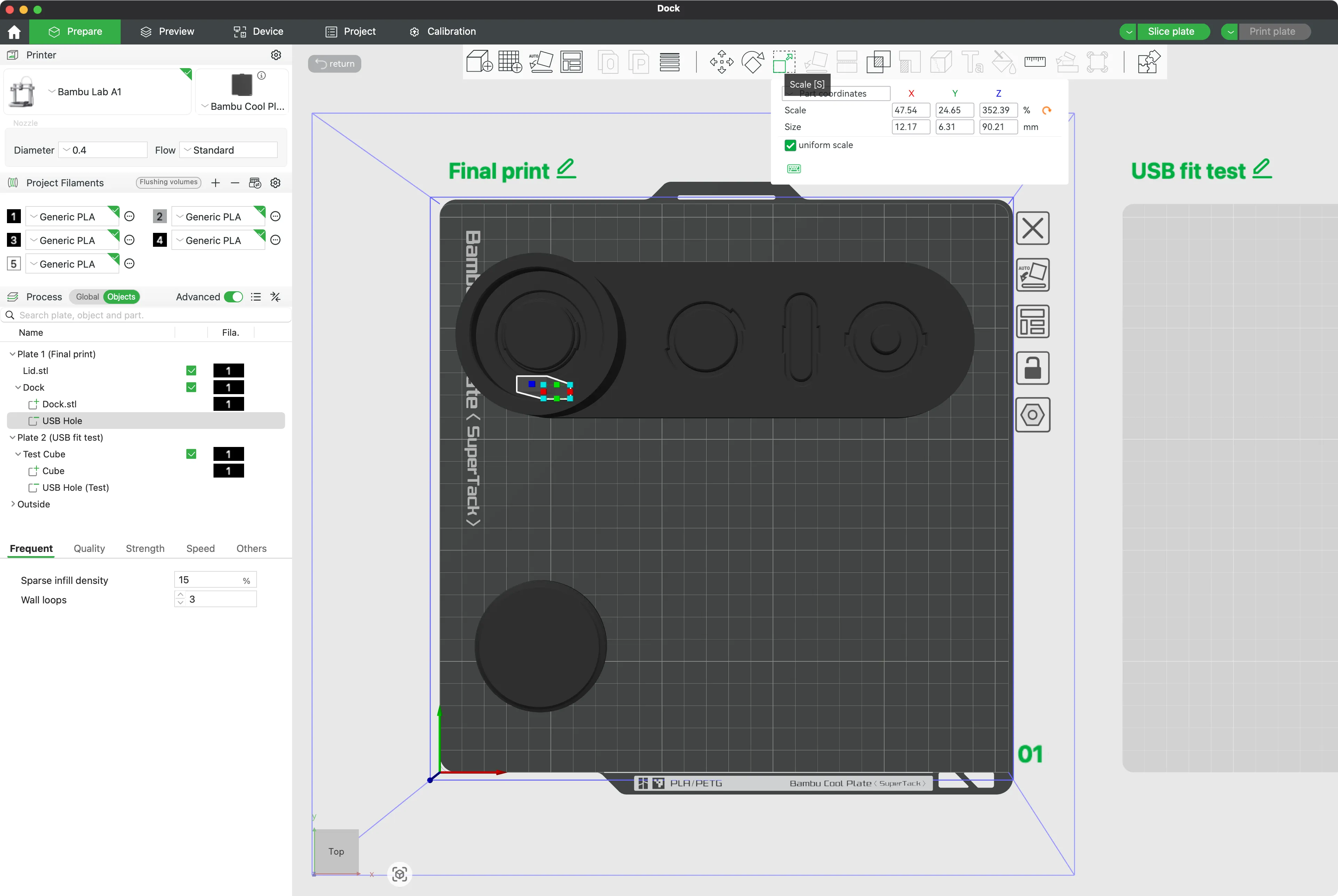
- Copy the length and width you used for the test model
- Select “USB Hole” under “Plate 1 (final print)” > Dock > USB Hole
- Click the “Scale” tool on the top toolbar
- Uncheck “uniform scale” if it's checked
- Input the values of the length and width that you copied
- Press Enter on your keyboard to make sure you applied it
4. TRASH YOUR PRINT…
… If you happened to move the “USB Hole” object. The Object is carefully placed to be centered to the device female usb C port and any movement will cause the USB not to fit the device when it's docked in due to location shift. You can always CTRL/CMD+Z to undo the change. Or even close the file without saving and re-open it for a fresh start.
B. Print
If you're a good boy/girl and you haven't moved anything… You can Print. Enjoy.
Make sure to play with the settings if you like. The applied settings are limited to my knowledge of 3D printing and my taste. If you can get a better result then why not.
C. Assembly
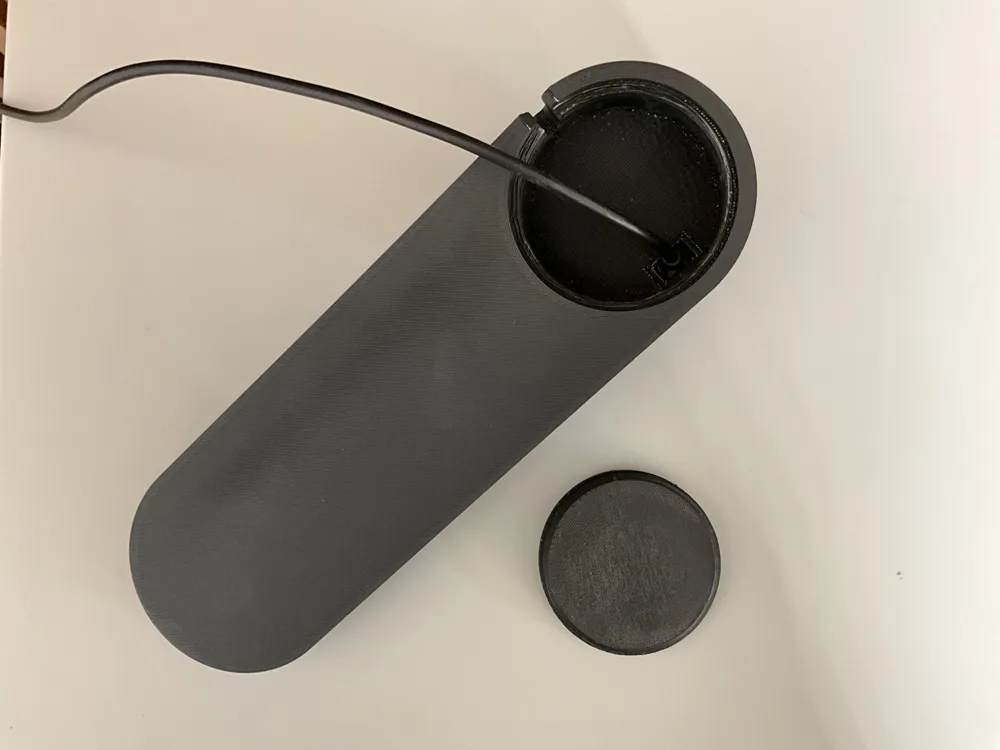
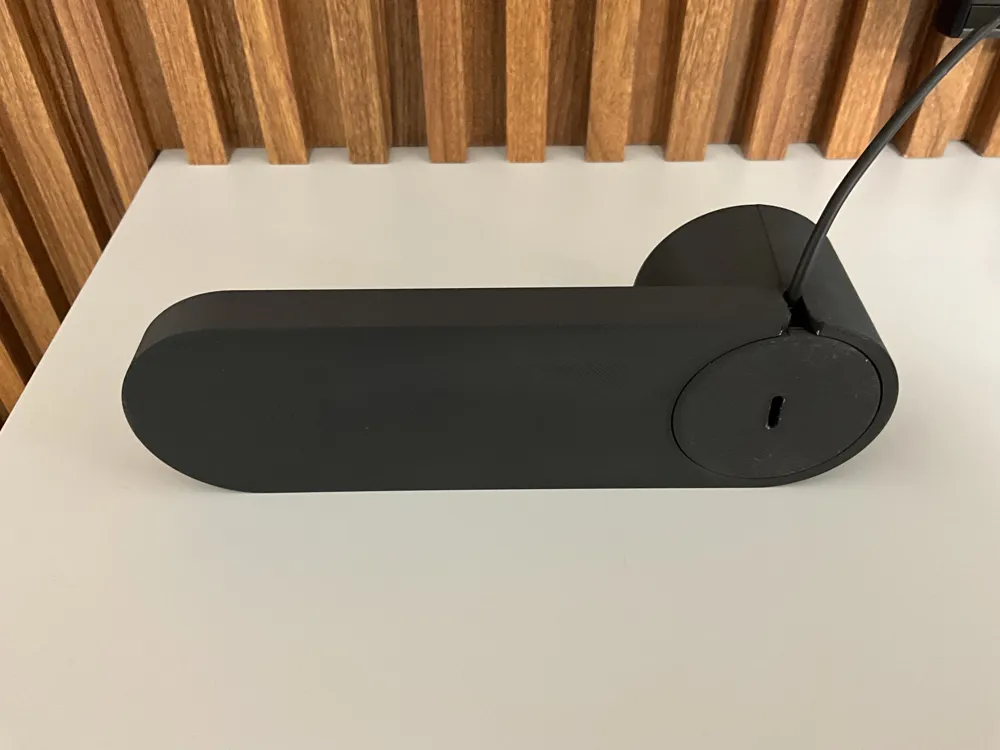
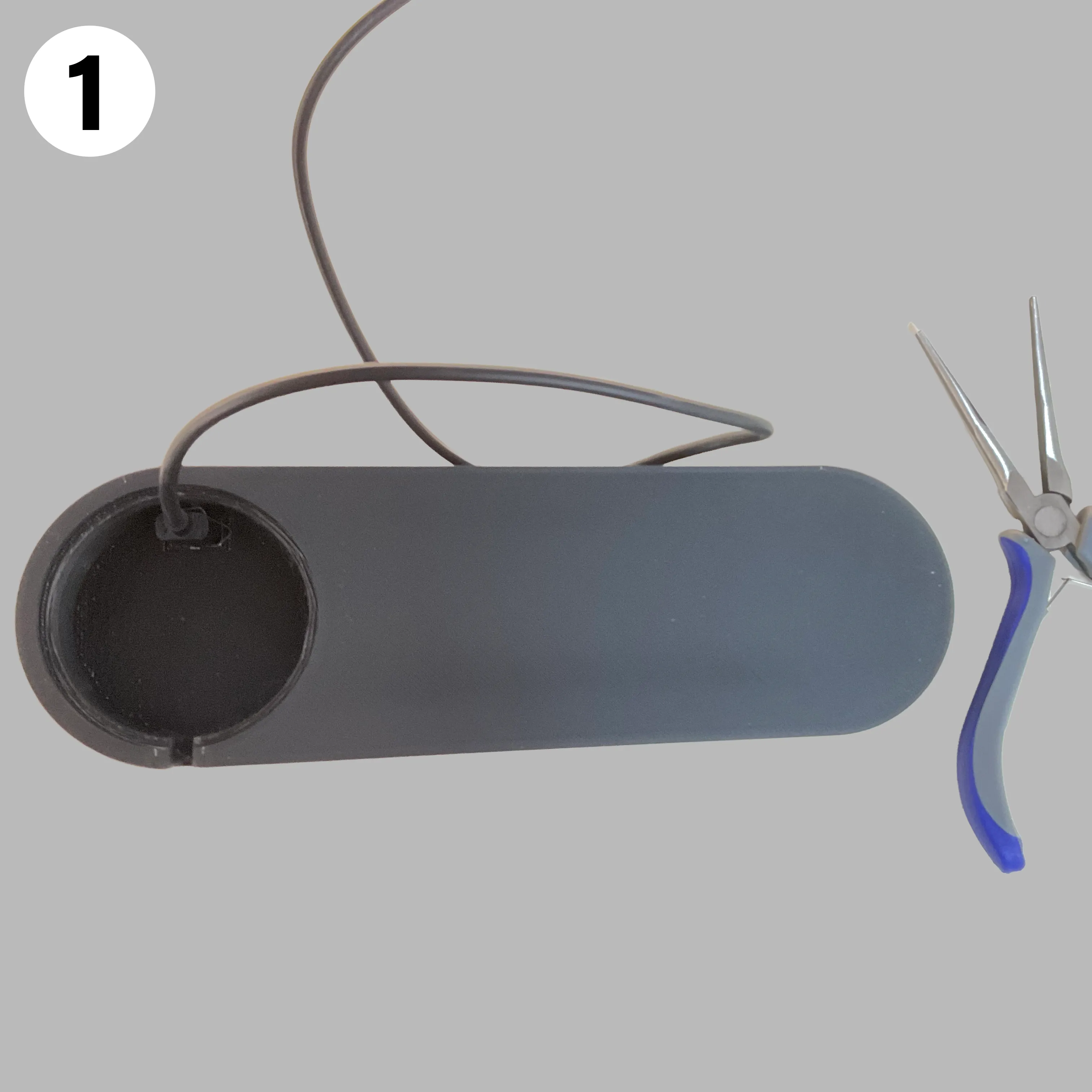
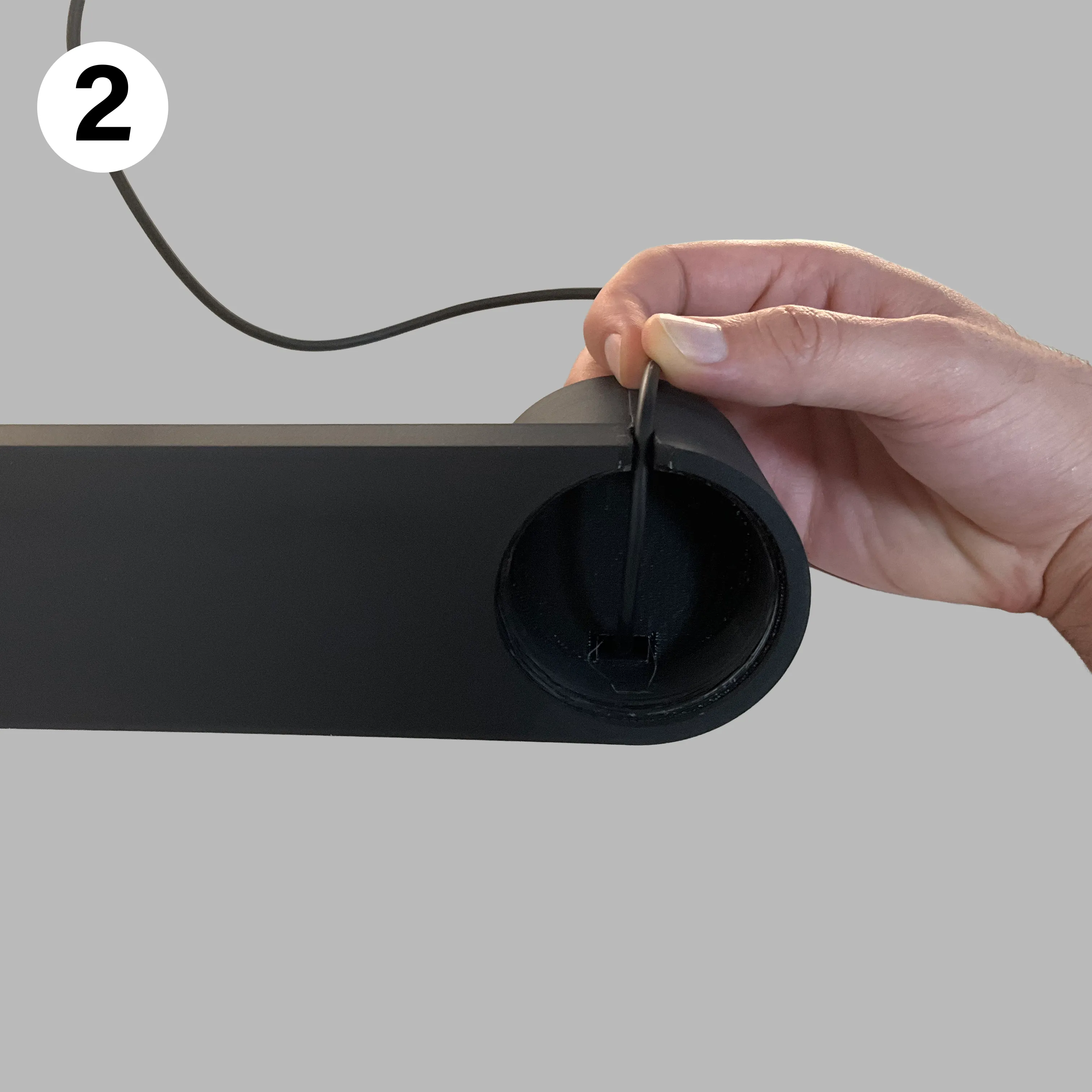
- Shove the USB head from the bottom of the base into its dedicated slot. You might need to use the nose pilers to push it all the way in. Make sure to have it stick a bit out. We'll adjust that later.
- Guide the cable through the back cutout.
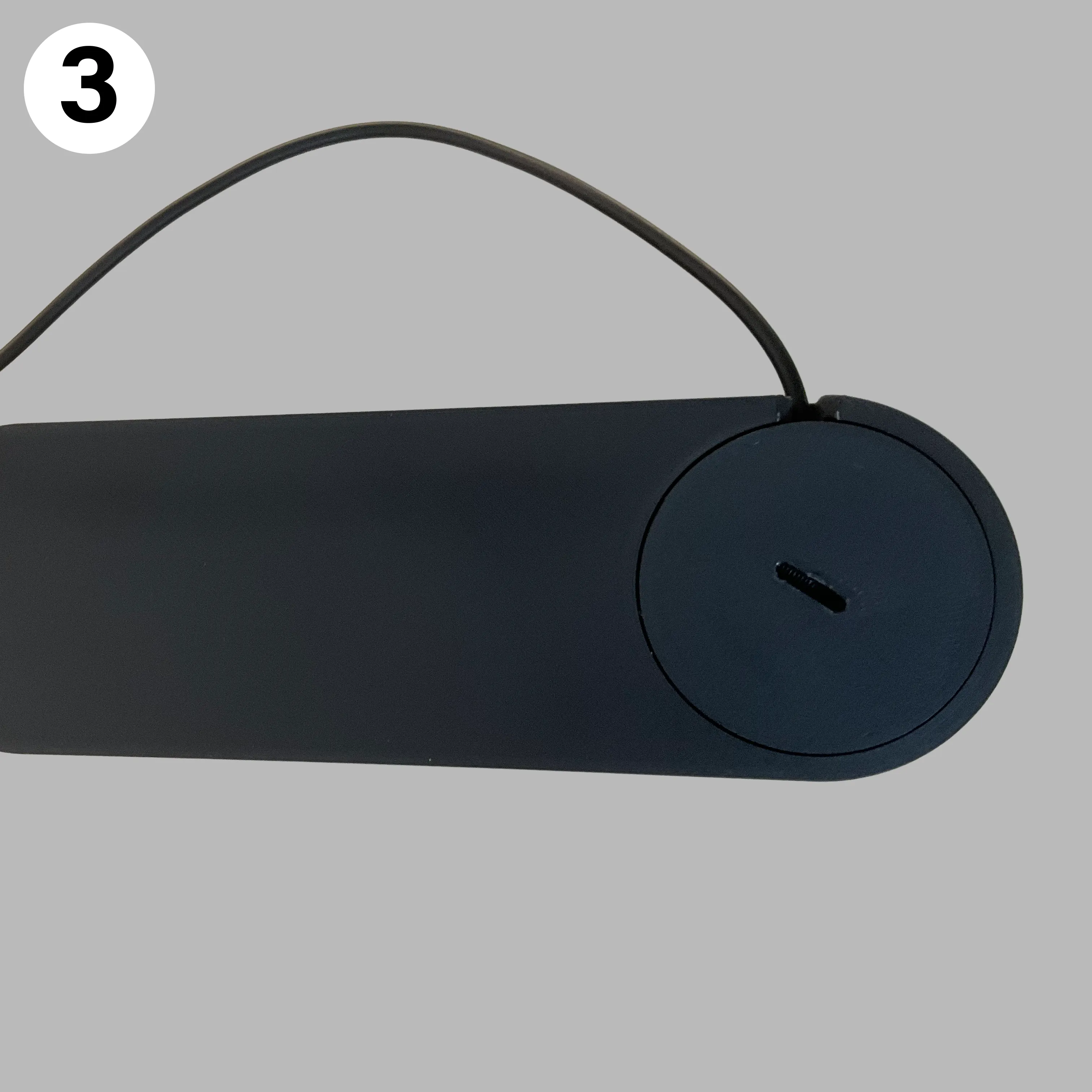
- Screw the lid in, and make sure to secure it in place. You might need to use a coin for that.
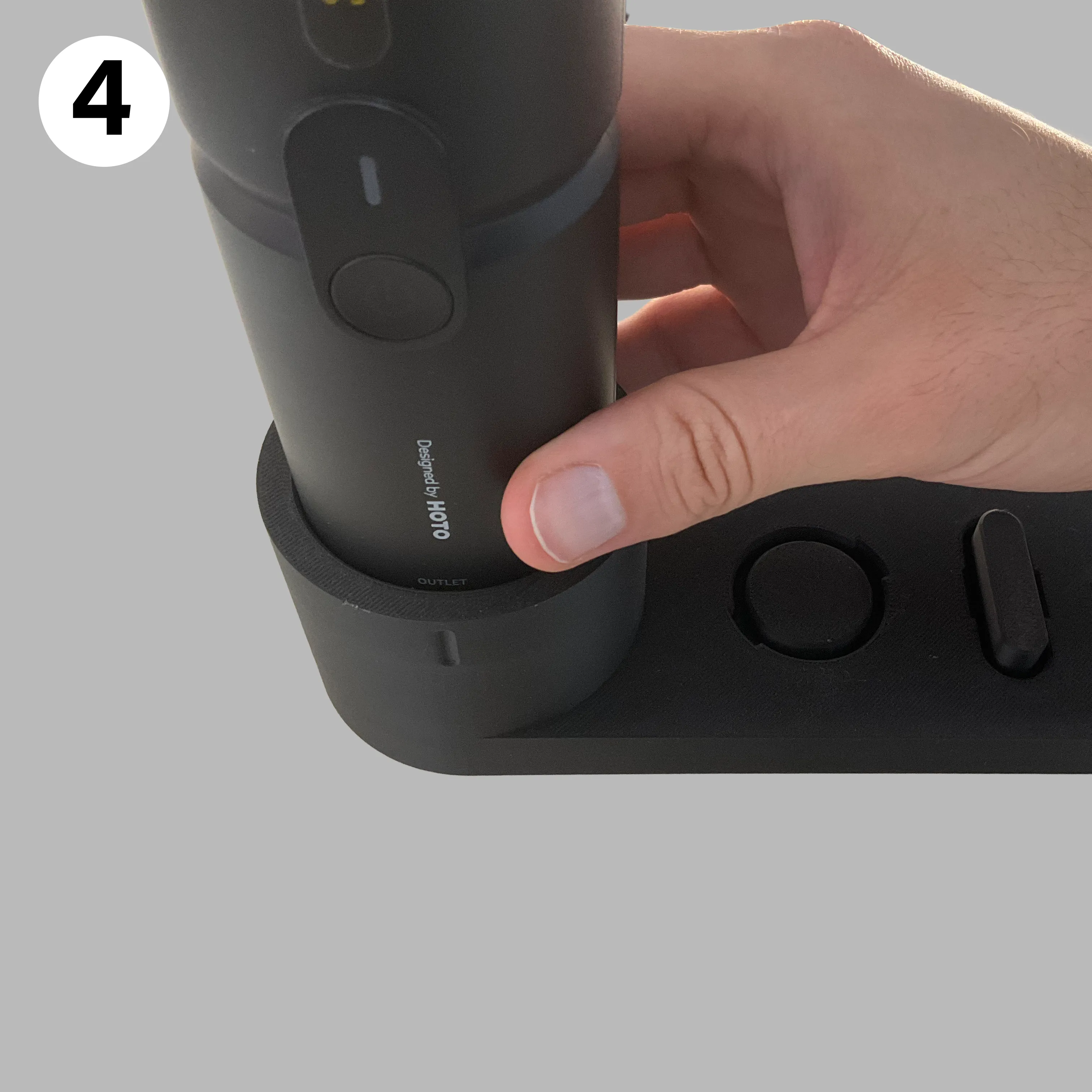
- Place the dock on a flat surface and then place the device where the usb goes into the device female slot.
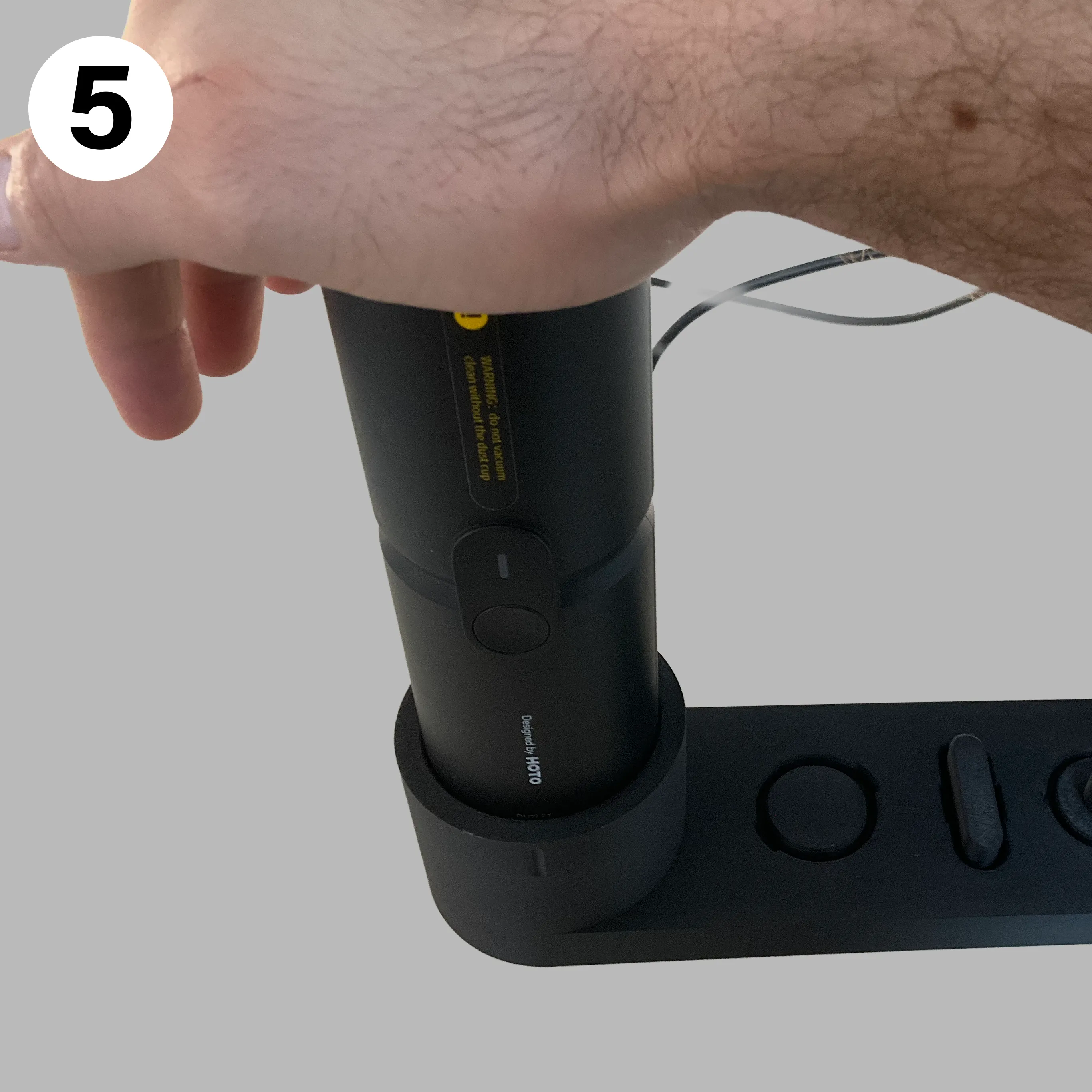
- Push on the device from top so you push the cable head to the right height while the device sits perfectly in its dedicated cutout.
 | 
| 
|
 | 
|
Connect to Power and Enjoy. And follow me for much more to come…
License



Comment & Rating (44)