
Scalpel OTF double action


Print Profile(1)

Description
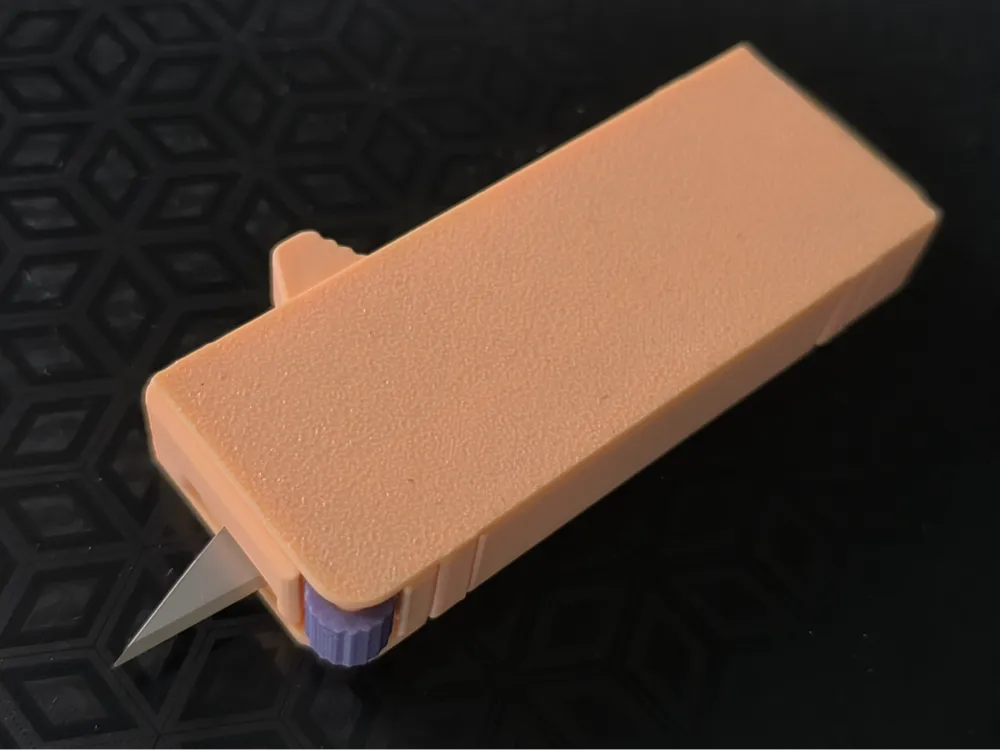
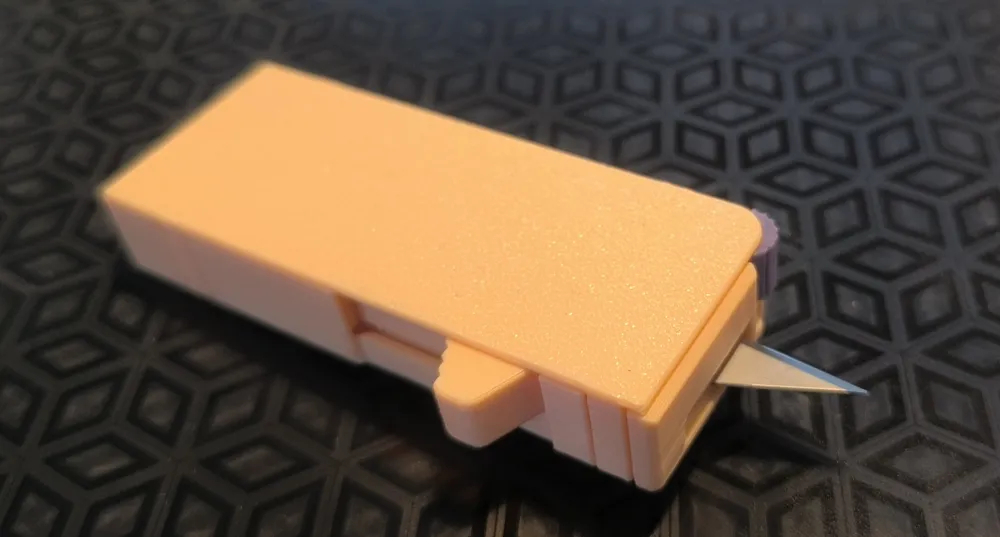
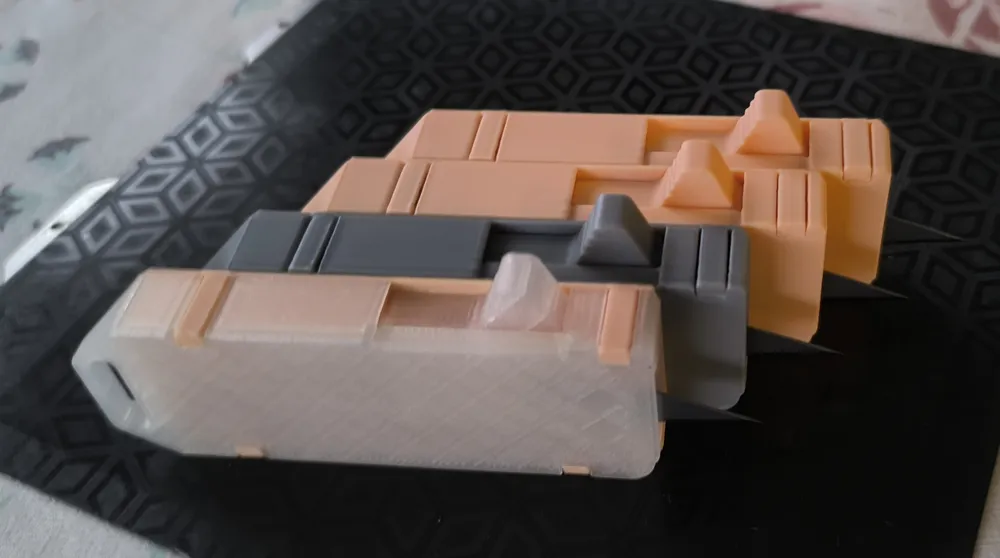
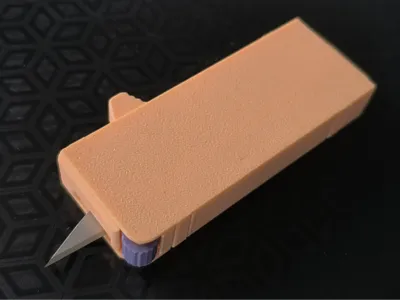
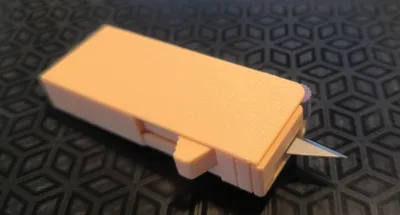
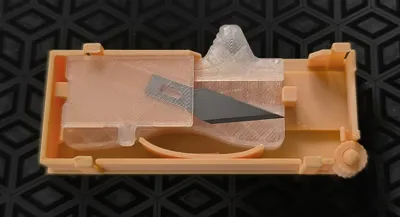
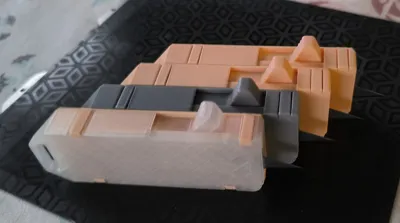
A functional out-the-front (OTF) style knife designed entirely for 3D printing. It features an internal spring-loaded blade mechanism. No glue or screws are required for assembly.
Note 1:
Print internal parts on a smooth build plate – this is essential for the reliable function of the internal mechanism.
If the blade hits an obstacle during deployment (e.g. your palm), it will automatically disconnect for safety. However, be careful – the scalpel blade has a very sharp tip. If the blade disconnects, simply pull it out gently until it locks back into place. The knife will then function normally again.
Note 2: I’ve added version 2, which includes a notch for blade locking. Pressing the notch with your finger locks the blade in place, improving stability during use.
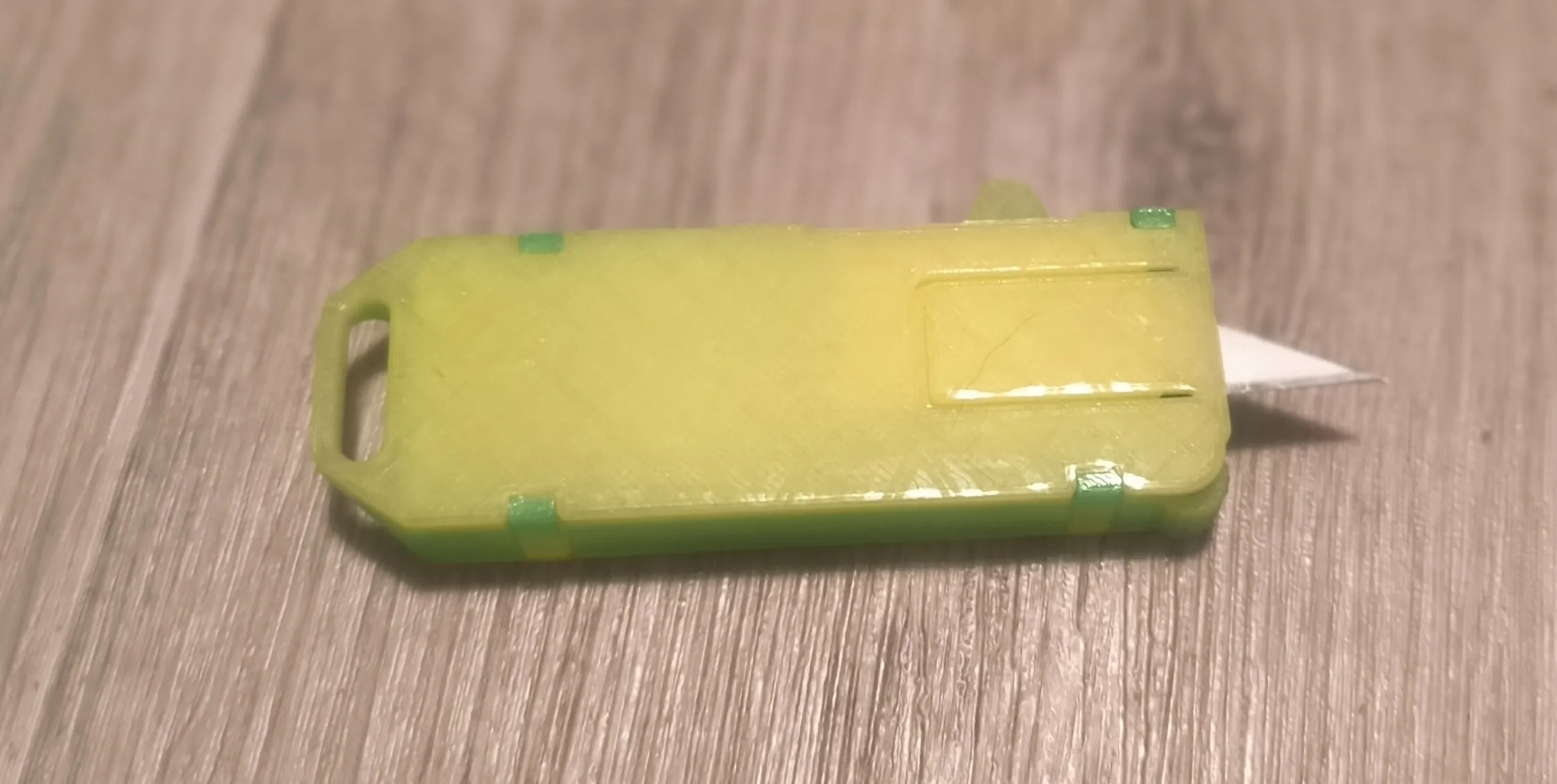
Have a look at my OTF-style utility blade model: https://makerworld.com/en/models/1430365-otf-double-action-utility-knife-fully-3d-printed#profileId-1503180
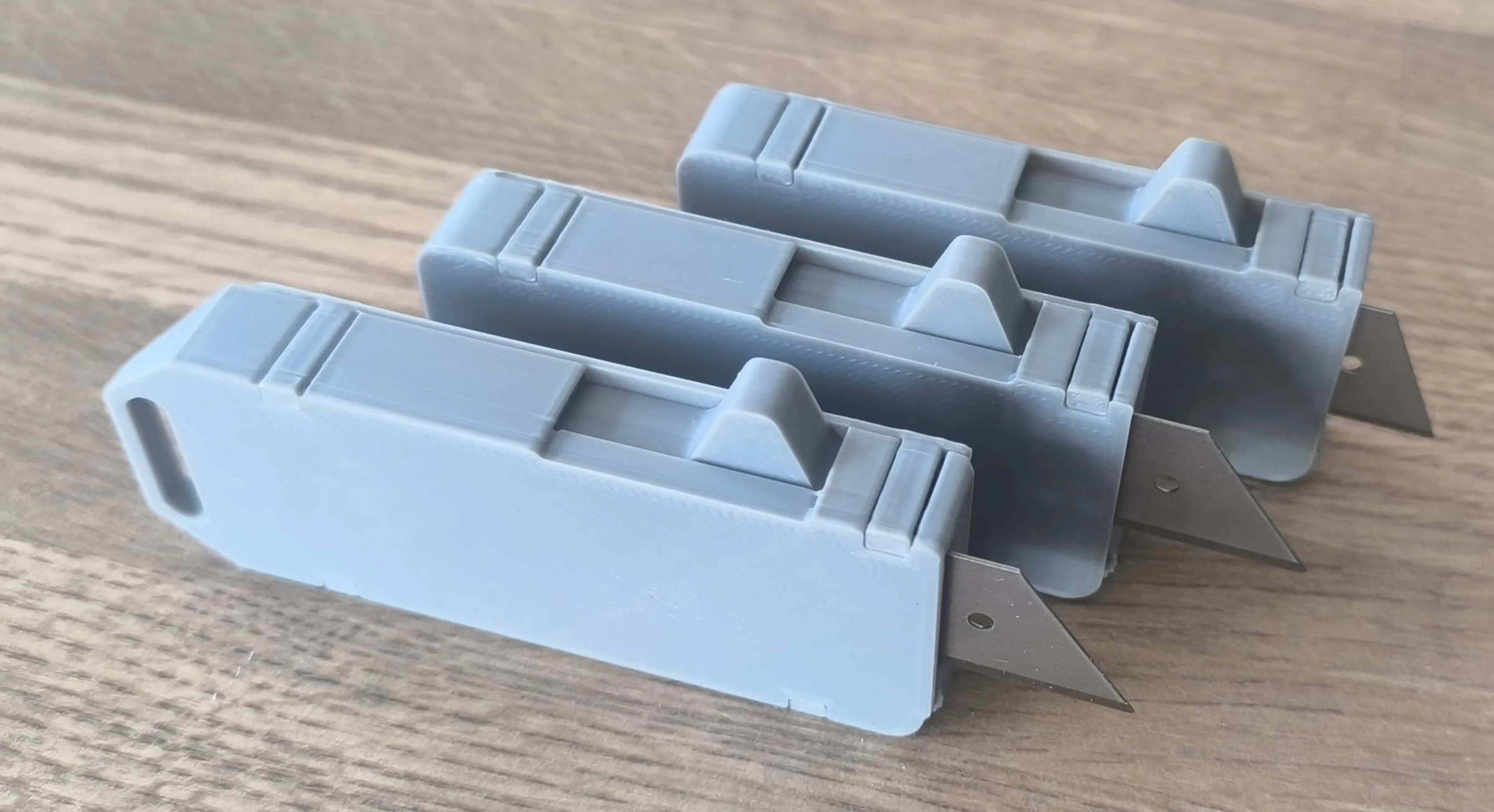
Assembly instructions:
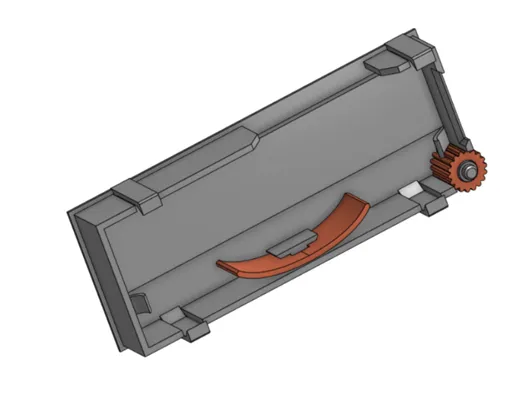
Inserting the Lock and the Wheel
Insert the lock and the guide wheel into their corresponding positions inside the housing.
Make snap securely into place.
 ¨
¨
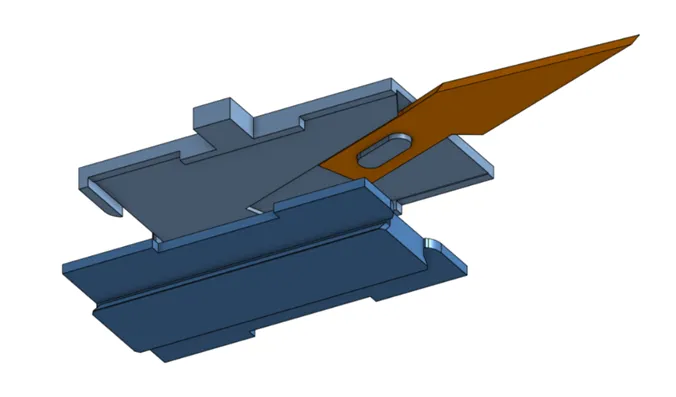
Inserting the Blade
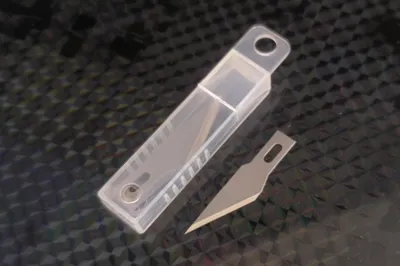
Insert the blade between the blade holder and the guide as shown in the illustration.
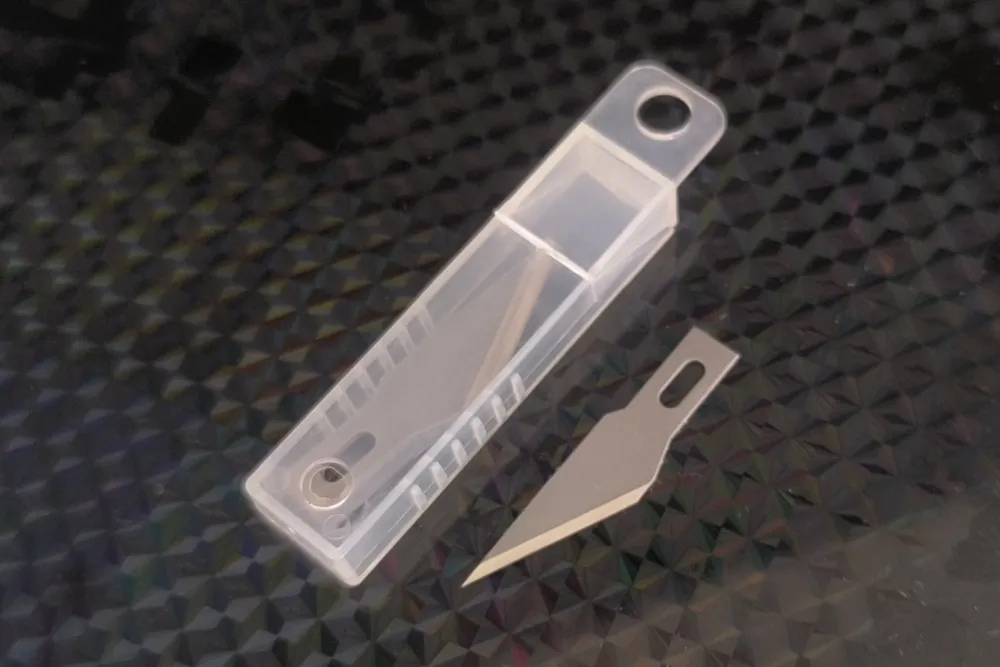
Make sure the locking notches of the blade fit precisely into the guide slots.
Blades come with different locking notches – make sure the one you use fits this knife properly.
Note: If the blade feels loose in the holder, a small drop of glue will help keep it in place.
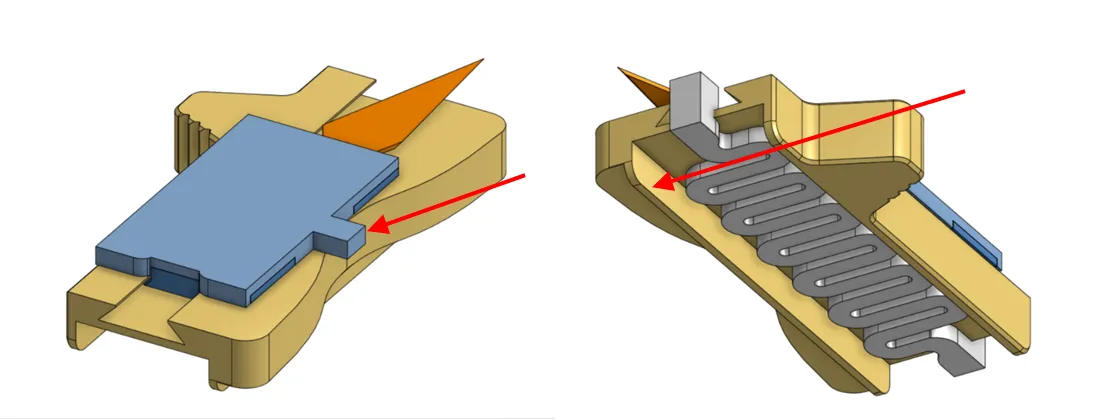
Inserting the Assembly into the Slider
These parts must be printed on a smooth build plate.
Insert the assembled blade holder and guide into the slider body as shown.
Ensure the correct orientation – the cutting edge must face forward.
Then insert the spring into the slider groove to secure the internal assembly in place.
Apply a small amount of grease along the inside of the guide edge (see red arrows).
This will help the mechanism move more smoothly until it has fully worn in.
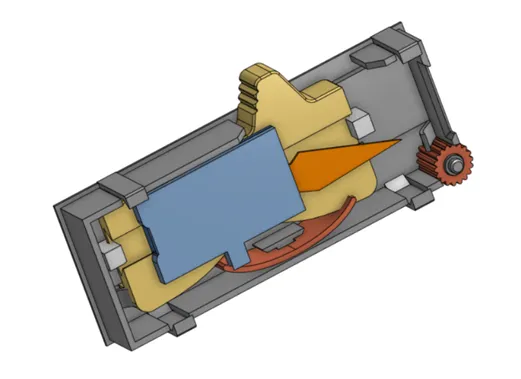
Placing the Assembly into the Housing
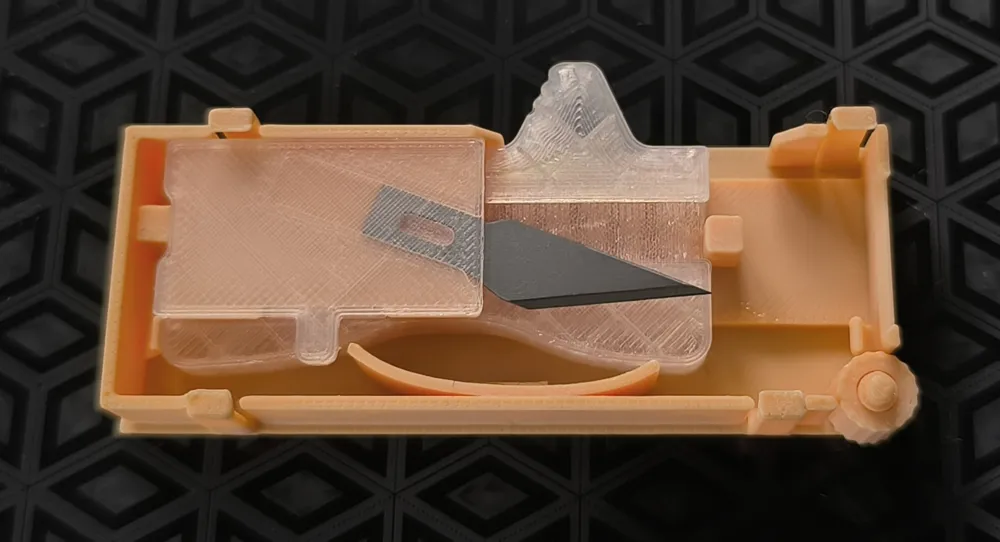
Insert the entire assembled unit (blade, holder, spring, and slider) into the main housing.
Make sure the guiding rails align correctly and that the parts move smoothly inside the housing.
The orientation must match the illustration – the blade should point forward inside the housing.
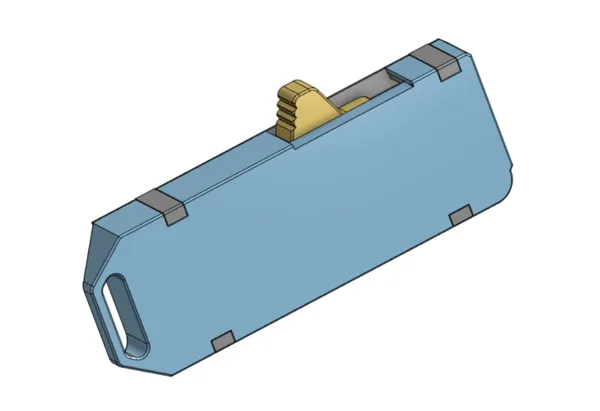
Closing the Housing – Installing the Cap
The last and most delicate step is attaching the cap to the housing.
The cap is held in place by four snap-fit tabs located at the corners.
To install the cap:
- Align it carefully with the housing.
- It is recommended to place the knife flat on a table during this step, to keep internal parts in position. Otherwise, the internal latch may become dislodged, and the cap will not fit properly.
- Use a small tool (e.g. a flathead screwdriver or similar) to gently flex the tabs outward as you press the cap into place.
- Once fully seated, release the tabs. The assembly will lock together securely.
The cap may need to be removed later for blade replacement. To do so, use the same tool to gently lift the locking tabs.
License

You shall not share, sub-license, sell, rent, host, transfer, or distribute in any way the digital or 3D printed versions of this object, nor any other derivative work of this object in its digital or physical format (including - but not limited to - remixes of this object, and hosting on other digital platforms). The objects may not be used without permission in any way whatsoever in which you charge money, or collect fees.


Comment & Rating (0)