
Gridfinity Hex Drill Bit Organizer Collection
Print Profile(4)


Description
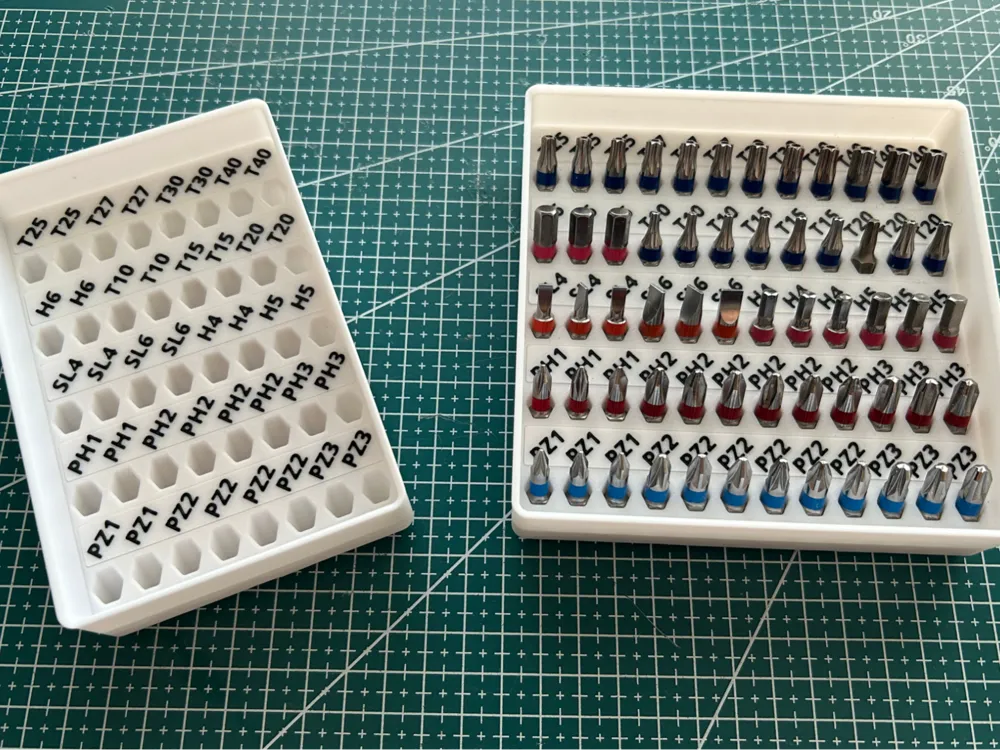
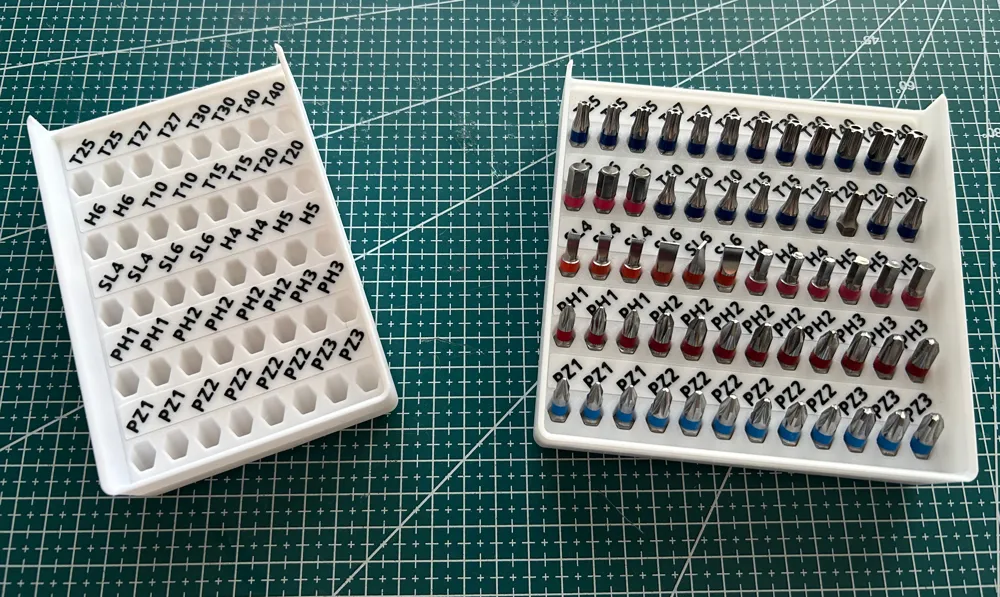
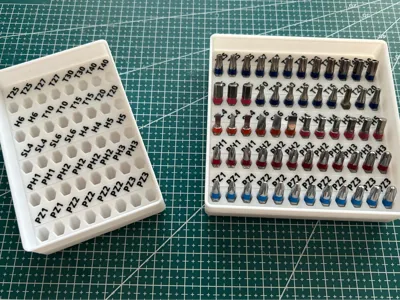
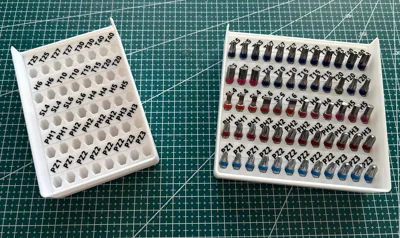
This collection includes seven Gridfinity-compatible holders for hex drill bits, featuring an integrated slot for Cullenect label tags, and designed to be stackable:
- 3×3×4 Closed-Back Holder: Holds up to 60 short bits; back wall enclosed.
- 3×3×4 Open-Back Holder: Holds up to 60 short bits; back wall open for easier access to bits in the rear row.
- 2×3×4 Closed-Back Holder: Holds up to 40 short bits; back wall enclosed.
- 2×3×4 Open-Back Holder: Holds up to 40 short bits; back wall open for easier access to bits in the rear row.
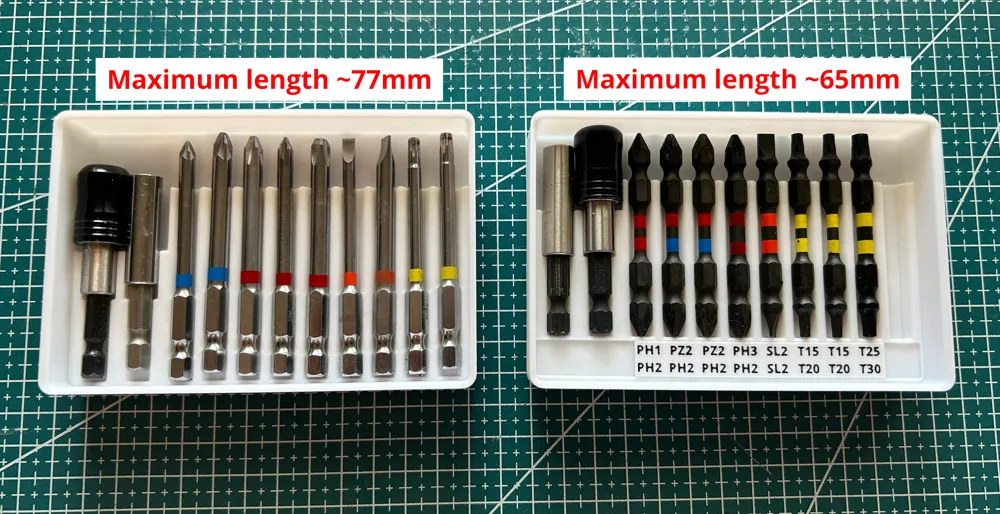
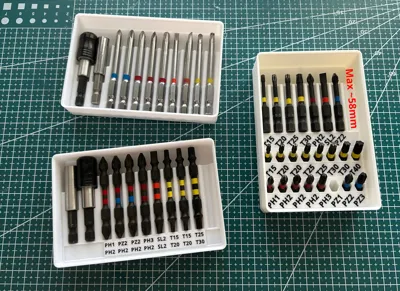
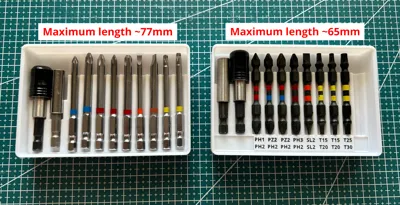
- 2×3×3 Horizontal Long-Bit Holder (with labels): Holds 9 long bits (maximum length ~65 mm) plus 2 bit holders; bits laid horizontally.
- 2×3×3 Horizontal Long-Bit Holder (without labels): Holds 9 long bits (maximum length ~77 mm) plus 2 bit holders; bits laid horizontally. There are two variations: one with shorter slots for the bit holders and one with longer slots.
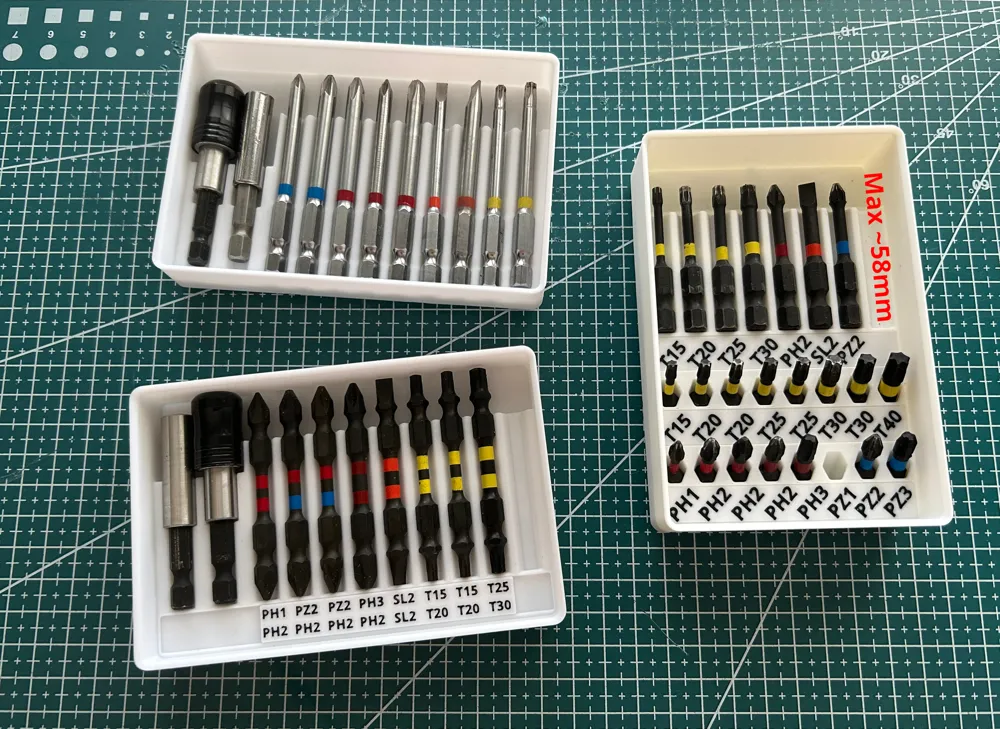
- 2x3x4 Short & Long Bit Combo Holder: Holds 16 short bits and 9 longer bits (maximum length ~58 mm) in separate sections.
All dimensions are given in Gridfinity units. Sample label models are included—print a test label first to determine the correct elephant‑foot compensation settings for your printer, and adjust the compensation if the label is too loose or too tight.
INSTRUCTIONS: How to Change Label Text in Bambu Studio
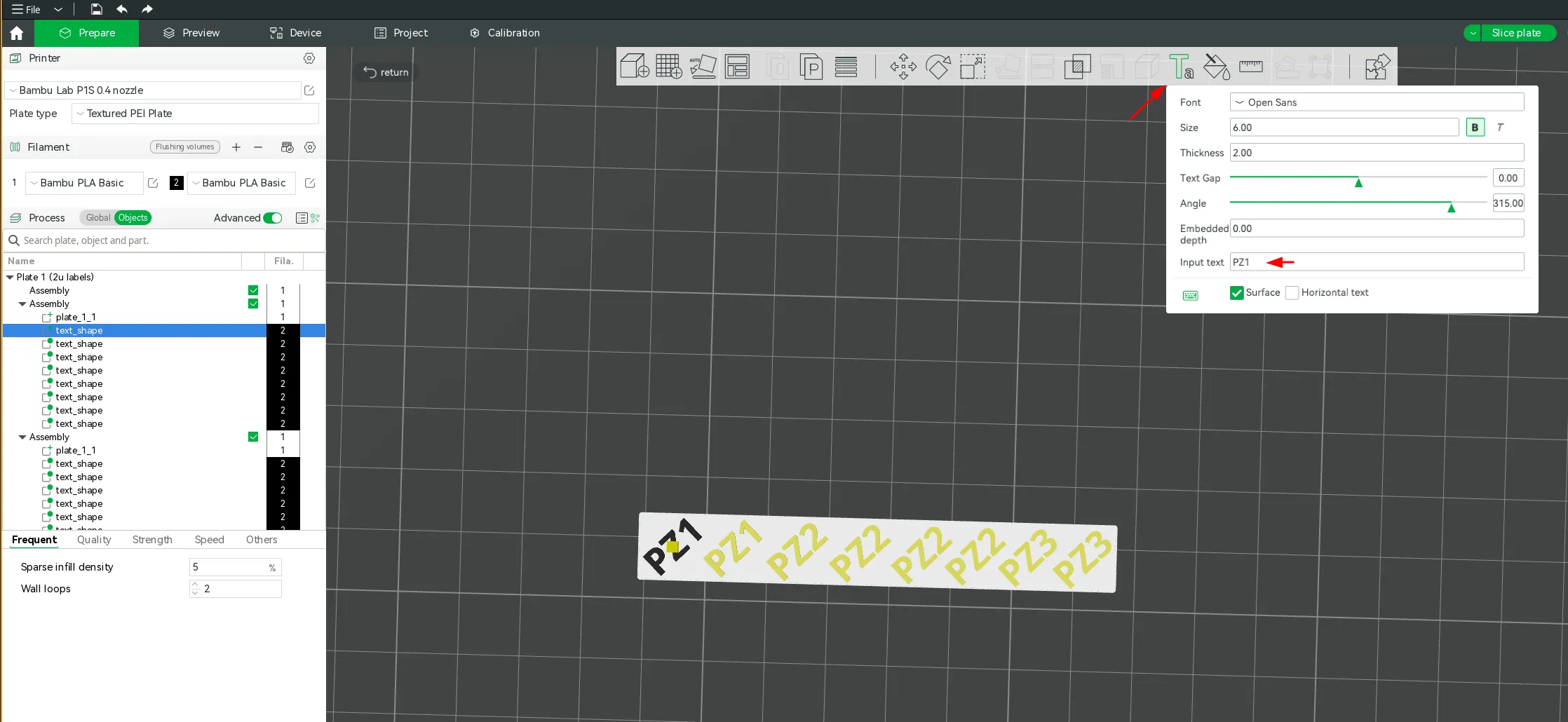
Step 1: Select the item you want to modify, click "Text Shape" in the top menu in Bambu Studio. You can now edit the label text. After editing the text, click outside the Text Shape window to close it.
Step 2: Note: When changing the type, Bambu Studio may slightly move the object. Because of this, you might need to adjust the position of the label. If the label is missing after slicing, try adjusting its Z-position by selecting the object and clicking "Move" from the top menu.
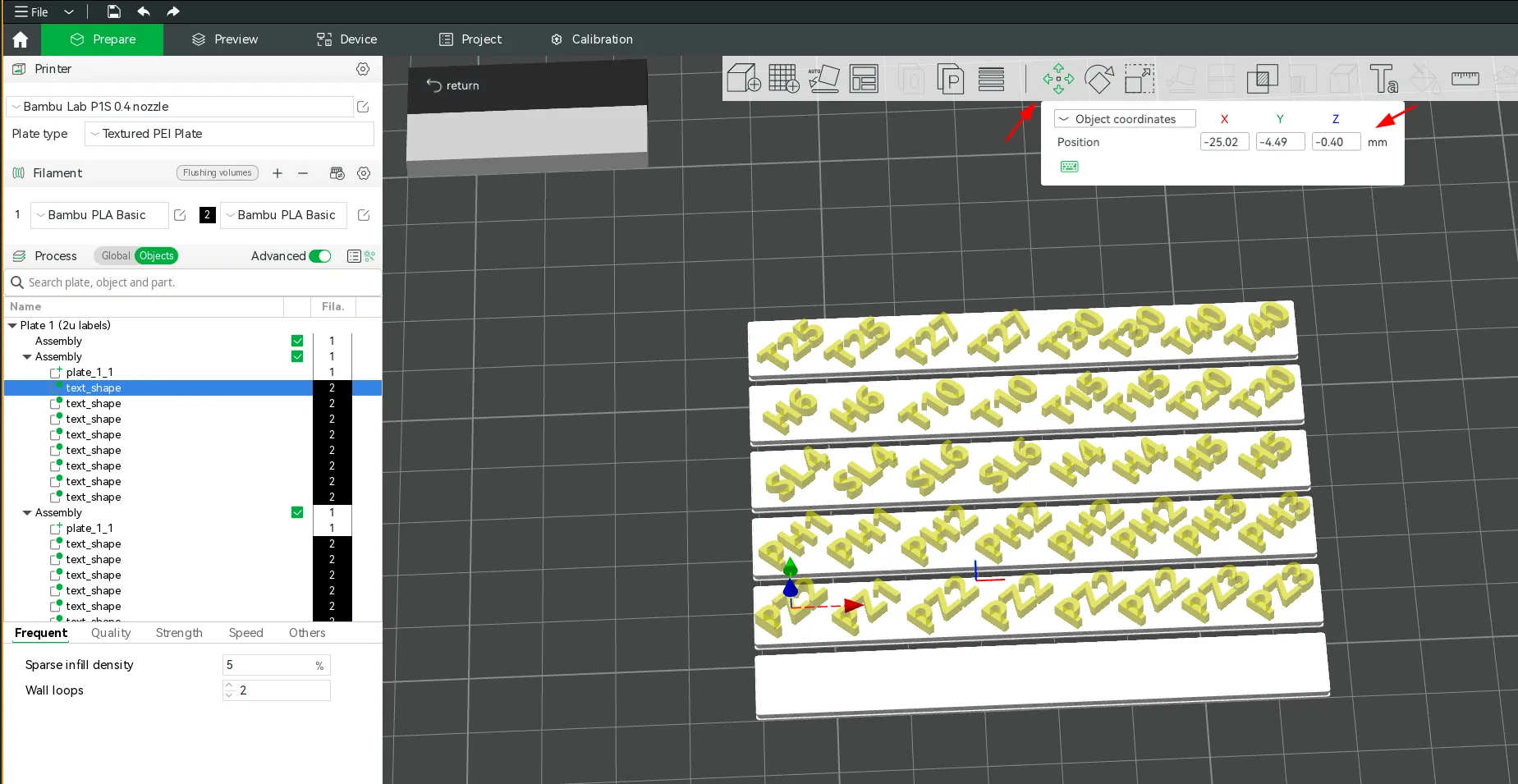
Step 3: If you're using a 0.2 mm layer height, try decreasing the Z-value by 0.2 mm. For example, set Z to -0.6 mm. Then slice again. If you want the text to be two layers thick, set the Z-value to -0.8 mm. When you slice, the modified label should now appear correctly.
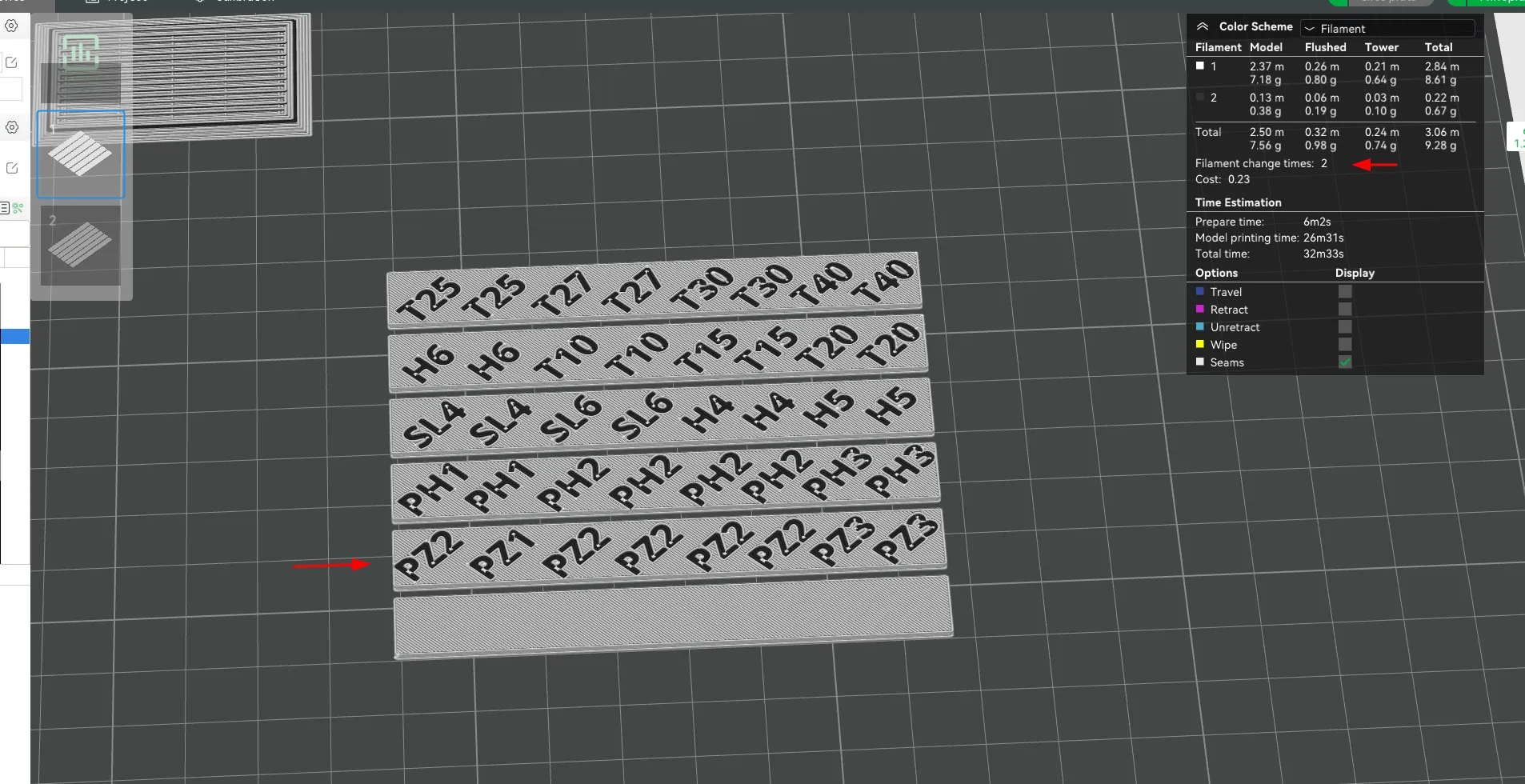
Tip: To reduce filament changes, you can increase the height of each item. However, this may cause the labels to appear lighter or more translucent.
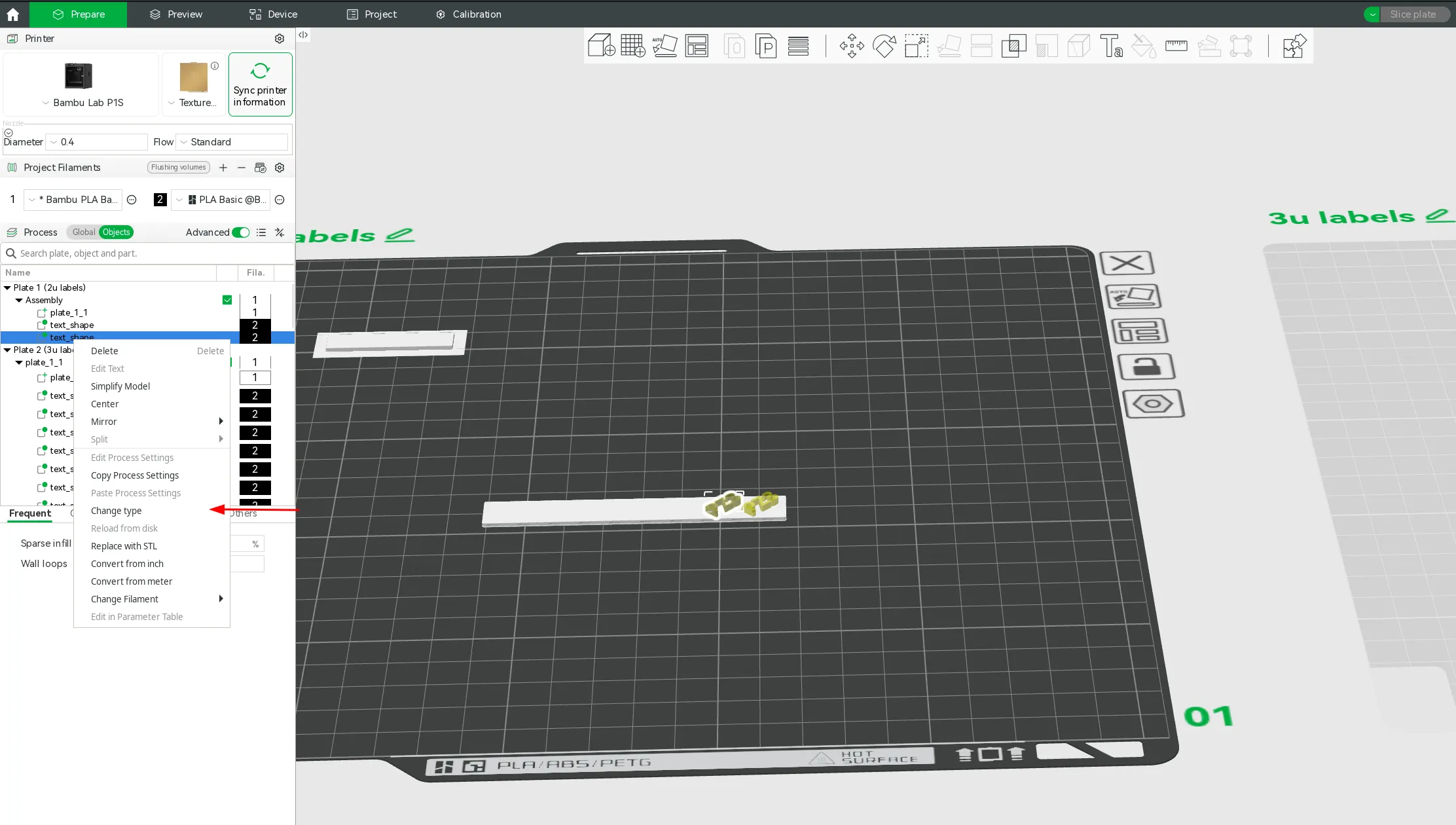
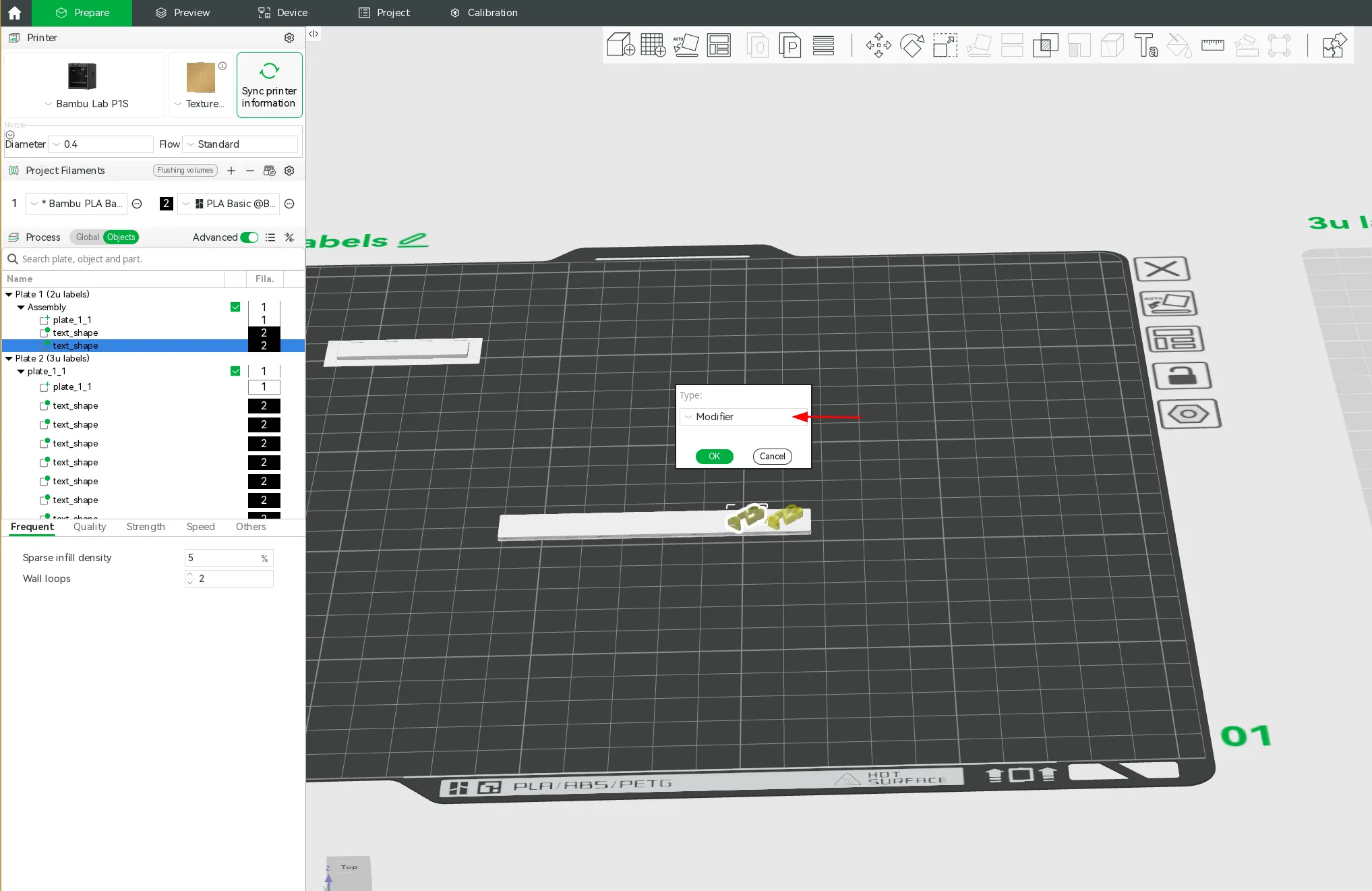
Step 4: Ensure that the object’s type is set to “Modifier”.
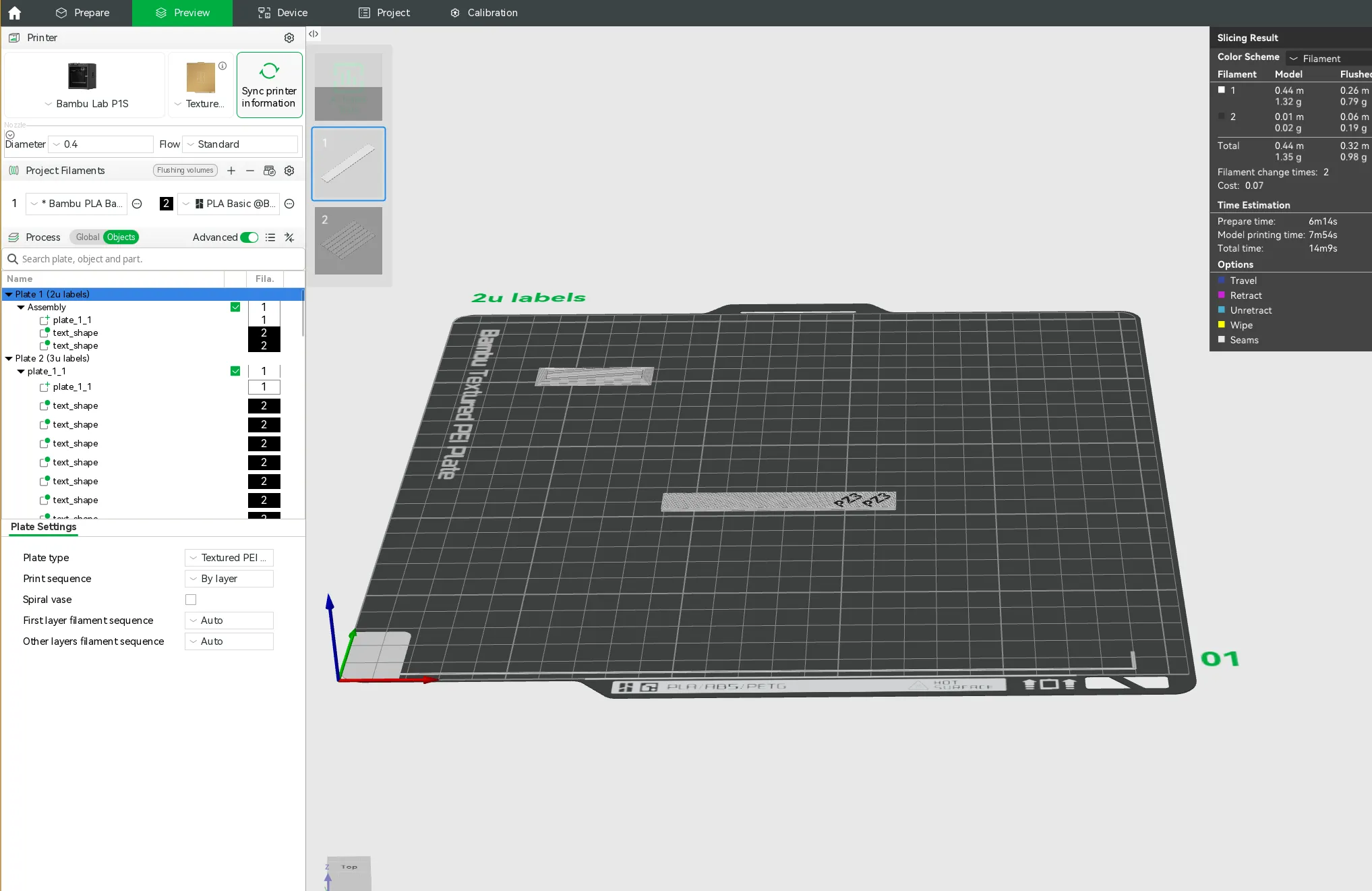
Step 5: After slicing, make sure the labels are flush with the surface.
License

You shall not share, sub-license, sell, rent, host, transfer, or distribute in any way the digital or 3D printed versions of this object, nor any other derivative work of this object in its digital or physical format (including - but not limited to - remixes of this object, and hosting on other digital platforms). The objects may not be used without permission in any way whatsoever in which you charge money, or collect fees.


Comment & Rating (41)