
QR vcard credit card sized generator
Print Profile(2)


Description
Boost Me (for free)
If you found this model helpful, fun to print, or just enjoyed using it, please consider giving it a 🚀 Boost! Your support really helps me keep creating and sharing more designs. Every boost makes a difference! Thank you very much! 🙌
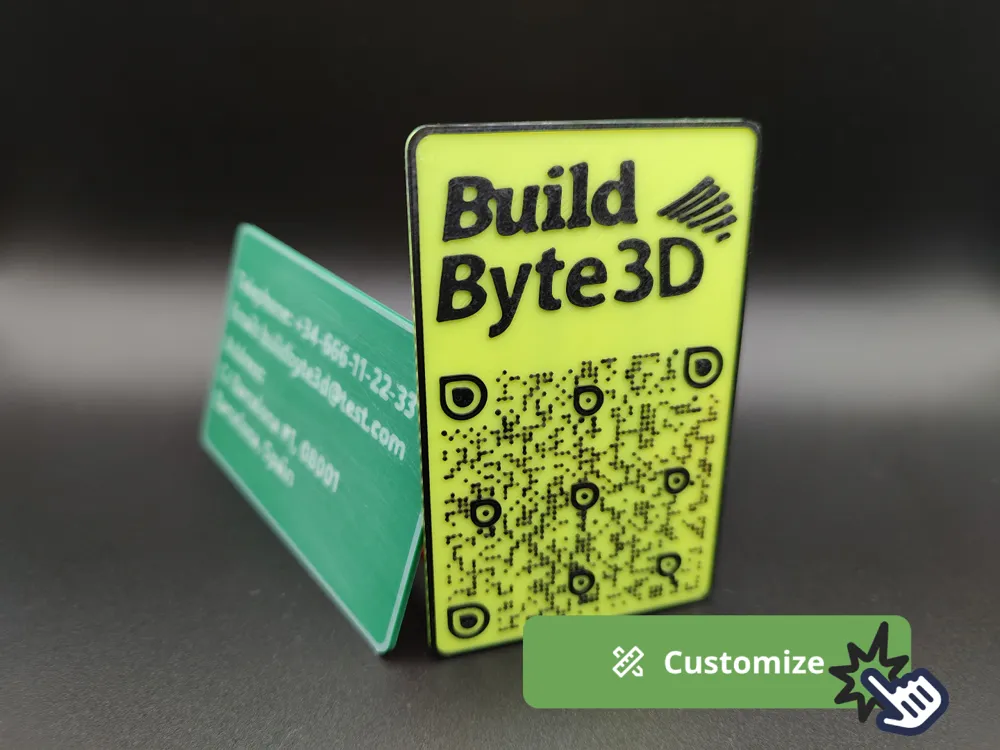
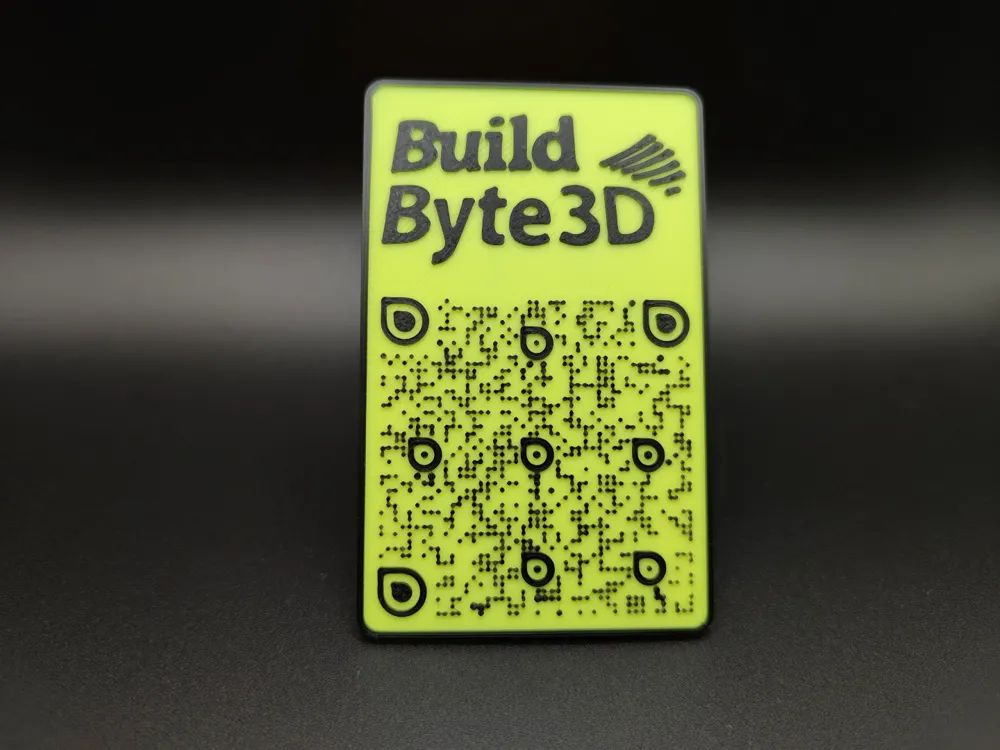
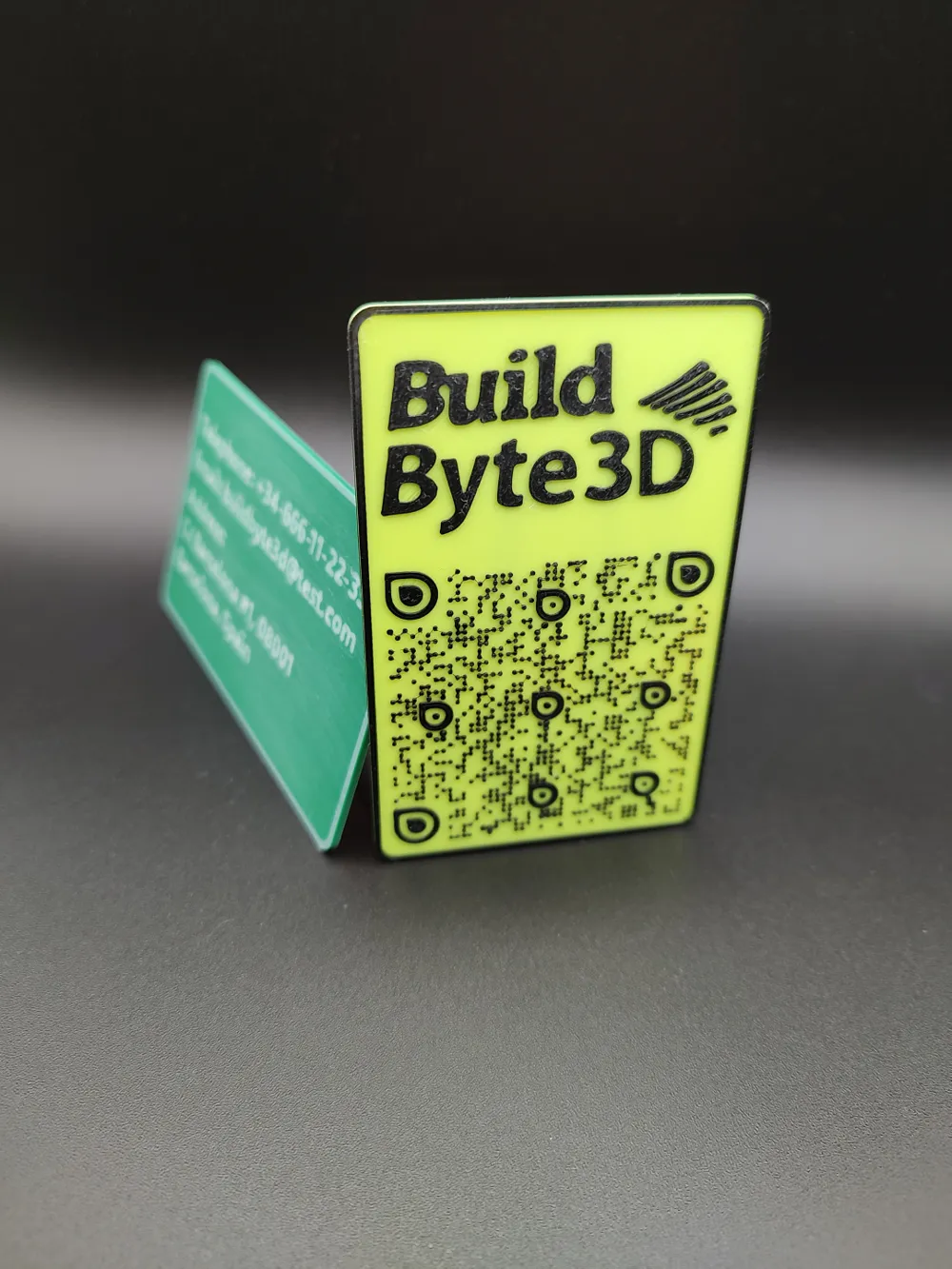
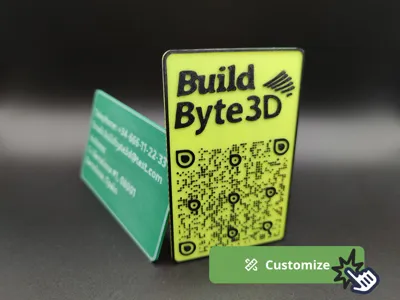
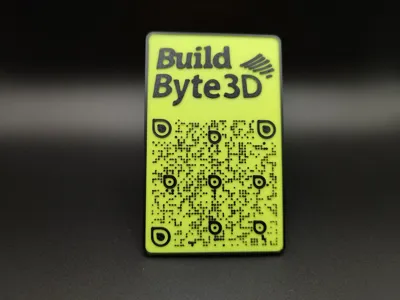
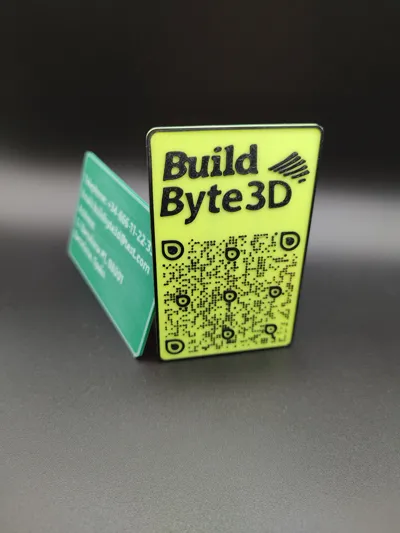
Your Ultimate QR code Digital Business Card – Now Smarter Than Ever!
Forget old-school paper business cards—this sleek, customizable QR card is all you need to share your contact details effortlessly.
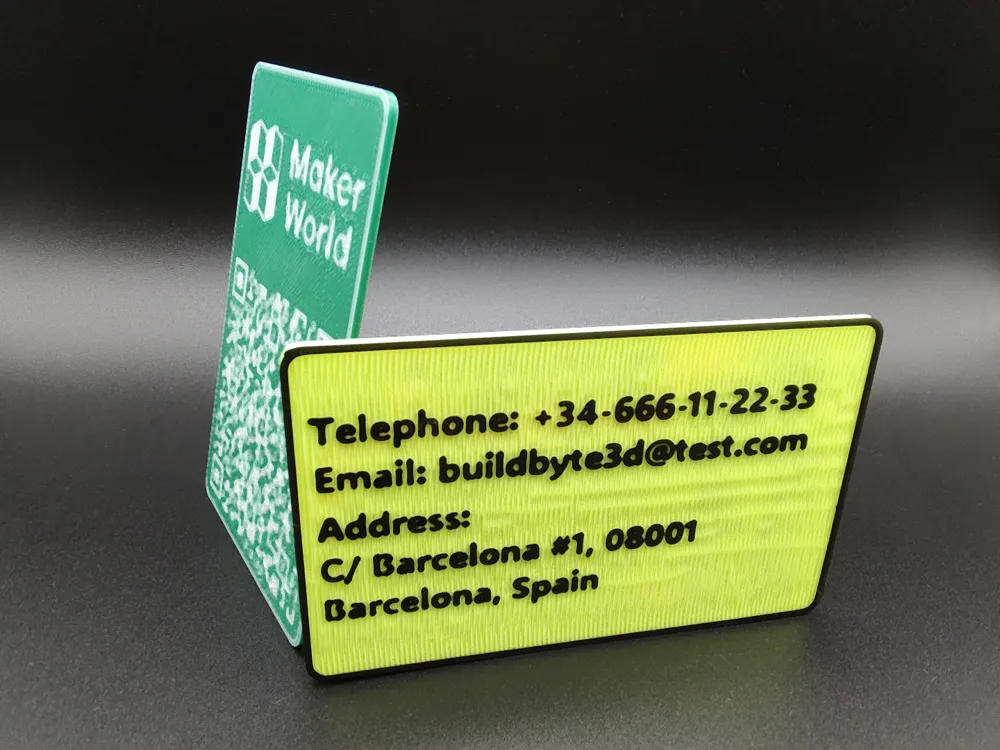
Now with full qr-code vCard support, you can store your name, phone number, email, website, and more in a scannable, stylish format.
No more typing, no more lost numbers, scan and save!
What makes it awesome?
✅ vCard-Ready – Instantly add your contact details to any phone.
✅ Ultra-thin & wallet-friendly – Thickness options from 0.4mm to 3mm.
✅ Keychain-friendly – Optional hole for easy attachment.
✅ Custom branding – Add your own logo.
✅ Stylish QR code options – Match your vibe.
✅ Fully customizable colors – Personalize the card, QR code, and borders.
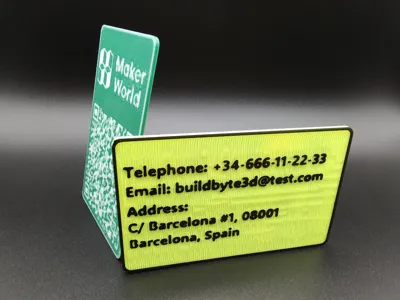
✅ Text on the back – Add a tagline, extra details, or a personal touch.
Perfect for networking pros, freelancers, creators, and anyone who loves a modern way to connect.
Printing with AMS:
If you own an AMS, printing is straightforward. You only need to customize your QR code, export the 3MF file, and you’re ready to go!
Printing without AMS:
If you do not own an AMS or prefer your card to have some bevel, you can turn off the “AMS compatible” option in the customizer. You can then define how much the QR code (logo, text, and borders) will be extruded.
Finally, to apply the color change, follow these simple steps:
- Download the customized STL file.
- Import it into your preferred slicer.
- Slice the model.
- Add a filament change.
To add the filament change:
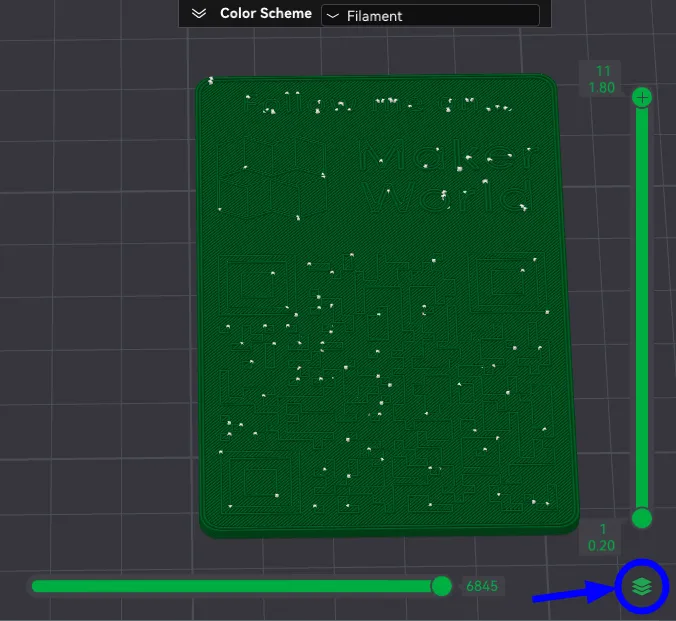
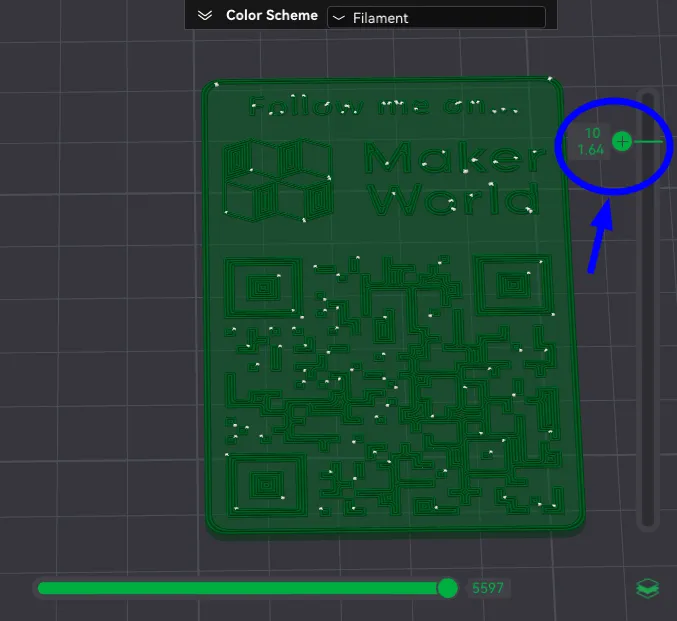
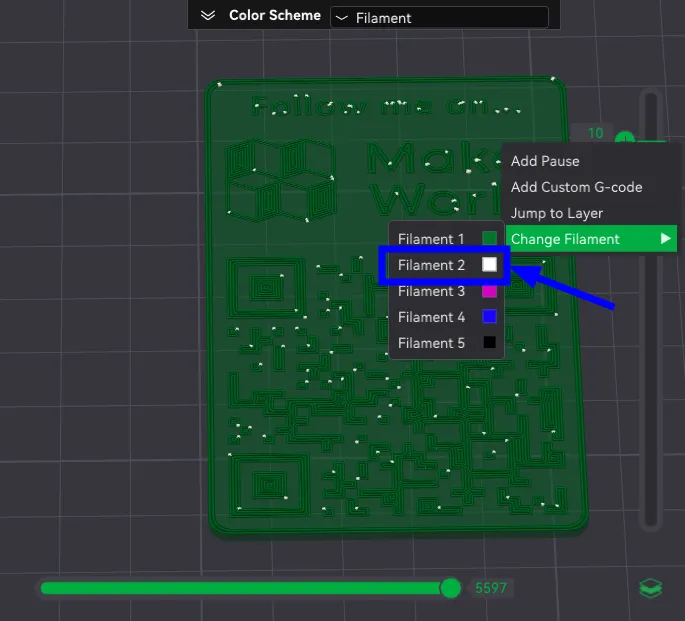
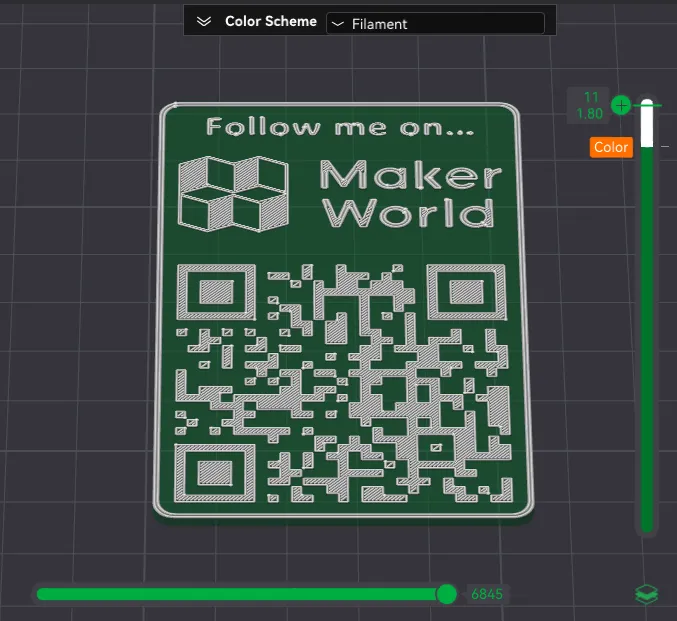
Now you can print your model. The printer will notify you when it’s time to change the filament.
Special thanks to:
- xypwn for writing the scadqr library (https://github.com/xypwn/scadqr)
qr qrcode generator 二维码 qr code qr card credit card businesscard socialmedia social media keychain 钥匙链 二维码生成器 名片
Follow me on Instagram @buildbyte3d, bluesky.app @buildbyte3d.bsky.social or mastodon.social @BuildByte3d for more behind-the-scenes looks, progress updates, and new projects! 🚀✨
Support My Work on Patreon! consider subscribe to my Patreon. (Seller License tier)
Every little bit helps keep the creativity brewing! ☕🙏 |
License

You shall not share, sub-license, sell, rent, host, transfer, or distribute in any way the digital or 3D printed versions of this object, nor any other derivative work of this object in its digital or physical format (including - but not limited to - remixes of this object, and hosting on other digital platforms). The objects may not be used without permission in any way whatsoever in which you charge money, or collect fees.


Comment & Rating (0)