
Print Profile(1)

Description
Membership
You want to make money with it? become a member.
Boost Me (for free)
You like it? give it a boost.
Boost Me (for free)
Every boost helps prototyping
Description of the Standing Gecko
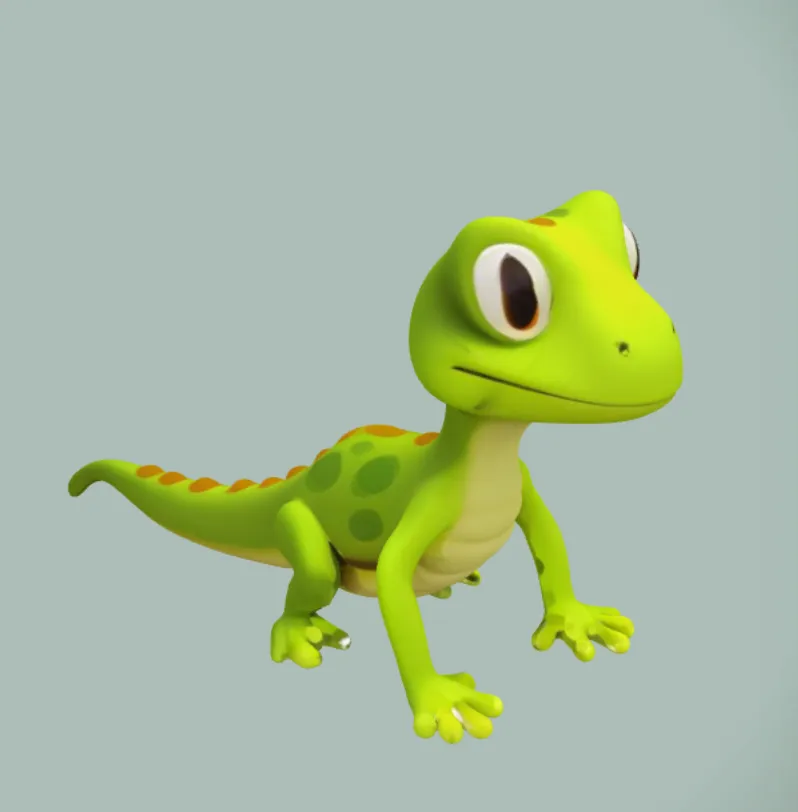
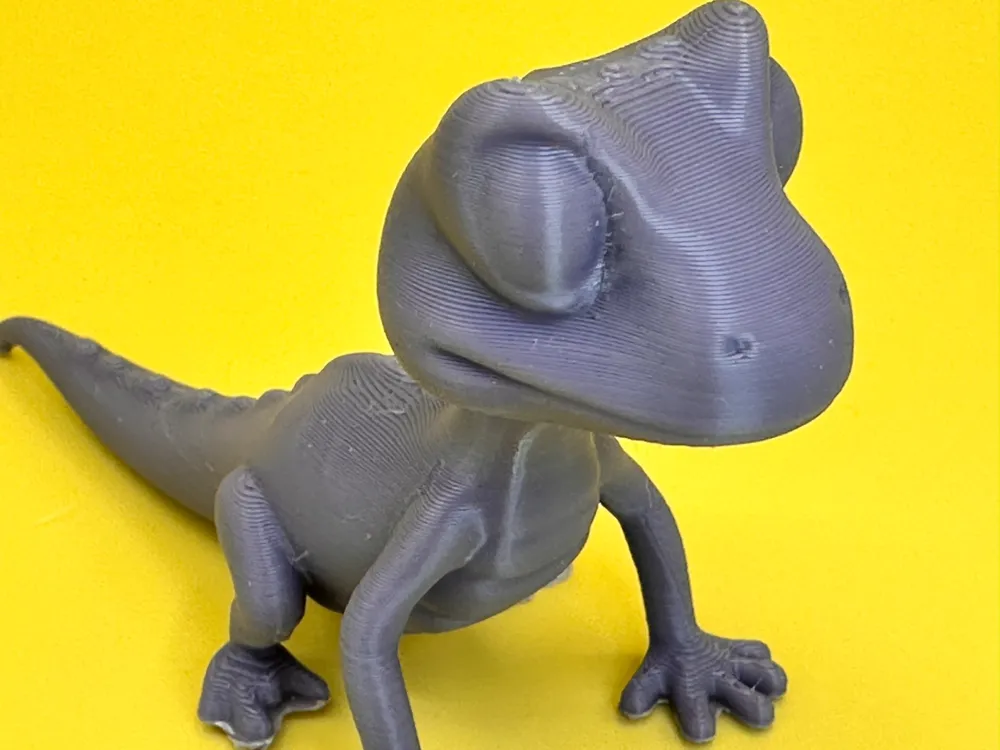
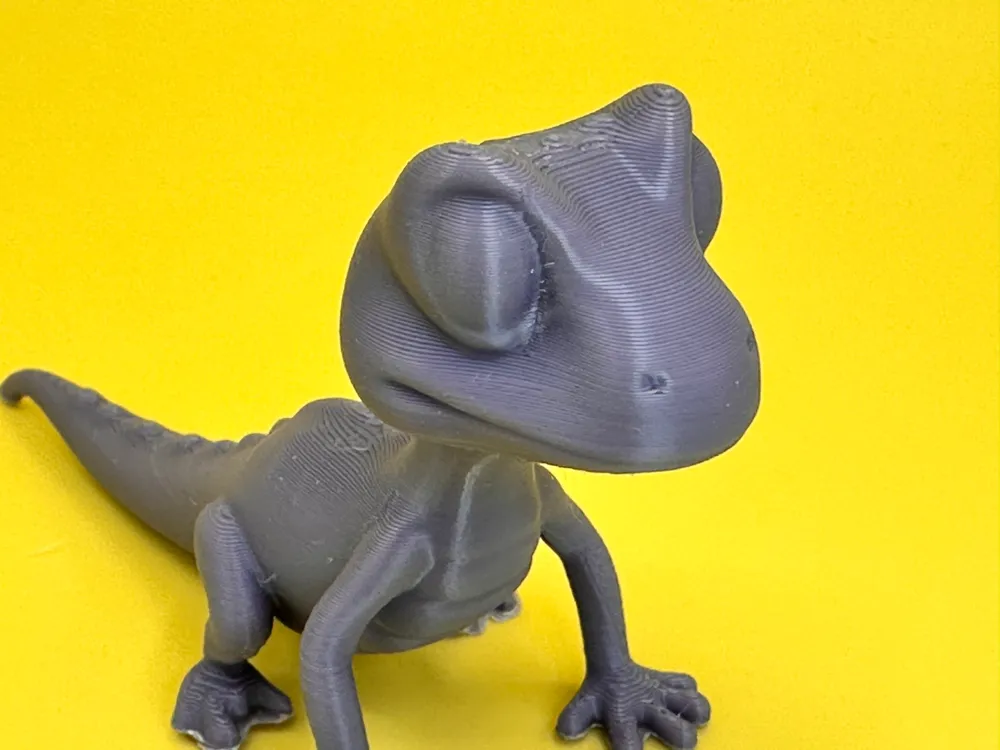
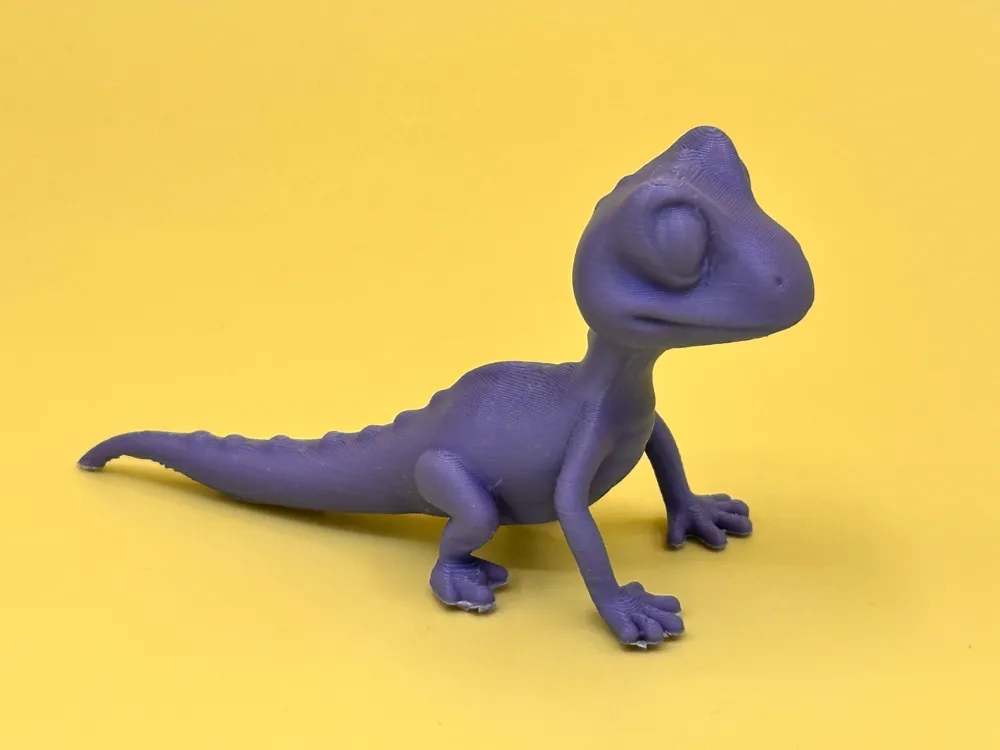
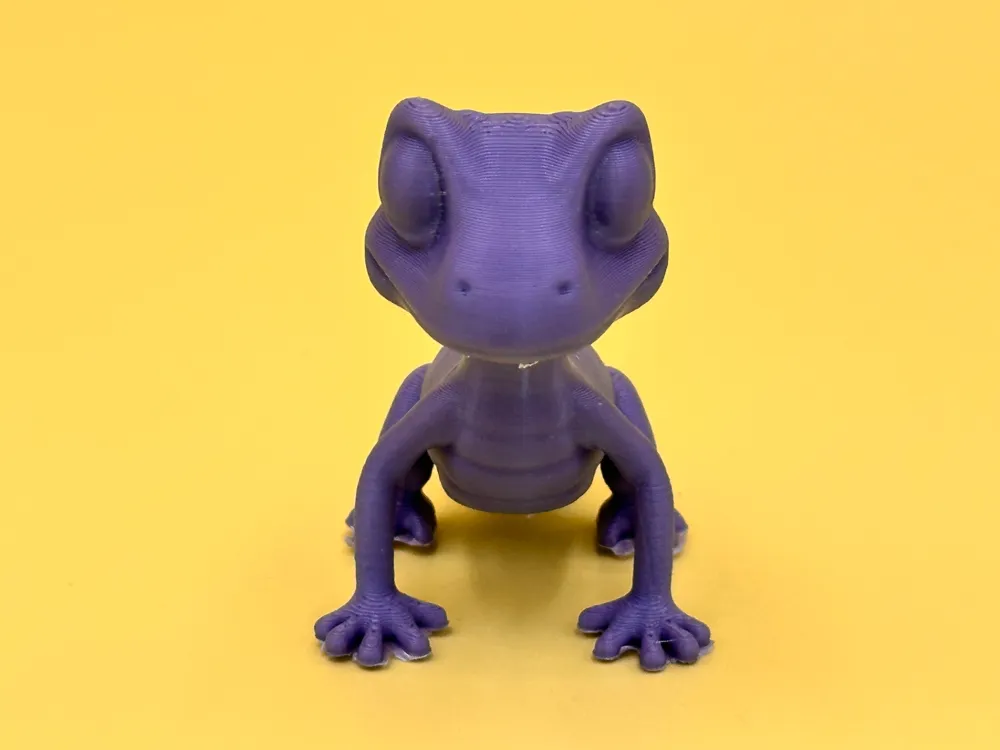
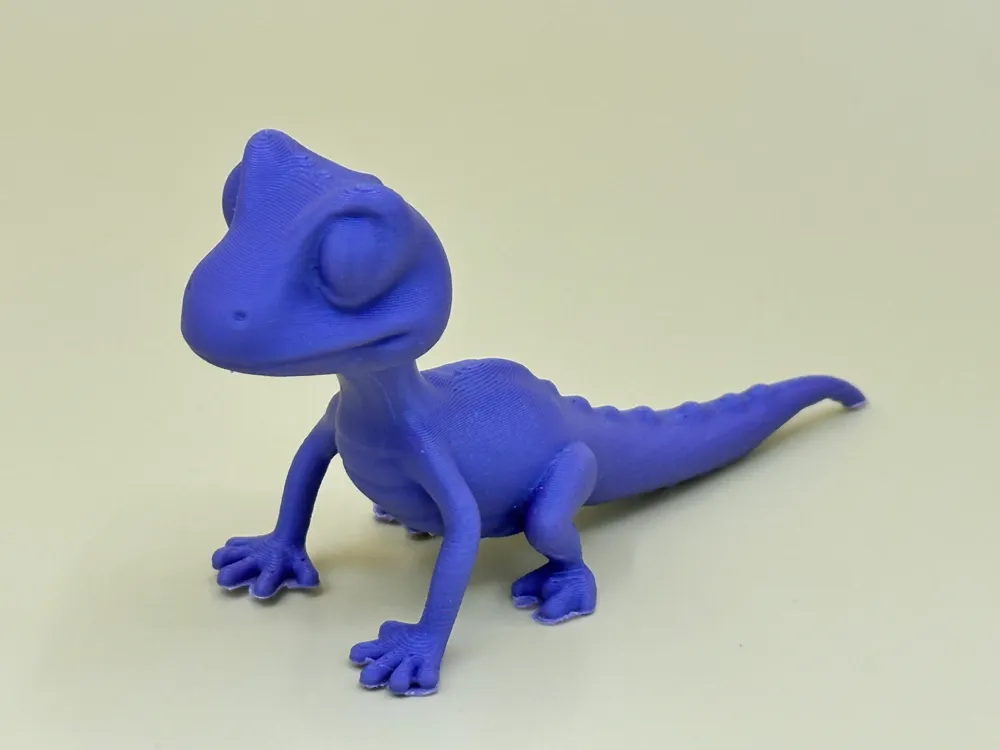
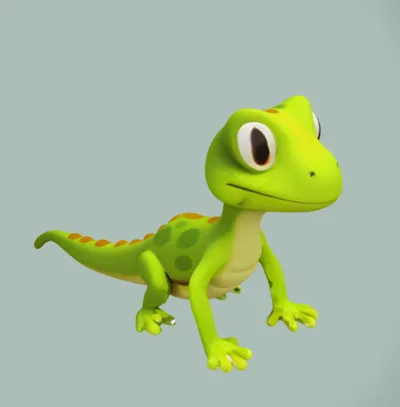
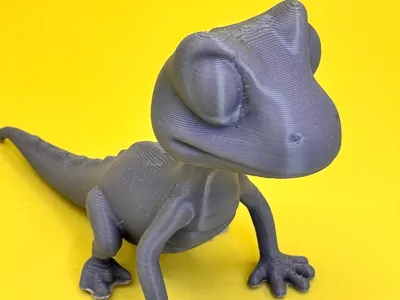
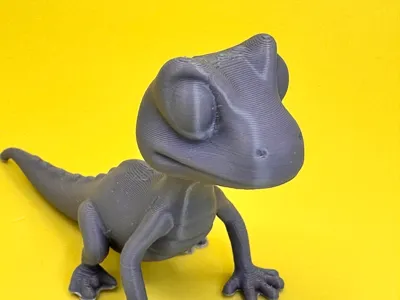
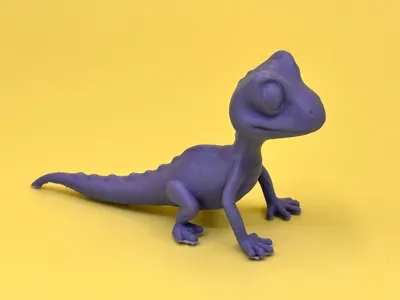
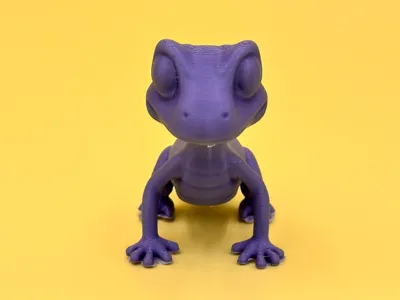
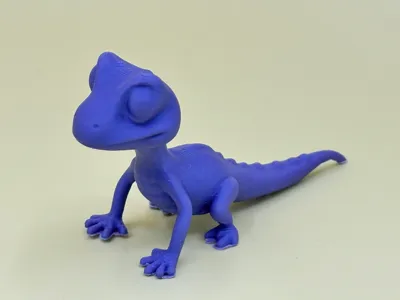
The standing gecko is a vibrant and detailed 3D model that captures the characteristic features of this fascinating reptile species. With a sleek, slender body and a typical slightly curved shape, the gecko stands steadily on its four legs. The large, round eyes give the model a playful expression, while the fine details on its skin—from the tiny scales to the delicate colors—provide a realistic appearance. The legs are slightly bent, giving the gecko a dynamic, active look, as if it is about to move or explore.
Guide to 3D Printing a Standing Gecko
1. File Preparation
- Import the File: Load the STL file of the standing gecko into your slicing software (e.g., Cura or PrusaSlicer).
- Check the Model: Inspect the model in the software for any issues such as non-manifold parts or overhangs that may require support structures.
2. Set Printing Parameters
- Printer Profile: Select your 3D printer in the software to ensure the correct parameters are set.
- Choose Material:
- Filament: PLA is a good choice for simple prints, while ABS or PETG is suitable for more durable models.
- Adjust Printing Settings:
- Layer Height: Set the layer height to 0.1 to 0.2 mm for a balance of detail and print time.
- Infill Density: An infill rate of 15-20% is generally sufficient for stability.
- Print Speed: Set the print speed to 40-60 mm/s for good quality.
- Support Structures: Activate support structures if the gecko has overhangs that need support during printing.
- Cooling: Ensure that the cooling fans are active during the print, especially for PLA.
3. Prepare the Printer
- Level the Print Bed: Make sure the print bed is properly leveled to ensure optimal adhesion.
- Load Filament: Load the chosen filament into the printer and ensure the nozzle is heated to the recommended temperature (e.g., 200-220 °C for PLA).
4. Printing
- Start the Print: Begin the printing process through the slicing software or directly on the printer.
- Monitor the Print: Keep an eye on the print, especially the first layer, to ensure it adheres well. If issues arise, pause the print and resolve them.
5. Post-Processing
- Remove the Print: Allow the model to cool before gently removing it from the print bed.
- Remove Supports: If support structures were used, carefully remove them with pliers or by hand.
- Surface Treatment: Use fine sandpaper to smooth rough areas. If desired, you can prime and paint the model.
6. Finishing and Decorating
- Add Color: Paint the gecko in your desired colors. Acrylic paints work well to highlight details.
- Display: Place the gecko in a suitable location, such as on a shelf or in a display case.
Additional Tips
- Test Print: Consider doing a small test print to verify your settings.
- Cooling: Ensure good cooling, especially for overhangs.
- Print Speed: Slower print speeds can improve detail accuracy.
With this guide and the description of the gecko, you are well-equipped to successfully print and display your standing gecko!
License

You shall not share, sub-license, sell, rent, host, transfer, or distribute in any way the digital or 3D printed versions of this object, nor any other derivative work of this object in its digital or physical format (including - but not limited to - remixes of this object, and hosting on other digital platforms). The objects may not be used without permission in any way whatsoever in which you charge money, or collect fees.


Comment & Rating (1)