
WiFi QR-Code


Print Profile(1)

Description
Step 1: go to https://observablehq.com/@johnboiles/wifi-qr-code-svg-generator
Step 2: Type in your Wi-Fi Information’s.
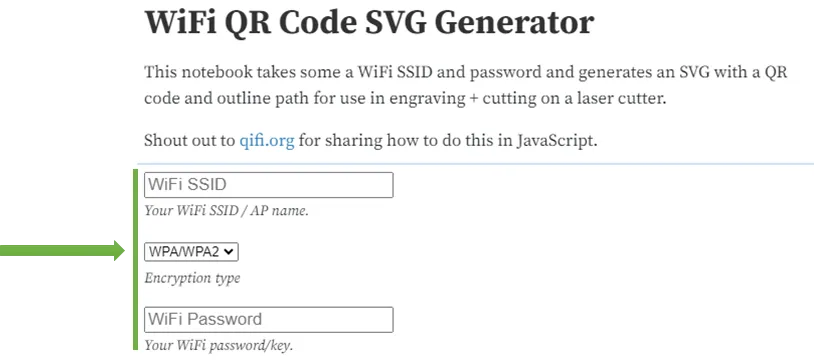
Step 3: Set the measurement for your QR-Code, we recommend a 50 mm x 50 mm QR-Code. Set the other Measurements like in the following picture (50 mm for the Size, 0 mm Insert from the cutout path and the QR-Code and 0 mm for the corner radius.
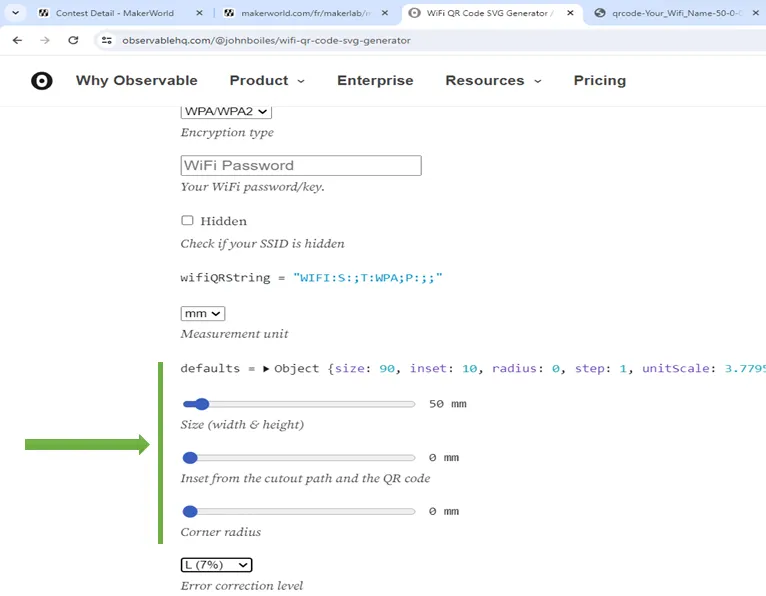
Step 4: Ensure you have 7% error correction for your QR-Code to minimize the number of pixels.

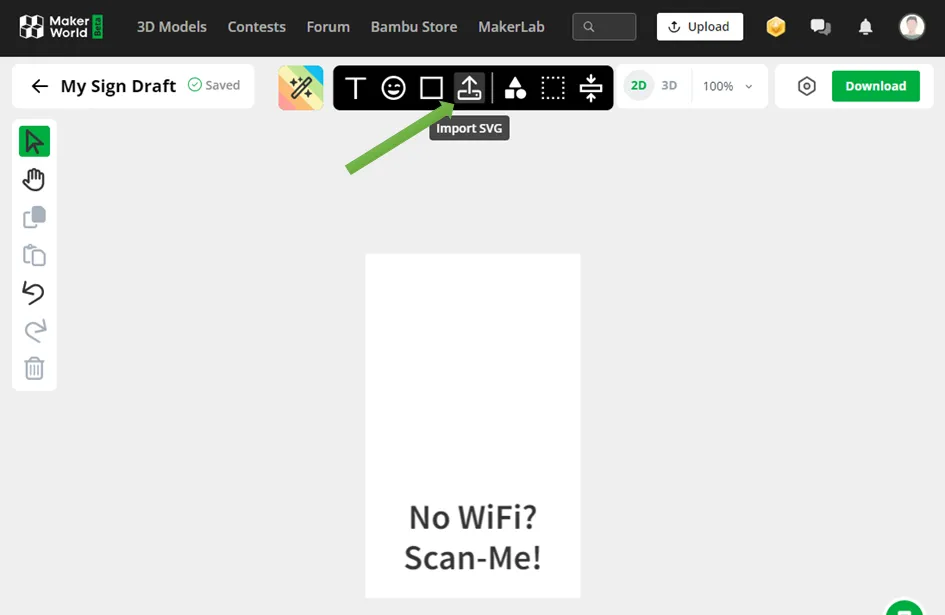
Step 5: Then download the SVG file of your QR-Code and go to: https://makerworld.com/fr/makerlab/makeMySign
Step 6: Create a sign which is 50 mm to be able to use the stand.
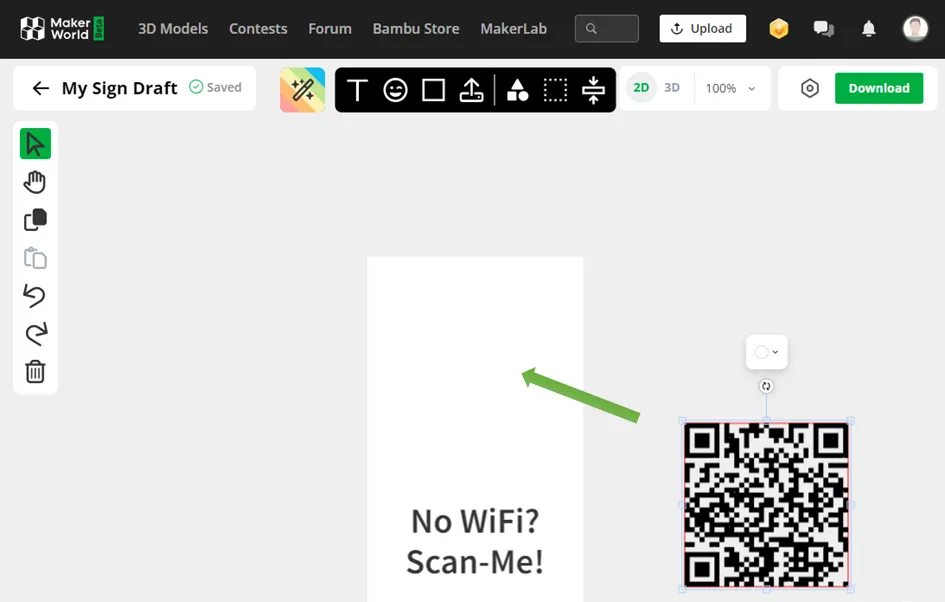
Step 7: import your QR-Code using the import SVG button. Then place it where you want it to be on the sign (Do not resize the QR-Code, otherwise it could be not printable any more)
Move the QR-Code where you want:
Step 8: Download your model and open it in your slicer (prefer .3mf file)
Step 9: (Warning it is crucial) go to your setting for each object[1], in your settings for your sign object delete the first SVG file that has another colour but the same GroupNumber (from the SVG of your QR-Code) (SVG-GroupNumber-EntityNumber)[2]
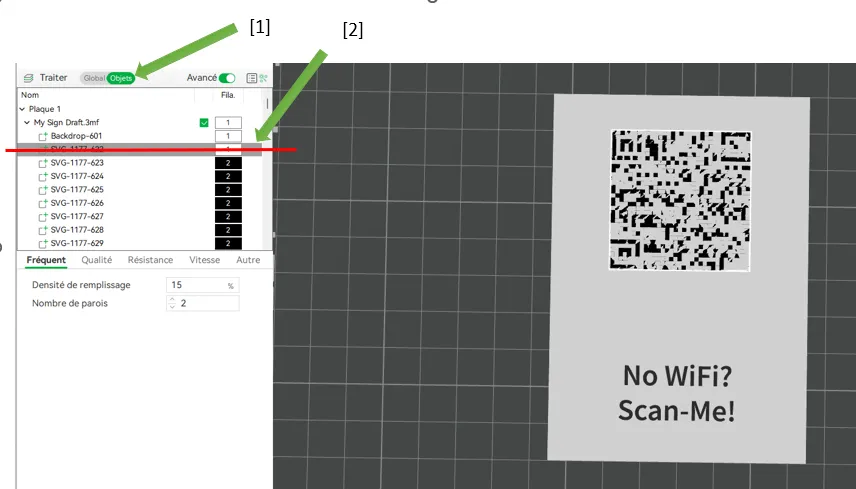
Step 10: Slice your part make sure the QR-Code has another than the background (you will need contrast to be able to read the QR-Code), print it.
→Additionally, if you want a very nice holder to display your QR-Code (other than my minimalistic one), make sure to check Table Card Holder( by Wing-ART)!
License



Comment & Rating (11)