
AI Leftovers
Print Profile(1)
Description
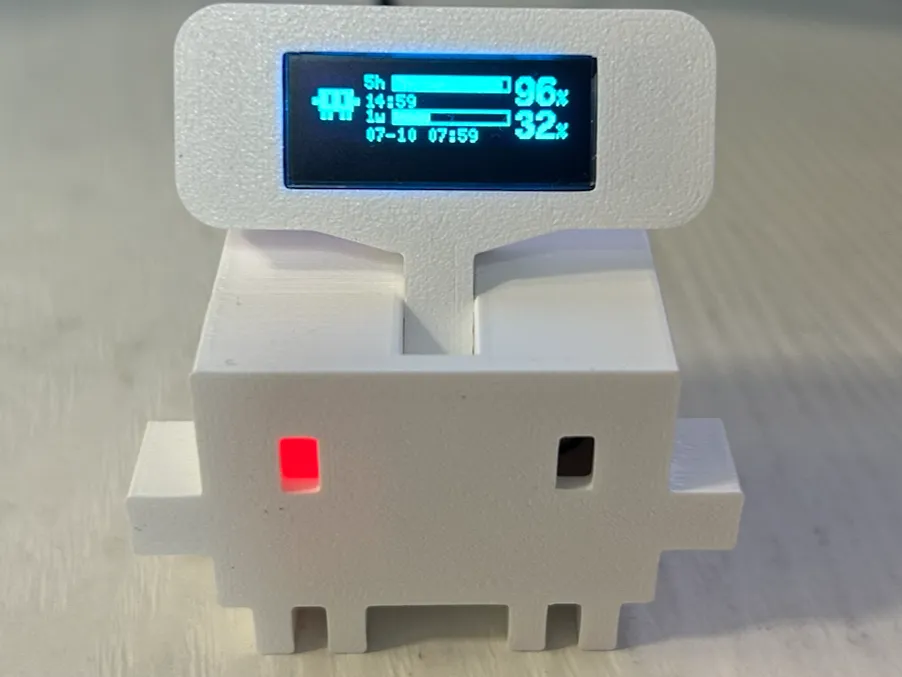
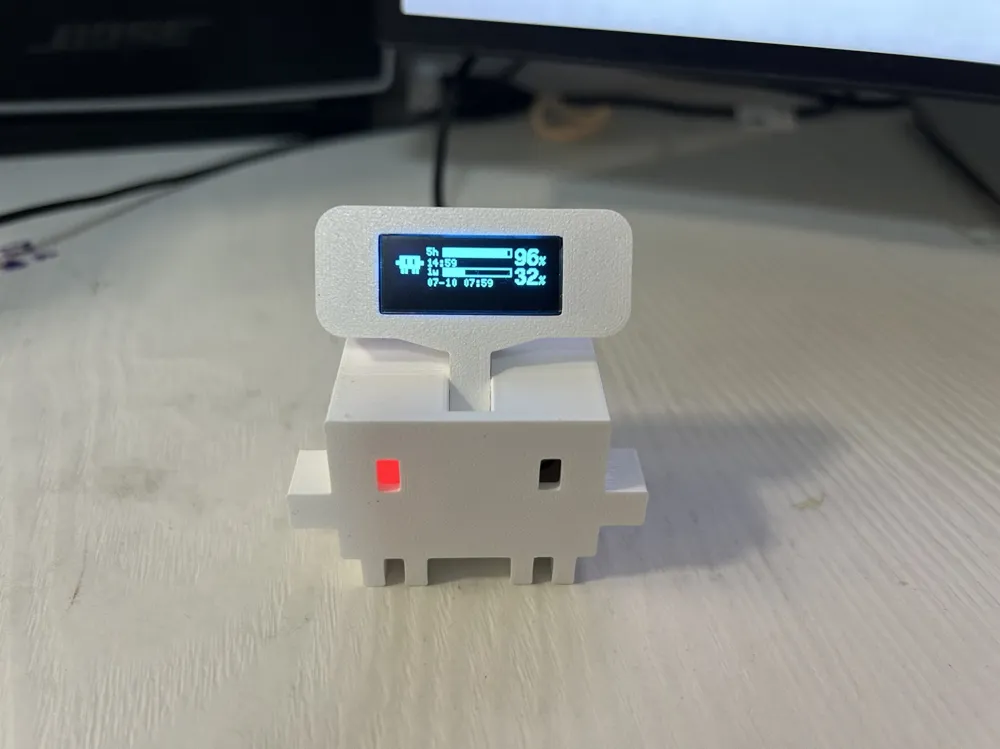
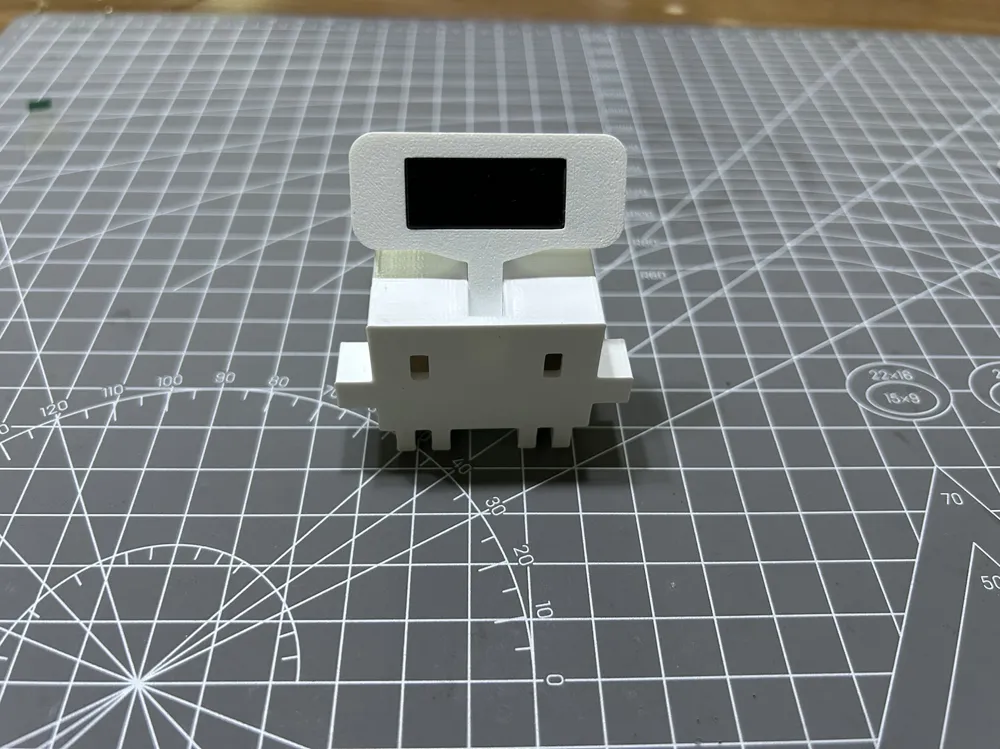
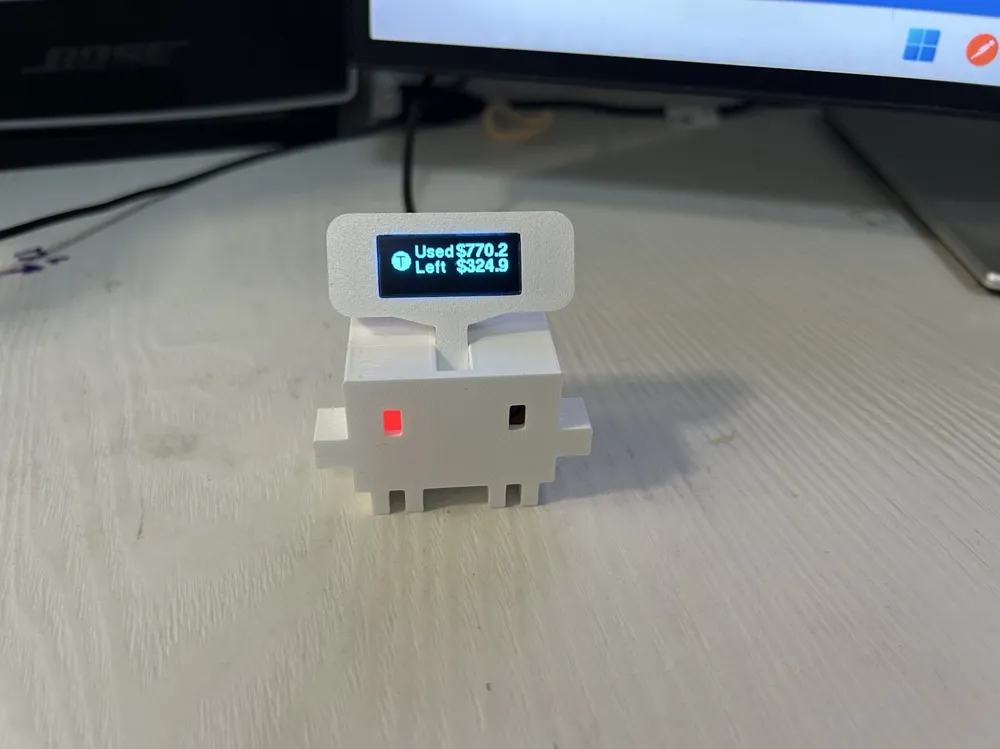
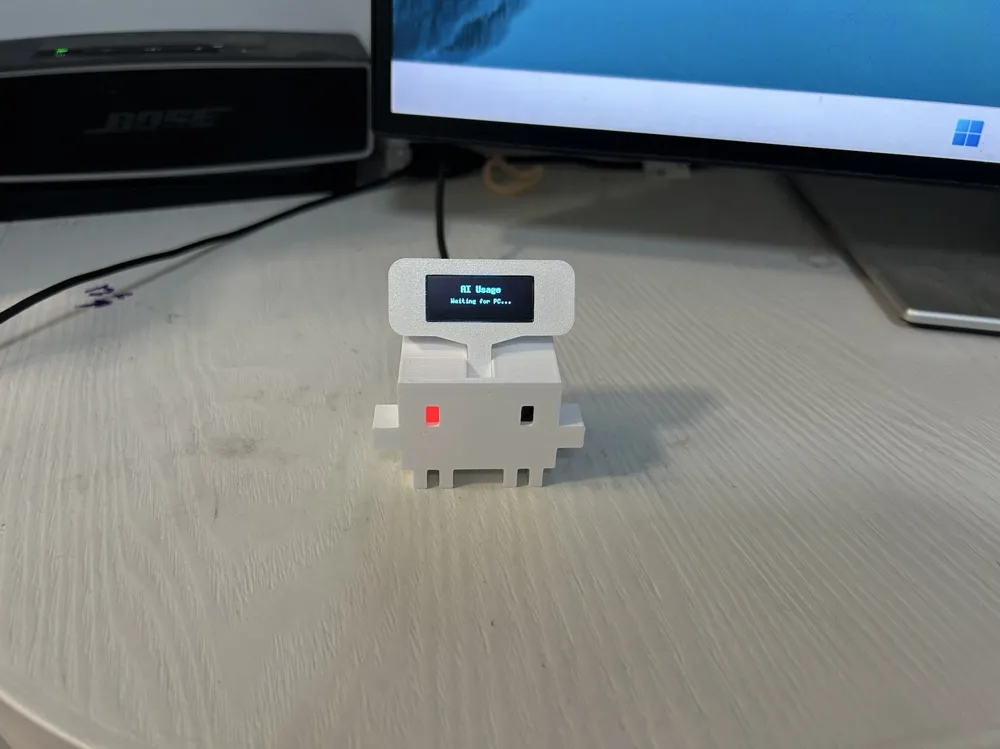
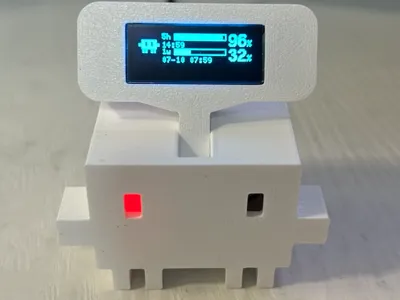
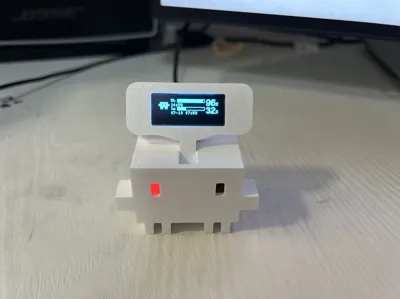
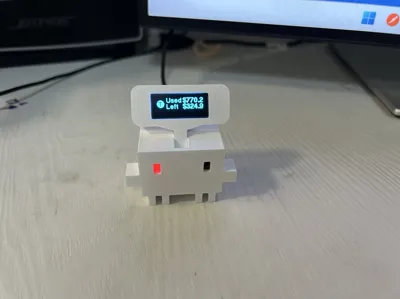
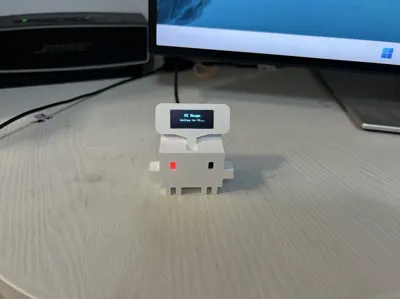
A small desktop hardware device for Claude: **Real-time display of remaining quota for Codex / Claude / Proxy Station**
A quick glance before coding tells you if you can still use the 5-hour window freely and how much balance is left
Open-source address: https://github.com/0990/esp32-ai-usage
## How it works
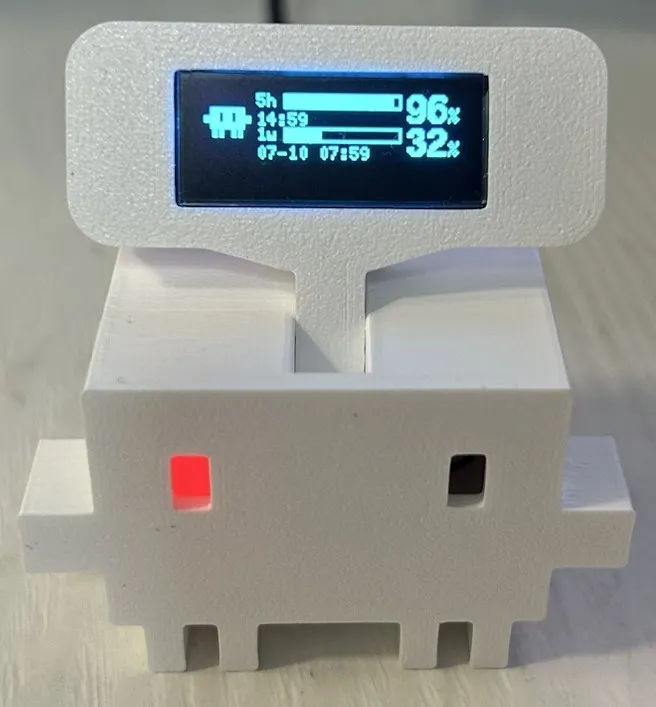
Codex / Claude subscription: Displays the remaining percentage and recovery time for 5-hour and 1-week windows:
Proxy Station (API key billing, supports sub2api and new-api): Displays used amount and remaining balance:
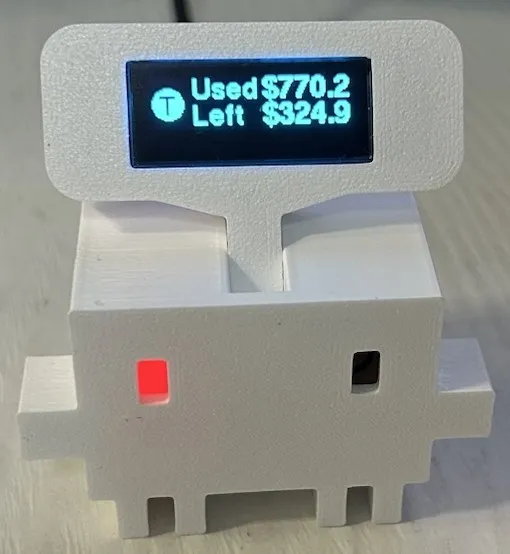
## Highlights
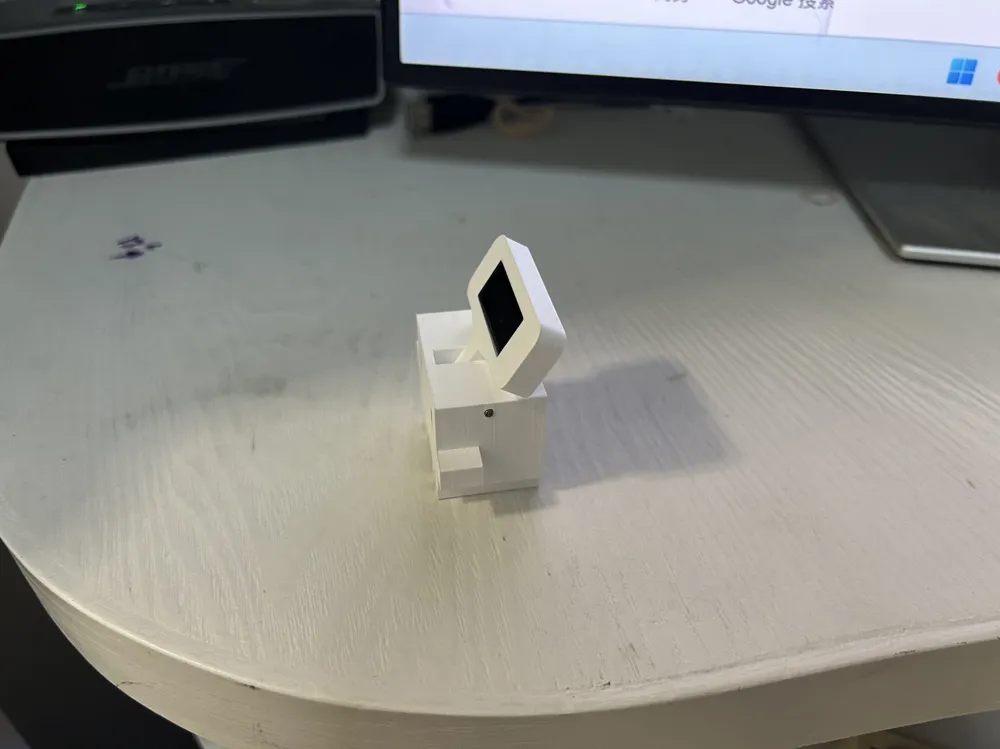
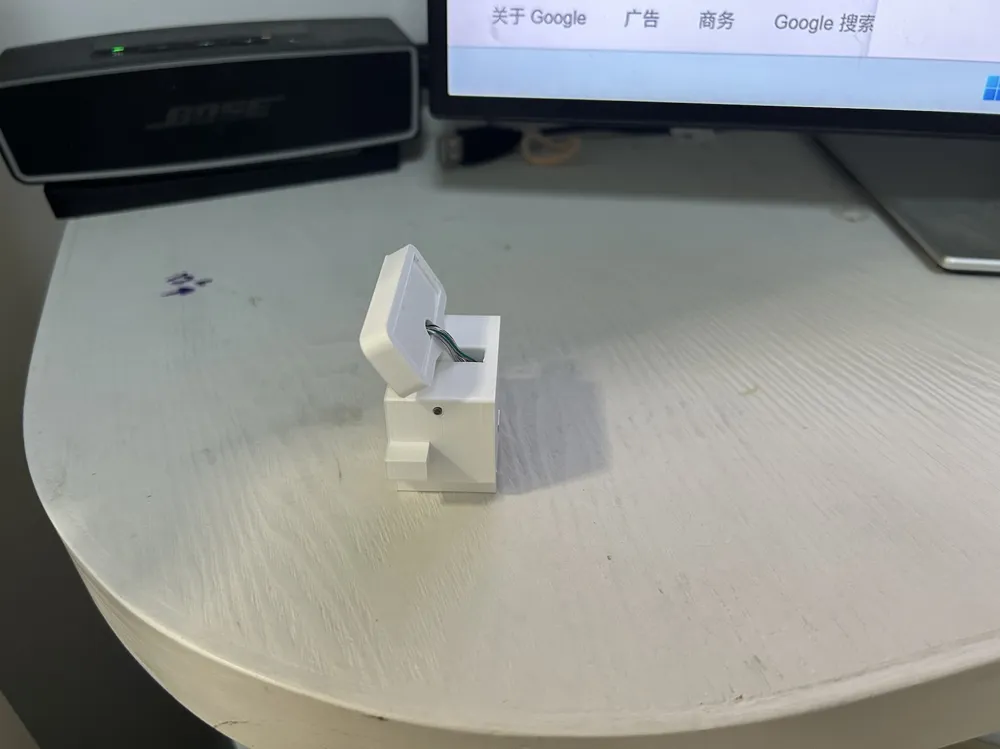
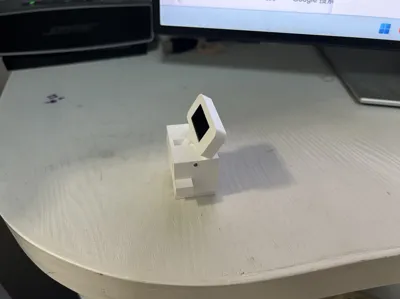
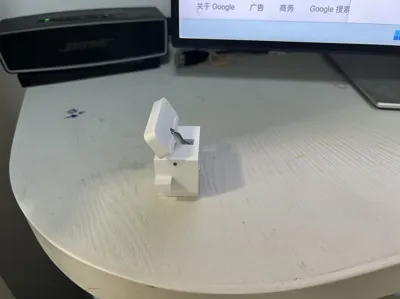
- **Adjustable screen support rod**: The screen angle can be changed with a flick, standing or lying down as you wish
A detent ball screw is hidden inside the rod, providing a satisfying **clicky** tactile feel when adjusted, and it can even be used as a fidget toy when idle
- **One USB cable does it all**: It provides both power and data transmission. The small hardware itself does not connect to the internet or store any account information
- **No quota consumed**: The desktop application reads the locally logged-in Codex / Claude credentials
and calls the same 'usage query' interface internally used by the client — it only queries, no models are run
- **Inexpensive and readily available materials**: The core components are an ESP32-C3 board and a 0.91-inch OLED screen. The hands-on part only requires soldering 4 wires
## How to make one (three steps)
1. **Prepare materials** — For the list and purchase links, see the assembly guide: Bill of Materials.pdf
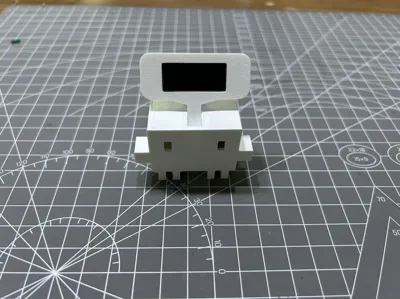
2. **Assemble** — Solder wires, install the adjustable rod, and attach the casing. Follow the diagrams in the assembly guide: Hardware Installation.pdf
3. **Install software** — Flash the firmware once onto the ESP32 + run `esp32-ai-usage.exe` on your computer. See the assembly guide: Software Usage.pdf
Once assembled, plug it into your computer's USB port, and the desktop application will automatically detect it and start displaying information
## Working Principle (one-liner)
```
Desktop application (reads locally logged-in Codex/Claude credentials, calls official usage API)
│ USB serial port, sends one screen update every 4 seconds
▼
ESP32-C3 ──I2C──> OLED mini screen (only for display, no internet connection)
```
Documentation (3)
License



Comment & Rating (0)