
Playable music record - "Bamboo Plastic" can play real music on a vinyl record player
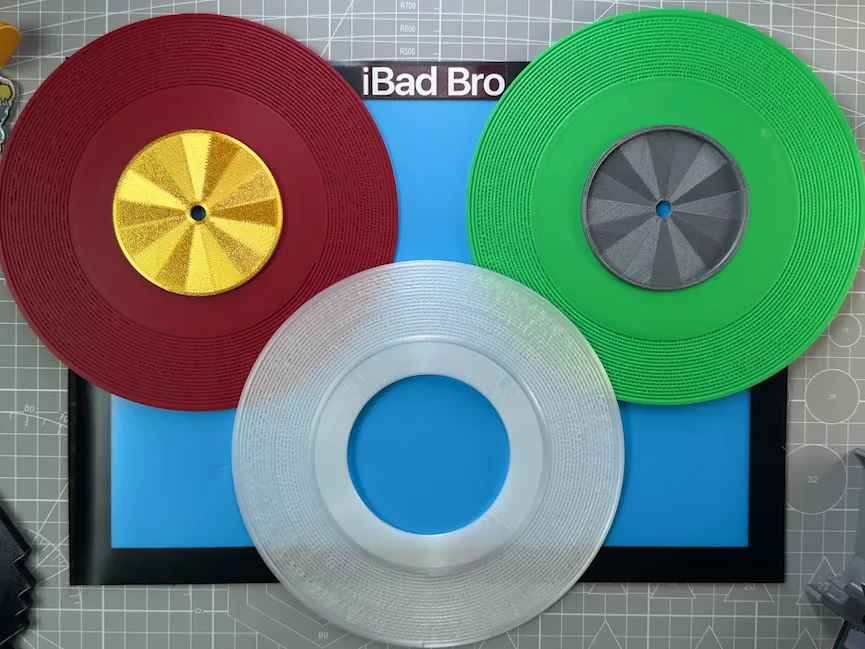
Print Profile(1)

Description
Tip: The slicing time is too long for the 3mf file to pass review orz
Please download the file via cloud drive and open it on a PC
Tetris Record 3mf (0.2mm nozzle, 0.08mm layer height):
Link: https://pan.quark.cn/s/0b1e24ba8278
Note: Requires 78RPM playback speed, 45RPM can play but will be a slowed-down version.
I'm not particularly proficient with slicing software, so feel free to make further adjustments. It would be a great help if someone could optimize the slicing speed to meet MakerWorld's review requirements!
Sci-fi Goji Video
Original 3D Printed Records project by Amanda Ghassaei: https://www.instructables.com/3D-Printed-Record/
Important notes upfront:
This process is not particularly straightforward, and there might be quite a few rambling details, apologies in advance.
If you want to generate your own record models, first make sure you have downloaded and printed some pre-made models to confirm that they produce acceptable sound on your turntable.
PLA material is generally considered softer than PVC used for normal vinyl records, so you probably don't need to worry too much about wear on diamond styluses, but if it's a cheap ruby stylus, even if it wears out, it won't be a big loss (?).
Now for the process, the attachments are packaged
Link: https://pan.quark.cn/s/b886eb6a7f16
Extraction code: zLgw
1. Install Software
Required software: Audition (or any audio processing DAW like Audacity);
python version 2.7.18 (this is an older version; it can actually be converted to a newer version but I'm not sure how, and using a newer version directly will cause errors)
processing version 2.2.1 (also an older version)
processing model data package Modelbuilder v0007a03.zip
First install all software
Extract the modelbuilder folder from Modelbuilder v0007a03.zip
to the processing installation path: Processing\modes\java\libraries
2. Audio Processing
As shown in the video, each piece of music is typically only a dozen seconds long. This is due to personal parameters, but longer durations are possible. However, longer durations mean larger model data, which significantly increases software slicing time. Even a dozen seconds of audio takes tens of minutes to slice on my i7-13700k.
Before preparing the audio, it's important to understand the precision limits of 3D printed records. Based on Amanda's original Instructable article, I fed it to Gemini to calculate the maximum audio precision achievable with 0.4mm and 0.2mm nozzles using the same method. The calculated results are as follows: (Gemini's calculation uses nozzle diameter as the limit, but it's also possible that the limit is not the nozzle but the Z-axis layer height limit. This would require further verification and testing, but printing at low layer heights is too time-consuming, so I haven't verified it yet)
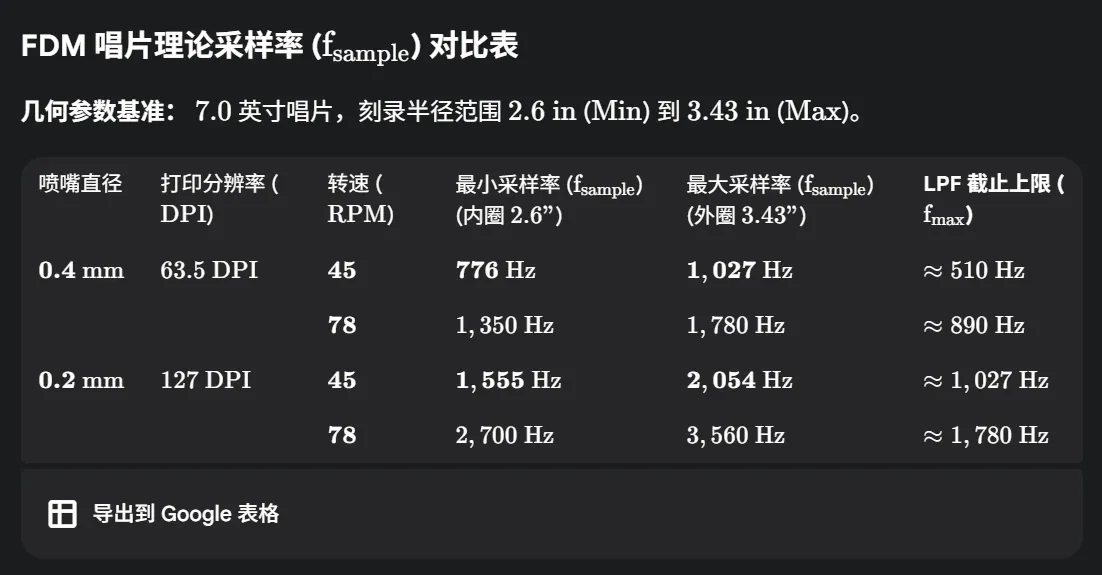
Note that the premise of this table is that the record diameter is 7 inches, which is a relatively small size that can fit on the A1 mini and is also the size used in the video.
For P1S / P2S 256*256 dimensions, a 9.8-inch record can be accommodated, and the sampling rate would then become as follows:
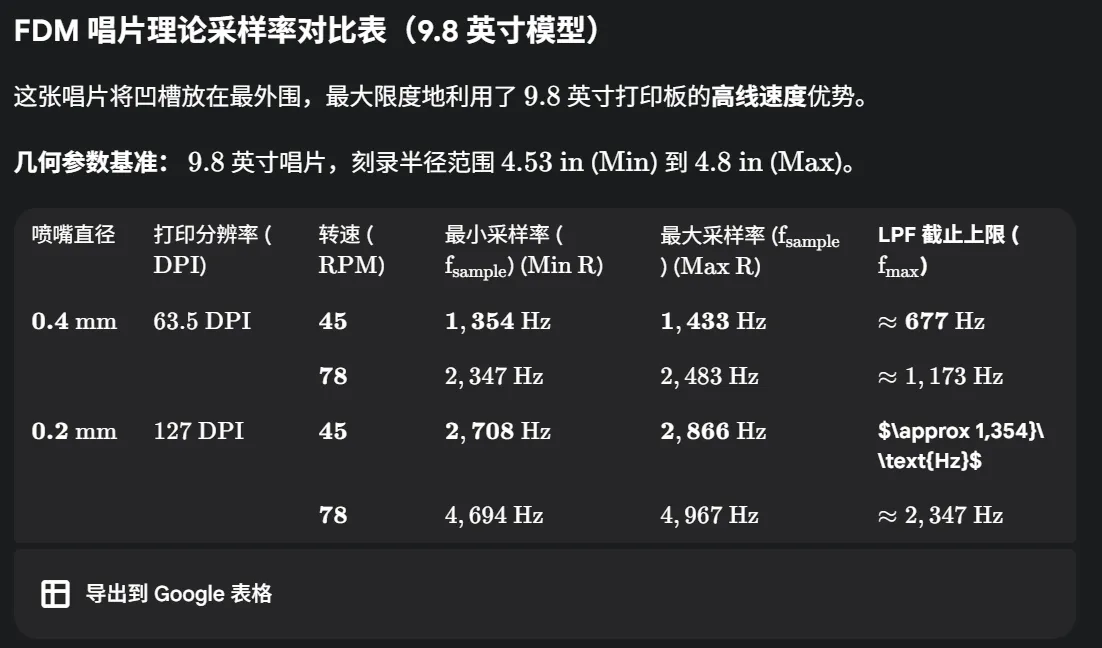
However, 9.8 inches is a bit too slow at my printing speed, and making a larger adapter might cause the record to be unstable, so I still chose 7 inches.
If printing time is abundant, you can still choose 9.8 inches. I will later write about where to modify the parameters.
Taking a 7-inch record as an example, the table shows that if your turntable supports 78RPM, you can achieve a maximum sampling rate of 3560Hz with a 0.2mm nozzle. This is calculated based on the outermost diameter of the record.
However, most slightly better vinyl turntables on the market actually do not support 78RPM (strangely, entry-level turntables do). In that case, try to use a 0.2mm nozzle, which still provides a sampling rate of 2054Hz at 45RPM.
Therefore, to maximize the retention of effective information in our audio during subsequent steps, we first need to add a low-pass filter to the audio.
According to the Nyquist theorem, we need to divide the previously calculated minimum sampling rate by two to get the highest frequency our audio can retain, which is the data for the low-pass filter.
So first, select your desired short audio clip (recommended to be less than 18 seconds; if more time is needed, you can process a longer audio first, and later in the processing workflow, you can adjust how it fits onto the record).
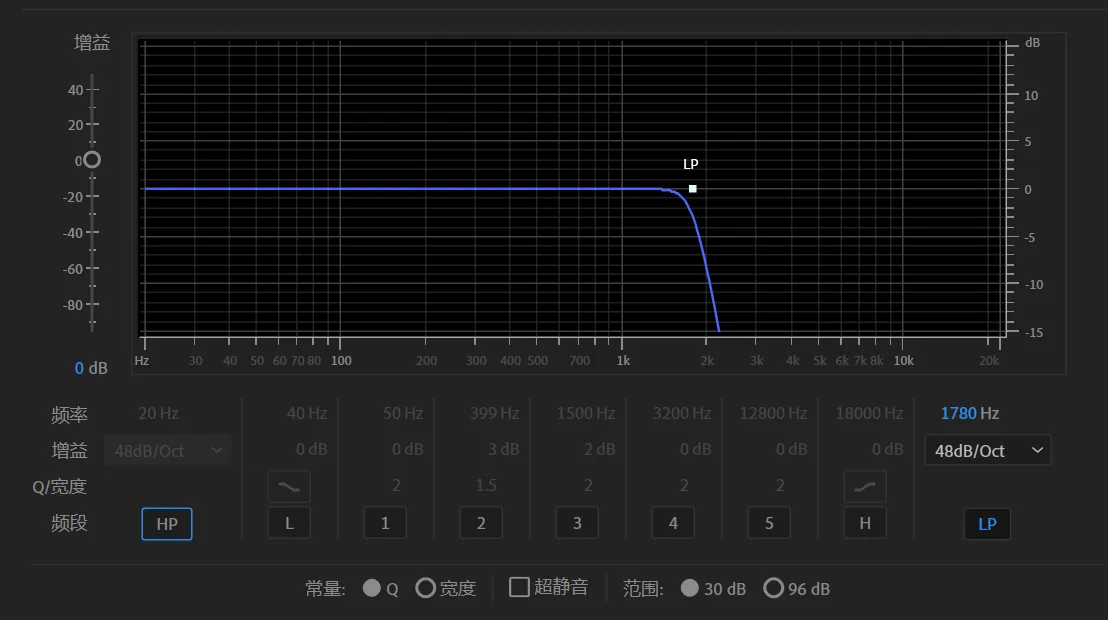
For a 7-inch record, 0.2mm nozzle, and 78RPM, you need to add a 1780Hz low-pass filter to the audio.
As shown in the figure: (using Au's built-in parametric equalizer's LP, which is low-pass)
Additionally, since Amanda's original project was based on large 33.3RPM records, after low-pass filtering, the audio needs to be slowed down to 33.3/78 times its original speed. This allows for normal playback on a 78RPM machine.
In Au, this is done by extending the time to 234% (78/33.3 ≈ 2.34), using Effects - Time and Pitch - Stretch and Pitch Shift.
Make sure to check "Lock Stretch and Pitch Shift."
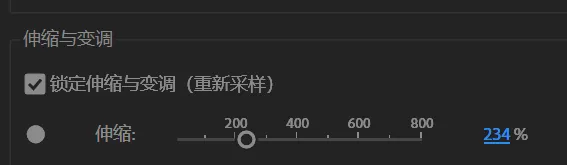
If you have a 45RPM machine, this stretch value will be 135%
Add approximately 2 seconds of silence to the beginning and end of the stretched audio. The beginning silence helps the stylus find the start, and while the end silence isn't strictly necessary, it helps to stop playback in time to prevent the stylus from jumping (I'm not actually sure what harm jumping causes).
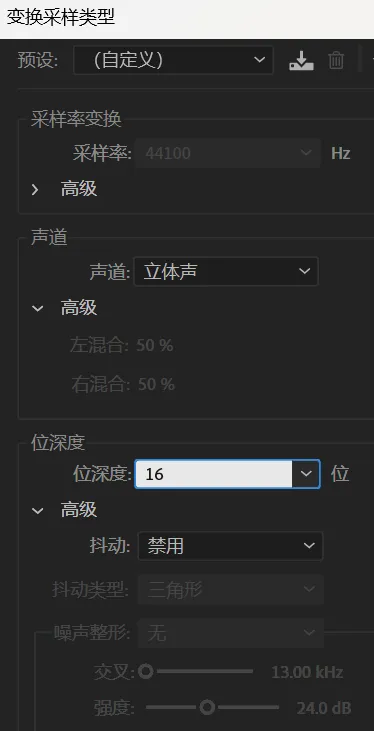
Save as a 16-bit non-dithered WAV file. As shown, use an all-English filename.
3. Python Preprocessing WAV to TXT
Next, move to Python
Open wavtotext.py, and change this line
fileName = "your_file_name_here.wav"#file to be imported (change this)
Modify the content within the quotation marks to the filename of your saved WAV file
After saving, Run Module
The Python script will first convert the WAV file into a TXT file, generated in the same folder.
4. Processing TXT to STL
Next, open Processing
Open RecordGenerator.pde
First, place the TXT file from the previous step into the same folder as RecordGenerator.pde
Change this line
String filename = "your_file_name_here.txt";
Modify the content within the quotation marks to the filename of your generated TXT file.
I have already included the data for my 7-inch model here. You can modify some parameters to adjust the generated model.
A few important parameters are:
float diameter = 7; // Record diameter in inches
float innerHole = 2.92; // Center hole diameter in inches. Note that the 2.92 I've written here is the outer diameter of the adapter. If no adapter is needed, please change it to the small hole size 0.286
float innerRad = 2.6; // Innermost groove radius
float outerRad = 3.43; // Outermost groove radius
If you want to change to a larger record size, for example, 9.8 inches, then float diameter = 9.8
Then change outerRad to 4.85 (9.8 divided by two, then slightly reduced for the outer edge)
Another crucial parameter is
float rateDivisor = 12.4 Sampling rate divisor. This 12.4 is because the default 44100Hz sampling rate needs to be reduced to 3560Hz, so it's divided by 12.4. If your sampling rate is a lower 2054Hz (45RPM, 0.2mm nozzle), then this value should be increased to 21.5
Adjust this parameter upwards according to the sampling rate, try not to make it too low, otherwise the model file size will become very large, and the slicing software will struggle.
If you want to store longer audio, the parameters you should adjust are:
float bevel = 1.1;// Slope of the groove bevel
float grooveWidth = 8;// Width of the groove, in pixels at 600dpi
If you want to store longer audio, lower these two parameters, such as bevel=0.8, grooveWidth = 5, etc
I don't have a calculator to determine what parameters correspond to how many seconds; I can only check after Processing is done whether the groove extends beyond the inner hole.
After adjusting the parameters, save the file and click Run
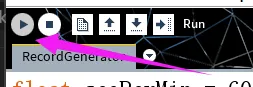
If successful, an STL model file will appear shortly. This is your record model!
Import this model into your slicing software. A pop-up should ask if you want to convert the unit from inches to millimeters; just confirm.
Next are the slicing settings. I'm new to 3D printing, so I can't offer much advice on slicing, other than to reduce speed to maintain precision. I would be very grateful if someone could spend time testing 0.06mm or even lower layer heights, and hand-writing G-code for printing to provide feedback!
Discussions are welcome, but the host might not have much time to check replies, sorry
License



Comment & Rating (1)