
Floating Cubes Customizer
Print Profile(1)

Description
Boost Me (for free)
🔥 Love your personal cube set? Boost this project to support more awesome features, updates, and examples! Your boost helps me keep building cool stuff for the community — and I’d love to see what you create. 💡 👇 Click on Boost if you found it useful!
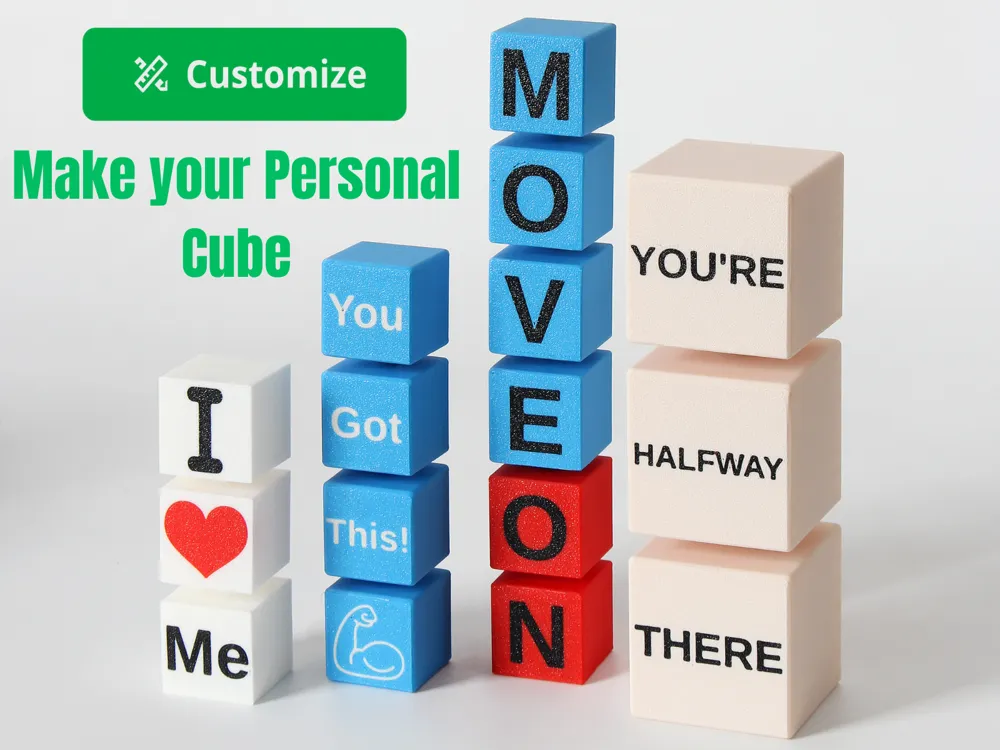
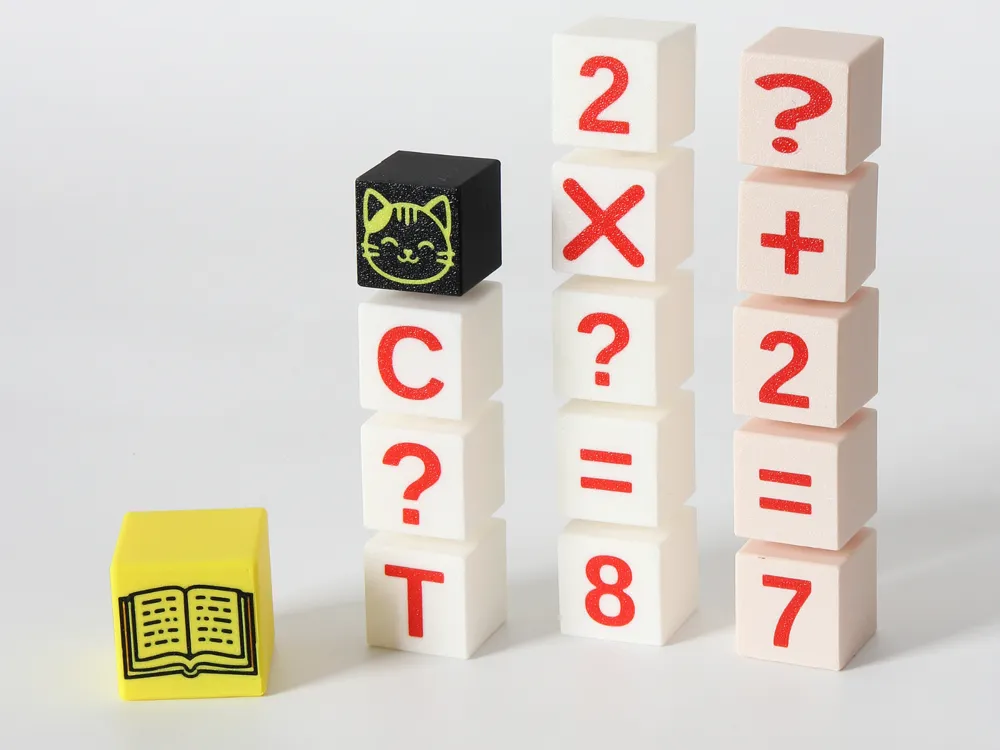
Welcome to the Floating Cubes Customizer!
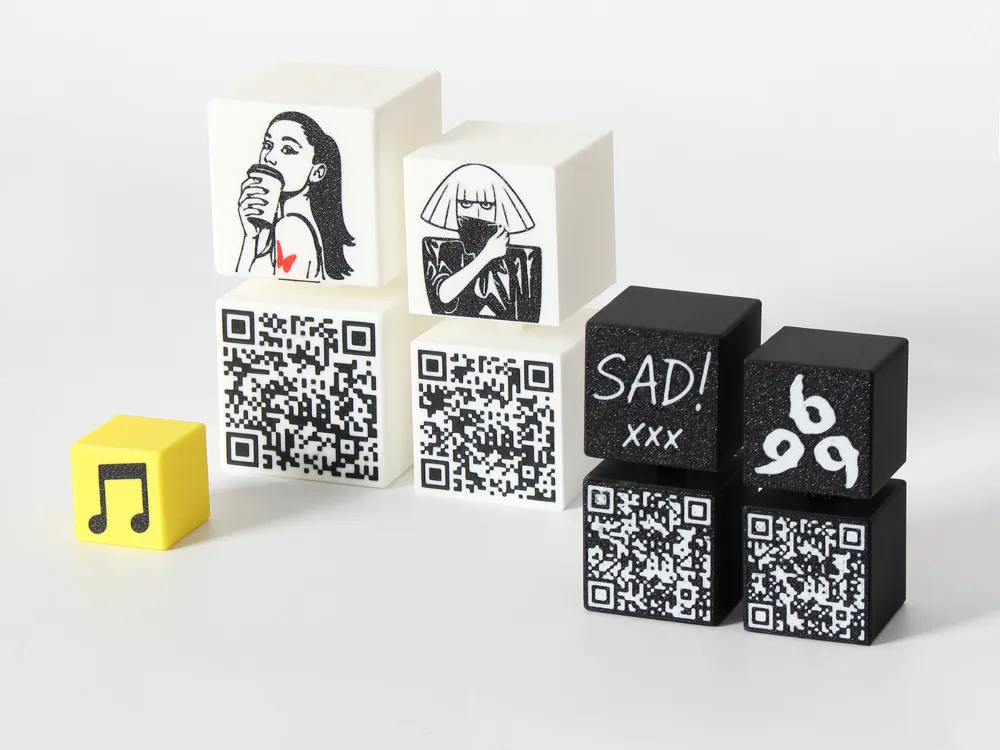
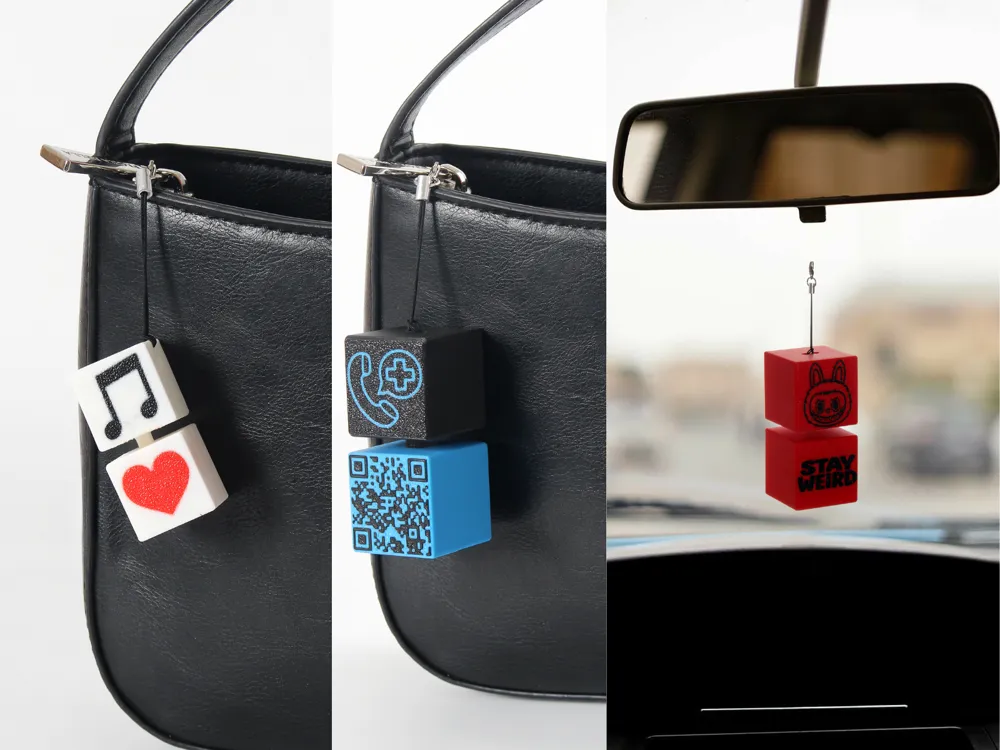
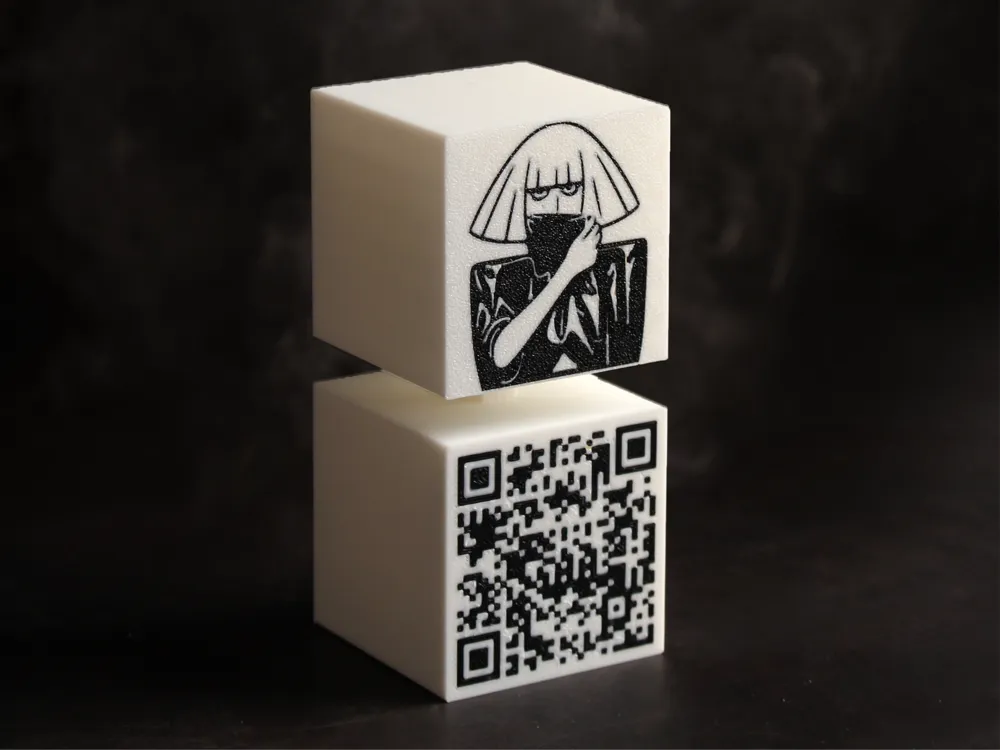
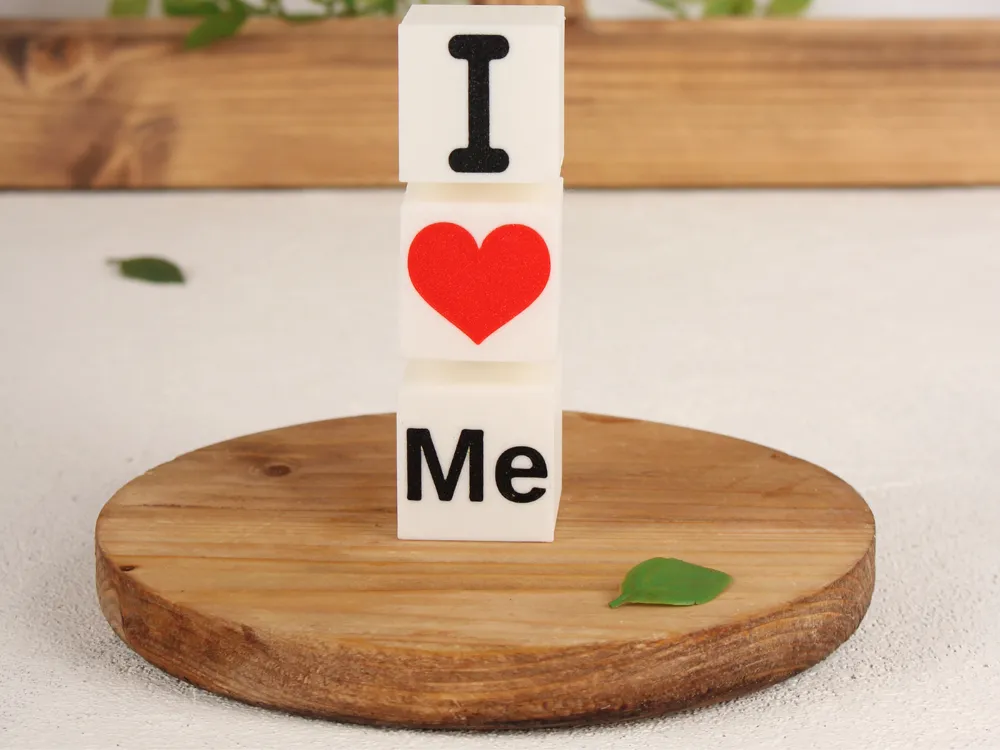
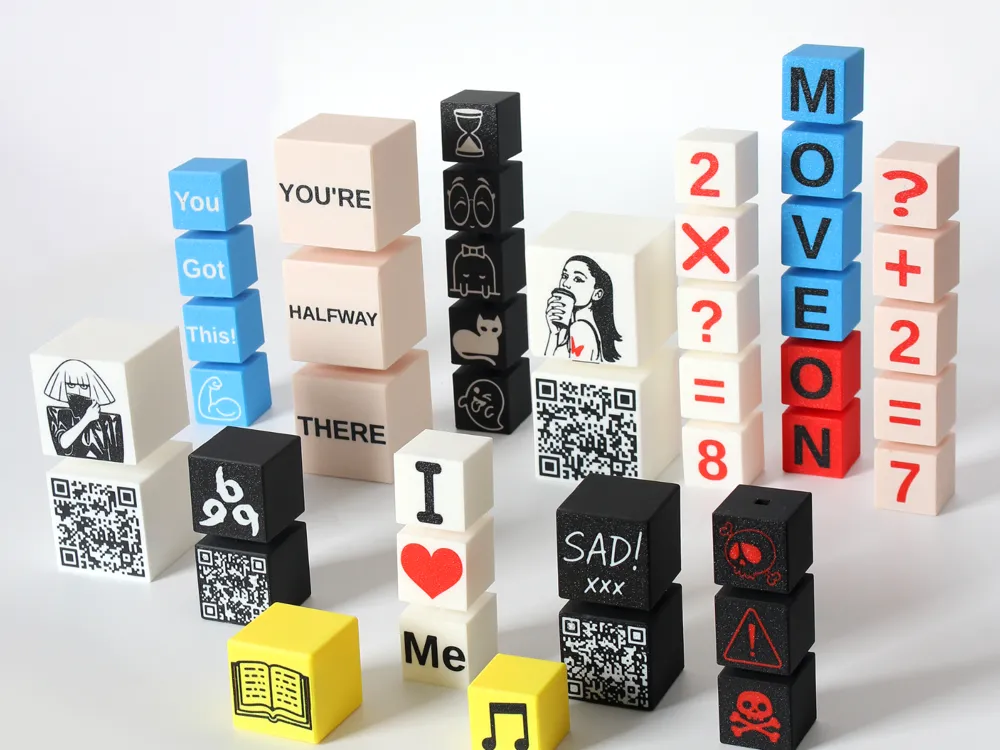
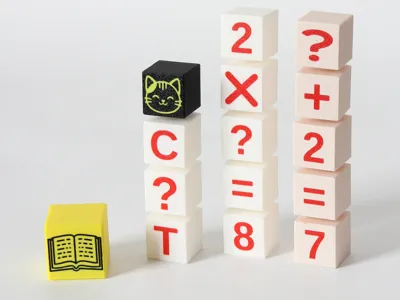
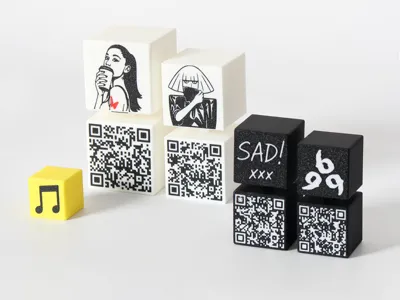
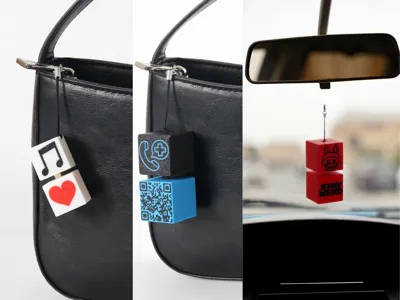
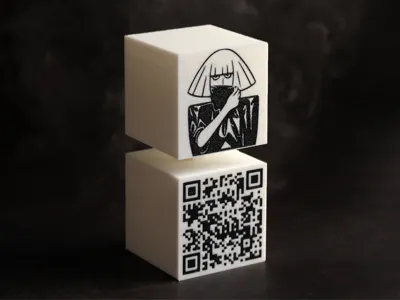
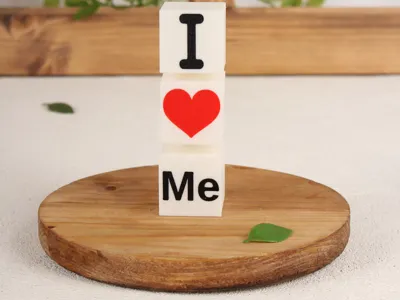
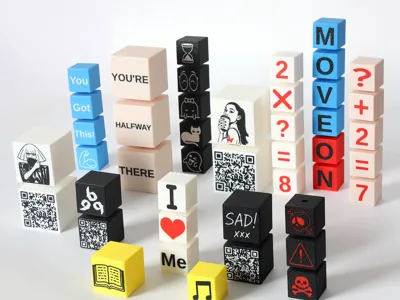
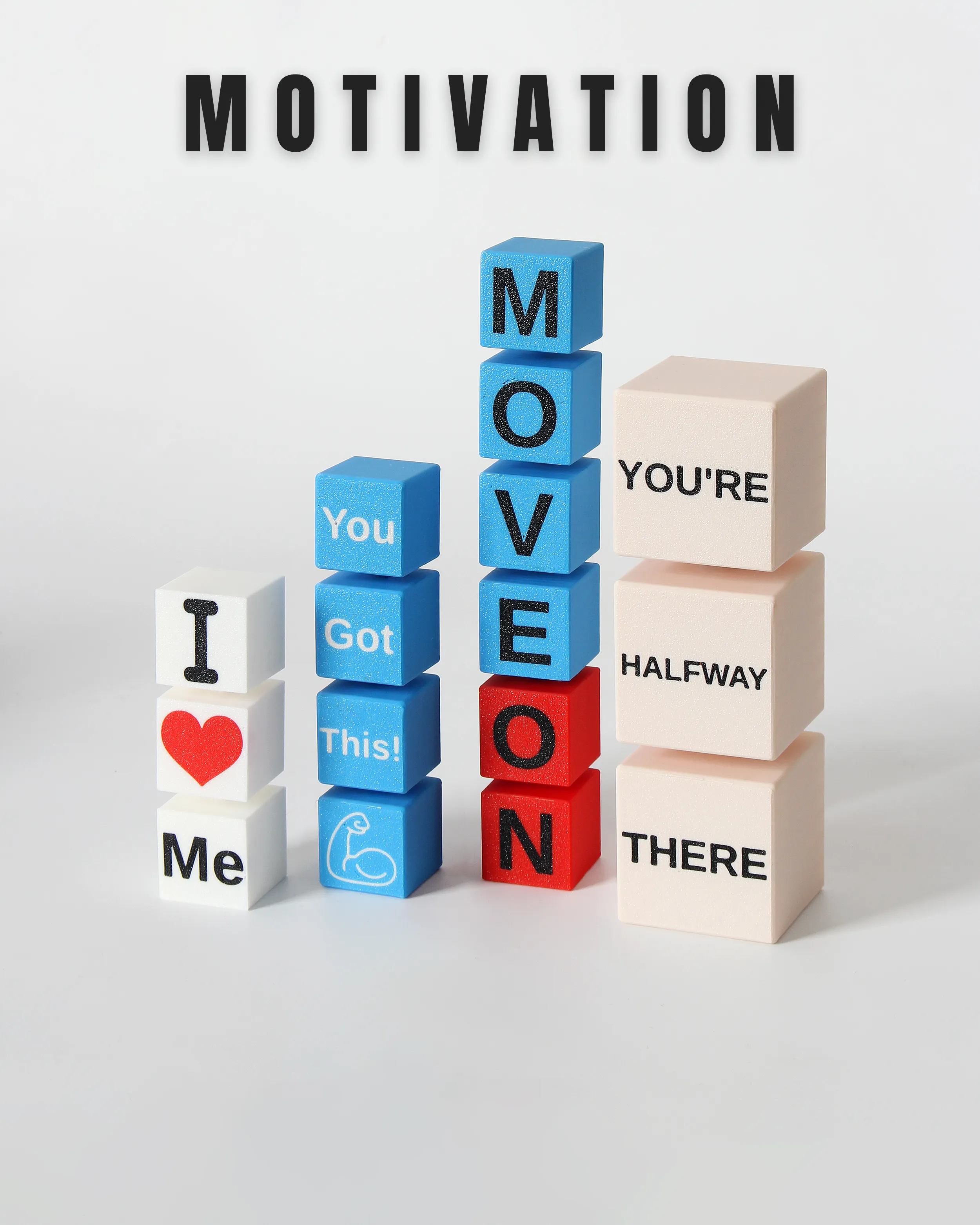
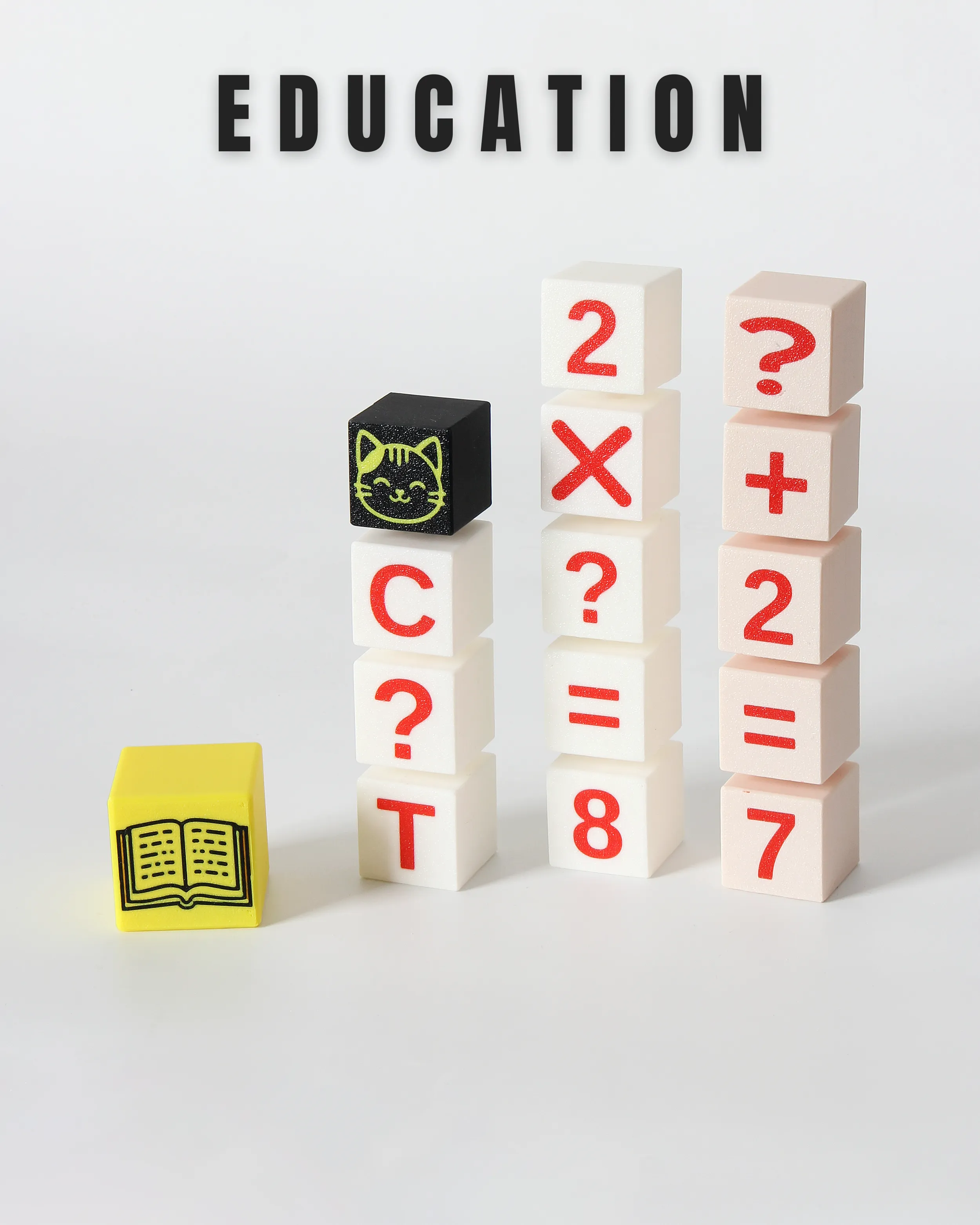
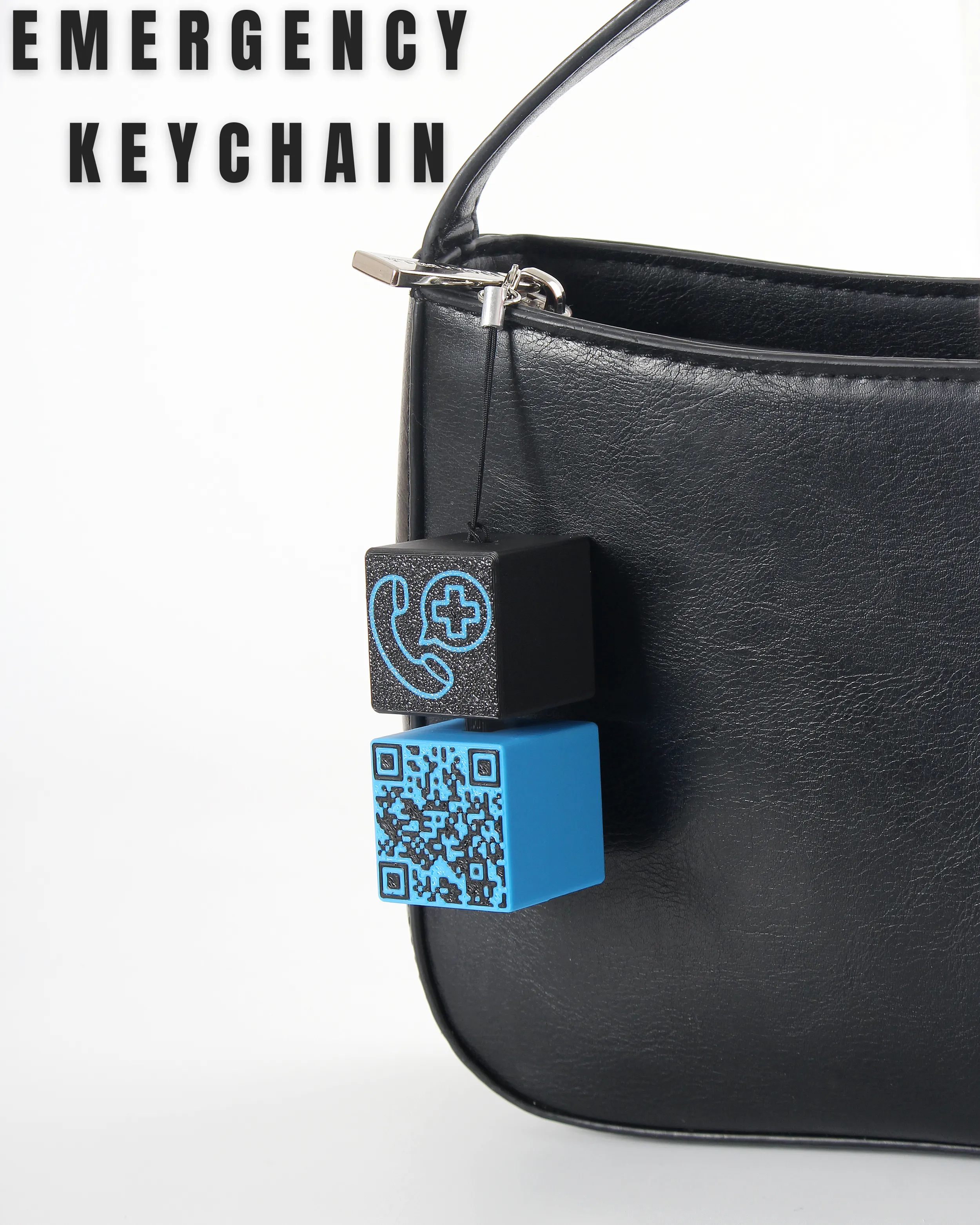
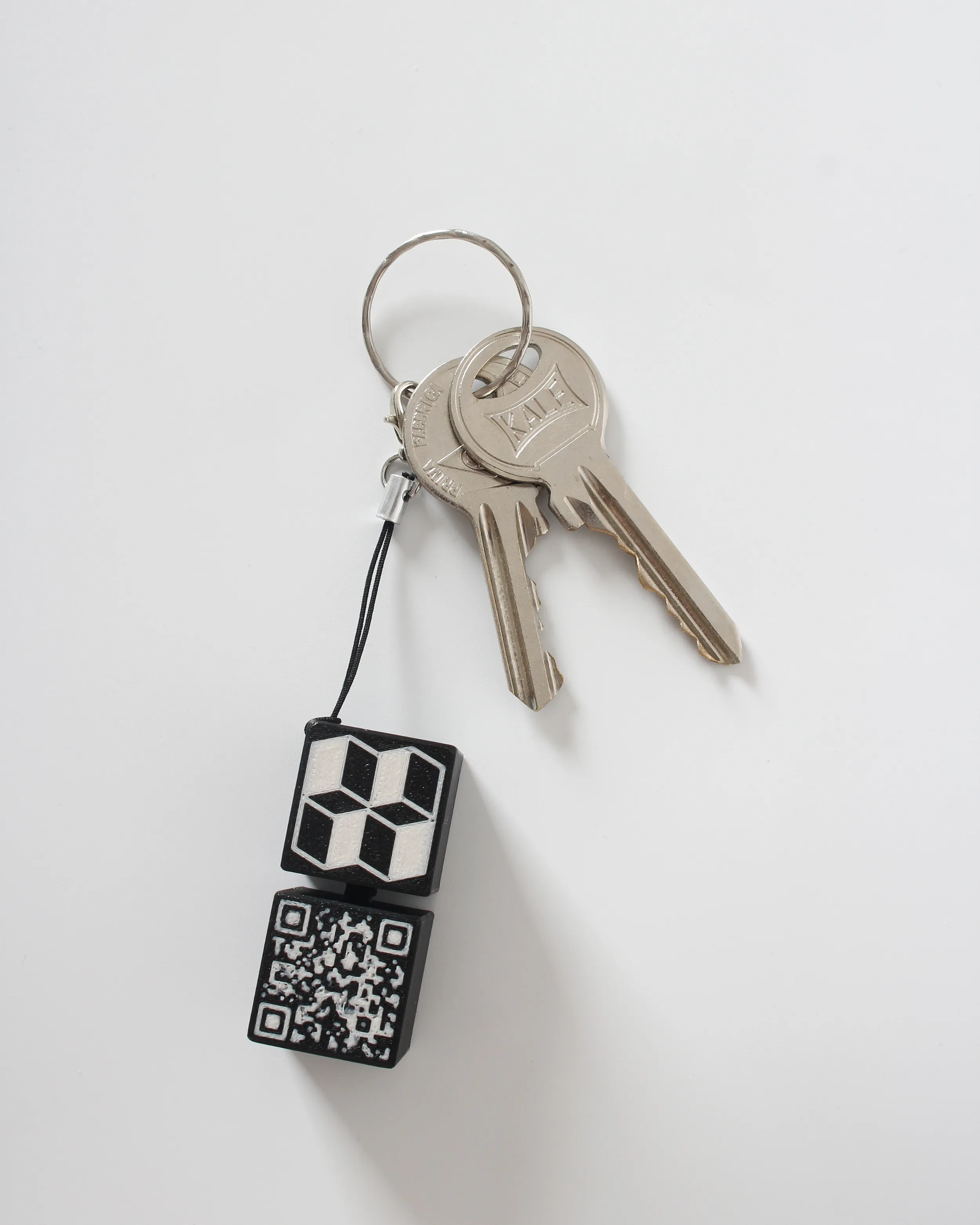
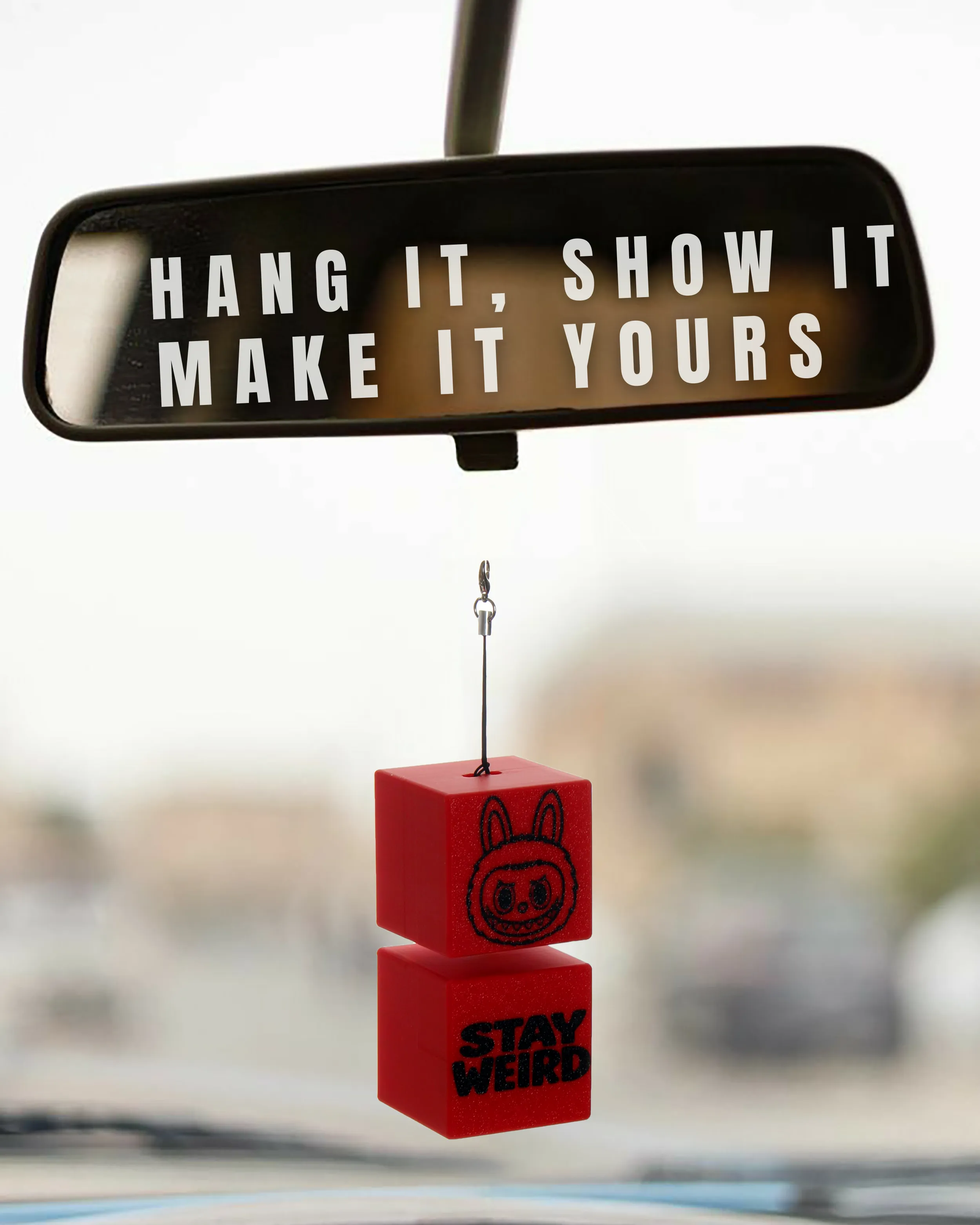
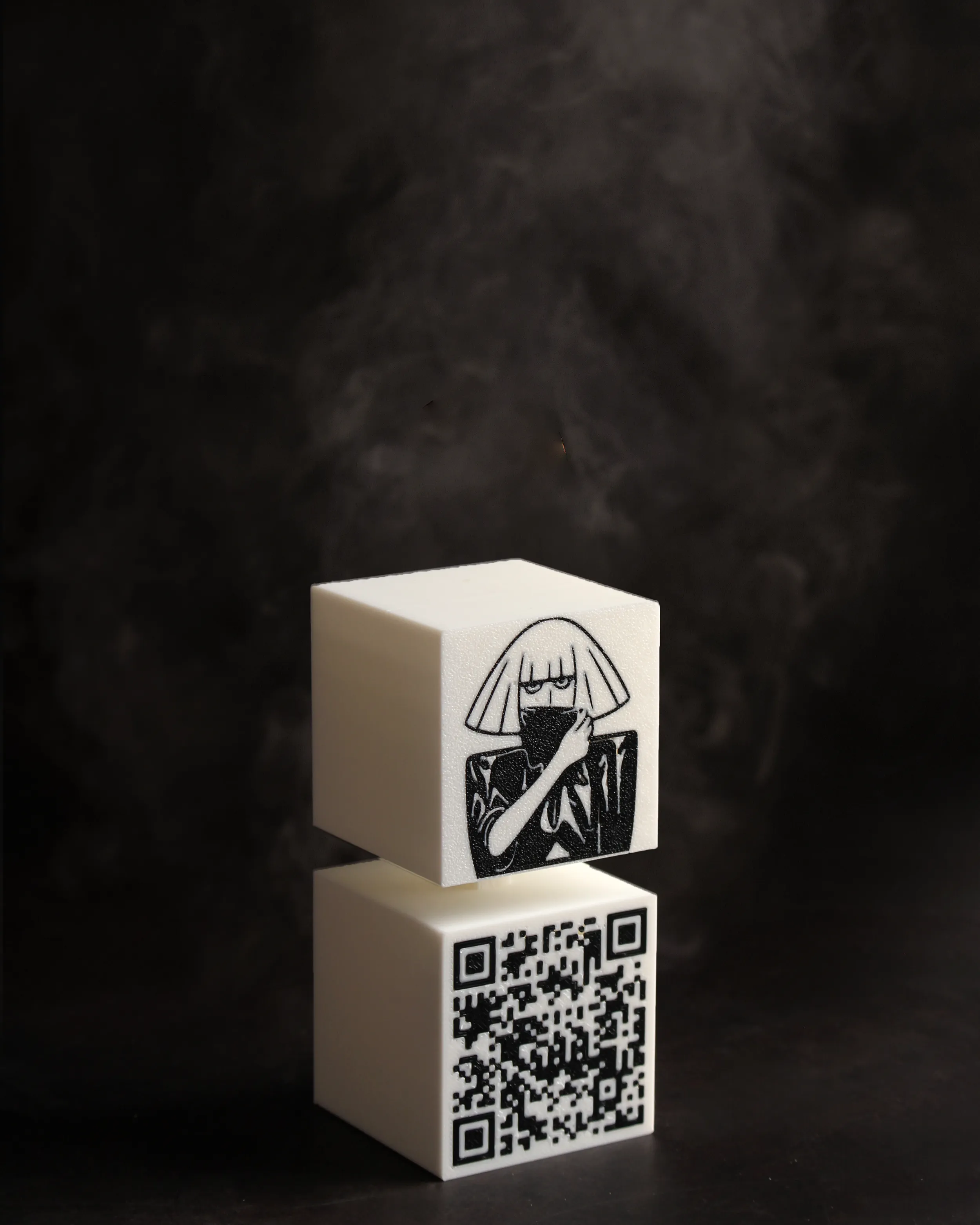
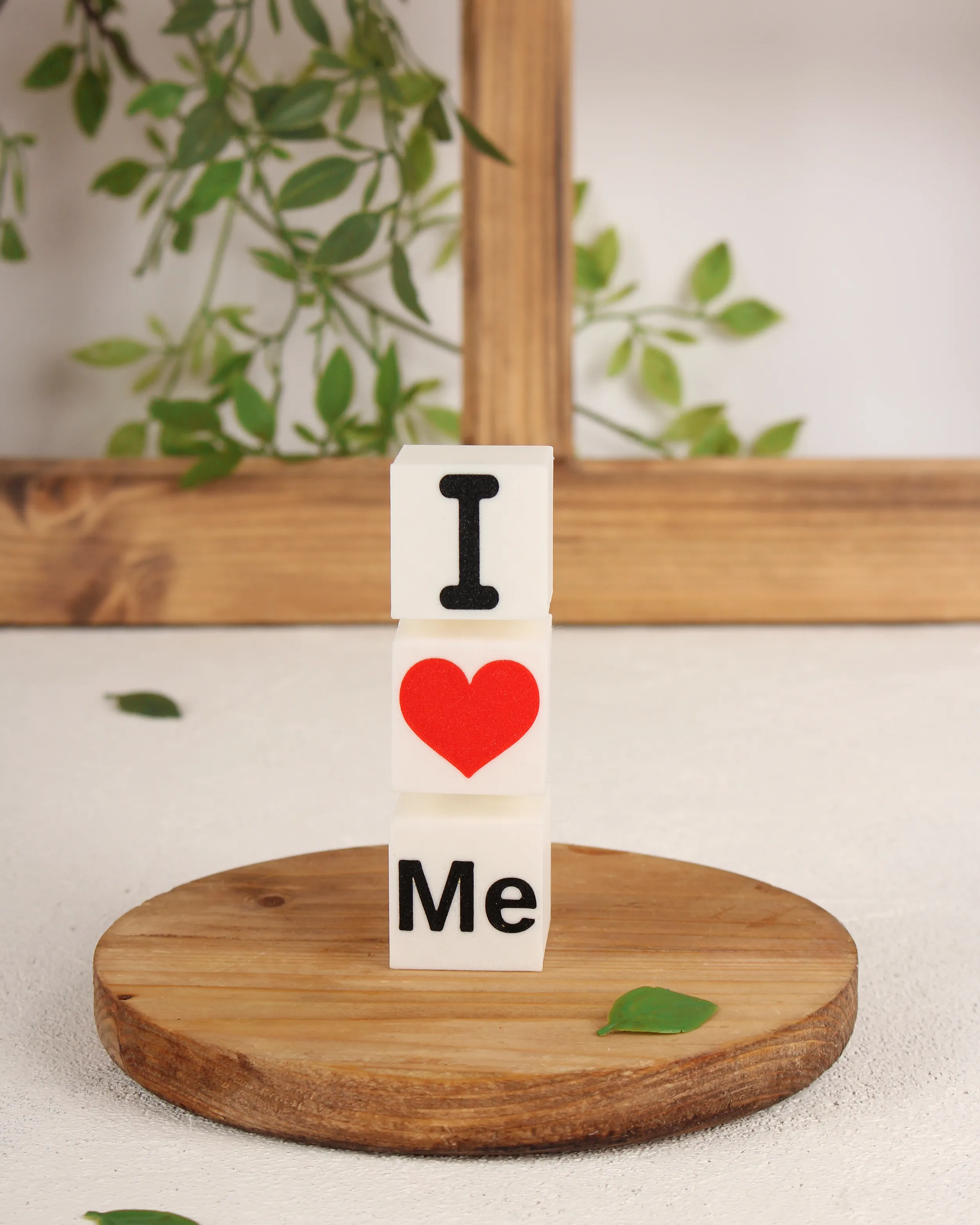
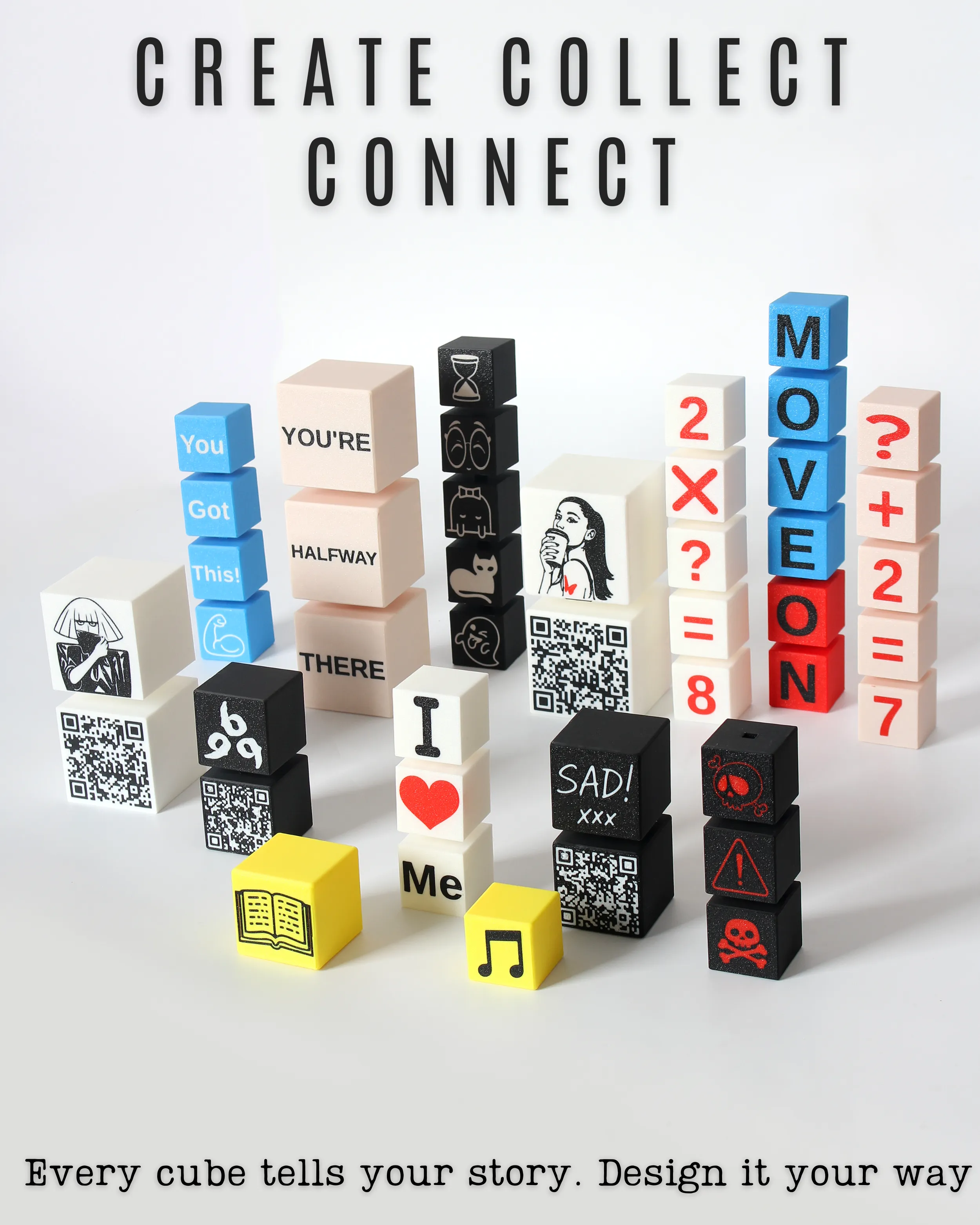
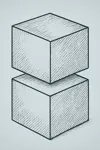
Design your own set of visually floating cubes fully customizable with text, emojis, QR codes, SVGs, logos, and more. From personalized gifts to professional branding, these cubes adapt to your vision. Whether it’s a smart keychain, a modern decoration, or a multi-color display piece, each design is built to feel unique and personal to your needs. AMS and non-AMS users are both supported just follow the sections below!

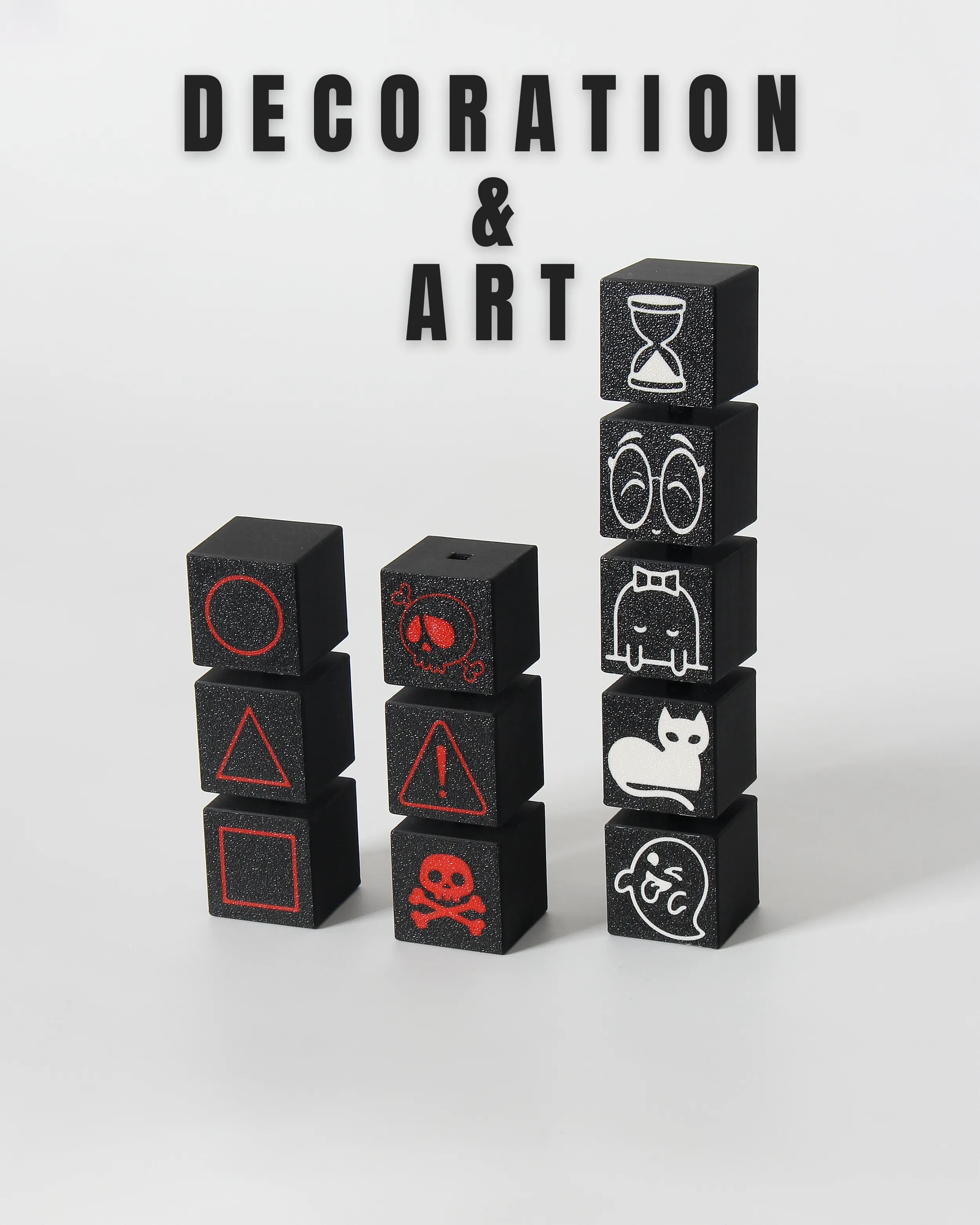
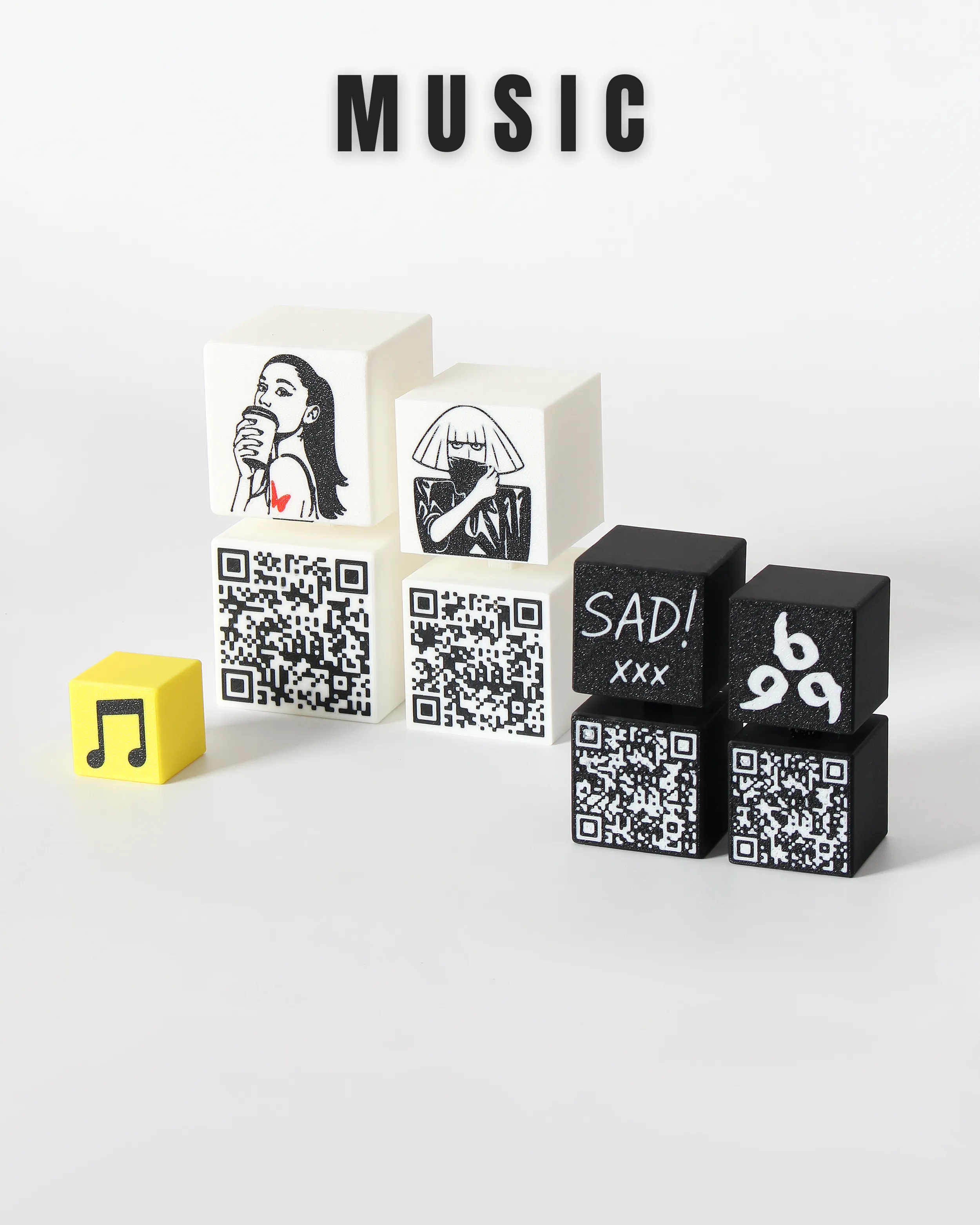
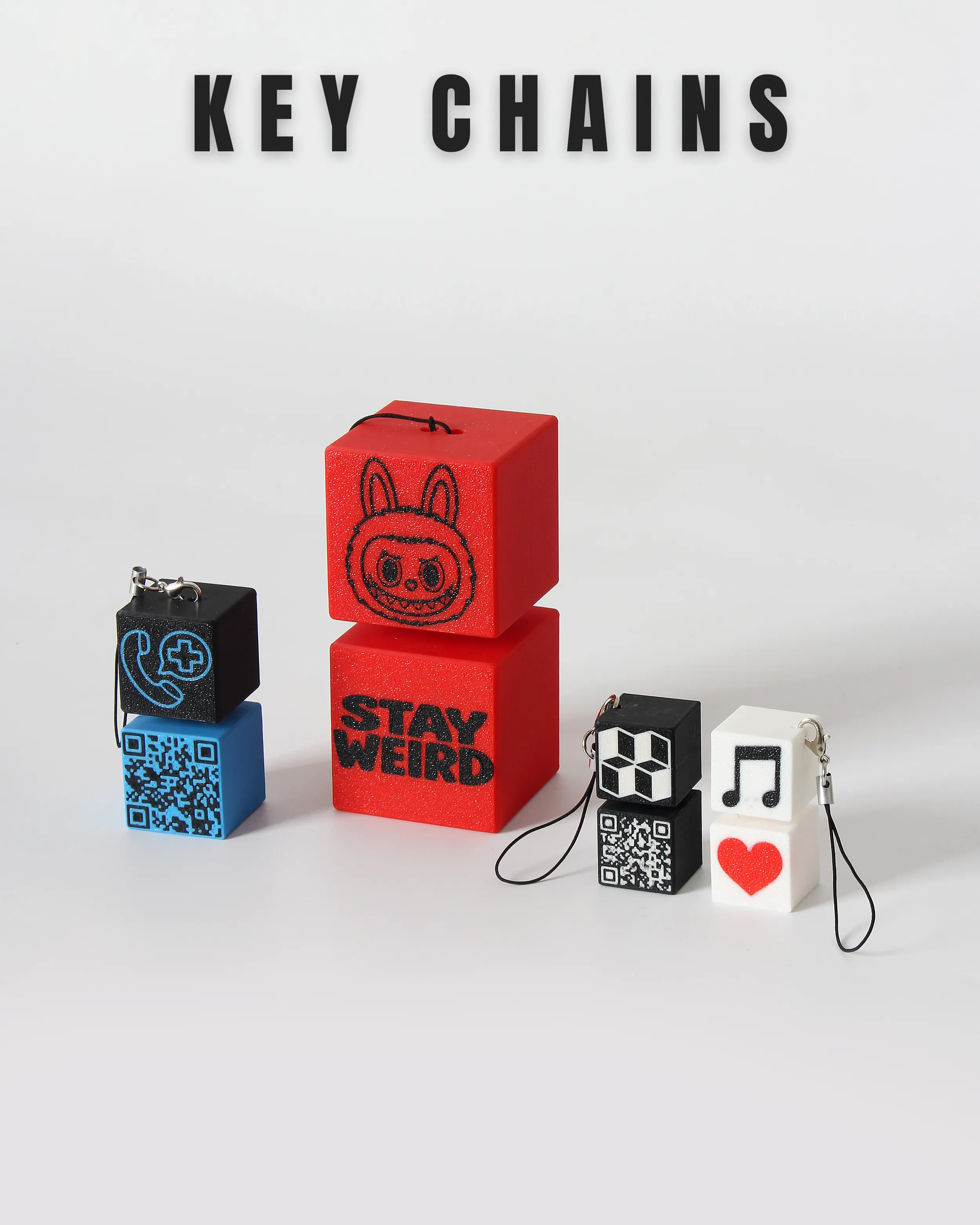
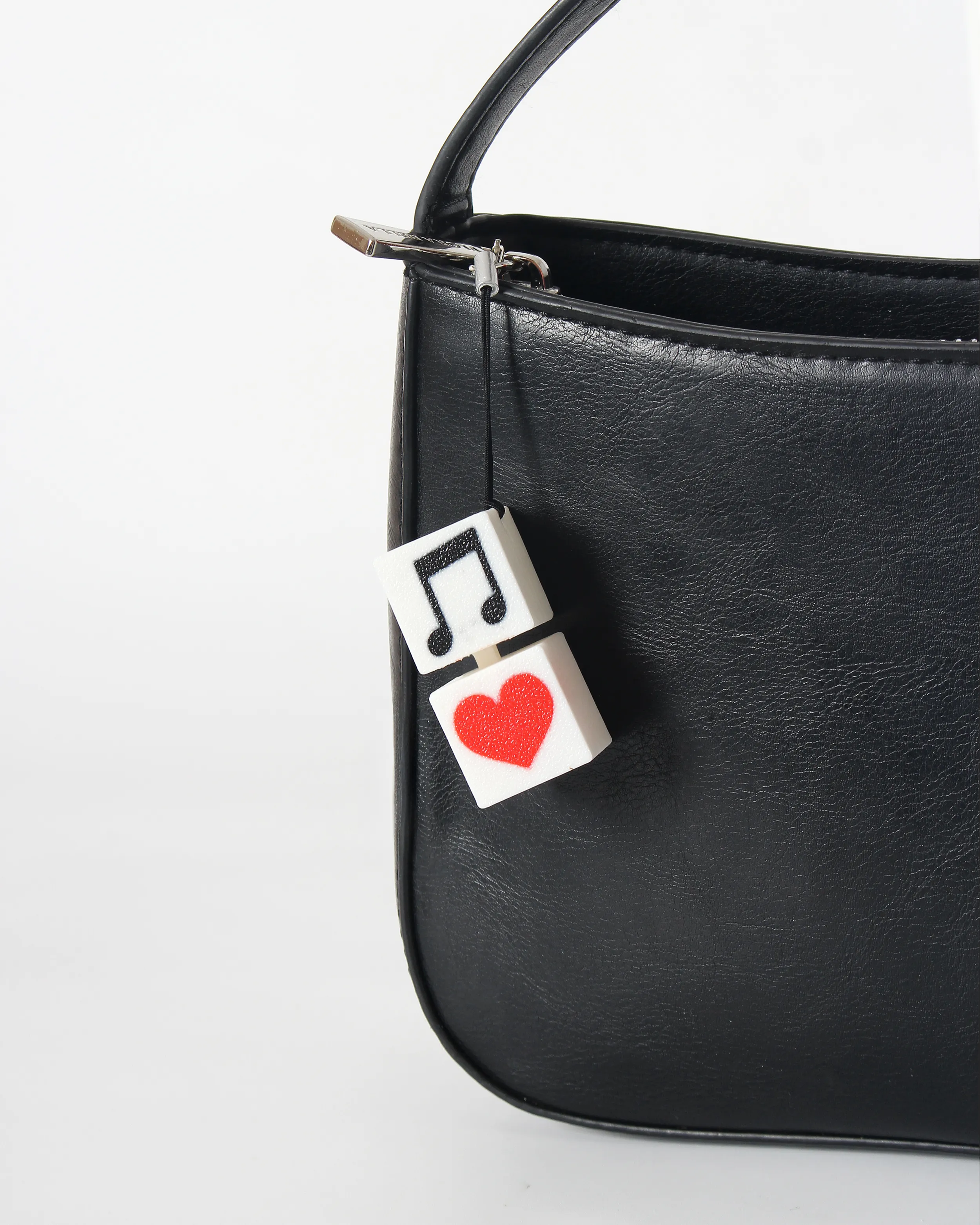

📘 Table of Contents
- Number of Cubes
- Cube & Connector Styles
- Cube Content Settings (1–9)
- Font & Style Settings
- AMS / No AMS + Text Depth
- Keychain Options
- Assembly Preview & Print Layout
- QR Code Settings
- Advanced Settings
- Print Settings
- Assembly Guide
- Tips & Tricks
1. Number of Cubes
- Choose 2–9 cubes.
- Each cube can show its own content: text, emoji, SVG, QR, etc.
Single Cube Mode (when ON):
- Lets you manually select top/bottom connectors.
Only these connector options work in this mode.
💡 Perfect for keychains or end cubes.

2. Cube & Connector Styles
Cube Style:
- Default: Sharp corners
- Filleted: Rounded edges
Connector Style:
- Default: Square pegs ( I recommend using this only for now.)
- Round: Allows cube rotation
💡 Round connectors may need extra tolerance adjust in 🛠️ Advanced Settings.
3. Cube Content Settings (1–9)
Each cube supports:
- Text
- Emoji
- SVG
- QR Code
- WiFi QR
🛑 If you pick a content type, fill its related field:
- Text → Text field
- Emoji → Emoji field
- SVG → Upload SVG
- QR → Enter link
- WiFi QR → Enter SSID, password, and security type
✅ You can adjust Position, rotation, size, cube color, and content color on all 9 faces.
4. Font & Text Styling
- Choose font and style: Regular, Bold, Italic, Bold Italic
✅ Affects all cubes using Text content.
5. AMS / No AMS + Text Depth
- AMS Mode: Multicolor text (needs AMS unit)
- No AMS Mode: Text is carved or embossed
Text Depth only works with No AMS controls carve depth or height.
6. Keychain Options
Turn a cube into a keychain:
- Choose position: First or Last cube
- Choose hole location: Bottom Right, Bottom Left, or Center
If "Center" is selected, these show up:
- Bridge Width: Distance between holes
- Bridge Height: Height of arch
- Tunnel Depth: Depth of each hole
⚠️ These apply only to “Center” option.
7. Assembly Preview & Print Layout
Preview modes:
- Side-by-Side: Just a visual layout
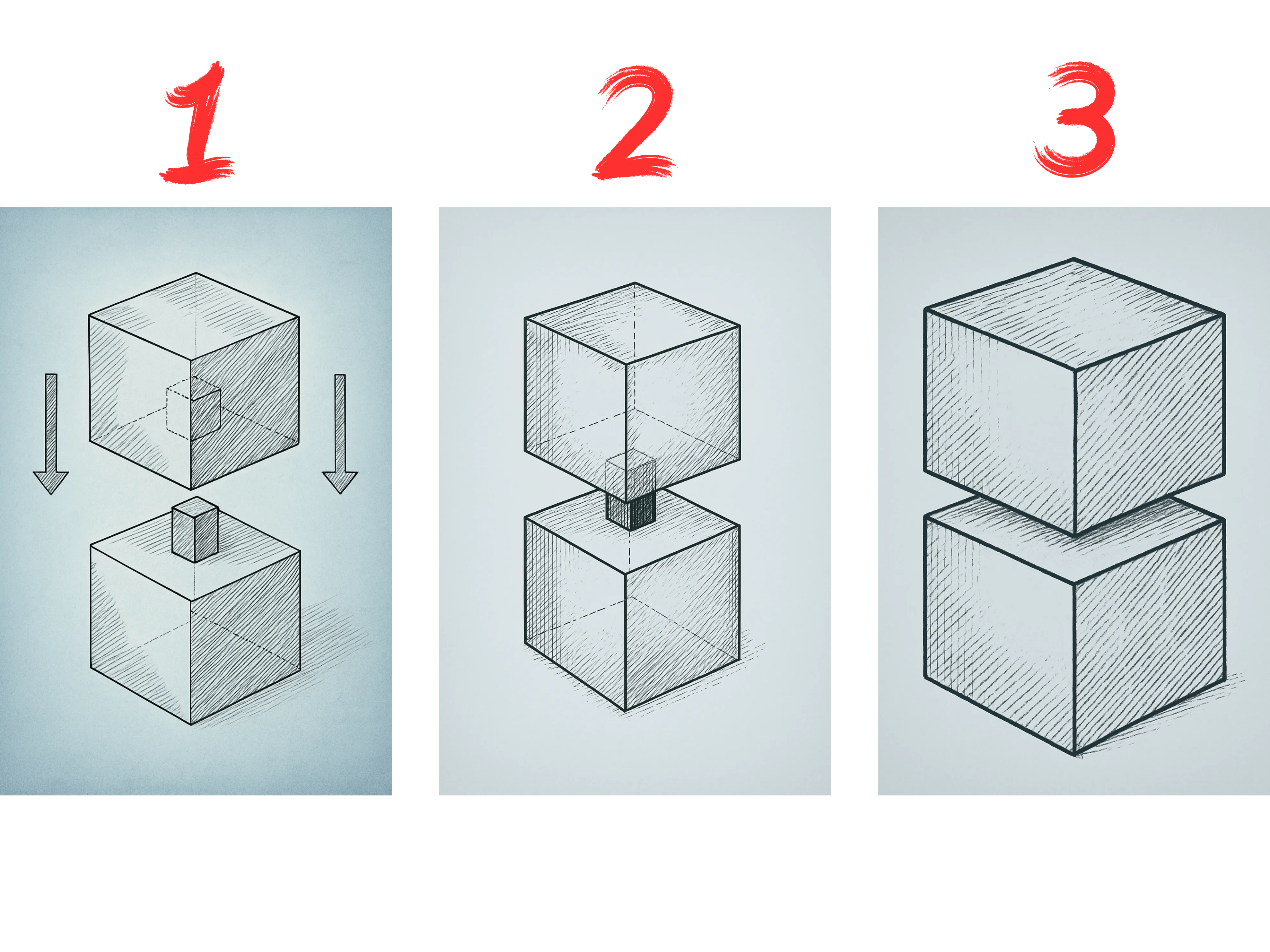
- Stacked: Shows actual assembly
- Ready for Printing: Flattens all cubes for slicing
⚠️ Next settings only work in “Ready for Printing” mode:
- Cubes per Row → Grid layout (e.g., 3×3)
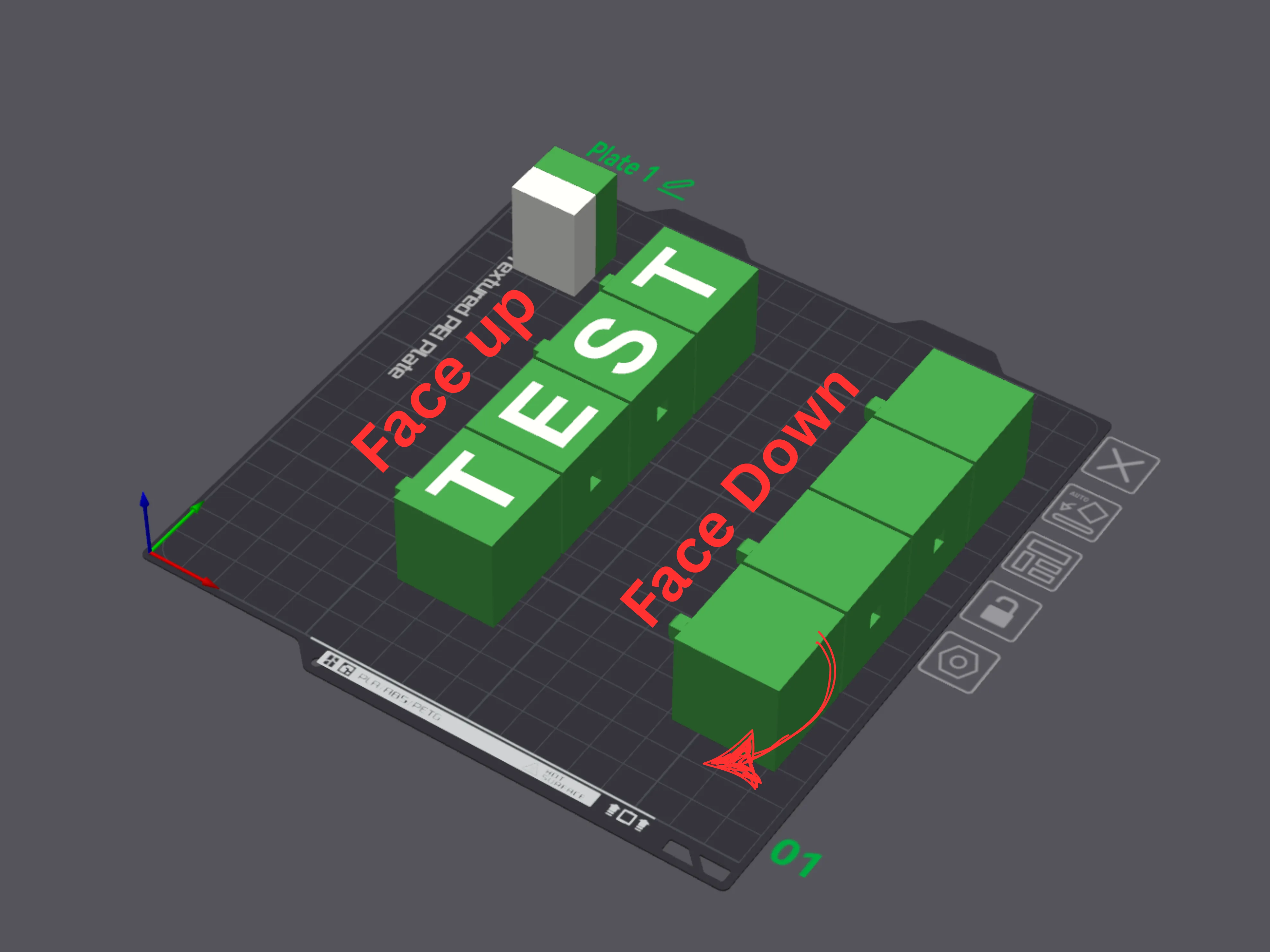
- Cube Angle:
- 0 = Normal
- 90 = Face Down
- -90 = Face Up
- Print Gap: Space between cubes
✅ Best for AMS users with small beds or >3 cubes.
8. QR Code Settings
Customize your QR behavior:
- Error Correction:
L (Low) → H (Very High) → Higher = better scan if damaged - Mask Pattern (0–7): Try different ones if scan fails
- Encoding:
- UTF‑8 → Recommended (supports all languages + emoji)
- Shift_JIS → For Japanese characters only
9. ⚙️ Advanced Settings
Edge Treatments:
- Fillet Radius → Rounds cube edges
- Chamfer Size → Bevel for rectangular connectors
- Connector Fillet → Smooth base/top of round connectors
Connector Dimensions:
- Protrusion Width → Peg width (default 5 mm)
- Protrusion Depth → Slot depth (rectangular only)
- Male Height → Peg height
- Female Depth → Socket depth
- Connector Tolerance → Gap for easier fit
SVG Settings:
- Margin Factor:
1.00 = full face
0.98 = small margin
0.90 = large margin
Printing Settings:
- AMS Thickness: Only used with AMS (default 0.004 mm)
Scaling:
- Scale Factor: Scales everything
- Include Content in Scale: Scales content too
- Gap: Space between cubes

10. 🖨️ Print Settings
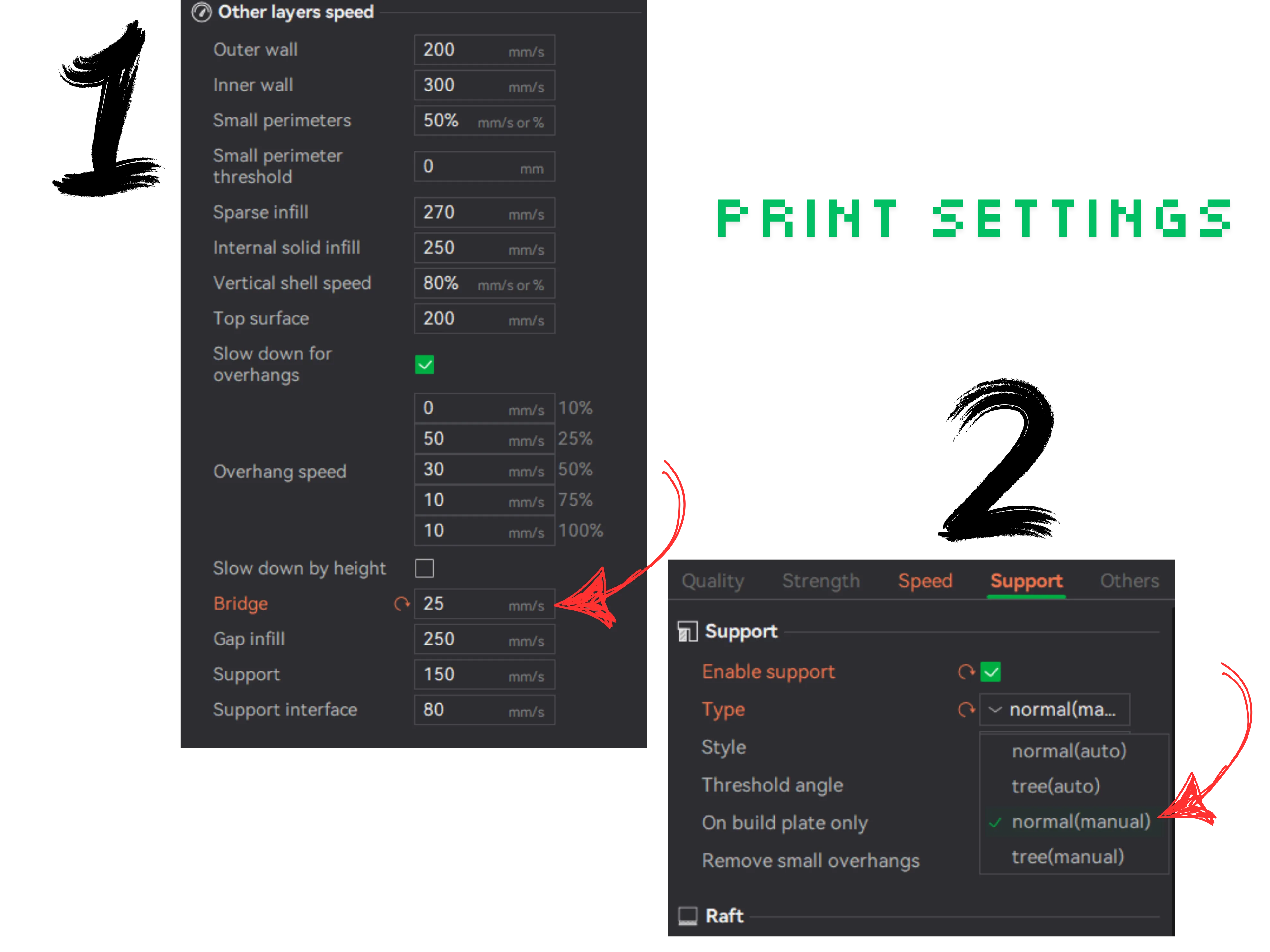
I’ve uploaded a sample .3mf file for AMS users.
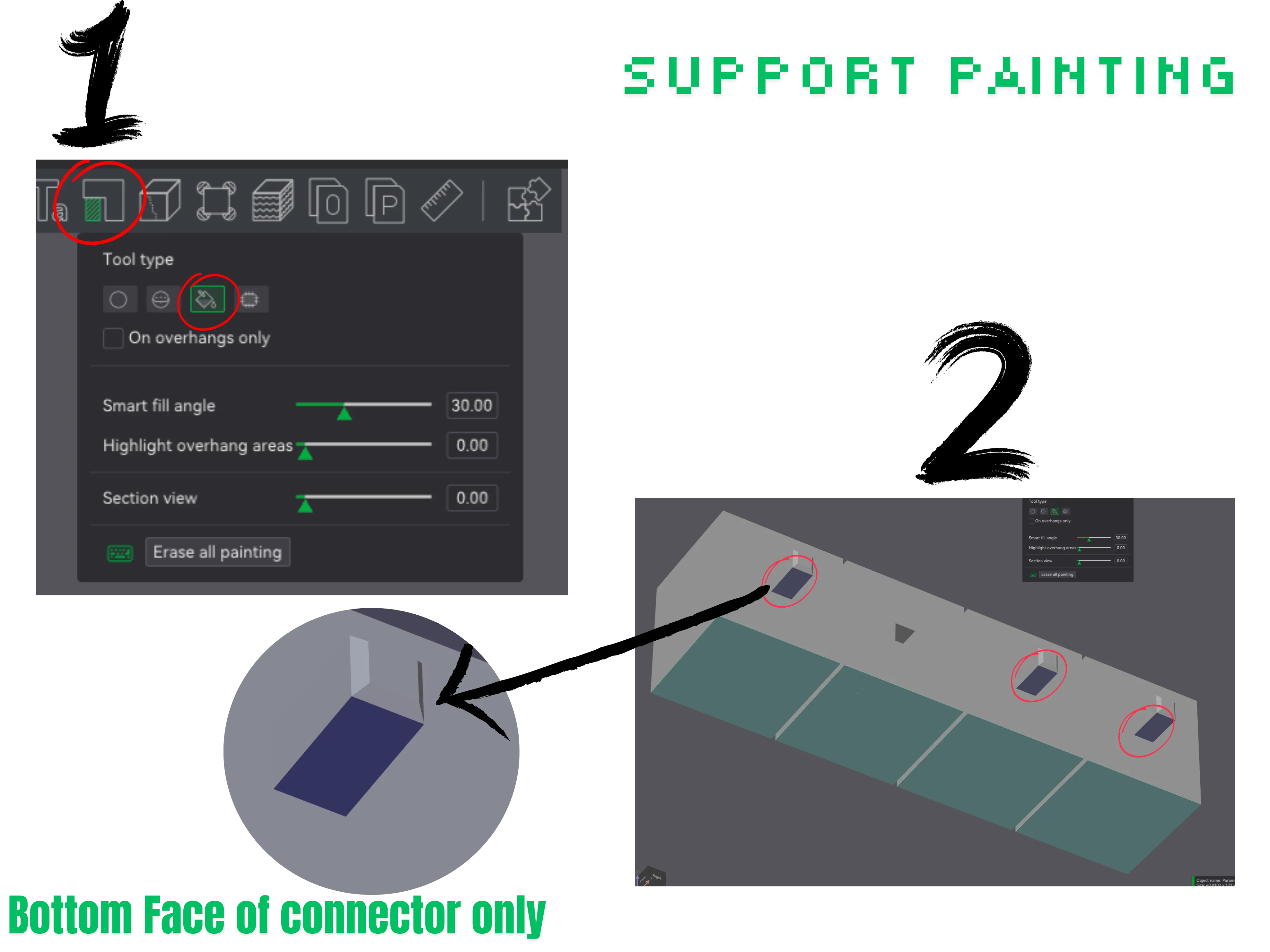
💡 In each print job using AMS, you only need to adjust two simple settings:
- Bridge Speed: Change from 50% → 25%
- Manual Supports (Support Paint):
Select only the area shown in the images. No other support is needed.
📸 Follow the next images for the best AMS settings (Face Down + Face Up).
11. Assembly Guide
12. 💡 Tips & Tricks
- Emoji Insertion Use emojis to personalize your cubes.
- On Windows: Press “ Windows + . ”to open the emoji picker
Try icons like: 🎵, 🌟, 🧠, ❤️, 😄
SVG Tricks
🌐 Free SVG Libraries:
SVG Tips:
- Clean your bed with warm water + dish soap tiny SVG dots need solid first-layer adhesion.🧼
- Still failing? switch to Face Up mode in your code or flip the cube in Bambu Studio ( Content facing up ) .
You can design your own SVGs using Inkscape (many of the demo icons were made this way!).
🔗 QR Code Tips :
- same as SVG QR dots are small and may fail if bed adhesion is poor — clean bed with dish soap and warm water.
- Still failing? switch to Face Up mode in your code or flip the cube in Bambu Studio ( Content facing up )
📦 Ultimate QR Code & Link Examples
| Action | QR Content (One Line) | How to Use / Replace… |
|---|---|---|
| 🌐 Open website | https://YOUR-LINK | Replace YOUR-LINK with any website URL. |
| 📄 Display plain text | YOUR TEXT SHOWN AS-IS | Use plain text as-is. No link needed. |
| 📞 Call number | tel:+966123456789 | Replace +966123456789 with your full phone number including country code. |
| 💬 SMS | sms:+966123456789?body=Hello%20there | Replace number and message. Spaces = %20. |
| 📧 Email (basic) | mailto:someone@example.com?subject=Hi&body=How%20are%20you | Replace with actual email, subject, and body. |
| 📧 Email (with cc & bcc) | mailto:to@example.com?cc=cc@example.com&bcc=bcc@example.com&subject=Hi&body=Hello | Include extra fields. Useful for business usage. |
| 📱 WhatsApp (with number) | https://wa.me/966123456789?text=Hi%20there | No +. Only digits. Spaces → %20. |
| 📢 Telegram (open user/chat) | https://t.me/username | Replace username without @. |
| 📢 Telegram (share text+URL) | https://t.me/share/url?url=https%3A%2F%2Fexample.com&text=Check%20this | Encode both URL and text. |
| 🗺 Google Maps (coordinates) | https://maps.google.com/?q=-9.0000,-139.0000 | Example points in open Pacific Ocean (“Nemo Zone”). Replace with desired lat/lng. |
| 🗺 Google Maps (search) | https://maps.google.com/?q=coffee%20shop | Replace with search keyword(s). |
| 👤 Add contact (MECARD) | MECARD:N:John Doe;TEL:+966123456789;EMAIL:john@example.com;ADR:Address;ORG:Company;; | Full contact info. Best for quick phone save. |
| 📅 Add event (Google Cal) | https://calendar.google.com/calendar/render?action=TEMPLATE&text=Meeting&details=Details&location=HQ&dates=20250901T120000Z/20250901T130000Z&ctz=Asia/Riyadh | Replace details, time, and location. Format: YYYYMMDDTHHMMSSZ. |
| 🤝 WhatsApp group invite | https://chat.whatsapp.com/INVITECODE | Get invite code from WhatsApp group → Share as QR. |
| 📱 App Store (iOS) | https://apps.apple.com/app/id123456789 | Replace with actual app ID. |
| 🤖 Google Play (Android) | https://play.google.com/store/apps/details?id=com.example.app | Replace with package name. |
| 🔗 Deep link with fallback | https://yourdomain.com/launch?deep=myapp%3A%2F%2Fpage | Useful for deep links. Encode scheme (like myapp://page). |
| 🧾 vCard via Link | https://vcard.link/card/YOUR-ID | Use vCard.link to generate & host contact cards. |
| 🧠 ChatGPT Assistant Link | https://chat.openai.com/g/g-XYZ123-custom-bot | Replace with your GPT Assistant’s share link. |
✨ Many more tricks and examples will be added over time.
I can’t wait to see your personal cube sets — please share them in the comments below!
Boost Me (for free)
🔥 Love your personal cube set?
Boost this project to support more awesome features, updates, and examples!
Your boost helps me keep building cool stuff for the community — and I’d love to see what you create. 💡
👇 Click on Boost if you found it useful!
Documentation (3)
License

You shall not share, sub-license, sell, rent, host, transfer, or distribute in any way the digital or 3D printed versions of this object, nor any other derivative work of this object in its digital or physical format (including - but not limited to - remixes of this object, and hosting on other digital platforms). The objects may not be used without permission in any way whatsoever in which you charge money, or collect fees.


Comment & Rating (1)