
The Ultimate P1 Series Webcam Upgrade (Smooth FHD)
Print Profile(1)

Bill of Materials





Description
Welcome, fellow maker!


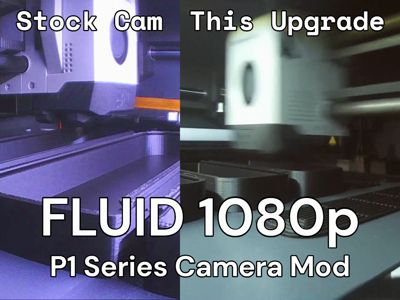
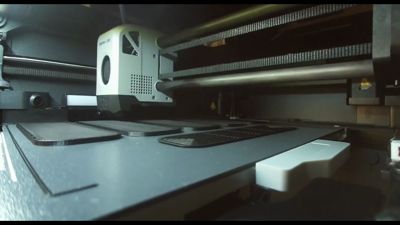
This project provides a complete solution for upgrading the stock camera in the Bambu Lab P1 series printers (P1P/P1S) with a high-quality stream from a Raspberry Pi camera. The stock camera is great for basic checks, but if you want crisp, high-framerate timelapses and a clearer view for remote monitoring, this upgrade is for you.
This guide includes all the 3D-printable parts and a step-by-step guide for both hardware and software installation. I've aimed to make the software setup as simple as possible with an automated installation script.
Please read all instructions carefully before starting the installation!
Boost Me (for free)
If you find this design useful and the guide helpful, please consider leaving a Boost. Your support not only means a lot to me, but it also helps other makers discover this project on MakerWorld.
Bill of Materials (BOM)
Printed Parts:
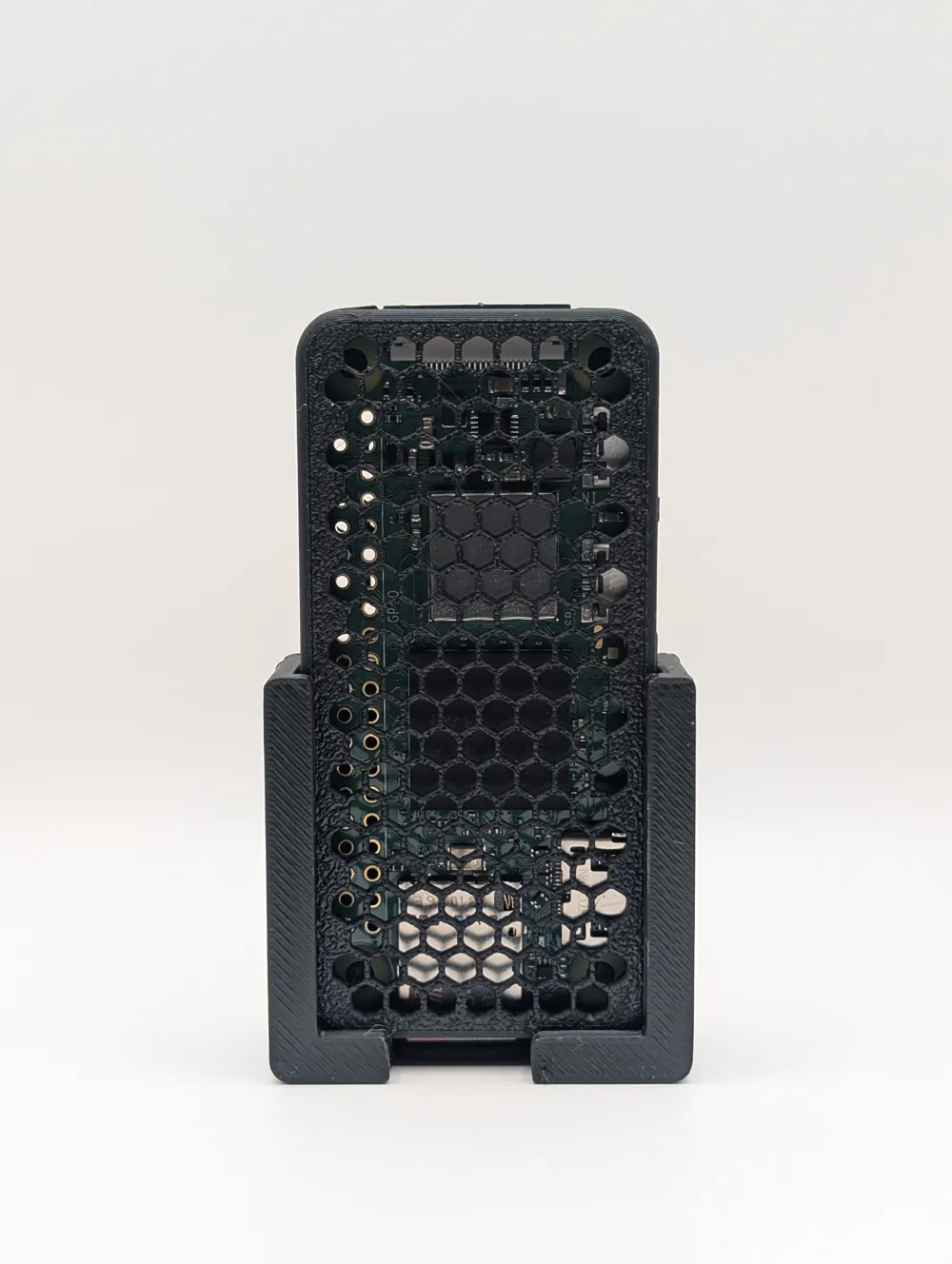
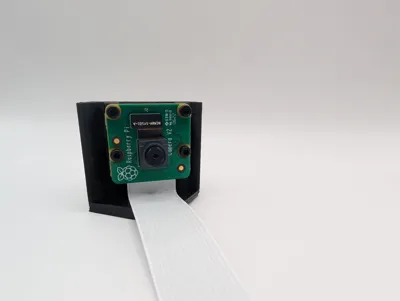
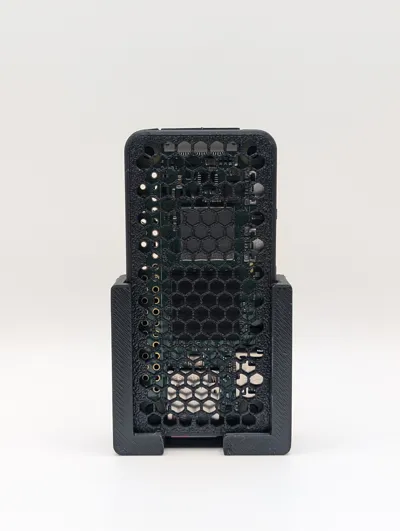
- Raspberry Pi mount for the back of the P1 frame
- Raspberry Pi Camera mount for the inside of the case, choose either:
- the one without a cable cutout, you'd usually want this one
- the one with a cable cutout, required for example with the Working Button
- This amazing Raspberry Pi Zero Case
- For the Raspberry Pi Zero 2W select the “[…] (new hdmi port)” profile
Hardware & Electronics (Amazon Links):
- Raspberry Pi Zero 2 W
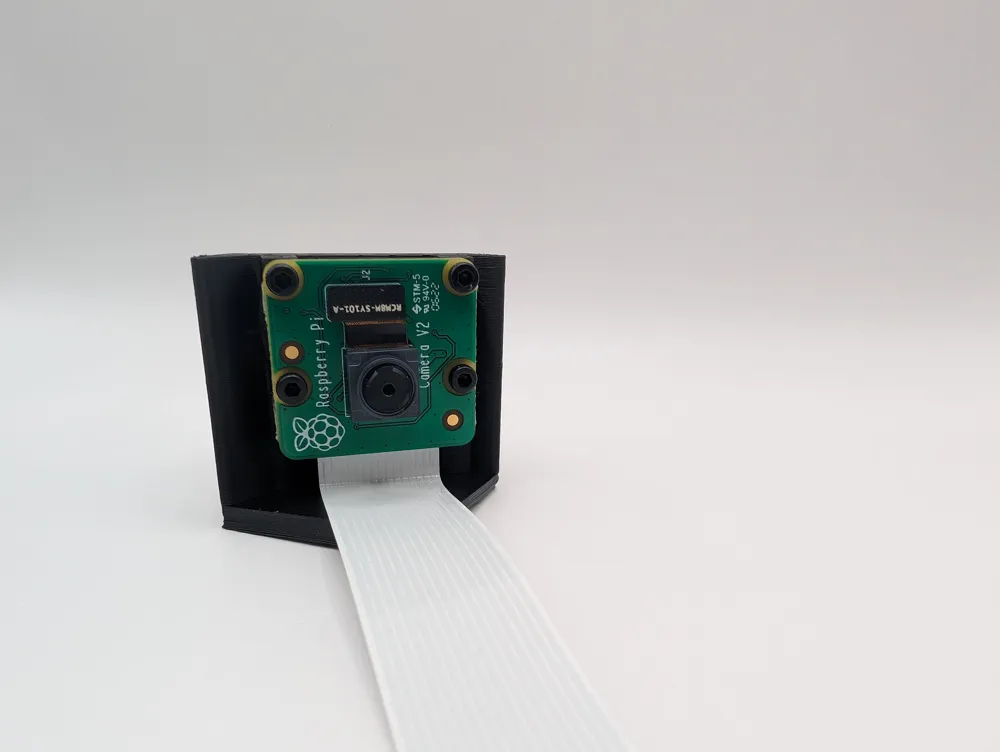
- Raspberry Pi Camera Module
- Raspberry Pi Zero Camera Cable, 50cm
- Note: This is different from the standard Pi camera cable!
- High-quality Micro SD Card (16GB or more recommended)
- Mounting Hardware (Choose ONE):
- 2x M3x8mm screws (for the original screw mount)
- 4x M8x3mm round magnets (for the new magnet mount)
- (Highly Recommended) Kraftprotz Super Glue (a small drop is needed to secure the magnets permanently)
- 4x M2x4mm screws (for attaching the camera)
(Please note: As an Amazon Associate, I may earn from qualifying purchases. This helps support the creation of more free models!)
Part 1: Printing the Components
Before you begin the assembly, you'll need to print the parts.
- Recommended Material: PLA+, PETG, ABS, or ASA are highly recommended due to their higher temperature resistance compared to PLA. The printer's chamber can get warm.
- Recommended Print Settings:
- Layer Height: 0.2mm
- Supports: The camera holder requires support, for the Raspberry Pi holder I recommend printing with support.
- Important: Choose the Camera Holder version that best suits your needs. The version with the cable cutout can make cable management slightly easier.
Part 2: Hardware Installation
⚠️ SAFETY FIRST: Disconnect the printer from the power outlet before you begin opening the back panel.
Step 1: Print the Models
- Choose between the camera holder with a cable cutout or the one without.
- This project is designed for a specific Raspberry Pi Zero case, which is linked above in the BOM.
Step 2: Remove the Printer's Back Panel
- Carefully unscrew and remove the back panel of your P1 series printer. Set the screws aside in a safe place.
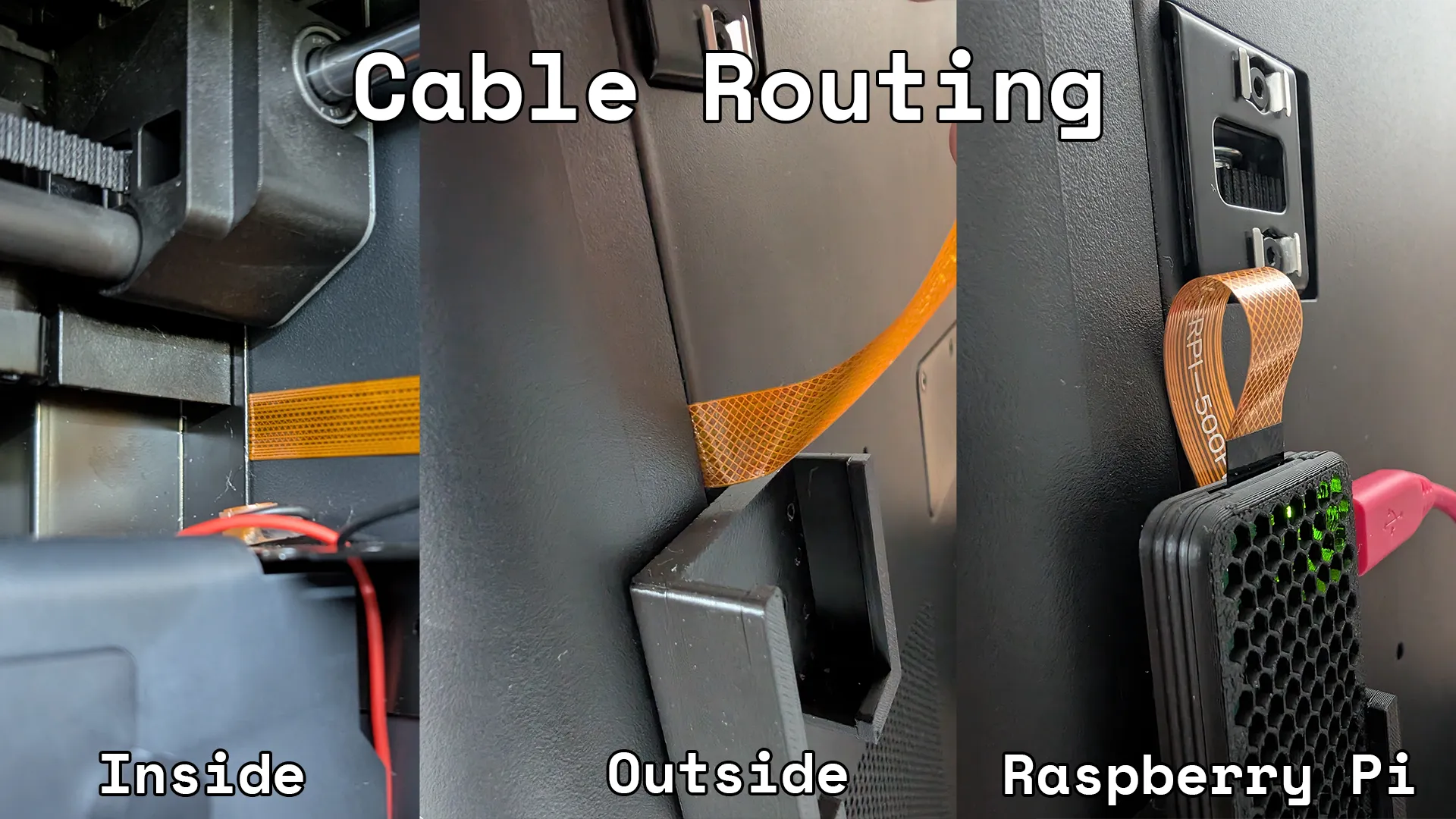
Step 3: Route the Camera Cable
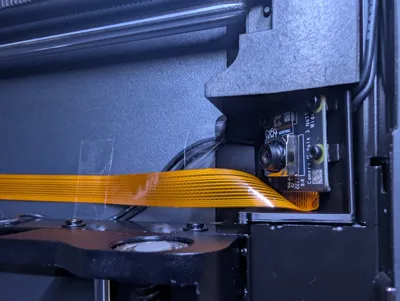
- This step can be a bit tricky, so be patient. You need to slide the Raspberry Pi Zero camera cable along the inside of the printer frame towards the back.
- Tip: It can help to gently press against the frame from the inside or outside to create a small gap to guide the cable through. The cable is durable, but not indestructible. Push firmly but be careful not to bend or damage it.
- Cable Orientation is CRITICAL:
- The Raspberry Pi Zero uses a narrower FPC connector than a standard Pi. You must route the cable so that the narrower end exits through the back of the printer. The wider end remains inside the print chamber.
- The exposed contacts on the FPC cable should face away from the printer frame. On most cables with blue tabs, this means the blue tabs should face the metal housing of the printer.
- Once the cable is visible at the back, you can gently pull it to give yourself enough slack to work with.
Step 4: Install the Raspberry Pi Mount
The mount can be attached in two ways: with the original screws or with magnets. Choose the method that works best for you.
Option A: Screw Mount
- Use two M3x8mm screws to attach the Raspberry Pi Mount to the back of the printer, using the two available screw holes.
Option B: Magnet Mount
- This option is perfect if your screw holes are already occupied.
- Take four 8x3mm round magnets and press them firmly into the designated holes on the back of the Raspberry Pi Mount.
- Tip: A small drop of superglue in each hole before inserting the magnet is recommended for a permanent and secure fit.
- Once the magnets are installed, the mount will attach securely to the flat metal surface on the back of the printer.
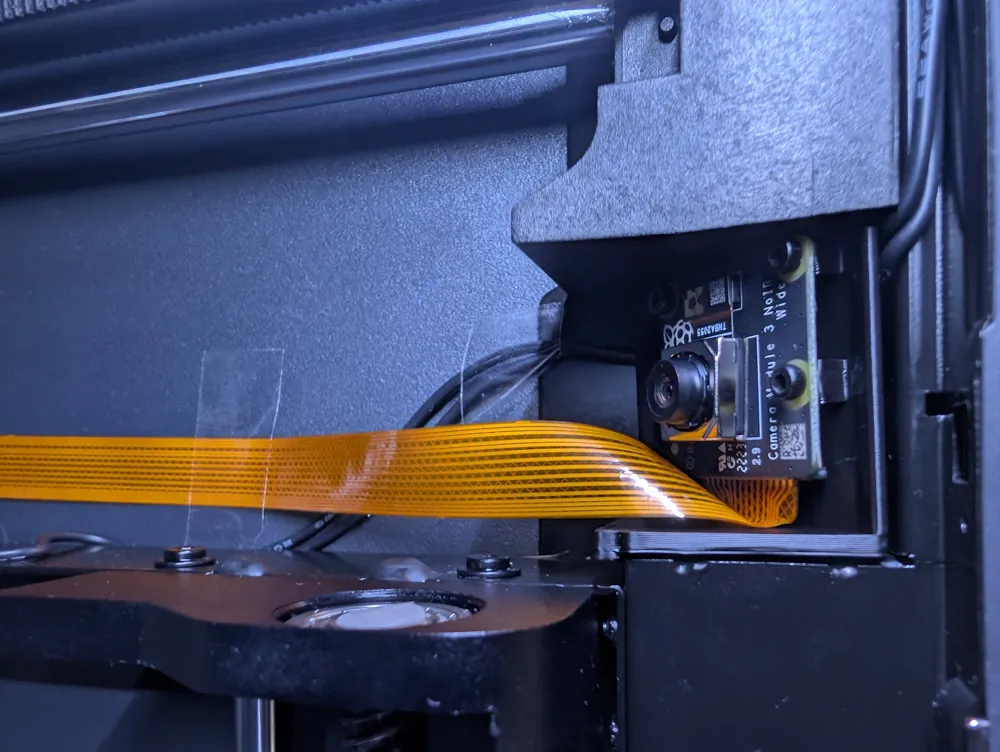
Step 5: Install the Camera Holder
- Firmly press the Camera Holder into the cutout on the inside of the printer.
- This is designed as a tight press-fit and will require some force. This ensures it sits securely and doesn't vibrate during printing.
Step 6: Mount the Camera
- First, connect the camera cable to your Raspberry Pi Camera Module. Pay close attention to the correct orientation of the FPC cable contacts. The silver contacts must face the contacts on the camera's connector.
- Next, secure the camera module to the holder using four M2x4mm screws.
- Note: The correct orientation for the original Raspberry Pi Camera Modules is with the connector at the bottom, otherwise you'll have a rotated portrait image.
Step 7: Secure the Camera Cable
- This is a critical step to prevent print failures and damaged hardware. After connecting the cable to both the camera and the Raspberry Pi (which will be done outside the back panel), gently pull any excess cable slack out from the back.
- The cable inside the chamber must not hang loosely where it could interfere with the print head.
- Use a few strips of adhesive tape (like electrical tape or Kapton tape) to secure the cable flat against the inner wall of the printer housing, well away from any moving parts.
- Ensure the cable is not pulled too taut, it should have a little bit of slack, but not enough to form a loop.
Step 8: Re-attach the Back Panel
- Before closing everything up, give the cable one last check to ensure it is secure and not pinched.
- Carefully screw the back panel back onto the printer. Your hardware installation is now complete!
Part 3: Software Installation
Step 1: Flash the SD Card
- We will use the official Raspberry Pi Imager. You can download it for free.
- OS: Select "Raspberry Pi OS Lite (64-bit)" under "Raspberry Pi OS (other)". A desktop environment is not needed.
- Advanced Settings: Before you click "WRITE", open the advanced settings (gear icon):
- Set hostname: Choose a name, e.g., bambucam.
- Enable SSH: Check this box and set a secure password.
- Configure user: Set your username (default is pi) and password. (Remember those of course!)
- Configure wireless LAN: Enter your WiFi network name (SSID) and password as well as your WiFi country code.
- Now, write the image to your SD card.
Step 2: First Boot and SSH Connection
- Insert the flashed SD card into your Raspberry Pi Zero, connect the camera, and power it on (you can use the printer's USB port or another power source). Give it a few minutes to boot up for the first time.
- You need to find the Pi's IP address. You can usually find this by logging into your router's admin page and looking at the list of connected devices.
- Open a terminal (on Windows, you can use PowerShell) and connect via SSH:
```
ssh your_username@hostname.local
# Example: ssh pi@bambucam.local OR ssh pi@192.168.1.123
```
Step 3: Automated Camera Stream Setup
To make the software installation as easy as possible, I have created an automated script that handles everything for you.
MakerWorld's security policy prevents posting direct installation commands to protect users. For your safety and convenience, the final installation command is provided in a detailed and secure guide on GitHub Gist.
Please follow these simple steps:
- Open the link below in a new browser tab. It will take you to the setup guide. (Copy and paste the link if it's not clickable): https://gist.github.com/kldzj/63361d7cf510771776e603255add5818
- The guide contains a single command line. Copy it and paste it into your SSH terminal.
- The script will then run, ask you which camera you are using, and set everything up automatically.
Part 4: Verification and Usage
Step 1: Test the Stream
- Open a media player that supports RTSP streams, like VLC Media Player.
- Go to "Media" -> "Open Network Stream".
- Enter the following URL, replacing <PI_IP_ADDRESS> with the actual IP address of your Raspberry Pi: `rtsp://<PI_IP_ADDRESS>:8554/cam`
- You should now see the live video feed from your new camera!
- Enjoy your new high-quality stream!
Important Note: It is currently not possible to view custom RTSP streams like this one directly within Bambu Studio or Orca Slicer. Please use one of the methods below.
Boost Me (for free)
If you find this design useful and the guide helpful, please consider leaving a Boost. Your support not only means a lot to me, but it also helps other makers discover this project on MakerWorld.
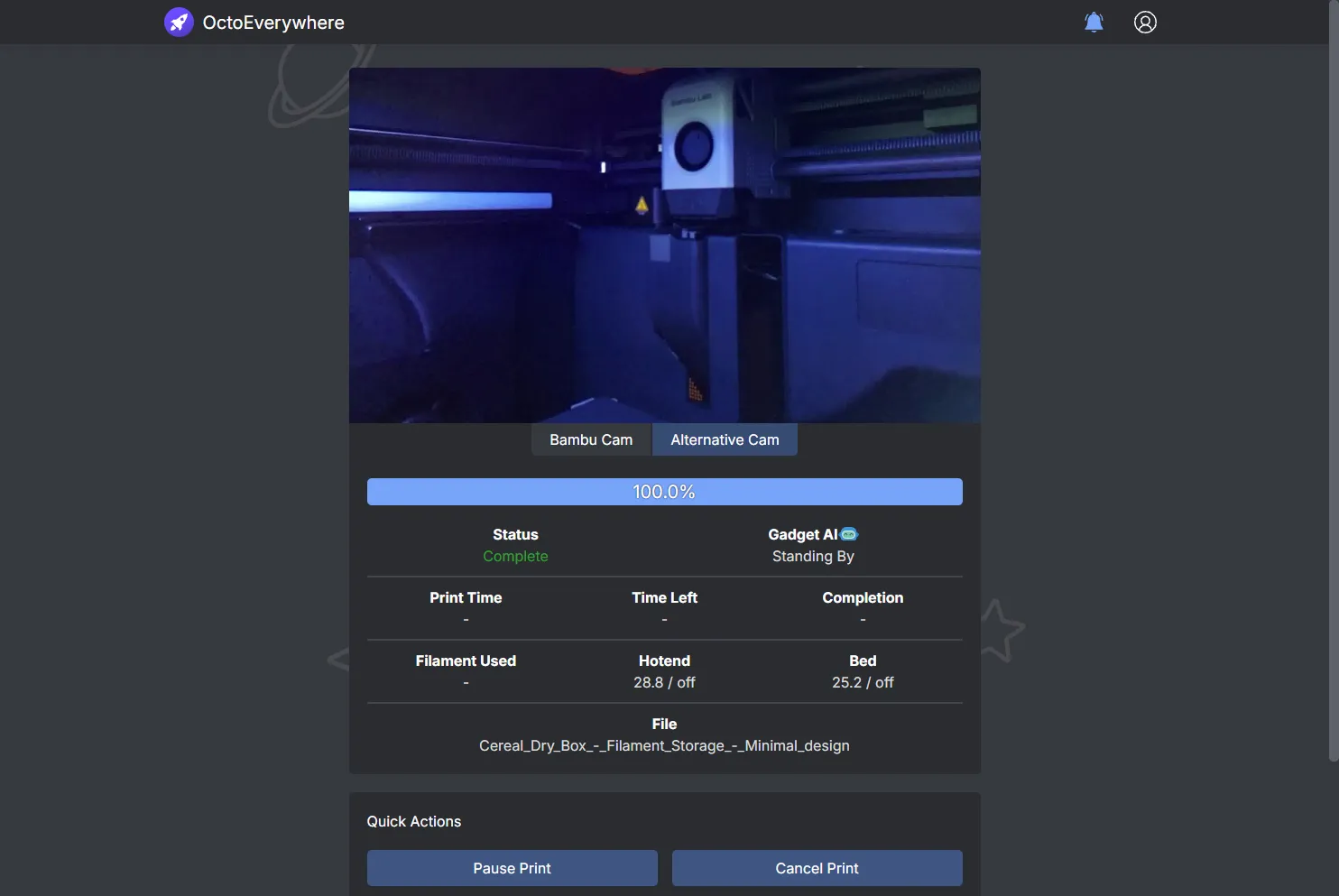
Step 2 (Recommended): Access Your Stream Anywhere with OctoEverywhere
The best way to experience your new webcam upgrade, in my humble opinion, is by using OctoEverywhere. It’s a service designed to give you secure remote access to your 3D printer and is fully compatible with Bambu Lab printers.
How to Set It Up
- Create an Account: Go to the OctoEverywhere website and sign up for a free account.
- Connect Your Printer: Follow their excellent setup guide for Bambu Connect. This will securely link your P1S to your OctoEverywhere account in just a few minutes.
- Add Your New Camera Stream:
- In your OctoEverywhere dashboard, navigate to your printers settings.
- Choose to add an alternative camera stream.
When asked for the stream URL, enter the RTSP address of your new camera:
`rtsp://<PI_IP_ADDRESS>:8554/cam`
(Make sure to use the local IP address of your Raspberry Pi here. OctoEverywhere will securely tunnel this stream for you.)
- Done! You can now view your crystal-clear 1080p stream through the OctoEverywhere web portal or their mobile apps. Enjoy your print monitoring with AI superpowers!
Disclaimer: I am not affiliated with or sponsored by the creators of OctoEverywhere. I'm just a happy user recommending a service that I believe is the perfect companion for this project.
Troubleshooting
- Can't connect via SSH: Double-check your WiFi credentials in the Raspberry Pi Imager. Ensure the Pi is powered on and connected to your network. Verify you are using the correct IP address.
- Stream not working in VLC:
- Check all physical cable connections, especially the fragile FPC connectors on the Pi and the camera. Make sure they are correctly seated.
- Connect via SSH and check the status of the streaming service with sudo systemctl status mediamtx. It should show "active (running)".
- Video is upside down: This is usually due to the physical orientation of the camera. You may need to edit the mediamtx.yml file to include a video flip parameter, or simply remount the camera in the correct orientation.
Changelog
September 5, 2025: Added Optional Magnet Mount
- Added an alternative mounting option to the Raspberry Pi Mount. The part now includes four 8x3mm magnet holder holes.
- This allows you to attach the mount magnetically to the back of the printer, which is ideal if your two M3 screw holes are already taken by another print (thanks to @larsony99 for the suggestion!).
- The BOM and Hardware Installation (Step 4) sections have been updated to reflect both the screw and magnet mounting options.
September 4, 2025: Script Fix & Performance Update
- Fixed an issue in the installation script that prevented setup on armv6 hardware, such as the original Raspberry Pi Zero.
- Updated the mediamtx configuration to disable the WebRTC server by default. This reduces unnecessary CPU load on the Pi to improve performance.
Happy printing! If you have any questions, feel free to leave a comment.
License

You shall not share, sub-license, sell, rent, host, transfer, or distribute in any way the digital or 3D printed versions of this object, nor any other derivative work of this object in its digital or physical format (including - but not limited to - remixes of this object, and hosting on other digital platforms). The objects may not be used without permission in any way whatsoever in which you charge money, or collect fees.


Comment & Rating (183)