
Xbox Series X Dust Cover - Multicolor
Print Profile(2)


Description
NOTICE: Remember to remove the cover when using your Xbox to prevent overheating; you must allow it to ventilate; this cover is designed for when your Xbox is not in use
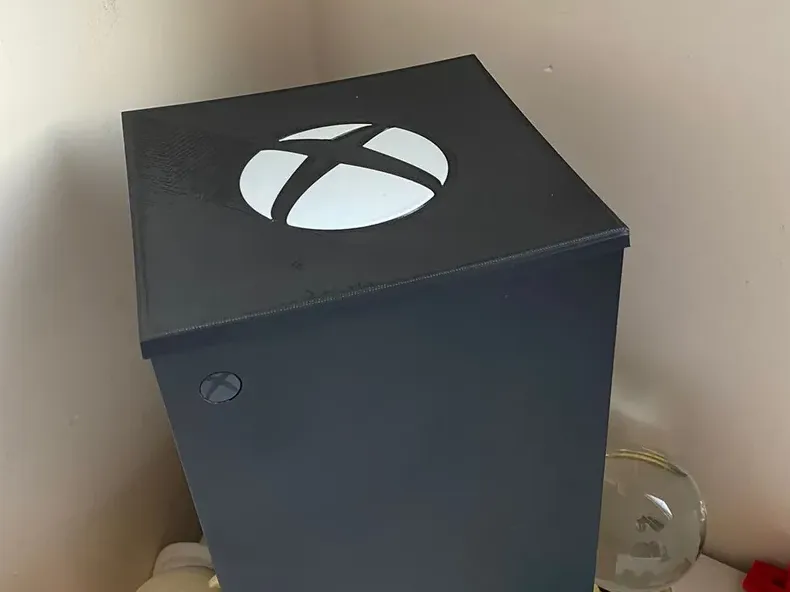
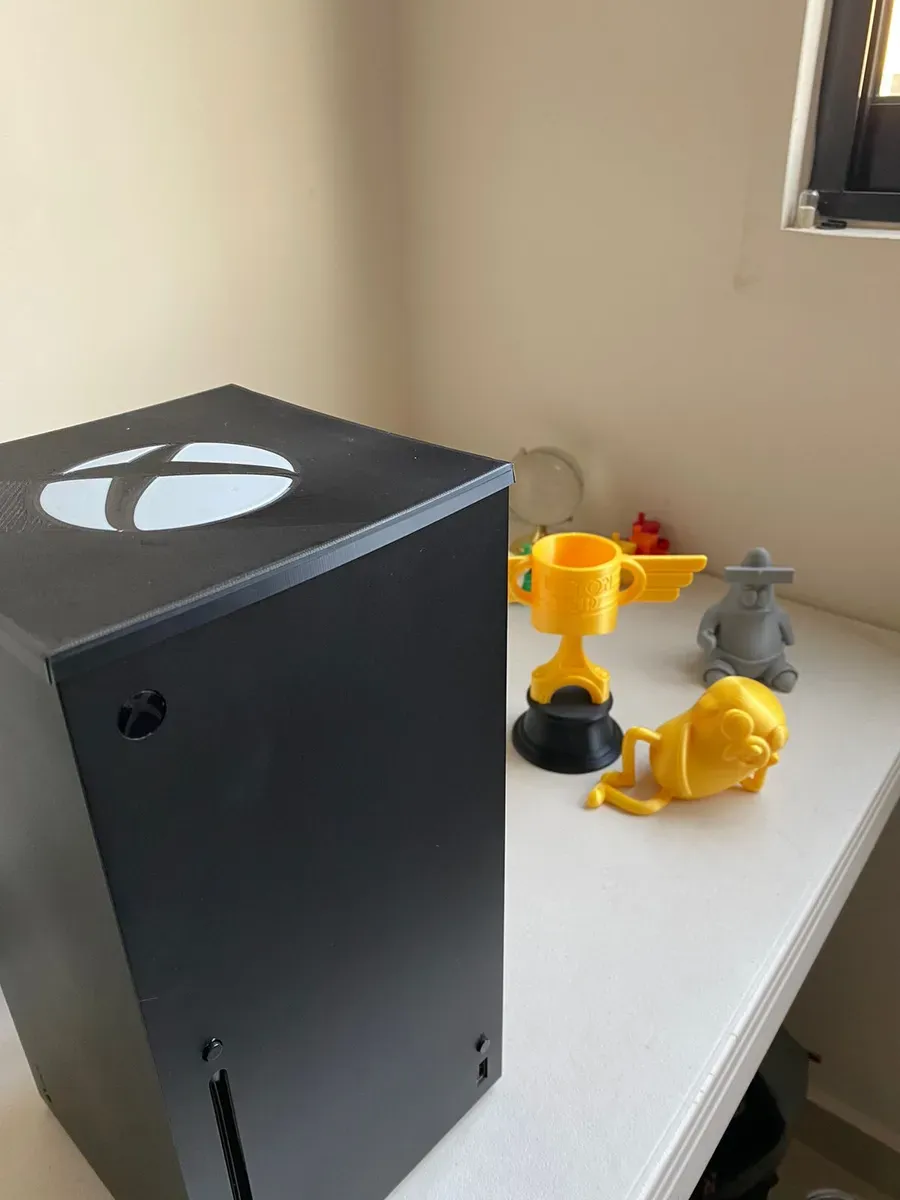
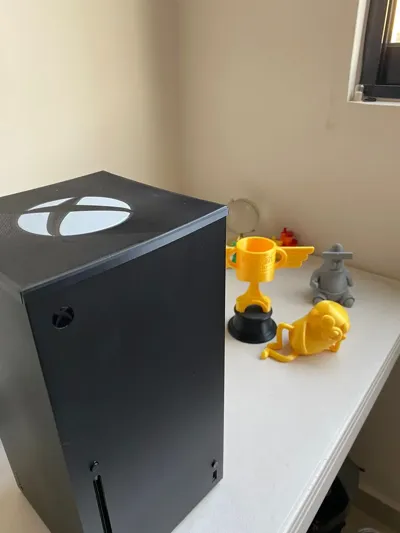
This is a cover for the Xbox Series X. I created this to prevent my Xbox from being damaged by disuse.
We have two types:
- For multicolor systems (Currently undergoing improvement as newer laminator versions weaken it, resulting in only a single layer of white)
In this case, the model is already divided into sections, so the sections are laminated and easily printed
Boost Me (for free)
Hello!! It's a pleasure to share this design; I will soon share a wider variety of designs for the Xbox Series X along with my past designs
(Already done).
- For a single-extruder, non-multicolor system
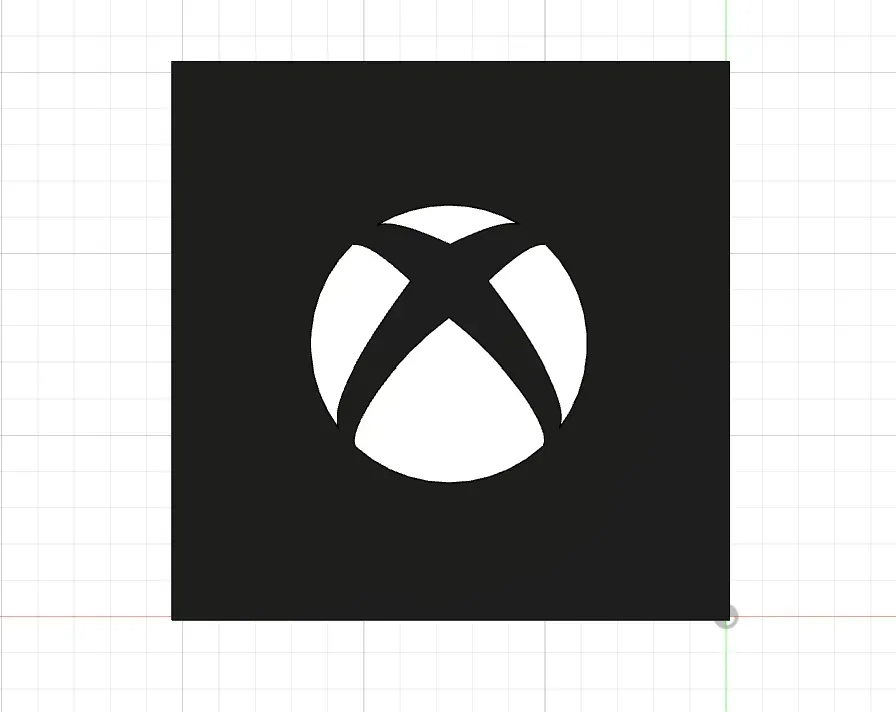
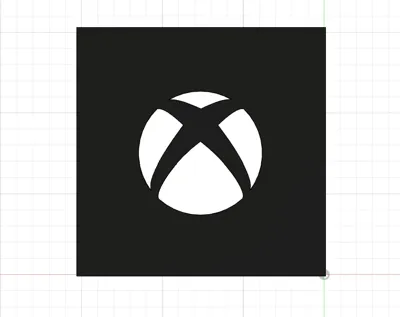
For this, we need to take a few extra steps. First, we must place the (white) logo and center it on our bed for optimal bed usage. Then, we must place the other (black) file on top of the logo to align the margins; the underside should look like this (in my case Bambu Studio, but it's the same in Cura, just without the color):
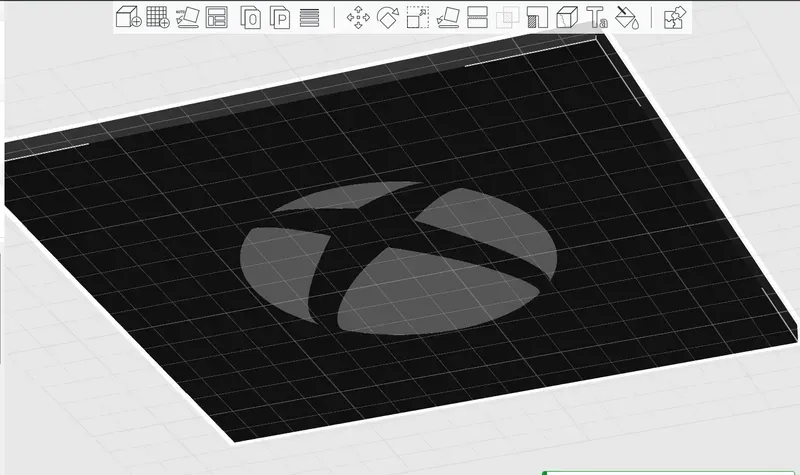
Next, we delete the black file from the plate and laminate the white without moving it, then save it. Afterward, use the “ctrl + z” command to recover the black file; then, do the same with the white, delete and laminate it. This allows you to print the white logo first and, keeping the bed hot, begin with the cover file.
For printers with automatic bed leveling at the start of printing, like the Ender 3 S1, you will need to center your logo in the laminator so the white color does not interrupt the sensor, as shown here (the cylinder indicates the sensor):
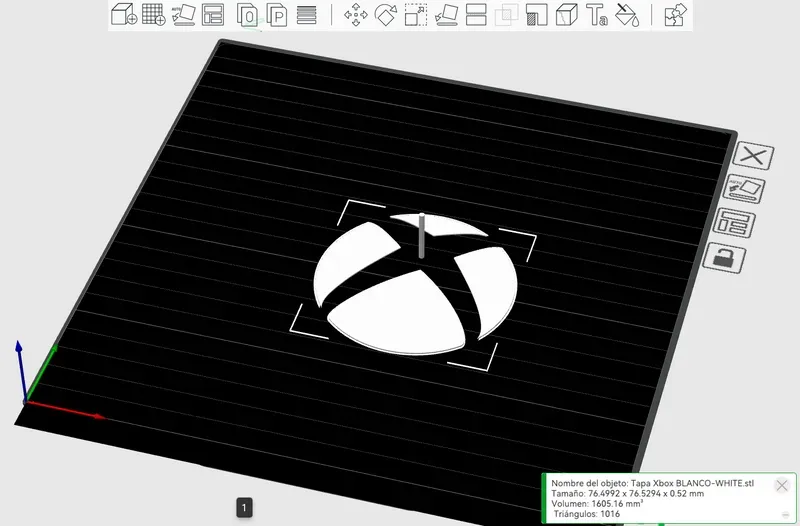
This allows you to print with different colors on the same layer; if this is unclear, you can check a YouTube video.
NOTICE:
Remember to enable Z-hop to prevent nozzle collisions with the print (This is for those without multicolor).
License



Comment & Rating (14)