
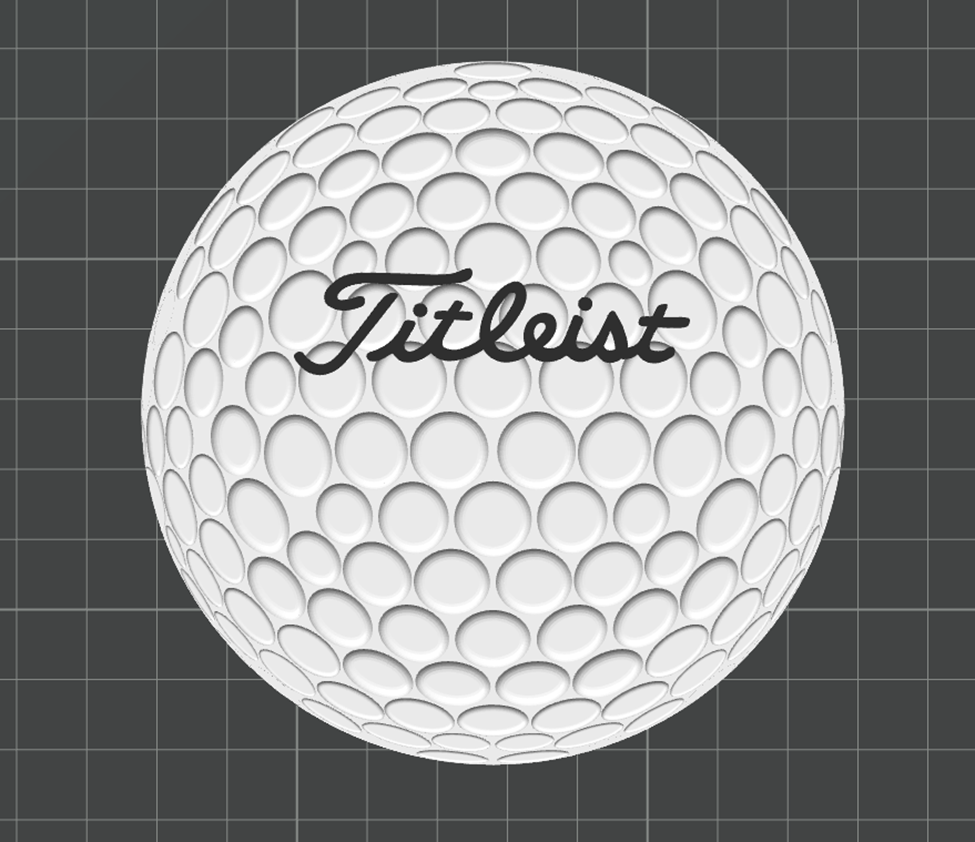
I’ve had someone ask how to go about changing the numbers on my Titleist Pro V1 Golf Coasters to a custom number as part of a Christmas gift. It sounded like a great gift idea, so I thought I’d make a quick guide for adding custom numbers to the coaster in Bambu Studio. You can also use this guide with the blank coaster design to add custom names or logos for the coasters.
This will work for both the coaster with the Titleist logo
https://makerworld.com/en/models/865632-titleist-pro-v1-golf-ball-coaster-set#profileId-816816
And the blank coaster, if you want to add a custom logo or name
https://makerworld.com/en/models/865636-golf-ball-coaster#profileId-816823
Start by opening the Titleist No Number print profile, or the blank coaster print profile.
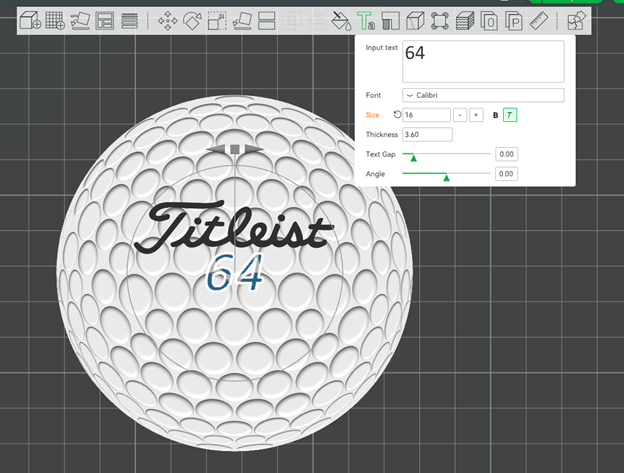
Add a Text Shape, set the text to the number you want, change the font to your preference (Calibri Italicized looks pretty similar to the numbers on the real golf balls), change the size to 16mm, and the Thickness to 3.6mm. Don’t try to manually move it to the right spot yet, just hit Enter when you’re done.
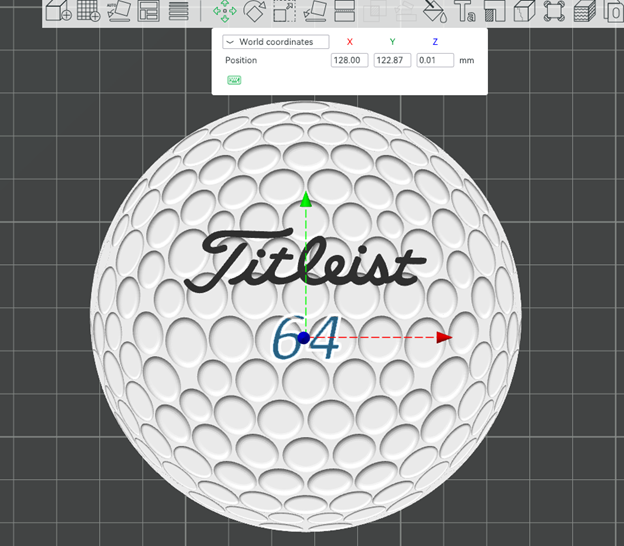
Select the text part in the object list, then select the Position tool and grad the Y axis down to the correct position.
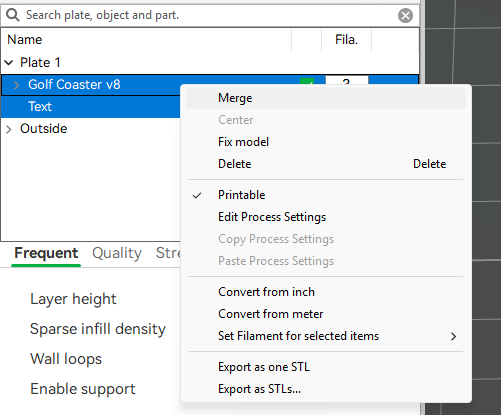
Select the Text object and the Golf Coaster object in the object list, right click and Merge them.
The Text is now part of the full assembly, select the Text again in the object list, create a copy of the Text using Ctrl+C then Ctrl+V, rename the original Text part to Text_bottom and change the filament color to match the golf ball. Change the name of the copied part to Text_top.
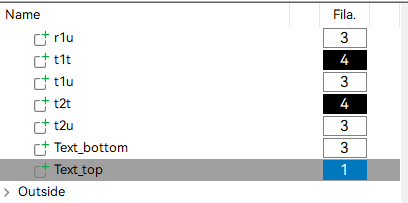
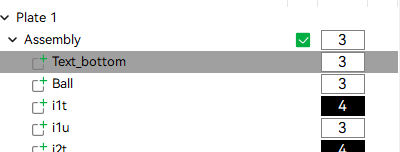
Move the Text_bottom part to the top of the assembly list, so it doesn’t override any of the ball geometry.
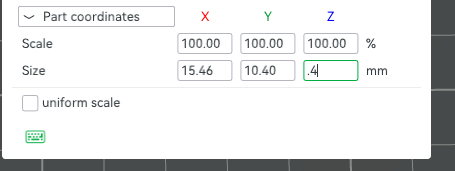
Select Text_top, select the scale tool, uncheck uniform scale, and change the Z size to .4mm
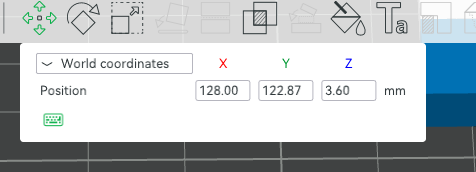
Then select the position tool, change the coordinates to World coordinates, and set the Z position to 3.60mm
Finally, change the color of Text_top to your preferred filament color, and move the purge tower if adding colors has put it outside the bounds of the print table, and you’re done!
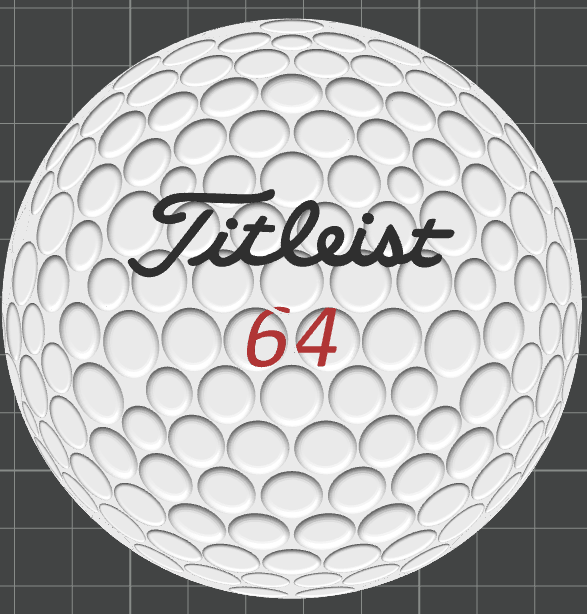
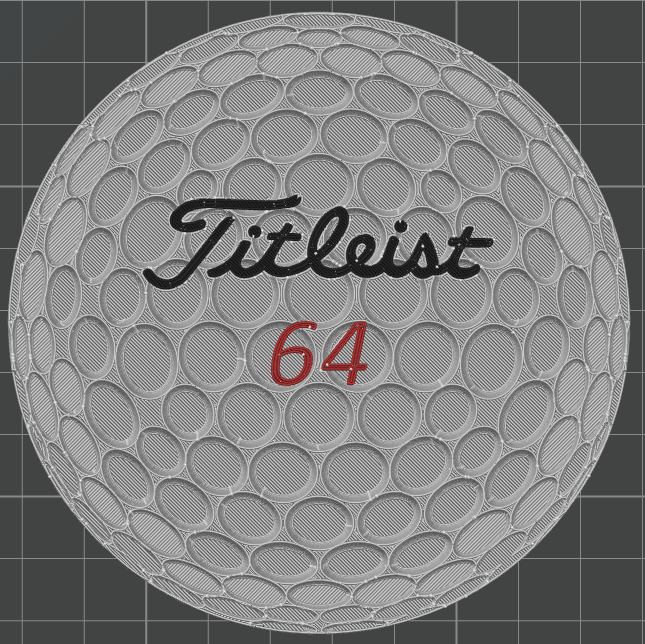
It will look like it overlaps with the golf ball geometry in a weird way, but because the Text_top part is the last part in the assembly it will have priority, so when you slice the model, it should look correct. If the Slice view still looks wrong due, select the Text_top part, select the position tool, change the coordinates to world coordinates, and type 3.605 in the Z position, that should bring it above the ball geometry without actually adding additional print layers.
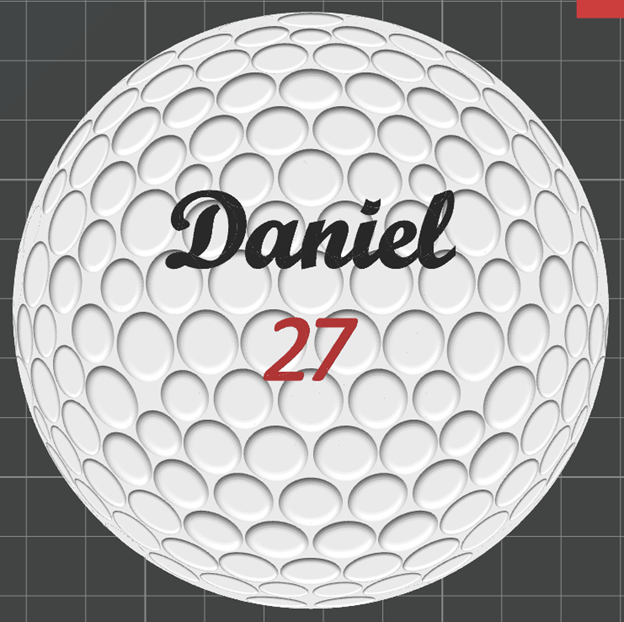
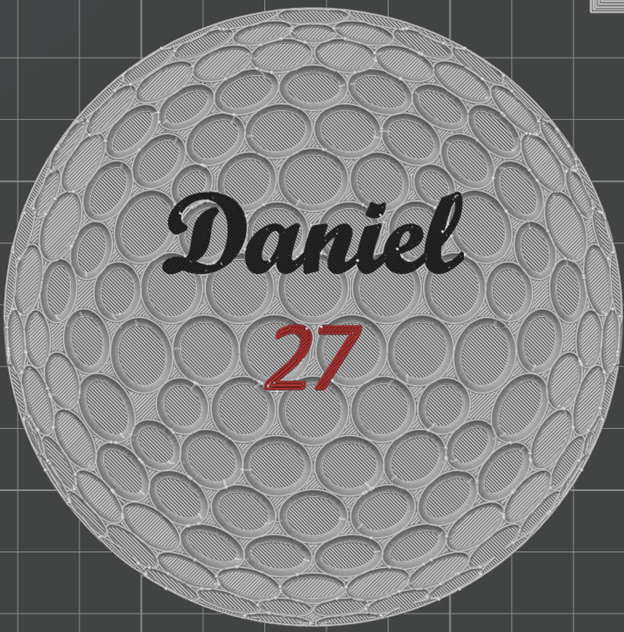
If you’re using the blank coaster and want to add custom text or logo, follow the same steps, just change the size and position, but make sure the Z size for the bottom part is 3.6, and the Z size for the top part is .4 and starts at Z position 3.6. Make sure both the bottom parts are first in the Assembly list or it will mess up the logo on the bottom of the coaster.
Note that for this example I did need to change the Z position of both text_top parts to 3.605 because the Bambu slicer wasn’t correctly prioritizing the text parts.
Here is what an example looks like in the Object view:
And correctly sliced:
I hope this helps! Feel free to message me if anything in this guide is confusing, or you need any further help customizing your model!

