Search models, users, collections, and posts

Make your own Layered Sculpture - TUTORIAL
Print Profile(5)

All
P1S
P1P
X1
X1 Carbon
X1E
A1
H2D
H2D Pro
H2S
P2S
H2C
X2D
A2L
A1 mini

0.2mm layer, 2 walls, 100% infill
Designer
2 h
1 plate
5.0(5)

0.2mm layer, 2 walls, 10% infill
Designer
3.1 h
1 plate
5.0(3)

0.2mm layer, 2 walls, 100% infill
Designer
1.7 h
1 plate

BATMAN     0.2mm layer, 2 walls, 100% infill
BATMAN 0.2mm layer, 2 walls, 100% infill
Designer
2.8 h
1 plate
5.0(4)
Click to see more

Open in Bambu Studio
Boost
684
1294
91
116
781
116
Released 

Description

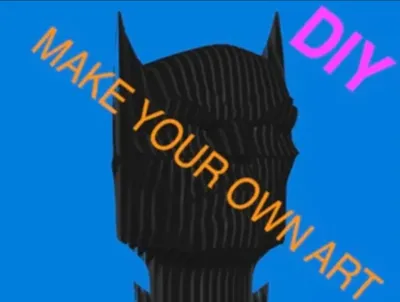
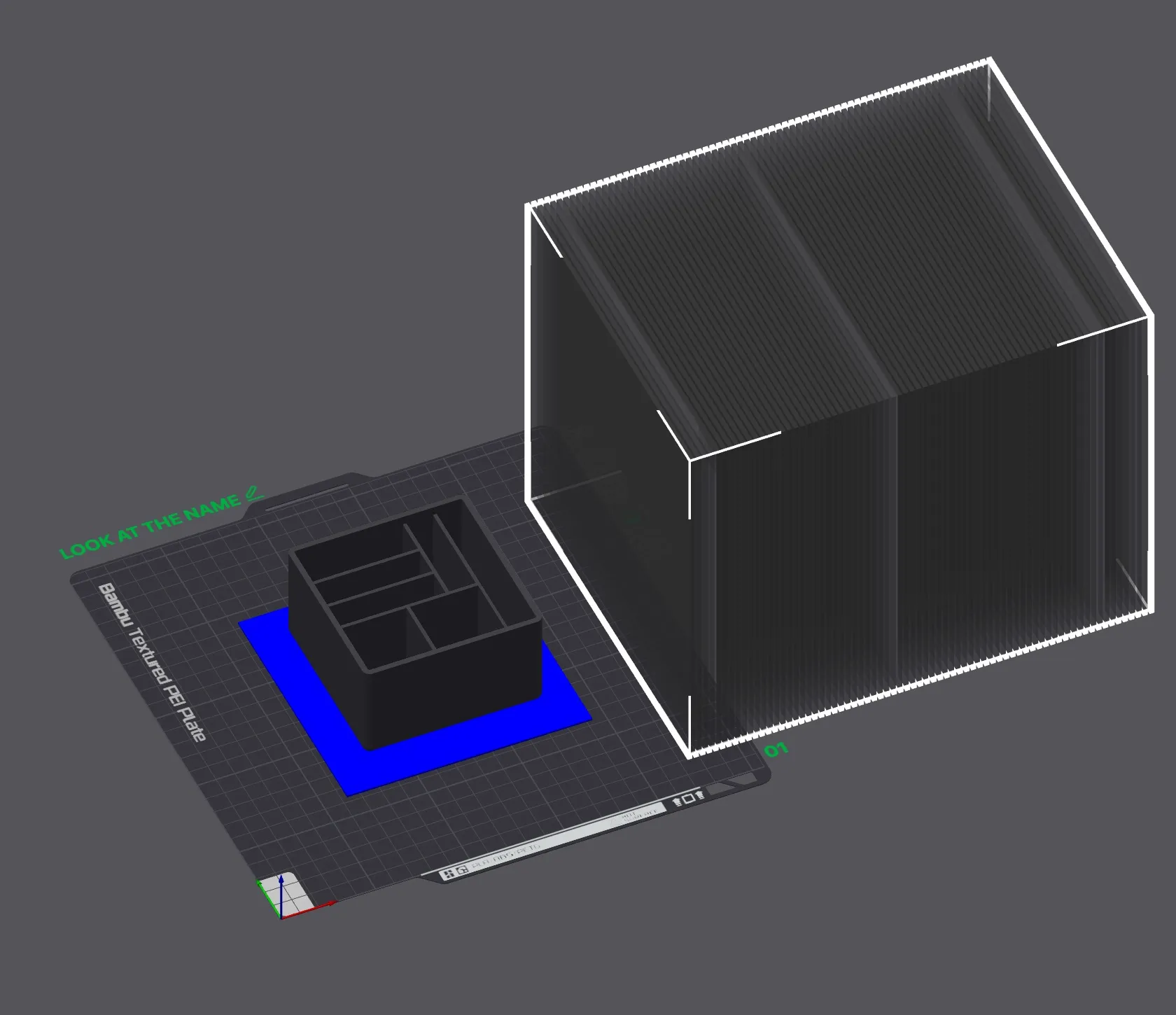
You want to make your own Layered Sculpture /  3D Art Picture? I have uploaded the negative part, which you can use to create a layered model of all models you want.


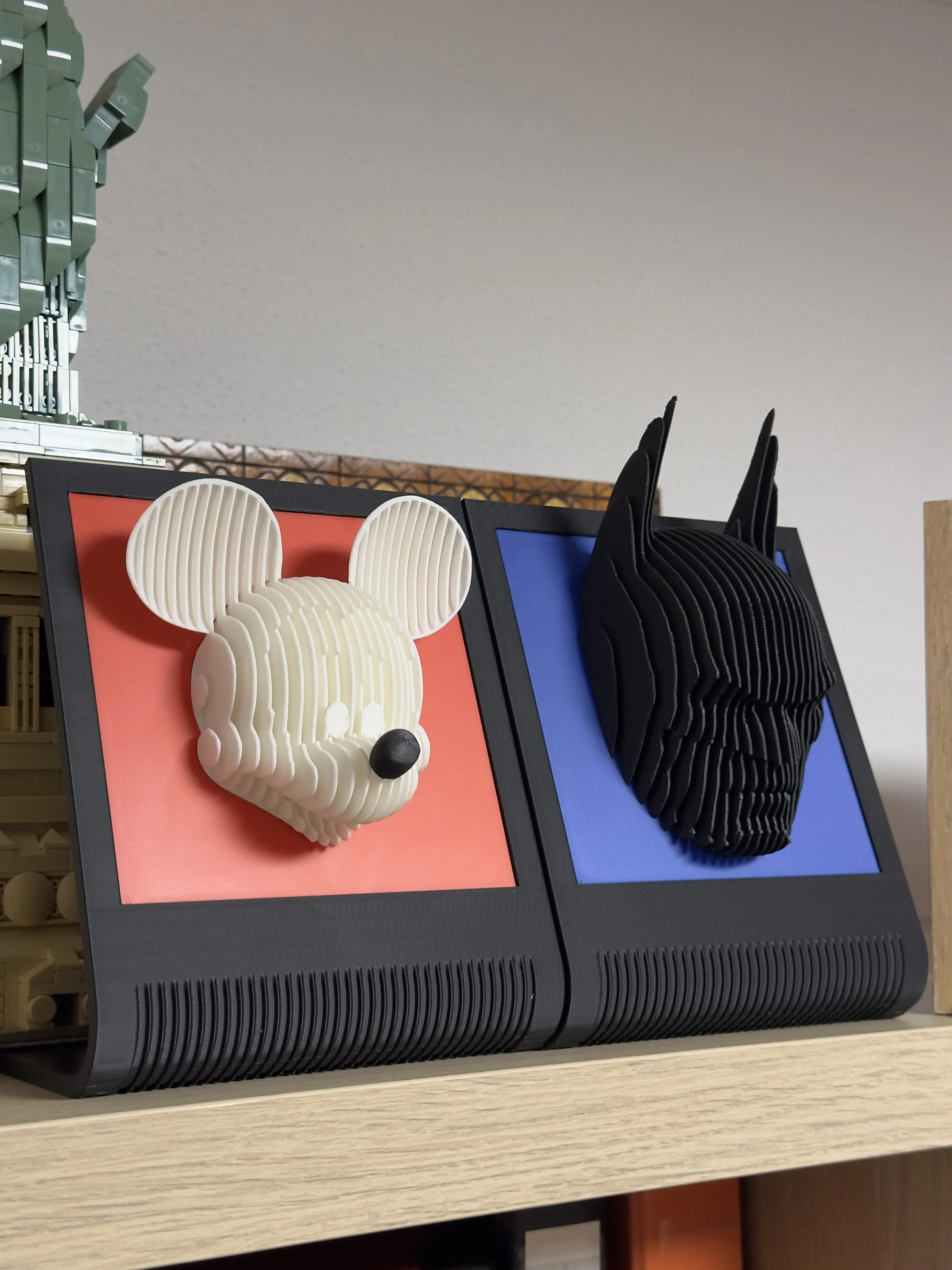
NOW With Samples from me:

  1. R2D2 ( .3mf Template )

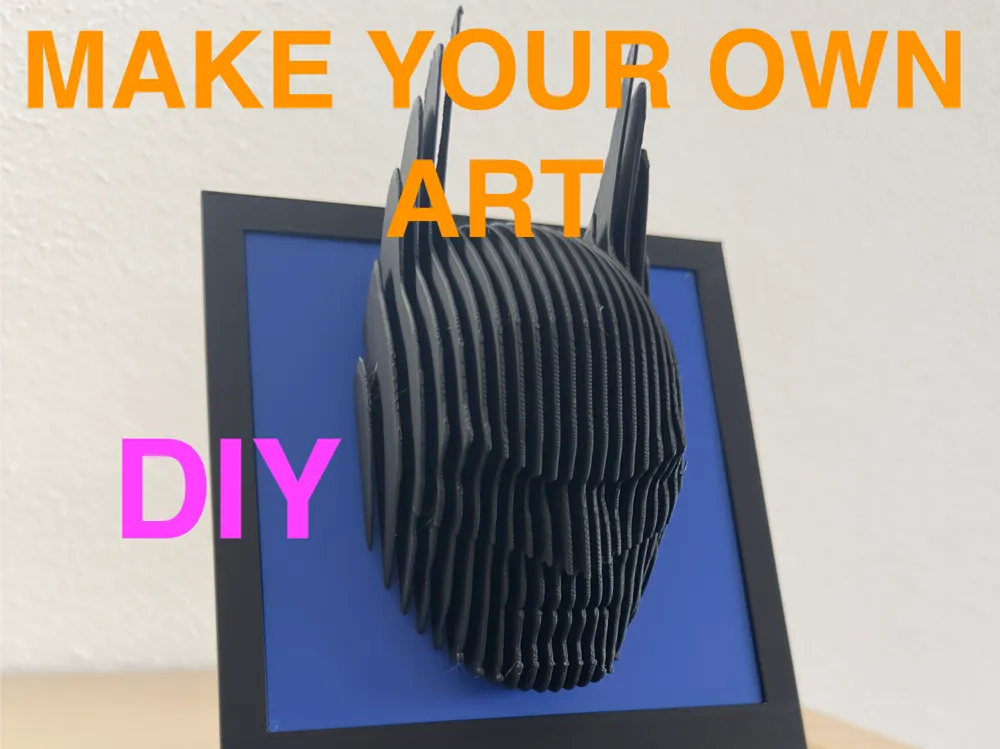
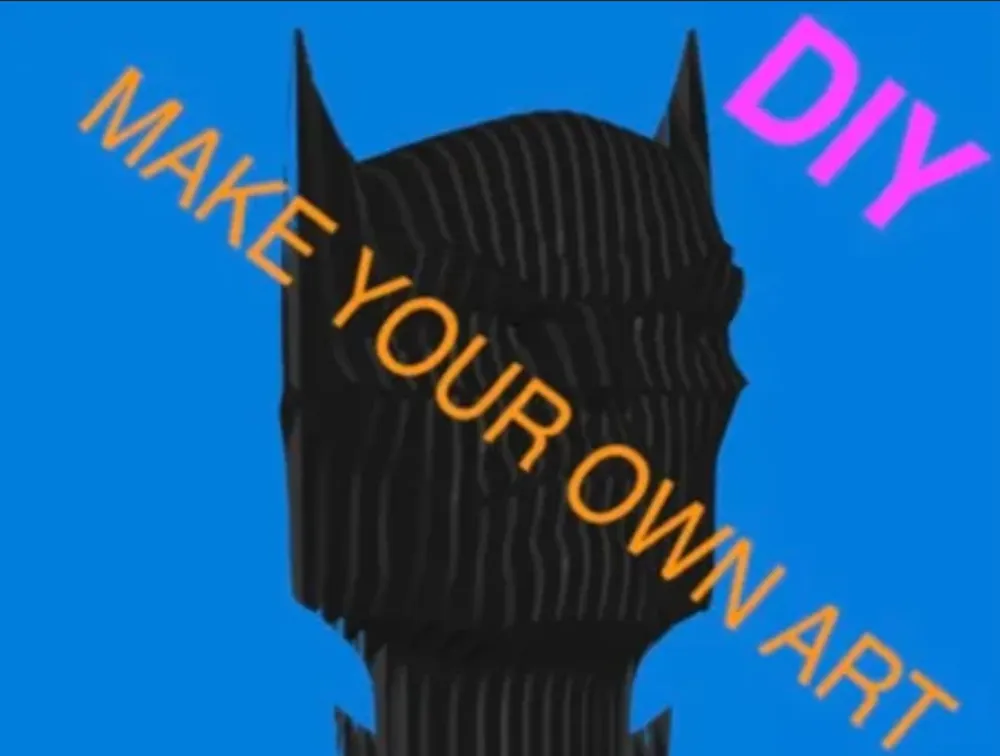
  2. Batman ( advanced )

  3. Mickey Mouse with flying ears    ( very advanced :p )

    https://makerworld.com/de/models/1143214#profileId-1145930
     

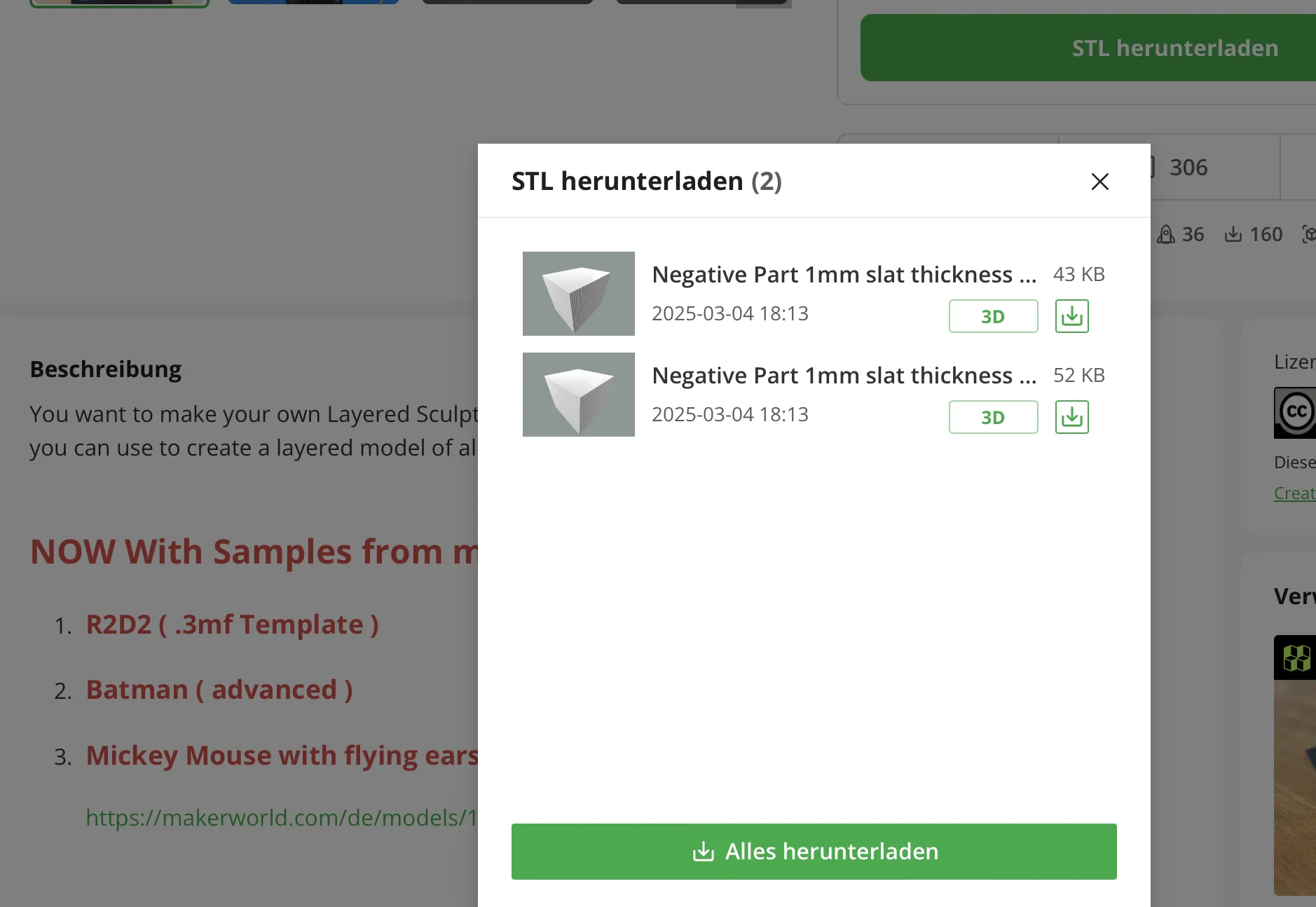
1of2:  Workaround: If you download the .stl File 

                                     Update 04.03.2025:   there are 2 Files now:    

                                      1.   1mm slat thickness & 2,5 Space

                                      2.   1mm slat thickness & 1,5 Space
 

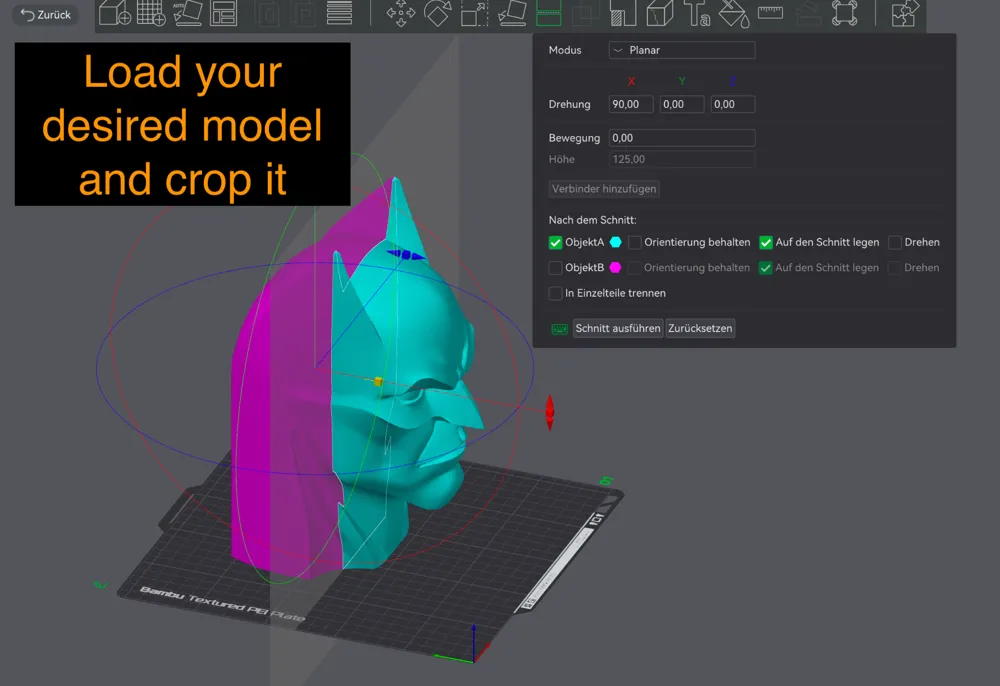
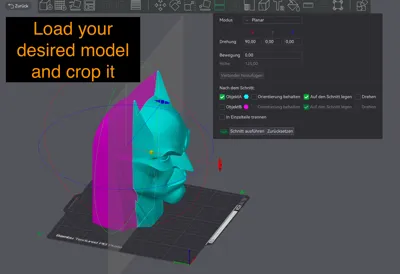
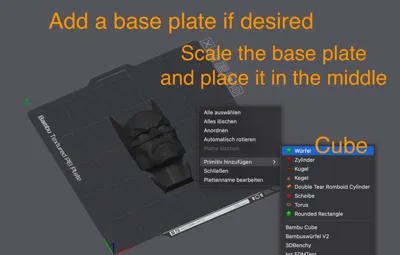
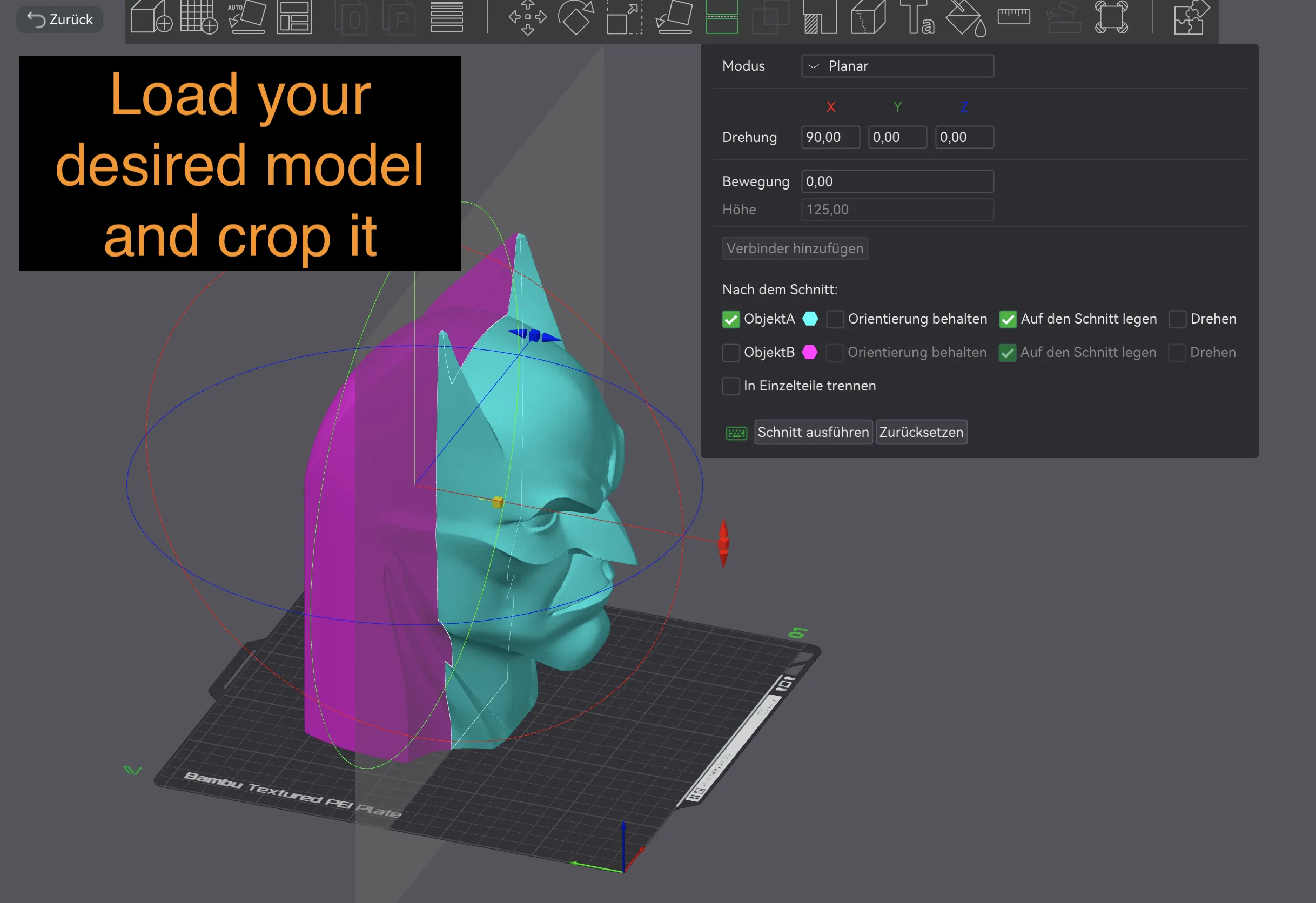
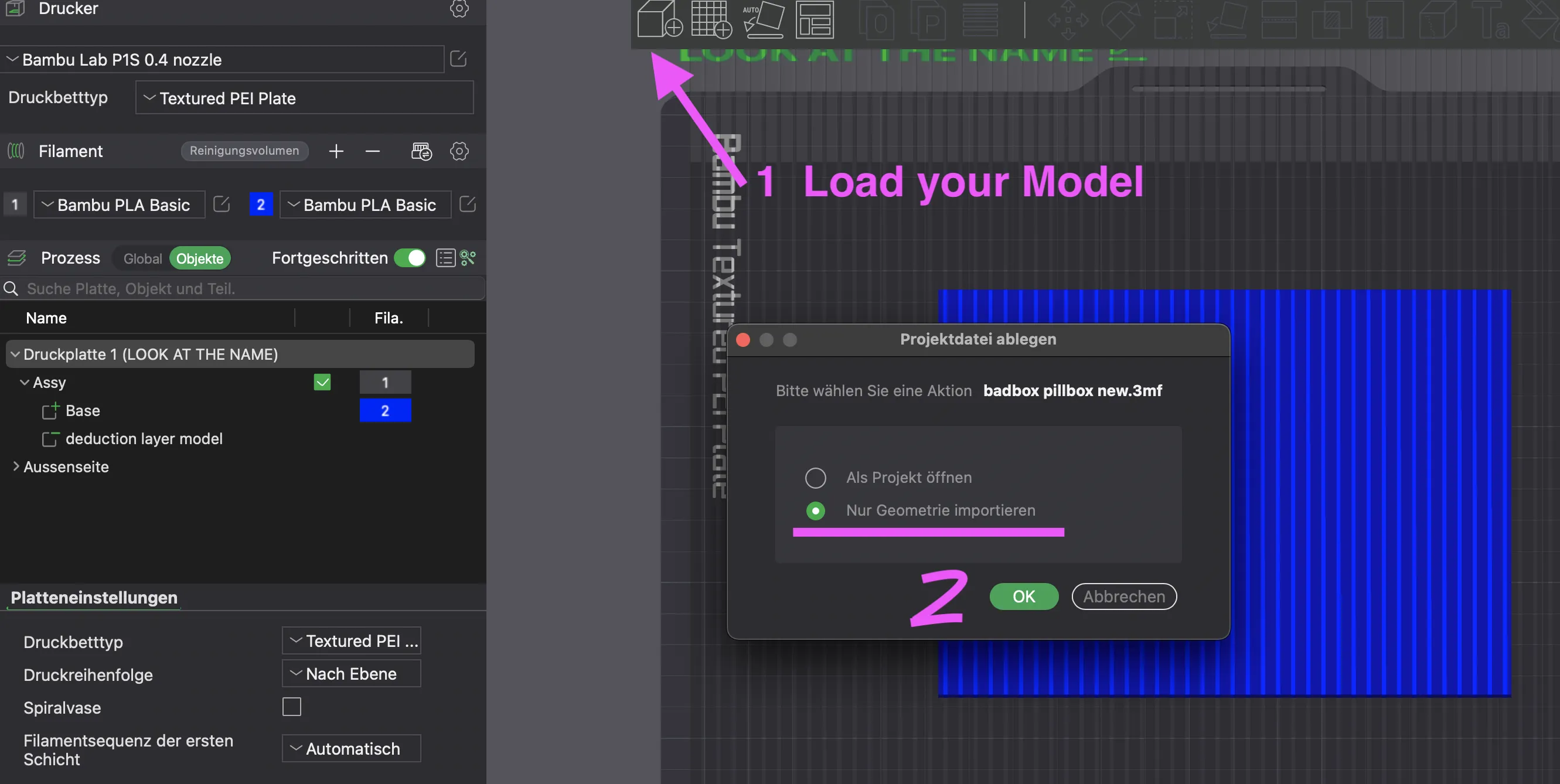
  1. Load your desired model and crop it

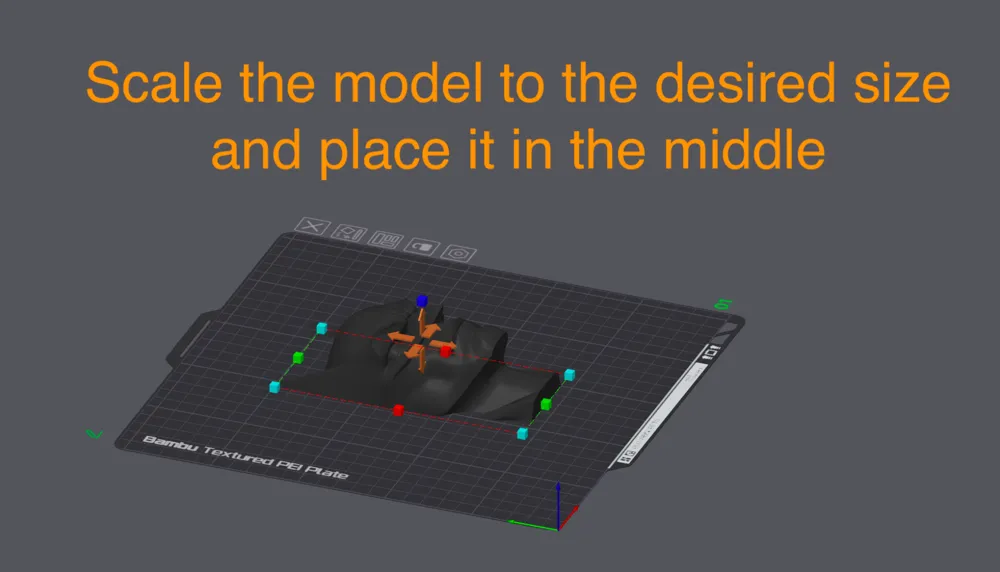
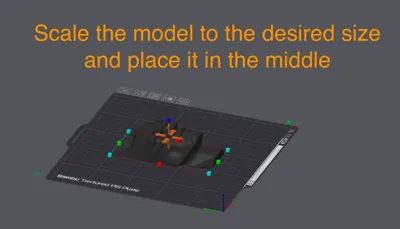
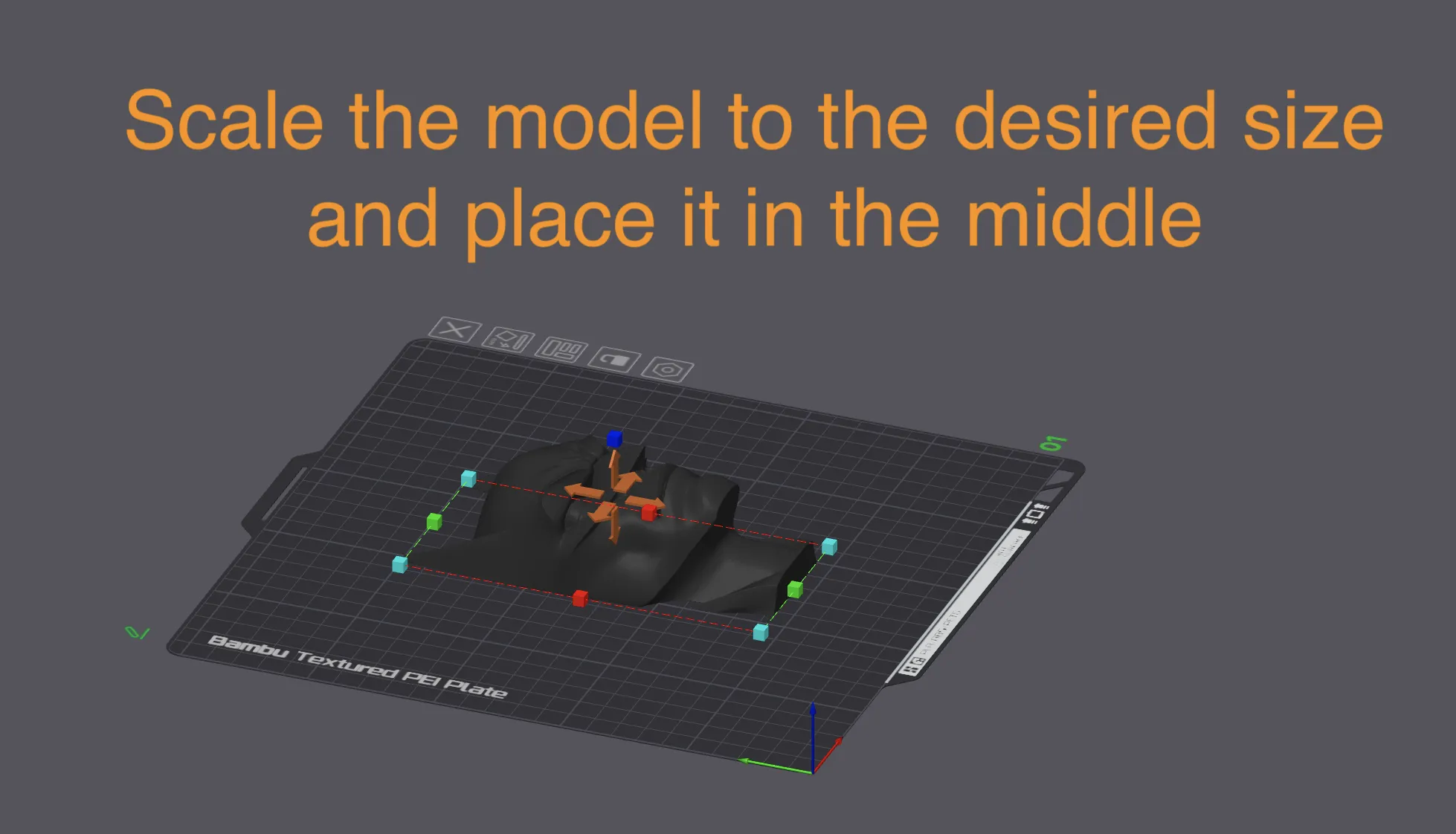
  2. Scale the model to the desired size and place it in the middle
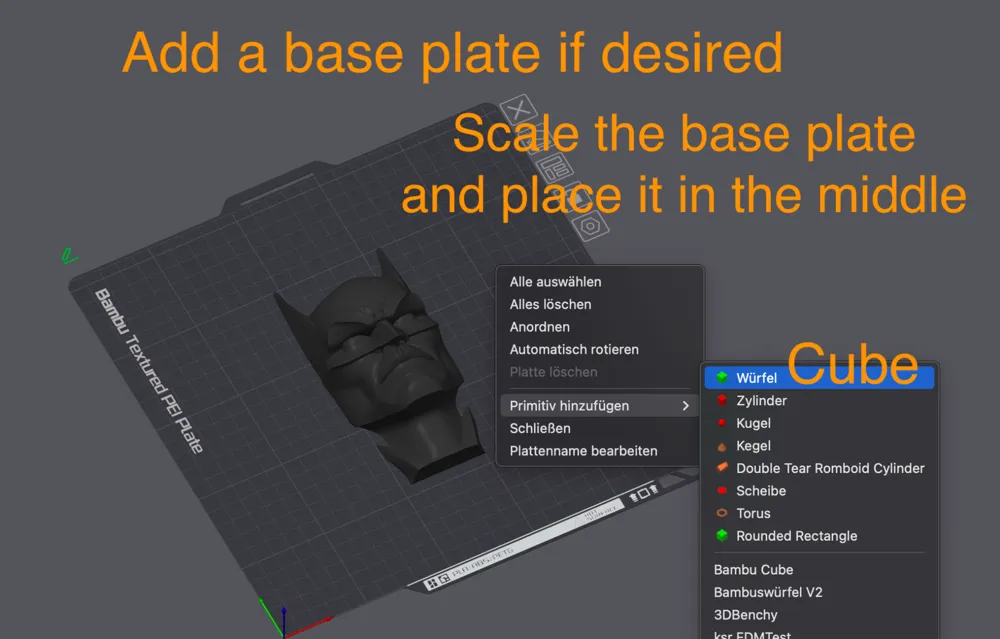
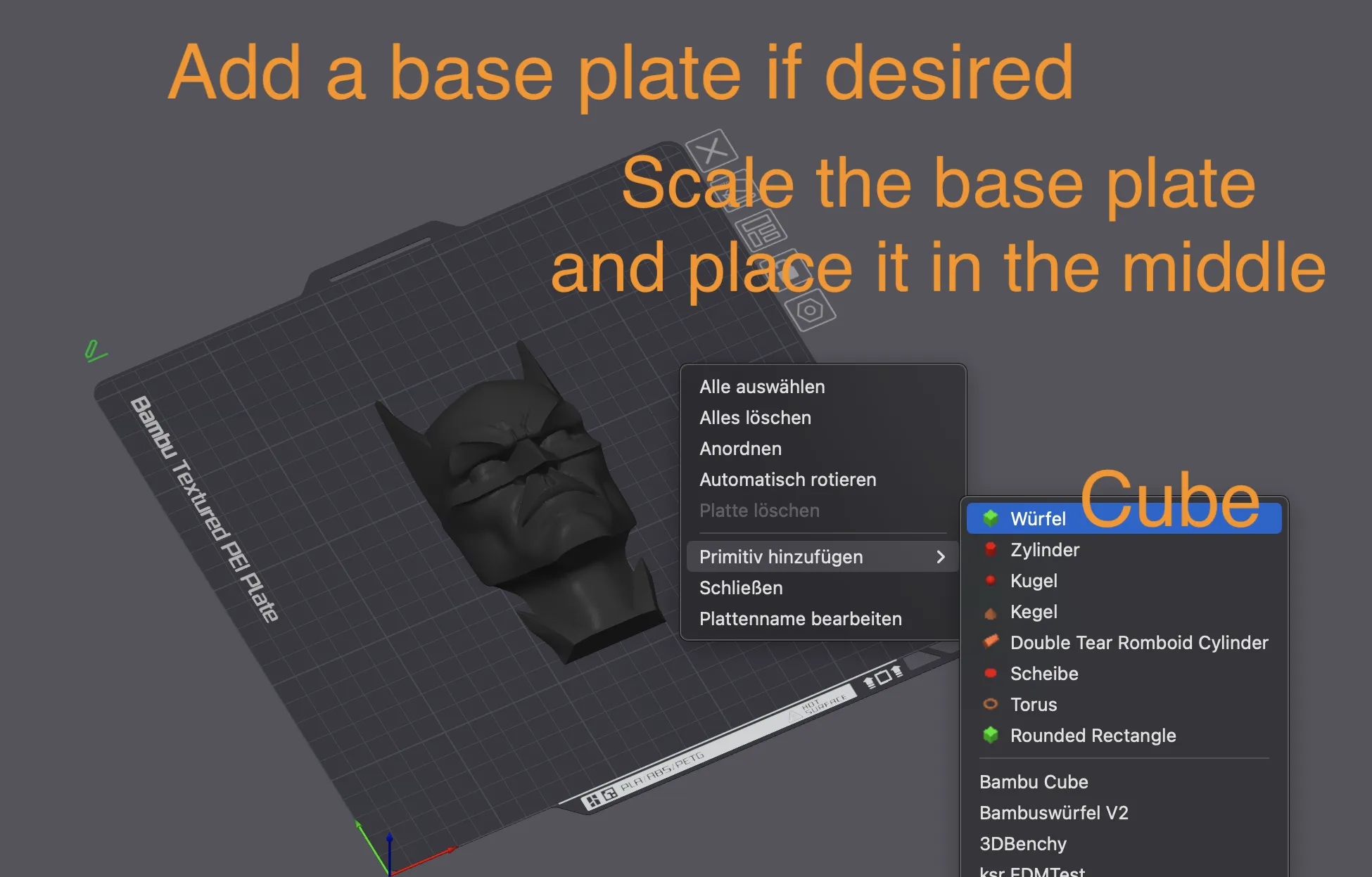
  3. Add a base plate if desired. Scale the base plate and place it in the middle
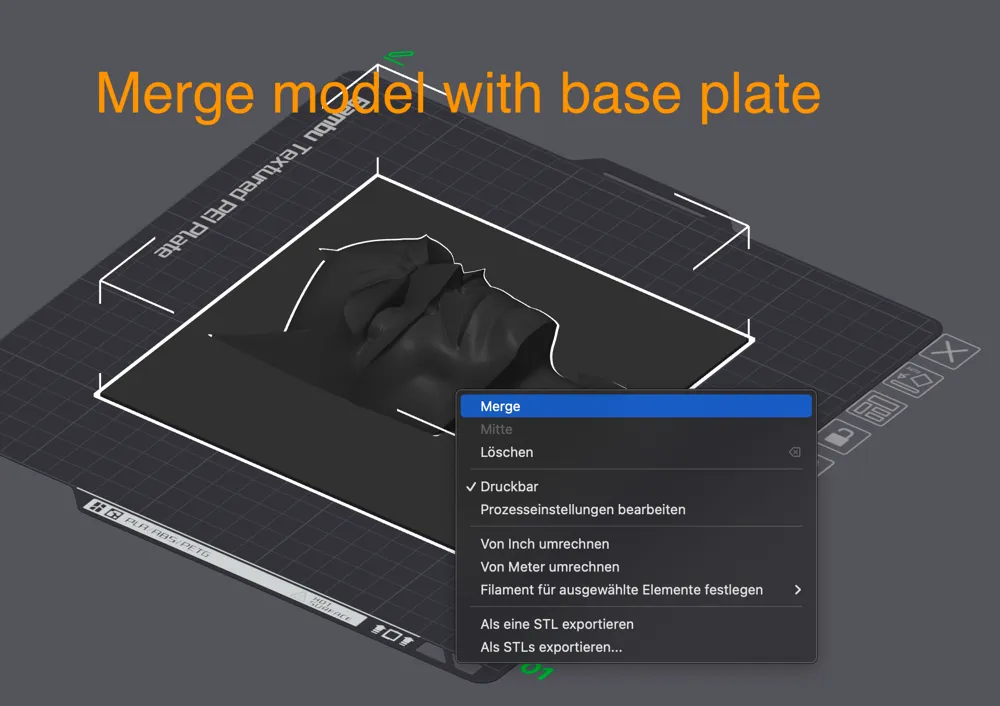
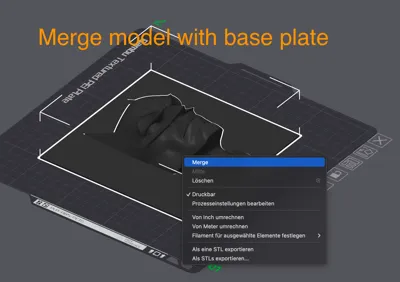
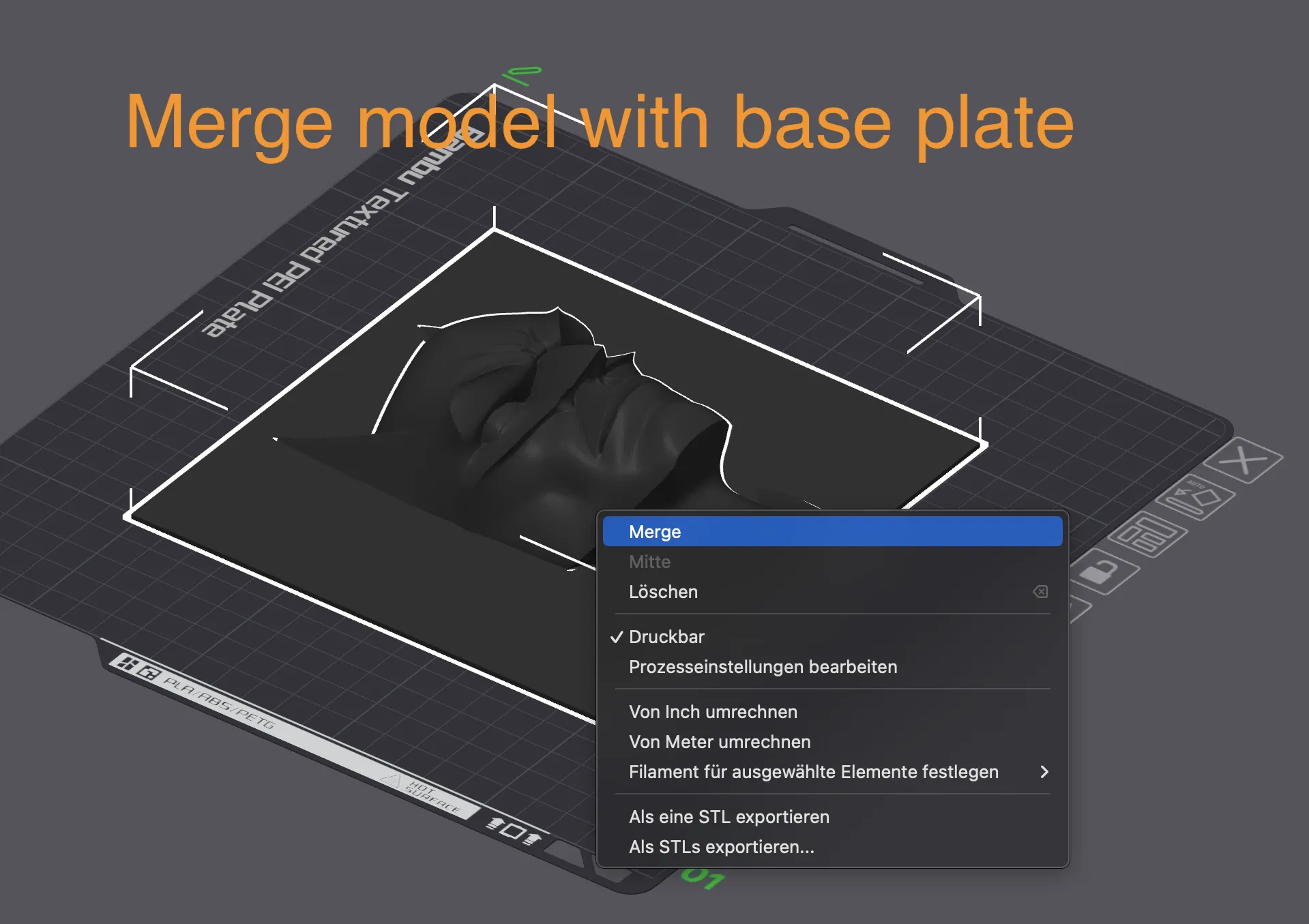
  4. Merge model with base plate

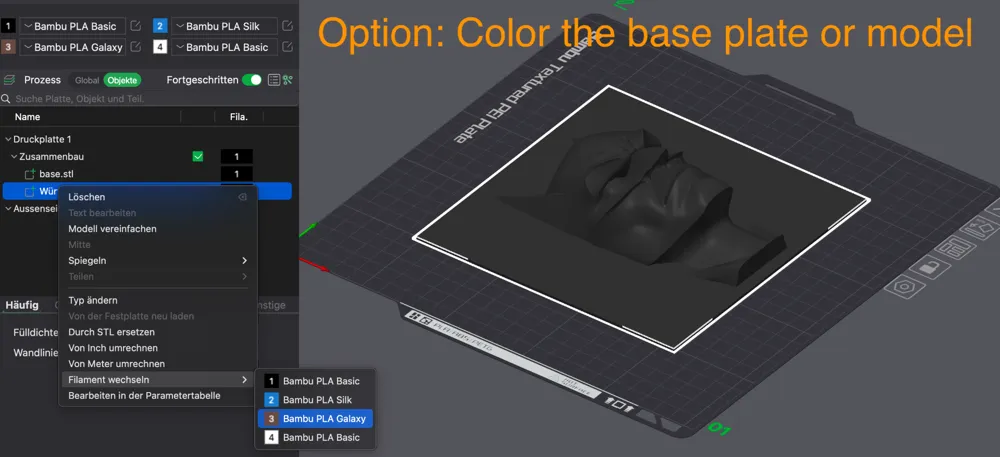
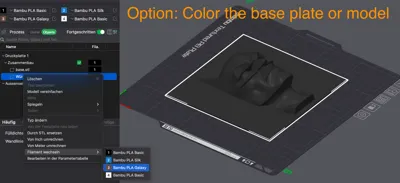
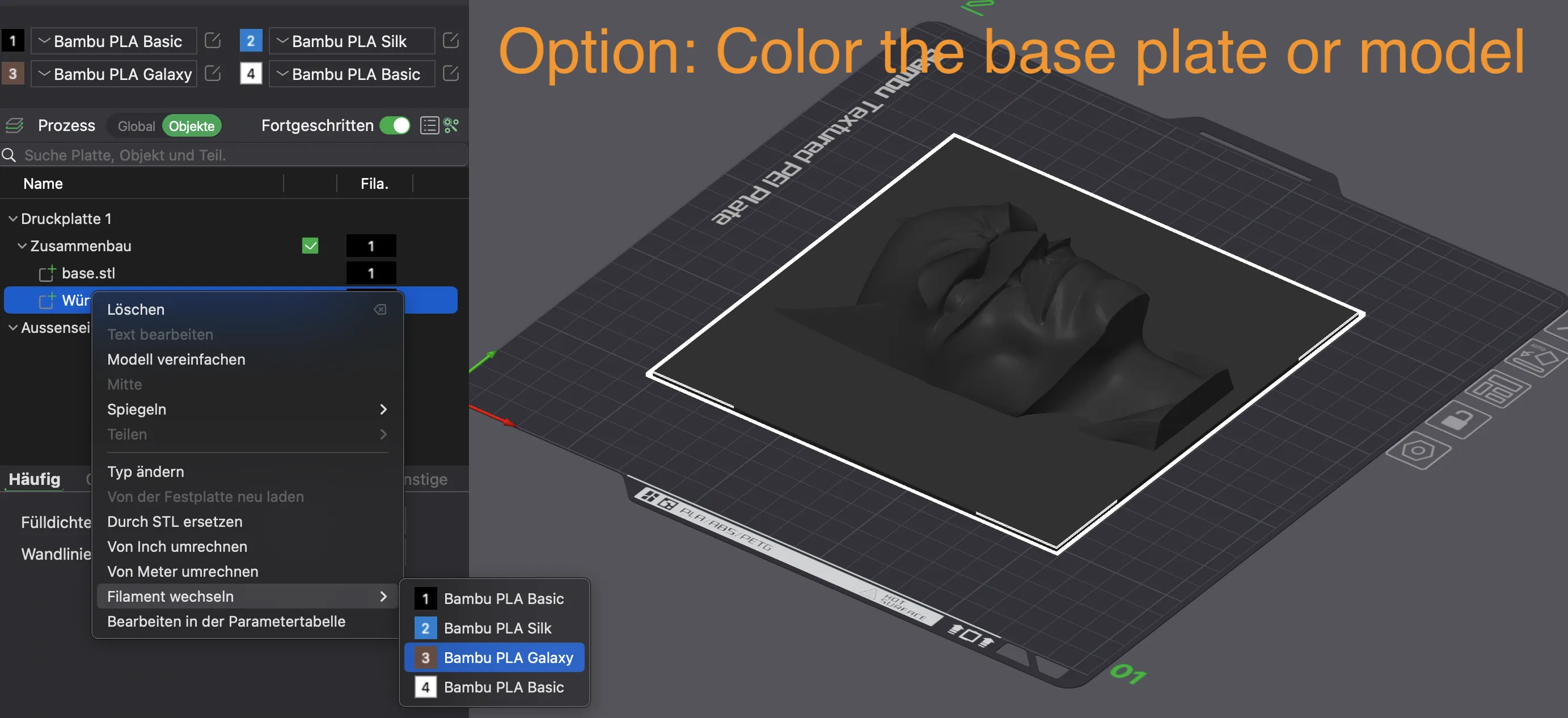
  5. Option: Color base plate or model

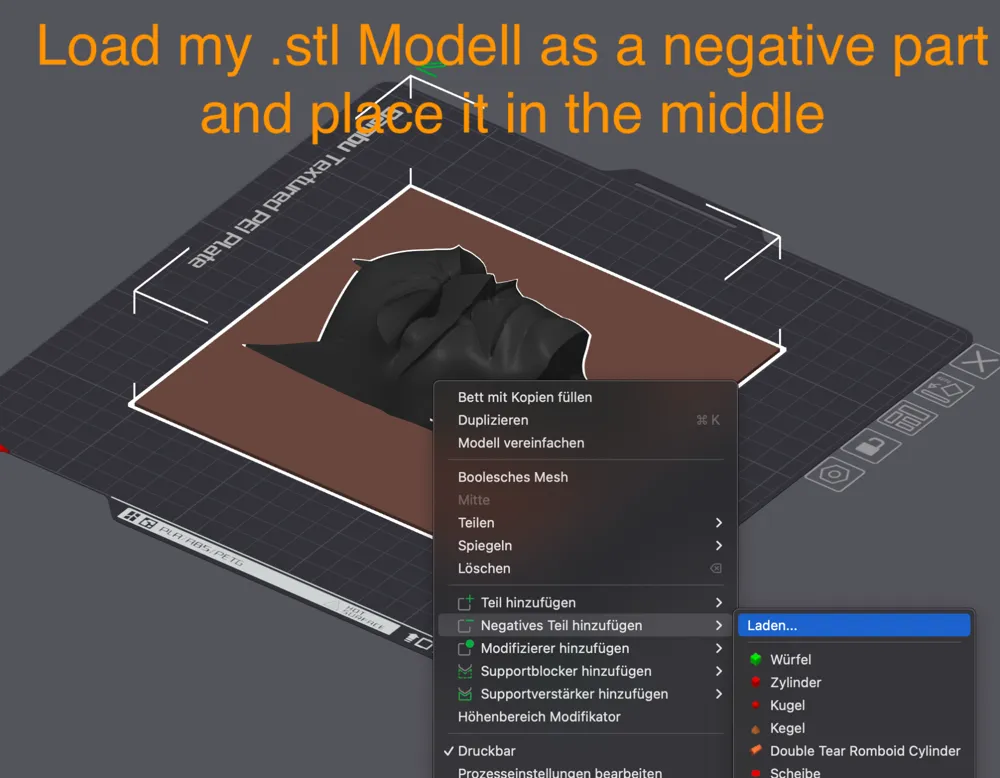
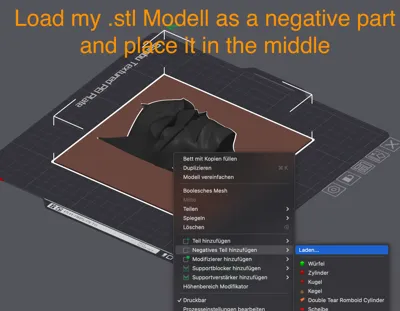
  6. Load my .stl Modell as a negative part and place it in the middle. If necessary rotate it 90°
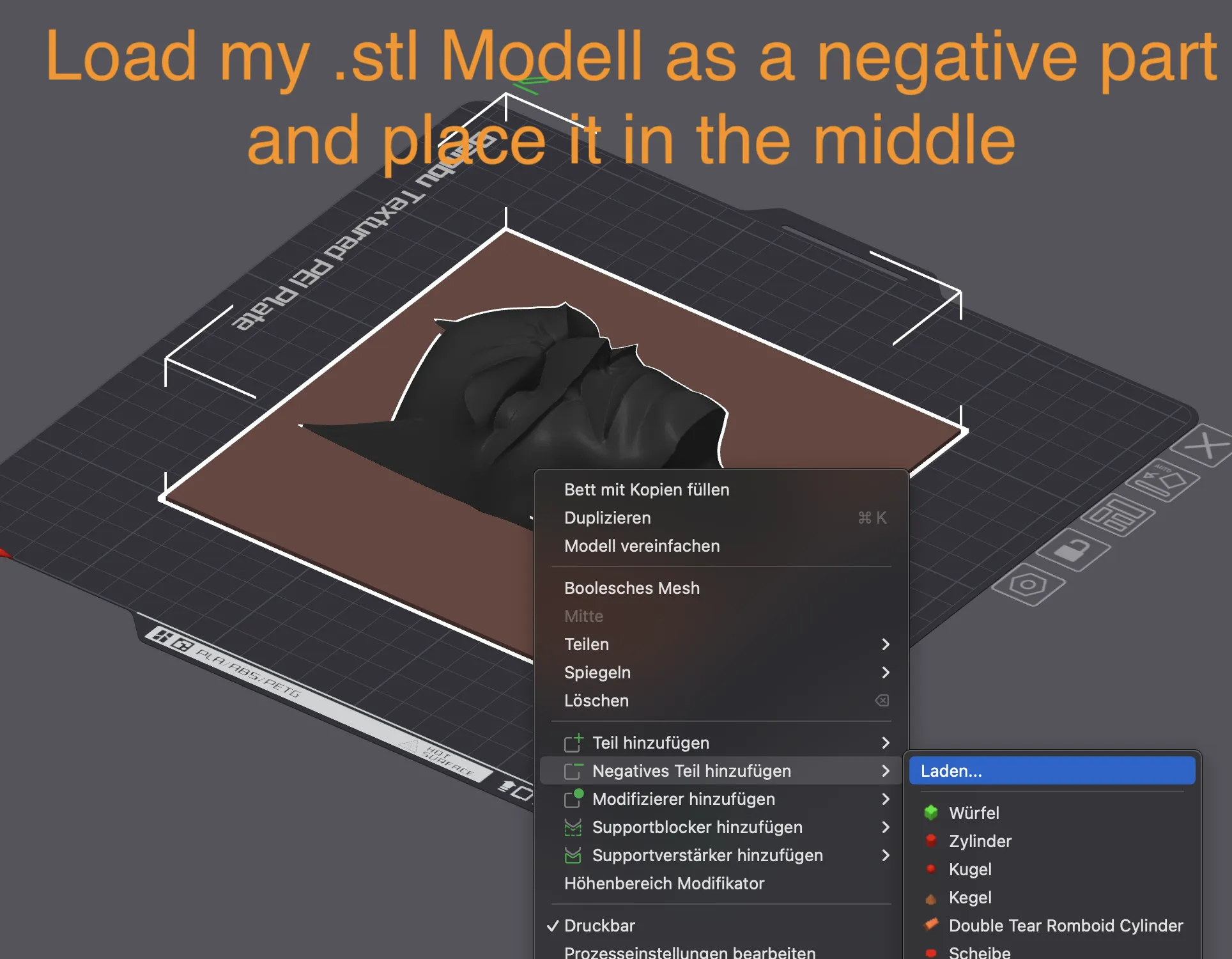
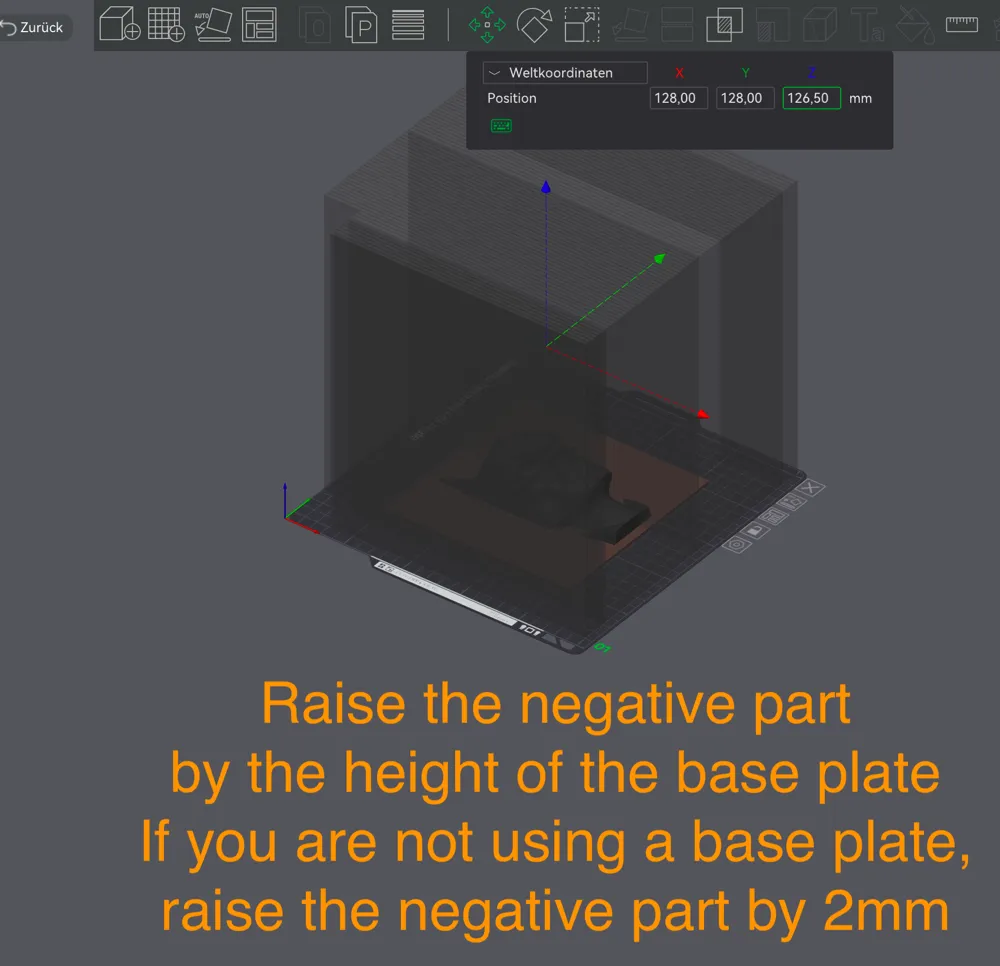
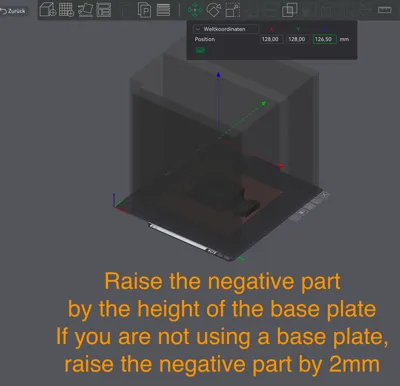
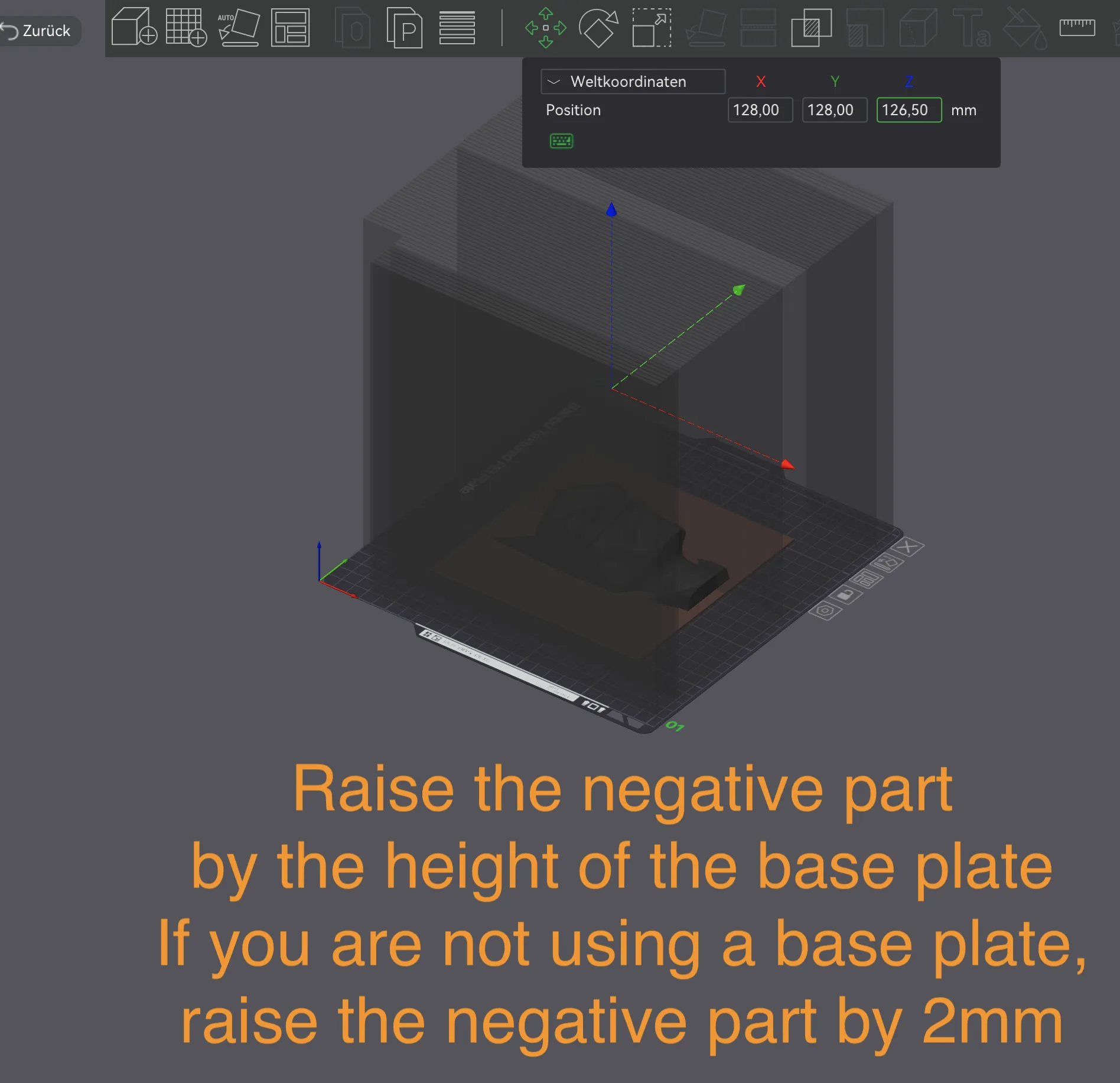
  7. Raise the negative part by the height of the base plate. If you are not using a base plate, raise the negative part by 2mm
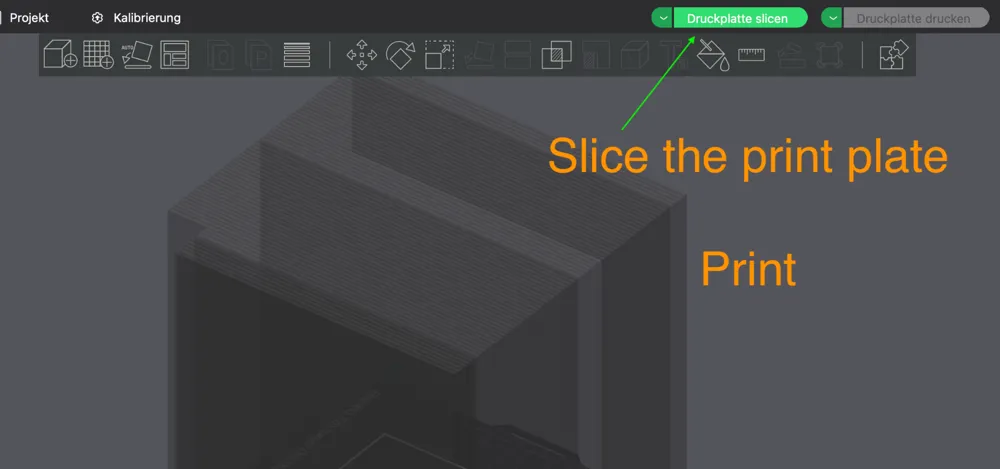
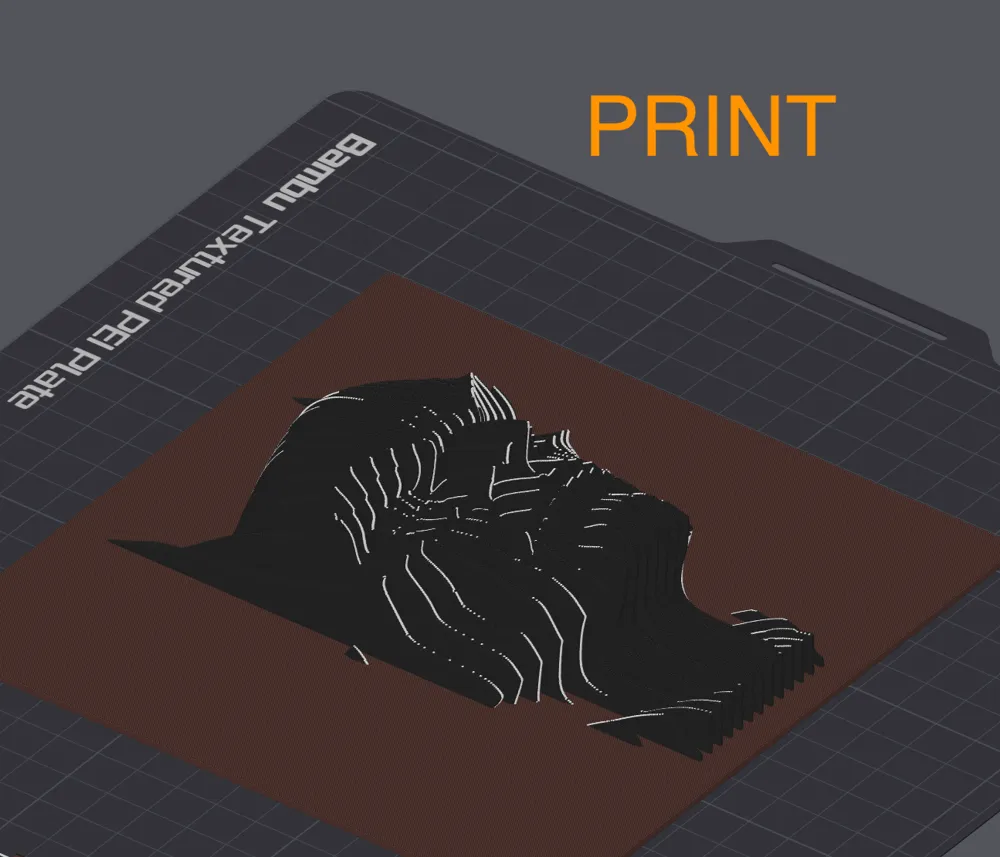
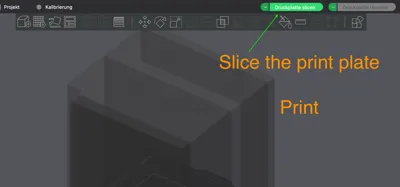
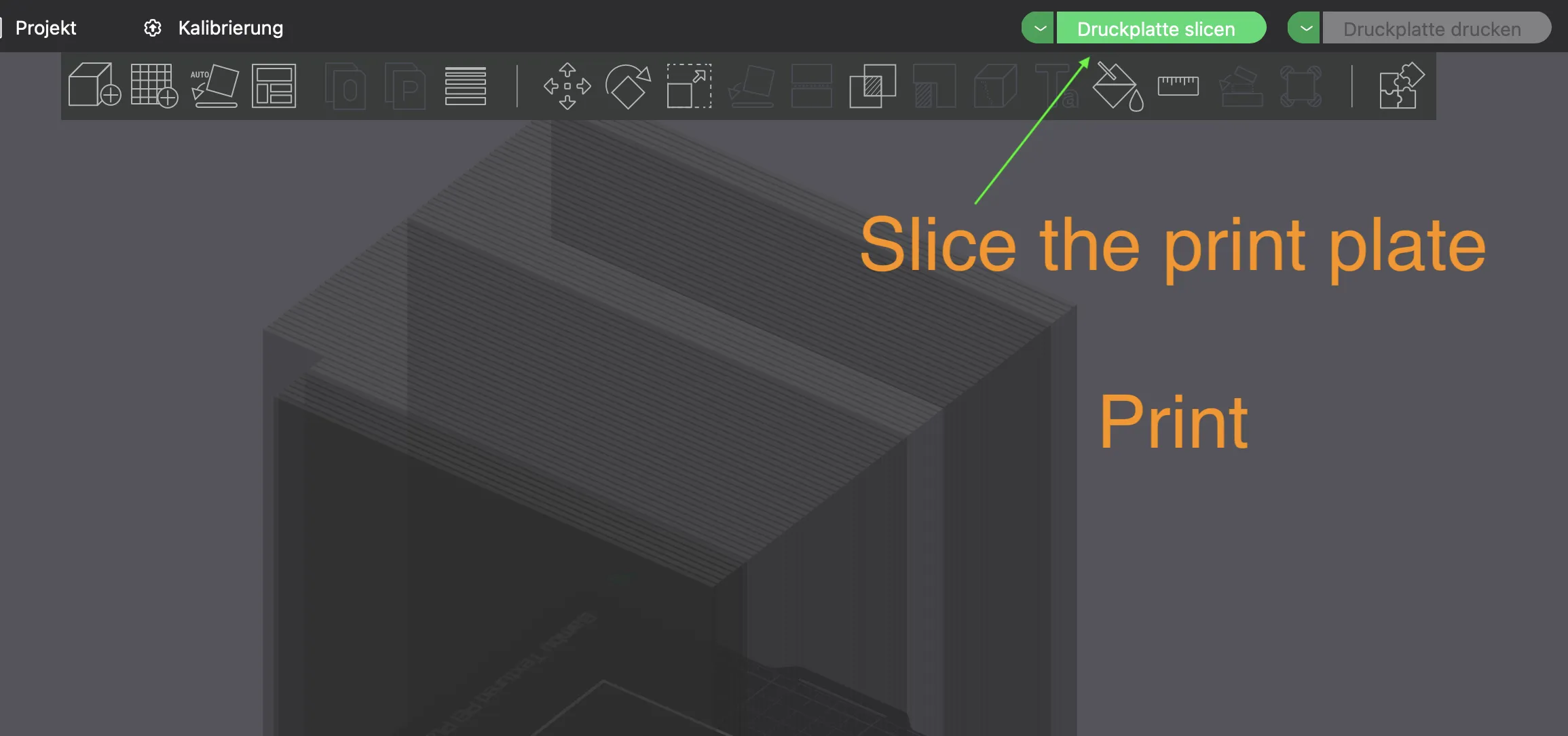
  8. Slice the print plate

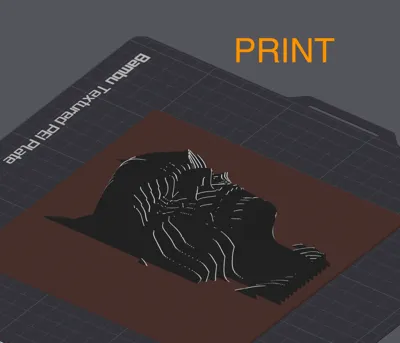
  9. Print it 

2of2: Workaround: If you download the R2D2.3mf File

Please don't use the batman or Mickey files. They are just for Advanced users. For more information see my comment 2025-03-04

  1. Download the R2D2.3mf file.
  2. Delete “model ( Change this )” and “geometry ( to Close holes )”
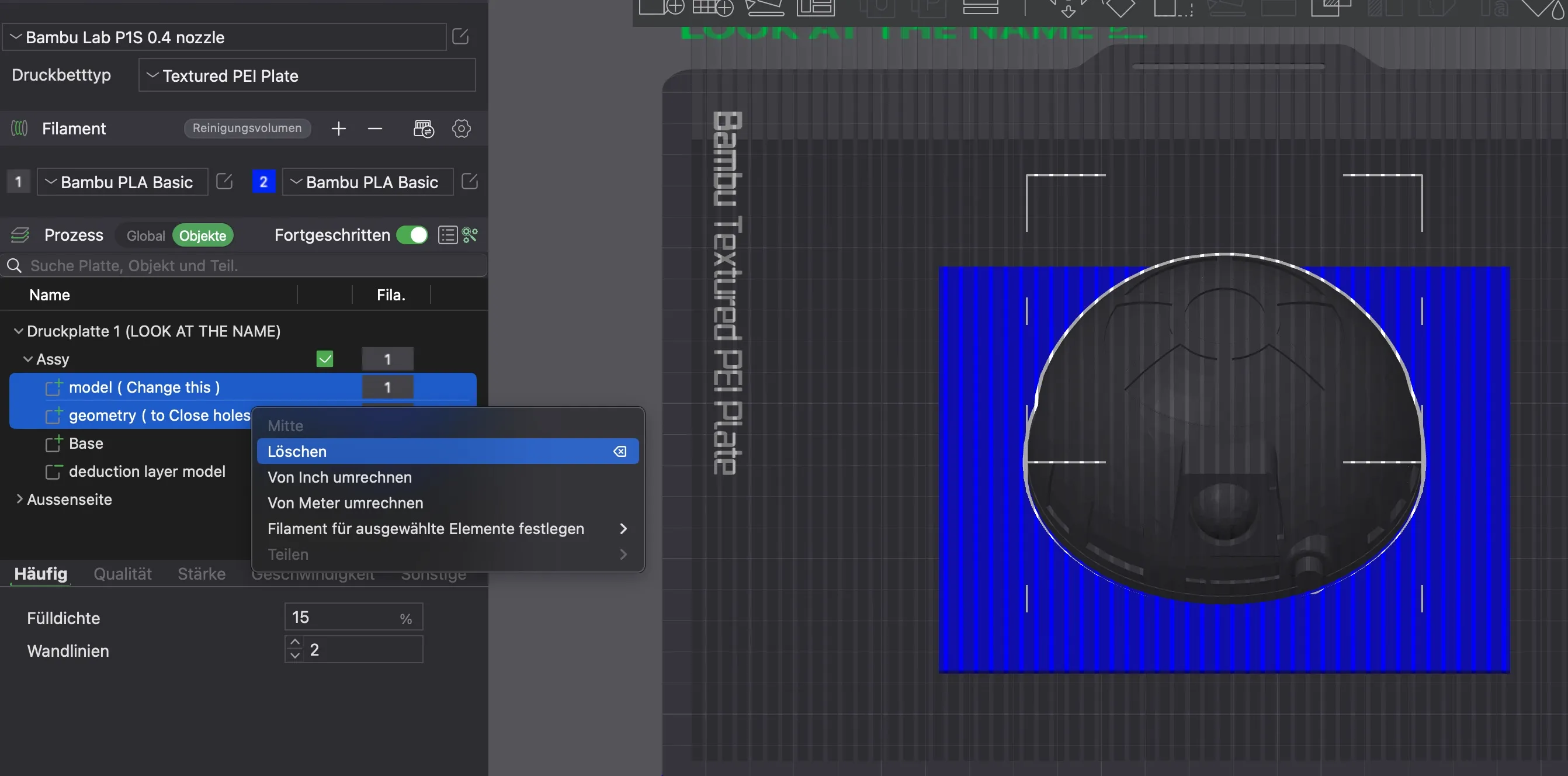
  3. Load your model as geometry

  4. Push the negative part to the side

  5. Scale your model if necessary and put it in the middle
  6. Merge it with the base. Otherwise delete the base
  7. Color base or model, if desired
  8. Pull the negative part back onto the plate and place it in the middle
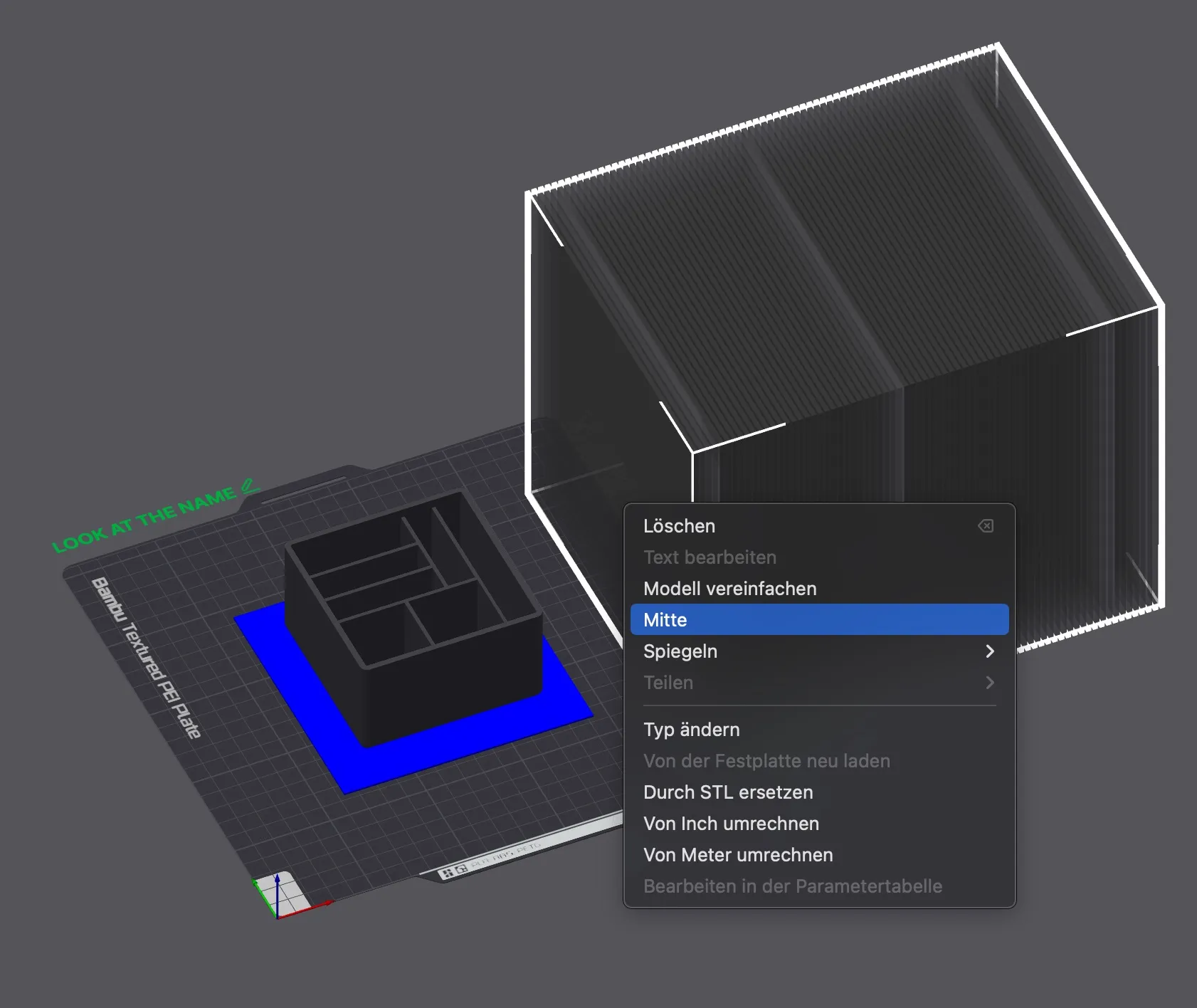
  9. Slice the print plate
  10. Print it 

Note: The negative part has a distance of 2 mm to the printing plate. If you want a thicker base than 2 mm, you have to lift the negative part accordingly


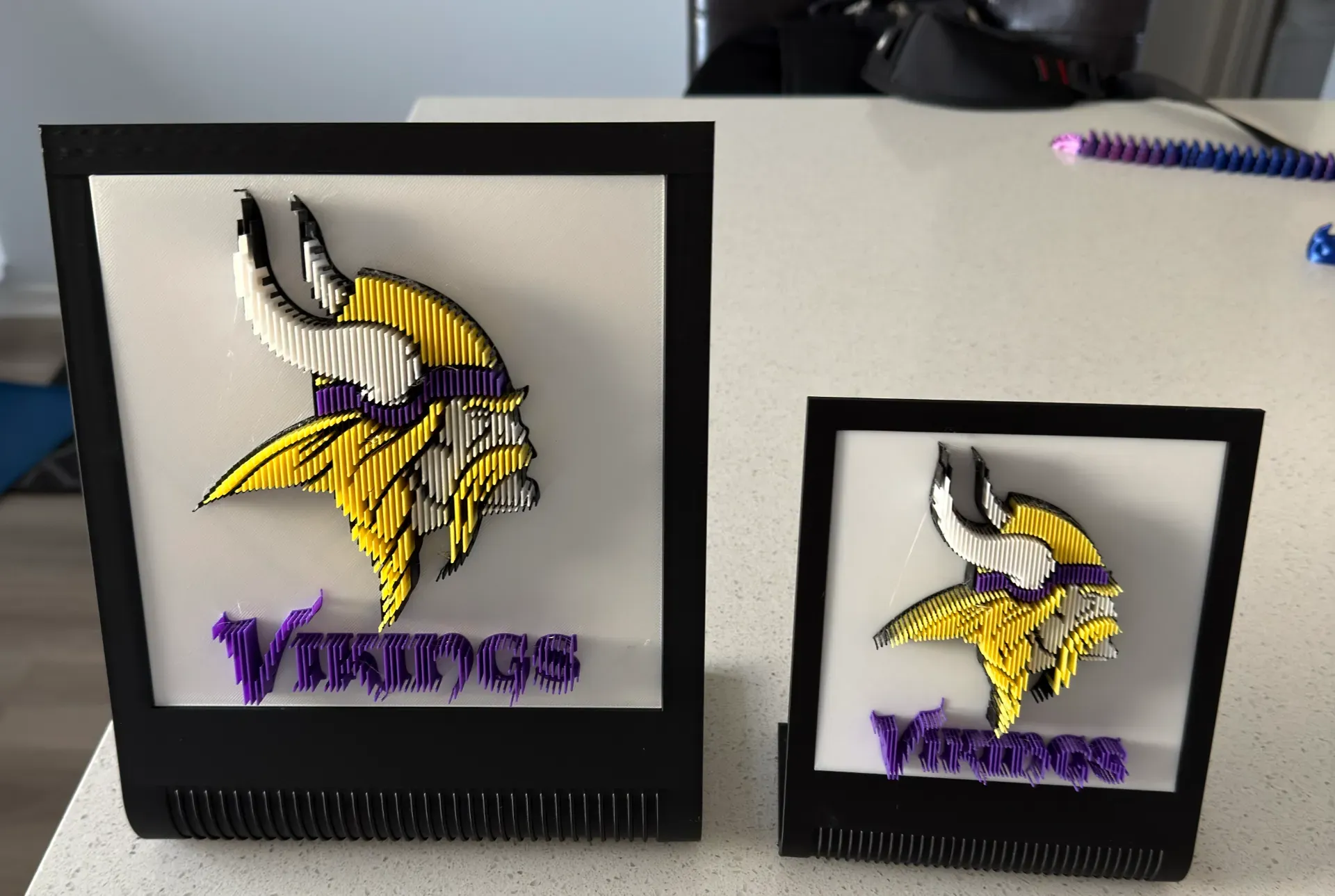
Now with Samples from YOU <3


  1. https://makerworld.com/de/@Imagin3DInnovat       Profil with a 175x175 Frame


Comment & Rating (91)

(0/1000)

APPRECIATE THAT ONE FOR SURE :) ENJOY THE 2 BOOSTS ON ME WE ALL OUT HERE TRYING TO EAT
(Edited)
The designer has replied
3
Reply
And I greatly appreciate your two boosts :) My first double boost
Show original
2
Reply
Replying to @MrM. :
I have only one question: where can one obtain such action figure images
Show original
0
Reply
Replying to @Stefan_83 :
Either here on Maker World or on Thingiverse
Show original
1
Reply
I get this error when I slice? Is this normal?
The designer has replied
0
Reply
"slice ok" stand ;)
0
Reply
but you can check before printing in bl studio
0
Reply
If you create a base by using a primitive, then to alter the size you're essentially scaling it. Then when you attach the 'negative part' to it, it goes crazy because it adopts the scaling of the part it's being attached to. For example, here's what I get if I create a simple base, scale it to 180x180x5, and then load your STL as a negative part (first picture). If I create the base in Fusion first and export it as a 3MF, and then load your STL as a negative part, it's not as bad but still not in the correct place (second picture).
(Edited)
The designer has replied
0
Reply
If the model is merged with the negative part, you need only select the model itself. Then the negative part will not be scaled. On macOS, the key is "option". I don't know the equivalent on Windows; you will have to experiment
Show original
0
Reply
The negative part should not be scaled, as otherwise the lamella thickness and the distance between the lamellae would also change
Show original
0
Reply
Not printed yet but the pure fact that this maker is not gatekeeping how to make these gets an instant boost! Cant wait to make some custom pieces!
designer
6
Reply
Boosted
Turned out pretty well, I would have liked it finer or cleaner, maybe a 0.2 nozzle or print slower, but otherwise great, thank you
(Edited)
Show original
0
Reply
Easy to use and nice. Thanks a lot
0
Reply
How were the uncut sections achieved? The negative parts are already processed, and it seems quite intricate
The designer has replied
Show original
0
Reply
These are only slender cubes, spaced apart at the finished lamella distance. It may look complex because Bambu Studio does not display it elegantly. You can try defining my subtraction model as a "part" and then subtracting it from your model. Then you would also be able to see the finished part. Unfortunately, Bambu Studio often does not do this correctly. However, it always works with the negative part, even if it is not displayed. In your heart model, you have already worked with the negative part anyway :)
(Edited)
Show original
1
Reply
Replying to @MrM. :
All right, I will investigate further, thank you for your response~
Show original
0
Reply
Replying to @MrM. :
Was the negative part for the second Mickey Mouse achieved by subtraction in Bambu Studio? I've tried numerous times without success
Show original
0
Reply
please can you make a video by any chance?
The designer has replied
0
Reply
I gave you the fishing rod - please fish yourself.
6
Reply
Replying to @MrM. :
I'm stuck on step 8 can't seem to figure it out 😭
0
Reply
Replying to @user_1368183205 :
Can you please make a picture and post it. Do you define "my" Part as a " negative Part?
0
Reply
where I could get such a beautiful stand for all those sculptures? I really love it 🤩
The designer has replied
0
Reply
Hi . You mean this one?
1
Reply
Replying to @MrM. :
Yes, exactly! Did I just overlooked it in your profile?
0
Reply
Found it! Im blind, sorry 🙃 thanks a lot
0
Reply
awesome tool, thank you
designer
3
Reply

License

This user content is licensed under a Standard Digital File License.

You shall not share, sub-license, sell, rent, host, transfer, or distribute in any way the digital or 3D printed versions of this object, nor any other derivative work of this object in its digital or physical format (including - but not limited to - remixes of this object, and hosting on other digital platforms). The objects may not be used without permission in any way whatsoever in which you charge money, or collect fees.